ID
ID  EN
EN  ES
ES  DE
DE  PT
PT  IT
IT  JA
JA How to Create a Request a Callback Form in WordPress
When we talk about a callback form, we’re talking about convenience. How? Suppose your website has several product pages, feature pages, documentation, and blog pages. Or your customers might need to discuss any project requirement; it can be anything urgent. But do you think customers have the patience and time to sit and find the right page or the contact us form?
Mostly, no. In fact, some customers would rather have you call them than spend hours looking for your phone number or waiting for a response. So your website should make that option easy.
In that case, a request a callback form in WordPress allows visitors to leave their contact details and preferred time for a call. You can easily build one without coding using a form plugin and make it available on your contact or service page.
Singkatnya
You can create a callback request form in WordPress using Bit Form with the easy drag-and-drop builder.
- Create a form in Bit Form and add fields for name, phone number, email, and preferred callback time.
- Configure email notifications so your team receives each callback request. Set up SMTP to support email delivery.
- Add a confirmation message to let visitors know their request was received.
- Publish the form on your Contact page, Services page, or a dedicated callback page.
- Test the full process to make sure submissions are recorded, and notifications arrive correctly.
Remember that a callback form collects requests rather than automatically booking calls. Your team still needs to follow up and confirm availability.
What Is a Request a Callback Form?
A request a callback form lets visitors ask your business to contact them by phone. Instead of calling you directly, they fill out a short form with their contact details and preferred time to talk.
Now, why do they like this option so much?
Because they don’t want international call charges, they don’t to wait for responses, they want instant help, or maybe they can’t find the contact info. It can be any case.
So, when visitors give their phone number and preferred time for a call, the support team can quickly get back to them during that time.
Here’s how the process works.
- The visitor submits a request. They enter their contact details and choose a preferred callback time.
- Your team receives the details. An email notification alerts the person responsible for handling the request.
- You follow up with the visitor. Your team calls them at the requested time, subject to availability.
Tip: A callback form is most helpful on service pages, contact pages, or landing pages where visitors may have questions before making a decision.
What Should a Callback Request Form Include?
A callback form should only collect information that’ll help the team to call the user instantly and solve their problem.
For most businesses, these fields are commonly used in a request a callback form.
| Form field | Why you need it |
| Nama | Identity is required so your team knows who they’re speaking with. |
| Nomor telepon | Mandatory field to return the call. |
| Alamat email | To send a confirmation or follow-up message if needed. |
| Preferred callback time | To understand when the visitor would like you to call. |
| Reason for the call | To help your team prepare before contacting the visitor. Keep this optional. |
You don’t need every field for every business. If you only need to return a call, a name and phone number may be enough. Add the preferred time and reason for the call when they help your team respond more effectively.
How to Create a Request a Callback Form in WordPress
You can build a callback form with Bit Form without writing code. The process involves creating a form, adding the right fields, setting up notifications, and publishing it on your website.
Step 01. Install and Activate Bit Form
First, install and activate Bit Form on your WordPress website.
From your WordPress dashboard, go to Plugins → Add New Plugin, search for Bit Form, and click Install Now. Once the installation finishes, click Activate. If you still have problems getting started and if you’re new to WordPress, don’t worry, we’ve got you.
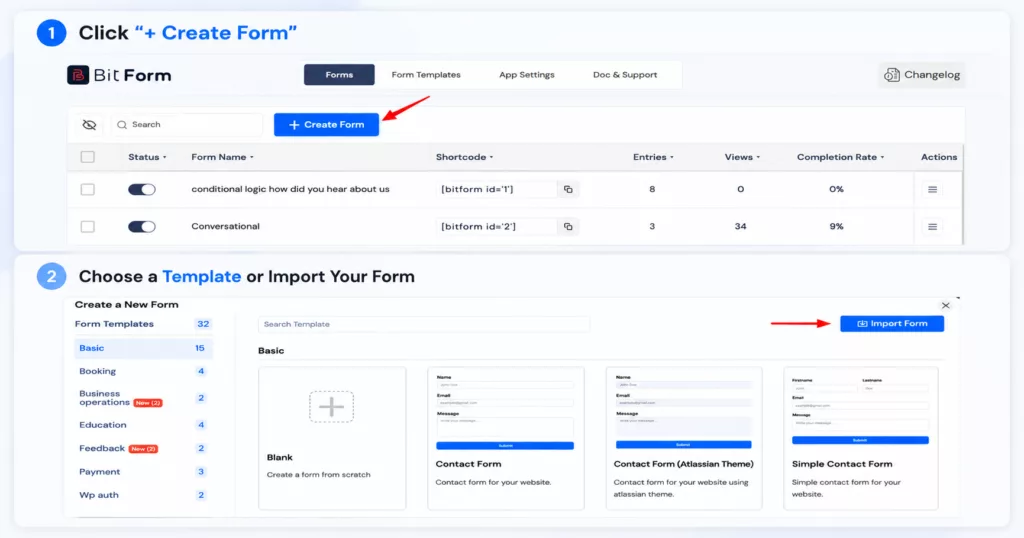
Step 02. Create a New Callback Form
After activating Bit Form, open it from your WordPress dashboard and start creating a new form. Either select a template with the fields you want or create one from scratch, as shown below.
Select a blank form and name it, such as Request a Callback Form. Now add fields to the form. This gives you control over what visitors see and what information your team receives.
Try to ask relevant questions that will make the process faster.
Like we’ve discussed above, here are the fields commonly used. So, let’s follow that:
Drag-and-drop name, email, phone number, and date and time fields from the menu on the left side. Here, I’ve kept an additional field to know the reason for the call request.
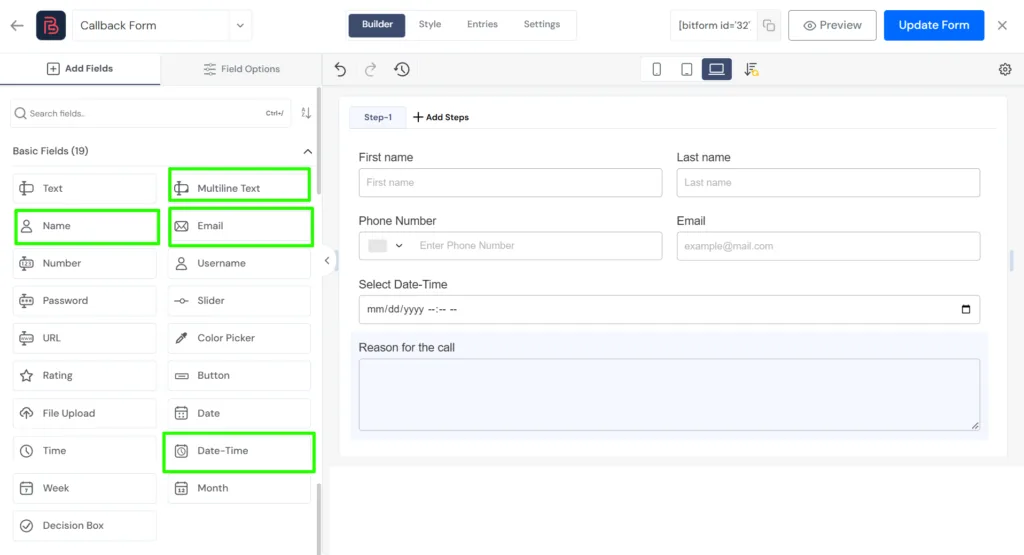
Here’s one way to arrange them.
- Nama. Make this field diperlukan so your team knows who to ask for.
- Nomor Telepon. Make this diperlukan because it’s the main way you’ll return the call.
- Sure, I can help you. I will translate the text you provide to Indonesian. Please provide the text you would like me to translate.. Keep this optional if you only need a phone number to follow up.
- Preferred callback time. Use Bit Form’s date and time field, or you can use a dropdown or radio buttons with options such as Morning, Afternoon, and Evening.
- Reason for the call. Add an optional message field so visitors can explain what they need help with.
Click each field to configure its label, placeholder, and required status where available. For the preferred callback time, use options that match your business hours.
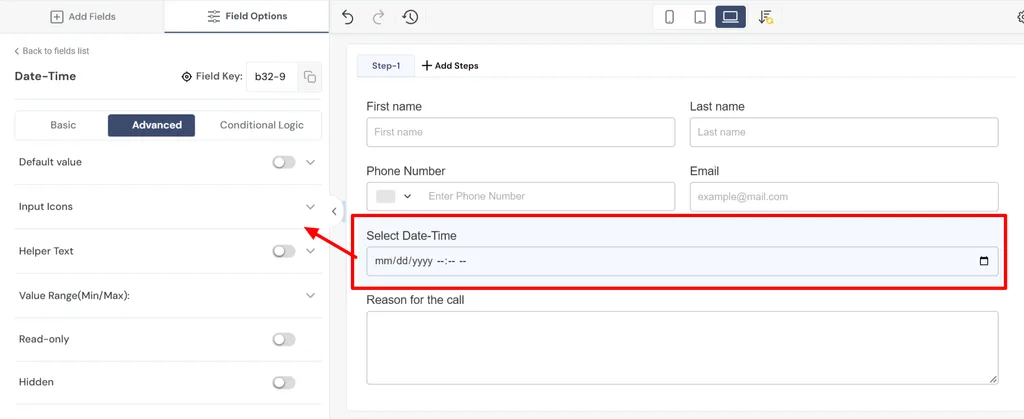
For example, click the Phone Number field to customize its settings. Bit Form offers several options that can make it easier for visitors to enter their contact details.
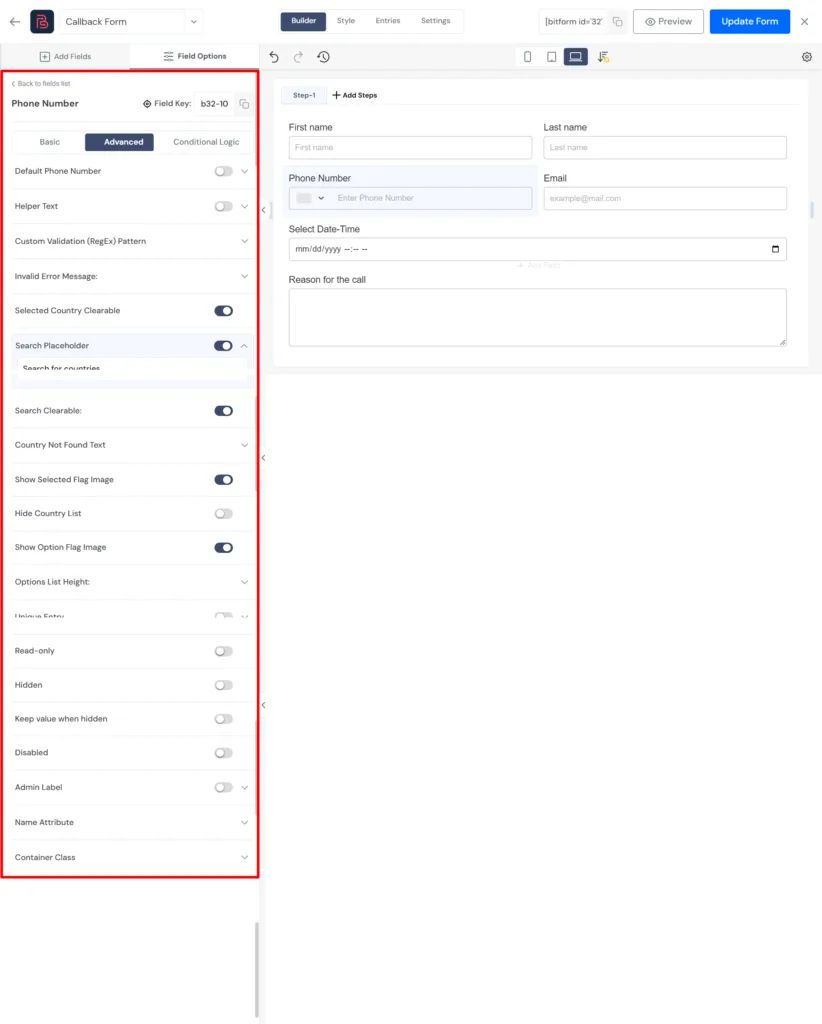
- Country selection. Let visitors select their country and view the corresponding flag and dialing code.
- Helper Text. Add a short instruction, such as “Enter a phone number where we can reach you.”
- Search Placeholder. Customize the text shown when visitors search for their country.
- Custom Validation and Error Messages. Configure validation rules and helpful error messages to guide visitors when their input does not meet the rules.
When you’re adding a phone number field, these things are crucial for a smoother user experience.
If you serve customers in different time zones, ask them to specify their time zone or make your business’s time zone clear in the form description.
Additional Settings you can do
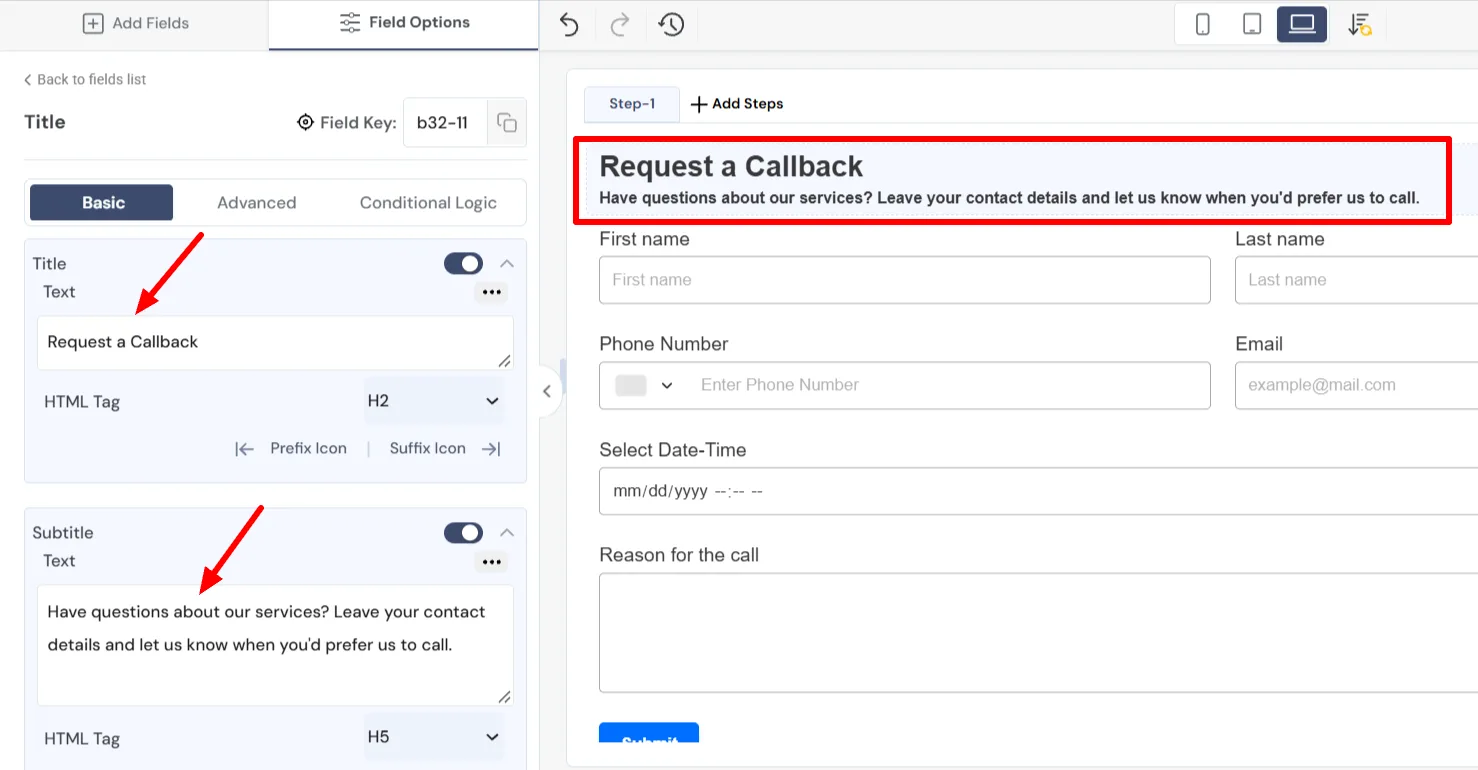
Add a title to the form; this gives users a clear indication that they are in the right place.
Set Up Email Notifications for Callback Requests
Once someone submits your callback form, you need a reliable way to know about it. Email notifications can send the request details to the person responsible for returning the call, so submissions don’t get overlooked.
In Bit Form, open your form’s email notification settings and configure an email for your team.
Here’s what to include in the notification.
- Recipient: Enter the email address of the team member who handles callback requests.
- Subject line: Use something easy to recognize, such as “Callback Request from (User name).”
- Email body: Include the visitor’s name, phone number, preferred callback time, and reason for the call.
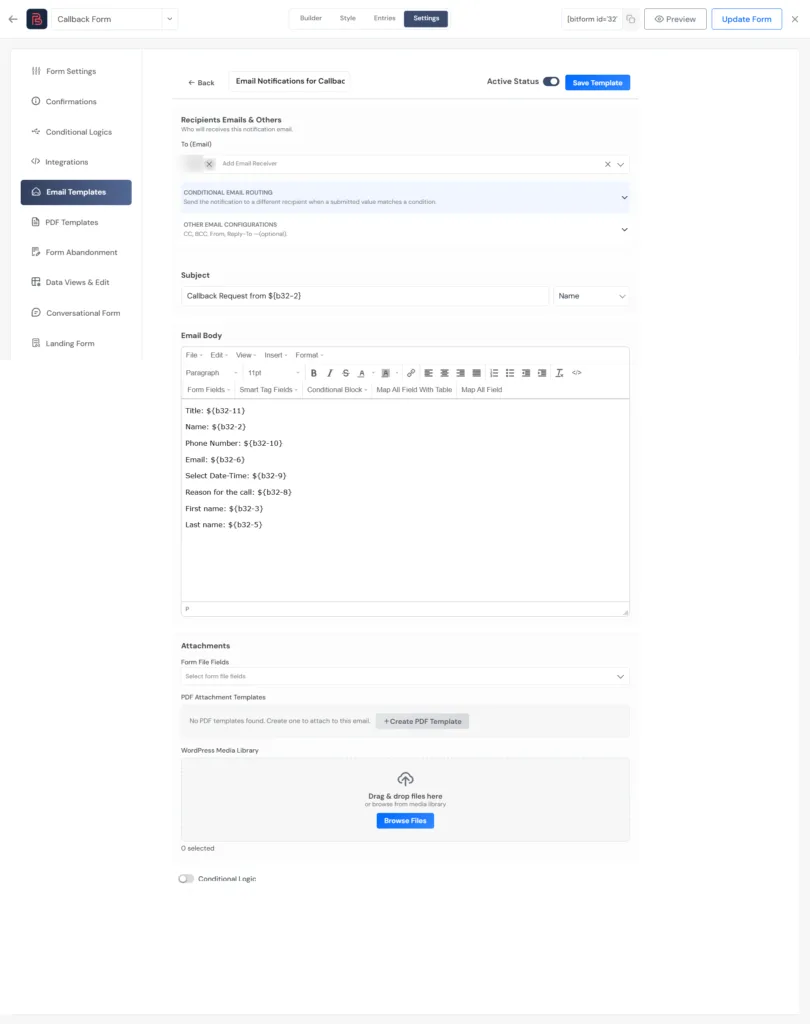
Make sure the email contains the submitted form details, not just a generic message saying that someone filled out the form. That way, your team can review the request without needing to search for the information.
You can also set up a separate confirmation email for the visitor if your workflow supports it. Keep the message simple and explain what happens next. For more detailed instructions, see our guide on setting up email notifications for WordPress forms.
Tambahkan Pesan Konfirmasi
After submitting a callback request, visitors should know that their form went through. Without clear feedback, they may wonder whether the request was received or not.
In Bit Form, you can customize the success message shown after a successful submission. Open your form’s confirmation settings, edit the success message, and save your changes. You can also customize how the message appears on the page.
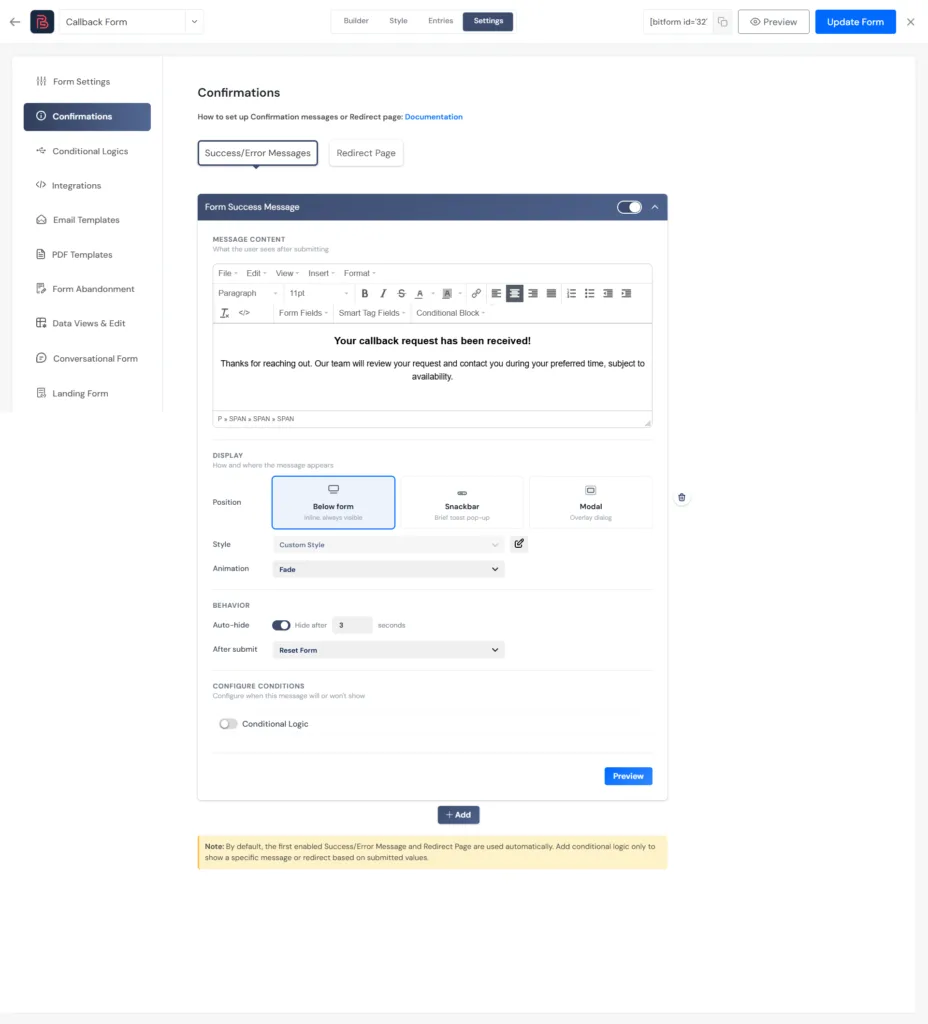
Adjust the wording to match your actual callback process. If your team cannot guarantee a specific time, don’t promise that the call will arrive at an exact hour.
You can also redirect visitors to a dedicated thank-you page after submission.
Once the fields and everything else are ready, review the form from a visitor’s perspective. Keep the instructions clear and remove anything that doesn’t help your team handle the request. It should be clean like this:
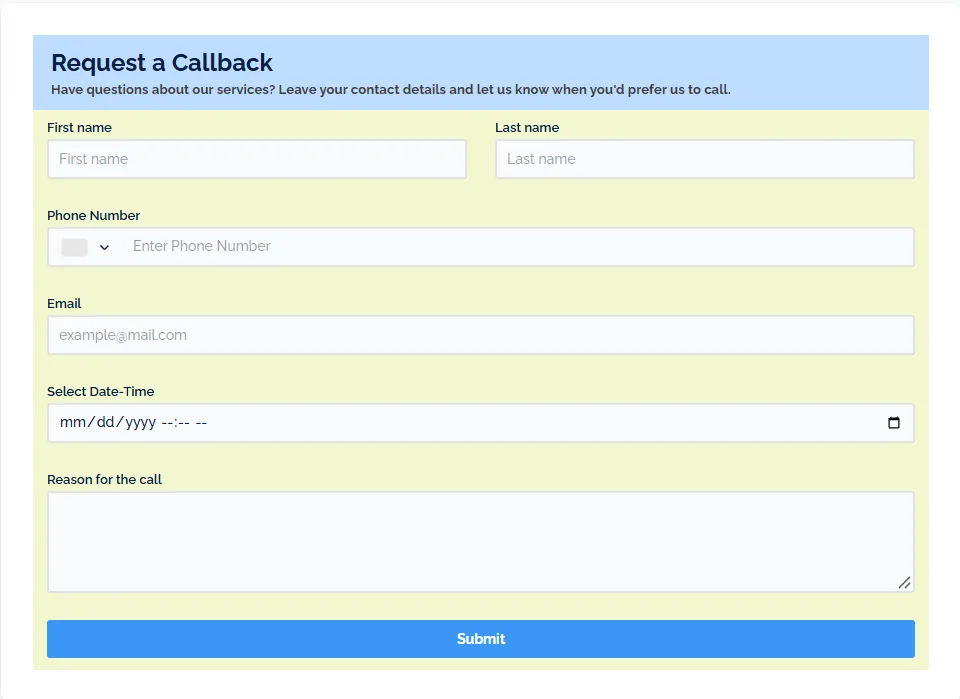
Before publishing the form, take a few minutes to test the full process. Like whether the team is receiving requests or not, and whether users are getting confirmation or not.
Add the Callback Form to Your WordPress Page
Your callback form is ready. Now you need to make it accessible to visitors.
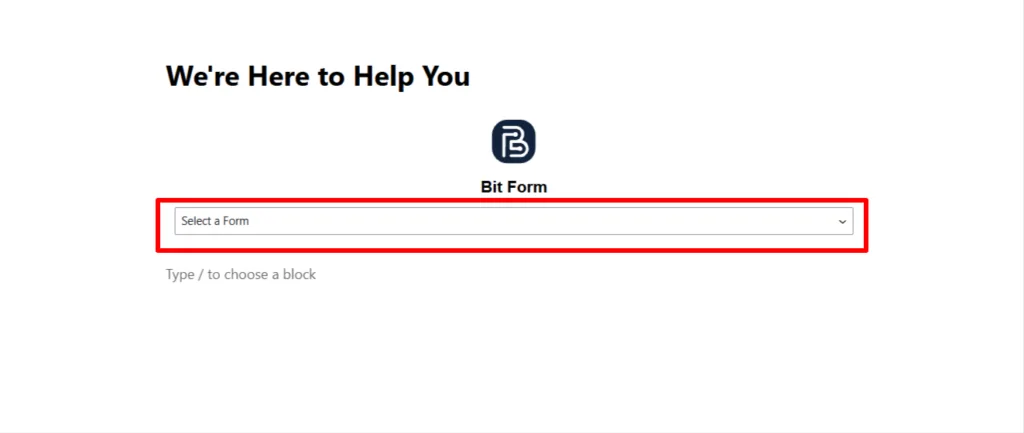
Bit Form gives you two straightforward ways to add a form to a WordPress page. You can use its dedicated Gutenberg block or copy the form’s shortcode and insert it into a shortcode block.
Using the Bit Form block
- Open the WordPress page where you want the callback form to appear, or create a new page.
- Click the + button to add a block.
- Search for Bit Form and select the block.
- Choose the callback form you created.
- Preview the page, then publish or update it.
Using a shortcode
- Open your form list in Bit Form and copy the shortcode for your callback form.
- Edit the WordPress page where you want to display it.
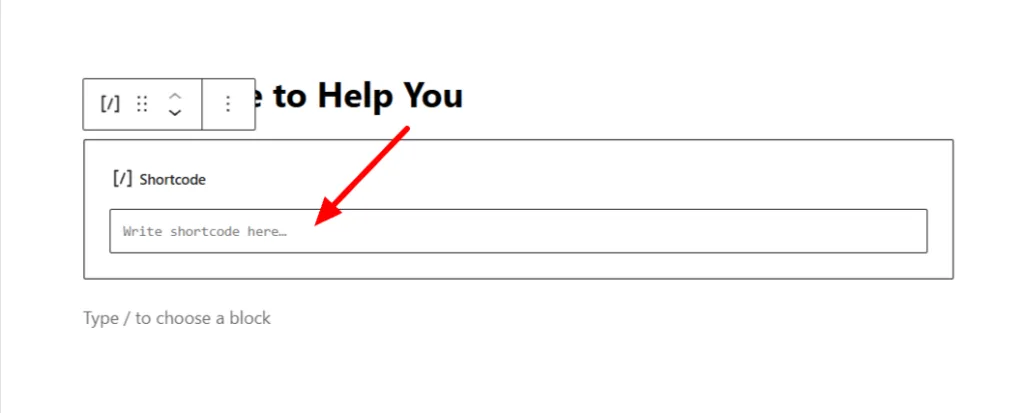
- Add a Shortcode block and paste the shortcode.
- Preview the page and publish your changes.
Before you finish, view the published page on both desktop and mobile. Make sure the form is easy to find, the labels are readable, and the submit button is clear.
Tips for Managing Callback Requests
Once visitors start submitting callback requests, make sure someone on your team follows up with each person. Assign requests to a team member and keep track of which calls are still pending.
Here are a few practical ways to manage requests without making the workflow complicated.
- Set a clear response time. Tell visitors when they can generally expect a call, and avoid promising a time your team cannot guarantee.
- Assign someone to handle requests. Make sure every submission has a responsible team member.
- Prioritize urgent inquiries. If some requests need faster attention, add an optional field that lets visitors explain their needs.
- Track completed callbacks. Use a simple tracking system to distinguish new requests from calls that are pending or completed.
- Collect only necessary information. Keep personal details limited to what your team needs to return the call.
If your callback volume grows, consider connecting your form to a supported CRM or automation service. This can help organize incoming requests and reduce manual data entry, depending on the integration you configure.
Remember that a callback form collects requests. Unless you connect it to a scheduling system that confirms availability, your team still needs to arrange the actual call.
Ready to Let Visitors Request a Callback?
Some visitors are interested in your services but aren’t ready to call. A callback form gives them an easier way to get in touch, using a phone number and a time that works for them.
With the right fields, clear confirmation messages, and working email notifications, you can collect requests and follow up more consistently.
Ready to build yours? Use Bit Form to create your callback form in WordPress without writing code, customize the fields, and notify your team when someone submits a request.
Tanya Jawab
How do I add a callback form to WordPress?
Install a WordPress form builder such as Bit Form, create a form with contact details and a preferred callback time, configure email notifications, and embed it on your website using the available block or shortcode.
Can visitors choose their preferred callback time?
Yes. You can add a dropdown/radio button field with options such as Morning, Afternoon, and Evening. If you want visitors to choose a specific date and time, use suitable date and time fields. These choices do not automatically reserve a slot unless you connect a scheduling system.
Can WordPress send an email when someone requests a callback?
Yes. Configure your form’s email notifications to send the submitted details to your team. You can also set up a separate confirmation email for the visitor, provided your notification configuration supports it.
Is a callback request form the same as an appointment booking form?
No. A callback form collects contact details and a preferred time for a phone call. An appointment booking form typically needs additional scheduling features to check availability and confirm a time slot.


Blog Terkait

13 Reasons to Switch From Contact Form 7 to Bit Form
How to Create an Employee Onboarding Form in WordPress