Rysz
Community Developer
-
Joined
-
Thank you for continuing the work, it's much appreciated. Let me know if and when you put the plugin on Community Applications. When it's up in CA, I will deprecate this plugin in favor of your forked version.
-
No, it offers the exact same versions for all versions of Unraid. Don't worry about the installation screen unless you have a problem.
-
While there's no official confirmation on this, NUT (the package, not this plugin) may be integrated into the base OS. I'm suspecting the majority of plugins will require a complete rewrite to be compatible or even exist for Fedora. So this is likely not limited to my plugins, maintenance mode or not, and I suspect new plugins will have to emerge. In any case, to answer your question, I think NUT will be part of the core OS to replace apcupsd which has been stale for years.
-
It should've said on the screen: echo "-------------------------------------------------------------" echo " !!! INSTALLING, THIS MAY TAKE A WHILE..." echo " !!! IT IS NORMAL THAT SOME PACKAGES ARE SKIPPED" echo " !!! KEEP THIS WINDOW OPEN UNTIL COMPLETION IS REPORTED" echo "-------------------------------------------------------------" So this is a normal part of the installation as @Kilrah pointed out.
-
There were no functional changes to the plugin, in fact no code file was touched - so it's a connection issue more likely than not. https://github.com/desertwitch/NUT-unRAID/commit/ff3353f14c1d046f1eb2451c31ba9df723559a47 With the plugin now in maintenance mode I will not be fixing this minor annoyance, but thanks for the heads up nevertheless.
-
Please raise the UPS Debug Level (not the monitor level) to 6 and restart the UPS with that to see the error. Then upload the NUT Debug Package (found in NUT Settings) here.
-
It's included in the OS now.
-
If it's after an update, it's usually kernel (USB driver) related, check this post for information: https://forums.unraid.net/topic/60217-plugin-nut-v2-network-ups-tools/?do=findComment&comment=1350269
-
Fair, for a new system you're probably better off doing that as it can test all memory as opposed to the plugin.
-
Please post a screenshot of the page where you're getting the error and include how much RAM you have installed.
-
It's normal it says some packages were not found during the uninstall process. If you're unsure you can reboot the server to ensure any leftover files are gone (but there shouldn't be any).
-
The UPS does know, it's just that this specific UPS series may report it differently than (most) others so the driver doesn't know what to do. 😉 In any case, if you don't have a power outage at that time - it's calibrating, if you do - it's on battery, and either of the flags tell the driver what's what.
-
NUT will shutdown your containers and VMs as part of the regular shutdown. It will not do that just because the system is on battery (prior to initiating shutdown). If you want to do that you'd have to use the scripting hooks (in GUI configuration editor) or NUT Actions. It's not supported in the GUI, but can be done in manual configuration mode. It's been on the roadmap for a long while, but it's a large effort and not many are asking for it. OL+DISCHRG usually means on battery or calibrating, some UPS like to expose it like that. The flags allow NUT to show the UPS as OB (on battery) or CAL (calibrating) instead when in this state. It ultimately depends on what your UPS is really doing when it's in this state, then you decide on which flag to use.
-
Just click on the "Preclear" button as you normally would, and choose "Verify Signature" instead.
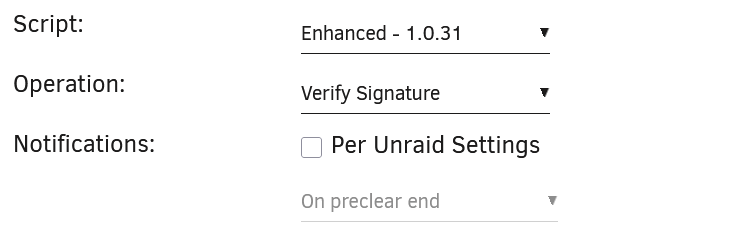
-
It's under "Array-specific Settings" - "SnapRAID Maintenance - Schedule".