Showing posts with label Python. Show all posts

Sunday, 17 June 2018

Pi Camera stop motion animation

In preparation for a Raspberry Pi event I decided to create a simple GUI for creating stop motion animations using the Pi camera module to use for a demo.

Image

Its a really simple application, you start it up, you click "take image", you re-position the scene, you click "take image" and so on until you are happy with your animation and you click "save" to store it as an animated gif.

Image

Image

You can find the source code at goo.gl/4Xvu7b.

Install
1. Connect a camera module
2. Enable the camera (Menu > Preferences > Raspberry Pi Configuration, Interfaces, Camera)
3. Open a terminal (Menu > Accessories > Terminal), install the modules and download the code:
sudo pip3 install guizero
sudo pip3 install imageio
wget -O guizero_stopmotion.py https://goo.gl/zMTjas
4. Run the program:
python3 guizero_stopmotion.py

A couple of "interesting" things about this project

The gui was created using guizero which is a super simple to use library for creating GUI's, definitely have a look.

Most of the work was finding a way to create animated gifs in Python and working with images in memory rather than stored on disk

When the image is captured from the camera it isn't stored to a file, it is stored in a numpy array, this means each frame is only stored in memory making it faster:
# create the camera
camera = PiCamera(resolution="640x480")
camera_output = PiRGBArray(camera)
...
# capture the image
camera.capture(camera_output, "rgb")
# append the camera image to the list as a numpy array
animation.images.append(camera_output.array)
The python module imageio is used to create the gif by passing the frames as a list, but again rather than being written to disk each time it is created as an in memory BytesIO stream:
gif_output = BytesIO()
imageio.mimsave(gif_output, animation.images, format="gif")
When the animated gif is displayed in guizero the BytesIO stream has to be open into a PIL Image.
animation.image = Image.open(gif_output)


Saturday, 9 June 2018

Get the weather using Python

I recently spent a hour or so hacking a lucky cat so that it would only wave when it was sunny.
It did this by pulling the weather data from Open Weather Map using the Python module pyowm.

1. Sign up for a free API key in Open Weather Map.

2. Install the pyown Python module, open a Terminal or Command Prompt and run:

Windows
pip install pyown

Raspberry Pi / Linux
sudo pip3 install pyown

MacOS
pip3 install pyown

3. Create a Python program using the following code, inserting your API key:
import pyowm

owm = pyowm.OWM('put api key here')

observation = owm.weather_at_place('Cambridge,GB')
w = observation.get_weather()

clouds = w.get_clouds()
wind = w.get_wind()
humidity = w.get_humidity()
temp = w.get_temperature('celsius')

print("{}, {}, {}, {}".format(clouds, wind, humidity, temp)

Note - it can take up to 60 minutes for your API key to be activated.

There is a lot more information which can be pulled back - have a look at the weather module documentation for more details.


Sunday, 4 March 2018

Python - Creating shortcuts

I was recently working on the mu project (a Python IDE for beginners), which is super easy to install using pip, but there is no way to automate the creation of desktop and menu shortcuts.

This seemed like a really big miss, shortcuts are the usual way for people (and certainly beginners to launch applications).

So I set to creating a really simple way of creating shortcuts for Python applications.

Enter shortcut, a X platform (Windows, MacOS, Linux, Raspberry Pi) Python module for automatically creating shortcuts.

Its really simple to install and use:
pip3 install shortcut
shortcut name_of_app
It will find the location of the app and create desktop and menu shortcuts for it.

There is also a Python API which can be used to do the same:
from shortcut import ShortCutter
s = ShortCutter()
s.create_desktop_shortcut("python")
s.create_menu_shortcut("python")
You will find documentation at shortcut.readthedocs.io and code at github.com/martinohanlon/shortcut.

Wednesday, 15 November 2017

Slack command line stream

I thought a Slack console might be useful, a very simple client I could display on an always on screen, so I did some experimenting with the Slack Developer Kit for Python and made a super simple command line program which streams messages.

It is most definitely a starting point rather than a finished solution, but someone might find it useful.

Image

Setup (assuming you are using a Raspberry Pi / Linux computer, although it will work on Windows as well).

1. Generate a security token for the slack group you want to stream.

2. Create an environment variable SLACK_API_TOKEN and put your security token in it.

Edit /etc/profile adding the export to the bottom:
sudo nano /etc/profile
export SLACK_API_TOKEN=[my super long token]
3. Install slackclient and colorama using pip:
sudo pip3 install colorama
sudo pip3 install slackclient
4. Download the slack_stream.py from gist:
wget https://gist.githubusercontent.com/martinohanlon/477b6ea4c3bdc679ddff92dfc3bff4a7/raw/8ec39d08a9501b25d381ac3b008e9cf7be92377a/slack_streamer.py
5. Run it:
python3 slack_streamer.py

Friday, 7 July 2017

Python Bluetooth RFCOMM Client Server

As part of the Blue Dot project I needed to create a simple Bluetooth client / server library so that the communication could be managed. This library, btcomm, is part of bluedot but its not exclusive and can be used for Bluetooth communication in Python.

It uses a 2 way RFCOMM communication - you can send messages to and from 2 devices, 1 being the server which waits for connections, 1 being the client which makes a connection.

Install the library
sudo apt-get install python3-dbus
sudo pip3 install bluedot

Pairing

The 2 devices you which want to communicate between will need to be paired, the Blue Dot documentation describes how to pair 2 raspberry pi's which might be useful.

Simple Client / Server Example
Lets create a simple example, a server which waits for connections and when it receives data it echo's it back to the client.

Create a new Python program and save it as btserver.py:

from bluedot.btcomm import BluetoothServer
from signal import pause

def data_received(data):
    print(data)
    s.send(data)

s = BluetoothServer(data_received)
pause()

Create a 2nd program and save it as btclient.py:
from bluedot.btcomm import BluetoothClient
from signal import pause

def data_received(data):
    print(data)

c = BluetoothClient("nameofyourserver", data_received)
c.send("helloworld")

pause()

Run the server and then run the client, the client should connect and "Hello World" will be sent to the server and displayed on the screen, the server will then send the same "Hello World" message back to the client, which will print it to the screen.

Adapter

There is also a useful API for accessing the Bluetooth adapter allowing you to get its current status, power it on/off, make it discoverable or find the devices its paired with.
from bluedot.btcomm import BluetoothAdapter

a = BluetoothAdapter()

print("Powered = {}".format(a.powered))
print(a.paired_devices)
a.allow_pairing()

Documentation

There is comprehensive documentation for the btcomm library, which describes the API and how to use it.


Friday, 25 March 2016

Microbit - get data from USB

As part of my Minecraft, a Microbit and an X-Wing project, I used the USB to read data from the Microbit's accelerometer and buttons to make the X-Wing move.

@NCSComputing on twitter has started re-using the code to make other things happen, so thought it would be a good idea to write up how it works, so others can do the same.

Image

To make this work you need one program which runs on the Microbit and prints data and a second runs on your computer (a Raspberry Pi, PC, Mac, anything with a USB port) which reads the data via a serial connection.

Image

See github.com/martinohanlon/microbit-serial for the code for both of these programs.

The Microbit
The microbitreaddata.py python program runs on the Microbit, gets the data and prints it to the output, which in this case is the USB serial connection, and should be flashed to your computer using the Python editor:
from microbit import *

REFRESH = 500

def get_data():
    x, y, z = accelerometer.get_x(), accelerometer.get_y(), accelerometer.get_z()
    a, b = button_a.was_pressed(), button_b.was_pressed()
    print(x, y, z, a, b)

def run():
 while True:
  sleep(REFRESH)
  get_data()

display.show('M')
run()

Your Computer
The clientreaddata.py python program runs on the computer and reads the data using pyserial:
import serial

#the port will depend on your computer
#for a raspberry pi it will probably be /dev/ttyACM0
#PORT = "/dev/ttyACM0"
#for windows it will be COM(something)
PORT = "COM3"

BAUD = 115200

s = serial.Serial(PORT)
s.baudrate = BAUD
s.parity   = serial.PARITY_NONE
s.databits = serial.EIGHTBITS
s.stopbits = serial.STOPBITS_ONE

try:
    while True:
        #read a line from the microbit, decode it and
        # strip the whitespace at the end
        data = s.readline().rstrip()

        #split the accelerometer data into x, y, z
        data_s = data.split(" ")
        x, y, z = data_s[0], data_s[1], data_s[2]
        a, b = data_s[3], data_s[4]
        print(x,y,z)
        print(a,b)

finally:
    s.close()
The values of the accelerometer will be put into the variables x, y, z and the buttons in a & b.

Setting the PORT
You will have to change the PORT variable in the clientreaddata.py program to the comm port that the Microbit is connected to on your computer.

For a Raspberry Pi it is probably "/dev/ttyACM0", in the event it isn't, unplug the Microbit and run:
ls /dev/tty*
Image

Then plug the Microbit and run the command again, the new device which appears will be the port of your Microbit.

For Windows it will be "COM#", the # being a number, the easiest way is to look in Device Manager for the "mBed Serial Port (COM#)"

Image

Raspberry Pi gpiozero holdable button

The current release of gpiozero doesn't have the support to hold a button down e.g. when a button is pressed and then held down for 1 second something happens.

This is really useful when building hardware projects and you want 1 button to do 2 things, say turn something on when pressed, and turn off when held down.

I needed this for a project so I thought I would create a new HoldableButton class using gpiozero. Hopefully this will be incorporated into gpiozero, but until then you can use the class below.

The code is also available here as a gist.

You will need to add the HoldableButton class to your Python program:
from gpiozero import Button
from threading import Timer

class HoldableButton(Button):
    def __init__(self, pin=None, pull_up=True, bounce_time=None, 
                 hold_time=1, repeat=False): 

        super(HoldableButton, self).__init__(pin, pull_up, bounce_time)

        # Set Button when_pressed and when_released to call local functions
        # cant use super() as it doesn't support setters
        Button.when_pressed.fset(self, self._when_button_pressed)
        Button.when_released.fset(self, self._when_button_released)

        self._when_held = None
        self._when_pressed = None
        self._when_released = None
        self._is_held = False

        self.hold_time = hold_time
        self.repeat = repeat
        self._held_timer = None

    #override button when_pressed and when_released
    @property
    def when_pressed(self):
        return self._when_pressed

    @when_pressed.setter
    def when_pressed(self, value):
        self._when_pressed = value

    @property
    def when_released(self):
        return self._when_released

    @when_released.setter
    def when_released(self, value):
        self._when_released = value

    @property
    def when_held(self):
        return self._when_held

    @when_held.setter
    def when_held(self, value):
        self._when_held = value

    @property
    def is_held(self):
        return self._is_held

    def _when_button_pressed(self):
        self._start_hold()
        if self._when_pressed != None:
            self._when_pressed()

    def _when_button_released(self):
        self._is_held = False
        self._stop_hold()
        if self._when_released != None:
            self.when_released()

    def _start_hold(self):
        self._held_timer = Timer(self.hold_time, self._button_held)
        self._held_timer.start()

    def _stop_hold(self):
        if self._held_timer != None:
            self._held_timer.cancel()

    def _button_held(self):
        self._is_held = True
        if self._when_held != None:
            if self.repeat and self.is_pressed:
                self._start_hold()
            self._when_held()
Using the HoldableButton class is pretty simple, similar to the gpiozero Button class and can be swapped for the Button class with no other changes.
holdbutton = HoldableButton(pin, hold_time = 1, repeat = False)
You have to pass a pin number and optional hold_time and repeat values:
  • hold_time - is the number of seconds after the button is pressed before the button is consider 'held'
  • repeat - is a boolean and if set to True will occur 'button held' events to be repeated after each hold_time
You can use all the same methods and properties of the Button class, when_pressed, when_released, is_pressed, etc.

There are 2 additional properties is_held, which will return a boolean stating whether the button has been held down for the 'hold_time' and when_held which when assigned a function will cause the function to be called when the button is held down.
def myheldfunction():
    print("button held")

holdbutton.when_held = myheldfunction
Now when a button is held down, the function will be called and "button held" printed.

Tuesday, 2 February 2016

Microbit - a Bop-it game in Python

I wanted to create a simple game for the Microbit and after bring brought an R2D2 Bop-it game I thought I would make one whereby you have to press the A and B buttons in time.

Lets start by importing the microbit and random libraries:
from microbit import *
import random
Create some constants, one for the SPEED which is the amount of time in between each bop for each level, and one for the LEVELUP's which is the amount of points at each level:
SPEED = {0: 1000, 1: 750, 2: 650, 3: 600, 4: 550, 5: 500}
LEVELUP = (5, 10, 15, 20, 25, 30)
Create 4 functions which when caused will show A, B, a tick and a cross:
def show_a():
    display.clear()
    display.show("A")

def show_b():
    display.clear()
    display.show("B")

def show_tick():
    display.clear()
    display.set_pixel(0, 3, 9)
    display.set_pixel(1, 4, 9)
    display.set_pixel(2, 3, 9)
    display.set_pixel(3, 2, 9)
    display.set_pixel(4, 1, 9)
    
def show_cross():
    display.clear()
    display.show("X")
Create a function which will wait for the button to be pressed, returning True if it is and False if it isn't:
def wait_for_button(rightbutton, wrongbutton):
    rightpressed = False
    wrongpressed = False
    
    started = running_time()
    now = running_time()
    
    while now - started < SPEED[level]:
        if rightbutton.is_pressed():
            rightpressed = True
        if wrongbutton.is_pressed():
            wrongpressed = True
        now = running_time()
        
    if rightpressed == True and wrongpressed == False:
        return True
    else:
        return False
Set 3 variables for the level, the score and one which will be set to True when the game is over:
level = 0
score = 0
gameover = False
Scroll "BopBit" on the screen to show its the start of the game:
display.scroll("BopBit")
Loop until the game is over:
while gameover == False:
Randomly pick an action (either A or B), show it on the screen and wait for a button to be pressed:
    success = False
    
    #randomly pick an A or B button
    action = random.randint(0, 1)
    
    #wait for the button to be pressed
    if action == 0:
        show_a()
        success = wait_for_button(button_a, button_b)
    elif action == 1:
        show_b()
        success = wait_for_button(button_b, button_a)
If the player pressed the right button in time show a tick and increase the score or show a cross:
    if success:
        show_tick()
        score = score + 1
        #if the score is a levelup score increase the level 
        if score in LEVELUP:
            level = level + 1
    else:
        show_cross()
        gameover = True
Wait for a small amount of time (half the current speed):
    sleep(int(SPEED[level] / 2))
After the game is over, sleep for 1 second, and display the players score on a loop:
sleep(1000)
while True:
    display.scroll("{} points".format(score))
You can view the complete code in my Microbit MicroPython examples repository on github.

How about taking it further by adding new actions such as shaking or a connecting up a speaker and adding a sound track,

Friday, 18 December 2015

Minecraft, a Microbit and an X-Wing

I was having a chat with David Whale, my co-author of Adventures in Minecraft and he remarked that wouldn't it be cool if you could control something in Minecraft using the Microbit. (Btw - you should definitely check out David's virtual Minecraft Microbit.)

I settled on the idea of using the Microbit's accelerometer to control an object flying through Minecraft. What object, well it had to be the X-Wing, from my previous Minecraft - Star Wars project.

Image

The A button starts and stops the X-Wing, by tilting the Microbit left and right you can turn and the B button drops blocks of TNT which create craters where they land.


There are 2 python programs:
  1. microbitreaddata.py - this runs on the Microbit and reads the status of the buttons and accelerometer 
  2. mcfly.py - this runs on your computer (I used a Windows PC running Raspberry Juice and full Minecraft, but it would work on a Raspberry Pi as well) which reads the data from the Microbit and makes all the calls to move the X-Wing in Minecraft.
You will find the full code and my other Microbit MicroPython examples at github.com/martinohanlon/microbit-micropython.

Monday, 30 November 2015

MicroBit Magic 8 Ball with MicroPython

I wanted to create something with the MicroBit which used the on-board accelerometer and I settled on a Magic 8 Ball, the fortune-telling pool ball which when shaken and asked a question it provides, a, often cryptic, response.


The program works out whether the MicroBit has been shaken by:
  • Reading the x, y, z values from the accelerometer in a loop and adding them together to get a total force exposed
  • Getting the difference between the last reading and the current reading
  • If the difference is greater than a threshold, you assume the MicroBit has been shaken
I wrapped this into a function wait_for_shake, which perhaps not unsurprisingly blocks until the MicroBit is shaken!
import microbit

TOLERANCE = 3000

def get_accel_total():
    x = microbit.accelerometer.get_x()
    y = microbit.accelerometer.get_y()
    z = microbit.accelerometer.get_z()
    return x + y + z

def wait_for_shake():
    shaken = False
    last = get_accel_total()
    while not shaken:
        this = get_accel_total()
        diff = last - this
        if diff < 0: diff = diff * -1
        if diff > TOLERANCE:
            shaken = True
        last = this
        microbit.sleep(50)
Its not 'very' sophisticated but it works.

Once I had this working it pretty simple to add a loop which waited for the MicroBit to be shaken and scrolled a random message on the LED screen.
MESSAGES = ["It is certain", "Dont count on it", "Ask again"]
while True:
    microbit.display.print("8")
    wait_for_shake()
    microbit.display.clear()
    microbit.sleep(2000)
    message = microbit.random(len(MESSAGES))
    microbit.display.scroll(MESSAGES[message])
If you want to add your own messages, just add them to the MESSAGES list.

You can find the code here and other examples in my microbit-micropython GitHub repository.

Image

Thursday, 26 November 2015

Snake on MicroBit using MicroPython

ImageI got my hands on one of the BBC's Microbit's as part of ntoll's Micro World Tour.

I used ntoll's upyed website to create my code and download the .hex file which I uploaded to the Microbit.

After a few tests to see if everything was working I decided to see if I could port the code I wrote to make Snake for Minecraft and Raspberry Pi Sense Hat.


I was pretty pleased. If you want to have a go yourself you will find the code here.

The code
import microbit

import random

class SnakeBit():
    UP = 0
    DOWN = 1
    RIGHT = 2
    LEFT = 3
    
    SNAKEBRIGHTNESS = 9
    APPLEBRIGHTNESS = 5
    SAMPLETIME = 50
    SAMPLESPERMOVE = 10
    
    def __init__(self):
        pass
    
    def startGame(self):
        microbit.display.clear()
        self.direction = self.UP
        self.length = 2
        self.tail = []
        self.tail.insert(0, [2, 4])
        self.createApple()
        self.score = 0
        
        playing = True
        
        samples = 0
        while(playing):
            #keep looping around, if the button is pressed, move the snake immediately, 
            #otherwise move it when the sample time is reached
            microbit.sleep(self.SAMPLETIME)
            buttonPressed = self._handle_buttons()
            samples = samples + 1
            if buttonPressed or samples == self.SAMPLESPERMOVE:
                playing = self.move()
                samples = 0
                
        microbit.display.scroll("Score = " + str(self.score), 100)
        microbit.display.clear()

    def _handle_buttons(self):
        buttonPressed = False
        
        #has a button been pressed
        if microbit.button_a.is_pressed():
            #wait for the button to be released
            while microbit.button_a.is_pressed():
                microbit.sleep(self.SAMPLETIME)
            self.left()
            buttonPressed = True
        
        if microbit.button_b.is_pressed():
            while microbit.button_b.is_pressed():
                microbit.sleep(self.SAMPLETIME)
            self.right()
            buttonPressed = True
            
        return buttonPressed

    def createApple(self):
        badApple = True
        #try and fnd a location for the apple
        while(badApple):
            x = random.randint(0,4)
            y = random.randint(0,4)
            badApple = self.checkCollision(x, y)
        self.apple = [x, y]
        microbit.display.set_pixel(x, y, self.APPLEBRIGHTNESS)

    def checkCollision(self, x, y):
        #is this outside the screen
        if x > 4 or x < 0 or y > 4 or y < 0:
            return True
        else:
            #or in the snakes tail
            for segment in self.tail:
                if segment[0] == x and segment[1] == y:
                    return True
            else:
                return False

    def addSegment(self, x, y):
        #create the new segment of the snake
        microbit.display.set_pixel(x, y, self.SNAKEBRIGHTNESS)
        self.tail.insert(0, [x, y])
        
        #do I need to clear a segment
        if len(self.tail) > self.length:
            lastSegment = self.tail[-1]
            microbit.display.set_pixel(lastSegment[0], lastSegment[1], 0)
            self.tail.pop()

    def move(self):
        #work out where the new segment of the snake will be
        newSegment = [self.tail[0][0], self.tail[0][1]]
        if self.direction == self.UP:
            newSegment[1] -= 1
        elif self.direction == self.DOWN:
            newSegment[1] += 1
        elif self.direction == self.LEFT:
            newSegment[0] -= 1
        elif self.direction == self.RIGHT:
            newSegment[0] += 1

        if self.checkCollision(newSegment[0], newSegment[1]):
            #game over
            snakehead = self.tail[0]
            for flashHead in range(0,5):
                microbit.display.set_pixel(snakehead[0], snakehead[1], self.SNAKEBRIGHTNESS)
                microbit.sleep(200)
                microbit.display.set_pixel(snakehead[0], snakehead[1], 0)
                microbit.sleep(200)
            
            return False
            
        else:
            self.addSegment(newSegment[0], newSegment[1])

            #has the snake eaten the apple?
            if newSegment[0] == self.apple[0] and newSegment[1] == self.apple[1]:
                self.length += 1
                self.score += 10
                self.createApple()

            return True

    def left(self):
        if self.direction == self.RIGHT:
            self.direction = self.UP
        elif self.direction == self.UP:
            self.direction = self.LEFT
        elif self.direction == self.LEFT:
            self.direction = self.DOWN
        elif self.direction == self.DOWN:
            self.direction = self.RIGHT

    def right(self):
        if self.direction == self.RIGHT:
            self.direction = self.DOWN
        elif self.direction == self.DOWN:
            self.direction = self.LEFT
        elif self.direction == self.LEFT:
            self.direction = self.UP
        elif self.direction == self.UP:
            self.direction = self.RIGHT

snake = SnakeBit()
snake.startGame()

Tuesday, 10 November 2015

Raspberry Pi PiAware Aircraft Radar

After creating the PiAware Flight Indicator LED I was keen to see what else I could do with the aircraft data my PiAware setup was retrieving for me.

I thought I would see if I could make an 'old fashioned' radar to show what aircraft were being picked up so I could have my own desk based radar.

Image


I found an example of a radar written in pygame, which became the basis of my code (although I am pretty sure the original author wouldn't recognise it now) and created a radar class.

I plugged in the GPS coordinates of the aircraft using the PiAware flight data class I created to produce a pretty swanky, even if I say so myself, radar of all the aircraft I am picking up signals from.

Setup PiAware
If you want to have a go, first you need to setup a PiAware server to receive data - you don't need a lot of equipment and its really easy to do.

Download my project
The code is on github at github.com/martinohanlon/PiAwareRadar.
git clone https://github.com/martinohanlon/PiAwareRadar
Run the program
The program expects a number of command line parameters, the mandatory being the latitude and longitude of your PiAware server, which will be the centre of the radar.
cd PiAwareRadar/piawareradar
python3 piawareradar.py mylat mylon
You can set other parameters for the IP address of the PiAware server, if your radar is running on a different machine, whether you want it to run full screen and the layout of your screen (normal or touch).

Usage
    usage: piawareradar.py [-h] [--piawareip PIAWAREIP] [--screen SCREEN] [--fullscreen] lat lon
    
    PiAware Flight Radar
    
    positional arguments:
      lat                   The latitude of the receiver
      lon                   The longitude of the receiver

    optional arguments:
      -h, --help            show this help message and exit
      --piawareip PIAWAREIP The ip address of the piaware server
      --screen SCREEN       The screen config to use [normal / touch]
      --fullscreen          Fullscreen radar
The plus and minus buttons in the top right allow you to zoom in and out, if you click on a dot, the data about that flight will be display in the bottom right hand corner.

Image

Sunday, 4 October 2015

PiAware - Aircraft Overhead Indicator LED

I've been using the PiAware software to track aircraft flying near me and I liked the idea of turning an LED on when a plane was overhead (or at least near by!).

Image

The first step was creating a way of reading data from PiAware using Python 3, so I created a module called flightdata.py.

Once I had the data it was simply a case of looping through each of the aircraft signals found, calculating the distance between my gps co-ordinates and the gps position of the aircraft. If the distance was less than 10km I turned the led on!

I 'reused' the code to calculate the distance between 2 GPS co-ords from codecodex.

Setting up

You'll need PiAware installed on your Raspberry Pi, up and running and tracking aircraft.

You'll need an LED, appropriate resistor, breadboard and a couple of Male/Female jumper cables to connect it togther.

The LED is connected to ground and pin 17 with the resistor in between.

Image
Install
cd ~
git clone https://github.com/martinohanlon/flightlight
Usage
Launch the flightlight program passing the latitude (lat) and longitude (lon) of your PiAware station (use www.whatsmygps.com to find your gps location) and the range that should be used to detect if an aircraft is overhead.
usage: flightlight.py [-h] lat lon range
e.g. using GPS coords of 52.4539, -1.7481 (Birmingham, UK Airport) with a range of 10km
cd ~/flightlight/flightlight
sudo python3 flightlight.py 52.4539 -1.7481 10
Code
import RPi.GPIO as GPIO
import argparse

from flightdata import FlightData
from haversine import points2distance
from time import sleep

#pin of the LED to light
LEDPIN = 17

class LED():
    def __init__(self, ledPin):
        self.ledPin = ledPin
        GPIO.setup(ledPin, GPIO.OUT)

    def on(self):
        GPIO.output(self.ledPin, True)

    def off(self):
        GPIO.output(self.ledPin, False)

#read command line options
parser = argparse.ArgumentParser(description="PiAware Flight Light")
parser.add_argument("lat", type=float, help="The latitude of the receiver")
parser.add_argument("lon", type=float, help="The longitude of the receiver")
parser.add_argument("range", type=int, help="The range in km for how close an aircraft should be to turn on the led")
args = parser.parse_args()

#get the flight data
myflights = FlightData()

#set GPIO mode
GPIO.setmode(GPIO.BCM)

try:

    #create LED
    led = LED(LEDPIN)

    #loop forever
    while True:
        
        plane_in_range = False

        #loop through the aircraft and see if one is in range
        for aircraft in myflights.aircraft:
            if aircraft.validposition == 1:
                startpos = ((args.lat, 0, 0), (args.lon, 0, 0))
                endpos = ((aircraft.lat, 0, 0), (aircraft.lon, 0, 0))
                distance = points2distance(startpos, endpos)
                #debug
                #print(distance)
                if distance <= args.range:
                    plane_in_range = True

        #turn the led on / off
        if plane_in_range:
            led.on()
            #print("on")
        else:
            led.off()
            #print("off")
            
        sleep(1)

        #refresh the data
        myflights.refresh()

finally:
    #tidy up GPIO
    GPIO.cleanup()

Sunday, 27 September 2015

Read PiAware Flight Data with Python

I have been using Piaware for a couple of weeks and I like the idea of being able to read the signals from aircraft just using simple equipment.

Image

I wanted to use this information to do interesting 'stuff', I'm imagining home built radars and led's which flash, but before I could do anything cool I needed to find a way of getting to this data using Python.

Its possible to read data directly from the dump1090 program using tcp sockets, but the data is a raw stream and it seemed like too much work (I'm all for simplicity)!

The Piaware install also comes with a web front end so you can see the data you are receiving [http://localhost:8080], you can also get to the json data [http://localhost:8080/data.json] which is feeding this web page and this looked like a much easier way of getting the data out.

I create a small Python 3 class called FlightData [link to github flightdata.py] which reads the data from the web page and parses it into an object.

You can install it by cloning the flightdata github repository and copying the flightdata.py file to your project (if there is sufficient interest I'll make it into an 'installable' module):
git clone https://github.com/martinohanlon/flightdata
cp ./flightdata/fightdata.py ./myprojectpath
You can test it by running the flightdata.py program file:
python3 flightdata.py
Below is a sample program which shows how to use it:
from flightdata import FlightData
from time import sleep

myflights = FlightData()
while True:
    #loop through each aircraft found
    for aircraft in myflights.aircraft:
   
        #read the aircraft data
        print(aircraft.hex)
        print(aircraft.squawk)
        print(aircraft.flight)
        print(aircraft.lat)
        print(aircraft.lon)
        print(aircraft.validposition)
        print(aircraft.altitude)
        print(aircraft.vert_rate)
        print(aircraft.track)
        print(aircraft.validtrack)
        print(aircraft.speed)
        print(aircraft.messages)
        print(aircraft.seen)
        print(aircraft.mlat)
   
   sleep(1)

   #refresh the flight data
   myflights.refresh()

Tuesday, 22 September 2015

Minecraft Game Tutorial - LavaTrap - Pycon 2015

At Pycon UK 2015, I did a couple of workshop at its Education Track Kids day.

It was great fun and to make sure there was something fresh for the children to get their teeth into I came up with a new exercise called "LavaTrap" so I thought I would share it!

You can download the worksheet which is great printed as an A5 booklet on a single piece of A4 or you can follow the exercise below.

The Lava Trap

Using Python and Minecraft: Pi edition we can change the game to do amazing things.


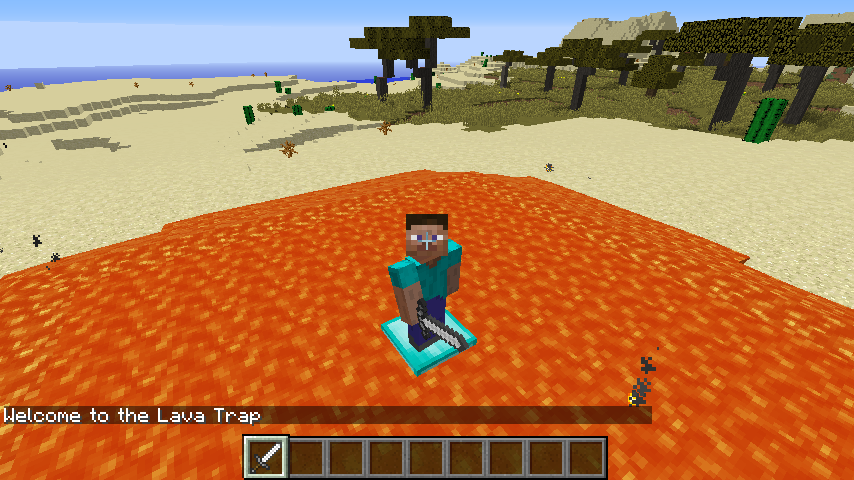
You are going to create mini game - a Lava Pit will instantly appear and Steve will be put at the centre of it, soon through the block he is standing on will disappear so he will have to move, but hang on all the blocks keep disappearing!


2015-09-13_22.22.00.png

Welcome

The first task is to start your program and get “Welcome to the Lava Trap” to appear on the screen:
  1. Press ESC to go back to the Minecraft menu but leave the game playing.
  2. Open Python IDLE by clicking Menu > Programming > Python 3.
  3. Use File > New Window to create a new program and save it as ‘myprogram.py’.
  4. Type the following code into the program to import the modules you will need.
from mcpi.minecraft import Minecraft
from mcpi import block

from time import sleep

  1. Create a connection to Minecraft using the code.

mc = Minecraft.create()

  1. Post a message to the chat window.

mc.postToChat("Welcome to the Lava Trap")

  1. Run your program by clicking Run > Run Module.


You should see your message appear in the Minecraft chat window.

Tips

  • An errors will be displayed in the Python Shell in red.
  • If you get an error check your code carefully.
  • Capital letters are important Minecraft is different to minecraft.

Lava

Next you will use the api to create the pit where the game will be played - when your program runs it will instantly appear under Steve before the game starts.


First update your program so it creates a single block of lava under Steve, by adding the following code:
  1. Put a 3 second delay into your program so that you can see what going on.

sleep(3)

  1. Find out where Steve is in the world.

pos = mc.player.getTilePos()

  1. Create a block of lava under Steve.

mc.setBlock(pos.x, pos.y - 1, pos.z, block.LAVA.id)

  1. Run your program by clicking Run > Run Module or by pressing F5.


Your program will wait 3 seconds and then a block of Lava will appear under Steve - he’s going fall in and burn!

Tips

  • Walk somewhere different and run the program again - another Lava block will appear.
  • Try changing the code to use DIAMOND_BLOCK rather than LAVA and see what happens.
You need to create a lot more lava in order for the game to be a lot more fun - next you will program a large slab of STONE with LAVA on the top:
  1. Use setBlocks() to create an area of STONE 2 blocks below Steve for the LAVA to sit on.

mc.setBlocks(pos.x - 5, pos.y - 2, pos.z - 5,

            pos.x + 5, pos.y - 2, pos.z + 5,

            block.STONE.id)

  1. Then create the LAVA under Steve.

mc.setBlocks(pos.x - 5, pos.y - 1, pos.z - 5,

            pos.x + 5, pos.y - 1, pos.z + 5,

            block.LAVA.id)

  1. Run your program to see the Lava ‘pit’.


Make a DIAMOND_BLOCK platform in the middle for Steve to stand on:
  1. Create the diamond block.

mc.setBlock(pos.x, pos.y - 1, pos.z, block.DIAMOND_BLOCK.id)

  1. Run your program Steve will be stuck in the middle of the Lava pit.

Challenge 1 - Can you code yourself out of the Lava Pit?

At the moment unless Steve flies or lays blocks down he can’t get out without getting burned - update your program so he can get out.

Tips

  • Use more setBlocks() commands to make a bridge out of the Lava pit.
  • You can change Steve’s x,y,z position using mc.player.setTilePos(x, y, z).
  • If it’s too easy, make the Lava Pit really big - is it still easy?

Make a game

Update your program to make blocks under Steve disappear:
  1. Post messages to the chat screen to warn the player the game is about to start.

mc.postToChat("Get Ready")

mc.postToChat("Blocks under you will keep disappearing")

sleep(3)

mc.postToChat("Go")

  1. Create a variable called gameover and set it to False - it will be set to True at the end of the game.

gameover = False

  1. Create a loop which will continue until the game is over.

while gameover == False:

  1. Get Steve’s position.

   playpos = mc.player.getTilePos()

  1. Turn the block under Steve to OBSIDIAN as a warning and wait for 2 seconds.

   mc.setBlock(playpos.x, playpos.y - 1, playpos.z,block.OBSIDIAN.id)

   sleep(2)

  1. After the warning turn the block to AIR, if Steve is standing on it, he’s going to be in the Lava pit.

   mc.setBlock(playpos.x, playpos.y - 1, playpos.z, block.AIR.id)

   sleep(0.5)

  1. Run the program, the game will start and you will have to put blocks down in the Lava pit to escape because otherwise they are going to disappear and Steve will fall in.

Game over

The game is over if Steve falls into the Lava, you need to modify your program to check if he has fallen into the Lava and put a message on the screen:
  1. Use an if statement to see if Steve’s height (y) is not equal to where he started, if it is set the gameover variable to True.

   if playpos.y != pos.y:

       gameover = True

  1. Put a message on the screen to let the player know they have been caught in the lava trap.

       mc.postToChat("Game over.")

  1. Run your program and see how long you can stay out of the lava.

Challenge 2 - Make the game your own.

This game is just the start, can you finish it? Here are some challenges:
  1. Make the game harder?
  2. Make a better game arena, perhaps build a stadium or walls around it so Steve can get out.
  3. Add points to the game, each time Steve doesn’t fall in he gets a point.
  4. Change the game so it starts easy but gets harder the longer you play.
  5. Add a 2 player (or even multiplayer!) option.

Tips

  • If you make the sleeps shorter it’ll make the game quicker and harder.
  • Create a variable called points at the start of the game and add 1 to it each time your program goes around the loop.
  • There are lots of experienced Python developers all around you - perhaps you can teach them!

Find out more

If you have enjoyed this check out “Adventures in Minecraft” and learn how to program Minecraft using Python on your Raspberry Pi, Windows PC or Apple Mac and the Minecraft resources on the Raspberry Pi website www.raspberrypi.org/resources.