Elementor Code Block Widget with Syntax Highlighting (Pro)
Source Code is a Master Addons Pro widget for showing code snippets on an Elementor page. Paste the code, pick one of 75 languages and one of eight Prism.js themes, and the block renders with syntax colors, optional line numbers and a copy to clipboard button. Visitors can read and copy the code but not edit it. It fits tutorials, documentation, changelogs and developer portfolios.

How to Add a Code Block in Elementor
Source Code needs Elementor and an active Master Addons Pro license.
- Activate Master Addons Pro, edit the page with Elementor and search the widgets panel for Source Code.
- Drag it where the snippet belongs.
- Pick the language in Code and a Theme.
- Paste the snippet into the Source Code box.
- Turn on the copy button and line numbers, and set the button text, visibility and position.
- In the Style tab, set a Height for long snippets and style the button, then preview the page and test Copy.
Every setting is covered in the Source Code widget settings guide.
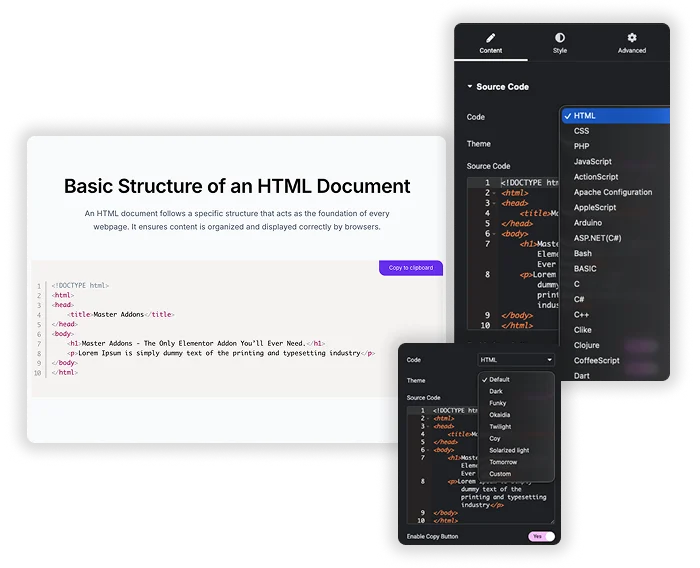
75 Languages and 8 Prism.js Themes
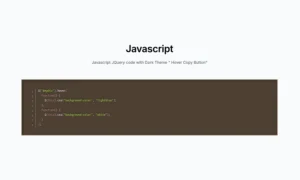
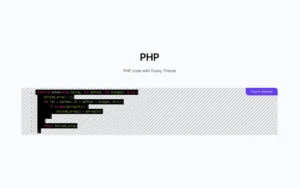
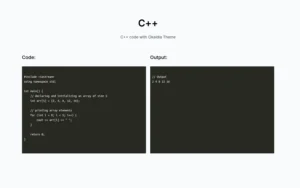
The Code dropdown lists 75 languages, from HTML, CSS, JavaScript and PHP to Python, Bash, SQL, JSON, YAML, TypeScript, React JSX, Go, Kotlin and Swift. Theme offers Default, Dark, Funky, Okaidia, Twilight, Coy, Solarized light and Tomorrow. Choose Custom to set your own background, text color, line number color and typography in the Style tab.
- Use a light theme such as Default or Solarized light on white pages, and Okaidia or Tomorrow on dark sections.
- Custom has no keyword colors: the code shows in the single text color you pick, so use a preset theme when you want syntax colors.
- One widget holds one snippet. Place several widgets side by side for code and output.
Elementor Pro Code Highlight vs Master Addons Source Code
Elementor Pro has its own Code Highlight widget. Both use Prism.js, so the choice comes down to the extras you need.
| Feature | Elementor Pro Code Highlight | Master Addons Source Code |
|---|---|---|
| Price | Needs Elementor Pro | Needs Master Addons Pro |
| Languages | 37 | 75 |
| Themes | 6 (Solid, Dark, Okaidia, Solarizedlight, Tomorrow, Twilight) | 8 plus Custom colors |
| Copy button | Copy to Clipboard switch | Custom text, copied text, Always or On Hover, two positions, full styling |
| Line numbers | Yes | Yes |
| Highlight lines | Yes | No |
| Word wrap | Yes | No |
| Height and font size | Yes | Height, plus typography with the Custom theme |
Choose Elementor Pro if you need to highlight specific lines or wrap long lines. Choose Master Addons if you want more languages, more themes or a styled copy button. Related: Table of Contents for long tutorials and Dynamic Table for reference tables.
Copy Button and Line Numbers
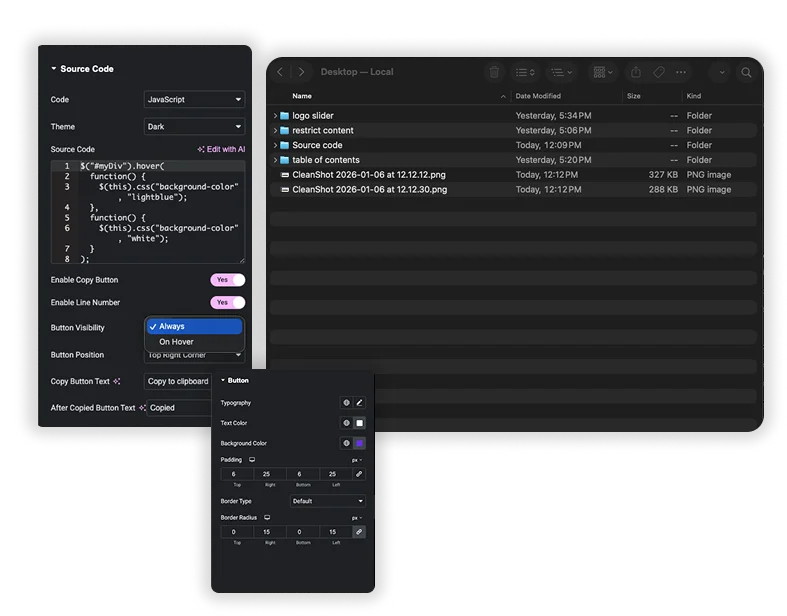
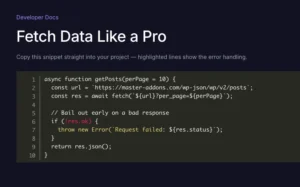
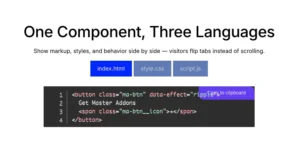
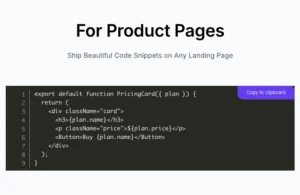
Switch on Enable Copy Button to add a button that copies the whole snippet. Set its Copy Button Text, the After Copied Button Text shown after a click, Button Visibility (Always or On Hover) and Button Position (top right or bottom right corner). Enable Line Number adds numbers down the left side.
- Keep the button set to Always on tutorial pages so readers notice it.
- Line numbers make it easy to refer to a line in your text.
- There is no option to highlight specific lines or wrap long lines inside the widget.
Container and Button Styling
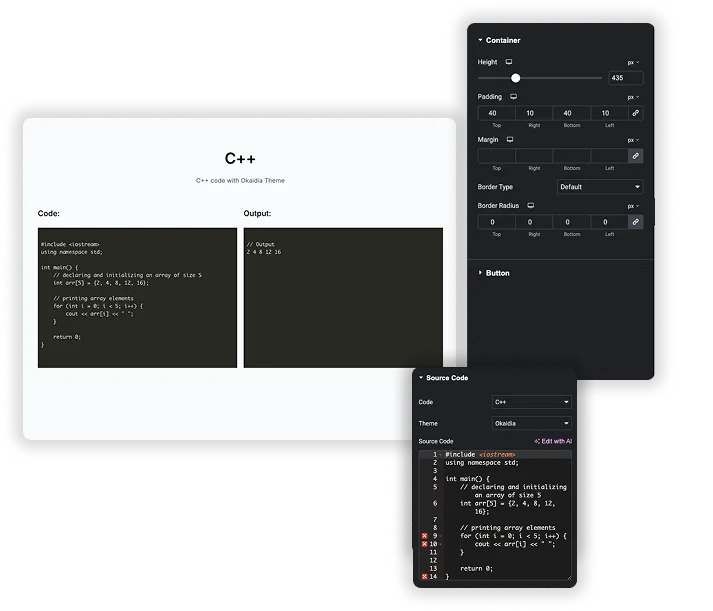
The Container section sets a Height (up to 1200px) so long snippets scroll, plus padding, margin, border and radius. With the Custom theme it also adds a background, typography, text color and line number color. The Button section styles the copy button with typography, text color, background color, padding, border and radius.
- Cap the height on long files so the page stays readable.
- Match the button background to your brand color.
- Add padding so the code does not touch the block edges.
Frequently Asked Questions For Source Code
Is the Source Code widget free?
No. Source Code is part of Master Addons Pro. Elementor Pro users also have Elementor’s Code Highlight widget.
Can I hide the line numbers next to the code?
Yes. Set Enable Line Number to No for a cleaner block.
Where can I position the copy button?
Set Button Position to the top right or bottom right corner, and Button Visibility to Always or On Hover.
Which languages does the Source Code widget support?
75, picked in the Code dropdown. They include HTML, CSS, JavaScript, PHP, Python, Bash, SQL, JSON, YAML, Markdown, TypeScript, React JSX and TSX, Go, Java, Kotlin, Swift, Ruby, C, C++ and C#. Visitors can read and copy the code but cannot edit it.
Can I use my own color scheme instead of the pre-set themes?
Partly. Set Theme to Custom to choose the background, text color, line number color and typography in the Container style section. Keyword colors only come with the eight preset themes, so a Custom block shows code in one color unless you add your own CSS.
Can I highlight specific lines?
No. The widget has no line highlight option. Elementor Pro’s Code Highlight widget can highlight chosen lines if you need that.
Trending Elementor Widgets & Extensions
Build sophisticated websites in less time.

Glassmorphism

Container Extras

Patterns
![Master Addons Post/Page Duplicator extension for Elementor: MA Duplicator row link in the WordPress Pages list creating a Landing Page - [Duplicated #128] draft](https://d1asvmc6qcowgk.cloudfront.net/wp-content/uploads/2026/09/15102930/post-page-duplicator-768x403.webp)
Post/Page Duplicator