



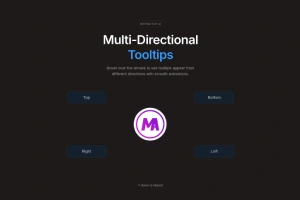


Elementor Tooltip Widget - Add Hover Hints Anywhere
The Tooltip element is a standalone Elementor widget. Drag it next to a form field, inside a pricing table, or beside a confusing term, and it renders its own trigger plus tooltip bubble. If you want to attach a tooltip to a button, icon, or section that already exists on the page, use the Tooltips extension instead.
What you can do with the Tooltip widget

Placement control
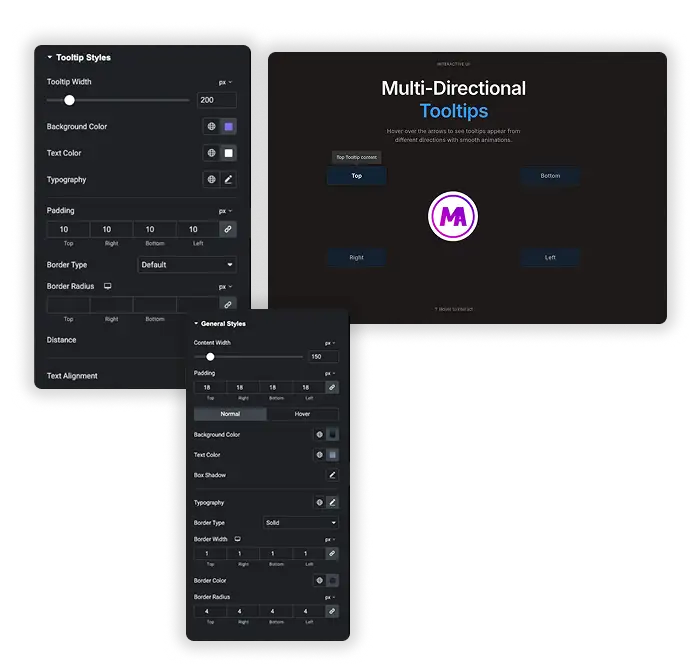
Write the tooltip text, then choose where the bubble appears: top, bottom, left, right, plus start and end variants. Fine-tune with X and Y pixel offsets so the bubble never covers the thing it explains.
- Explain form fields, prices, or jargon right where the question comes up.
- Pin the bubble with offsets so it clears menus, sticky headers, and nearby buttons.
- Guide users through multi-step forms with short contextual hints.
Styling: normal and hover states
Design the trigger and the bubble separately. Set background, text color, typography, padding, border radius, borders, and box shadow. Each property has independent controls for the normal and hover states.
- Match brand colors exactly instead of living with grey browser defaults.
- Make hints subtle (ghost outline) or loud (solid pill with shadow) depending on context.
- Style hover feedback so users know the element is interactive.


Trigger and animation
Trigger on hover for quick hints, on click for notes that should stay open (this works better on touch screens), or with a custom trigger. Pick an entrance animation and set the duration and hide delay. Turn on Follow Cursor if you want the bubble to trail the mouse, which suits maps and diagrams.
- Hover for desktop microcopy; click for mobile-friendly persistent hints.
- A subtle fade or scale entrance draws the eye without annoying the user.
- Hide-delay prevents the tooltip from flickering when the cursor brushes past.
Element or Extension: which one do you need?
This page (Tooltip element, free): you need a new hint on the page. The widget brings its own trigger, which can be text, an icon or an image.
Tooltips extension (Pro): you already have a button, image or heading on the page and want a tooltip attached to it.
Common use cases
- Forms: “Password needs 12+ characters” next to the input, without lengthening the form.
- Pricing tables: define “per seat” vs “per workspace” inline.
- Buttons: clarify what happens after the click (“No card required”).
- Team / listings: role, bio snippet, or contact shortcut on hover.
- Onboarding: short instructions beside new features or dashboard widgets.


How to add a tooltip in Elementor
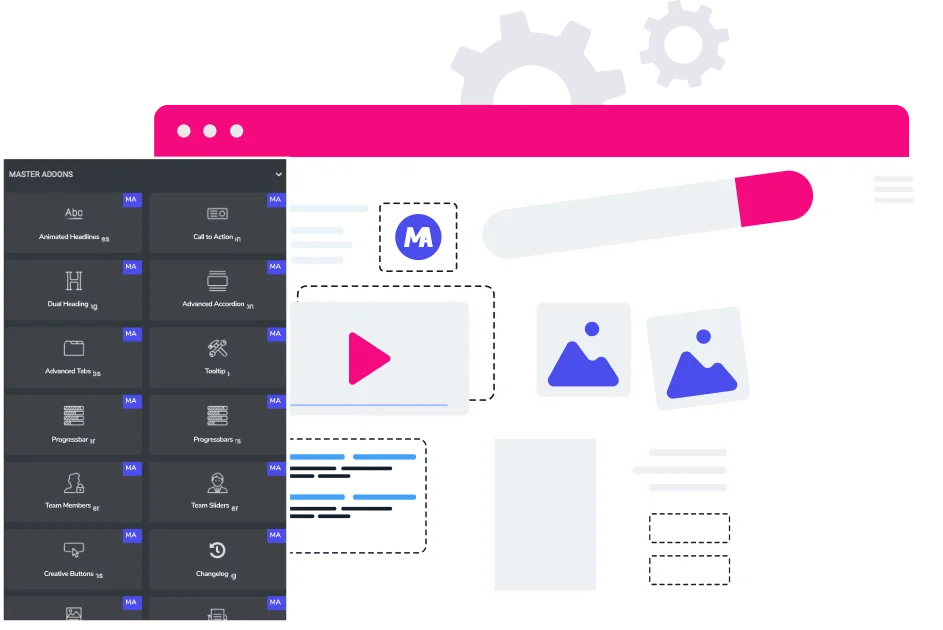
- Drop the widget. In Elementor, search “Tooltip” under Master Addons and drag it where the hint belongs.
- Write and place. Enter tooltip text, set trigger (hover or click), pick placement and offsets.
- Style it. In the Style tab, design Normal and Hover states: colors, typography, radius, shadow. Publish.
- Want screenshots of every setting? Read our guide on how to add a tooltip in Elementor.
Frequently Asked Questions For Tooltip
What is the Tooltip element for?
Adding short, helpful context without cluttering the layout: field explanations, term definitions, button clarifications, inline instructions. Anything non-essential that helps when asked for.
How is this different from the Tooltips extension?
The element is a free, standalone widget with its own trigger. The Tooltips extension is part of Pro and attaches a tooltip to a widget, section or container that is already on the page. Both have Follow Cursor, placement presets and hover or click triggers. Need a new hint spot? Use the element. Need tooltips on things already on the page? Use the extension.
Can I style normal and hover states separately?
Yes. The Style tab has independent Normal and Hover controls for background, text, borders, radius, and shadow.
How do I control where the bubble appears?
Use Placement presets (top, bottom, left, right, plus start and end variants), then nudge with X and Y offsets in pixels.
Hover or click: which trigger should I use?
Hover for quick desktop hints; click for anything that must work on touch screens, since hover doesn’t exist on mobile.
Will it slow down my site?
No. It loads only its own small CSS and JS when present on the page. A handful of tooltips per page has no noticeable impact.
Trending Elementor Widgets & Extensions
Build sophisticated websites in less time.

Glassmorphism

Container Extras

Patterns
![Master Addons Post/Page Duplicator extension for Elementor: MA Duplicator row link in the WordPress Pages list creating a Landing Page - [Duplicated #128] draft](https://d1asvmc6qcowgk.cloudfront.net/wp-content/uploads/2026/09/15102930/post-page-duplicator-768x403.webp)
Post/Page Duplicator