Use Cases

What You Can Do with ExtraDock
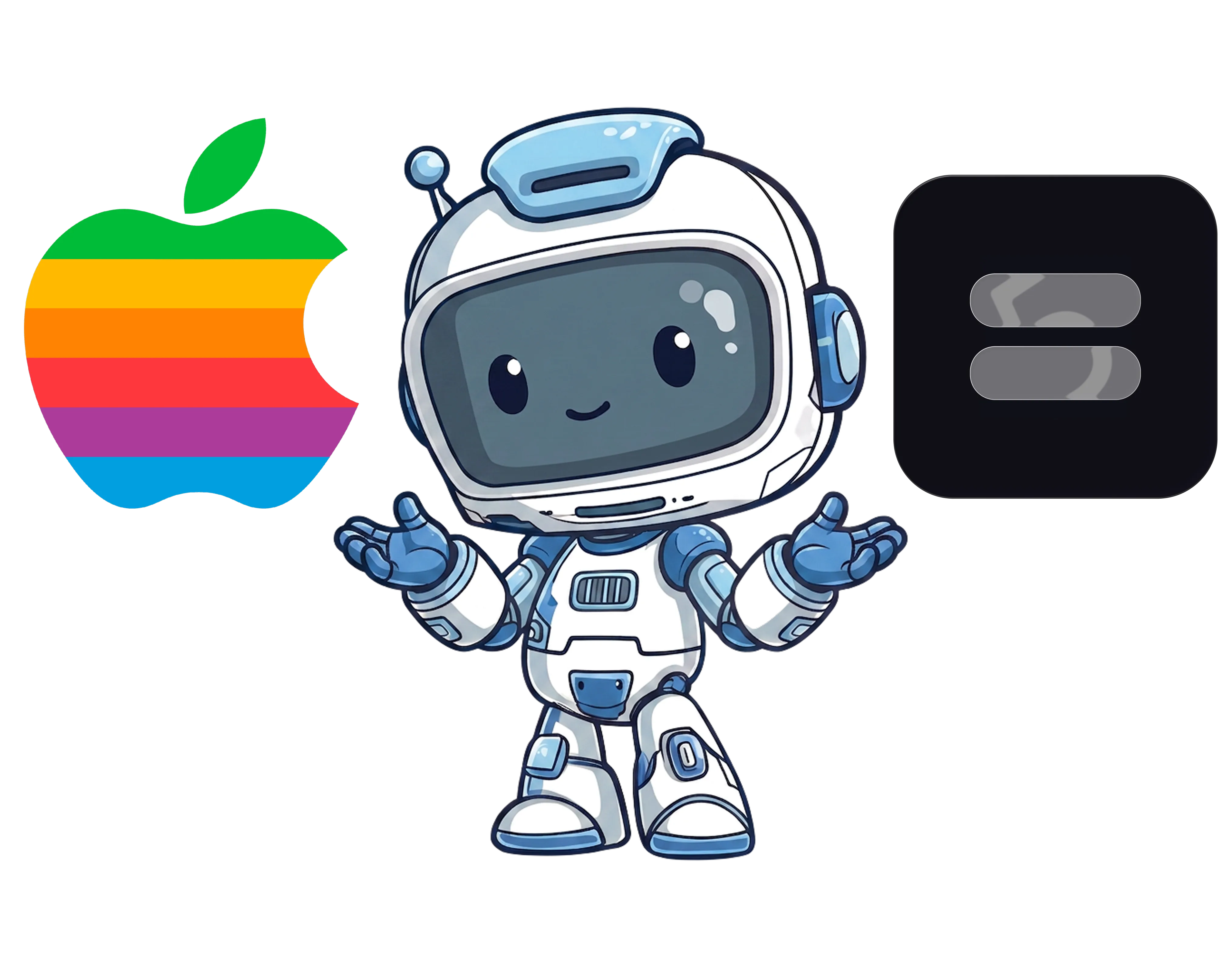
ExtraDock replacing the limits of the macOS Dock with multiple custom docks

macOS Dock Replacement

Replace the limits of Apple's Dock, not the Dock itself. Add unlimited custom docks on any screen, running right alongside the native Dock.

Read the guide →
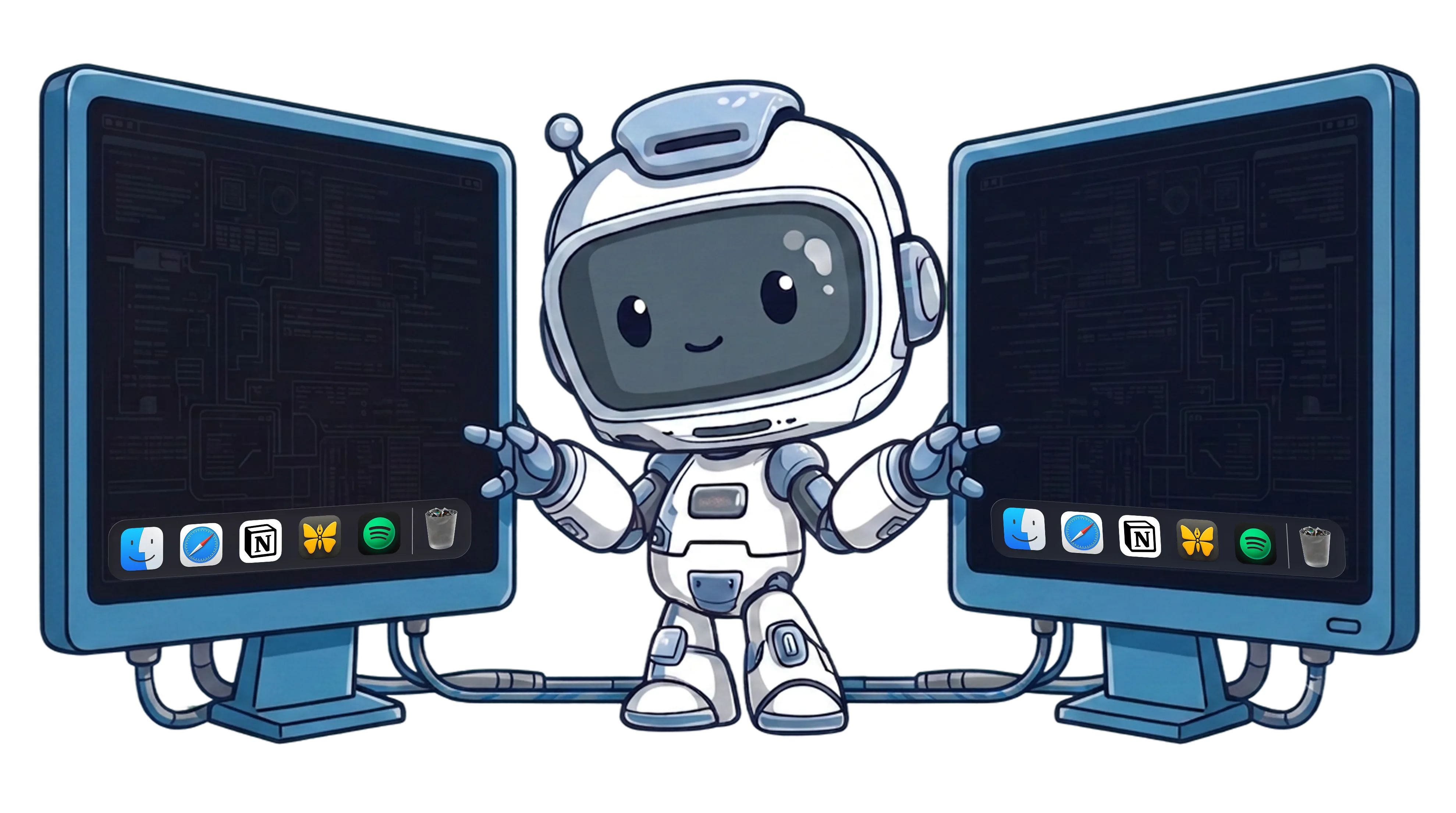
ExtraDock showing a dock on every screen on macOS

Show Dock on All Screens

macOS limits the Dock to one display. Mirror it to every screen dynamically, or give each monitor its own dock.

Read the guide →
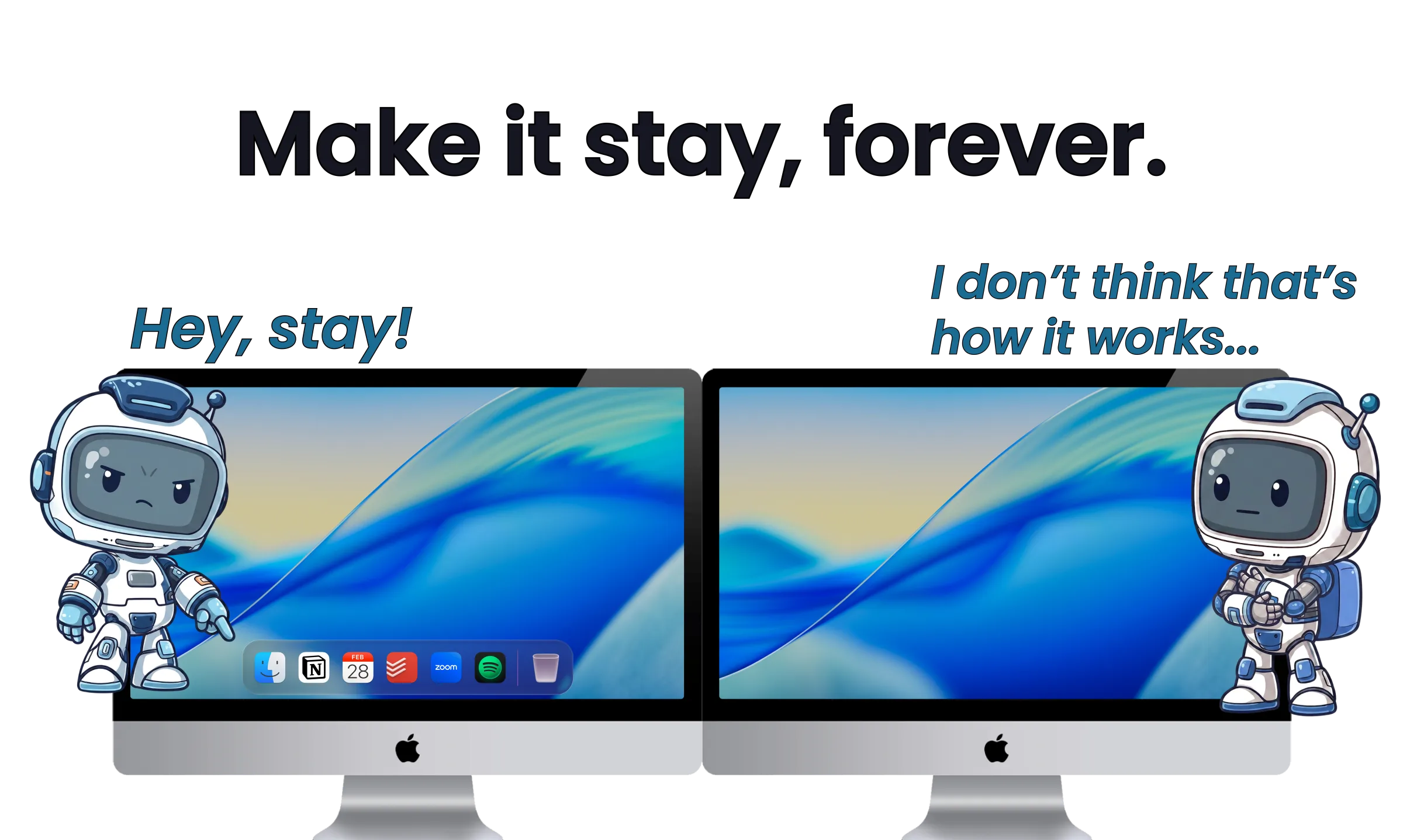
Moving the Mac Dock to another screen with ExtraDock

Move the Dock to Another Screen

The native way to move the Mac Dock to a second monitor, why it won't stay put, and how to pin a dock to each display.

Read the guide →
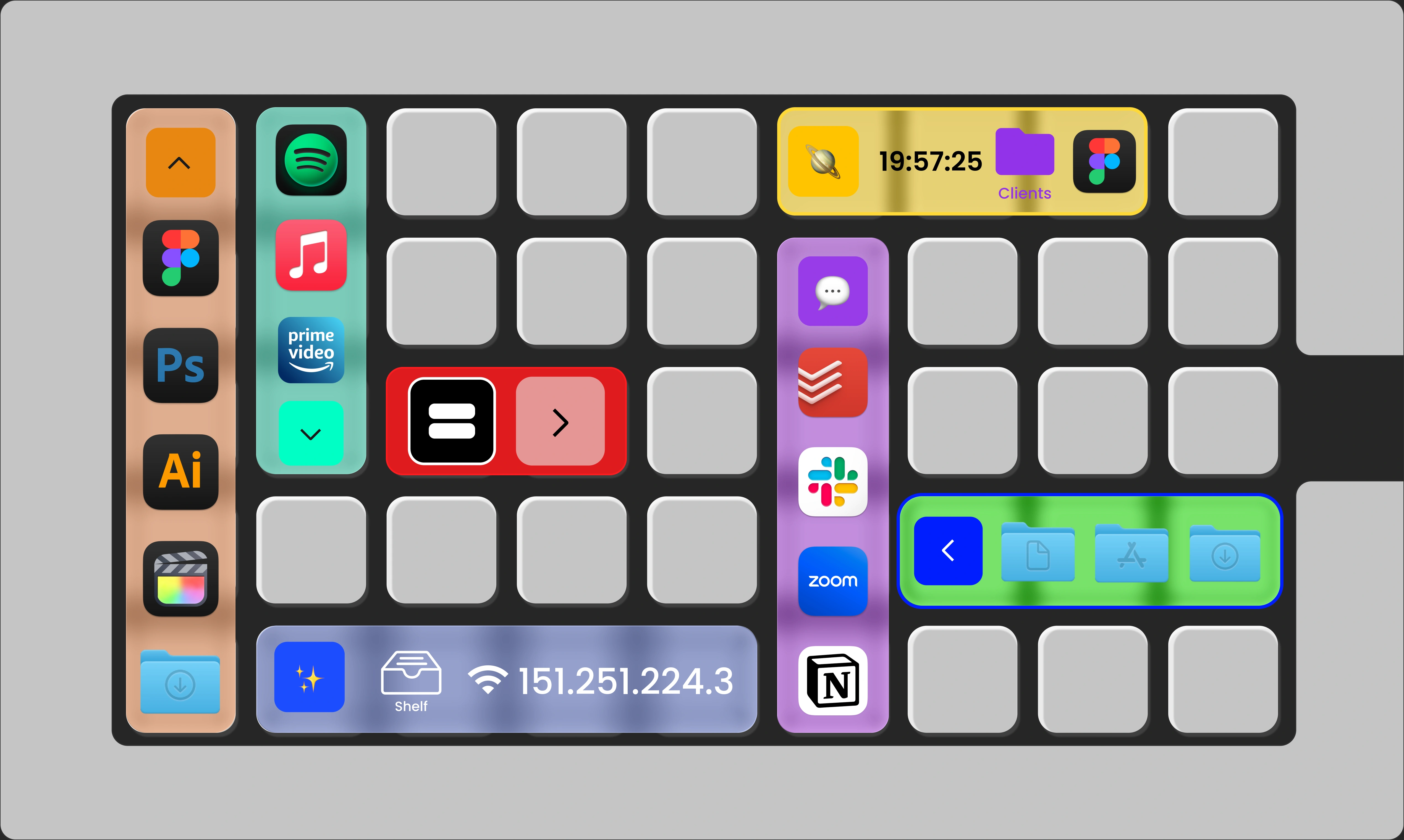
A customized Mac Dock with ExtraDock

Customize the Mac Dock

What Apple lets you change, and five ways ExtraDock goes beyond the default.

Read the guide →
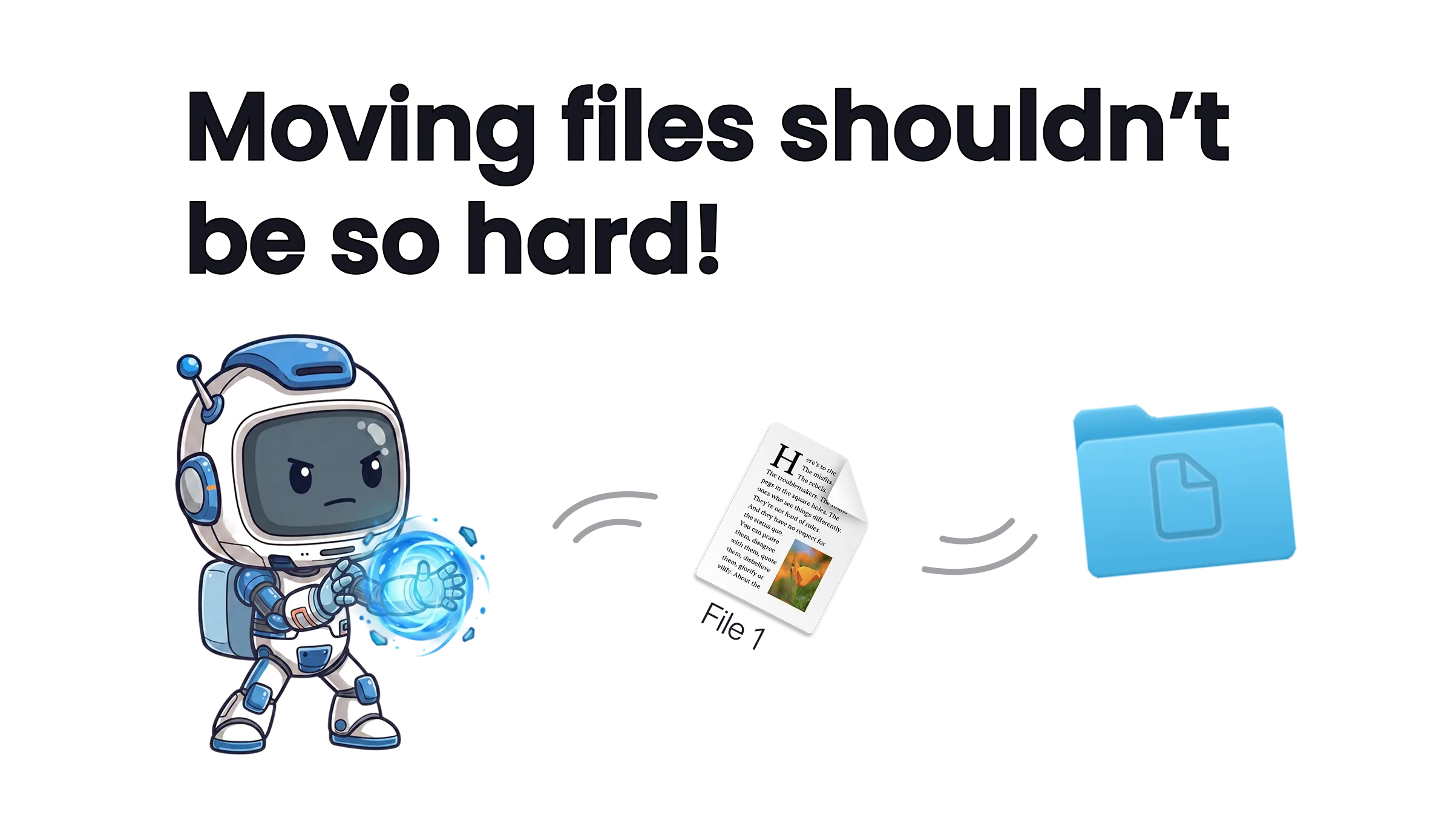
Dragging and dropping a file onto a folder in the dock with ExtraDock

Move Files on Mac

A better alternative to dragging across Finder windows: drop files straight into folders, hold them on the shelf, and reach folders from a single icon.

Read the guide →
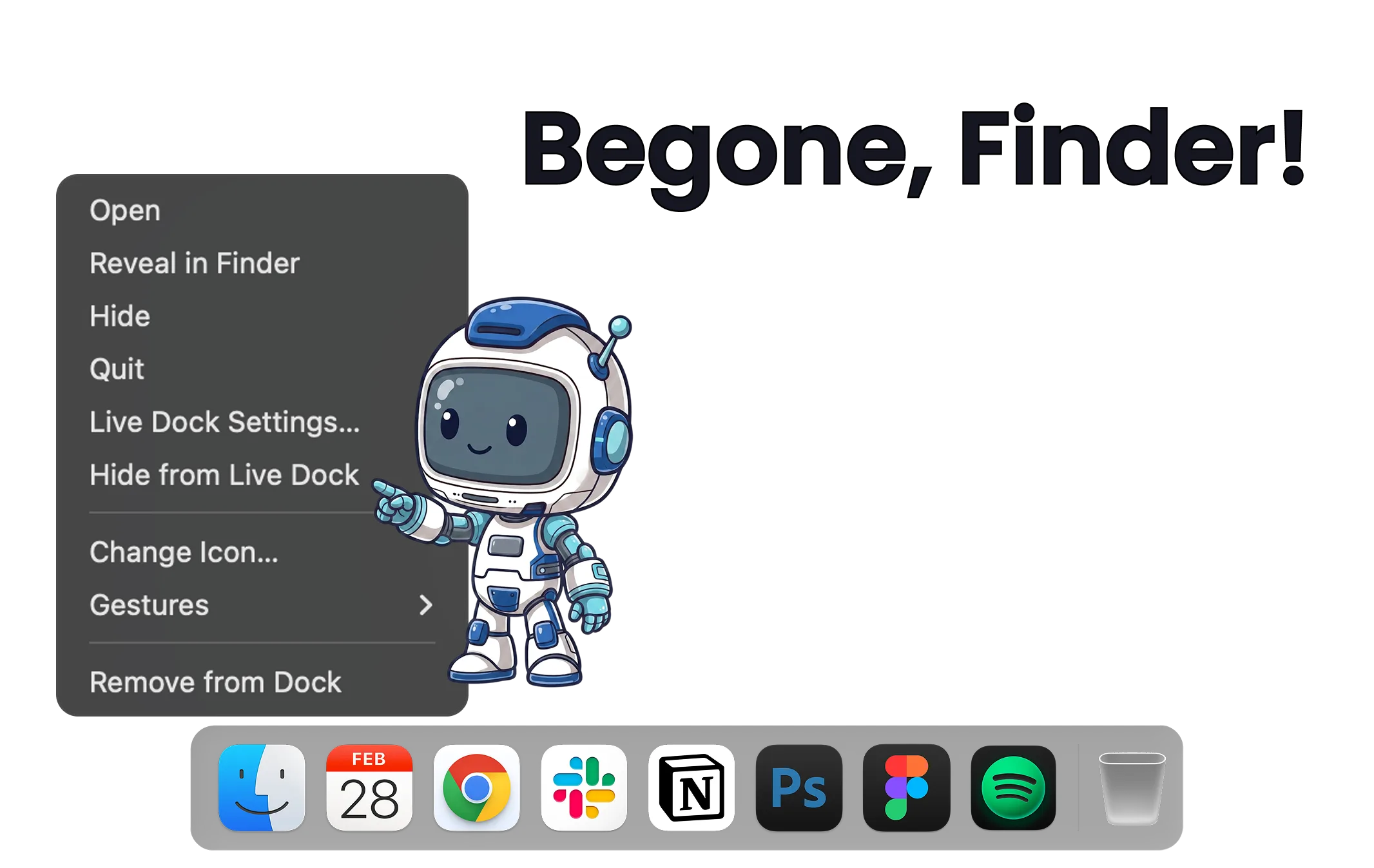
Hiding an app from the dock on macOS with ExtraDock

Remove Apps from the Dock

The native way to remove apps from the Mac Dock, and how to hide the icons macOS won't let go: Finder, Trash, and running apps.

Read the guide →
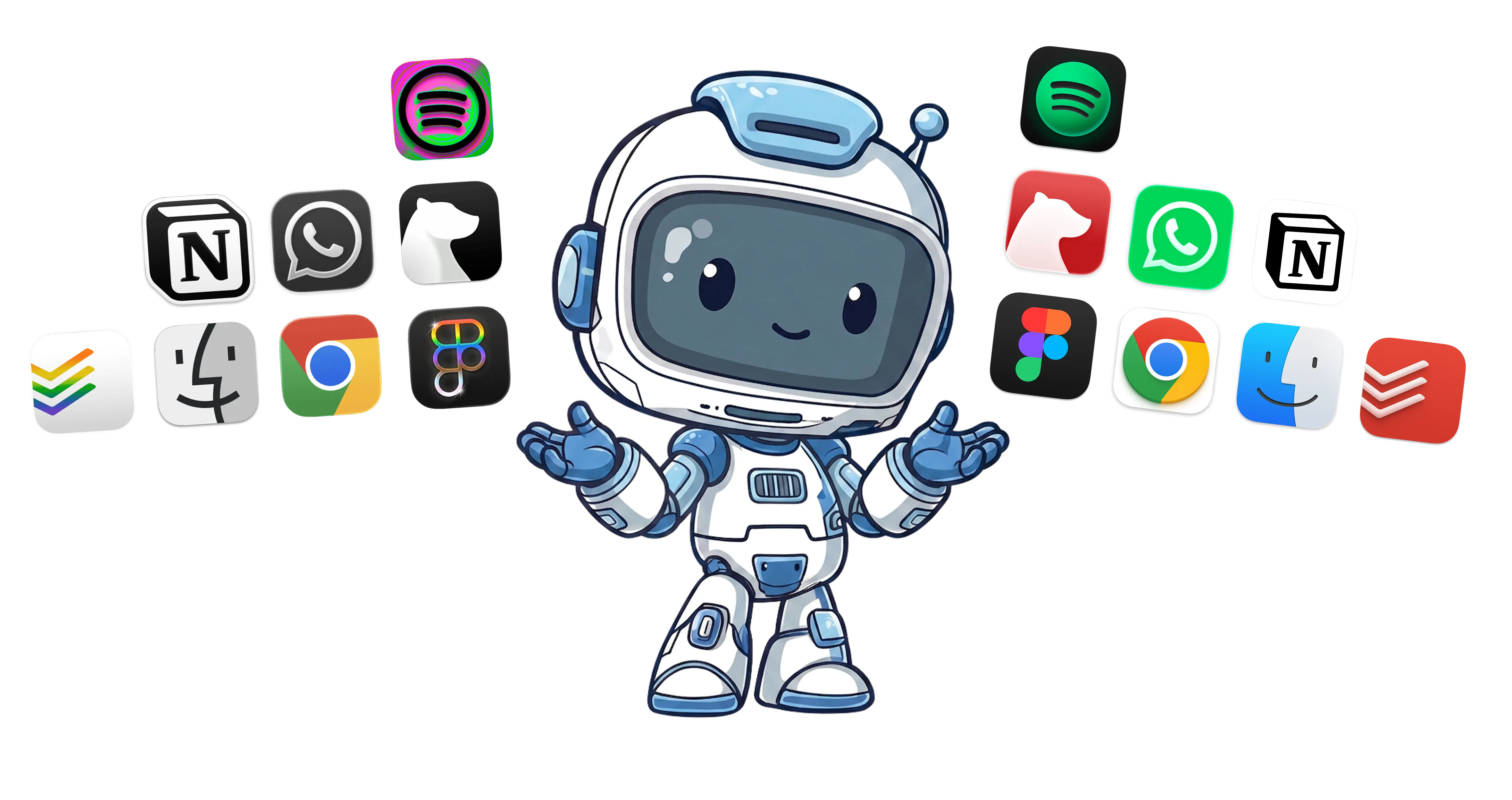
Customized Mac Dock icons with ExtraDock

Customize Dock Icons

Set any image as an app's icon, per app and per dock, without touching the apps themselves.

Read the guide →
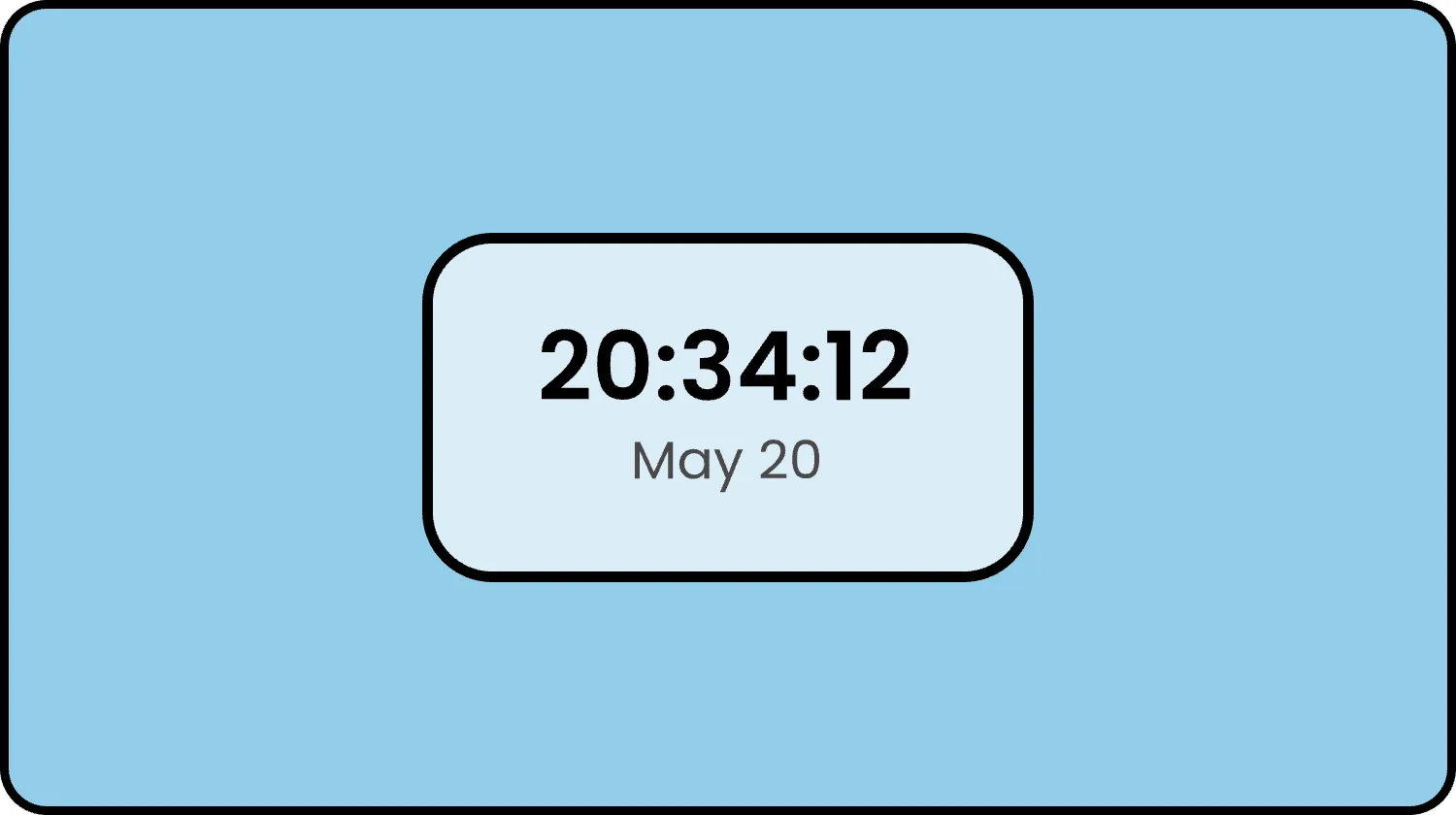
An ExtraDock clock widget sitting in a dock

Widgets for Mac

Every widget you can put in a dock: clock, metronome, shelf, TamaDocky, and more. Always visible, in every app, on every screen.

Read the guide →

Mac System Monitoring

Keep CPU, memory, GPU, and battery readings visible in a dock while you work, on any screen.

Read the guide →

FAQ

Is ExtraDock a subscription? Image
No. ExtraDock is a one-time purchase. Standard Lifetime licenses include one year of new features and updates, while Forever Edition includes all future updates for life.
What happens after my first year of updates? Image
Standard Lifetime licenses keep working forever on every version released during the included update window. Access to later updates may be extended separately. Forever Edition includes all future updates for life.
Can I extend access to future updates? Image
Yes. A separate update extension will be available later through the Appit Dashboard. It will extend update access without changing your permanent ownership of ExtraDock.
Do existing ExtraDock customers keep lifetime updates? Image
Yes. Purchases completed before 1 September 2026 at 00:00 (midnight) Europe/Sofia time (EEST, UTC+3) retain lifetime updates under their original terms. Standard Lifetime purchases completed at or after that cutoff include updates released during the 12 months following purchase, while Forever Edition includes all future updates for life. A purchase is completed when Stripe confirms successful payment. Existing lifetime-update customers do not need to do anything.
Can macOS show the Dock on all screens? Image
Not natively. macOS only shows one Dock, on one screen at a time. ExtraDock fixes that. It can show the Dock on all screens, or give each monitor its own custom dock.
What makes ExtraDock different from other dock apps? Image
ExtraDock gives you multiple lightweight docks that you can pin anywhere across your screens. Use it as an add-on to your native Dock, or go all-in and replace it entirely. It's up to you.
Can ExtraDock replace the native macOS Dock? Image
Yes. ExtraDock works independently of the native Dock, so you can use both side by side or hide the native Dock and let ExtraDock take over. It's designed to fit however you work.
What macOS versions does ExtraDock support? Image
ExtraDock 5 supports macOS 26 Tahoe and later. On macOS 12 through 15, use ExtraDock 4, the previous generation that remains fully supported.
Do resized windows respect ExtraDock like they do the native Dock? Image
Yes. ExtraDock has a setting that ensures resized and maximized windows respect your docks and won't cover them.
Are Extra Docks customizable? Image
Yes. You can choose from a variety of both visual and behavioral customizations: colors, effects, opacity, borders, custom app icons, as well as auto hide/show, hide on full screen, and more.
Can ExtraDock show notification badges? Image
Partially. macOS does not provide a way to read badges for Apple apps such as Mail and Messages, so those cannot be shown. Third-party apps like Slack and WhatsApp work as expected.
Does ExtraDock work with docking stations and DisplayLink monitors? Image
Yes, with limitations. ExtraDock docks can be attached to a specific screen, so they appear when that screen connects and hide when it disconnects. This relies on macOS identifying each display consistently. DisplayLink monitors and displays connected through docking stations or daisy chains can behave inconsistently, especially after sleep or replugging, which can affect screen recognition.
What are the Live Dock and Dock Awareness widgets? Image
Live Dock mirrors your native macOS Dock on any screen, either your full Dock or just running apps. Dock Awareness shows only the apps running in your current Space and updates as you switch. Both update dynamically.

Ready for a dock you control?

Don't hesitate, we have a 14-day money-back guarantee.
BUY 40% OFF 🎒