
Search the Community
Showing results for tags 'framework'.
Found 3 results
-
Version 0.1.26
8,631 downloads
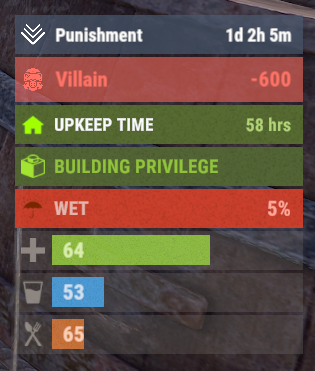
A useful API plugin that mimics in-game status bars and allows the addition of custom ones. Note: AdvancedStatus does not display any bars on its own. This is done by other plugins that work with it. An example plugin demonstrating interaction with AdvancedStatus. The ability to specify the frequency of calculating the number of bars; The ability to specify the order of the bar; The ability to change the height of the bar; The abillity to customize the color and transparency of the background; The ability to set a material for the background; The ability to switch between CuiRawImageComponent and CuiImageComponent for the image; The ability to get images from the local folder(*SERVER*\oxide\data\AdvancedStatus\Images); The abillity to set own image and customize the color and transparency of the image; The abillity to set sprite instead of the image; The ability to specify custom text; The ability to customize the color, size and font of the text; No need to pass all parameters; No need to manually delete your bar when unloading your plugin. advancedstatus.admin - Grants access to the chat command(by default /bar). { "Chat command": "bar", "Is it worth enabling console notifications for the successful loading of local images?": false, "Interval(in seconds) for counting in-game status bars": 0.5, "Interval(in seconds) for counting Building Privileges status bars. Note: Calculating Building Privileges is resource-intensive": 1.0, "Is it worth counting Vehicle Privilege? Useful if you don't have a Tugboat or PlayerBoat": true, "Is it worth counting Entity Privilege? Useful if you don't have a Legacy Shelter": true, "Ui layer for displaying bars. For button bars, it is recommended to use the 'Hud' layer(https://umod.org/guides/rust/basic-concepts-of-gui#layers)": "Under", "Is it worth displaying bar components left to right?": true, "Vertical spacing between bars": 2, "The height of the bar by default": 26, "The background color of the bar by default": "#505F75", "The background transparency of the bar by default": 0.7, "The background material of the bar by default, leave empty to disable": "", "The image of the bar by default": "AdvancedStatus_Default", "The color of the bar image by default": "#6B7E95", "The transparency of the bar image by default": 1.0, "The outline color of the bar image by default": "#000000", "The outline transparency of the bar image by default": 1.0, "The outline distance of the bar image by default. Example '0.75 0.75'": "", "The size of the bar text by default": 12, "The color of the bar text by default": "#FFFFFF", "The transparency of the bar text by default": 1.0, "The font of the bar text by default(https://umod.org/guides/rust/basic-concepts-of-gui#fonts)": "RobotoCondensed-Bold.ttf", "The horizontal offset of the bar text by default": 0, "The outline color of the bar text by default": "#000000", "The outline transparency of the bar text by default": 1.0, "The outline distance of the bar text by default": "", "The size of the bar subtext by default": 12, "The color of the bar subtext by default": "#FFFFFF", "The transparency of the bar subtext by default": 1.0, "The font of the bar subtext by default": "RobotoCondensed-Bold.ttf", "The outline color of the bar subtext by default": "#000000", "The outline transparency of the bar subtext by default": 1.0, "The outline distance of the bar subtext by default": "", "The color of the bar progress by default": "#89B840", "The transparency of the bar progress by default": 0.7, "The OffsetMin of the bar progress by default": "25 2.5", "The OffsetMax of the bar progress by default": "-3.5 -3.5", "Version": { "Major": 0, "Minor": 1, "Patch": 25 } } EN: { "MsgDays": "d", "MsgHours": "h", "MsgMinutes": "m", "MsgSeconds": "s" } RU: { "MsgDays": "д", "MsgHours": "ч", "MsgMinutes": "м", "MsgSeconds": "я" } images reload *ImageName* - Reloads the specified image from the image folder; all - Reloads all local images from the image folder. Example: /bar images reload all Note: To access the commands, the player must be an admin(console or owner) or have the advancedstatus.admin permission. OnAdvancedStatusLoaded: Called after the AdvancedStatus plugin is fully loaded and ready. OnPlayerGainedBuildingPrivilege: Called after the player enters their building privilege. OnPlayerLostBuildingPrivilege: Called after the player exits their building privilege. void OnAdvancedStatusLoaded() { Puts("The AdvancedStatus plugin is loaded and ready to go!"); } void OnPlayerGainedBuildingPrivilege(BasePlayer player) { Puts($"{player.displayName} entered the authorized building privilege zone."); } void OnPlayerLostBuildingPrivilege(BasePlayer player) { Puts($"{player.displayName} exited the authorized building privilege zone."); } [PluginReference] private Plugin AdvancedStatus; There are 15 methods: IsReady CreateBar UpdateContent DeleteBar DeleteCategory DeleteAllBars GetTotalClientBars GetTotalPlayerBars LoadImages LoadImage CopyImage DeleteImages DeleteImage BarExists InBuildingPrivilege There are 5 types of bar: Default - A simple bar that displays the provided information. Does not update the value of SubText by itself; Timed - Similar to the default bar, but it automatically disappears after the specified time in the TimeStamp parameter; TimeCounter - The SubText shows the remaining time until TimeStamp. Also automatically removed upon expiration of the TimeStamp; TimeProgress - Similar to the Timed bar, but additionally features an automatically filling progress bar; TimeProgressCounter - Similar to the TimeCounter bar, but additionally features an automatically filling progress bar. IsReady: Used to check if the AdvancedStatus plugin is loaded and ready to work. The IsReady method returns true if it is ready, or null if it is not. (bool)AdvancedStatus?.Call("IsReady");//Calling the IsReady method. If the result is not null(bool true), the plugin is ready. CreateBar: Used to create a bar or update bar values for a player. To call the CreateBar method, you need to pass 2 parameters. The first one is BasePlayer or <ulong>playerID. The second one is a dictionary with the parameters you need. In the CreateBar method, all parameters are optional, except for two: Id; Plugin. Parameters not specified when creating a new bar will use the values set in the AdvancedStatus plugin's configuration file. Parameters not specified during bar update will retain the values they had before the update. Note: The plugin does not update values automatically, you need to manually send new values. Dictionary<string, object> parameters = new Dictionary<string, object> { { "Id", "AdvancedStatusDemo_1" }, //<string>Unique identifier for the bar in your plugin. ***This is a required field. { "BarType", "Default" }, //<string>Type of the bar. There are 4 types: Default, Timed, TimeCounter and TimeProgress. { "Plugin", "AdvancedStatusDemo" }, //<string>Name of your plugin. ***This is a required field. { "Category", "Default" }, //<string>Internal plugin category of the bar. { "Order", 10 }, //<int>The position of your bar relative to others. Order is determined by increasing values(ASC). { "Height", 26 }, //<int>The height of your bar. A standard bar is 26 pixels. { "Main_Color", "#505F75" }, //<string>HTML Hex color of the bar background. { "Main_Transparency", 0.7f }, //<float>Transparency of the bar background. { "Main_Material", "assets/content/ui/uibackgroundblur.mat" }, //<string>Material of the bar background(empty to disable). { "Image", "scrap" }, //<string>Name of the image saved in the ImageLibrary or a direct link to the image if ImageLibrary is not used. { "Image_Local", "AdvancedStatusDemo_Scrap" }, //<string>The name of the image file(without its extension) located in *SERVER*\data\AdvancedStatus\Images. Leave empty to use Image. { "Image_Sprite", "" }, //<string>Sprite image of the bar. Leave empty to use Image_Local or Image. { "Is_RawImage", true }, //<bool>Which type of image will be used? True - CuiRawImageComponent. False - CuiImageComponent. { "Image_Color", "#6B7E95" }, //<string>HTML Hex color of the bar image. { "Image_Transparency", 1.0f }, //<float>Transparency of the image. { "Text", "Scrap" }, //<string>Main text. { "Text_Size", 12 }, //<int>Size of the main text. { "Text_Color", "#FFFFFF" }, //<string>HTML Hex color of the main text. { "Text_Font", "RobotoCondensed-Bold.ttf" }, //<string>Font of the main text. { "Text_Offset_Horizontal", 0 }, //<int>Horizontal offset for the main text. { "SubText", "35" }, //<string>Sub text. { "SubText_Size", 12 }, //<int>Size of the sub text. { "SubText_Color", "#FFFFFF" }, //<string>HTML Hex color of the sub text. { "SubText_Font", "RobotoCondensed-Bold.ttf" }, //<string>Font of the sub text. { "TimeStampStart", Network.TimeEx.currentTimestamp }, //<double>Responsible for specifying the start point of the time reference and 0% for TimeProgress and TimeProgressCounter bars. Used if the bar type is Timed, TimeCounter, TimeProgress or TimeProgressCounter. { "TimeStamp", Network.TimeEx.currentTimestamp + 6 }, //<double>Specifies the end time point after which the bar will be destroyed and 100% for TimeProgress and TimeProgressCounter bars. Used if the bar type is Timed, TimeCounter, TimeProgress or TimeProgressCounter. { "TimeStampDestroy", Network.TimeEx.currentTimestamp + 3 }, //<double>If TimeStampDestroy is specified and it is less than TimeStamp, the bar will be destroyed by TimeStampDestroy. Used if the bar type is Timed, TimeCounter, TimeProgress or TimeProgressCounter. { "Progress", (float)35 / 100f }, //<float>Progress. From 0.0 to 1.0. { "Progress_Reverse", false }, //<bool>Progress reverse. A value of false means that the progress will increase. Used if the bar type is TimeProgress or TimeProgressCounter. { "Progress_Color", "#89B840" }, //<string>Progress color. { "Progress_Transparency", 1f }, //<float>Progress transparency. { "Progress_OffsetMin", "25 2.5" }, //<string>Progress OffsetMin: "*left* *bottom*". { "Progress_OffsetMax", "-3.5 -3.5" }, //<string>Progress OffsetMax: "*right* *top*". { "Command", "kit" } //<string>If the field is not empty, the bar becomes clickable, and the specified command is executed upon clicking. Note: the command must be covalence. }; AdvancedStatus?.Call("CreateBar", player.userID.Get(), parameters); //Calling the CreateBar method with the passing of BasePlayer/playerID and a dictionary containing the required parameters. UpdateContent: Used to update only the content of an existing status bar. To call the UpdateContent method, you need to pass 2 parameters. The first one is BasePlayer or <ulong>playerID. The second one is a dictionary with the parameters you need. In the UpdateBar method, all parameters are optional, except for two: Id; Plugin. var parameters = new Dictionary<string, object> { { "Id", "MyID" }, //<string>Unique identifier for the bar in your plugin. ***This is a required field. { "Plugin", Name }, //<string>Name of your plugin. ***This is a required field. { "Text", "MyText" }, //<string>Main text. { "SubText", "MyText" }, //<string>Sub text. { "Progress", (float)amount / 100f }, //<float>Progress. From 0.0 to 1.0. }; AdvancedStatus?.Call("UpdateContent", player.userID.Get(), parameters); //Calling the UpdateContent method with the passing of BasePlayer/playerID and a dictionary containing the required parameters. DeleteBar: Used to remove the bar for a player. There are two methods for removing a bar by ID: with specifying a particular player; To call this method, you need to pass 3 parameters. The first one is BasePlayer or <ulong>playerID. The second one is Id of your bar and the third one is name of your plugin. without specifying a particular player (which removes it for all players) To call this method, you need to pass 2 parameters. The first one is Id of your bar and the second one is name of your plugin. AdvancedStatus?.Call("DeleteBar", player.userID.Get(), barID, Name); //Calling the DeleteBar method with the passing of BasePlayer/playerID, ID of the bar and the name of your plugin. AdvancedStatus?.Call("DeleteBar", barID, Name); //Calling the DeleteBar method with the passing of ID of the bar and the name of your plugin. If you try to delete a bar that doesn't exist, nothing bad will happen. So feel free to delete the bar without checking its existence. P.S. When unloading your plugin, there is no need to manually delete bars for players, AdvancedStatus will handle it automatically. DeleteCategory: Used to remove all bars associated with the plugin's category. To call the DeleteCategory method, you need to pass 2 parameters. The first one is category and the second one is name of your plugin. AdvancedStatus?.Call("DeleteCategory", "Default", Name);//Calling the DeleteCategory method by passing the category and name of your plugin DeleteAllBars: Used to remove all bars associated with the plugin. To call the DeleteAllBars method, you need to pass only 1 parameter. It is name of your plugin. AdvancedStatus?.Call("DeleteAllBars", Name);//Calling the DeleteAllBars method, passing the name of your plugin GetTotalClientBars: Used to get the number of client bars for the player. To call the GetTotalClientBars method, you need to pass only 1 parameter. It is BasePlayer or <ulong>playerID. (int)AdvancedStatus?.Call("GetTotalClientBars", player.userID.Get());//Calling the GetTotalClientBars method, passing the name of BasePlayer/playerID GetTotalPlayerBars: Used to get the number of active custom bars for the player. To call the GetTotalPlayerBars method, you need to pass only 1 parameter. It is BasePlayer or <ulong>playerID. (int)AdvancedStatus?.Call("GetTotalPlayerBars", player.userID.Get());//Calling the GetTotalPlayerBars method, passing the name of BasePlayer/playerID LoadImages: Used to check if the local images specified in the list are loaded. If any of the images are not loaded but their files exist in the images folder, the plugin will load them. To call the LoadImages method, you need to pass only 2 parameters. The first one is the <List<string>>list of image's name and the second one(optional) is <bool>force, which, if set to true, will force reload the image even if it already exists. AdvancedStatus?.Call("LoadImages", list, false);//Calling the LoadImages method, passing a list of image names LoadImage: Used to check if the local image is loaded. If the file is not loaded and exists in the images folder, the plugin will load it. To call the LoadImage method, you need to pass 2 parameters. The first one is the <string>image's name and the second one(optional) is <bool>force, which, if set to true, will force reload the image even if it already exists. AdvancedStatus?.Call("LoadImage", imgName, false);//Calling the LoadImage method, passing an image's name CopyImage: Used to create and load a copy of an existing image. To call the CopyImage method, you need to pass 3 parameters. The first parameter is the <string>source image's name, the second parameter is the <string>new image's name and the third one(optional) is <bool>force, which, if set to true, will force copy and reload the image even if it already exists. AdvancedStatus?.Call("CopyImage", "ZoneStatus_Default", "ZoneStatus_NewZone", false);//Calling CopyImage, passing the source image name and the new image name. DeleteImages: Used to delete a list of images and their files. To call the DeleteImages method, you need to pass 2 parameters. The first one is the <List<string>>list of image's name and the second one(optional) parameter is <bool>deleteFile, which, if set to true, will delete image's file too. AdvancedStatus?.Call("DeleteImages", list, true);//Calling DeleteImages, passing a list of image names. DeleteImage: Used for removing the image and the image file. To call the DeleteImage method, you need to pass 2 parameters. The first parameter is the <string>image's name and the second one(optional) parameter is <bool>deleteFile, which, if set to true, will delete image's file too. AdvancedStatus?.Call("DeleteImage", "ZoneStatus_NewZone", true);//Calling DeleteImage, passing the image name. BarExists: Used to check if the specified bar exists. To call the BarExists method, you need to pass 3 parameters. The first one is BasePlayer or <ulong>playerID. The second one is Id of your bar. And the third one is name of your plugin. (bool)AdvancedStatus?.Call("BarExists", player.userID.Get(), barID, Name);//Calling the BarExists method with the passing of BasePlayer/playerID, ID of the bar and name of your plugin. InBuildingPrivilege: Used to check if the player has authorized building privileges. To call the InBuildingPrivilege method, you need to pass BasePlayer or <ulong>playerID. (bool)AdvancedStatus?.Call("InBuildingPrivilege", player.userID.Get());//Checking if the player has Building Privilege.$1.99 -
Version 1.1.1
209 downloads
Need a robust foundation for creating custom Rust entities and prefabs from your own plugins? ServerPrefabs is a powerful library plugin for Oxide/uMod and Carbon that lets plugin developers register custom server-side prefabs and entities, with support for custom networking, persistent save/load, built-in inventories, and runtime scaling. What Is ServerPrefabs? ServerPrefabs is not a standalone gameplay plugin — it’s a developer library. It does nothing on its own. Instead, other plugins use its API to define, register, and manage their own custom prefabs and entities on the server. If you’re building advanced Rust systems with custom deployables, persistent world objects, or specialized networked entities, ServerPrefabs provides the core framework you need. Core Features Custom Server-Side Prefab Registration: Create and register fully custom prefabs directly from your plugin. Once registered, they become usable and spawnable by the game. Custom Entity Component Support: Attach your own BaseEntity-derived component to a prefab and define custom entity logic exactly how your plugin needs it. Persistent Save / Load System: Custom entity save data is written to: oxide/data/ServerPrefabs/<prefab>.sav Custom Network Serialization: Provide your own network save behavior so clients receive the exact entity state they need. Arbitrary Per-Entity Data Storage: Implement stream-based save/load methods for custom entity state and plugin-specific data. Built-In Inventory Component: Use EntityInventory for a built-in, network-replicated item container with configurable capacity and optional handler callbacks. Runtime Scaling Support: Use Scaler to persist and replicate transform scale for custom entities. Lightweight Stub Entities: Use StubEntity for lightweight, non-saving entities with RPC and save event hooks, plus a helper factory for cloning visuals and bounds from a base prefab. Per-Entity Behavior Flags: Opt into special behaviors such as disabling disk saving or excluding entities from spawn command lists via CustomFlags. Public API The main entry point is: ServerPrefabs.For(plugin) This returns a per-plugin context you can use to create and register prefabs. Example usage: var prefab = ServerPrefabs.For(this) .CreatePrefab("my_thing") .AddEntityComponent<MyEntity>(clientPrefabId) .Register(); This workflow allows a consumer plugin to: Create a custom prefab Attach a custom BaseEntity component Register it with the game Make it available for spawning and runtime use Bundles Use CreateBundle() to group multiple prefabs so they are registered and loaded together as one save batch. This is ideal when one custom entity references, depends on, or is parented to an entity from another prefab. Registers all prefabs first Preloads all save files in one batch Spawns all bundled entities in a single pass You can also add an existing prefab with bundle.Add(prefab). If one prefab fails to register or load, the rest of the bundle will still continue. var bundle = ServerPrefabs.For(this).CreateBundle(); bundle.CreatePrefab("station").AddEntityComponent<StationEntity>(stationClientId); bundle.CreatePrefab("module").AddEntityComponent<ModuleEntity>(moduleClientId); bundle.Register(); Extension Interfaces ICustomPrefab Calls OnCustomPrefabRegistered() once the prefab is registered. ICustomEntity Calls OnCustomEntityRegistered() when the custom entity is registered. ICustomEntity.SaveForNetwork Lets you customize the network proto sent to clients. ICustomEntity.SaveData Adds Save(Stream) and Load(Stream) support for arbitrary per-entity data. Entity Flags Optional behaviors are controlled through the EntityFlags CustomFlags property on ICustomEntity. By default, the value is EntityFlags.None, so you only override it when special behavior is needed. The property is named CustomFlags specifically to avoid colliding with BaseEntity.Flags. Example: class MyEntity : BaseEntity, ServerPrefabs.ICustomEntity { public void OnCustomEntityRegistered() { } public ServerPrefabs.EntityFlags CustomFlags => ServerPrefabs.EntityFlags.DisableSaving | ServerPrefabs.EntityFlags.NoSpawnCommand; } Available flags: EntityFlags.None No special behavior. EntityFlags.DisableSaving Excludes the entity from disk saving by setting enableSaving = false. EntityFlags.NoSpawnCommand Prevents the entity from being added to the spawnable-entity command list. Included Components EntityInventory A built-in, network-replicated item container. Set Capacity and optionally assign an EntityInventory.IHandler with callbacks such as: OnCreated OnInventoryDirty OnItemAddedOrRemoved ItemFilter Scaler Persists and replicates entity transform scale. StubEntity A lightweight, non-saving entity with onRpcMessage and onSave events, plus a StubEntity.Create<T>(...) factory for cloning visuals and bounds from a base prefab. Installation Drop ServerPrefabs.cs into: oxide/plugins/ or carbon/plugins/ The server will compile and load it automatically. On first load, a config file is generated. Dependent plugins can reference it via: [PluginReference] Plugin ServerPrefabs; or the static API Configuration Configuration file: oxide/config/ServerPrefabs.json Allow outdated saves Default: false Allows loading .sav files written by a different Rust save protocol version. Enable debug logging Default: false Enables verbose [ServerPrefabs] [DEBUG] log output for troubleshooting. Safe Config Recovery: If the config becomes invalid or unreadable, it is automatically backed up as ServerPrefabs.json.bak. A new default config is then generated, so a broken manual edit won’t silently destroy your settings. Compatibility Notes ServerPrefabs uses Harmony IL transpilers against Rust internals, specifically: SaveRestore.Load SaveRestore.WriteEntities Because these patches rely on specific internal instruction patterns, a Rust update can break compatibility. After a force wipe or game update, check the server console during load for errors like: Phase 1 failed! Phase 2 failed! Phase 3 failed! or other patch-related errors If those appear, the plugin likely needs to be updated to match the current Rust version. Why Use ServerPrefabs? Create advanced custom entities directly from your plugin Add server-side prefabs with persistent save/load support Customize network behavior for non-standard entities Use built-in inventory and scaling systems instead of building your own Control save and spawn-list behavior with simple entity flags Perfect for framework plugins, deployables, machines, automation systems, and persistent world objects ServerPrefabs is a core utility library for Rust plugin developers who want deeper control over custom entities and prefab-based systems. One library. Custom prefabs. Persistent entities. A powerful base for advanced Rust modding.Free -
Version 0.1.4
780 downloads
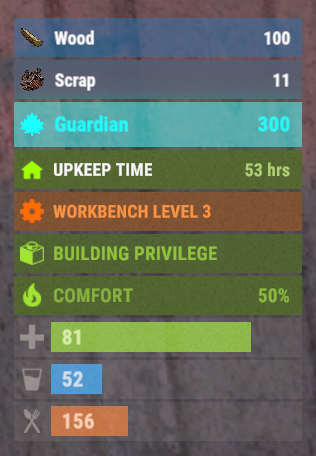
This plugin demonstrates the integration with the AdvancedStatus plugin. It displays the amount of a specific item in the player's inventory in the status bar. In this case, it's Scrap, to track a different item, replace the itemID value on line 47 with the ID of the desired item. This plugin can be downloaded by plugin developers as a reference to understanding how to work with the AdvancedStatus and by server owners to easily display desired items in the status bar.Free


.thumb.png.ccf8a947948c9eb1445ad21a7931247b.png)