
FocusCommit works in three steps: put your work into a project, start a 25-minute interval on one task, and focus on that task until the timer ends. This guide walks through your first session, from creating a project to taking your first break. You don’t need an account to start.
1. Create a project
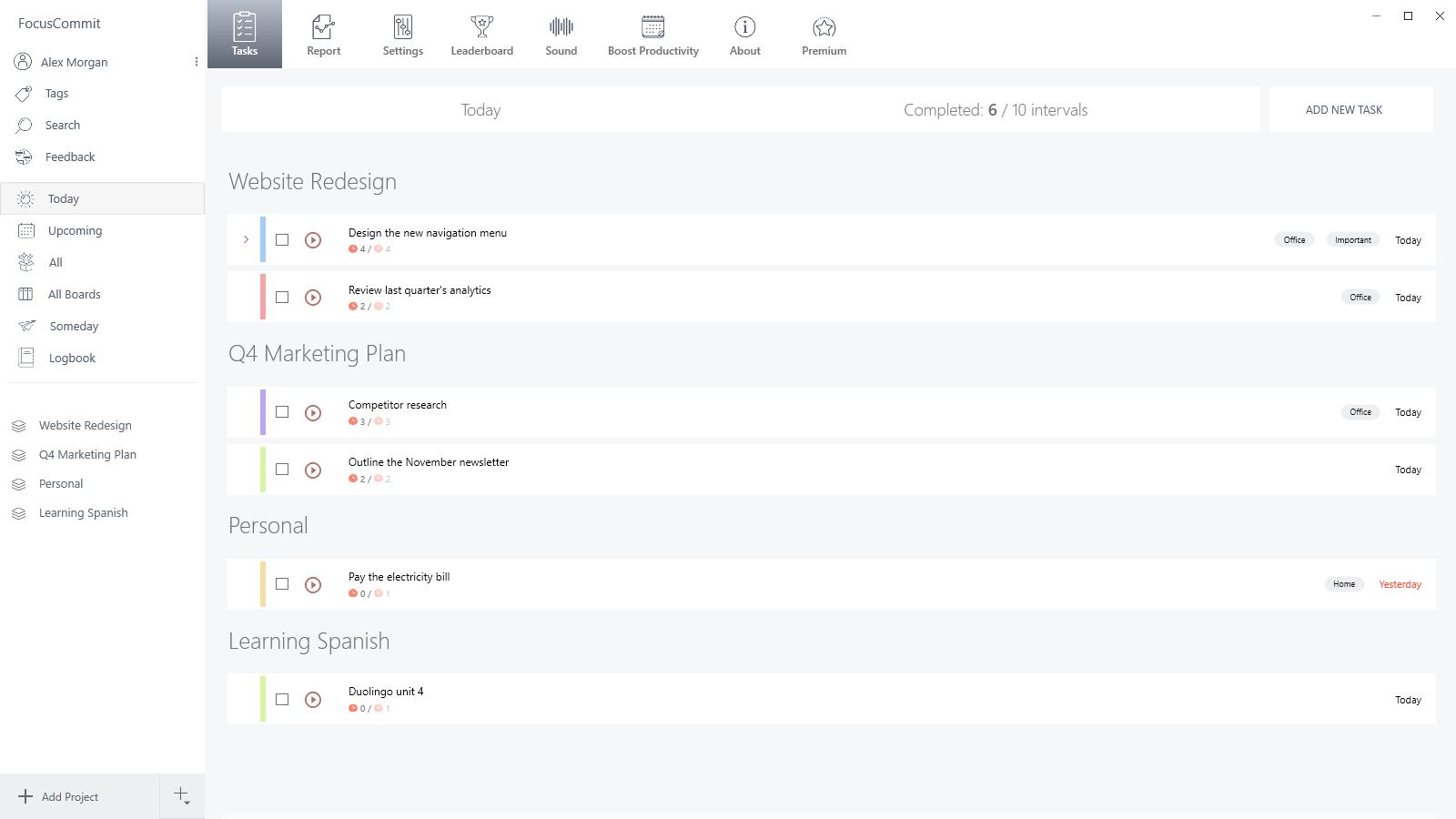
Click Add Project at the bottom of the sidebar, type a name and press Enter. You can create as many projects as you like, on the free plan too.
Every project has the same four columns: To Do, Next Action, Doing and Done. New tasks start in To Do. Use the Kanban / List View menu at the top right to switch between the board and a plain list; the choice applies to every project.
2. Add a task
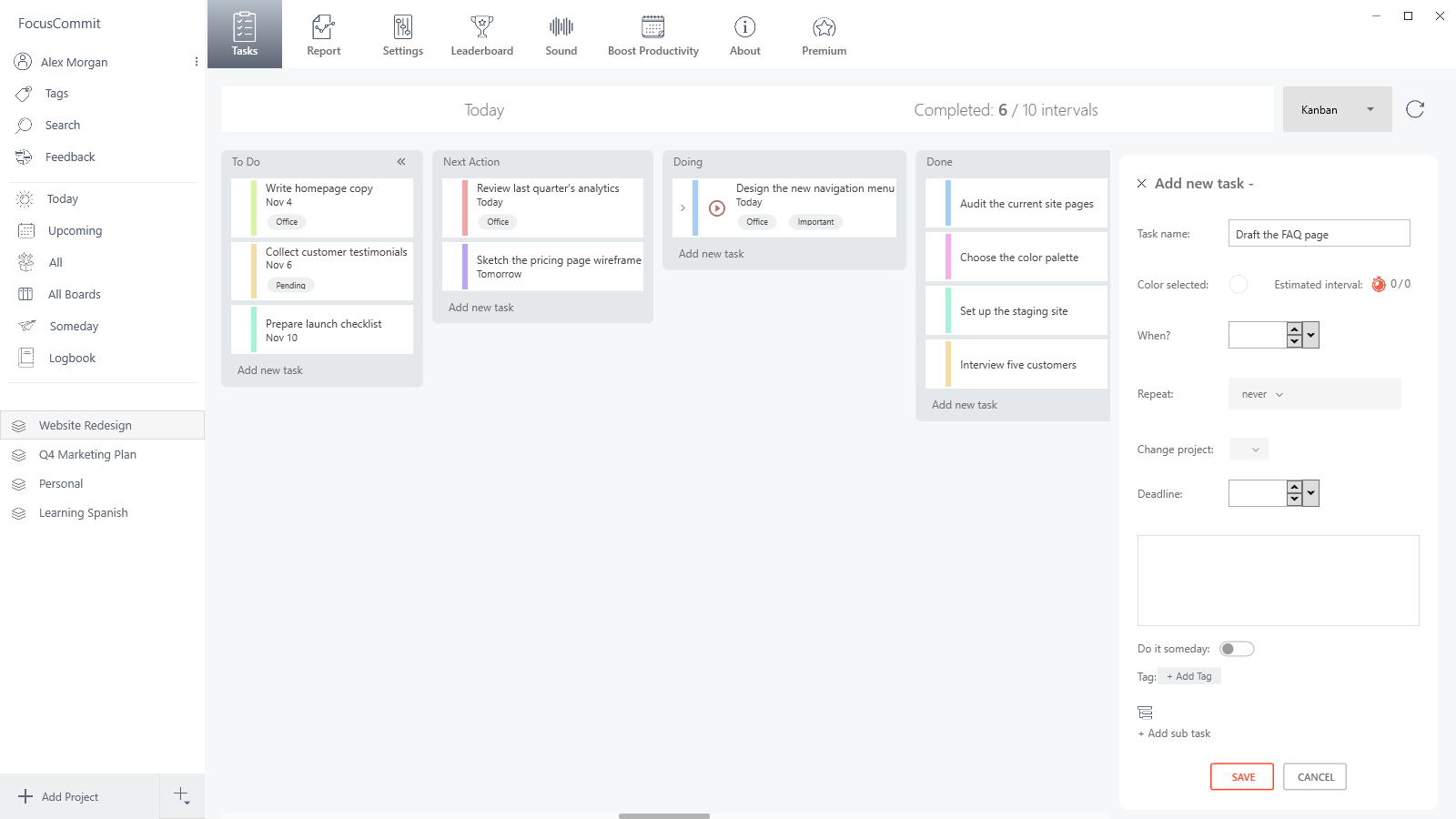
In Kanban, click Add new task at the bottom of a column. In Today, Upcoming, Someday or List View, click ADD NEW TASK. Type a name and click SAVE.
Click More settings for the rest of the options:
- Estimated interval: how many intervals you expect the task to take. The task then shows your progress, for example 2 / 4.
- When? the due date. Add a time and you also get a reminder.
- Repeat: a new copy after you finish the task, or on a regular schedule.
- Deadline, a note, Do it someday, Tag and + Add sub task.
The free plan has a limited number of tasks. Premium removes the limit.
3. Start an interval
An interval is one focus session on one task, 25 minutes by default. It’s the same idea as a pomodoro in the Pomodoro Technique.
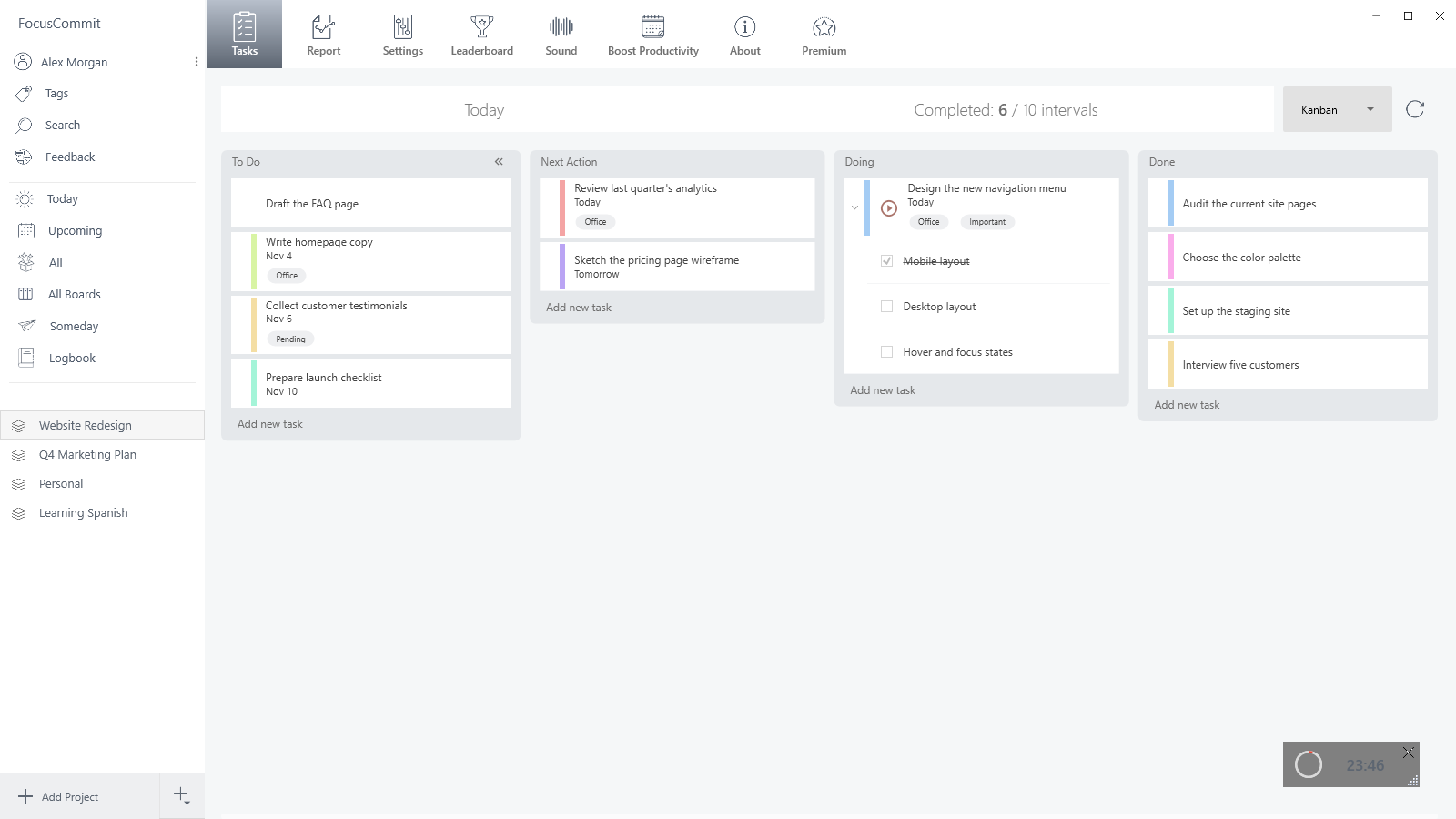
- In Kanban: drag the task into Doing. A start button (▶) appears on the card. Click it. Moving a card into Doing doesn’t start the timer by itself.
- In Today, Upcoming, Someday or List View: every task has a ▶ button. Click it.
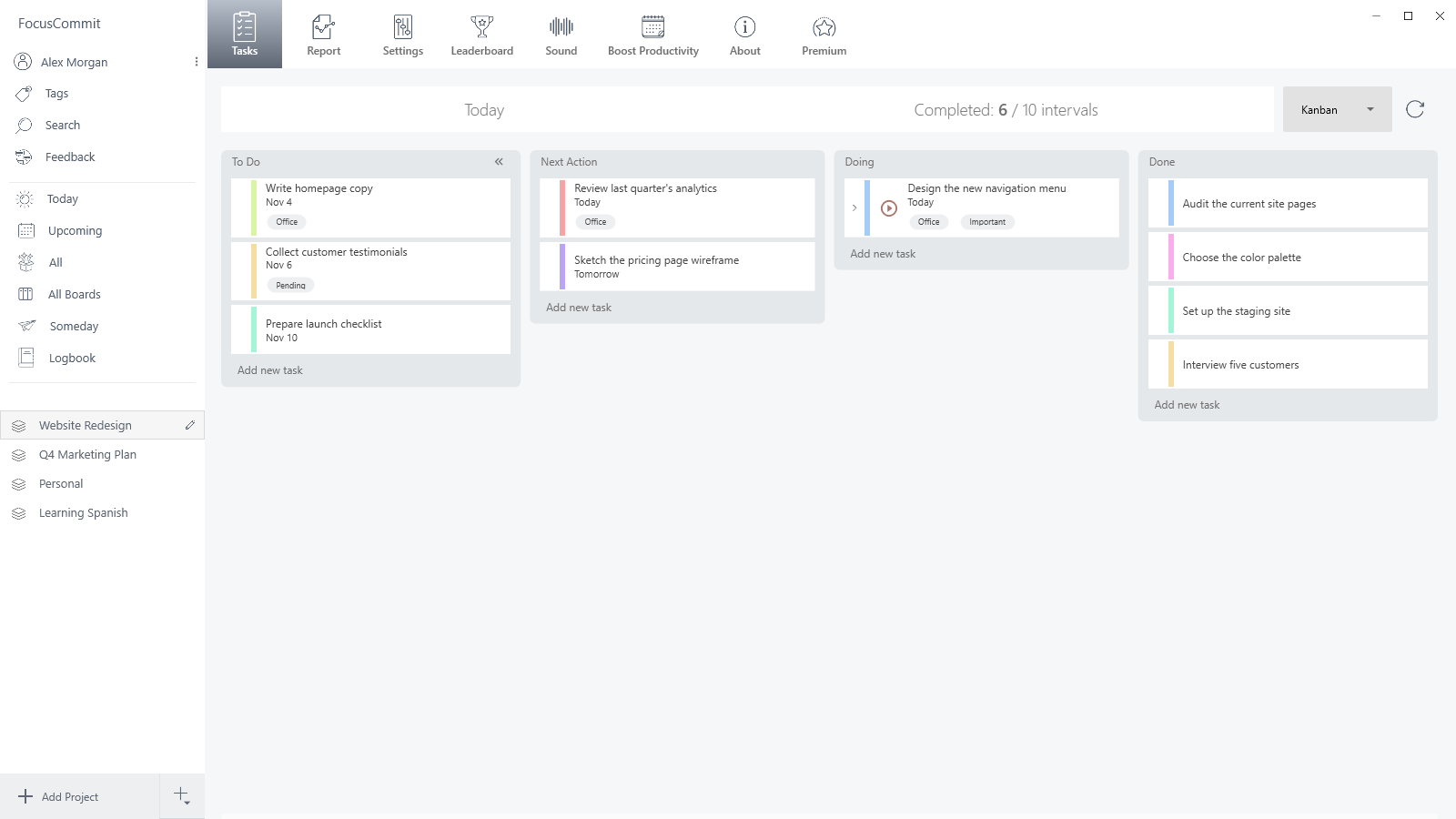
The timer screen opens and the countdown starts. It shows the task you’re working on and, if the task has an estimate, the time you should finish. Use the buttons below the timer to restart, pause or cancel.
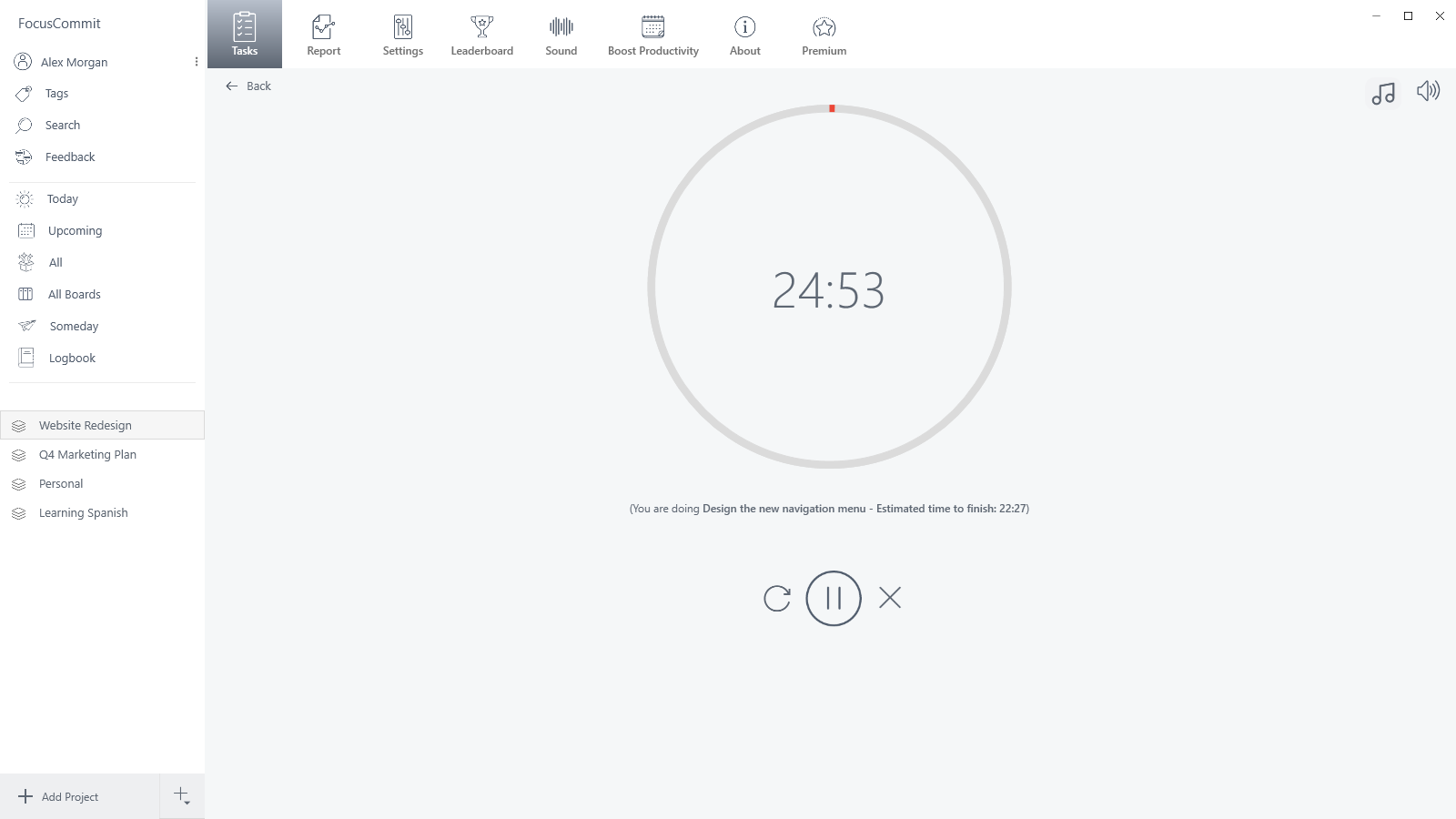
An interval counts only when the countdown reaches zero. If you cancel it, it isn’t saved.
4. Focus, with the mini timer
Switch to the window you’re working in. While the timer runs, a small floating timer appears on top of your other windows, so you can see the time left without coming back to FocusCommit. Drag it wherever you like and close it with its ✕. To turn it off, go to Settings > Small Screen.
5. Take a break
When the interval ends, the timer switches to a break. Press ▶ to start it. These are the defaults, which you can change in Settings > Interval:
| Setting | Default |
|---|---|
| Work Interval | 25 minutes |
| Short Break | 5 minutes |
| Long Break | 15 minutes |
| Start Long Break After | 4 intervals |
| Target Intervals (per day) | 10 |
The long break comes after every fourth interval on the same task that day. Your progress toward the daily target shows at the top of the window as Completed: X / Y intervals.
Do you need an account?
No. Projects, tasks, the timer and your statistics all work without signing in. Sign in with Google or Microsoft (Sign in at the top of the sidebar) when you want to:
- sync tasks and projects between devices,
- join a 30, 60 or 90-day challenge in Boost Productivity, or appear on the leaderboard,
- import Google Tasks (Premium). Microsoft To Do asks you to sign in to Microsoft during the import.
Closing the window doesn’t quit FocusCommit
The ✕ in the corner hides FocusCommit to the system tray, so a running timer keeps going. To quit, right-click the FocusCommit icon in the tray and choose Exit. Signing out also closes the app; your tasks stay on the PC.
What to read next
- How to use the Pomodoro Technique in FocusCommit: estimates, breaks and the Report tab.
- How to use FocusCommit as a GTD system: Next Action, Someday and a weekly review in All Boards.
- Microsoft To Do and Google Tasks integrations.
- FocusCommit settings.
Prefer video? This walkthrough was recorded on an earlier version, but the three steps are the same.

Frequently asked questions
Do I need an account to use FocusCommit?
No. Projects, tasks, the timer and statistics work without signing in. Sign in with Google or Microsoft only when you want sync between devices, challenges, the leaderboard or the Google Tasks import.
Why doesn't the timer start when I drag a task into Doing?
Dragging a card only moves it. A start button appears on the card in the Doing column: click it to start the interval.
Can I change the 25-minute interval?
Yes. Go to Settings > Interval and change Work Interval, Short Break, Long Break and Start Long Break After.
Where does FocusCommit go when I close the window?
To the system tray, so a running timer keeps going. To quit, right-click the FocusCommit icon in the tray and choose Exit.
