 Skip to content


When teams are small, managing emails collaboratively feels simple enough. Everyone’s looped into a common inbox that they can log into and start responding to emails. There’s no structure in place.
But as the business scales and more teammates get involved, that same shared email becomes a source of confusion.
Who’s replying? What’s been followed up on? Did someone already respond? Without structure, it’s easy for things to fall through the cracks.
You’ve probably seen it happen: a customer emails support@, and two people reply at the same time with different answers. Or worse—no one replies at all because everyone assumes someone else already did.
That’s why more and more teams turn to shared inboxes: a smarter way to manage team emails with visibility, accountability, and zero confusion.
Table of Contents
- What is a Shared Inbox Software?
- Why Do You Need a Shared Inbox Software?
- Top Shared Inbox Use Cases
- 10 Best Shared Inbox Software to Consider (2025 Updated List)
- 2. Front
- 3. Drag
- 4. Gmelius
- 5. Help-Scout
- 6. Zendesk
- 7. Missive
- 8. Kayako
- 9. Freshdesk
- 10. HappyFox
- 1. Email Assignment and Ownership
- 2. Internal Notes and Team Collaboration
- 3. AI That Handles Repetitive Work
- 4. Tags, Custom Views, and Smart Filtering
- 5. SLAs To Maintain Consistent Response Times
- 6. Prevent Duplicate Replies With Collision Detection
- 7. Automation for Repetitive Email Workflows
- 8. Analytics & Reporting
- 9. Mobile Access and Real-Time Sync
- 10. Roles, Permissions, and Audit Logs
- 11. Tool Integrations and API Access
What is a Shared Inbox Software?
A shared inbox is a single email inbox – like support@, info@, or finance@ — that multiple team members can access and work from. It’s built for collaboration. Everyone on the team can see incoming emails, assign them as tasks, leave internal notes, and track progress, all from the same place.
Unlike regular inboxes or distribution lists, a shared inbox lets teams:
- See exactly who’s handling what.
- Avoid duplicate replies.
- Respond faster with full context.
- Work as a team, without stepping on each other’s toes.
Why Do You Need a Shared Inbox Software?

A shared inbox becomes essential as your team grows and email volume increases. It brings clarity, structure, and accountability to conversations that would otherwise get lost across individual inboxes. Here’s how it helps your team work better:
1. Give Every Conversation a Clear Owner
With a shared inbox, every email can be assigned to a specific teammate—just like a task. You’re no longer stuck asking, “Has someone replied to this?” Assignments create accountability, reduce confusion, and ensure no email is forgotten.
CGX Systems learned this the hard way. As inquiries increased, their sales reps handled conversations from individual inboxes, which led to duplicate replies and unanswered leads. After switching to Hiver, all inquiries land in one shared inbox, and Ira can assign emails instantly and track every follow-up. The team now has full visibility, avoids collisions, and saves around $2,500 every month by preventing missed and duplicate emails.
2. Keep the Whole Team on the Same Page
Salesforce found that 70% of CX leaders see siloed communication as the biggest barrier to timely customer support. With a shared inbox, those silos disappear. Everyone on the team can see which emails land in the inbox, which ones have been replied to, and what still needs attention.
If someone’s out sick or swamped, their colleague can pick things up right away. And for managers, this means real-time visibility without having to micromanage.
For example, CFR Rinkens’s support team handled 20,000+ emails a month from personal inboxes, which made it impossible to track who replied or what was pending. After switching to Hiver, every conversation moved into one shared workspace. Team leads can now see workloads clearly, monitor status at a glance, and assign emails quickly. Nothing gets missed, and the entire team stays aligned.
3. Collaborate Without Leaving the Inbox
Need input from a teammate before replying? Just leave an internal note on the email thread. No forwarding. No copy-pasting into Slack. All the back-and-forth stays tied to the original message. It keeps your communication focused and saves your team from jumping between tools.
BNI Alberta South’s remote team, for example, relied heavily on forwards and long internal email chains just to get help on member queries. With Hiver, they now use Notes to share context, ask questions, and coordinate work — all inside the email itself. Everyone sees the full story, handoffs are smoother, and replies are much faster, even when a different person manages the inbox each day.
4. Organize and Prioritize Better
Shared inboxes come with features like tags, filters, and views. These ensure that you’re not just reacting to emails in the order they arrive. You can filter by tags like “Urgent,” “Bug,” or “Refund,” and route them to the right people quickly.
For example, you could filter all “Bug” emails and route them to your engineering support team, while tagging all “Billing” issues for finance.
5. Track Real Metrics To Improve Team Performance
Shared inbox software (like Hiver) comes with built-in reports that show how fast your team is responding, how long it takes to resolve an issue, and how much workload each teammate is carrying. This gives you data to identify bottlenecks, set response time goals, and balance work across the team – things a normal inbox just can’t offer.For Kiwi.com, the biggest issue was not knowing how quickly the team was responding or how work was distributed. Once they started using Hiver’s analytics, they finally had clarity on volume, workload, and time to close.
As David Pinto, Business Development at Kiwi.com, says:
“I can see how much workload my team members have, their response time, and the average time to close. We never miss the SLA of 24 hours. It helps that we have an idea how well we’re serving our partners.”
6. Automate the Repetitive Work
Smart shared inboxes let you automate simple actions. For example:
- Automatically assign emails from a known vendor to the procurement team
- Tag all emails with the word “invoice” as billing
- Auto-close threads that haven’t received a reply in 72 hours
Whitestone, for example, replaced manual sorting and constant forwarding with simple automated rules. Over 2,000 automations now tag and route their incoming requests. This has saved them more than 160 hours of manual work and improved response times by 40%. With the busywork gone, the team can focus on the conversations that actually need their attention.
Top Shared Inbox Use Cases
Here are the teams that get the most value from using a shared inbox software:
1. Customer Support Team
This is the most common and high-impact use case. Customer support teams handle high volumes of emails daily, including refunds, bug reports, and general queries. A shared inbox helps them:
- Automatically assign emails to the available agent with round-robin or workload rules.
- Use tags like “Bug,” “Refund,” or “Urgent” to triage incoming emails and prioritize critical ones.
- Add internal notes to get input from tech or billing teams without forwarding or switching tools.
- Track resolution time and first-response time using built-in analytics.
Example: A customer writes in about a product issue. The query is auto-tagged as “Bug” and routed to a support engineer, who adds a note and escalates it to the dev team. All of this is done without switching tools.
2. Finance Team
Finance teams generally deal with vendor communication, internal payment requests, and invoice confirmations. A shared inbox allows them to:
- Auto-tag and categorize emails based on vendor names or invoice keywords (e.g., “overdue,” “PO”).
- Route specific queries (like reimbursements vs. vendor payments) to the right teammate.
- Collaborate with approvers using internal comments directly on the email thread.
- Keep records organized with filtered views for monthly reconciliation.
n our exclusive report, How Finance Teams Are Losing Time, Trust, and Money, we surveyed 450+ mid-to-senior finance professionals across the US—and one stat stood out:
50% said they lack visibility into email queries and their status. That’s a big risk when you’re handling vendor payments, invoice approvals, or customer escalations.
A shared inbox can help bring order to that chaos by giving the whole team clarity on who’s handling what.
3. Sales and Pre-Sales Teams
Sales teams can’t afford to miss a lead or delay a response. A shared inbox helps them:
- Auto-assign demo requests based on region, deal size, or product line.
- Add CRM context via integrations.
- Tag and segment leads (e.g., “Enterprise,” “Cold,” “Demo Requested”) for follow-up campaigns.
Example: An enterprise lead emails for a demo. It’s auto-assigned to the regional AE and tagged “High-value.” The AE checks prior threads and sends a personalized reply, without needing CRM lookups.
4. Human Resources (HR) Teams
HR teams deal with confidential, timely conversations – job applications, employee queries, and onboarding related communication. A shared inbox enables them to:
- Organize candidate emails by job role or location using tags (e.g., “Design – Remote”).
- Assign onboarding tasks to relevant team members for quick handoffs.
- Keep feedback and interview notes private using internal-only comments.
- Track resolution time for employee queries, like offer letters, policy clarifications, etc.
5. Internal IT or Admin Teams
IT service teams manage employee queries that range from password resets to system outages. A shared inbox helps them with:
- Issue categorization (e.g., “Access Request,” “Hardware Issue,” “Outage”) using tags or keywords.
- Auto-assign tickets based on expertise or on-call availability.
- Add logs or escalation notes directly on the thread
Example: An employee emails about VPN issues. The email is tagged “Access Request,” assigned to the IT tech on shift, and resolved in minutes, with full tracking.
6. Operations or Logistics Teams
Ops and logistics teams juggle constant vendor communication, delivery updates, and last-minute changes. A shared inbox helps them:
- Set up filters by vendor name or region to route incoming queries efficiently.
- Flag urgent delivery issues and assign them for same-day resolution.
- Collaborate with warehouse or dispatch teams using internal notes tagged to the original request.
- Track order status and response timelines for reporting and SLA adherence.
10 Best Shared Inbox Software to Consider (2025 Updated List)
Before diving into the list, here’s how each tool was evaluated so you know exactly what made the cut.
How These Shared Inbox Tools Were Evaluated
Teams usually outgrow basic email setups because of duplicate replies, missed messages, and zero visibility. The tools in this list were chosen with those gaps in mind.
Each platform was assessed based on:
- Core collaboration features like assignments, notes, tagging, and collision detection
- Ease of setup and everyday use, especially for fast-moving teams
- AI and automation for triage, drafting, summaries, and workflow shortcuts
- Reporting and analytics to track response times and workloads
- Integrations with CRMs, chat apps, and project tools
- Transparent pricing and scalability as team volume grows
Some tools here feel close to a familiar inbox experience. Others offer a more advanced help desk setup with multichannel support, chatbots, knowledge bases, and customer portals — depending on how much structure your team needs.
Now that the criteria are clear, let’s jump into the tools that actually stand out.
| Tool | Starting Price | Key Features | Free Trial |
|---|---|---|---|
| Hiver | $19/month per user | AI and automations, reporting and analytics, email management, live chat, knowledge base, customer portal | 7 days |
| Front | $25/month per user | Multi-channel support, collision detection, analytics | 7 days |
| Drag | $12/month per user | Kanban-style email boards, task assignments, shared drafts | 7 days |
| Gmelius | $19/month per user | Email sharing, collaboration, Gmail integration | 7 days |
| Help Scout | $25/month per user | Knowledge base, live chat, AI workflows | 15 days |
| Zendesk | $19/month per user | Ticketing system, SLA management, omnichannel support | 14 days |
| Missive | $14/month per user | Chat, tasks, collaborative writing | NA |
| Kayako | $79/month per user | Help center, ticket management, live chat | 14 days |
| Freshdesk | $15/month per user | AI-powered ticketing, automation, SLA policies | 21 days |
| HappyFox | $21/month per user | Self-service portal, automation rules, asset management | 14 days |
1. Hiver
Hiver is an AI-powered customer service platform that offers strong shared inbox functionality. You can manage group emails like support@ and info@ right from the left side panel, alongside every other channel you use: email, live chat, phone, SMS, WhatsApp, and social.
Why Hiver Made It to the List
The first thing you’d notice is how easy it is to set up a shared inbox, onboard your team, and start resolving conversations. It takes about 15–20 minutes end to end, and everything feels familiar from the start. Once you’re in, the clarity is immediate—you can see what’s new, what’s in progress, and what’s been resolved without digging or switching tools.
On top of that, Hiver adds all the essentials for fast, high-quality support: SLAs, smart automation, AI-driven assistance, and powerful analytics. The result is quicker resolutions, fewer missed conversations, and a team that stays perfectly aligned without ever leaving their inbox.

Key Features:
- Automated Assignment and Tagging: Set rules to auto-assign queries based on keywords, sender, or topic. Use round-robin or skill-based logic to evenly distribute workload across the team.
- Team Collaboration: Add internal notes, @mention teammates, or share response drafts. No need to forward emails or start Slack threads to get help on a ticket.
- Analytics & Custom Reports: Track key metrics like resolution time, CSAT, and workload. Build custom reports to see exactly where you’re doing well, and where you can improve.
- AI Copilot: Pulls answers directly from your knowledge base and suggests responses as drafts. It also fetches relevant info like order history or CRM details from platforms including NetSuite, HubSpot, or Salesforce.
- AI Compose & Summarize: Instantly fix grammar, rewrite for tone, or shorten replies. Summarize long email threads into quick notes for easier handoffs.

- Live Chat & Chatbots: Use Hiver’s chat widget to talk to website visitors in real time. Chatbots handle FAQs so your agents can focus on more complex conversations.
- Customer Portal: Let your customers raise issues and track their status without having to follow up manually. It’s a clean, self-serve experience that they’ll love.
- Self-Service Knowledge Base: Build and manage a branded help center that helps you organize answers into categories and is searchable.
- Seamless Integrations: Connect Slack, Jira, WhatsApp, Asana, Zapier, and 100+ other tools to centralize context and improve workflows.
- Collision Detection: Hiver provides real-time alerts in cases where two people are viewing or responding to the same email.
Pros:
- Assigning emails to specific team members is incredibly useful.
- Tags, analytics, and simple automations help teams stay organized and work faster, without feeling overwhelmed.
- Seamless integrations with 100+ apps that bring all the context in one place.
Cons:
- Mobile app experience isn’t as robust as the desktop experience.
- Undoing an accidental “closed” tag in the shared inbox could be easier.
Pricing:
Hiver offers four pricing options:
- Forever free plan
- Growth: $25 per user per month
- Pro: $45 per user per month
- Elite: $75 per user per month
“What we instantly liked about Hiver was the ability to assign emails in our shared inbox. What tilted the scales further in Hiver’s favor were features like email templates, shared drafts, and conversation history.” –
2. Front
Front reimagines your shared inbox as a holistic customer communication platform—an all-in-one hub for email, chat, SMS, and social conversations.
Why Front Made It to the List
Front earned its spot because it combines a familiar inbox-style interface with strong collaboration features. Teams can tag each other in comments, share drafts, and co-write responses without switching tools, which makes everyday work faster and more coordinated.
Its automation and routing rules help conversations reach the right person immediately, and managers get clear visibility through SLAs, workload insights, and AI-powered trends. With deep integrations like Salesforce, HubSpot, and Jira, Front is a great fit for teams that want more structure than a basic shared inbox but still want something easy to use.

Key Features:
- Automated Routing and Tagging: Set up custom rules to auto-assign messages, tag emails based on keywords or sender, and move priority conversations to the right agent/team immediately.
- SLAs (Service Level Agreements): Define SLAs by inbox or team, and automatically escalate or alert when response times are missed. Helps you stay on top of customer expectations.
- Collaboration: Tag teammates in comments, share drafts, or co-write replies in real time—without forwarding emails or starting a Slack thread.
- Deep Integrations: Connect Front with tools like Salesforce, HubSpot, Jira, and Asana to pull in customer data, push updates, or automate follow-ups.
Pros
- Familiar, email-style interface that’s easy to navigate.
- Internal comments and shared drafts prevent duplicate replies.
- AI Insights help managers track quality and performance.
Cons:
- Rule creation can be confusing.
- No built-in chatbot.
Pros and cons summarized from Front’s G2 reviews.
Pricing:
- Starter: $25/seat/month
- Professional: $65/seat/month
- Enterprise: $105/seat/month
3. Drag
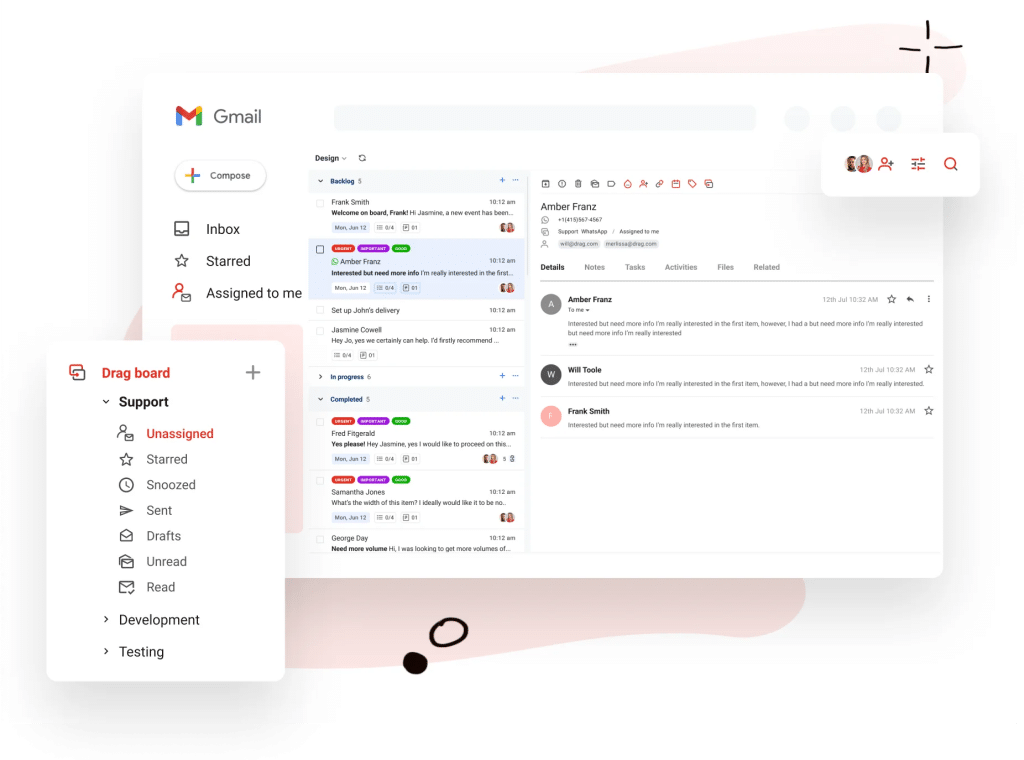
DragApp is a Gmail-based shared inbox tool that turns emails into tasks. It helps small teams manage group email addresses like support@ or info@ without leaving their inbox.
Why Drag Made It to the List
Since Drag keeps everything inside Gmail, teams can start using it instantly without learning a new interface.
The Kanban-style boards make it easy to see what’s pending, in progress, or done, and features like assignments, templates, and basic automations help teams stay organized. It’s a straightforward option for teams that want shared inbox features and lightweight task management in one place.
Key Features:
- Kanban Boards: Organize your inbox using columns like “To Do,” “In Progress,” and “Done.” This helps teams track progress and move conversations forward without needing an external task board.
- Email Assignment and Quick Templates: Assign emails to teammates, respond using ready-made templates, and schedule personalized follow-ups.
- Convert Emails into Tasks: Turn any email into a task. Add notes, deadlines, or checklists, right in Gmail. Handy for keeping work actionable and transparent.
- Automation: Create rules to auto-assign emails, move them to the right board, or send templated replies based on subject or sender.
Pros:
- Tasks built directly into emails make tracking effortless and ensure nothing slips through the cracks.
- Response templates save time and keep communication consistently on brand.
- Built-in chat strengthens collaboration across the team.
Cons:
- Lacks features like shared drafts or multi-agent editing
- Can slow down when email volume is high.
- Customization options are limited.
Pros and cons summarized from Drag’s G2 reviews.*
Pricing:
- Starter: $12 user/month, billed yearly
- Plus: $18 user/month, billed yearly
- Pro: $24 user/month, billed yearly
4. Gmelius
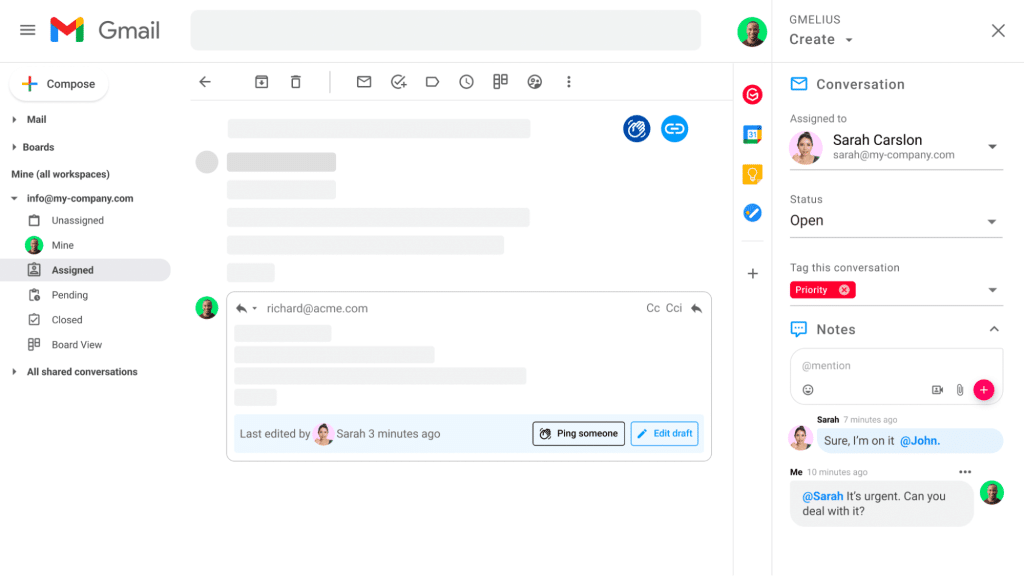
Gmelius is a shared inbox tool that lives inside Gmail and helps teams manage conversations, automate workflows, and collaborate without switching platforms.
Why Gmelius Made It to the List
Gmelius is best known for bringing process automation into your inbox, letting you auto-tag, auto-assign, and respond to emails based on predefined rules.
It works well for teams looking to manage shared inboxes like support@, info@, or sales@ while combining email management with lightweight project tracking.
Key Features:
- Shared Labels: Share Gmail labels with your team, so everyone can view and filter conversations by type or priority. For example, you can create a “High Priority” label and share it only with your managers.
- Kanban Boards: Turn emails into cards and organize them into columns like “To Review,” “Waiting on Client,” and “Resolved.” It’s a handy way to track progress and stay organized.
- Email Tracking and Scheduling: Know when an email is opened or clicked, and schedule follow-ups to land at the right time. This is especially useful for outbound teams handling client communications or follow-ups.
- AI Auto Tagging: Use AI to analyze and tag incoming emails based on their content. This helps you sort, report on, and take action based on the nature of your emails—without manual triaging.
Pros:
- Strong at automating routine tasks
- Easy sharing of emails/threads and convenient note-taking for better team communication
Cons:
- The mobile app feels limited compared to the desktop.
- Email threads can get tied together, so deleting one message may delete the entire chain.
- Tags can be unreliable, often requiring manual fixes.
Pros and cons summarized from Gmelius’ G2 reviews.*
Pricing:
- Starter: $12 user/month, billed yearly
- Plus: $18 user/month, billed yearly
- Pro: $24 user/month, billed yearly
5. Help-Scout
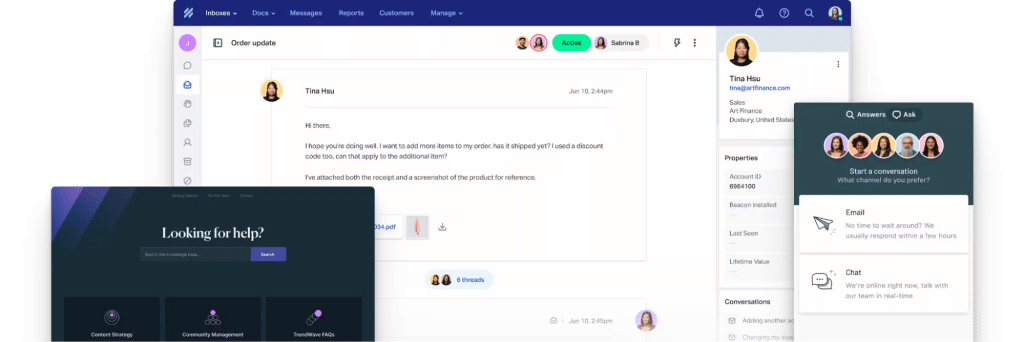
Help Scout is a customer service platform that brings email, chat, and phone conversations into one clean, unified dashboard. It’s simple to set up and feels close to a traditional inbox, which makes onboarding fast for most teams.
Why Help Scout Made It to the List
First of all, the interface is familiar to your email inbox, meaning the onboarding is fast, and teams can start resolving conversations without a long setup process. Beacon adds an easy way to offer in-app help through chat or articles, and everything flows back into the shared inbox. Help Scout is a solid choice for teams that want a lightweight support platform that stays intuitive and easy to manage.
Key Features:
- Clear Queue Management with Unassigned View: See which conversations haven’t been picked up yet, so teams can jump in and assign them quickly. It’s a small feature that solves a big problem: making sure no customer is left waiting.
- Customer Profiles: Each conversation is tied to a full profile that includes past messages, open issues, and any internal notes. This gives agents the full story without digging through multiple tools or inboxes.
- AI Summarize: Turns long threads into short summaries, making it easy for anyone jumping in to get the full context right away.
- Collaboration: You can @mention teammates in internal notes, share drafts for review, and assign specific threads to the right person. It reduces back-and-forth and keeps all context within the conversation.
Pros:
- Collision detection alerts you when someone else is replying, so customers don’t get duplicate emails.
- AI tools summarize, translate, and auto-answer common queries.
- The Beacon widget gives customers in-app access to chat, email, and help articles right when they need them.
- Simple setup and intuitive design for small teams.
Cons:
- Setting up the knowledge base can be time-consuming, and many users say organizing content takes more effort than expected.
- Automated emails can sometimes duplicate threads.
- Reports lack advanced filtering and customization.
Pros and cons summarized from Help Scout’s G2 reviews.
Pricing:
- Standard: $25/month
- Plus: $75/month
Recommended reading
Here are 10 Help Scout alternatives for businesses.
6. Zendesk
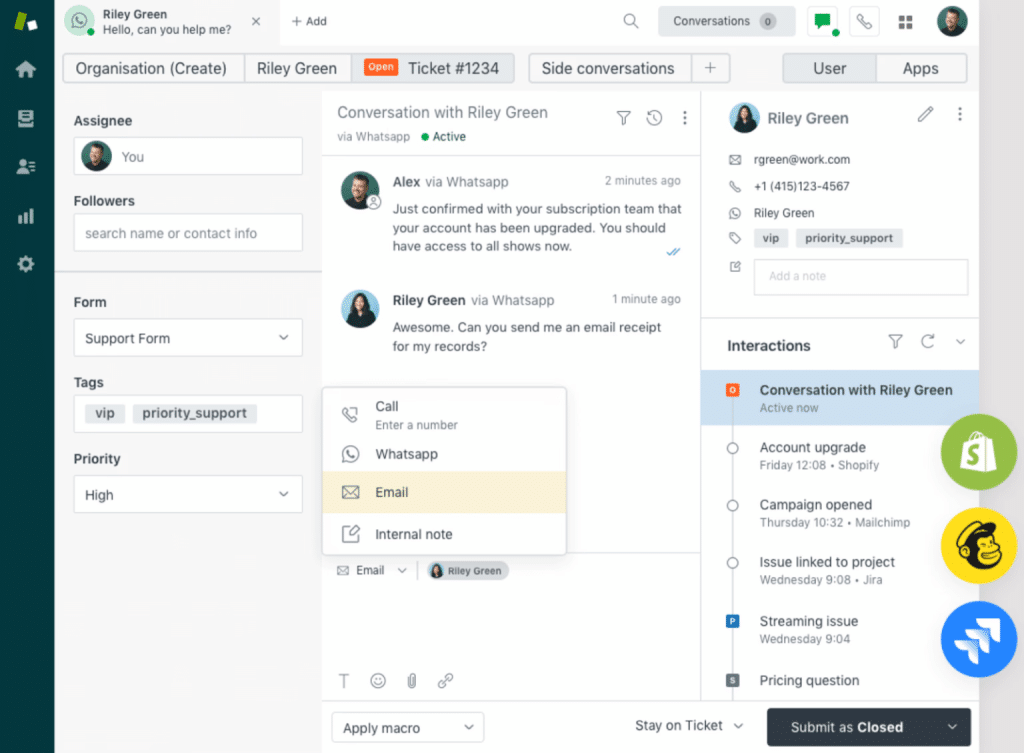
Zendesk is a full-scale customer service platform known for helping support teams handle tickets across email, chat, phone and social. It’s designed for organizations that need more structure, customization, and workflow depth than a simple shared inbox can provide.
Why Zendesk Made It to the List
Zendesk earned its place because it offers the deepest level of customization and workflow control among shared inbox and ticketing tools. Enterprise teams often need complex routing, tailored SLAs, layered permissions, and integrations that fit tightly into their existing stack, and Zendesk handles all of that extremely well.
Its ticketing model brings structured processes to high-volume teams, and features like skills-based routing, advanced reports, and automation rules give large organizations the flexibility they need. Zendesk is a strong fit for companies that require a fully customizable shared inbox experience and enterprise-grade scalability.
Key Features:
- Skills-Based Routing: Automatically route tickets to the right agent based on their expertise, language, or department.
- Macros: Teams can use prebuilt response templates—called macros—to reply to repetitive questions. These can be customized and shared across teams for consistent, efficient communication.
- AI and Automation: Use Zendesk’s AI to auto-prioritize tickets, suggest relevant help articles, and handle FAQs without manual involvement. It supports agents with real-time guidance and the customer context they need to reply accurately and confidently.
- Advanced Reporting: Get detailed analytics on SLA performance, ticket resolution time, backlog, agent productivity, and CSAT trends. You can also create custom reports to track what matters most to your team.
Pros:
- Offers deep customization for enterprise workflows.
- Integrates with a wide range of tools, including Salesforce, HubSpot, Slack, Jira, Shopify, and Stripe, so teams have all their context in one place.
- Reliable analytics to track team and customer performance.
Cons:
- Every email turns into a ticket, which can make customer conversations feel transactional and less personal. Teams lose the natural, conversational flow of a regular inbox.
- Workflows and automations take time to set up and often need a dedicated admin.
Pros and cons summarized from Zendesk’s G2 reviews.
Pricing:
- Suite Team: $55/agent/month
- Suite Growth: $89/agent/month
- Suite Professional: $115/agent/month
- Suite Enterprise & Enterprise Plus: Custom pricing
7. Missive
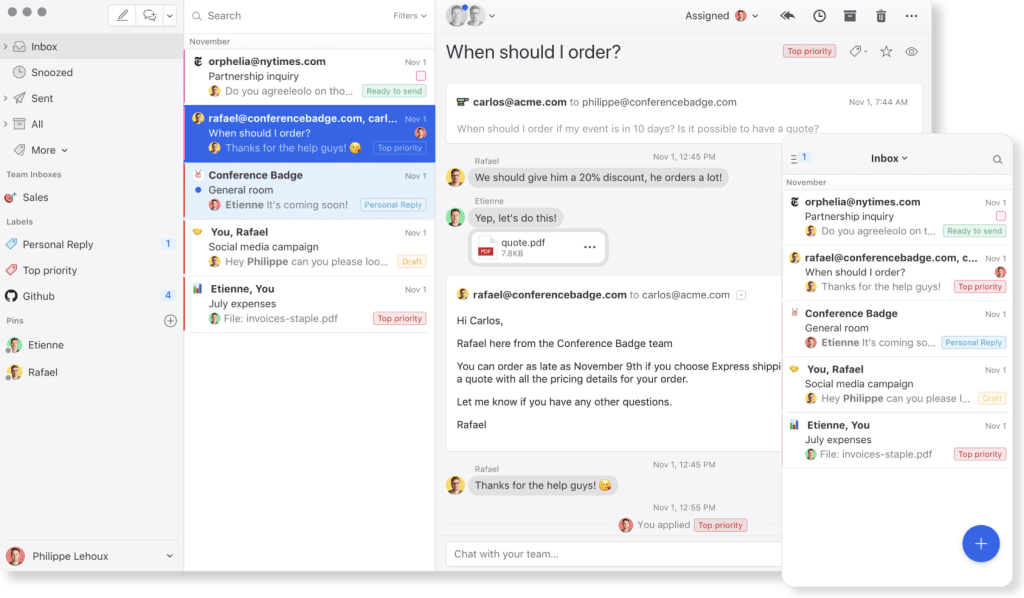
Missive is a collaborative email app that brings shared inboxes, chat, and task management into one place. It lets you see who’s handling what, and work together behind the scenes without changing your workflow.
Why Missive Made It to the List
Missive stands out for how naturally it supports teamwork. You can discuss emails inside the thread, co-write replies, and assign tasks without losing context. Flexible rules, simple automations, and integrations with tools like Slack, Shopify, and Trello add more control without making things complicated.
Key Features:
- Team Inboxes: Have multiple people work out of the same inbox, without stepping on each other’s toes.
- Flexible Workload Distribution: Automatically assign emails based on your preferred method—Round Robin, Least Busy First, or First Available. This helps balance the workload among the team.
- Assign and Watch: Assign a conversation and stay in the loop with watch mode, so you can follow progress and jump in anytime.
- Collaborative Drafting: Multiple teammates can work on the same email response in real time. Edits are visible live, so you don’t need to juggle shared docs or copy-paste notes back into the inbox.
Pros:
- Combines email and social channels in one inbox.
- Strong collaboration with tagging, comments, and shared drafts.
- Helps teams track ownership and maintain context easily.
Cons:
- Limited reporting—there are no detailed SLA dashboards or performance insights.
- Slight learning curve for users new to shared inboxes.
- Limited tutorials and other training material.
Pros and cons summarized from Missive’s G2 reviews.
Pricing
- Starter: $14 per user per month
- Productive: $24 per user per month
- Business: $36 per user per month
8. Kayako
Kayako is a customer service platform for teams that want to manage shared inboxes alongside other support channels like live chat and social media.
Why Kayako Made It to the List
Kayako stands out for giving agents a complete, unified view of every customer interaction. SingleView pulls activity from email, chat, social, and connected tools into one timeline, so agents never have to guess or search for context. It also makes it easy to bring in other teams or external partners when needed. Kayako is a strong choice for teams that want richer customer context and seamless cross-channel support.

Key Features:
- Collaboration: Kayako makes it easy to pull in outside experts—like vendors or suppliers—when needed. This is useful for teams that deal with escalations or queries involving multiple stakeholders.
- Customizable Support Portal: Build a branded help center for your customers where they can submit tickets, search articles, or chat with your team. You can customize the design and content to match your brand.
- Integrations: Connect Kayako with tools like Salesforce, Slack, Mailchimp, Trello, or HubSpot, so you can unify all customer touchpoints into one interface.
- Reporting: Track service-level response times across channels like email, live chat, and social. You can also monitor customer effort scores and build custom dashboards to drill into the metrics that matter most.
- AI Assistance: Kayako’s AI can pre-draft replies, refine your writing, and generate instant response suggestions based on your tone. It also analyzes incoming messages to trigger actions like creating tasks, escalating sensitive conversations, or filtering out spam, which reduces manual work and speeds up resolution.
Pros:
- The AI makes it much faster to draft and respond to tickets.
- Smart prioritization automatically ranks most tickets by urgency, so you only need to focus on the ones that truly need a human touch.
Cons:
- Users feel limited by the lack of integrations and often rely on third-party plugins for basic needs like auto-refresh.
- Connecting accounts and emails can feel a bit tricky without clearer setup guidance.
- The interface feels slightly dated and can require extra clicks for routine actions.
Pricing:
- Kayako follows a single, all-in-one plan priced at $79/mo.
9. Freshdesk
Freshdesk by Freshworks is a cloud-based customer support platform built to help teams manage customer conversations across multiple channels—email, chat, phone, and social media.
Why Freshdesk Made It to the List
Freshdesk stands out because it gives teams a structured, help-desk-style shared inbox with solid automation and AI support. Freddy AI speeds up replies, reduces manual work, and helps agents handle routine questions more confidently. Features like parent-child ticketing, internal notes, and shared ownership make complex issues easier to manage. Freshdesk is a strong fit for teams that want more structure than a simple shared inbox but still prefer a tool that is easy to set up and grow with.

Key Features:
- Freddy AI: Automates repetitive work like tagging emails, assigning tickets, and sending routine updates. It can also handle common FAQs through chatbots and suggest replies to agents in real time.
- Team Collaboration: Assign tickets, share ownership, and use internal notes within tickets to ensure seamless collaboration among team members.
- Parent-Child Ticketing: Break down complex issues into a main ticket (parent) and sub-tickets (children) for detailed tracking and management. Perfect for teams working together on a large issue with multiple dependencies.
- Self-Service: Set up a branded knowledge base, forums, and chatbot flows to reduce ticket volume and help customers find answers faster without waiting for agent replies.
Pros:
- Freddy AI speeds up responses and reduces manual work.
- Simple yet powerful automation tools.
- Great for teams that want help desk structure without too much complexity.
- Integrates easily with third-party apps.
Cons:
- You have to bounce between different apps if you’re managing multiple channels.
- Handling email threads and recipients can be clunky.
- Reporting and interface can slow with high ticket volumes.
- Certain ticket actions (like reopening) need manual steps.
Pros and cons summarized from Freshdesk’s G2 reviews.
Pricing:
- Free: Up to 2 agents
- Growth: $15/agent/month
- Pro: $49/agent/month
- Enterprise: $79/agent/month
10. HappyFox
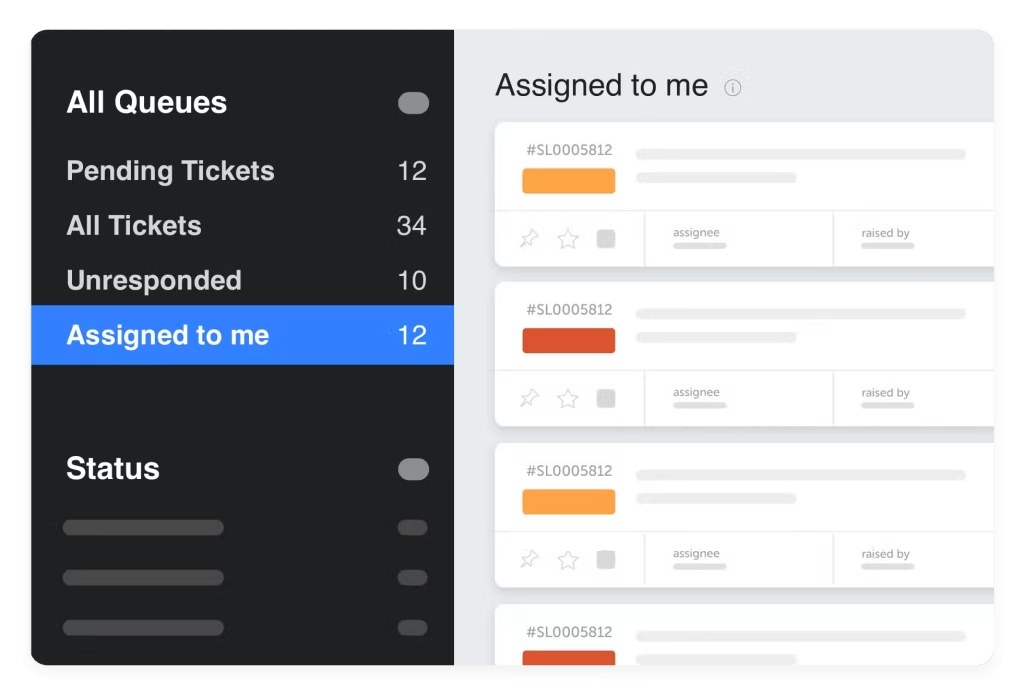
HappyFox is a cloud-based help desk platform that offers shared inbox capabilities as part of its broader ticketing suite.
It’s useful for support teams who want to manage conversations from multiple channels—email, chat, social media, and phone—in one place.
Key Features:
- Smart Rules & Automation: Set up rule-based workflows to auto-assign tickets, tag conversations, escalate overdue messages, or trigger alerts.
- Self-Service Knowledge Base: Create a branded help center with FAQs, articles, and how-to guides. You can reduce ticket load by encouraging customers to find answers on their own.
- Task Management: Break down tickets into smaller tasks, set due dates, and assign them to agents. Use task templates to speed up recurring work and get notified when tasks are due or assigned.
- Integrations: HappyFox connects with Slack, Microsoft Teams, Salesforce, Shopify, and other popular tools, so your agents can collaborate and pull in data without leaving the support dashboard.
Pros:
- Easy onboarding with a clean, minimal interface that avoids unnecessary bloat.
- Strong automation tools like smart rules, SLAs, and canned actions help streamline workflows.
- Reliable ticket management with solid collaboration features and a customizable knowledge base.
Cons:
- Turning emails into tickets creates a queue-based, transactional experience instead of a conversational one.
- Reporting can be confusing, and some advanced analytics are locked behind higher-tier plans.
- Contact management is limited and not very flexible.
Pros and cons summarized from Freshdesk’s G2 reviews.
Pricing:
- Basic: $ 21 Per agent/mo
- Team: $ 39 Per agent/mo
- Pro: $ 89 Per agent/mo
- Enterprise: Custom Pricing
Key features of a shared inbox software
If you’re evaluating shared inbox tools, it’s important to look beyond the interface. Here’s a detailed checklist of features to consider.
| Feature | Free Trial |
|---|---|
| Email Assignment | Creates accountability & eliminates confusion |
| Internal Notes | Keeps collaboration in one place |
| Tags & Views | Structures inbox for faster triage |
| SLA + Collision Alerts | Ensures timely, coordinated replies |
| Automation | Saves time on repetitive tasks |
| Reporting | Improves team performance with data |
| Mobile Access | Stays responsive on the go |
| Permissions & Logs | Integrations |
| Integrations | Helps build a unified workflow across tools |
1. Email Assignment and Ownership
One of the biggest risks with shared inboxes is a lack of ownership. When it’s unclear who’s supposed to respond, emails get ignored or answered twice. You should look for:
- Manual and rule-based assignment (e.g., route “refund” emails to billing)
- Visual indicators of who’s handling what
- Reassignment workflows if someone is out of the office
2. Internal Notes and Team Collaboration
When a teammate needs help before replying, they shouldn’t have to forward the email or start a Slack thread. Always look for:
- Ability to @mention teammates inside the thread
- Private comments that don’t go to the customer
- Email activity logs (who replied, who tagged, who reassigned)
3. AI That Handles Repetitive Work
AI features in shared inbox platforms are built to reduce repetitive tasks and help teams focus on what matters. It assists with writing, sorting, and resolving emails faster.
- Auto-drafts: Get ready-to-send email suggestions that agents can review, tweak, and send – saving time on every reply.
- AI Compose: Write replies in your brand’s tone of voice, no matter who’s responding.
- Deflection: Let AI handle common queries, before they even hit your team’s inbox.
- Triage: Automatically categorize emails based on topic, sentiment, or urgency.
- Routing: Instantly assign conversations to the right teammate based on query type, workload, or past ownership.
4. Tags, Custom Views, and Smart Filtering
Tagging and filtering aren’t just for organization. It’s how you turn a chaotic inbox into a structured workflow. Consider the following:
- Custom tags (e.g., “Urgent,” “Bug,” “VIP customer”)
- Views like: “All unassigned high-priority emails” or “My Open Tickets”
- Saved searches for repeat workflows
5. SLAs To Maintain Consistent Response Times
SLAs bring structure to your shared inbox and ensure customers get timely responses. They also help teams prioritize work during busy hours and improve CSAT.
- Set SLAs by inbox, customer type, or tag, such as “Reply to VIPs within 1 hour.”
- Use visual timers or countdowns so agents know what needs attention first
- Review SLA breaches to understand bottlenecks and redistribute workload
- Adjust SLA rules as volume, staffing, or business needs change
- Use follow-up reminders to prevent conversations from going idle
6. Prevent Duplicate Replies With Collision Detection
Collision alerts show when someone else is viewing or replying to an email. This prevents duplicate responses, keeps conversations consistent, and makes handoffs easier for the team.
7. Automation for Repetitive Email Workflows
Every manual step you automate saves hours over time and keeps the team focused on meaningful work. Look for:
- Auto-assignment rules (e.g., all emails from [email protected] → Procurement team)
- Auto-tagging based on subject/body content
- Auto-close tickets after inactivity (e.g., 3 days)
- Welcome or acknowledgement messages the moment a customer writes in, so they know their request has been received, even before an agent steps in.
8. Analytics & Reporting
A shared inbox should do more than organize emails; it should show you how your team is performing across every channel. Look for tools that help you:
- Track metrics like first response time, resolution time, and backlog to identify where delays are happening.
- Review agent-level reports to balance workloads, spot burnout, and recognize top performers.
- Use tag-based insights to understand which issues come up most often—and prioritize fixes or documentation accordingly.
9. Mobile Access and Real-Time Sync
Your team isn’t always at their desk. For remote-first or globally distributed teams, mobile access is mandatory. Look for:
- Native iOS and Android apps (not just browser access)
- Real-time push notifications for mentions or assignments
- Sync across devices without delays.
10. Roles, Permissions, and Audit Logs
Not everyone should see or do everything in the inbox. Security and access control matter, especially for regulated industries. Always consider:
- Role-based permissions (e.g., viewer, contributor, admin)
- Inbox-specific access (e.g., finance team can’t see HR emails)
- Audit logs showing who did what, when
11. Tool Integrations and API Access
A shared inbox should connect with your existing tools and workflows. Look for:
- CRM integrations (e.g., HubSpot, Salesforce)
- Slack, WhatsApp integration, or SMS channels linked directly to the inbox
- Webhooks or API access for custom workflows
Recommended reading
How To Set up a Shared Inbox in Gmail
There are three main ways to manage a shared inbox using Gmail: Google Groups, Collaborative Inboxes, and Delegated Access. Each option has its own use case, whether you need basic email access, task-style management, or shared visibility for a team.
Here’s a quick overview of how each one works and where it fits best.
- Google Groups as a Shared Inbox: Many teams use Google Groups to manage shared email addresses like support@ or info@. You can set up a group, add your team members, and allow people outside your organization to send emails to that address.
Once it’s configured, everyone in the group can view and reply to messages individually from their own Gmail. It’s a basic but functional option for small teams, though it lacks visibility into who’s replying or if something’s already been handled.
- Google Collaborative Inbox: To get more structure, Google offers a Collaborative Inbox – an advanced setting within Google Groups. It allows you to assign conversations, mark items as resolved, and view messages by status. It’s a small upgrade from simple group forwarding and helps teams add basic ownership.
However, it falls short in key areas that teams rely on. There is no internal collaboration such as notes or @mentions, no tracking or analytics to measure response times or workloads, and no collision detection to prevent duplicate replies.
- Gmail Delegated Access: It allows one user to give another permission to access and send emails on their behalf. It’s useful for executives sharing access with assistants or when only one or two team members need access to the same inbox.
But delegated access isn’t ideal for true team collaboration: there’s no way to assign emails, leave notes, or see who’s working on what. It’s more suited for individual support, not for teams.
How To Set up a Shared Inbox in Outlook
Microsoft Outlook lets you set up shared mailboxes, making it easier for teams to manage group email addresses like [email protected] without needing extra tools.
Steps to set up:
- Admin creates the shared mailbox in the Microsoft 365 Admin Center.
- Add members who should have access to the mailbox.
- Assign permissions:
- Full Access – read/manage the inbox
- Send As – send emails as the shared address
- Send on Behalf – send as “Name on behalf of Team”
What happens next:
- Once set up, the shared inbox appears in Outlook (desktop/web) for all members.
- Everyone can read, reply, and organize emails from the same inbox.
- There’s no need to share credentials: access is permission-based and secure.
While Outlook’s shared mailbox setup is simpler than Gmail’s, it still misses advanced features like assignments, automation, and internal notes – unless you use a dedicated shared inbox platform.
If your support team already uses Outlook for managing work emails, switching to Hiver is effortless. They can handle customer queries and work-related emails from one place, without toggling between a help desk and their inbox.
Hiver also centralizes all customer conversations and context in one view. With over 100 integrations, teams can access relevant customer details in a single, unified platform.
To help you understand better, we’ve created a free downloadable guide comparing shared inbox setup for Gmail vs Outlook. 👉Click here.
Alternatives to Shared Inbox: What You Should Actually Use?
Here’s how shared inboxes stack up against common options like Google Groups, distribution lists, etc., so you know what you’re really getting (and missing) with each.
1. Shared Inbox vs Google Groups
Google Groups is fine for simple broadcasts, but once you need clear ownership, tracking, or collaboration, it breaks down. Shared inboxes give you structure and visibility.
| Feature | Shared Inbox | Google Groups |
|---|---|---|
| Assign ownership | ✅ Yes | ❌ No |
| Track reply status | ✅ Yes (open, pending, closed) | ❌ No |
| Prevent duplicate replies | ✅ Yes (collision alerts) | ❌ No |
| Internal notes | ✅ Yes | ❌ No |
| SLA tracking & reports | ✅ Yes | ❌ No |
| Works inside Gmail | ✅ Seamless (with tools like Hiver) | ✅ But limited functionality |
2. Shared Inbox vs Google Collaborative Inbox
Google Collaborative Inbox tries to bridge the gap but lacks critical features like SLAs, notes, and automation. Teams outgrow it fast.
| Feature | Shared Inbox | Collaborative Inbox |
|---|---|---|
| Assign emails to teammates | ✅ Yes | ⚠️ Limited, manual |
| Add private notes | ✅ Yes | ❌ No |
| SLA tracking | ✅ Yes | ❌ No |
| Analytics | ✅ Yes | ❌ No |
| Built into Gmail UI | ✅ Yes (with Hiver) | ❌ Separate, unfamiliar UI |
| Automation rules | ✅ Yes | ❌ No |
3. Shared Inbox vs Delegated Access
Delegated access is useful for executive assistants or inbox backups—not for team-based workflows. It lacks structure and visibility.
| Feature | Shared Inbox | Delegated Gmail |
|---|---|---|
| Meant for teams | ✅ Yes | ❌ No |
| Shared assignment | ✅ Yes | ❌ No |
| Tracking and reporting | ✅ Yes | ❌ No |
| Internal comments | ✅ Yes | ❌ No |
| Roles and access controls | ✅ Yes | ❌ No |
4. Shared Inbox vs Distribution Lists
Distribution lists are good for visibility—but terrible for accountability. Once your team needs to actually manage emails, a shared inbox is a better choice.
| Feature | Shared Inbox | Distribution List |
|---|---|---|
| Reply tracking | ✅ Yes | ❌ No |
| Email ownership | ✅ Yes | ❌ No |
| Collision alerts | ✅ Yes | ❌ No |
| Filtering or SLA tracking | ✅ Yes | ❌ No |
| Works natively in Gmail | ✅ Yes | ✅ Yes |
Recommended reading
6. Shared Inbox vs Email Alias
An email alias is just another name for your inbox. For example, sales@ might forward to priya@. It doesn’t come with collaboration or tracking.
- Emails sent to the alias land in someone’s inbox, but there’s no way to assign, tag, or discuss them.
- You’ll need to forward, CC, or ping someone to collaborate, which creates confusion and duplication.
Streamline Team Collaboration with a Shared Inbox
Managing a group inbox goes beyond access. A modern shared inbox platform changes that. It gives you structure:
- Every email has an owner.
- Every conversation has context.
- Every teammate works with clarity.
- And every workflow is trackable and improvable.
👉 What you can do next:
- Still on Gmail or Google Groups? Start by mapping out the gaps: Where are you losing track of emails? What’s your average response time?
- Already using a shared inbox software? Revisit your setup: Are you using assignment rules, SLAs, reports, or tags to their full potential?
- Evaluating tools? Choose a platform that fits your team’s structure, integrates with your tools, and works where your team already lives (like Gmail).
Get started with Hiver for free.
Frequently Asked Questions
1. What is the difference between a shared inbox and a distribution list?
A shared inbox lets your team manage emails collaboratively—assign, tag, comment, and track them—while a distribution list only forwards emails to multiple people. In a distribution list, there’s no visibility into who’s replied or whether an issue has been resolved.
2. Can multiple people reply from the same shared inbox without confusion?
Yes. Shared inbox software are built to avoid confusion. They show live activity (like who’s replying) and allow internal notes for discussion, so your team doesn’t accidentally send multiple responses to the same customer.
3. Is it possible to assign emails to specific team members in a shared inbox?
Absolutely. Most shared inbox platforms let you manually or automatically assign emails based on sender, subject, tags, or team availability, ensuring each email has a clear owner from the moment it arrives.
4. Can a shared inbox be used for non-customer-facing teams?
Yes. Shared inboxes are just as useful for finance (billing@), HR (careers@), legal, and operations teams. Anywhere multiple employees manage a common email account, a shared inbox improves visibility and accountability.
5. How to choose the best Shared Inbox Software?
Choosing the best shared inbox software comes down to three things: how well it organizes emails, how easily your team gets to collaborate, and whether it scales with your channels and volume.
Look for tools that make assignments obvious, prevent duplicate replies, and keep context in one place. Automation, reporting, and integrations should feel simple—not like extra systems to maintain.
6. Do shared inboxes work with Gmail or Outlook?
Yes. For example, Hiver works with both Gmail and outlook, letting teams manage shared inboxes without leaving their familiar interface. Some tools offer separate platforms with plugins or browser extensions.
7. How do I know if my team has outgrown Google Groups or Collaborative Inbox?
If you’re missing emails, unsure who’s replying, or constantly using spreadsheets to track conversations, you’ve likely outgrown those tools. A shared inbox offers ownership, reporting, and automation that Google Groups simply can’t handle.


