
HTML code
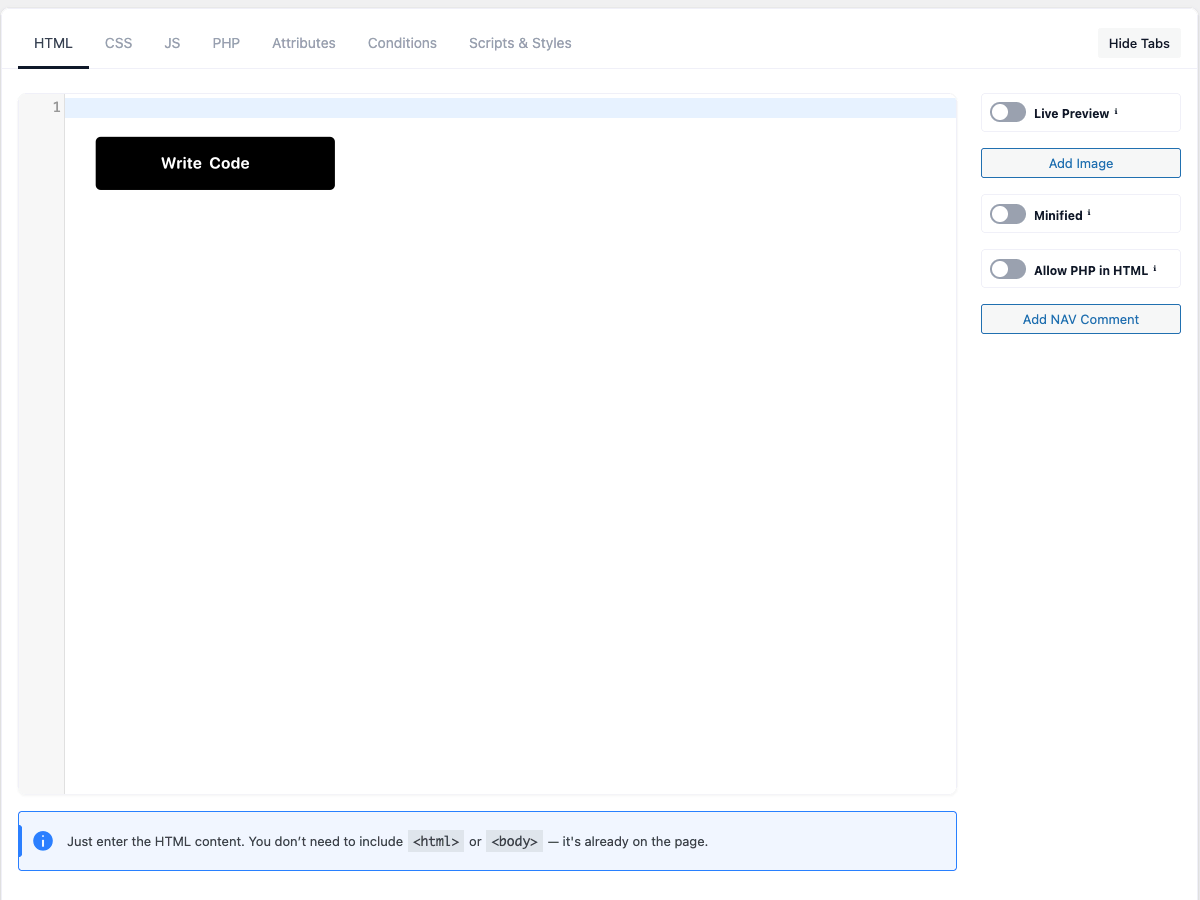
The HTML tab is where you write the markup for your snippet. The big editor holds your HTML; the
sidebar holds helper buttons and options.
Tip: enter only the body markup — you don’t need
<html>or<body>wrappers, because the
snippet is placed inside an existing page.
Code editor
The HTML area is a full code editor with syntax highlighting, line numbers and bracket matching. All
the sidebar buttons (Add Image, NAV, QuickCode…) insert text at your cursor.
Live Preview
Renders your HTML and CSS in real time so you can see the result without saving. The preview
refreshes as you type and whenever you toggle it on.
Theme Stylesheet
Includes your active theme’s main stylesheet inside the Live Preview, so the preview reflects
your theme’s fonts and base styles. This only affects the editor preview — it doesn’t change how the
theme loads on your live site.
QuickCode
The QuickCode button (shortcut Ctrl/Cmd + E) opens a searchable inserter for reusable {{...}}
placeholders that pull in dynamic WordPress data. It appears only when the Enable QuickCode tool
is on. A related Global Vars button inserts {{global.name}} chips when you’ve defined Global
Variables. See QuickCode.
Add Image
Opens the WordPress media library and inserts a responsive <img> tag at your cursor, complete with
alt, width, height and srcset/sizes. It deliberately leaves the loading attribute off so
WordPress decides whether the image loads eagerly (hero) or lazily.
Minified
Minifies the HTML output on the front end for smaller, faster pages.
Allow PHP in HTML
Runs PHP embedded directly in your HTML markup.
- For safety, the code is scanned and any forbidden function blocks the whole snippet (a comment
is shown instead). Blocked functions includeeval,exec,system,shell_exec,passthru,
popen,proc_open,pcntl_exec,assert,create_function,base64_decodeand the backtick
shell operator. - Shortcode attributes are available as variables inside the PHP, and your snippet’s PHP tab code
runs first.
⚠ Use with care — running PHP inside HTML can be unsafe.
Add NAV Comment
Inserts an <!-- NAV: --> marker at your cursor. The editor turns these markers into a clickable
outline, letting you jump between sections of long markup. (The CSS, JS and PHP tabs have the same
feature.)
Loop Logic
The Loop Logic button (shown only when the Enable Loop Logic tool is on) opens a reference
dialog and inserts ready-made <If> and <Loop> blocks for conditional and repeating content.
Full reference: Loop-Logic. A quick summary:
<If> — conditional blocks
Show content only when an attribute matches a condition:
<If field="attr_name" value="expected_value" operator="!=">
  <!-- shown when NOT equal -->
</If>
Operators include =, !=, >, >=, <, <=, contains, not_contains, starts_with,
ends_with, empty, not_empty, in, not_in, true, false.
<Loop> — repeater loops
Repeat a block once per row of a Repeater attribute:
<Loop field="my_repeater">
  <div>{{loop.title}}</div>
  <div>{{loop.description}}</div>
</Loop>
Inside a loop you can use {{loop.field_name}} (or the short {{field_name}}), {{loop.index}},
{{loop.index0}}, {{loop.is_first}} and {{loop.is_last}}. <If> can be nested inside <Loop>.
Attributes panel
When your snippet defines attributes (in the Attributes tab), the sidebar shows clickable chips
that insert the right placeholder for each one:
- text →
{{$name}} - image →
{{$name_html}}(a full optimized<img>) plus sub-variable chips like_url,
_alt,_width,_height,_srcset,_html_high. - icon →
<i class="{{$name}}"></i> - repeater → a
<Loop>block (when Loop Logic is on) or a plain{{$name}}placeholder.
See Attributes for the full list of attribute types.
Where the HTML appears
The markup you enter is body content only. Your snippet is added to the page in one of two ways:
- Automatic display — by the snippet’s Conditions / Display Rules
(Conditions). - Shortcode —
placed in a post, page, widget or template.
