

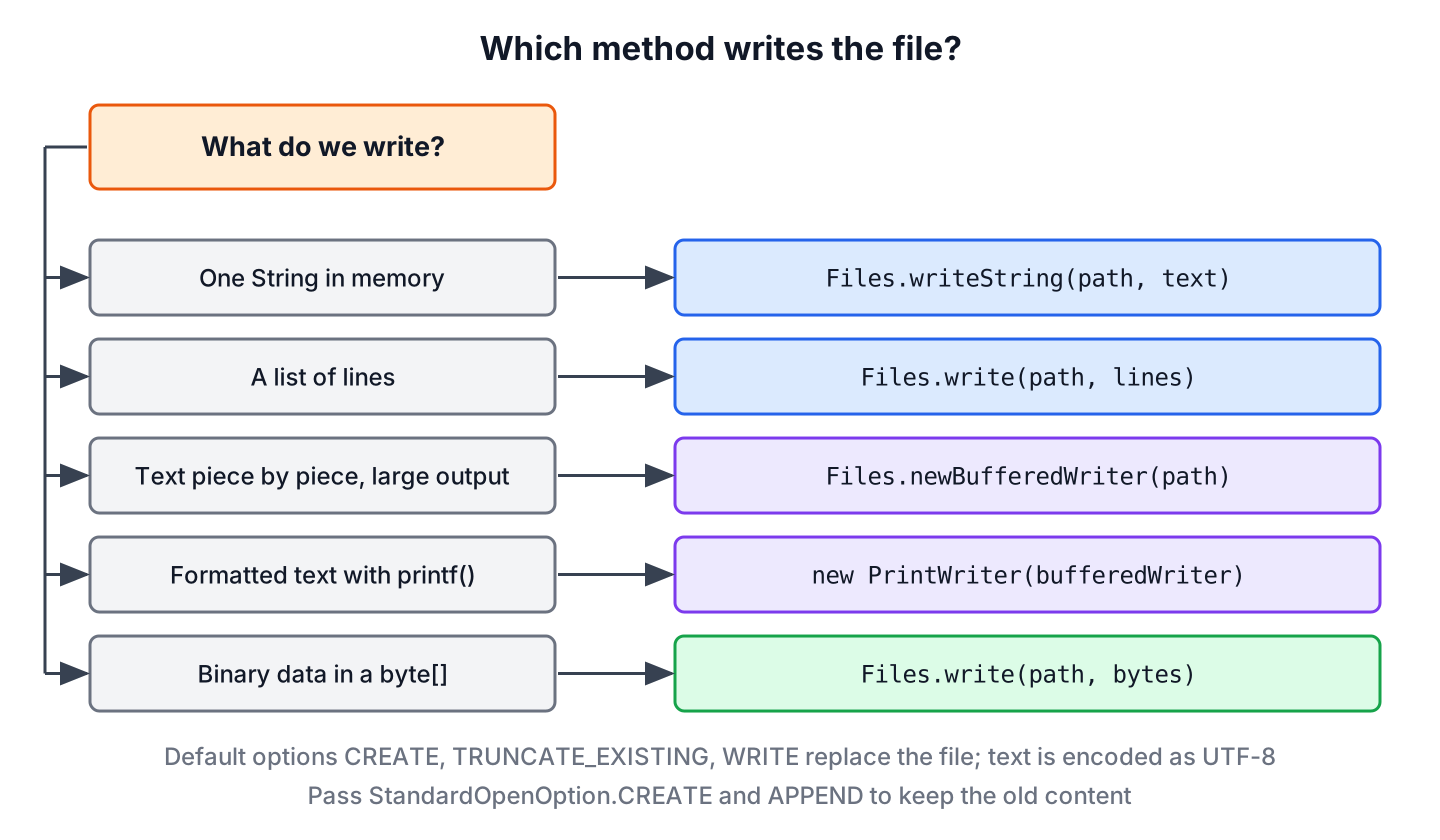
Writing to a file in Java takes one call to Files.writeString(path, text) for a String or Files.write(path, lines) for a list of lines, and both methods create the file if it is missing, replace the old content and encode the text as UTF-8. For output that we produce piece by piece, we open a BufferedWriter with Files.newBufferedWriter(path), and for binary data we pass a byte[] to Files.write().
We write files to save reports and exports, store settings, keep a local cache of downloaded data or produce CSV files for another system. All of these methods are in the java.nio.file package and work on a Path.
The following example writes a grocery list in four ways and reads the file back after each step. A temp file keeps the example self-contained.
Path file = Files.createTempFile("groceries", ".txt");

Files.writeString(file, "apple\nbanana\n");
List<String> fromString = Files.readAllLines(file);      // [apple, banana]

Files.write(file, List.of("milk", "eggs", "bread"));
List<String> fromList = Files.readAllLines(file);        // [milk, eggs, bread]

try (BufferedWriter writer = Files.newBufferedWriter(file, StandardOpenOption.APPEND)) {
    writer.write("butter");
    writer.newLine();
}
List<String> appended = Files.readAllLines(file);        // [milk, eggs, bread, butter]

Files.write(file, new byte[] {104, 105});
String fromBytes = Files.readString(file);               // "hi"
Notice that every call without an open option replaced the whole file, and only the call with StandardOpenOption.APPEND kept the old lines. We start with the one-line methods, move on to BufferedWriter, PrintWriter and the binary streams, and finish with encodings, safe writes and a table for picking a method.
1. Writing a String With Files.writeString()
The method Files.writeString() (Java 11) writes any CharSequence, such as a String or a StringBuilder, to a file in one call. It opens the file, encodes the text, writes it and closes the file, so there is no stream for us to close. When we pass no open options, it creates the file if needed and truncates an existing file to zero bytes before writing.
The class java.nio.file.Files has two overloaded static methods named writeString(). The first one writes UTF-8, and the second one takes a Charset for files that another system reads in a different encoding. Both return the Path and throw an IOException when the file cannot be opened or written, or when the text cannot be encoded with the charset.
| Overload | Charset | Typical use |
|---|---|---|
| writeString(Path path, CharSequence csq, OpenOption… options) | UTF-8 | Most files |
| writeString(Path path, CharSequence csq, Charset cs, OpenOption… options) | The given Charset | Files read by systems that expect another encoding |
The following example saves a short text and a StringBuilder, and writes the same file again with an explicit charset. The method returns the Path it wrote to, which is handy for chaining.
Path file = Files.createTempFile("note", ".txt");

Path saved = Files.writeString(file, "buy apples");
String first = Files.readString(saved);                     // "buy apples"

StringBuilder report = new StringBuilder("apple=5").append(", banana=3");
Files.writeString(file, report);
String second = Files.readString(file);                     // "apple=5, banana=3"

Files.writeString(file, "caf\u00e9", StandardCharsets.UTF_8);
long size = Files.size(file);                               // 5
The word caf\u00e9 has 4 characters but takes 5 bytes, because UTF-8 needs two bytes for the accented letter. If the text contains a character that the chosen charset cannot encode, writeString() throws an exception instead of writing a question mark.
Path file = Files.createTempFile("price", ".txt");
Path ascii = Files.writeString(file, "\u20ac5", StandardCharsets.US_ASCII);   // UnmappableCharacterException: Input length = 1
A typical use is an app that exports its settings as a JSON or properties string when the user clicks a button. The whole text is already in memory, so one writeString() call is the shortest correct code.
2. Writing a List of Lines With Files.write()
The method Files.write(path, lines) takes any Iterable of CharSequence, such as a List<String>, and writes each element followed by the line separator of the operating system. That separator is \n on Linux and macOS and \r\n on Windows, so the file ends with a line break, and we do not add separators ourselves.
Path file = Files.createTempFile("groceries", ".txt");
List<String> items = List.of("apple", "banana", "milk");

Files.write(file, items);
List<String> lines = Files.readAllLines(file);                 // [apple, banana, milk]
long bytes = Files.size(file);                                  // 18 on Linux, 21 on Windows

Stream<String> upper = items.stream().map(String::toUpperCase);
Iterable<String> lazyLines = upper::iterator;
Files.write(file, lazyLines);
List<String> upperLines = Files.readAllLines(file);            // [APPLE, BANANA, MILK]
A Stream is not an Iterable, so we turn it into one with the method reference upper::iterator, which works because Iterable has a single abstract method. That trick writes the stream lazily, one line at a time, and the stream can be used only once.
The other overload, Files.write(path, bytes), writes a byte[] as it is, without any charset. We cover it, with large data and atomic writes, in the post on writing a byte array to a file.
3. Overwrite, Append or Fail If the File Exists
Every Files write method accepts optional StandardOpenOption values that decide what happens to an existing file. With no options, the methods behave as if we passed CREATE, TRUNCATE_EXISTING and WRITE, which is why the intro example replaced the file on each call.
| Options we pass | File is missing | File exists |
|---|---|---|
| none (default) | Created | Truncated to zero bytes and written |
| CREATE, APPEND | Created | New data goes after the old data |
| APPEND | NoSuchFileException | New data goes after the old data |
| CREATE_NEW | Created | FileAlreadyExistsException |
| WRITE | NoSuchFileException | Overwritten from byte 0, old bytes after the new data stay |
| APPEND, TRUNCATE_EXISTING | IllegalArgumentException | IllegalArgumentException |
The following example writes a daily report that must never replace yesterday’s file, and adds a line to an existing log. The third case shows the most common mistake, appending to a file that does not exist yet.
Path dir = Files.createTempDirectory("reports");
Path report = dir.resolve("2026-10-10.txt");
Path log = dir.resolve("visits.log");

Files.writeString(report, "apple,5", StandardOpenOption.CREATE_NEW);
Path again = Files.writeString(report, "apple,6", StandardOpenOption.CREATE_NEW);   // FileAlreadyExistsException

Path missing = Files.writeString(log, "lokesh\n", StandardOpenOption.APPEND);     // NoSuchFileException

Files.writeString(log, "lokesh\n", StandardOpenOption.CREATE, StandardOpenOption.APPEND);
Files.writeString(log, "alex\n", StandardOpenOption.CREATE, StandardOpenOption.APPEND);
List<String> visits = Files.readAllLines(log);                                    // [lokesh, alex]
When we append, we pass CREATE together with APPEND, because APPEND alone fails on the first run when the file does not exist yet. The post on appending to a file in Java covers appending with every API, and the post on deleting the contents of a file explains the stale bytes that WRITE alone leaves behind.
4. Writing Large or Incremental Output With BufferedWriter
A BufferedWriter collects characters in an internal buffer of 8192 chars and passes them to the file only when the buffer is full, when we call flush() or when we close the writer. Without it, every small write() call goes through the charset encoder on its own, which adds overhead when we write thousands of short pieces. We use it when the data does not fit in one String, or arrives piece by piece.
Say a shop exports 200,000 orders to CSV every night. Building one huge String would hold the whole export in memory, whereas a BufferedWriter writes each row as the code reads it from the database and keeps only the buffer in memory.
4.1. Creating a BufferedWriter
The factory method Files.newBufferedWriter() opens the file and returns a BufferedWriter that encodes UTF-8, with the same open options as the other Files methods. Older code wraps a FileWriter in a BufferedWriter, which gives the same result when we pass the charset.
Path file = Files.createTempFile("orders", ".csv");

try (BufferedWriter writer = Files.newBufferedWriter(file)) {
    writer.write("item,qty");
}

try (BufferedWriter writer = new BufferedWriter(new FileWriter(file.toFile(), StandardCharsets.UTF_8, true))) {
    writer.newLine();
    writer.write("apple,5");
}
List<String> rows = Files.readAllLines(file);   // [item,qty, apple,5]
The second writer opens the file in append mode, because the third constructor argument of FileWriter is true. The try-with-resources statement closes the outer writer, which flushes the buffer and closes the FileWriter inside it.
4.2. Writing Lines, Flushing and Closing
A BufferedWriter has the write() methods of every Writer, such as write(int c) for one character, write(char[] chars) and write(String text), plus newLine(), which writes the line separator of the operating system. The following example writes a CSV with a header and three rows.
Path file = Files.createTempFile("orders", ".csv");
Map<String, Integer> orders = new LinkedHashMap<>();
orders.put("apple", 5);
orders.put("banana", 3);
orders.put("milk", 2);

try (BufferedWriter writer = Files.newBufferedWriter(file)) {
    writer.write("item,qty");
    writer.newLine();
    for (Map.Entry<String, Integer> order : orders.entrySet()) {
        writer.write(order.getKey() + "," + order.getValue());
        writer.newLine();
    }
}
List<String> csv = Files.readAllLines(file);   // [item,qty, apple,5, banana,3, milk,2]
The data reaches the file only when the buffer is flushed. If we forget to close the writer, the last part of the output, or all of it for a small file, never reaches the disk.
Path file = Files.createTempFile("orders", ".csv");
BufferedWriter writer = Files.newBufferedWriter(file);
writer.write("item,qty");
long beforeClose = Files.size(file);   // 0

writer.close();
long afterClose = Files.size(file);    // 8
We open every writer in a try-with-resources block, because close() flushes the buffer and a writer that is never closed loses its buffered data. An explicit flush() is useful only while the writer stays open, for example when another process reads a progress file during a long job.
4.3. Choosing a Custom Buffer Size
The constructor BufferedWriter(Writer out, int size) sets the buffer size in chars. The default of 8192 chars works for almost every file, and a bigger buffer helps only when each write() call passes very little data, which we confirm with a benchmark before changing it.
Path file = Files.createTempFile("big", ".txt");

try (BufferedWriter writer = new BufferedWriter(new FileWriter(file.toFile(), StandardCharsets.UTF_8), 65536)) {
    writer.write("apple");
}
String content = Files.readString(file);   // "apple"
5. Writing Formatted Text With PrintWriter
A PrintWriter adds the print(), println() and printf() methods that we know from System.out, so it suits reports with aligned columns or numbers in a fixed format. We wrap it around a BufferedWriter to keep the buffering and the charset under our control. The printf-style formatting post lists the format specifiers.
Path file = Files.createTempFile("receipt", ".txt");

try (PrintWriter out = new PrintWriter(Files.newBufferedWriter(file))) {
    out.printf("%-8s%5d%n", "apple", 5);
    out.printf("%-8s%5d%n", "banana", 3);
    out.println("total: 8");
}
List<String> receipt = Files.readAllLines(file);   // [apple       5, banana      3, total: 8]
The methods of PrintWriter never throw an IOException. When a write fails, for example because the disk is full or the writer is already closed, the class sets an internal error flag, and the only way to see it is checkError().
Path file = Files.createTempFile("receipt", ".txt");
PrintWriter out = new PrintWriter(Files.newBufferedWriter(file));
out.close();

out.println("apple");
boolean failed = out.checkError();   // true
For files that must be complete, such as an invoice or an export another system imports, we either call checkError() before we report success, or use a BufferedWriter, which throws the IOException.
6. Writing With FileWriter
The class FileWriter is the classic java.io way to write characters to a file, and it takes a File or a file name instead of a Path. Since Java 11, its constructors accept a Charset, and the boolean flag switches to append mode.
Path file = Files.createTempFile("notes", ".txt");

try (FileWriter writer = new FileWriter(file.toFile(), StandardCharsets.UTF_8)) {
    writer.write("call the bank");
}
String note = Files.readString(file);   // "call the bank"
We meet FileWriter mostly in older code and in APIs that take a Writer. For new code, Files.newBufferedWriter() gives the same result with a Path, a buffer and UTF-8 in one call.
7. Writing Binary Data With Output Streams
Text writers turn characters into bytes, whereas an OutputStream writes bytes as they are, which is what we need for images, PDF files, ZIP archives or our own binary formats. The method Files.newOutputStream() opens a file for bytes with the same open options, and a BufferedOutputStream adds a buffer for many small writes.
A DataOutputStream on top of it writes Java primitives in a fixed big-endian format, so a DataInputStream on any platform reads the same values back. The following example stores a tiny score file with a count and two values.
Path file = Files.createTempFile("scores", ".bin");

try (DataOutputStream out = new DataOutputStream(new BufferedOutputStream(Files.newOutputStream(file)))) {
    out.writeInt(2);
    out.writeInt(90);
    out.writeDouble(7.5);
}
long size = Files.size(file);   // 16

try (DataInputStream in = new DataInputStream(new BufferedInputStream(Files.newInputStream(file)))) {
    int count = in.readInt();          // 2
    int score = in.readInt();          // 90
    double rating = in.readDouble();   // 7.5
}
The file has 16 bytes, 4 for each int and 8 for the double. The class FileOutputStream does the same job with a File object, and a FileChannel from NIO channels adds positioned writes and file locks for special cases. When the bytes come from another stream, such as a download, the post on copying an InputStream to an OutputStream shows transferTo().
8. Choosing the Character Encoding
Every text write turns characters into bytes with a Charset. The Files methods have always used UTF-8 when we pass no charset. Before Java 18, FileWriter, PrintWriter(File) and String.getBytes() used the default charset of the operating system, such as windows-1252 on many Windows machines, so the same code wrote different bytes on Windows and Linux.
Since Java 18, the default charset is UTF-8 on every platform (JEP 400). We still pass StandardCharsets.UTF_8 explicitly in code that may run on an older JVM, or with the option -Dfile.encoding=COMPAT, which restores the old behavior.
Charset defaultCharset = Charset.defaultCharset();             // UTF-8
String utf8 = Arrays.toString("caf\u00e9".getBytes(StandardCharsets.UTF_8));          // [99, 97, 102, -61, -87]
String latin1 = Arrays.toString("caf\u00e9".getBytes(StandardCharsets.ISO_8859_1));    // [99, 97, 102, -23]
A file for another system must use the charset that system expects, for example ISO-8859-1 for an old import tool. The post on reading and writing UTF-8 data covers decoding errors, byte order marks and console output.
9. Writing Files Safely
Two failures are common in production. The parent directory does not exist on a fresh server, or the app crashes in the middle of a write and leaves a half-written file behind.
None of the write methods creates missing directories, so we call Files.createDirectories() first. It does nothing when the directories already exist.
Path base = Files.createTempDirectory("app");
Path settings = base.resolve("config/settings.properties");

Path failed = Files.writeString(settings, "theme=dark");   // NoSuchFileException

Files.createDirectories(settings.getParent());
Files.writeString(settings, "theme=dark");
boolean exists = Files.exists(settings);                   // true
A desktop app that saves its settings on every change shows the second problem. If the app crashes during the write, the old settings are already truncated and the new ones are incomplete. We avoid that by writing to a temp file in the same directory and moving it over the target with ATOMIC_MOVE, so a reader sees either the old file or the new one.
Path dir = Files.createTempDirectory("app");
Path settings = dir.resolve("settings.properties");
Files.writeString(settings, "theme=light");

Path tmp = Files.createTempFile(dir, "settings", ".tmp");
Files.writeString(tmp, "theme=dark");
Files.move(tmp, settings, StandardCopyOption.REPLACE_EXISTING, StandardCopyOption.ATOMIC_MOVE);
String saved = Files.readString(settings);   // "theme=dark"
The move is atomic only when the temp file and the target are on the same file system, which is why we create the temp file in the target directory. For throwaway files, the post on creating a temporary file covers the temp file API.
10. Which Method Should We Use to Write to a File in Java?
All methods produce the same bytes for the same text and charset, so the choice depends on how the data arrives and what format it needs.
| Method | Data | Buffer | Charset if none given | Best for |
|---|---|---|---|---|
| Files.writeString() | One String | Not needed | UTF-8 | Small text that is already in memory |
| Files.write(path, lines) | Iterable of lines | Internal | UTF-8 | Lists of lines, line separators added |
| Files.write(path, bytes) | byte[] | Not needed | None, bytes as they are | Binary data in memory |
| Files.newBufferedWriter() | Text piece by piece | 8192 chars | UTF-8 | Large or incremental text, CSV exports |
| PrintWriter | Formatted text | From the wrapped writer | Default charset | printf() reports; check checkError() |
| FileWriter | Text | Internal byte buffer | Default charset, UTF-8 since Java 18 | Legacy code and File objects |
| Files.newOutputStream() + DataOutputStream | Bytes and primitives | Add BufferedOutputStream | None | Binary formats |
For new code, Files.writeString() and Files.newBufferedWriter() cover most text files. To read the files back, the guides on reading a file to a String and reading a file line by line pair with these methods, and the Java IO guide lists the related tasks.
11. Writing Files in Java FAQs
Write code that looks correct can still lose data, and each answer names the option or call that prevents it.
11.1. Does Java Create the File If It Does Not Exist?
Yes. Files.writeString(), Files.write(), Files.newBufferedWriter(), FileWriter and FileOutputStream all create a missing file by default. They do not create missing parent directories, so a path such as logs/app.txt fails with a NoSuchFileException or a FileNotFoundException until we call Files.createDirectories(), as shown in section 9.
11.2. How Do I Write to a File Without Overwriting It?
We pass StandardOpenOption.CREATE and StandardOpenOption.APPEND to the Files methods, or true as the append flag of FileWriter and FileOutputStream.
Path file = Files.createTempFile("todo", ".txt");
Files.writeString(file, "milk\n");
Files.writeString(file, "eggs\n", StandardOpenOption.CREATE, StandardOpenOption.APPEND);
List<String> todo = Files.readAllLines(file);   // [milk, eggs]
11.3. Should I Use BufferedWriter or FileWriter?
We use a BufferedWriter when the code calls write() many times with small pieces, because it collects them into 8192-char blocks. A FileWriter on its own encodes every call separately. For a single write of a whole String, both are fine, and Files.writeString() is shorter than either of them.
11.4. Do I Need to Call flush() Before close()?
No. The close() method of every buffered writer and stream flushes the buffer first. We call flush() only when the data must reach the file while the writer stays open, for example in a long-running job that writes a progress line.
11.5. What Is the Fastest Way to Write a File in Java?
For data already in memory, one call to Files.write() or Files.writeString() passes the whole content to the operating system at once. For data produced piece by piece, a BufferedWriter or BufferedOutputStream avoids one system call per small write, which is where unbuffered code loses most of its time. In both cases the disk speed sets the limit, so we measure with a tool such as JMH before we tune buffer sizes or switch to a FileChannel.
11.6. Where Is a File With a Relative Path Created?
A relative path such as Path.of(“report.txt”) resolves against the current working directory of the JVM, which is the directory we started the program from, not the folder of the class file. We print Path.of(“report.txt”).toAbsolutePath() to see the full location, and the post on getting the current working directory explains how the JVM sets it.
11.7. Does Files.writeString() Add a Line Break at the End?
No. The method writes the characters as they are. If the file must end with a new line, we add System.lineSeparator() or \n to the text, or we use Files.write(path, lines), which adds a separator after every line.
11.8. How Do I Write a String to a File Before Java 11?
Java 8 has no writeString(). The closest equivalent is Files.write() with the bytes of the string, and we pass the charset to getBytes(), because on Java 8 the default charset depends on the operating system. Java 8 also has no Path.of(), so we create the path with Paths.get().
Path legacy = Files.write(Paths.get("legacy.txt"), "Hello World !!".getBytes(StandardCharsets.UTF_8)); // legacy.txt11.9. Does Files.writeString() Change the File When the Text Cannot Be Encoded?
No. The method encodes the whole text before it opens the file, so an UnmappableCharacterException leaves an existing file unchanged.
12. Conclusion
Writing a file in Java takes one line in most cases. Files.writeString() saves a String, Files.write() saves a list of lines or a byte[], and each call creates the file, replaces old content and uses UTF-8 unless we pass other options.
When the output is large or produced step by step, a BufferedWriter from Files.newBufferedWriter() keeps memory use low, and try-with-resources makes sure the buffer reaches the file. PrintWriter adds formatting but hides errors behind checkError(), and the output streams handle binary data. For files that matter, we create the parent directories first and replace the old file with an atomic move.
13. References
- Files Javadoc (Java 25)
- StandardOpenOption Javadoc
- BufferedWriter Javadoc
- PrintWriter Javadoc
- DataOutputStream Javadoc
- JEP 400: UTF-8 by Default
Happy Learning !!


Very nice article. Thanks.