

Desktop
Ghostable Desktop
A paid desktop interface for managing Ghostable projects, encrypted environments, validation, reviews, activity, and device access without leaving your development workflow.
Desktop and CLI
Ghostable Desktop is an Electron application built around the Ghostable CLI engine. The interface reads and writes the same repository-backed .ghostable/ state as the CLI, so a change made in Desktop is visible to CLI users and can be reviewed through Git.
Desktop is unversioned documentation for the current paid client. The CLI 3.x documentation remains the source of truth for encryption, repository formats, role semantics, and command behavior.
What you can do
- Organize local repositories into groups and open each project in its own window.
- Initialize a new project or adopt existing
.envfiles with a guided setup flow. - Create shared environments, edit encrypted variables, attach notes and annotations, and inspect version metadata.
- Compare, pull, push, and synchronize local environment files.
- Define validation rules and review source code for hard-coded secrets and environment drift.
- Inspect signed activity and manage human devices, access requests, grants, and scoped automation credentials.
- Configure project cleanup, example-file generation, review levels, activity modes, the default IDE, and appearance.
The launcher
The Project Launcher is Desktop's local index. Groups help you arrange repositories by company, client, or product; projects point to folders already present on this Mac. The search field filters the launcher, while the plus button creates a group or adds a project.
A Setup badge means a Ghostable manifest was found. A Not setup badge means the folder can be opened into the guided initialization flow.
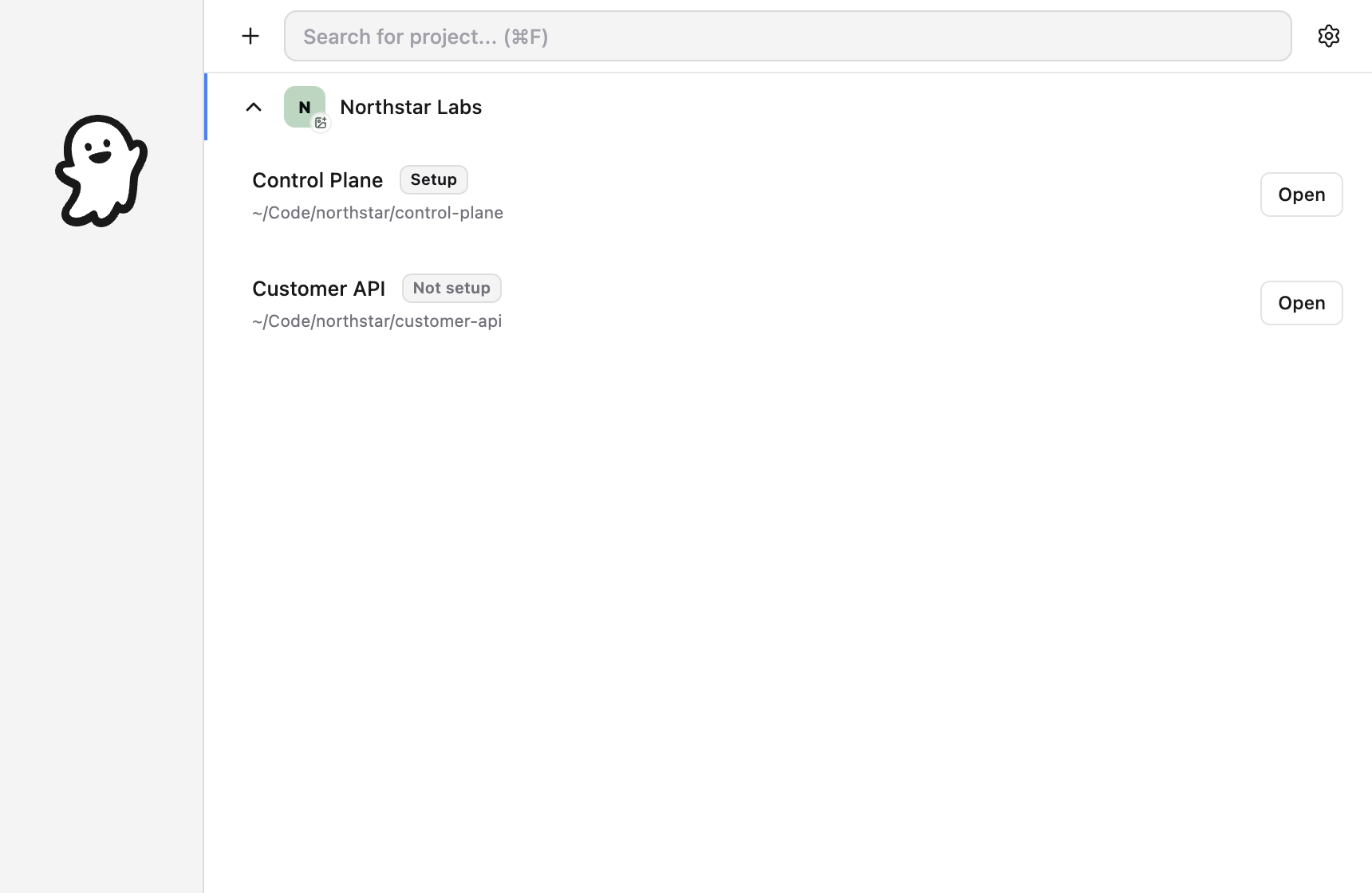
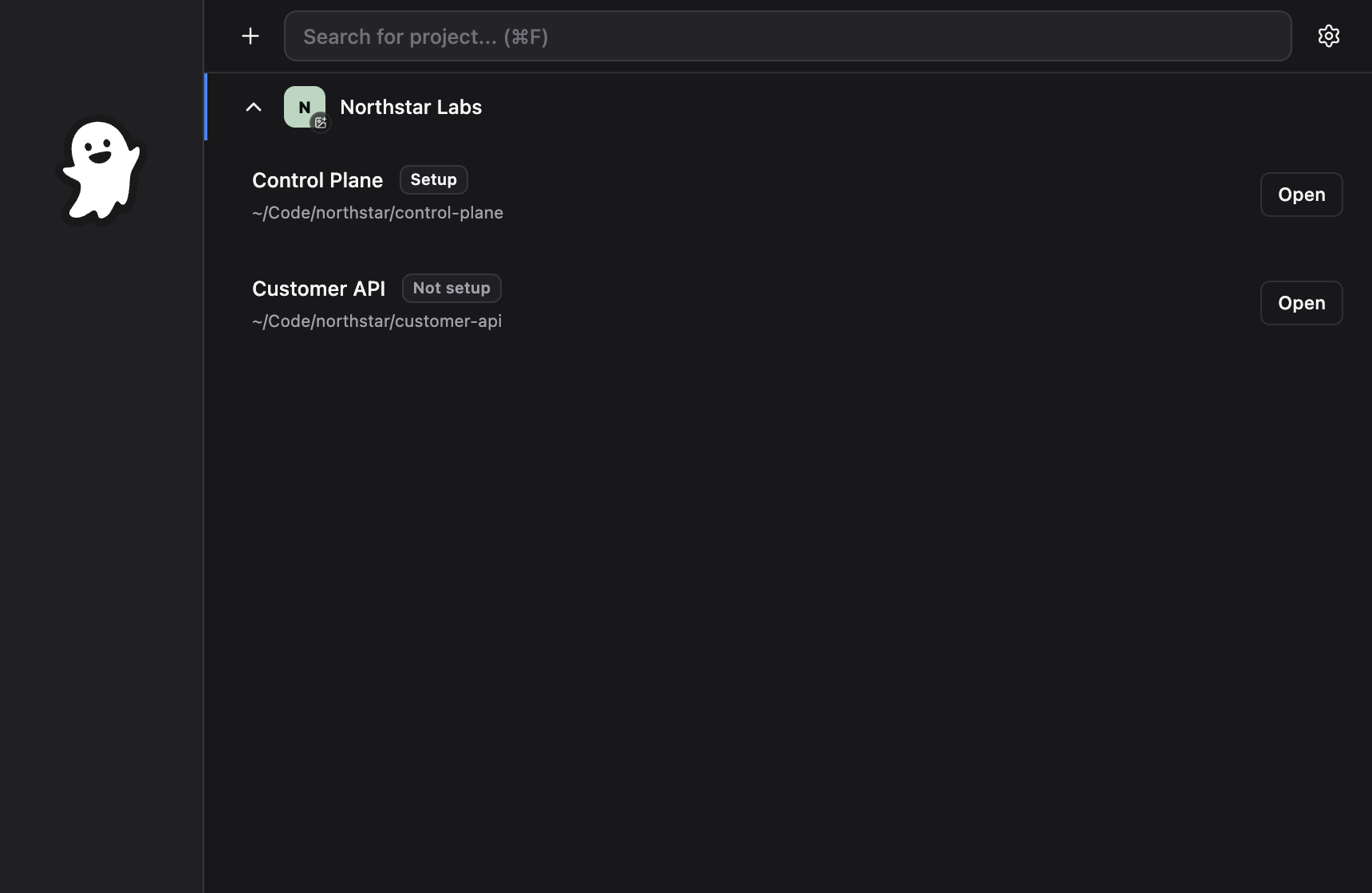
The local Project Launcher organizes repositories into groups and shows setup status.
Licensing
A valid Desktop license is required to open and use project windows. You can still reach the launcher and application settings before activation so you can enter a key, inspect the installed version, or recover a license.
Personal and team licenses are perpetual for the purchased app version and include one year of updates. Device activation limits and team seat limits depend on the selected plan. See Licensing & Updates for activation, offline validation, transfers, recovery, and renewal behavior.
Where to begin
- Install Ghostable Desktop and move it to Applications.
- Activate a license from Settings → License.
- Add a repository and complete project setup.
- Take the interface tour, then learn the environment and variable workflow.
- Review Security & Storage before using production credentials.
