When you visit a site’s blog and see a list of published articles, or click a category or author name, you’re actually viewing an Archive page. This page lists your published posts. Elementor Pro lets you design this layout exactly how you want. You can customize the look for standard blogs or search results. Archives have different terms that you can use to filter them, terms you’re familiar with: Author, Date, Category, Search results, Recent posts, Tags or any other taxonomy.
Set Up Your WordPress Blog Page
Before building the template, you must configure WordPress. WordPress controls which page acts as your blog. Fix this first.
Go to Pages > Add New and publish a blank page named Blog.
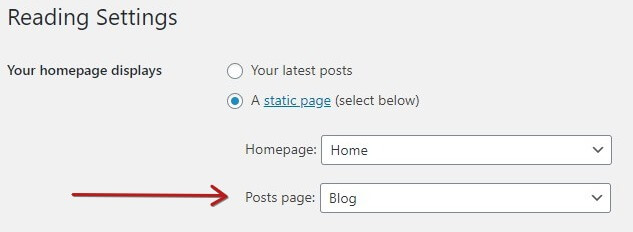
Go to Settings > Reading in your WordPress dashboard.
Select your new page in the Posts Page dropdown menu.
Click Save Changes.
Tip: You can use the standard WordPress editor (either Classic or Gutenberg) to write your posts. You don’t have to use Elementor to write the actual content, although you can if you’d like, of course. But many people prefer to write posts the standard WordPress way, since they often don’t need the advanced layout features for a simple, straightforward blog post. No matter which way you decide to write the actual blog post content, the Elementor Archive Template will give you all the freedom you need to layout and design the Blog Archive page.
Now let’s move on with the steps to take with Elementor!
Build the Elementor Archive Template
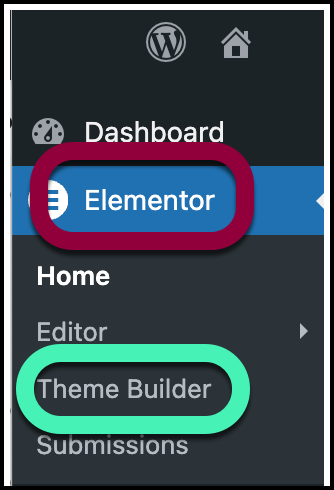
From WP Admin, navigate to Elementor>Theme Builder.
Click the plus icon next to Archive to add a new template.
Choose a pre-designed block from the library or close the window to build from scratch.
Click the gear icon in the lower left corner to select a specific archive for your preview.
Design your page using the Archive Posts widget and other elements.
Click Publish.
Click Add Condition to choose where this template applies. Click to learn about conditions.
Click Save & Close.
Note: Elementor Archive Templates remove default theme sidebars. Use the Theme Locations API within your theme to restore them if needed.
Advanced Archive Features
Tip: You can create dynamic archive templates by using ACF to add custom fields to your taxonomies such as your categories and tags, and then you can display those taxonomy custom fields on your archive pages. In this way, you can dynamically set the surrounding layout. For example, if you create a custom image field for each of your categories, then your archive template could display a unique banner image for each category.
Note: If you have created a custom post type using a plugin such as CPT UI, be sure to change ‘Has Archive’ from false to true so you can build an archive for this custom post type. If you’ve hand-coded the function yourself, be sure to set the parameter has_archive to true.
Note: Elementor’s Archive Templates remove theme sidebars by default. Theme developers can overcome this by using Elementor’s Theme Locations API within their themes.
