Quick Answer
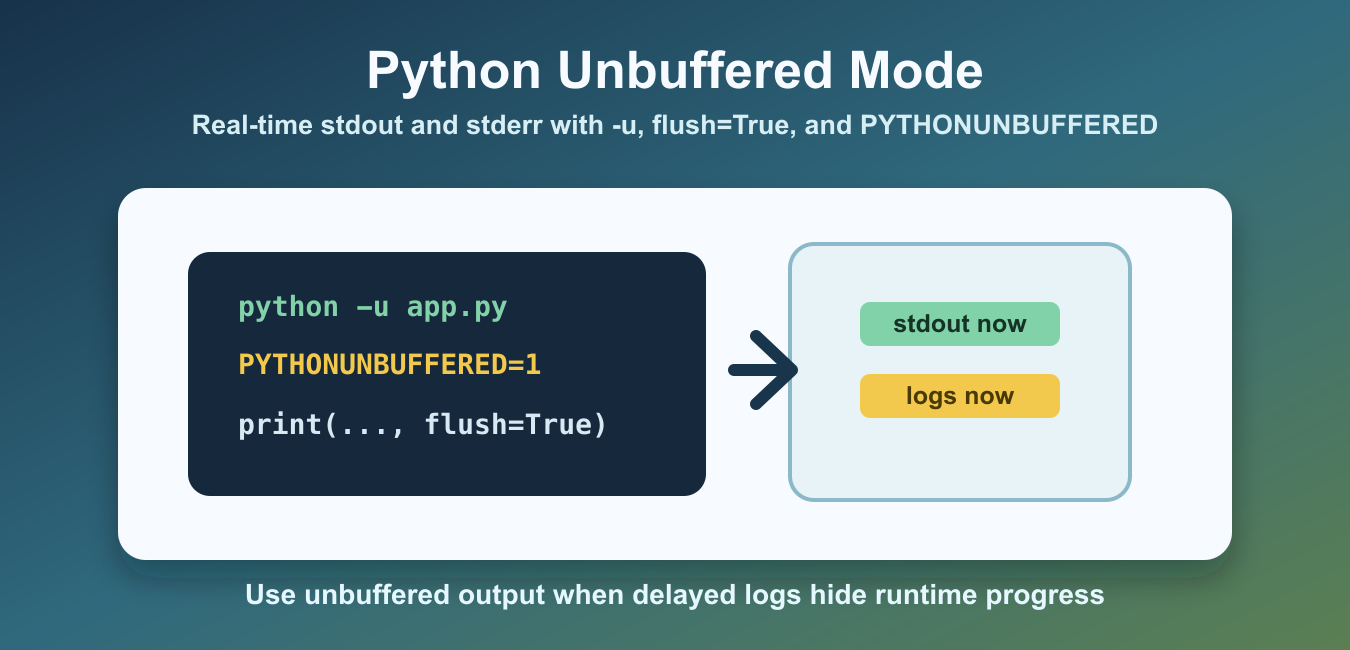
Run python -u script.py or set PYTHONUNBUFFERED=1 to make Python’s standard output and error streams unbuffered. For one call, use print(message, flush=True). These controls affect stdout and stderr, not stdin.
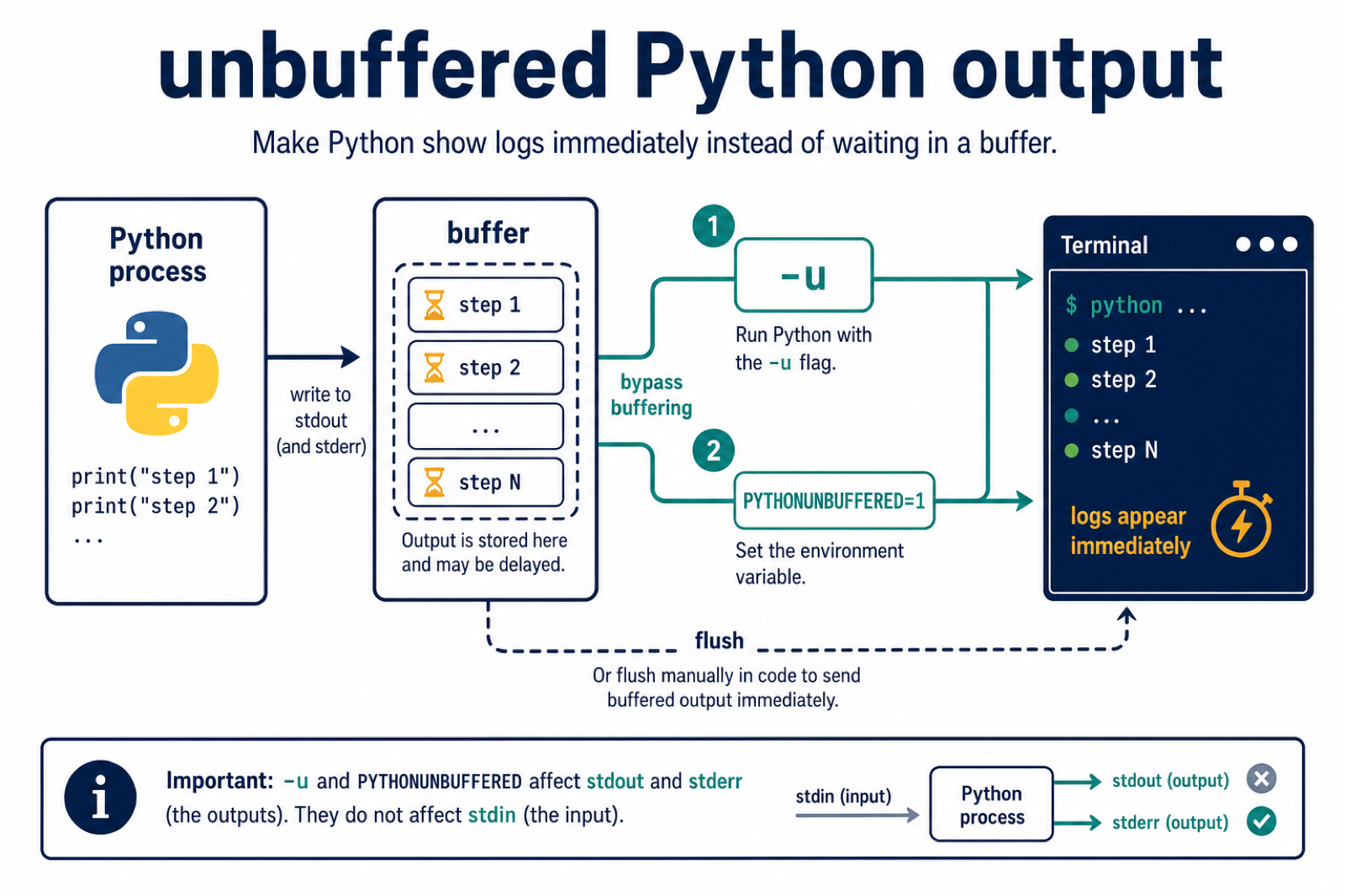
Python unbuffered mode makes standard output and standard error write through immediately instead of waiting for a buffer to fill. This matters when logs must appear in real time, especially in Docker, CI jobs, process managers, and long-running scripts.
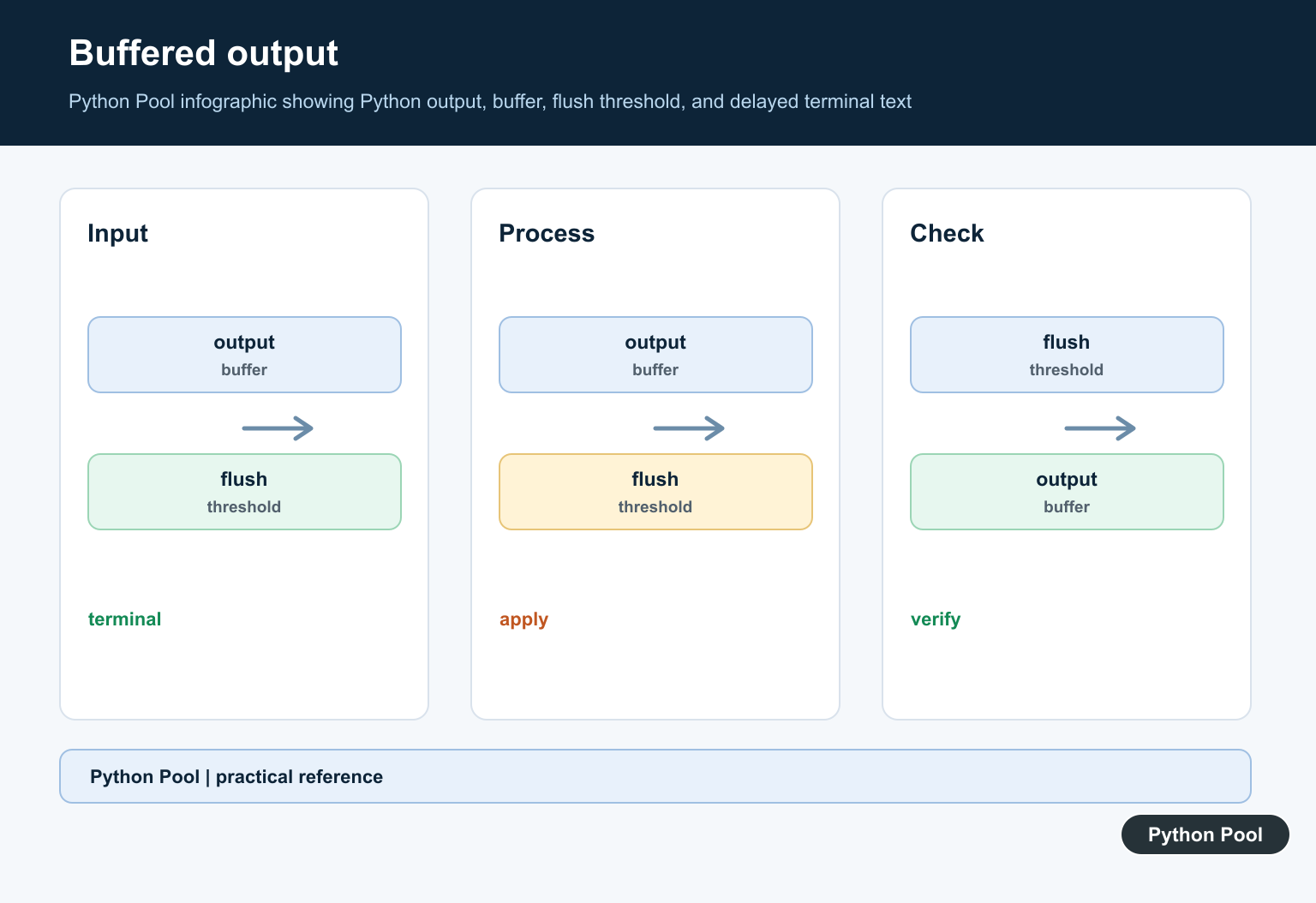
By default, Python may buffer output for efficiency. Buffering reduces write calls, but it can delay visible logs. Unbuffered mode trades some efficiency for faster feedback.
This setting mostly matters for standard streams such as stdout and stderr. It does not make every file write in a program unbuffered, and it does not replace proper logging configuration.
Output can be line buffered, block buffered, or effectively unbuffered depending on where it goes. A terminal often behaves differently from a redirected file or a container log pipe. That is why a script can look responsive locally but delayed after deployment.
The official Python -u documentation and PYTHONUNBUFFERED documentation explain the runtime options. For related file output, see the open() in Python guide.
Use The -u Command-Line Option
The simplest way to run a script with unbuffered standard streams is the -u option.
import subprocess
import sys

command = [sys.executable, "-u", "worker.py"]

print(command)
From a terminal, the command is python -u worker.py. In a process manager or container command, add -u before the script path.
The option is useful when you cannot control environment settings but can control the command. It is also explicit, so future readers can see that real-time output was intentional.
Use PYTHONUNBUFFERED
The environment setting PYTHONUNBUFFERED=1 enables unbuffered mode without changing the command arguments.
import os

os.environ["PYTHONUNBUFFERED"] = "1"

print(os.environ["PYTHONUNBUFFERED"])
Set this before the Python process starts. Setting it inside a running script does not retroactively rebuild the standard streams for that same process.
This environment setting is common in Dockerfiles, CI configuration, and service definitions. It keeps the Python command shorter while still enabling immediate stream output.
Flush A Single print() Call
If only one message needs immediate output, pass flush=True to print().
from threading import Event

for step in range(3):
    print(f"finished step {step}", flush=True)
    Event().wait(0.1)
This is useful when most output can remain buffered but progress messages should appear immediately.
Use this targeted approach for occasional status messages. It avoids changing process-wide behavior when only one or two lines need immediate visibility.
Flush stdout Manually
For lower-level output, write to sys.stdout and call flush() yourself.
import sys
from threading import Event

sys.stdout.write("starting job\n")
sys.stdout.flush()

Event().wait(0.1)
sys.stdout.write("job complete\n")
Manual flushing is explicit, but print(..., flush=True) is usually easier for normal progress output.
If a program writes partial lines, manual flushing can be helpful because line buffering may wait for a newline. Progress indicators and long-running loops often need this extra flush.
Check stderr Behavior
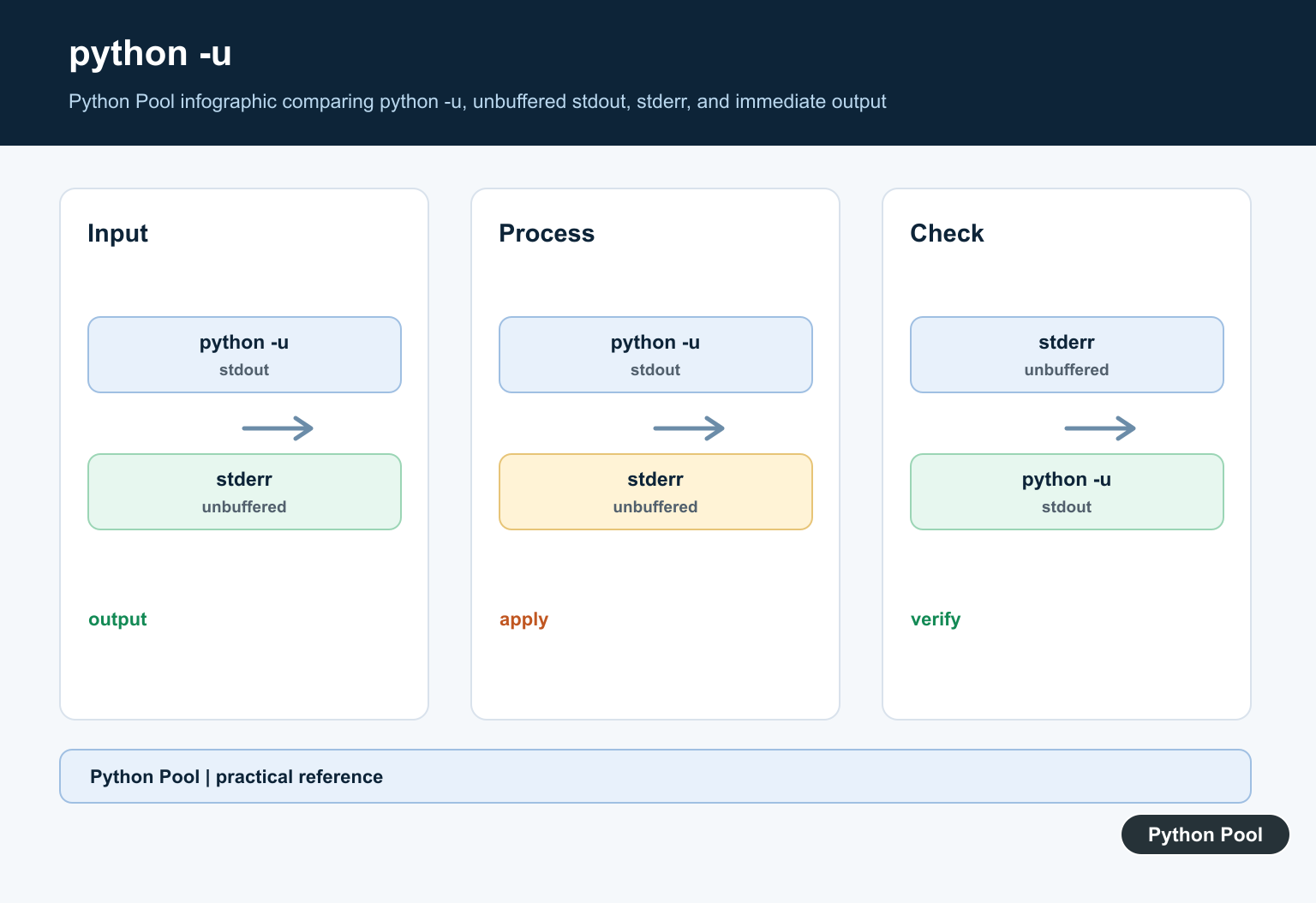
Error messages often use stderr. You can write and flush it directly when diagnostic output must appear immediately.
import sys

sys.stderr.write("warning: retrying request\n")
sys.stderr.flush()
Logging frameworks can also write to stderr. Configure the handler and flushing behavior based on the runtime environment.
In many production programs, the logging module is a better choice than many print calls. Unbuffered mode can still help the process manager receive those stream writes promptly.
Use Unbuffered Output In Containers
Container logs are easier to inspect when Python output appears immediately. A process can expose the intended setting through its environment.
import os

def unbuffered_enabled():
    return os.environ.get("PYTHONUNBUFFERED") not in (None, "", "0")


print(unbuffered_enabled())
In Docker, a common setting is ENV PYTHONUNBUFFERED=1. That helps log collectors receive output promptly from long-running services.
Without it, a service may be working correctly while the visible log stream appears quiet for too long. That delay can make startup failures and health-check problems harder to diagnose.
When Should You Use It?
Use unbuffered mode when delayed logs make debugging harder: deployment startup, CI scripts, background workers, containers, and programs that print progress while running for a long time.
You do not need it for every script. Short scripts that print at the end usually work fine with normal buffering. File writes and high-volume output may be more efficient when buffering is left alone.
If the issue is a specific message, use flush=True. If the whole process needs real-time output, use python -u or set PYTHONUNBUFFERED=1 before Python starts.
The practical rule is to choose the smallest tool that solves the visibility problem. Flush one print when one line matters. Use unbuffered mode when the whole process should stream logs as soon as they are written.
When troubleshooting, test the same execution path used in production. Running a command in a terminal is not always the same as running it under a service manager, CI runner, or container runtime.
Choose Process-Wide or Targeted Flushing
The -u command-line option is useful for containers, CI jobs, and services where logs must reach the collector promptly. The equivalent environment variable is PYTHONUNBUFFERED.
python -u worker.py
PYTHONUNBUFFERED=1 python worker.py
Use flush=True when only a progress message or checkpoint needs immediate visibility.
import time

for step in range(3):
    print(f"step {step}", flush=True)
    time.sleep(1)
Buffering can also be introduced by the parent process, a pipe, a web server, or a log collector. If output is still delayed, inspect the whole pipeline rather than changing only Python.
Do Not Confuse Output with Input
Unbuffered mode applies to stdout and stderr. It does not make stdin unbuffered, and it does not guarantee that every external log transport displays data instantly. Use a structured logging configuration when you need levels, timestamps, and reliable service integration.
Frequently Asked Questions
How do I run Python without buffered output?
Use python -u script.py or set PYTHONUNBUFFERED=1. Both make stdout and stderr unbuffered for the process.
How do I flush one Python print call?
Pass flush=True to print(), for example print(message, flush=True), when only that message needs immediate output.
Does Python -u affect stdin?
No. The -u option affects stdout and stderr output streams, not standard input.
Why are Python logs still delayed with -u?
A pipe, parent process, web server, container runtime, or log collector may buffer output after Python writes it. Inspect each stage of the output path.
