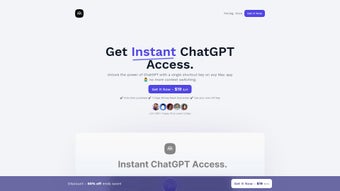

Download Atua – Fast ChatGPT Access with Hotkeys for Mac
Overview
Atua is a lightweight web‑app designed to bring the power of ChatGPT directly into any macOS application with a single shortcut. Instead of juggling between browser tabs, windows, or dedicated AI tools, you simply highlight the text you want to improve, press the custom hotkey, and let Atua handle the rest. Whether you need a quick grammar check, a concise rewrite, or a deeper expansion of a paragraph, the app sends the selected snippet to OpenAI’s API and returns the result in an overlay that feels native to the app you’re working in. The core idea behind Atua is to eliminate context switching, a common productivity killer for writers, developers, marketers, and anyone who spends a lot of time in text‑heavy environments.
The solution is built with privacy in mind: all conversation history and user preferences are stored locally on your Mac, never sent to third‑party servers. You only need to supply your own OpenAI API key, which means you retain full control over usage limits and billing. While the current release officially supports macOS 10.14 (Mojave) and later, the development roadmap promises Windows and Linux clients in future updates.
In practice, Atua feels like a natural extension of the operating system. Its minimalist interface, customizable hotkeys, and command library let you tailor the AI assistant to the exact workflow you need—whether that’s cleaning up code comments, drafting social‑media copy, or generating quick FAQ answers. Because it runs as a web app wrapped in a native shell, updates are seamless and you always have the latest model capabilities without manual installs. For anyone who relies on ChatGPT but hates the friction of opening a separate browser tab, Atua offers a secure, fast, and highly configurable shortcut to AI‑powered assistance.
Key Features and Customization
- One‑Click AI Access: Select any text in any macOS app, press the assigned hotkey (default ⌘+⇧+K), and receive an AI‑generated response instantly.
- Multiple Processing Modes: Grammar correction, tone adjustment, content expansion, summarization, and custom prompts are available from a single dropdown.
- Custom Commands & Hotkeys: Create your own shortcut‑command pairs for recurring tasks, such as “Generate bullet points” or “Convert to plain English.”
- Local Conversation History: All interactions are saved on your device, enabling quick reference to previous AI outputs without cloud storage.
- Privacy‑First Architecture: No text leaves your machine except for the API call to OpenAI; results are returned directly to the overlay.
- OpenAI API Key Integration: Simple setup wizard guides you through entering your personal API key, giving you full control over usage limits and billing.
- Cross‑Application Compatibility: Works inside browsers, code editors (VS Code, Sublime), word processors (Pages, Microsoft Word), and virtually any native Mac app.
- Automatic Updates: The web‑app shell checks for new releases at launch, ensuring you always benefit from the latest model improvements and security patches.
- Future‑Ready Roadmap: Planned Windows and Linux clients, plus expanded language support and team collaboration features.
The feature set is intentionally built around speed and flexibility. For example, a content marketer can highlight a headline, hit the hotkey, and instantly receive three alternative phrasings with different tones—saving minutes of manual brainstorming. A developer can select a block of comments and ask Atua to rewrite them in concise, professional language, keeping code documentation consistent across a project. Because every command is configurable, power users can script complex workflows, such as “Select a paragraph → Expand → Summarize → Copy to clipboard” with just two keystrokes. The combination of built‑in commands and user‑defined shortcuts makes Atua a truly adaptable AI assistant that grows with your daily tasks.
Installation, Setup, and Everyday Workflow
Getting Atua up and running takes less than five minutes, even for users who are new to API‑based tools. Follow these steps to start leveraging AI assistance across all your Mac applications:
- Download the Installer: Visit the official Atua website and click the “Download for macOS” button. The installer is a signed .dmg file, ensuring a secure installation.
- Run the Installer: Open the .dmg, drag the Atua icon to your Applications folder, and launch the app. macOS may prompt you to confirm that you want to open an app from an identified developer—accept this to continue.
- Enter Your OpenAI API Key: The first launch presents a brief onboarding wizard. Paste your personal OpenAI API key (available from the OpenAI dashboard) into the designated field. Atua validates the key instantly, displaying your current usage quota.
- Configure Hotkeys: By default, Atua uses ⌘+⇧+K. Navigate to Settings → Hotkeys to modify this combination or assign additional shortcuts for specific commands. The UI provides a clear visual of any conflicts with existing system shortcuts.
- Customize Commands: In the Commands tab, you can enable or disable built‑in actions, rename them, or create new prompts. For example, add a command called “Rewrite as formal” with the prompt “Rewrite the selected text in a formal business tone.” Save your changes.
- Start Using Atua: Highlight any text in Safari, Pages, or your favorite code editor, press your hotkey, and watch a small overlay appear with the AI’s response. You can accept the suggestion, copy it to the clipboard, or request a revision with a single click.
The everyday workflow is deliberately streamlined. Because the app runs in the background, there’s no need to keep a browser tab open or switch windows. All processing happens in the cloud via the OpenAI API, while the UI remains lightweight on your Mac. If you need to revisit a past interaction, click the History button in the overlay to pull up previous responses—perfect for iterative writing or debugging. Updates are handled automatically; each time you launch Atua, it checks for a newer version and prompts you to install. This ensures you always benefit from the latest model improvements without manual intervention.
FAQ, Pros & Cons, and Final Verdict
Pros
- Instant AI assistance without leaving your current application.
- Highly customizable hotkeys and command library.
- Local storage of history ensures privacy and fast retrieval.
- Simple API‑key setup puts control of usage limits in the user’s hands.
- Seamless automatic updates keep the tool current.
Cons
- Requires an OpenAI API key, which may involve additional cost for heavy users.
- Currently macOS‑only; Windows and Linux versions are still in development.
- Relies on an internet connection for every request, as processing occurs in the cloud.
- Limited offline functionality; no local language model is bundled.
Frequently Asked Questions
Do I need an OpenAI account to use Atua?
Yes. Atua requires a valid OpenAI API key, which you obtain from your OpenAI account dashboard. The key grants access to the GPT models and lets you control usage limits.
Is my data sent to any third‑party servers?
Only the selected text is sent to OpenAI’s API for processing. All conversation history, settings, and custom prompts are stored locally on your Mac, never uploaded to external servers.
Can I use Atua on Windows or Linux right now?
At present, Atua is officially supported on macOS 10.14 or newer. A Windows and Linux client are in the roadmap and are expected in a future release.
How do I change the default hotkey?
Open Atua, go to Settings → Hotkeys, and click the current shortcut to enter a new key combination. The interface will warn you if the new shortcut conflicts with system shortcuts.
Is there a free version of Atua?
Atua itself is free to download and use; however, you still need an OpenAI API key, which may incur costs depending on your usage. The app does not add any additional fees.
Final Verdict & Call to Action
Atua fills a clear niche for Mac power users who want AI assistance without the friction of switching apps. Its hotkey‑driven workflow, privacy‑first design, and extensive customization options make it a compelling addition to any productivity toolbox. While the reliance on an OpenAI API key means you’ll need to monitor usage costs, the flexibility to fine‑tune prompts and shortcuts often translates into measurable time savings—especially for writers, developers, and marketers who handle large volumes of text daily.
If you’re ready to streamline your writing, editing, or brainstorming processes, download Atua today and experience AI right where you need it. Click the download button below, set up your API key, and start turning highlighted text into polished content with a single keystroke.



.png)