

Download HandBrake – Free, Open‑Source Video Converter for Windows, macOS & Linux
Overview
HandBrake a acquis une réputation comme l’un des convertisseurs vidéo gratuits les plus fiables du marché. Développé en tant que projet open‑source, il fonctionne sous Windows, macOS et Linux, offrant un niveau de capacité de transformation de formats qui rivalise avec de nombreux outils commerciaux. Que vous ayez besoin de réduire un film haute définition pour un appareil portable, d’extraire un clip pour les réseaux sociaux, ou simplement de convertir un fichier MKV en MP4 pour une meilleure compatibilité, HandBrake fournit un moteur robuste qui effectue le travail rapidement et en toute sécurité. Le logiciel prend en charge une large gamme de formats conteneurs — notamment MP4, MKV et WebM — tout en proposant des codecs intégrés pour H.264, H.265 (HEVC), MPEG‑4 et VP9. Son système de préréglages intuitif permet aux débutants de sélectionner un profil « Fast 1080p30 » ou « Apple 720p30 » d’un simple clic, garantissant une sortie de haute qualité sans plonger dans les détails techniques. Pour les utilisateurs avancés, HandBrake ouvre un vaste champ de personnalisation : vous pouvez affiner le débit binaire, la fréquence d’images, les pistes audio, les flux de sous‑titres, et même appliquer des filtres vidéo tels que le désentrelacement, la réduction du bruit ou le recadrage. La fonction de traitement par lots vous permet de mettre en file d’attente plusieurs fichiers, le logiciel les rendra alors les uns après les autres, vous faisant gagner des heures si vous travaillez régulièrement avec de grandes bibliothèques vidéo. Bien que l’interface penche du côté technique — sans tutoriels intégrés — elle compense par une documentation exhaustive sur son site Web et un forum communautaire actif. Cet équilibre entre accessibilité gratuite, contrôle de niveau professionnel et prise en charge multiplateforme fait de HandBrake une solution de référence tant pour les éditeurs amateurs que pour les professionnels de la vidéo chevronnés.
Key Features
- Cross‑Platform Compatibility: Native installers for Windows, macOS, and Linux.
- Broad Format Support: Input and output for MP4, MKV, WebM, AVI, MOV, and more.
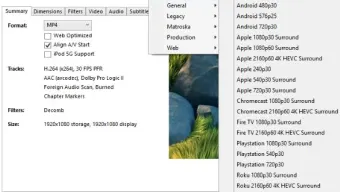
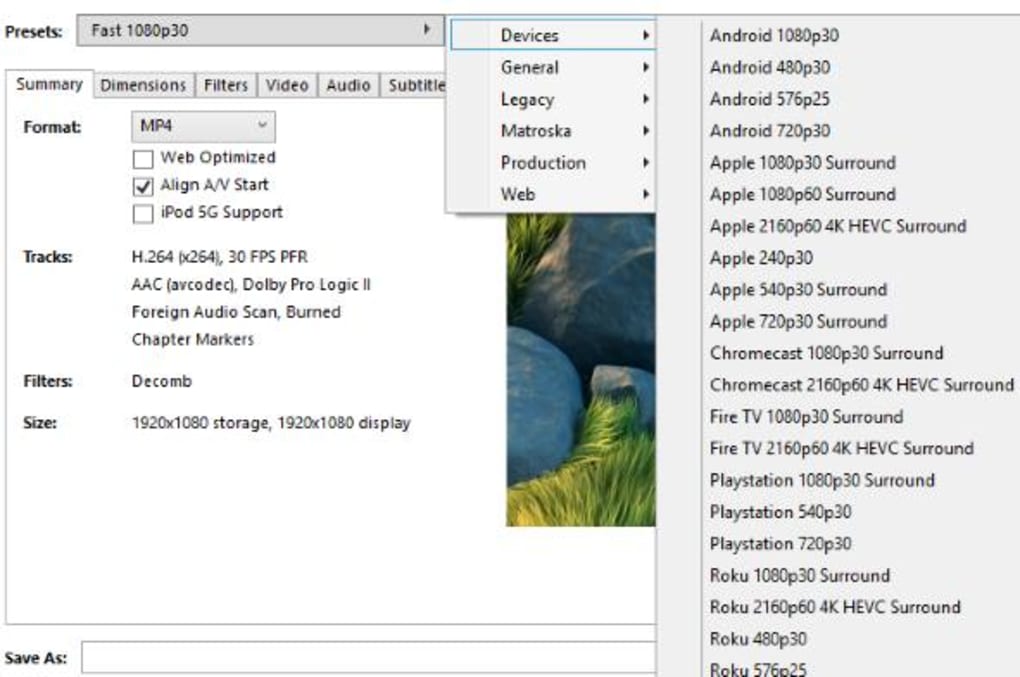
- Preset Library: Ready‑made profiles for popular devices (Apple TV, Android, Roku, etc.).
- Advanced Encoding Options: Control over bitrate, constant quality, frame rate, and codec selection (H.264, H.265, VP9, MPEG‑4).
- Video Filters & Adjustments: Crop, rotate, deinterlace, denoise, and add custom dimensions.
- Audio & Subtitle Management: Add, remove, or convert audio tracks; embed external subtitles or hard‑code them.
- Chapter Markers: Preserve or create chapter points for easier navigation.
- Batch Processing: Queue multiple files for sequential conversion, with progress monitoring.
- Fast Encoding Engine: Multi‑core CPU utilization reduces conversion time dramatically.
- Open‑Source & Free: No hidden fees, no trial periods, and community‑driven updates.
Each of these features works together to provide a seamless conversion experience. For example, the preset library removes the guesswork from codec selection, while the advanced encoding options let you squeeze every last megabyte out of a file without sacrificing visual fidelity. Video filters are especially valuable when converting legacy footage that may have black bars or interlacing artifacts; HandBrake’s built‑in tools can automatically detect and correct these issues. The subtitle management system is also noteworthy—whether you need to burn subtitles into the video for playback on a device that doesn’t support external tracks, or simply keep them as separate selectable streams, HandBrake offers the flexibility required by multilingual content creators. Finally, the batch processing capability turns a potentially tedious series of manual conversions into a one‑click operation, freeing you to focus on other tasks while the software does the heavy lifting.
Installation & Usage Instructions
Step‑by‑Step Installation
Windows: Download the .exe installer from the official HandBrake website. Run the installer, accept the license agreement, and choose the default installation folder. The setup wizard will also let you add HandBrake to the Start menu for quick access. Once installed, launch the application from the desktop shortcut or the Start menu.
macOS: Grab the .dmg file, open it, and drag the HandBrake icon into your Applications folder. macOS may prompt you to confirm that you want to open an app downloaded from the internet; click “Open” to proceed. The first launch may require you to grant permission for the app to access your files, which you can approve in System Preferences > Security & Privacy.
Linux: HandBrake is available in most distribution repositories. On Ubuntu or Debian, run sudo apt‑install handbrake. For Fedora, use sudo dnf install HandBrake. Alternatively, you can download the AppImage from the HandBrake site, make it executable (chmod +x HandBrake‑*.AppImage), and run it directly.
Basic Conversion Workflow
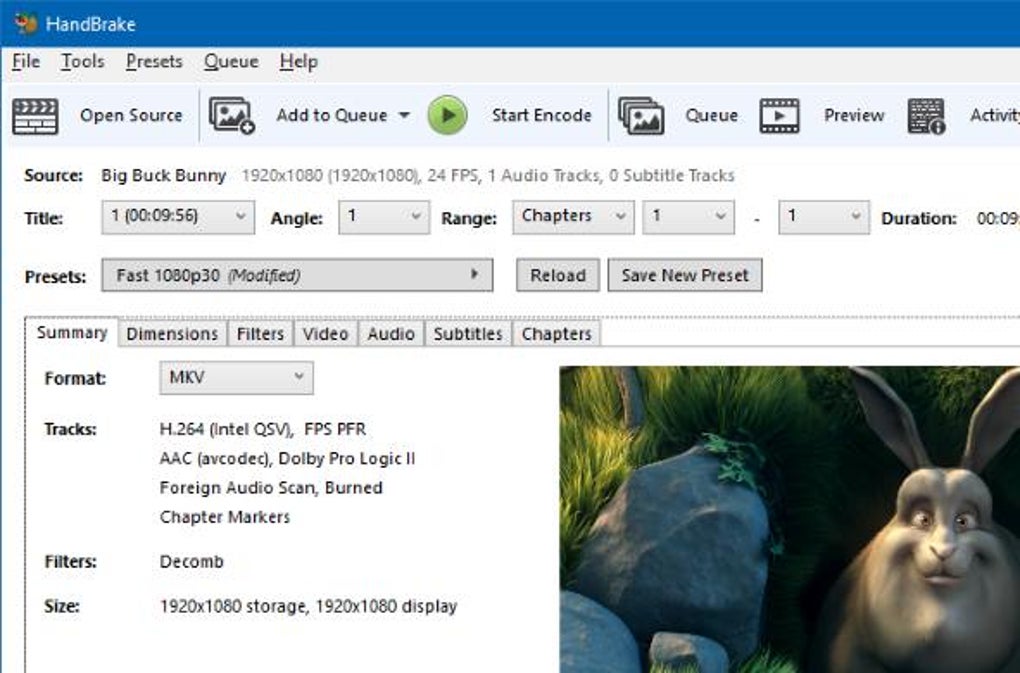
1. Open HandBrake and click “Open Source” to select a video file or folder. HandBrake will scan the file and display a summary of its properties (resolution, duration, audio tracks, etc.).
2. Choose a Preset from the right‑hand panel. Presets are grouped by device type and quality level; pick one that matches your target playback environment.
3. Adjust Settings (Optional) if you need custom parameters—click the “Video”, “Audio”, or “Filters” tabs to modify codec, bitrate, or add a deinterlace filter.
4. Set Destination by clicking “Browse” under “Save As” to choose the output folder and filename.
5. Start Encoding by pressing the “Start Encode” button. A progress bar will appear, showing the estimated time remaining.
For batch conversions, simply add multiple files to the queue using the “Add to Queue” button after configuring each file’s settings. When you’re ready, click “Start Queue” and HandBrake will process each entry sequentially.
Compatibility, Pros & Cons
HandBrake runs natively on Windows 10/11 (both 64‑bit), macOS 10.15 (Catalina) and later, and major Linux distributions (Ubuntu, Fedora, Debian, Arch). The software requires a minimum of 2 GB RAM and a dual‑core processor, though for optimal performance—especially when using H.265/HEVC encoding—four cores or more are recommended. HandBrake also supports hardware‑accelerated encoding via Intel Quick Sync, NVIDIA NVENC, and AMD VCE when the appropriate drivers are installed, dramatically speeding up conversion on compatible machines.
Pros
- Completely free and open‑source, with regular community updates.
- Extensive format and codec support, covering the majority of consumer devices.
- Powerful preset system that reduces the learning curve for casual users.
- Deep customization options for professionals who need precise control.
- Fast multi‑core and hardware‑accelerated encoding reduces wait times.
- Batch processing saves time when handling large video libraries.
- Active support forums and detailed online documentation.
Cons
- Interface can feel technical; no built‑in tutorial for beginners.
- Initial setup on Linux may require command‑line interaction for dependencies.
- Limited built‑in video editing features (no trimming or merging).
- Some advanced codecs (e.g., AV1) require external libraries not bundled by default.
- Occasional UI glitches on macOS Big Sur and newer versions.
Review Summary: HandBrake remains a top‑tier free video converter thanks to its breadth of features, fast encoding, and cross‑platform availability. While the learning curve may deter absolute beginners, anyone willing to explore the documentation will discover a level of control that rivals premium software.
Frequently Asked Questions
Is HandBrake safe to download?
Yes. HandBrake is an open‑source project hosted on GitHub. Download it only from the official website (handbrake.fr) or the GitHub releases page to avoid bundled adware.
Can HandBrake convert 4K video?
Absolutely. HandBrake supports 4K resolution with both H.264 and H.265 codecs. For the best performance, enable hardware acceleration if your GPU supports it.
Does HandBrake work on Windows 7?
The latest HandBrake builds target Windows 10/11. Older versions (v1.5 and earlier) still run on Windows 7, but you may miss recent features and bug fixes.
How do I add subtitles to an MP4 file?
Load your source video, go to the “Subtitles” tab, click “Import SRT” to add an external subtitle file, and choose “Burn In” if you want the subtitles hard‑coded into the video.
Is there a portable version of HandBrake?
Yes. For Windows, an AppImage version is available for Linux, and a portable .zip release can be found on the official download page for users who need a no‑install option.
Conclusion & Call to Action
HandBrake stands out as a powerful, free, and open‑source video converter that meets the needs of both casual users and seasoned professionals. Its broad format support, fast encoding engine, and deep customization options make it a versatile tool for anyone looking to prepare video content for a variety of devices. While the interface can appear intimidating at first, the wealth of presets and community‑driven documentation smooths the learning curve for most users. If you’re searching for a reliable way to shrink, re‑encode, or add subtitles to your media without spending a dime, HandBrake is the answer. Download HandBrake today from the official site, follow the simple installation steps, and start converting your videos with confidence.
Download HandBrake Free







