

Download Qucs – Free Circuit Simulator for Windows, macOS & Linux
Overview – Why Qucs Stands Out in the Free Simulation Landscape
Qucs, short for “Quite Universal Circuit Simulator,” is a powerful, open‑source tool that brings professional‑grade circuit analysis to anyone with a computer. Unlike many commercial packages that lock you behind a paywall, Qucs offers a completely free environment for designing, simulating, and visualizing electronic circuits ranging from simple resistive networks to complex RF front‑ends. Its intuitive graphical user interface (GUI) makes it possible to drag‑and‑drop components—diodes, transistors, LEDs, voltage sources, bridges, and more—onto a schematic canvas while preserving access to deep simulation data such as large‑signal RF magnitude, small‑signal AC response, and noise characteristics. This combination of visual ease and analytical depth is what makes Qucs an attractive alternative to heavyweight programs like NI Multisim or LTspice, especially for students, hobbyists, and small‑scale engineers who need a reliable platform without a licensing cost.
Once a circuit is built, Qucs lets you run a variety of analyses: DC sweep, AC frequency response, transient, S‑parameter, noise, and even Harmonic Balance for non‑linear RF work. The results can be displayed on a dedicated “Presentation Page,” a built‑in reporting view that compiles plots, tables, and schematic highlights into a single, exportable document. This feature streamlines the hand‑off to collaborators or professors who may not have the simulation software themselves. While Qucs is still evolving—its graphics engine and tutorial library are areas slated for improvement—the core engine is stable and has been vetted by a global community of contributors. The learning curve is moderate; beginners will appreciate the clear layout and extensive component library, while seasoned engineers will value the ability to script custom models and integrate external data files.
In short, Qucs delivers a complete, free circuit simulation suite that balances accessibility with depth. Whether you are drafting a classroom lab, prototyping a power supply, or exploring advanced RF designs, Qucs provides the tools to model, analyze, and present your work with confidence.
Features & Capabilities – What Qucs Brings to Your Toolbox
- Graphical schematic editor with drag‑and‑drop component placement.
- Extensive component library covering passive, active, and RF elements.
- Multi‑domain analysis: DC, AC, transient, S‑parameter, noise, and Harmonic Balance.
- Presentation Page for consolidated reporting of plots, tables, and schematics.
- Support for custom models via SPICE‑compatible netlists.
- Cross‑platform availability for Windows, macOS, and Linux.
- Open‑source licensing (GPL) – free to download, modify, and redistribute.
- Batch simulation mode for automated testing of parameter sweeps.
- Export options for PNG, SVG, CSV, and PDF formats.
- Integrated waveform viewer with zoom, cursors, and measurement tools.
Qucs’s feature set is deliberately built around the workflow of an electronic designer. The schematic editor mirrors the layout style of commercial tools, which reduces the friction of switching platforms. Every component comes with a set of parameters that can be edited directly on the canvas, making it easy to explore design variations without leaving the schematic. For advanced users, the ability to import SPICE netlists means that legacy models or vendor‑specific libraries can be leveraged without re‑creating them from scratch.
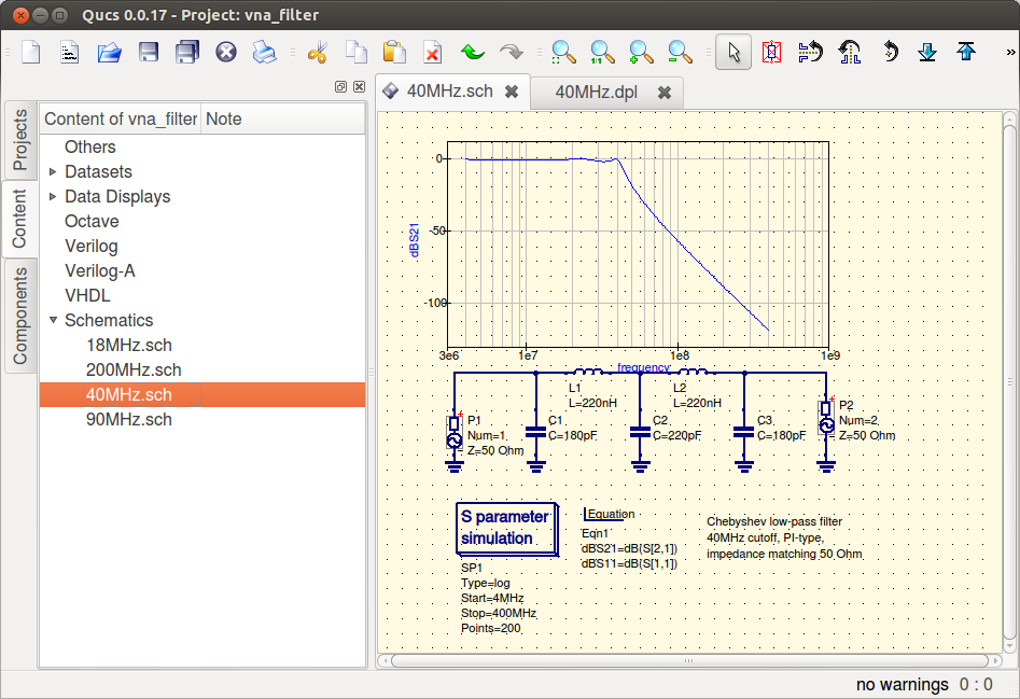
The analysis suite covers the full spectrum of typical engineering needs. A simple DC sweep reveals bias points and operating regions, while the AC analysis uncovers gain and phase margins across frequency. Noise analysis quantifies thermal and flicker contributions, essential for low‑noise amplifier design. The S‑parameter module is particularly useful for microwave engineers, allowing the extraction of reflection and transmission coefficients for multi‑port networks. Harmonic Balance, although computationally intensive, opens the door to non‑linear RF simulation—a feature rarely found in free tools.
Finally, the Presentation Page consolidates all results into a single, printable view. You can arrange plots side‑by‑side with the schematic, annotate key points, and export the whole page as a PDF for documentation or academic submission. This end‑to‑end capability—from schematic capture to final report—makes Qucs a compelling, cost‑effective alternative for both learning environments and small‑scale professional projects.
Installation, Setup & Daily Workflow – Getting Started with Qucs
Installing Qucs is straightforward across all supported operating systems. For Windows users, the official installer (an .exe package) can be downloaded from the project’s GitHub releases page. Run the installer, accept the license agreement, and choose the default installation path (typically C:\Program Files\Qucs). The installer also adds a Start‑Menu shortcut and registers file associations for Qucs project files (.sch). macOS users can obtain a pre‑built .dmg image; after mounting the image, drag the Qucs icon to the Applications folder. Linux distributions often provide Qucs in their repositories—on Ubuntu/Debian, a simple sudo apt install qucs will fetch the latest stable version, while Fedora users can use sudo dnf install qucs. For those who prefer the bleeding edge, compiling from source is supported via CMake and standard GNU toolchains.
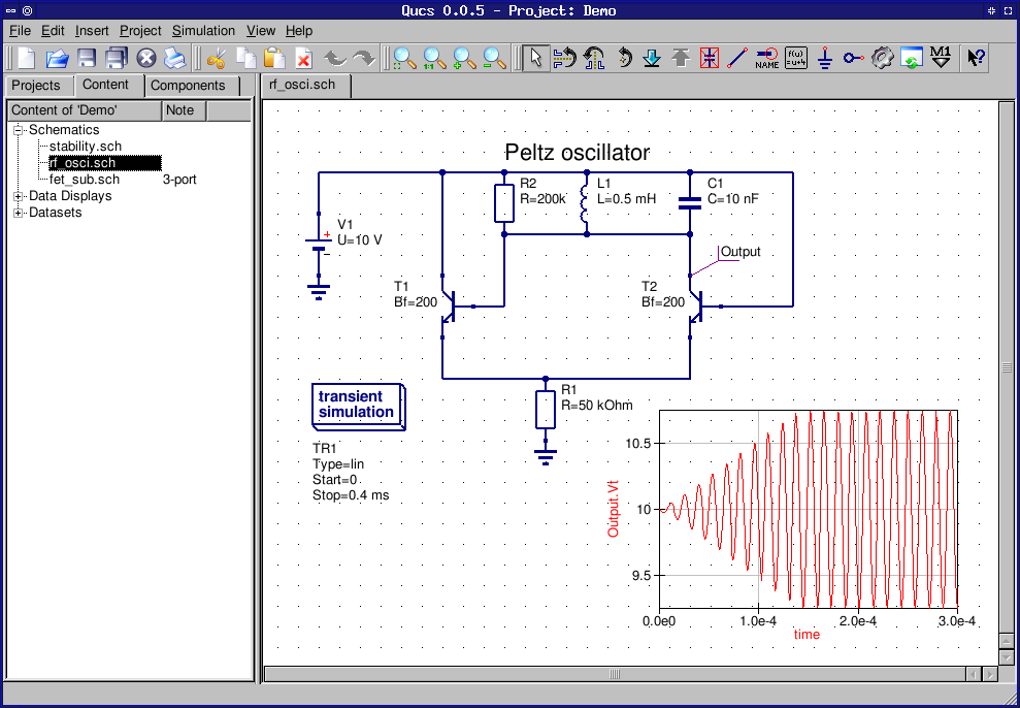
Once installed, launch Qucs and you’ll be greeted by the main workspace. The left pane hosts the component library, organized into categories such as “Passive,” “Active,” “RF,” and “Sources.” Drag a component onto the central schematic area, then double‑click it to edit parameters like resistance value, transistor model, or supply voltage. Wiring is performed by clicking on a component’s terminal and dragging a line to the next terminal; the software automatically creates net nodes and highlights connectivity errors in real time.
After building the schematic, select the desired analysis from the “Simulation” menu. For example, choose “DC Sweep” to explore how output voltage changes with input bias, or “AC Analysis” to generate Bode plots. Each analysis opens a configuration dialog where you specify sweep ranges, step size, and output variables. When ready, click “Run.” Qucs processes the simulation using its internal engine and displays results in the “Data” tab. From there, you can plot waveforms, view tabular data, or switch to the Presentation Page to combine multiple results.
Daily workflow tips: save your project frequently using the .sch format; use the “Bookmarks” feature to label important nodes; and leverage the “Batch Simulation” option for parametric sweeps across component values. The built‑in help system (accessible via F1) provides context‑sensitive documentation, while the community forum offers tutorials and example projects for quick learning. With these steps, new users can move from installation to a functional simulation in under thirty minutes.
System Compatibility, Pros & Cons, and Frequently Asked Questions
Supported Platforms: Windows 10/11 (64‑bit), macOS 10.15+ (Catalina and later), and major Linux distributions (Ubuntu, Debian, Fedora, Arch). The software is built on Qt, ensuring a consistent UI across platforms.
Pros
- Completely free and open‑source – no licensing fees.
- Rich set of analysis types, including RF‑focused S‑parameter and Harmonic Balance.
- Cross‑platform support eliminates OS lock‑in.
- Presentation Page streamlines reporting and documentation.
- Active community contributes models, bug fixes, and tutorials.
Cons
- Graphical rendering is less polished than commercial alternatives.
- Limited built‑in tutorial library; newcomers may need external resources.
- Large‑signal RF simulations can be slower on modest hardware.
- Some advanced device models (e.g., GaN transistors) require manual netlist integration.
- Occasional UI glitches on newer macOS versions pending patches.
FAQ – Frequently Asked Questions
Is Qucs truly free for commercial use?
Yes. Qucs is released under the GNU General Public License (GPL), which permits free use, modification, and distribution in both personal and commercial projects, provided that any derivative work also remains under the same license.
Can I import SPICE models into Qucs?
Absolutely. Qucs supports SPICE‑compatible netlists. You can import a SPICE file via the “File → Import → SPICE” menu, after which the components appear in the schematic editor for further tweaking.
What is the best way to perform a parameter sweep?
Use the “Batch Simulation” feature. Define the variable you want to sweep (e.g., resistor value), set the start, stop, and step values, and select the desired analysis type. Qucs will automatically generate separate simulation runs and compile the results into a single data set.
Does Qucs support 3‑D electromagnetic simulation?
No. Qucs focuses on circuit‑level analysis. For full 3‑D EM simulation, you would need a dedicated tool such as CST Studio or Ansys HFSS, but you can export S‑parameters from Qucs to use in those environments.
How can I contribute to the Qucs project?
Contributions are welcome on the official GitHub repository. You can submit bug reports, propose new features, improve documentation, or add custom component models. The community also welcomes translations of the UI and tutorials.
Conclusion – Is Qucs the Right Choice for You?
Qucs delivers a surprisingly comprehensive circuit simulation experience at zero cost. Its cross‑platform availability, broad analysis suite, and flexible reporting make it a valuable addition to any engineer’s toolkit, whether you’re a student learning the fundamentals or a professional tackling RF designs. While the UI may not sparkle and the tutorial base could be richer, the core functionality is solid and continuously improving thanks to an active open‑source community. If you need a free, reliable way to model, simulate, and present electronic circuits without the overhead of commercial licenses, Qucs is definitely worth a download.
Ready to start building and testing your next circuit? Download Qucs now and explore the full range of simulation capabilities it offers. Join the community forums, share your projects, and help shape the future of this versatile tool.








