

Download QuickChangeResolution – free Windows resolution changer tool
Overview
QuickChangeResolution is a lightweight, open‑source utility created by developer Jacek Pazera that streamlines the process of changing display resolution on Windows desktops. While Windows already includes a built‑in resolution manager, accessing it often means navigating through multiple dialog boxes and system settings. QuickChangeResolution removes that friction by presenting a single, portable window where users can instantly select from a broad range of pixel dimensions. The program is completely free, supports five languages (English, Greek, Japanese, Polish, Portuguese), and does not require installation—simply download the executable and run it. Whether you need a low‑resolution mode for older games, a high‑density setting for graphic design, or a temporary change for a presentation, this tool offers a faster, more intuitive workflow. In addition to the graphical interface, power users can leverage a command‑line script to switch resolutions without opening the UI, making automation possible for IT administrators. The only notable limitation is the lack of built‑in hotkey support, meaning you must manually click “Set Resolution” or run the script each time. Overall, QuickChangeResolution fills a niche for users who want a quick, reliable way to tweak their screen settings without diving into Windows’ deeper configuration menus.
Features & Installation Guide
Key Features
- Instant resolution change with a single click.
- Supports more display modes than the native Windows list, including uncommon low‑ and ultra‑high resolutions.
- Portable executable – no installation required.
- Multilingual interface (English, Greek, Japanese, Polish, Portuguese).
- Command‑line support for scripted or remote changes.
- Option to apply a temporary resolution that reverts on reboot.
- Lightweight footprint (< 200 KB) and zero bloatware.
Step‑by‑Step Installation & Usage
Getting QuickChangeResolution up and running takes just a few seconds:
- Download the executable. Visit the official GitHub repository or the developer’s website and click the “Download QuickChangeResolution.exe” button. The file is digitally signed and safe to use.
- Run the program. Because the app is portable, double‑click the .exe file. Windows may prompt you for permission; choose “Yes” to allow the program to make changes to your display settings.
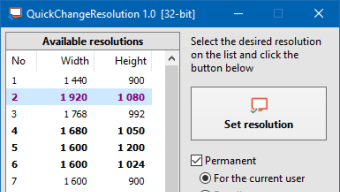
- Explore the resolution list. The left sidebar displays every supported resolution in width × height format (e.g., 1920 × 1080). The current active mode is highlighted in blue and also shown just below the list for quick reference.
- Select a new resolution. Click on your desired entry. If you want a temporary change, ensure the “Permanent” checkbox is unchecked. This tells the app to revert to the default mode after the next reboot.
- Apply the change. Press the “Set Resolution” button on the right side. Within a fraction of a second the desktop redraws, reflecting the new pixel dimensions.
- Use the command line (optional). Open Command Prompt and navigate to the folder containing the .exe. Run
QuickChangeResolution.exe /width 1280 /height 720to switch to 1280 × 720 without opening the UI. This is especially handy for batch scripts or remote administration.
Because the software does not modify system files, you can safely delete the .exe after use or keep it on a USB stick for on‑the‑go adjustments. Updates are posted irregularly on the project page; simply replace the old executable with the newer version to stay current.
Compatibility, Pros & Cons
QuickChangeResolution runs on all modern Windows versions, including Windows 10, Windows 11, and the legacy Windows 7/8 platforms. The program communicates directly with the graphics driver via standard Windows APIs, so it works with integrated Intel graphics, NVIDIA, and AMD Radeon cards alike. No additional libraries or runtime environments (such as .NET) are required.
Pros
- Speed: Resolution switches occur instantly, eliminating the lag associated with Windows’ native dialogs.
- Portability: No installation means you can carry the tool on a flash drive and use it on any compatible PC.
- Extended resolution list: Access to uncommon modes not exposed by Windows settings.
- Command‑line capability: Perfect for automation or remote management.
- Free and open source: No hidden fees, ads, or telemetry.
Cons
- No hotkey support: Users must click the button or run a script each time.
- Limited to Windows: No macOS, Linux, Android, or iOS version is available.
- Manual revert for permanent changes: If you forget to uncheck “Permanent,” the new resolution persists after reboot, which may be undesirable.
- Basic UI: The interface is functional but lacks visual polish.
Frequently Asked Questions
Is QuickChangeResolution safe to use on any Windows PC?
Yes. The program only calls standard Windows APIs to change the display mode and does not modify system files or install drivers. It is open‑source, so you can review the code before running it.
Can I assign a keyboard shortcut to change resolution?
QuickChangeResolution itself does not include hotkey functionality. However, you can create a shortcut to the command‑line version (e.g., QuickChangeResolution.exe /width 1024 /height 768) and assign a custom hotkey through Windows Shortcut properties.
Will the program work with multiple monitors?
The current version targets the primary display only. For multi‑monitor setups you will need to run the tool separately for each screen or use the built‑in Windows display settings for more granular control.
Do I need administrator rights to change the resolution?
Changing the display mode typically requires standard user privileges, and QuickChangeResolution works for most accounts. If your system enforces stricter policies, you may be prompted for admin approval.
How do I revert to the original resolution after a temporary change?
If you left the “Permanent” checkbox unchecked, the program automatically restores the previous resolution when you restart Windows. Otherwise, simply select the original mode from the list and click “Set Resolution.”
Conclusion & Call to Action
QuickChangeResolution delivers exactly what its name promises: a fast, free, and secure way to alter your Windows display resolution without the usual navigation hassle. Its portable nature, extensive resolution list, and command‑line support make it a handy tool for gamers, designers, and IT professionals alike. While the lack of hotkey integration and multi‑monitor handling are minor drawbacks, they do not outweigh the core benefits of speed and simplicity. If you frequently toggle between different screen sizes for testing, presentations, or legacy applications, this app is a worthwhile addition to your toolbox.
Ready to experience instant resolution switching? USD 0.00 – Download QuickChangeResolution now and enjoy a smoother workflow on your Windows PC.
Review Summary
QuickChangeResolution scores high on speed, portability, and ease of use, making it a solid 4.5‑star utility for anyone needing quick resolution changes.
Pros
- Instant switching
- Free and open source
- Command‑line support
- Extensive resolution options
Cons
- No built‑in hotkeys
- Primary‑display only








