Screenshots
App details
- Version
- 4.0.44
- Size
- 2.05 MB
- Updated
- January 4, 2008
- Requires
- Windows 2000
- Language
- English
- License
- Free
- Developer
- More programs (3)
- Category
- Windows OS
About SlideMate
Download SlideMate – Free Screen Drawing Tool for Windows
Overview
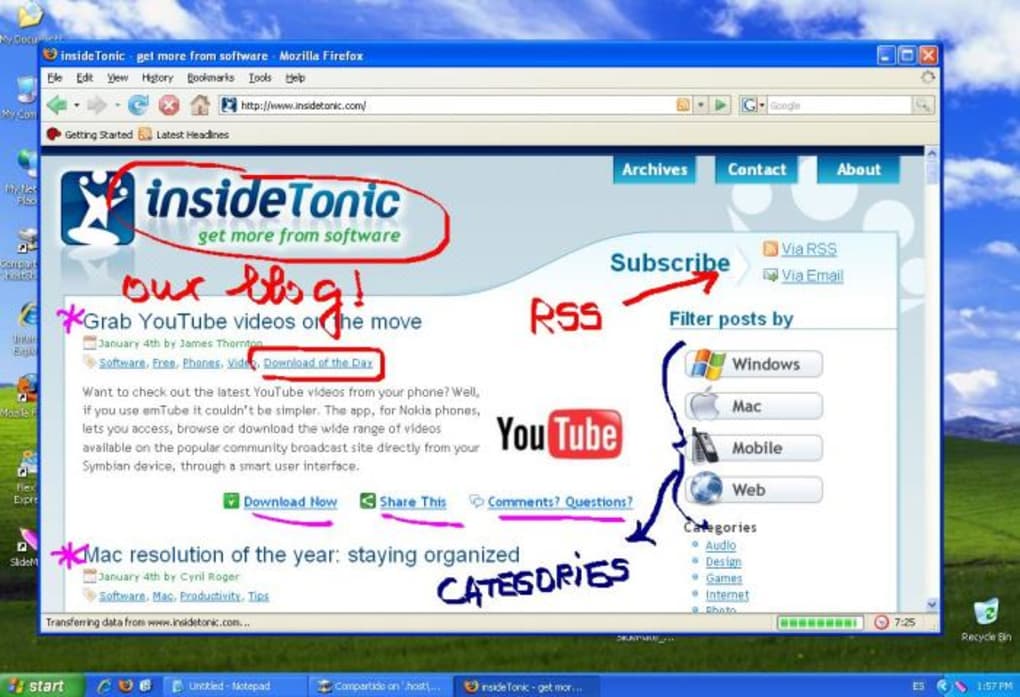
SlideMate is a lightweight, free utility that lets you draw directly on any Windows screen in real time. Designed with simplicity in mind, it isn’t a full‑blown graphics editor; instead, it acts as an on‑screen sketchpad that you can summon with a hotkey whenever you need to highlight, annotate, or simply doodle over an active window. Whether you are delivering a PowerPoint presentation, troubleshooting a software issue, or just having a bit of fun with a colleague, SlideMate provides an instant way to emphasize parts of the screen without the need for external capture tools or complex layers.
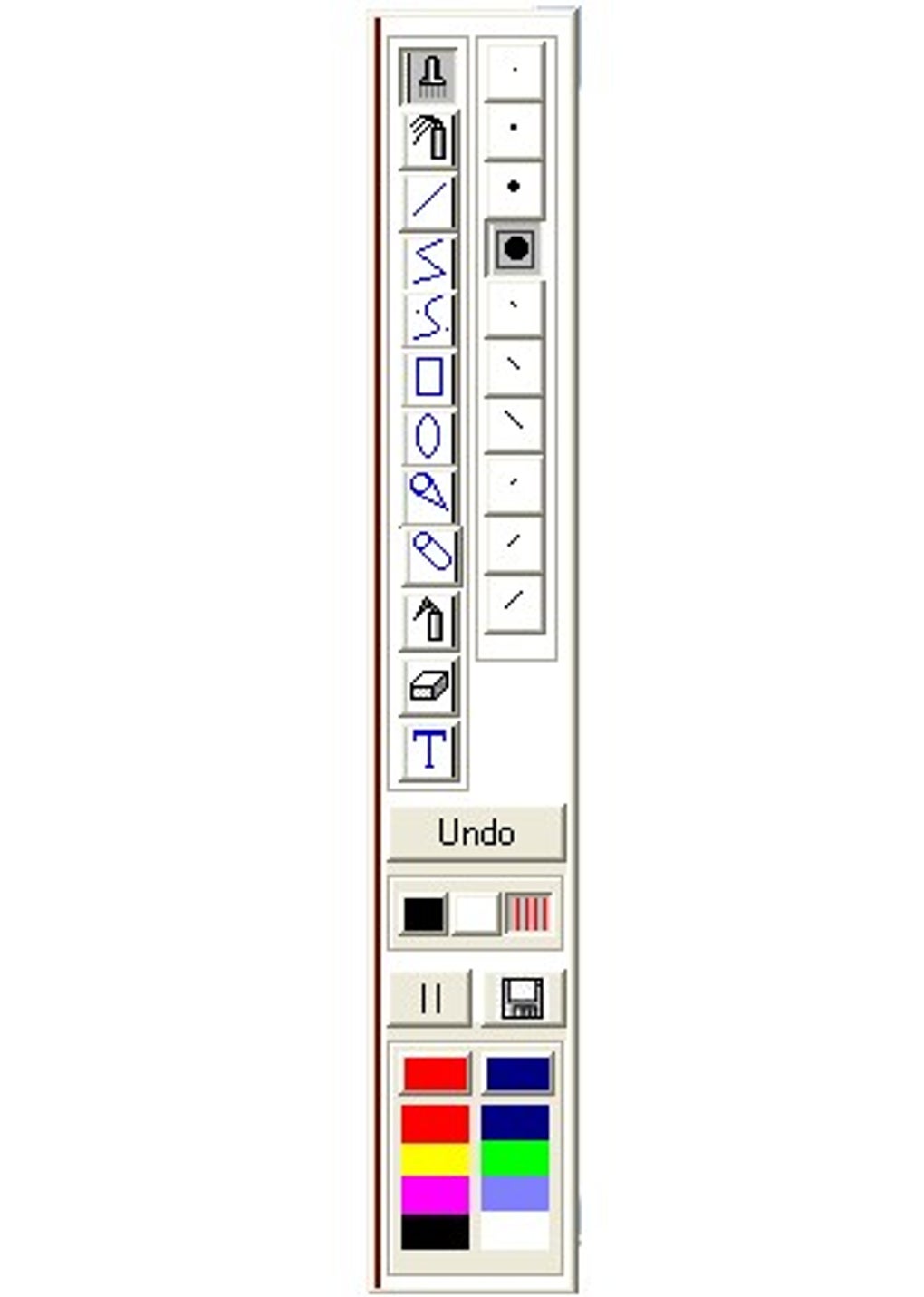
The program runs in the background and becomes visible when you move the cursor to the right edge of the display, revealing a compact toolbox. From there you can choose a pen, highlighter, or eraser, adjust colour and thickness, and start drawing. Because it works over any application—browsers, IDEs, office suites, or games—SlideMate is especially handy for educators who want to annotate live demos, support technicians who need to point out settings, or families that want kids to “paint” on the desktop while you’re away.
While the feature set is intentionally minimal, the focus on a smooth, lag‑free drawing experience makes SlideMate a reliable companion for everyday Windows users. The tool also includes a quick snapshot function, allowing you to capture the screen with your annotations for later reference or sharing. In short, SlideMate bridges the gap between a static screenshot and a full‑featured illustration program, delivering just enough power to make on‑screen communication effortless and secure.
Core Features & Toolbox
- Instant Hotkey Activation: Launch the drawing overlay with a single customizable shortcut, eliminating the need to hunt through menus.
- Edge‑Triggered Toolbox: Move the cursor to the right edge of the screen to reveal a compact toolbar with pen, highlighter, eraser, colour picker, and size selector.
- Multi‑Colour Pen & Highlighter: Choose from a palette of vibrant colours; adjust opacity for subtle highlights or bold strokes.
- One‑Step Screenshot Capture: Take a snapshot of the current screen—including your drawings—with a single click, saving directly to the clipboard or a designated folder.
- Undo (Single Step): Quickly revert the last drawing action, useful for correcting accidental marks.
- Transparent Overlay: Draw without obstructing the underlying application; the overlay is semi‑transparent and disappears when deactivated.
- Lightweight & Portable: The installer is under 5 MB, and the program consumes minimal RAM, making it suitable for older machines.
Although SlideMate does not offer advanced layers, brushes, or vector editing, the deliberately limited toolbox ensures a low learning curve. Users can focus on the primary goal—highlighting or annotating—without getting distracted by a flood of options. The colour picker provides a quick way to match corporate branding or classroom themes, while the size selector lets you switch from fine‑point annotations to broad strokes for emphasis.
For those who need a quick visual cue during a live demo, the highlighter tool shines (literally) by allowing semi‑transparent colour overlays that keep the original content readable. The eraser works on a per‑stroke basis, making it simple to clean up a single mistake without wiping the entire canvas. The snapshot function automatically adds a timestamp to the saved image, helping you keep an organized archive of annotated screens for future reference.
Installation, Usage & Compatibility
Installing SlideMate is straightforward. Download the installer from the official website, run the .exe file, and follow the on‑screen prompts. The wizard asks for a destination folder (default is C:\Program Files\SlideMate) and offers the option to create a desktop shortcut. After installation, you will be prompted to set your preferred hotkey combination (e.g., Ctrl + Alt + D). This hotkey can be changed later via the Settings menu, which is accessible from the toolbar.
Once installed, SlideMate launches automatically with Windows and runs silently in the background. To start drawing, press the configured hotkey; a thin vertical line appears on the right edge of the screen. Hover your mouse over this line and the toolbar slides out. From there, select a tool, colour, and size, then begin drawing directly on the active window. The overlay respects the Z‑order of windows, so you can continue working in your underlying application without interruption.
SlideMate is built exclusively for the Windows platform, supporting Windows 10, Windows 11, and Windows 7 (with Service Pack 1). The software uses standard Win32 APIs, ensuring compatibility across 32‑bit and 64‑bit installations. Because it relies on native drawing calls, there is no need for additional runtime environments like .NET or Java, which keeps the installation footprint small and the performance snappy.
Usage tips:
- Quick Annotation: During a presentation, press the hotkey, highlight a button, and then switch back to your slide deck without leaving the presentation mode.
- Collaboration: Share a screenshot with annotations via email or messaging apps; the image includes both the original screen and your drawings.
- Kid‑Friendly Play: Let children draw on the desktop while you’re away; the tool’s simple interface makes it safe and fun.
Updating SlideMate is handled through an integrated updater that checks for new versions once a week. When an update is available, a discreet notification appears; clicking it downloads and installs the latest build automatically. Because the program is free, all updates are provided at no cost, and the update process does not interfere with your existing drawings or settings.
Pros, Cons, FAQ & Conclusion
Pros
- Instant hotkey activation makes it ideal for live presentations.
- Very lightweight – minimal impact on system performance.
- Simple, intuitive toolbox that anyone can use.
- Built‑in screenshot capture with annotation preservation.
- Free and regularly updated without hidden fees.
Cons
- Only a single‑step undo; complex mistakes require clearing the overlay.
- Lacks advanced drawing features such as layers, shapes, or text boxes.
- Windows‑only; no native macOS, Linux, Android, or iOS version.
- Toolbox appears only on the right edge, which may be inconvenient on ultra‑wide monitors.
Frequently Asked Questions
-
Is SlideMate safe to download?
Yes. SlideMate is distributed from its official website and is signed with a trusted certificate. The installer does not contain adware or spyware, and it only accesses the screen buffer for drawing purposes.
-
Can I use SlideMate on a laptop with a touch screen?
SlideMate works with both mouse and touch input. The toolbox can be opened by swiping from the right edge, and all drawing tools respond to finger or stylus input.
-
How do I change the default hotkey?
Open the Settings window from the toolbar, click the “Hotkey” field, and press your desired key combination. Click “Apply” to save the change.
-
Does SlideMate interfere with other screen‑recording software?
No. SlideMate draws on a transparent overlay that most screen‑recording tools capture as part of the normal desktop image. It does not block or alter other applications.
-
Is there a way to clear all drawings at once?
Yes. Press the hotkey again to hide the overlay, then reopen it and click the “Clear All” button that appears at the far left of the toolbar.
Conclusion & Call to Action
SlideMate fills a niche that many larger graphics programs overlook: the need for quick, on‑the‑fly annotations directly on the Windows desktop. Its free price tag, tiny installer size, and instant hotkey activation make it an ideal companion for educators, presenters, IT support staff, and anyone who wants to leave a visual note without leaving the current application. While power users may miss advanced features such as multi‑step undo or vector shapes, the streamlined interface ensures that the tool remains fast, reliable, and easy to adopt.
If you’re looking for a secure, hassle‑free way to draw, highlight, or capture annotated screenshots on Windows, SlideMate is ready to download and use right now. Click the button below to get the latest version, configure your preferred hotkey, and start turning ordinary screens into interactive canvases in seconds.
Pros: Lightweight, instant hotkey, built‑in screenshot, free.
Cons: Single‑step undo, Windows‑only, limited toolset.
Guides & Tutorials
How to install SlideMate
- Click the Download button above.
- Once redirected, accept the terms and click Install.
- Wait for the SlideMate download to finish on your device.
How to use SlideMate
This software is primarily used for its core features described above. Open the app after installation to explore its capabilities.
User Reviews
No reviews yet. Be the first to share your experience.
You may also like
more
Llama 2
Free-to-use large language model As the new addition to Meta’s arsenal of langua...

NotebookLM
Revolutionizing the note-taking and idea-generation process NotebookLM is an exp...

Github co pilot
AI-inspired software development and coding platform GitHub Copilot is a browser...

Google Gemma
Google’s lightweight AI models Introducing Google Gemma , a family of cutting-ed...

AI Image Enlarger
A free app for Windows, by ai-image-larger. AI Image Enlarger is a free software...

DALL E
AI-driven text-to-image transformation engine DALL·E is a free graphic and desig...
