
Download Tab Notes – Minimalist Note‑Taking Tool for Mac Menu‑Bar
Overview
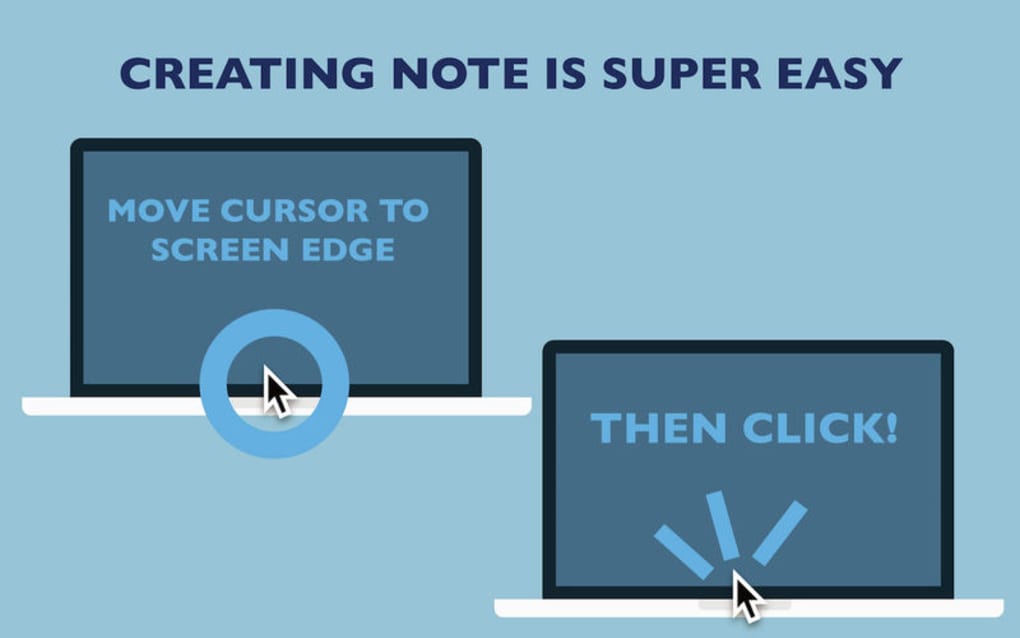
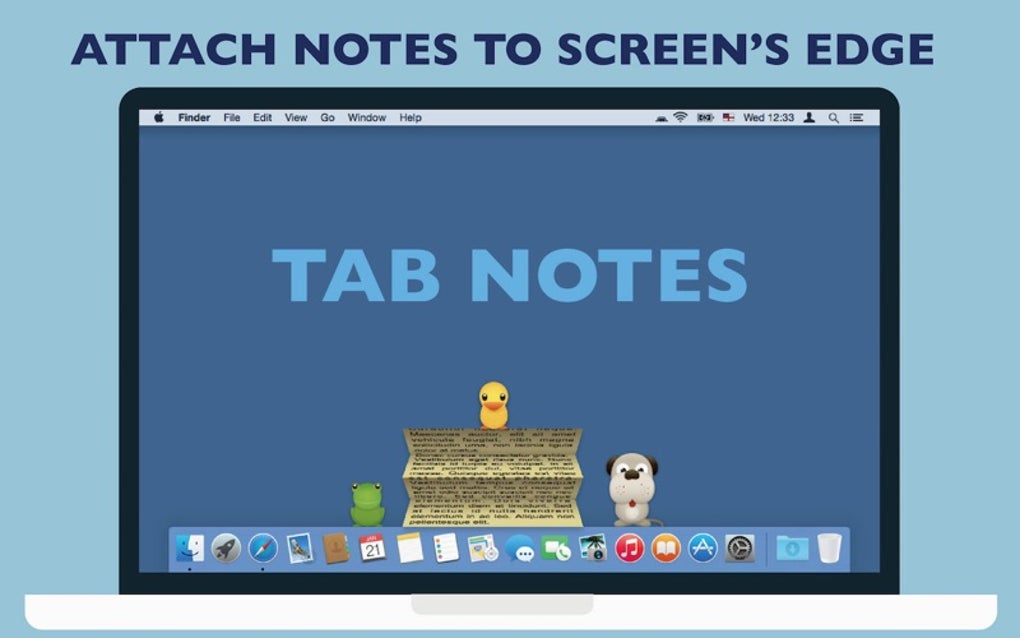
Tab Notes is a lightweight, menu‑bar‑resident note‑taking application designed exclusively for macOS. Its core philosophy is to keep your workspace clean while giving you instant access to short‑form text whenever you need it. By nesting the note panel at the edge of the screen, Tab Notes eliminates the visual clutter that traditional desktop editors often create. A single click on the screen edge expands the note, and a second click folds it back, making the workflow feel almost tactile. The app supports both Rich Text Format (RTF) and Rich Text with Attachments (RTFD), which means you can embed images, tables, and other media without leaving the minimalist interface. For users who rely on cloud sync, Tab Notes integrates seamlessly with Dropbox, allowing you to edit the same note on your iPhone or any other device that runs Dropbox. Versioning is built‑in, so macOS automatically preserves prior versions of each document, giving you a safety net against accidental overwrites. Additionally, the app includes a three‑day short‑term backup folder that captures every change, and you can open this folder directly from the preferences pane. The onboarding experience combines short, informative pop‑ups with an interactive tutorial that walks you through creating, moving, and folding notes. The result is a tool that feels like an extension of your own thought process—fast, secure, and always at hand.
Core Features
- Menu‑Bar Presence: Stays hidden in the menu bar until you need it, keeping your Dock and desktop free of extra icons.
- Edge‑Fold Mechanism: Drag the note panel to any screen edge; a single click expands it, and another click folds it back.
- Rich Text Support: Works with RTF and RTFD files, allowing formatted text, embedded images, and tables.
- Dropbox Sync: Automatic synchronization of notes to Dropbox makes them instantly available on iPhone, iPad, or any computer with Dropbox installed.
- Versioning: macOS version history is retained for each note, so you can revert to earlier drafts with a few clicks.
- Three‑Day Backup: Every edit is saved in a temporary backup folder for three days, protecting you from accidental data loss.
- Customizable Appearance: Choose from light or dark themes, adjust font size, and set the panel opacity to match your workflow.
- Keyboard Shortcuts: Quick‑access shortcuts let you open, close, and move notes without reaching for the mouse.
- Tutorial Mode: An introductory tutorial demonstrates the essential gestures and settings the first time you launch the app.
- Secure Local Storage: All notes are stored locally on your Mac with optional encryption, ensuring privacy even without cloud sync.
Each feature has been crafted with the goal of reducing friction. For instance, the edge‑fold mechanism mimics the way you would physically pull a notebook open and close it, while the built‑in versioning works silently in the background, so you never have to worry about losing a previous iteration. The three‑day backup is particularly valuable for writers and developers who experiment frequently; it acts as an “undo‑the‑undo” safety net. By supporting both RTF and RTFD, Tab Notes balances simplicity with enough formatting power to handle meeting minutes, code snippets, or quick design sketches. The Dropbox sync is optional but powerful—if you enable it, any change you make on your Mac appears on your iPhone within seconds, allowing you to capture ideas on the go and finish them later at your desk. Overall, these features combine to create a focused, secure, and highly portable note‑taking environment that feels native to macOS.
Installation & Daily Workflow
Step‑by‑Step Installation
- Visit the official Tab Notes website or the Mac App Store and click the Download button.
- Once the
.dmgfile is downloaded, open it and drag the Tab Notes icon into your Applications folder. - Launch the app from Launchpad or the Applications folder. macOS may prompt you to confirm that you trust the developer; click Open to continue.
- During the first launch, Tab Notes will request permission to access the menu bar and the folder where notes are stored. Grant these permissions for full functionality.
- If you want Dropbox sync, sign in to your Dropbox account when the preferences window appears and enable the “Sync with Dropbox” toggle.
Everyday Usage Tips
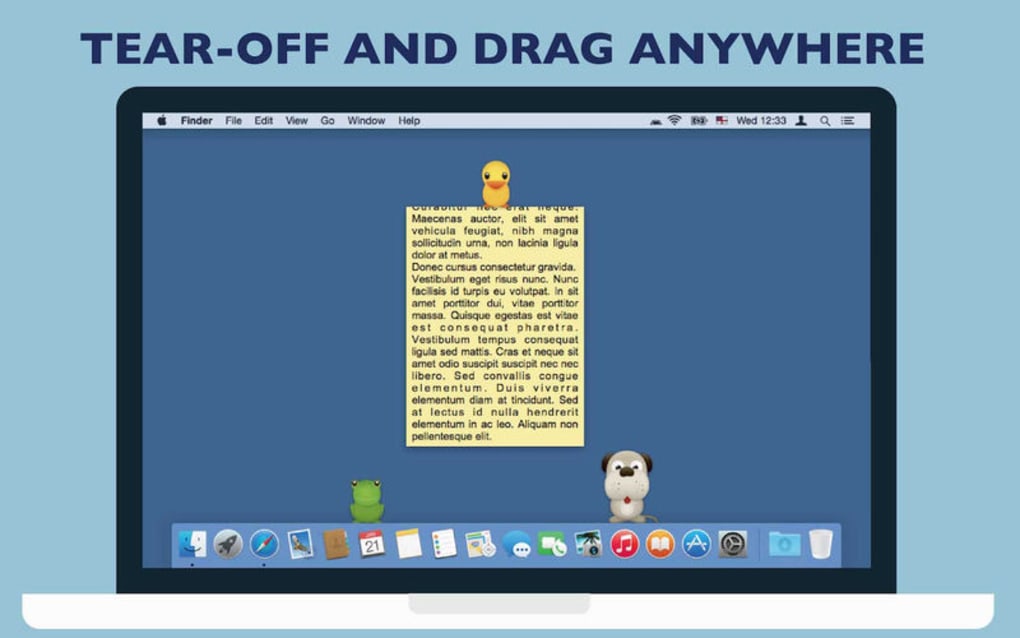
After installation, Tab Notes lives quietly in the menu bar as a tiny icon. To start a new note, click the icon or use the default shortcut ⌥⌘N. The note panel will slide out from the edge you choose—by default, the right side of the screen. Begin typing; the RTF engine automatically formats headings, bullet lists, and bold or italic text as you type. If you need to insert an image, drag the file directly into the panel; it will be saved as part of the RTFD document. When you’re finished, simply drag the panel back toward the screen edge; it will snap into a thin “tab” that remains visible but unobtrusive. Clicking the tab again restores the full note window.
For power users, the shortcut ⌥⌘← or ⌥⌘→ moves the note to the left or right edge, letting you keep multiple notes open on opposite sides of the screen. The built‑in search bar (accessed via ⌘F) lets you locate keywords across all saved notes instantly. If you enable the three‑day backup, a new entry appears in the Backup Folder each time you save; you can restore any version by opening the backup folder from the preferences pane and dragging the desired file back into the main notes directory.
Because Tab Notes stores notes locally, you can also open them with any RTF‑compatible editor (such as TextEdit or Microsoft Word) for advanced formatting. However, most users find the native interface sufficient for quick brainstorming, meeting minutes, or code snippets. The app’s minimal footprint ensures it consumes negligible CPU and memory, making it safe to keep running all day without impacting system performance.
Compatibility, Pros & Cons
Tab Notes is built specifically for macOS 10.13 (High Sierra) and later. It runs natively on Intel‑based Macs as well as Apple Silicon (M1, M2, and newer) thanks to universal binaries. The app does not have Windows, Android, or iOS versions, but its Dropbox synchronization means you can view and edit the same RTF files on any platform that supports Dropbox and a compatible RTF editor.
Pros
- Ultra‑lightweight: Uses less than 10 MB of disk space and almost no RAM when idle.
- Instant access: Menu‑bar icon and edge‑fold UI let you capture ideas in seconds.
- Secure local storage: Notes remain on your Mac unless you enable cloud sync.
- Versioning & backup: Built‑in macOS version history plus a three‑day short‑term backup safeguard data loss.
- Customizable appearance: Light/dark modes and opacity settings match any workflow.
- Free to use: No subscription fees; the app is offered at a price of $0.00.
Cons
- Mac‑only: No native Windows or mobile apps, limiting cross‑platform use.
- Limited export formats: Supports only RTF/RTFD; no native Markdown or plain‑text export.
- Feature set is intentionally minimal: Power users looking for advanced tagging or database‑style organization may find it too simple.
- Backup window is fixed: Three‑day backup cannot be extended without manual configuration.
Overall, Tab Notes excels for users who want a no‑frills, always‑available scratchpad that lives in the menu bar. The limitations are largely by design; the developer chose to keep the app focused on speed and simplicity rather than building a full‑featured note‑taking suite. If your workflow revolves around quick jotting, occasional formatting, and seamless Dropbox sync, the pros far outweigh the cons.
Frequently Asked Questions
Is Tab Notes completely free or does it have a paid version?
Tab Notes is offered as a free download with a price of $0.00. All core features, including Dropbox sync, versioning, and the three‑day backup, are included at no cost. There are no hidden in‑app purchases or subscription fees.
Can I use Tab Notes on Windows or Linux?
Tab Notes is built exclusively for macOS. However, because notes are saved in standard RTF/RTFD formats, you can open and edit them on Windows or Linux using any compatible RTF editor. For real‑time sync, enable Dropbox; then the same files will be available on any platform that runs Dropbox.
How does the three‑day backup work, and can I change the retention period?
Every time you save a note, Tab Notes creates a copy in a hidden backup folder located inside the application’s support directory. The app automatically deletes files older than three days. While the retention period is not configurable from the UI, you can manually adjust it by editing the backup folder’s contents or creating a custom script.
Is my data encrypted when I use Dropbox sync?
Tab Notes stores notes locally in unencrypted RTF files. When you enable Dropbox sync, the files are uploaded to Dropbox’s servers, which encrypt data at rest and in transit. If you require additional security, you can enable macOS FileVault for full‑disk encryption on your Mac.
Can I customize keyboard shortcuts for opening or moving notes?
Yes. In the Preferences window, there is a “Keyboard Shortcuts” tab where you can assign custom key combinations for creating a new note, folding/unfolding, and moving the panel to different screen edges. The defaults are ⌥⌘N for a new note and ⌥⌘←/⌥⌘→ for edge movement.
Conclusion & Call to Action
Tab Notes delivers exactly what its name promises—a simple, tidy place to capture ideas without sacrificing screen real estate. Its seamless menu‑bar integration, robust backup system, and optional Dropbox sync make it a trustworthy companion for anyone who values speed and minimalism. Whether you’re a writer, developer, or student, installing Tab Notes will shave seconds off every note‑taking moment, allowing you to focus on the content rather than the tool. Download Tab Notes today from the Mac App Store or the developer’s website, and experience a cleaner, more efficient workflow on your Mac.








