


Download Windowsfx – free Windows‑like Linux interface, secure download, Windows 10/11 clone
Overview
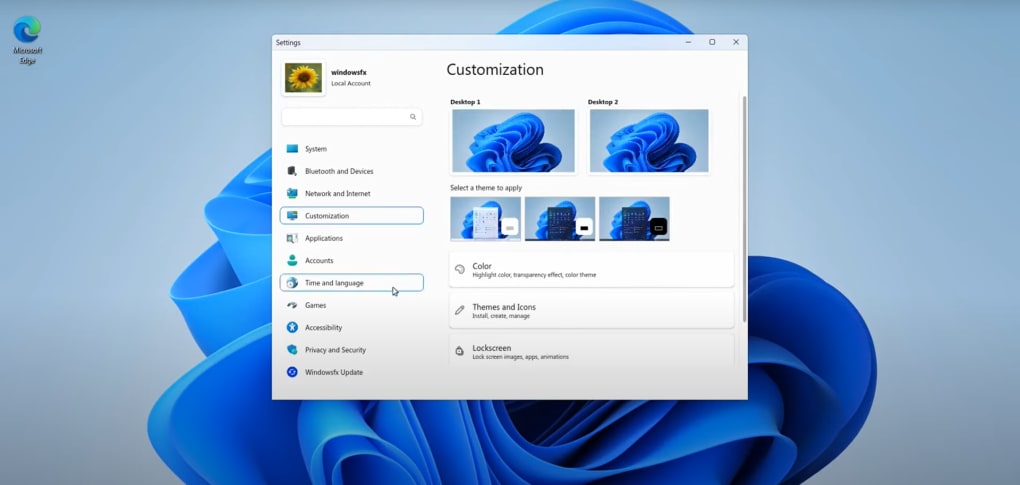
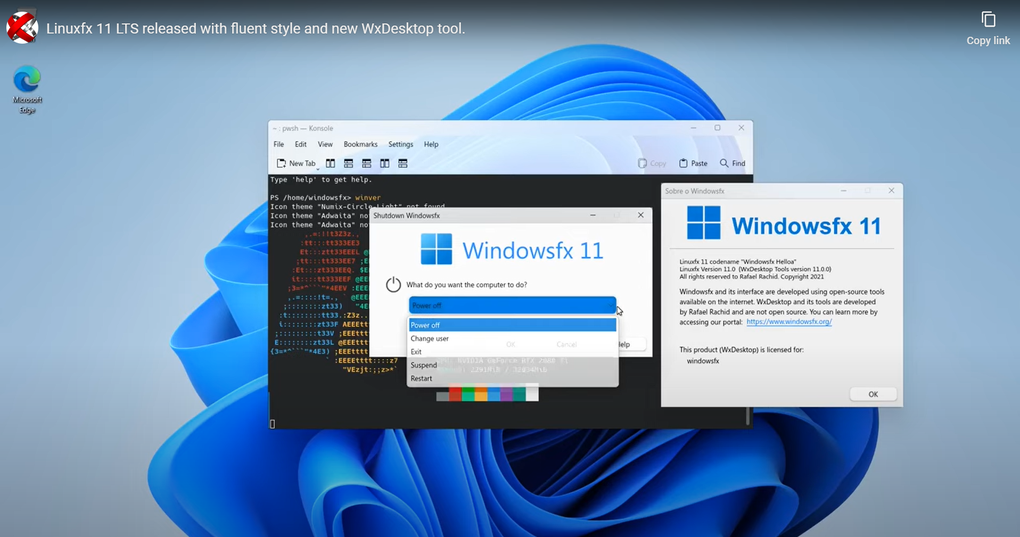
Windowsfx is a free, open‑source software application that brings the look and feel of Microsoft Windows to any Linux‑based computer. Designed for users who are comfortable with Windows 10 or Windows 11, Windowsfx overlays a familiar desktop environment on top of a standard Linux distribution, allowing a seamless transition without the steep learning curve that usually accompanies a switch to Linux. The program works on computers that meet modest hardware requirements – a dual‑core CPU and at least 2 GB of RAM – making it an attractive option for older workstations, classroom PCs, and budget‑conscious enterprises. Once installed, users can choose between a Windows 10‑style interface or a Windows 11‑style interface, each replicating the iconic taskbar, start menu, file explorer layout, and system icons. Although the visual design mirrors Microsoft’s operating systems, the underlying OS remains Linux, which means users still have access to the powerful command line, package managers, and the extensive repository of open‑source applications. An added perk is the ability to run Android apps directly from the Google Play Store, thanks to the integrated Anbox container. This feature blurs the line between desktop and mobile ecosystems, giving users a truly hybrid experience. Windowsfx does not require TPM modules, Secure Boot, or any other advanced BIOS settings, which simplifies deployment on a wide range of hardware. Whether you’re a teacher introducing students to Linux, an IT admin provisioning dozens of machines, or a hobbyist looking for a familiar interface while exploring open‑source software, Windowsfx provides a quick onboarding solution that feels safe, secure, and instantly recognizable.
Key Features
- Dual Interface Options: Choose between a Windows 10 skin or a Windows 11 skin, each faithfully reproducing the native layout, icons, and system sounds.
- Android App Support: Integrated Anbox layer lets you download and run Android applications from the Google Play Store without leaving the desktop.
- Low System Requirements: Runs smoothly on machines with a minimum of two‑core CPUs and 2 GB RAM, making it ideal for older hardware.
- Zero TPM or Secure Boot Dependency: No need for specialized firmware features, allowing installation on virtually any PC.
- Full Linux Compatibility: Retains all the power of the underlying Linux distribution, including access to terminal, package managers, and open‑source tools.
- Easy User Management: Simplified account creation and group policies that mirror Windows user administration.
- Regular Updates: Frequent security patches and UI refinements keep the environment fresh and safe.
- Multi‑Language Support: Interface translations for major languages, helping global teams adopt the platform quickly.
Beyond the visual façade, Windowsfx delivers a practical set of utilities that help bridge the gap between Windows habits and Linux capabilities. The built‑in file manager mimics Windows Explorer, complete with a ribbon toolbar and right‑click context menus that feel familiar. System settings are presented in a control‑panel‑style layout, allowing users to adjust display, network, and power options without diving into the terminal. For power users, a hidden “Developer Mode” unlocks access to the underlying Linux shell, enabling advanced scripting while preserving the Windows‑like desktop for everyday tasks. The inclusion of Android app support expands the software’s versatility, turning a Linux workstation into a hybrid device capable of running mobile games, productivity apps, and messaging tools natively. Because Windowsfx is built on top of a standard Linux distribution, it inherits the robust security model of Linux—isolated user permissions, sandboxed processes, and rapid patch distribution—while presenting a familiar surface. This combination makes it an appealing solution for educational institutions that need to keep costs low while providing a user‑friendly environment, as well as for enterprises looking to reduce licensing fees without sacrificing employee productivity.
Installation, Usage & Compatibility
Step‑by‑Step Installation Guide
Installing Windowsfx is straightforward and can be completed in under ten minutes on a supported Linux system. Follow these steps:
- Prepare Your System: Ensure your Linux distribution is up to date (e.g., Ubuntu 20.04+, Fedora 33+, or Debian 11). Open a terminal and run
sudo apt update && sudo apt upgrade(or the equivalent for your distro). - Download the Installer: Visit the official Windowsfx website and click the “Download Windowsfx” button. The file is a signed .deb or .rpm package, depending on your distribution, guaranteeing a secure download.
- Verify the Signature: Use
gpg --verifywith the provided public key to confirm the package integrity. - Install the Package: For Debian‑based systems, run
sudo dpkg -i windowsfx_*.deb. For RPM‑based systems, usesudo rpm -i windowsfx_*.rpm. Resolve any missing dependencies withsudo apt -f installorsudo dnf installas needed. - Choose Your Interface: After installation, launch the Windowsfx configuration tool. Select either “Windows 10” or “Windows 11” skin, and optionally enable the Android app integration.
- Reboot: Restart the computer. Upon login, the new Windows‑style desktop will appear, ready for use.
Operating System Compatibility
Windowsfx is compatible with the majority of mainstream Linux distributions, including:
- Ubuntu 20.04 LTS and newer
- Linux Mint 20 and newer
- Debian 11 (Bullseye) and newer
- Fedora 33 and newer
- openSUSE Leap 15.3+
Because the application is built on top of standard Linux packages, it inherits the same kernel support and hardware drivers as the host OS. This means you can run Windowsfx on laptops, desktops, and even low‑power ARM devices that run a compatible Linux kernel. The software does not require any proprietary Microsoft drivers; instead, it relies on the open‑source graphics stack (Mesa, Nouveau, or AMDGPU) for rendering the UI. If you plan to use the Android app layer, ensure that your CPU supports virtualization extensions (VT‑x/AMD‑V) for optimal performance.
Daily Usage Tips
After the first boot, you’ll notice the start menu behaves just like Windows, but you can also access the underlying Linux terminal via the “Run” dialog (Win + R) by typing gnome-terminal or konsole. The file manager integrates with Linux’s filesystem hierarchy, allowing you to navigate to /home, /etc, and other system directories with familiar icons. For software installation, you can continue using the native package manager (APT, DNF, Zypper) or install Windows applications via Wine if needed. Remember that Windowsfx does not replace the Linux kernel; it merely provides a visual shell. This design ensures that you retain the stability, security, and performance benefits of Linux while enjoying a Windows‑style desktop.
Pros, Cons & Frequently Asked Questions
Pros
- Instantly familiar interface for former Windows users.
- Low hardware requirements make it suitable for older PCs.
- No need for TPM, Secure Boot, or other advanced BIOS settings.
- Built‑in Android app support expands functionality.
- Retains full Linux power and security under the hood.
- Free and open‑source, with regular community updates.
Cons
- Visual façade does not add native Windows features (e.g., DirectX 12).
- Long‑term productivity may require learning genuine Linux workflows.
- Some Windows‑only applications may still need Wine or a VM.
- Limited customization beyond the provided skins.
- Performance of Android apps can vary depending on hardware.
Frequently Asked Questions
Can I install Windowsfx on a laptop that already runs Windows?
Yes. You can dual‑boot Windows and a Linux distribution, then install Windowsfx on the Linux side. The Windowsfx environment will only be active when you boot into Linux.
Does Windowsfx support gaming?
While Windowsfx itself does not provide native Windows gaming APIs, you can run Linux games via Steam or Lutris, and you can also use Wine/Proton for many Windows titles. Android games can be launched through the integrated Play Store.
Is the Android app integration safe?
The Android layer uses Anbox, which runs apps in a containerized environment isolated from the host system. This provides a level of security comparable to standard Linux sandboxing.
Can I customize the theme beyond the default Windows 10/11 skins?
Customization options are limited to the provided skins. Advanced users can modify GTK or KDE themes manually, but this requires deeper Linux knowledge and may break the Windows‑like consistency.
How frequently are updates released?
The development team publishes minor updates every 2‑4 weeks for bug fixes and security patches, with major feature releases roughly every 3‑4 months.
Rating: 4.2 out of 5
Windowsfx delivers on its promise of a familiar Windows desktop while preserving the strengths of Linux. The low hardware requirements and straightforward installation make it an excellent choice for schools and small businesses. The Android integration is a pleasant surprise, though performance depends on the host machine. Power users may eventually outgrow the visual layer, but for quick onboarding and day‑to‑day tasks, Windowsfx shines.
Conclusion & Call to Action
In a world where software budgets are tightening and the need for cross‑platform flexibility is growing, Windowsfx stands out as a pragmatic bridge between the familiar Windows ecosystem and the powerful, secure realm of Linux. By providing a free, lightweight, and easy‑to‑install Windows‑style interface, it reduces the learning curve for new users and accelerates deployment in classrooms, offices, and home labs. While it is not a replacement for a full Windows installation—especially for high‑end gaming or specialized enterprise applications—it offers enough functionality for everyday productivity, web browsing, and Android app usage. The minimal system requirements mean you can revive aging hardware, extending its useful life and lowering electronic waste. If you are a teacher looking to introduce students to open‑source computing, an IT manager tasked with cutting licensing costs, or simply a hobbyist curious about Linux without abandoning the comfort of Windows, Windowsfx is worth a try. Download the installer today, follow the quick setup guide, and experience a Windows‑like desktop that runs on the stability and security of Linux. Embrace the best of both worlds—download Windowsfx now and give your machines a fresh, familiar look without compromising on performance or freedom.








