Search the Community
Showing results for tags 'toggle'.
Found 6 results
-
Version 2.0.0
17 downloads
Cold & heat protection. A compact HUD. Your players’ own settings. Give your players control over temperature damage without changing your server’s weather. Temperature Damage Toggle is a Rust plugin by SLDEVS that allows authorized players to enable or disable protection against cold and heat damage. It combines permission-based access with a compact in-game HUD, personal display settings and seven built-in languages. Keep temperature protection available to everyone, restrict it to specific groups, or manage individual players through administrator commands. A clear, compact temperature HUD The HUD displays a blue cold indicator or an orange heat indicator, together with the player’s temperature, protection status and a reminder of the customization command: /dthud — Position and size During normal gameplay, the HUD appears when protection is active and the player reaches the configured cold or heat thresholds. Only one card is displayed at a time, depending on the current conditions. The compact design uses native Rust CUI elements, so ImageLibrary and external icon downloads are not required for this HUD style. Personal HUD settings, directly in game Players can open /dthud to adjust their own HUD without affecting anyone else. The editor provides nine position presets, directional buttons for precise movement, an adjustable movement step and size controls. The default size range is 70% to 160%. Cold and heat previews let players check their layout without changing the weather or their actual protection. Save applies the selected layout, Cancel discards unsaved adjustments, and Reset restores the server’s default layout. Position and size preferences are saved per player and retained across sessions. Movement is handled through the editor’s buttons—not drag-and-drop. Seven built-in languages English, French, Spanish, German, Italian, Brazilian Portuguese and Russian. Translations cover the HUD, customization menu, help messages and player-facing command responses. Players can select their language from the editor or through a command. Automatic mode follows the player language known to Oxide, with a configurable fallback. A player’s language selection applies to this plugin without changing the language of other plugins. Server configuration and administrator control Configure access through permissions and decide whether eligible players receive protection automatically or enable it themselves. Server settings include HUD appearance and default placement, cold and heat display thresholds, refresh interval, player customization, language settings and protection persistence. Administrators can also enable or disable protection for an individual player. Protection preferences can be retained between sessions when persistence is enabled. Player commands Default command names are shown below. CommandAction /dtToggle temperature protection. /dt on / /dt offEnable or disable protection. /dt statusCheck the current protection status. /dt helpDisplay command help. /dthudOpen the HUD customization menu. /dthud size 120Set the HUD size to 120%. /dthud position 90 20Set the HUD position using X/Y percentages. /dthud lang enSelect English. /dthud lang autoUse automatic language selection. /dthud resetRestore the default HUD layout. /dthud offClose the editor or preview without disabling protection. Preview commands: /dthud cold and /dthud heat. Language codes: en, fr, es, de, it, pt-BR, ru. Permissions PermissionAccess temperaturedamagetoggle.useUse personal temperature protection and HUD features. temperaturedamagetoggle.admin Access administrator controls and HUD features. Administrators can manage another player with: /dt <player name or SteamID> on /dt <player name or SteamID> off The target player still needs the use permission for protection to take effect. Temperature protection—not general invulnerability The plugin controls temperature damage; it does not change the weather or the player’s actual temperature. Other damage types, such as bullets and explosions, are not removed by its protection. By default, heat damage from an identified external source is not blocked. Server owners can change this behavior through the dedicated BlockHeatFromSources setting.$1.99 -

Version 1.2.0
896 downloads
A simple plugin to allow users to toggle creative mode for themselves based on permissions. As of now, this plugin is considered complete, however if you have suggestions please feel free to reach out. Commands: /creative - Toggle Creative mode for the user who issued the command /creativefreerepair - Toggles the creative.freeRepair Convar /creativefreebuild - Toggles the creative.freeBuild Convar /creativefreeplacement - Toggles the creative.freePlacement Convar /creativeunlimitedio - Toggles the creative.unlimitedIo Convar Config Options: { ConsoleLoggingEnabled = true, ChatMessageEnabled = true, IconEnabled = true, IconAnchorMin = "0.345 0.11", IconAnchorMax = "0.375 0.16", IconImageURL = "https://i.postimg.cc/nVvW4Smw/Creative-Mode.png", IconColor = "1 1 1 0.3", CreativePermission = "creativetoggle.use", ConVarPermission = "creativetoggle.convars" } This plugin still relies on the built-in Rust convars. See the quote below for more information about those. Important! creative.allusers must be turned OFF for this plugin to work! Please read the following section carefullly! Permissions: creativetoggle.use - Allows the user to toggle creative mode for themselves. creativetoggle.convars - Allows the user to toggle the state of the convars related to creative mode. Resources used: Visual Studio Code Visual Studio 2022 Github Copilot VS Code Extension HandyS11's RustPluginTemplateFree -
.thumb.png.f72ba323afb58522d8b4c626ff181526.png)
Version 1.0.1
301 downloads
Admin Buttons is a clean and customizable Rust admin HUD plugin designed to give server owners quick access to common admin tools through on-screen buttons. Local image support is enabled by default for stable and reliable icon loading, while optional web URL image support is also available when needed. Admin Command: Use /ab in chat to open or close the panel. Admin Permissions: oxide.grant group admin adminbuttons.admin c.grant group admin adminbuttons.admin Configuration: { "Chat command": "ab", "Panel position (0 = BottomLeft, 1 = TopLeft, 2 = TopRight, 3 = BottomRight)": 0, "UI Scale (%) — 100 = default, 75 = -25%, 50 = -50%, 150 = +50%": 100, "Auto-open on connect": true, "Play click sound": true, "Use local images (false = use Web URLs below)": true, "Web image URLs (recommended 128x128 transparent PNG, used only when 'Use local images' = false)": { "ADMIN": "https://i.ibb.co/TBBS73X2/ADMIN.png", "RADAR": "https://i.ibb.co/213xSyb1/RADAR.png", "NOCLIP": "https://i.ibb.co/Q7TvJZTP/NOCLIP.png", "VANISH": "https://i.ibb.co/qFyV9P6g/VANISH.png", "OUTPOST": "https://i.ibb.co/4gjrwZ25/OUTPOST.png", "BANDIT": "https://i.ibb.co/84NZhjkp/BANDIT.png", "TPMARKER": "https://i.ibb.co/F4JF9NP2/TPMARKER.png", "HEAL": "https://i.ibb.co/vvwVb83C/HEAL.png", "CLOSE": "https://i.ibb.co/ZRG7JtKr/CLOSE.png" }, "Buttons (left to right, max 8)": [ { "Label": "ADMIN", "Icon": "ADMIN", "Commands": [ "chat.say \"/admin\"" ] }, { "Label": "RADAR", "Icon": "RADAR", "Commands": [ "chat.say \"/radar\"" ] }, { "Label": "NOCLIP", "Icon": "NOCLIP", "Commands": [ "noclip" ] }, { "Label": "VANISH", "Icon": "VANISH", "Commands": [ "chat.say \"/vanish\"" ] }, { "Label": "OUTPOST", "Icon": "OUTPOST", "Commands": [ "outpost" ] }, { "Label": "BANDIT", "Icon": "BANDIT", "Commands": [ "bandit" ] }, { "Label": "TPMARKER", "Icon": "TPMARKER", "Commands": [ "teleport2marker" ] }, { "Label": "HEAL", "Icon": "HEAL", "Commands": [ "heal 100" ] } ] } ALSO OFFER: Admin Warn: Real Authority for Real Server Control!Free- 3 comments
- 1 review
-
- 1
-

-
- #admin
- #admin tool
- (and 28 more)
-
Version 1.0.1
16 downloads
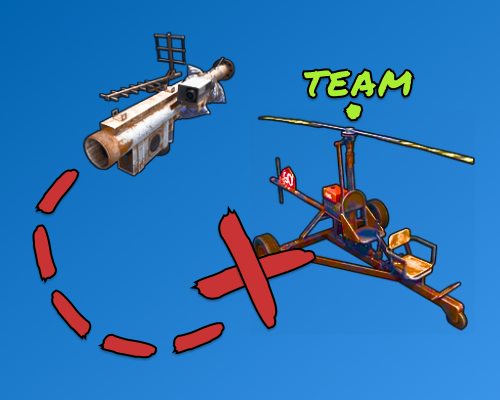
Ever wanted to prevent your players from having homing launchers target their teammates helicopters? Well with these 2 plugins you can! They can even toggle between being able to target their teammates and not being able to using a simple command. This can be configured from the config and has the ability to have more than 1 command to toggle it. Just open the zip (or unzip it) and place the two .cs plugins in your plugin folder. To switch between team targeting, just type /teamlock or /nolock. Can also do /teamlock on and /nolock off. (Assuming you have those as the commands in the command list in the config) Default Config: { "The command a user will use to toggle the locking of teammates.": [ "teamlock", "nolock" ] } Video Example:$1.99- 2 comments
-
- 1
-
-
- #homing
- #homing missiles
- (and 5 more)
-
Version 1.3.7
191 downloads
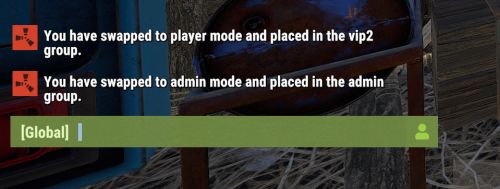
Allows your admin, moderators and staff members to instantly toggle between their authority role and the player role while logging each swap to discord as well as a data file to keep accountability in check! **************** NOTE: When granting permissions be sure to apply the permission to the specific player, NOT a group as it will not allow them to regain their permissions. **************** In the configuration file you can: Specify which groups the authorized player will be put into when they toggle in and out of their authority role for each. (Admin/moderator/staff) Specify your Admin player role display name (includes chat, permissions, console, team/clan). Set the commands for each group. Specify a list of commands to run for Admin/Mods when they toggle to and from authorized roles. Add your Discord webhook to log each time the person toggles roles. (If you do not wish to use the Discord logging feature then leave that line as is in the config.) Choose to work with other plugin features. (true/false options) And more! Default groups and commands: Admin toggles to default - /tadmin Mods toggles to default - /tmod Staff toggles to default - /tstaff Permissions: "authtoggle.admin" - allows admin to toggle groups. "authtoggle.moderator" - allows moderators to toggle groups. "authtoggle.staff" - allows staff to toggle groups. Default Configuration File: { "Chat Prefix": "<color=#32CD32>Auth Toggle</color>: ", "Discord Prefix": "Auth Toggle: ", "Discord WebHook": "https://support.discord.com/hc/en-us/articles/228383668-Intro-to-Webhooks", "Change Commands": { "Admin swap Groups": "tadmin", "Moderator swap Groups": "tmod", "Staff swap Groups": "tstaff" }, "Groups": { "Admin player group name": "default", "Admin group name": "admin", "Moderator player group name": "default", "Moderator group name": "mods", "Staff group name": "staff", "Default group name": "default" }, "Main Options": { "Change name as Admin": true, "Admin player name to use": "yourchosennamehere", "Empty Admin inventory on disconnect": false, "Store and restore inventory when swapping Auth levels (Admin Only)": true, "Auto run Admin commands": true, "Auto run Moderator commands": true, "Auto run player commands": true }, "Optional Dependencies": { "Vanish": true, "AdminRadar": false, "Godmode": false }, "Auto Commands": { "Admin chat commands to run when toggled to Admin": [ "" ], "Moderator chat commands to run when toggled to Moderator": [ "", "" ], "Admin / Moderator chat commands to turn off when toggled to Player": [ "", "" ] } } Default Data File: { "AdminSwapped": [], "ModsSwapped": [], "StaffSwapped": [] } Default Lang File: { "ToPlayer": "You have swapped to player mode and have been placed in the", "ToStaff": "You have swapped to staff mode and have been placed in the", "ToModerator": "You have swapped to moderator mode and have been placed in the", "ToAdmin": "You have swapped to admin mode and have been placed in the", "SwappedToPlayer": "{0} ({1}) swapped to player mode.", "SwappedToStaff": "{0} ({1}) swapped to staff mode.", "SwappedToModerator": "{0} ({1}) swapped to moderator mode.", "SwappedToAdmin": "{0} ({1}) swapped to admin mode.", "SwapDenied": "{0} ({1}) tried to toggle {2} authority without permission.", "Pradar": "Please disable AdminRadar before swapping.", "PGround": "Please get safely on the ground before swapping roles." }$4.99 -
Version 1.0.5
530 downloads
A lite plugin that allows players to read or share chat history, copy links and ensure no messages are missed. Players can toggle this on/off as they choose. The toggle persists until it is re-toggled by the player or the config option is disabled. Console Commands consolechat.toggle - Enables/Disables consolechat on a per-player basis. This is not an rcon command. Configuration Enable_Toggle: Enables or disables consolechat.toggle command. Output_Color: The color of all ConsoleChat messages that output to console. Time_Format: The time format of all ConsoleChat messages that output to console.Free
.thumb.png.fd415e6a279abcb86097c1d6ea9f77b2.png)