Search the Community
Showing results for tags 'admin'.
-

Version 0.1.7
462 downloads
A plugin for collecting game statistics with database support, compatible with both SQL and web API methods. This functionality empowers website owners to display the desired statistics from the database on their sites. Moreover, it offers the capability to send data via API, which proves highly beneficial in scenarios where your gaming server and database reside on separate machines and the database restricts connections beyond localhost. Please note that an instruction manual will be included in the downloaded file and it is imperative for users to read it thoroughly. Collecting(The full list is available below in the section Collected Data) : Server information; Team information; Clan information; Feedback(F7) information; Report(F7) information; Player information. Sending data through: direct MySQL; via API(POST query) to MySQL. extendedstats.admin - Provides access to command estats. { "Chat command": "estats", "Is it worth enabling GameTips for messages?": true, "Unique ID of the current server": 0, "Database upload method(Disabled, WebAPI, MySQL)": "WebAPI", "Interval in seconds at which an attempt to load changes into the database will occur": 300.0, "Is it worth logging messages to the console when uploading to the database?": true, "API - Service URL": "https://localhost/ExtendedStats/index.php", "API - Service access key": "GlBRw-elM6v-gjko3-cxSDk-Tsy7B", "API - Timeout": 5.0, "MySQL - Host": "localhost", "MySQL - Port": 3306, "MySQL - Database name": "db_playrust", "MySQL - Username": "root", "MySQL - Password": "root", "Database table name - Servers": "db_servers", "Database table name - Teams": "db_teams", "Database table name - Clans": "db_clans", "Database table name - Feedbacks": "db_feedbacks", "Database table name - Reports": "db_reports", "Database table name - Players": "db_players", "Database table name - Players Balances": "db_players_balances", "Database table name - Players Stats": "db_players_stats", "Database table name - Players Farms": "db_players_farms", "Database table name - Players Gambling": "db_players_gambling", "Database table name - Players Kills": "db_players_kills", "Database table name - Players Explosions": "db_players_explosions", "Database table name - Players Raids": "db_players_raids", "Is it worth clearing saved statistics when a wipe is detected?": true, "Is it worth clearing the database when a wipe is detected?": true, "List of statistic categories to clear when a wipe is detected. Leave empty to recreate defaults": [ "players", "teams", "clans", "feedbacks", "reports" ], "List of language keys for creating language files": [ "en" ], "Wipe ID": null, "Version": { "Major": 0, "Minor": 1, "Patch": 6 } } EN: { "CmdMain": "Available commands:\n\n<color=#D1CBCB>/estats</color> <color=#D1AB9A>upload</color> - Initialize a forced data upload to the database\n<color=#D1CBCB>/estats</color> <color=#D1AB9A>save</color> - Save data to a local file on the server\n\n--------------------------------------------------", "CmdDBNotSelected": "Database connection method not selected!", "CmdAlreadyUploading": "You can't initialize a data upload to the database because there is already an active upload!", "CmdUpload": "You have successfully started a forced data upload to the database.", "CmdSave": "Saving data to a local file on the server:\n\n<color=#D1CBCB>/estats save</color> <color=#D1AB9A>clans</color> - Save all clans to a local file on the server\n\n--------------------------------------------------", "CmdSaveNotEnough": "Not enough records to save!", "CmdSaveClans": "Successfully saved {0} clans!" } RU: { "CmdMain": "Доступные команды:\n\n<color=#D1CBCB>/estats</color> <color=#D1AB9A>upload</color> - Инициализация принудительной загрузки данных в базу данных\n<color=#D1CBCB>/estats</color> <color=#D1AB9A>save</color> - Сохранение данных в локальный файл на сервере\n\n--------------------------------------------------", "CmdDBNotSelected": "Метод подключения к базе данных не выбран!", "CmdAlreadyUploading": "Вы не можете инициализировать загрузку данных в базу данных, так как уже существует активная загрузка!", "CmdUpload": "Вы успешно начали принудительную инициализацию загрузки данных в базу.", "CmdSave": "Сохранение данных в локальный файл на сервере:\n\n<color=#D1CBCB>/estats save</color> <color=#D1AB9A>clans</color> - Сохранение все кланы в локальный файл на сервере\n\n--------------------------------------------------", "CmdSaveNotEnough": "Не достаточно записей для сохранения!", "CmdSaveClans": "Успешно сохранено {0} кланов!" } Admin commands. Permission "extendedstats.admin" required: upload - Initialize a forced data upload to the database; save - Save data to a local file on the server: clans - Save all clans to a local file on the server; Example: /estats upload /estats save clans ServerData: ServerName ServerIdentity ServerIP ServerPort QueryPort ServerDescription ServerHeader ServerURL ServerTime ServerTags GameTags MaxPlayers ServerEntities ServerFPS ServerAvgFPS ServerUptime ServerMap MapSize MapSeed FirstSave LastSave WipeID ServerVersion ServerProtocol RconPort RconPassword TeamData: TeamID TeamName CreatorID LeaderID TeamMembers ClanData: ClanID ClanName ClanNameNormalized CreatorID CreatedTime ClanLogo LogoColor Motd MotdTimestamp MotdAuthor ClanRoles ClanMembers Score FeedbackData(Since the corresponding Oxide hook has shifted, not all types of feedback are processed) : ID UserID Subject Type Message Time ReportData: ID UserID TargetID TargetName Subject Type Message Time PlayerData: Info: UserID DisplayName Flags Language GroupsList TeamID ClanID BanReason Connection: PlayedTime - requires the PlaytimeTracker/PlayTimeRewards plugins IdleTime - requires the PlaytimeTracker/PlayTimeRewards plugins Connections Ping FirstConnectionIP LastConnectionIP FirstConnectionDate LastConnectionDate Balance: Balance - requires the Economics plugin Points - requires the ServerRewards plugin BankBalance - requires the BankSystem plugin IQBalance - requires the IQEconomic plugin Experience Reputation - requires the ReputationMaster plugin Statistics: TimeAlive - updates only after the player's death TimeSleeping - updates only after the player's death DistanceWalked - updates only after the player's death DistanceRun - updates only after the player's death TimeWilderness - updates only after the player's death TimeInBase - updates only after the player's death TimeInMonument - updates only after the player's death TimeSwimming - updates only after the player's death TimeFlying - updates only after the player's death TimeBoating - updates only after the player's death TimeDriving - updates only after the player's death Wounded WoundsInflicted WoundAssisted WoundRecovered DamageInflicted DamageTaken - updates only after the player's death Healed - updates only after the player's death ShotsFired - updates only after the player's death ShotsHit RentedAptPenthouses RentedAptStandards RentedAptBasements RentedShops OutbidShops BreakInAptPenthouses BreakInAptStandards BreakInAptBasements BreakInShops HalloweenVisits XmasVisits DeepSeaVisits ExcavatorStarts HeavyFusesInserted BearTrapInflicted BearTrapSteps MineInflicted MineSteps HandcuffsApplied Handcuffed PhoneCalls PhoneCallsTimeout MissionsStarted MissionsSucceeded MissionsFailed DeployedsList MonumentsList - requires the MonumentsWatcher plugin Farming: Barrels UnderWaterCrates ShreddedEntities DetectResourceFlags GreenDoors BlueDoors RedDoors FishAttempts Guts Supplies ExcavatorSupplies TropicalSupplies Chinooks Surveys ChickensHatched ChickenEggs BeehiveXP Blueprints CraftList GatherList RecycleList BuyerPurchaseList BuyerSpentList SellerSalesList SellerRevenueList CratesList FishList Gambling: BWG_Spins BWG_WinSpins BWG_SpendScraps BWG_WinScraps Slot_Spins Slot_WinSpins Slot_SpendScraps Slot_WinScraps Poker_Games - Placeholder Poker_WinGames - Placeholder Poker_SpendScraps - Placeholder Poker_WinScraps - Placeholder BlackJ_Games BlackJ_WinGames BlackJ_StandoffGames BlackJ_SpendScraps BlackJ_WinScraps RPS_Wins RPS_Losses RPS_Draws Kills: Kills FriendlyKills Deaths Suicides Beehives Chickens FarmChickens Snakes Boars Stags Horses Wolves Bears Polarbears Panthers Tigers Crocodiles Sharks PlayerNPCs Scientists Zombies Patrols Bradleys KillVehicles: PedalBikes MotorBikes Cars RowBoats RHIBs SubmarinesSolo SubmarinesDuo Tugs MiniHelis AttackHelis ScrapHelis Balloons Trains TrainWagons TrainCabooses Snowmobiles Ballistas BatteringRams Catapults SiegeTowers HitParts KillParts KillWeapons Explosions: Rockets RocketsHV RocketsIncendiary RocketsSmoke RocketsMissile RocketsMLRS Torpedoes ExplosiveAmmo Ammo40mmExplosive Ammo40mmSmoke GrenadesF1 GrenadesMolotov GrenadesFlash GrenadesSmoke GrenadesBean SatchelCharges C4Explosives PropaneBombs FireBombs CannonBalls MortarShells MortarFragShells Raids: Cupboards Doors Windows Foundations Ceilings Walls Doorways WindowFrames Stairs Hatches ExtWoodenGates ExtWoodenWalls ExtStoneGates ExtStoneWalls ExtIceWalls ExtIceShortWalls RaidedConstructionsList RaidedDeployableConstructionsList RaidableBases$14.99 -
Version 1.2.7
462 downloads
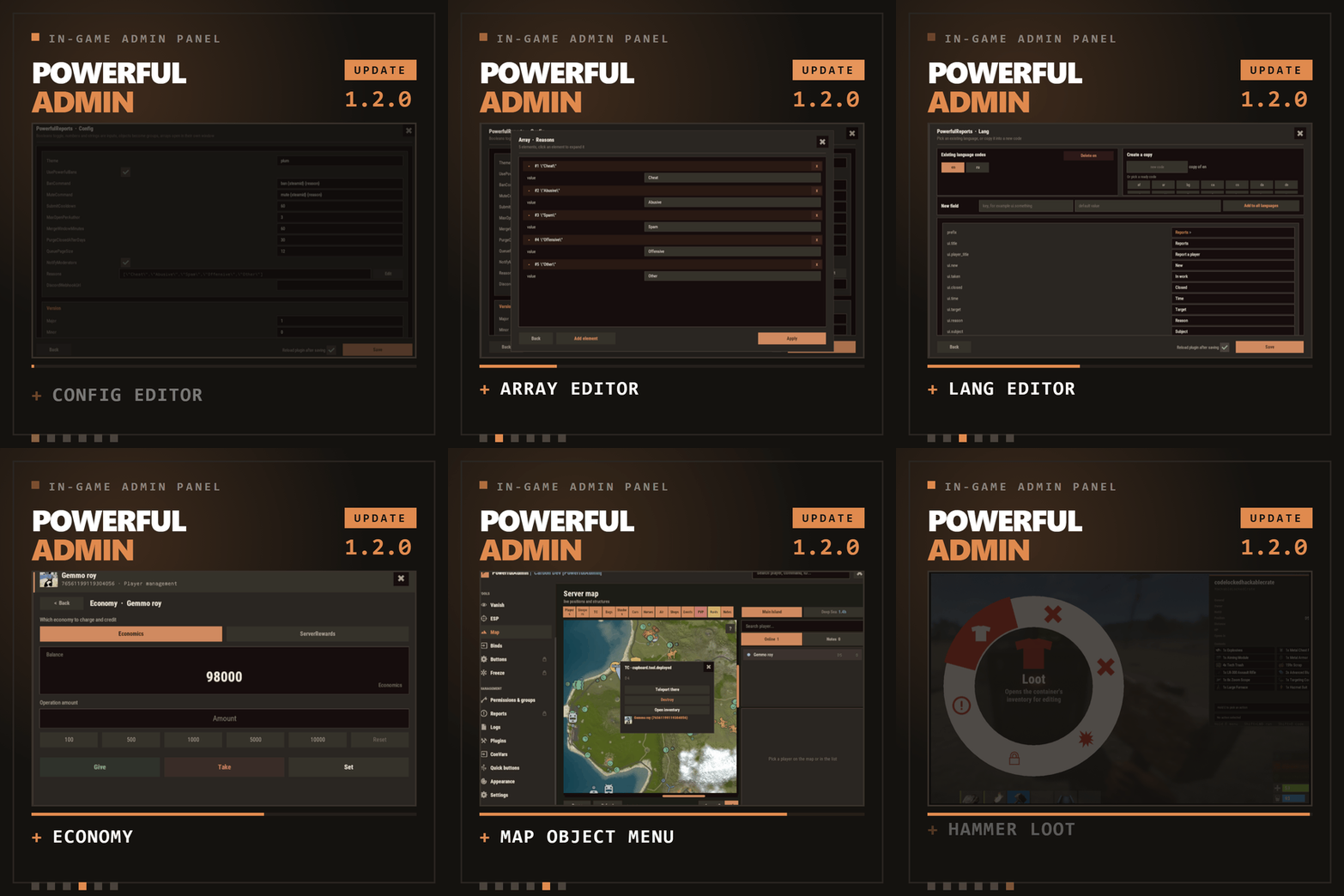
In-game admin panel Oxide & Carbon Our Discord Everything you open RCON for, without leaving the game. PowerfulAdmin is an admin panel that lives inside Rust. Fourteen pages in the sidebar cover players, permissions, plugins, the live console, ConVars, a working server map and your own buttons. Four more tools work out in the world, on whatever you happen to be looking at. Every page and every action has a permission of its own, so a junior moderator gets what you hand them and nothing else. /padmin opens it. After that it is point and click, or a key you bound yourself. 00 New in 1.2.0 Five things this version adds Config editor Open any plugin from the Plugins page and edit its config as a form. Booleans become switches, numbers and strings become fields, an object becomes a group, an array opens in its own window. Save writes the file and can reload the plugin for you. Lang editor The same form for language files. Copy the open language into a new code to start a translation, delete one you no longer need, or add a key and push it into every localization at once. Map objects Cupboards, bags and stashes on the map used to be dots. Click one and a menu opens with the owners and their avatars, a teleport, a remote inventory, and a destroy behind a confirmation. Economy If you run Economics, ServerRewards or IQEconomic, the player card shows the balance and lets you add to it, take from it or set it. Reading and changing are separate permissions. Hammer & hints The hammer edits container contents instead of only listing them, its action menu moved to a radial you open by holding E, and its HUD can be dragged. Tooltips were added across the sidebar, the actions and the toggles. 01 The sidebar Fourteen pages, plus whatever docks in The panel reopens on the page you left. Add-ons appear in the same sidebar, use the same permission system and follow the theme the admin picked. Dashboard Live console Players Vanish ESP Server map Binds Permissions Logs Plugins ConVars Quick buttons Appearance Settings Bans DLC Freeze DLC Whitelist DLC Your own sections land here too, through the API at the bottom of this page 02 Out in the world Walk up to it and deal with it Most moderation starts with you standing in front of a base, a player or a locked crate, not in a menu. Four tools cover that, and none of them asks the admin to install anything on their client. Vanish You leave the world properly: networking, colliders, entity queries and the game's own AI target list. NPCs stop shooting and forget you were standing there. Radiation, cold, wetness, hunger, thirst and drowning stop touching you, and everything is restored the way it was when you switch Vanish off. A silhouette for other admins, auto vanish on connect, opening locks and noclip riding along are all optional, and each has a permission. Admin hammer Hold a hammer, look at anything, and the HUD reads out the owner, position, health, upkeep, power, who is authorized, the code lock codes and what is in the container. Hold E to pick an action from the radial menu, then Shift+LMB runs it: delete, delete with gibs, delete the whole linked structure, edit the container contents, or on a hackable crate unlock it now and set its timer to any value you type. Inspect Look at a player and act on them without typing a name. E opens their inventory, RMB opens their full card. A hint on screen keeps telling you which key does what. Server ESP The server draws it with the engine's own debug draw and sends it only to admins who hold the permission. Players and sleepers carry their name, HP and held item. Loot, boxes, cupboards, bags, traps, stashes, NPCs, scientists, turrets and vehicles each get their own colour. You set the radius, the opacity and the text size, and enemy, team and admin are coloured apart. 03 The player card One card per player, awake or asleep A searchable, paginated roster of everyone the server has ever seen. The card holds the SteamID, live status, current session and total playtime, total Rust hours from the Steam API, groups, first and last seen, the balance if you run an economy plugin, and the IP behind a permission of its own. Under that sit the actions. Heal Kill Strip Kick Ban Freeze Mute Teleport Inventory Spectate Give Blueprints Modifiers Vitals Permissions Notes Show on map Each of these has its own permission Give is a cart, not a single item. Search the item list, stack up what you want, edit any quantity by clicking the number, then send the lot. Vitals reads the real limits off the prefab, so a raised max HP or a frozen metabolism survives death, respawn, reconnect and wipe. 04 The map The server map, drawn inside the panel The island and the Deep Sea, with zoom. Layers go on one at a time, so you look at what you came for and nothing else. Layers Players, sleepers, cupboards, bags, stashes, cars, horses, air, shops, events and map notes. Cars, boats, submarines, trains, horses and player helicopters each have their own icon and an arrow showing where they are heading. The cargo ship, the cargo plane and the chinook are on the map with the rest. Click an object Cupboards, bags and stashes open a menu that names the owners and shows their Steam avatars. From there you can teleport to it, open its inventory from where you are standing, or destroy it behind a confirmation. Each of the three actions has a separate permission, so a moderator can be allowed to look without being allowed to delete. Heat PVP and raid heat build up from kills that actually happened and explosive damage that actually landed, over a window you set. It shows where the server is loud right now rather than guessing. Side panel A player search next to the map, and a card for whoever you picked with the same actions as the full player card. Hold Shift and place a map note to teleport straight to it. 05 Server control The parts you used to need RCON for Live console Server output as it happens, filtered by category, with a command line and history. It can be switched off entirely for everyone in Settings. Permissions Every permission on the server, grouped under the plugin that owns it. Toggle per user or per group, create and delete groups, set a parent group, and search across thousands of entries. PowerfulAdmin's own permissions can be locked so nobody edits them from inside the panel. Plugins Load, unload and reload anything on the server, then open its config and language files as a form and edit them without touching the filesystem. Editing is a separate permission from reloading, so an admin can restart a plugin without being able to rewrite it. ConVars Edit the server ConVars that matter, grouped and searchable. The panel keeps them in its own cfg file and applies them again on boot, so a restart does not quietly undo your work. Logs Commands, chat, joins, leaves, errors and warnings, colour coded and capped at a number you choose. Companion plugins write into the same log through the API. 06 Make it yours Bend it to how your team works Quick buttons Your own console commands as buttons, each with an icon, a colour, an optional confirmation and a permission of its own. You decide where a button shows up: the player card, the map, the dashboard or the floating widget. Binds Ready bind lines for the panel, Vanish, god mode, noclip, ESP, the hammer, inspect and the map. Type the key you want, select the generated line, Ctrl+C, paste into F1. One key toggles both ways. Appearance Three themes, Rust, Midnight and Plum, chosen per admin. Fonts are picked per slot, the window can be dragged, and the ESP text size is adjustable. Fonts without Cyrillic are marked in the picker. Notifications Panel messages go through Notify or NCP if you have either installed, or through chat, or nowhere at all. You pick the provider in Settings and the add-ons follow it. Storage SQLite by default, and it needs no setup. MySQL is there for networks that share data between servers, JSON for people who prefer files. Moving between them is one click in Settings and the data comes along. Discord An optional companion plugin ships in the same archive. Two way chat relay, feeds for bans, actions and errors, a bot with a live status line, and roles that decide who may run commands from Discord. It is set up in game, not in a config file. 07 Permissions Twenty seven of them, and that is the point A trial moderator can be given Vanish, the player card and nothing else. A head admin gets the lot. The panel greys out what an admin cannot reach instead of hiding it, so nobody has to guess why a page is missing. powerfuladmin.use Open the panel at all powerfuladmin.players Player page and player cards powerfuladmin.map Map page powerfuladmin.map.teleport Teleport to an object on the map powerfuladmin.map.loot Open an object's inventory from the map powerfuladmin.map.remove Destroy an object from the map powerfuladmin.esp ESP page and the overlay itself powerfuladmin.vanish Vanish powerfuladmin.vanish.unlock Open locked doors and boxes while vanished powerfuladmin.hammer Admin hammer powerfuladmin.hammer.codes See code lock codes in the hammer HUD powerfuladmin.hammer.loot Edit container contents with the hammer powerfuladmin.plugins Plugin page, load and reload powerfuladmin.plugins.edit Edit plugin configs and language files powerfuladmin.economy See a player's balance powerfuladmin.economy.edit Change a player's balance powerfuladmin.console Live console page powerfuladmin.perms Permission manager powerfuladmin.logs Logs page powerfuladmin.convars ConVar editor powerfuladmin.quickbuttons Create and edit quick buttons powerfuladmin.settings Settings, storage and Discord powerfuladmin.godmode God mode toggle powerfuladmin.noclip Noclip toggle powerfuladmin.viewip Reveal player IP addresses powerfuladmin.candisablevitals Edit player vitals and metabolism powerfuladmin.countableondashboard Counts toward the admins online figure On top of that, every action in the player card carries powerfuladmin.player.NAME, and every quick button you create carries powerfuladmin.quickbtn.NAME. You do not have to grant them one by one on day one: pa.setup <steamid or name> in the server console hands a player the whole set at once. 08 Commands One in chat, three in console There is nothing else to memorise. The console ones exist mainly so you can bind them to keys. /padmin Open the panel pa.open <page> Open the panel straight on a page, for example pa.open map pa.toggle <feature> Flip vanish, god, noclip, ESP, hammer or inspect. Called without a value it toggles, so one key does both directions pa.setup <steamid|name> Grant the full permission set to a player, once, on install Install 1 Drop the plugin into your scripts folder. It loads and writes a clean config on its own. Oxide and Carbon both work. 2 Run pa.setup with your name or steamid once in the server console. 3 Type /padmin in game. You are in. 4 Optional, later, in Settings: switch to MySQL, connect Discord, add a Steam API key for Rust hours, and copy your binds out of the Binds page. 09 Add-ons Bans, Freeze and Whitelist, sold separately Three companion plugins drop into the sidebar and share the card, the permissions and the storage backend. They are extras rather than missing pieces: everything above this line works without them. PowerfulBans Timed and permanent bans in their own database, reason templates, per role duration caps, ban history and login enforcement. Runs standalone too. PowerfulFreeze Freeze a player where they stand while you talk to them, from the card, the map or the world, with live countdowns and three freeze modes. PowerfulWhitelist Closed server whitelisting with JSON, SQLite or MySQL storage and its own standalone commands. 10 Before you buy The questions that actually get asked Will it lag my server? It is built not to. Objects are pooled and buffers reused, only the element that changed repaints instead of the whole panel, saves are debounced, state is cached behind signatures, and ESP, inspect and the map run on intervals you can tune. Nothing runs for an admin who is not looking at it. Is the ESP a cheat? There is no client mod involved. The server draws it through the engine's own debug draw and sends it only to admins holding powerfuladmin.esp. Take the permission away and it stops existing for that admin. Can a junior moderator abuse it? Only as far as you let them. Every page has a permission, every action in the player card has one, every quick button you make has one, and the plugin's own permissions can be locked so they cannot be edited from inside the panel. Do I need a database? No. SQLite is the default and needs no configuration. MySQL is there for networks that want shared data, JSON for people who like plain files, and moving between them is one click in Settings. Do I have to set up Discord or a Steam API key? Neither. Discord is optional and configured in game when you want it. The Steam key only fills in the total Rust hours figure on player cards. Without it that one line reads n/a and nothing else changes. Can I manage players who are offline? Yes. Teleport to a sleeper, heal them, strip them, edit the inventory, mute, change permissions. Only the actions that need a live connection are disabled while a player is away. Oxide or Carbon? Both. On Carbon the panel's internal commands are protected on top of that, so nothing outside the panel can call them, while the public ones stay open for your binds. What language does it speak? English and Russian out of the box, and every string lives in a language file. Adding another locale is a translation rather than a code change, and you can now do it from inside the panel. I write plugins. Can I hook into it? Yes, and the section below shows how. 11 For developers Your plugin, inside the panel Any plugin can register its own sidebar section and draw inside the panel, in the player's language and in whichever theme the admin picked. Bans, Freeze and Whitelist are built on this same public API, so it gets exercised on every release. [PluginReference] private Plugin PowerfulAdmin; var definition = new Dictionary<string, object> { ["id"] = "mystats", ["icon"] = "assets/icons/star.png", ["category"] = "nav.cat.tools", ["permission"] = "myplugin.view", ["title"] = (Func<BasePlayer, string>)(p => "My Stats"), ["hint"] = (Func<BasePlayer, string>)(p => "Kills, deaths, playtime"), ["open"] = (Action<BasePlayer>)OpenSection, ["cardRows"] = (Func<string, List<string[]>>)CardRows, ["settings"] = (Action<BasePlayer, CuiElementContainer, string, int>)DrawSettings, ["settingsHeight"] = (Func<BasePlayer, int>)(p => 180), ["popupActions"] = new Dictionary<string, Action<BasePlayer, ulong, string>> { ["ban"] = OnBan } }; PowerfulAdmin.Call("API_AddSection", definition); Only id is required. Every other key is optional, and the permission is registered for you if no plugin has claimed it yet. Read API_SectionContext on every render to get the parent layer, the body size, the padding, the player's language and the full theme palette, because the admin can switch themes while your page is open. API_AddSection(def) Register or replace a section API_RemoveSection(id) Unregister, call it in Unload API_OpenSection(player, id) Send a player to your section API_SectionContext(player) Geometry, language and palette for rendering API_ReopenPanel(player) Reopen the panel where it was API_RefreshPlayerCard(steamId) Repaint a player card after your data changes API_RefreshSettings(player) Repaint the settings page after saving a value API_Notify(player, message, isError) Notify through the admin's chosen provider API_Log(message, category) Write a line into the Logs page API_KnownPlayers() Every player the server has seen API_RustHours(steamId) Total Rust playtime from the Steam API, cached Support, updates and feature requests Bugs get fixed and requests get read. LR Development Discord$39.99- 14 comments
- 14 reviews
-
- 6
-

-

-
- #admin
- #adminpanel
- (and 15 more)
-

Version 1.0.0
11 downloads
AP Burden — find which Oxide / Carbon plugins eat your server frame time. In-game metrics plus a Windows desktop app (AP Burden Monitor) over WebRCON. Optional BurdenProfiler extension for deeper per-hook analysis of the collected data. Features - Measures plugin / hook load in readable metrics (ms/sec, %, top plugins) - In-game UI & chat + console reports - Configurable sample interval, exclusions, alerts, snapshots - **BurdenProfiler extension** (Oxide / Carbon) — dig into hooks and deep-profile a specific plugin hook when you need more detail than overview metrics - AP Burden Monitor (Windows) — live plugin table, FPS / players / entities, search, detail charts - Auto-updates for Monitor from the license server - Oxide & Carbon packages included Requirements - Rust server with Oxide or Carbon - WebRCON enabled (IP, RCON port, password) - Windows 10/11 for the Monitor app - Google Authenticator (or any TOTP app) for the customer cabinet (2FA) - Full server restart after installing the BurdenProfiler extension After purchase 1. You will receive a private message with a one-time invite code and a link to the customer cabinet. 2. Open the link → enter the invite code → create nickname + password → set up 2FA. 3. In the cabinet: download Monitor and copy your license key. 4. Install Monitor → paste the key → activate → connect via WebRCON. Important: download the installer only from the cabinet. Keep the invite code message until registration is finished (the invite code works once). Optional Link Discord in the cabinet to recover your password later via bot DM. 2FA is never bypassed. Permissions appluginburden.use Open the in-game `/burden` UI appluginburden.admin Admin actions in the plugin UI / admin features Server owners (IsAdmin) can use the tools without these permissions. Console commands require auth (RCON / server console). Commands / Chat /burden Open the burden UI (requires appluginburden.use or admin) |$15.00 -

Version 1.2.4
212 downloads
The "MyVehicle" plugin introduces a vehicle management system that allows admins/players to spawn, de-spawn, and manage a variety of vehicles directly within the game. Leveraging a user-friendly interface, players can access this feature through permissions-based commands, ensuring control and customization. The plugin supports configuration for different vehicles, including aspects like spawn distance, fuel amount, and unique permissions for each vehicle type. It also incorporates a cool-down system to regulate vehicle spawning frequency, enhancing game-play balance. Additionally, the plugin tracks and saves data on player-spawned vehicles, ensuring a seamless gaming experience even across server restarts. The plugin is light weighted with a clean and user friendly graphical user interface (GUI). Commands: /myvehicle - Opens graphical user interface (GUI) of the vehicle spawner. /spawn <Vehicle> - (Admins only) Spawns desired vehicle /despawn - (Admins only) Despawn last spawned vehicle. mv.cspawn - Console command for shop integration. Example: "mv.cspawn Flatbed {userId}" Permissions: MyVehicle Use - Permission to use/open the GUI. MyVehicle Despawn - If you already have a vehicle spawned and you want to spawn another one of the same type, the previous will disappear. You can set which vehicles are affected by this permission in the config. MyVehicle cooldown.1m - 1 minute cool-down between spawning vehicles of the same type. MyVehicle cooldown.1h - 1 hour cool-down between spawning vehicles of the same type. MyVehicle cooldown.1d - 1 day cool-down between spawning vehicles of the same type. MyVehicle cooldown.30d - 30 day cool-down between spawning vehicles of the same type. myvehicle minicopter - Allow spawning Mini(s). myvehicle attackhelicopter - Allow spawning Attack Heli(s). myvehicle scrapheli - Allow spawning Scrap Heli(s). myvehicle baloon - Allow spawning Balloon(s). myvehicle rhib - Allow spawning RHIB(s). myvehicle horse - Allow spawning Horse(s). myvehicle tugboat - Allow spawning Tugboat(s). myvehicle subsolo - Allow spawning Solo Sub(s). myvehicle subduo - Allow spawning Duo Sub(s). myvehicle rowboat - Allow spawning Rowboat(s). myvehicle kayak - Allow spawning Kayak(s). myvehicle snowmobile - Allow spawning Snowmobile(s) and Tomaha(s). myvehicle sedan - Allow spawning Sedan(s) and Sedan Rail(s). myvehicle car2modules - Allow spawning Car(s) with 2 modules. myvehicle car3modules - Allow spawning Car(s) with 3 modules. myvehicle car4modules - Allow spawning Car(s) with 4 modules. myvehicle pedalbike - Allow spawning Pedal Bike(s). myvehicle pedaltrike - Allow spawning Pedal Trike(s). myvehicle motorbike - Allow spawning Motorbike(s). myvehicle motorbikesidecar - Allow spawning Motorbikes with Sidecars. myvehicle train - Allow spawning Locomotive(s), Workcart(s) and Caboose(s). myvehicle siegetower - Allow spawning Siege Tower(s). myvehicle catapult - Allow spawning Catapults(s). myvehicle ballista - Allow spawning Ballista(s). myvehicle batteringram - Allow spawning Battering Ram(s). myvehicle magnetcrane - Allow spawning Magnetcrane(s). myvehicle chinook - Allow spawning Chinook(s). myvehicle patrolheli - Allow calling in the Patrol Heli. myvehicle bradley - Allow spawning Bradley(s). The "Despawn Last" button will remove all spawned vehicles one by one from last to first! !!! Magnetcrane, Patrol Heli and Bradley should only be used by admins !!! Magnetcrane will explode if spawned outside Junkyard! Patrol Heli will spawn in a random location outside the map and will fly in. Bradley will open fire at player as soon as it is spawned! These vehicles ( if spawned with MyVehicle ) can also be despawned with the "Despawn Last" button from the GUI. Cars can be customized through the config. The identifiers for the modules can be obtained on https://rusthelp.com/ or https://www.corrosionhour.com Cockpit With Engine Vehicle Module: 170758448 Cockpit Vehicle Module: -1501451746 Armored Cockpit Vehicle Module: 1874610722 Engine Vehicle Module: 1559779253 Camper Vehicle Module: -1040518150 Fuel Tank Vehicle Module: 1186655046 Storage Vehicle Module: 268565518 Flatbed Vehicle Module: -1880231361 Large Flatbed Vehicle Module: -1693832478 Taxi Vehicle Module: -626174997 Rear Seats Vehicle Module: 1376065505 Passenger Vehicle Module: 895374329 Armored Passenger Vehicle Module: -1615281216 The tier of the engine parts can be set in the config. Use 1 for low, 2 for medium or 3 for high quality parts. I want to thank M&B-Studios for assisting me in putting this plugin together. I appreciate his help and recommend his work and services! Config: { "Vehicles": { "assets/content/vehicles/minicopter/minicopter.entity.prefab": { "Despawn": true, "DisplayName": "Mini Copter", "Permission": "myvehicle.minicopter", "ButtonColor": "vlgreen", "FuelAmount": 100, "SpawnDistance": 5.0, "ModuleIDs": null, "EnginePartsTier": 0 }, "assets/content/vehicles/attackhelicopter/attackhelicopter.entity.prefab": { "Despawn": true, "DisplayName": "Attack Heli", "Permission": "myvehicle.attackhelicopter", "ButtonColor": "vlgreen", "FuelAmount": 100, "SpawnDistance": 5.0, "ModuleIDs": null, "EnginePartsTier": 0 }, "assets/content/vehicles/scrap heli carrier/scraptransporthelicopter.prefab": { "Despawn": true, "DisplayName": "Scrap Heli", "Permission": "myvehicle.scrapheli", "ButtonColor": "vlgreen", "FuelAmount": 100, "SpawnDistance": 5.0, "ModuleIDs": null, "EnginePartsTier": 0 }, "assets/content/vehicles/horse/ridablehorse.prefab": { "Despawn": false, "DisplayName": "Horse", "Permission": "myvehicle.horse", "ButtonColor": "vlgreen", "FuelAmount": 0, "SpawnDistance": 5.0, "ModuleIDs": null, "EnginePartsTier": 0 }, "assets/content/vehicles/boats/rhib/rhib.prefab": { "Despawn": true, "DisplayName": "RHIB", "Permission": "myvehicle.rhib", "ButtonColor": "vlgreen", "FuelAmount": 100, "SpawnDistance": 5.0, "ModuleIDs": null, "EnginePartsTier": 0 }, "assets/content/vehicles/boats/tugboat/tugboat.prefab": { "Despawn": true, "DisplayName": "Tugboat", "Permission": "myvehicle.tugboat", "ButtonColor": "vlgreen", "FuelAmount": 100, "SpawnDistance": 15.0, "ModuleIDs": null, "EnginePartsTier": 0 }, "assets/content/vehicles/submarine/submarinesolo.entity.prefab": { "Despawn": true, "DisplayName": "Solo Sub", "Permission": "myvehicle.subsolo", "ButtonColor": "vlgreen", "FuelAmount": 100, "SpawnDistance": 5.0, "ModuleIDs": null, "EnginePartsTier": 0 }, "assets/content/vehicles/submarine/submarineduo.entity.prefab": { "Despawn": true, "DisplayName": "Duo Sub", "Permission": "myvehicle.subduo", "ButtonColor": "vlgreen", "FuelAmount": 100, "SpawnDistance": 5.0, "ModuleIDs": null, "EnginePartsTier": 0 }, "assets/content/vehicles/boats/rowboat/rowboat.prefab": { "Despawn": true, "DisplayName": "Rowboat", "Permission": "myvehicle.rowboat", "ButtonColor": "vlgreen", "FuelAmount": 100, "SpawnDistance": 5.0, "ModuleIDs": null, "EnginePartsTier": 0 }, "assets/content/vehicles/boats/kayak/kayak.prefab": { "Despawn": true, "DisplayName": "Kayak", "Permission": "myvehicle.kayak", "ButtonColor": "vlgreen", "FuelAmount": 0, "SpawnDistance": 5.0, "ModuleIDs": null, "EnginePartsTier": 0 }, "assets/content/vehicles/snowmobiles/snowmobile.prefab": { "Despawn": true, "DisplayName": "Snowmobile", "Permission": "myvehicle.snowmobile", "ButtonColor": "vlgreen", "FuelAmount": 100, "SpawnDistance": 5.0, "ModuleIDs": null, "EnginePartsTier": 0 }, "assets/content/vehicles/snowmobiles/tomahasnowmobile.prefab": { "Despawn": true, "DisplayName": "Tomaha", "Permission": "myvehicle.snowmobile", "ButtonColor": "vlgreen", "FuelAmount": 100, "SpawnDistance": 5.0, "ModuleIDs": null, "EnginePartsTier": 0 }, "assets/prefabs/deployable/hot air balloon/hotairballoon.prefab": { "Despawn": true, "DisplayName": "Balloon", "Permission": "myvehicle.baloon", "ButtonColor": "vlgreen", "FuelAmount": 100, "SpawnDistance": 10.0, "ModuleIDs": null, "EnginePartsTier": 0 }, "assets/content/vehicles/sedan_a/sedantest.entity.prefab": { "Despawn": true, "DisplayName": "Sedan", "Permission": "myvehicle.sedan", "ButtonColor": "vlgreen", "FuelAmount": 0, "SpawnDistance": 5.0, "ModuleIDs": null, "EnginePartsTier": 0 }, "assets/content/vehicles/sedan_a/sedanrail.entity.prefab": { "Despawn": true, "DisplayName": "Sedan Rail", "Permission": "myvehicle.sedan", "ButtonColor": "vlgreen", "FuelAmount": 100, "SpawnDistance": 5.0, "ModuleIDs": null, "EnginePartsTier": 0 }, "assets/content/vehicles/modularcar/car_chassis_2module.entity.prefab": { "Despawn": true, "DisplayName": "Car 2", "Permission": "myvehicle.car2modules", "ButtonColor": "vlgreen", "FuelAmount": 100, "SpawnDistance": 5.0, "ModuleIDs": [ 170758448, 268565518 ], "EnginePartsTier": 1 }, "assets/content/vehicles/modularcar/car_chassis_3module.entity.prefab": { "Despawn": true, "DisplayName": "Car 3", "Permission": "myvehicle.car3modules", "ButtonColor": "vlgreen", "FuelAmount": 100, "SpawnDistance": 5.0, "ModuleIDs": [ 170758448, -1040518150 ], "EnginePartsTier": 2 }, "assets/content/vehicles/modularcar/car_chassis_4module.entity.prefab": { "Despawn": true, "DisplayName": "Car 4", "Permission": "myvehicle.car4modules", "ButtonColor": "vlgreen", "FuelAmount": 100, "SpawnDistance": 5.0, "ModuleIDs": [ 1559779253, 170758448, 268565518, 268565518 ], "EnginePartsTier": 3 }, "assets/content/vehicles/bikes/pedalbike.prefab": { "Despawn": true, "DisplayName": "Pedal Bike", "Permission": "myvehicle.pedalbike", "ButtonColor": "vlgreen", "FuelAmount": 0, "SpawnDistance": 3.0, "ModuleIDs": null, "EnginePartsTier": 0 }, "assets/content/vehicles/bikes/pedaltrike.prefab": { "Despawn": true, "DisplayName": "Pedal Trike", "Permission": "myvehicle.pedaltrike", "ButtonColor": "vlgreen", "FuelAmount": 0, "SpawnDistance": 3.0, "ModuleIDs": null, "EnginePartsTier": 0 }, "assets/content/vehicles/bikes/motorbike.prefab": { "Despawn": true, "DisplayName": "Motorbike", "Permission": "myvehicle.motorbike", "ButtonColor": "vlgreen", "FuelAmount": 100, "SpawnDistance": 3.0, "ModuleIDs": null, "EnginePartsTier": 0 }, "assets/content/vehicles/bikes/motorbike_sidecar.prefab": { "Despawn": true, "DisplayName": "Motorbike with Sidecar", "Permission": "myvehicle.motorbikesidecar", "ButtonColor": "vlgreen", "FuelAmount": 100, "SpawnDistance": 3.0, "ModuleIDs": null, "EnginePartsTier": 0 }, "assets/content/vehicles/trains/locomotive/locomotive.entity.prefab": { "Despawn": true, "DisplayName": "Locomotive", "Permission": "myvehicle.train", "ButtonColor": "vlgreen", "FuelAmount": 100, "SpawnDistance": 15.0, "ModuleIDs": null, "EnginePartsTier": 0 }, "assets/content/vehicles/trains/workcart/workcart.entity.prefab": { "Despawn": true, "DisplayName": "Workcart", "Permission": "myvehicle.train", "ButtonColor": "vlgreen", "FuelAmount": 100, "SpawnDistance": 15.0, "ModuleIDs": null, "EnginePartsTier": 0 }, "assets/content/vehicles/trains/workcart/workcart_aboveground2.entity.prefab": { "Despawn": true, "DisplayName": "Workcart 2", "Permission": "myvehicle.train", "ButtonColor": "vlgreen", "FuelAmount": 100, "SpawnDistance": 15.0, "ModuleIDs": null, "EnginePartsTier": 0 }, "assets/content/vehicles/trains/workcart/workcart_aboveground.entity.prefab": { "Despawn": true, "DisplayName": "Workcart 3", "Permission": "myvehicle.train", "ButtonColor": "vlgreen", "FuelAmount": 100, "SpawnDistance": 15.0, "ModuleIDs": null, "EnginePartsTier": 0 }, "assets/content/vehicles/trains/caboose/traincaboose.entity.prefab": { "Despawn": true, "DisplayName": "Caboose", "Permission": "myvehicle.train", "ButtonColor": "vlgreen", "FuelAmount": 0, "SpawnDistance": 15.0, "ModuleIDs": null, "EnginePartsTier": 0 }, "assets/content/vehicles/trains/wagons/trainwagonc.entity.prefab": { "Despawn": true, "DisplayName": "Flatbed", "Permission": "myvehicle.train", "ButtonColor": "vlgreen", "FuelAmount": 0, "SpawnDistance": 15.0, "ModuleIDs": null, "EnginePartsTier": 0 }, "assets/content/vehicles/crane_magnet/magnetcrane.entity.prefab": { "Despawn": true, "DisplayName": "Magnetcrane", "Permission": "myvehicle.magnetcrane", "ButtonColor": "vlgreen", "FuelAmount": 100, "SpawnDistance": 5.0, "ModuleIDs": null, "EnginePartsTier": 0 }, "assets/content/vehicles/siegeweapons/siegetower/siegetower.entity.prefab": { "Despawn": true, "DisplayName": "Siege Tower", "Permission": "myvehicle.siegetower", "ButtonColor": "vlgreen", "FuelAmount": 0, "SpawnDistance": 10.0, "ModuleIDs": null, "EnginePartsTier": 0 }, "assets/content/vehicles/siegeweapons/catapult/catapult.entity.prefab": { "Despawn": true, "DisplayName": "Catapult", "Permission": "myvehicle.catapult", "ButtonColor": "vlgreen", "FuelAmount": 0, "SpawnDistance": 5.0, "ModuleIDs": null, "EnginePartsTier": 0 }, "assets/content/vehicles/siegeweapons/ballista/ballista.entity.prefab": { "Despawn": true, "DisplayName": "Ballista", "Permission": "myvehicle.ballista", "ButtonColor": "vlgreen", "FuelAmount": 0, "SpawnDistance": 5.0, "ModuleIDs": null, "EnginePartsTier": 0 }, "assets/content/vehicles/siegeweapons/batteringram/batteringram.entity.prefab": { "Despawn": true, "DisplayName": "Battering Ram", "Permission": "myvehicle.batteringram", "ButtonColor": "vlgreen", "FuelAmount": 100, "SpawnDistance": 10.0, "ModuleIDs": null, "EnginePartsTier": 0 }, "assets/prefabs/npc/ch47/ch47.entity.prefab": { "Despawn": true, "DisplayName": "Chinook", "Permission": "myvehicle.chinook", "ButtonColor": "vlblue", "FuelAmount": 0, "SpawnDistance": 15.0, "ModuleIDs": null, "EnginePartsTier": 0 }, "assets/prefabs/npc/patrol helicopter/patrolhelicopter.prefab": { "Despawn": true, "DisplayName": "Patrol Heli", "Permission": "myvehicle.patrolheli", "ButtonColor": "vlred", "FuelAmount": 0, "SpawnDistance": 15.0, "ModuleIDs": null, "EnginePartsTier": 0 }, "assets/prefabs/npc/m2bradley/bradleyapc.prefab": { "Despawn": true, "DisplayName": "Bradley", "Permission": "myvehicle.bradley", "ButtonColor": "vlred", "FuelAmount": 0, "SpawnDistance": 15.0, "ModuleIDs": null, "EnginePartsTier": 0 } }, "DefaultButtonColor": "vlgreen", "ScrollUPButtonColor": "yellow", "ScrollDownButtonColor": "yellow", "DespawnButtonColor": "vlorange", "CloseButtonColor": "vlred", "UIChatCommand": "myvehicle", "SpawnCommand": "spawn", "DespawnCommand": "despawn", "SpawnEffect": "assets/prefabs/missions/portal/proceduraldungeon/effects/appear.prefab", "DespawnEffect": "assets/prefabs/missions/portal/proceduraldungeon/effects/disappear.prefab", "ChatPrefix": "<color=green>[MyVehicle]</color>", "UITitle": "Vehicle Spawner" } Language EN: { "NoPermission": "You don't have permission to use this command.", "NoVehicles": "You have no spawned vehicles to despawn.", "Despawned": "Your last spawned vehicle has been despawned.", "CantFind": "Could not find your last spawned vehicle.", "NotFound": "Vehicle not found.", "Spawn": "Spawning {0}.", "WaterVehicle": "This vehicle can only be spawned in water.", "Usage": "Usage: /spawn <vehicleType>", "NoType": "Vehicle type '{0}' not found.", "NoPermissionToSpawn": "You don't have permission to spawn '{0}'.", "Cooldown": "You need to wait for {0} seconds to spawn your vehicle.", "AlreadyDestroyed": "Previously destroyed vehicle has been removed from your data." }$9.99- 19 comments
- 2 reviews
-
- 3
-
-
- #myvehicle
- #vehicle
- (and 5 more)
-
Version 2.1.5
7,880 downloads
UltimateLocker - Lock Everything, Auto Lock & Auto Closing UltimateLocker - Lock Everything, Auto Lock & Auto Closing, allows you to place Code Locks/Key Lock on Vehicles, Furnaces, Weapon Racks, Turrets, Mining Quarry, Pump Jack, Motorbike, Motorbike With Sidecar, Pedal Bike, Pedal Trike, Deployable Items, Naval Deep Sea, Drawing / Signs and much more. Support for: Storage Box Pack DLC (https://rust.facepunch.com/news/shipshape#StorageBoxPackDLC) Support for: Industrial Decor Pack DLC (https://rust.facepunch.com/news/built-different#IndustrialDecorPack) Plus you can decide whether to automatically position the code locks, with many configurations and share locks with your clan/team members. You can also enable automatic closing by positioning door closers automatically or manually, change the closing delay time and decide on which entities to enable it. Place Code Lock wherever you want, Auto Lock and Auto Closing with a single plugin, 3 plugin in 1. You can decide which entities to enable Code Lock on or Door Closer. Block any entity you want, including electrical, industrial, crafting, research, farming, etc. It has commands for administrators to lock, unlock and remove Code Locks/Key Lock. Include support for new CodeLock: Flight Control Codelock and option to automatically use the Flight Control Codelock skin. IMPORTANT: Added the ability to also place Key Locks, in addition to Code Locks. Place Code Lock/Key Lock wherever you want with a single plugin: Vehicle Locks Motorbike, Motorbike With Sidecar, Pedal Bike, Pedal Trike Naval Deep Sea Storage Box Pack DLC (https://rust.facepunch.com/news/shipshape#StorageBoxPackDLC) Industrial Decor Pack DLC (https://rust.facepunch.com/news/built-different#IndustrialDecorPack) Drawing / Signs Rust item lock Windows Lock Automatic lock closing when dismount of the vehicle Code Lock support for Medieval entities: Mounted Ballista, Battering Ram, Catapult, Siege Tower, Ballista Medieval entities block usage: opening/closing doors, reloading/firing ammo, mounting, driving, pushing, pulling, etc... Furnaces, Refineries, and more Weapon Rack Lock Block any entity you want, including electrical, industrial, crafting, research, farming, etc. Farming Lock Electricity Lock / Electrical Lock Industrial Lock Construction Lock Mining Quarry, Pump Jack Items Lock Trap Lock Turrets Lock Misc Lock Fun Lock Deployable Lock And so on... VIDEO EXAMPLE Below you can see an example video on how to use the plugin. AUTO LOCK ---------------------------------------------------------------------------------------------------- AUTO CLOSER ---------------------------------------------------------------------------------------------------- AUTO CLOSER - PROXIMITY SYSTEM ---------------------------------------------------------------------------------------------------- EXAMPLES OF OPERATION/USE: Some examples of how the plugin works when there is a Code Lock/Key Lock to which you do not have access: Usage block/loot furnaces, refineries, electric furnaces, water dispensers, industrial conveyor, industrial crafter, car lift, elevator, small generator, metal shop front, dropbox, mail box, vending machine, etc... Usage block: workbench, research table, repair table, computer station, mixing table, etc... Device Identifier: If the Auto Turrets, CCTV Camera, PTZ CCTV Camera, etc..., are locked with Code Lock/Key Lock, you cannot access them remotely if you do not have access to Code lock/Key Lock, even if you know the identification number. Block use and loot of vehicles, including horses Block use and loot of vehicles, including Motorbike, Motorbike With Sidecar, Pedal Bike, Pedal Trike. Automatic lock closing when dismount of the vehicle Code Lock support for Medieval entities: Mounted Ballista, Battering Ram, Catapult, Siege Tower, Ballista Medieval entities block usage: opening/closing doors, reloading/firing ammo, mounting, driving, pushing, pulling, etc... Block use and loot of: Mining Quarry, Pump Jack. Auto Turret authorization lock, rotation, attack mode, remote control, lock to change identification ID. Locking loot and usafe of SAM Site. Lock to change camera identification ID and remote control. Block personal Quarry Mining usage and loot FARM: fertilizer container block, sowing block, harvesting/cutting plants and clone, or harvesting dead plants, composter lock, Beehive lock, Chicken Coop lock, Cooking Workbench lock, Planter Box lock, etc... Weapon rack: weapons storage and collection block, weapon reloading, weapon exchange. Blocking the insertion and removal of electrical cables and pipes from the various components. Blocking the use of electrical components: switching on/off switches, switches, buttons, changing timer duration and much more... Blocking use and frequency change of transceiver components, RF Broadcaster, RF Receiver. Blocking the use of some entertainment objects such as the piano, drums, boom box, arcade games, etc... Block fun objects such as Strobe Light, Laser Light, Sound Light, Neon Sign, etc... And much more, with new items that will be added in future releases or at your suggestion via a request for support or comment ---------------------------------------------------------------------------------------------------- AUTO LOCK: The plugin integrates an automatic positioning system for Code Lock or Key Lock. Using the /al, /autolock or /codelock command the player can manage all the settings: Sharing locks with clan/team members. Create a code lock pin and/or update all your codelock pins with 1 click. Create a Guest pin for your Code Lock and/or update all Guest pins of your code locks with 1 click. Enable the ability to use Key Locks, if you do not have Code Locks in your inventory. Streamer mode: to hide the display of the Code Lock pin on the screen. In addition, there will be many other options that can be enabled/disabled. These options will be available based on how the plugin has been configured. For example: has the ability to place the code lock on the furnaces been enabled? Then there will be the option to enable and/or disable the automatic positioning of the locks on the furnaces. And so on for all the other configurations. And many other new features and features that will arrive with the next plugin updates. ---------- AUTO CLOSING (DOOR CLOSER): The plugin integrates a system for automatic closing, of various entities. The player can change the settings through a simple and intuitive interface and apply these settings automatically or manually. Using the /ac , /autoclose or /autocloser command and by pressing the button "Auto Closing Settings" the player can manage all the settings: ---------------------------------------------------------------------------------------------------- PROXIMITY SYSTEM: The plugin integrates a system for automatic closing, of various entities. A Proximity System is available for automatic door closing. This system allows you to quickly and easily change the automatic door closing settings. There are three modes: An icon appears when you approach a door with automatic closing enabled. Using a combination of buttons. Both modes. Some example images: ---------------------------------------------------------------------------------------------------- CODE LOCK AUTO SKIN: The plugin allows you to automatically change the code lock skin, automatically switching the skin to the Flight Control Codelock skin. To use this feature, the player must own the DLC. DLC ownership check can be bypassed via configuration or permission (⚠ Only allowed on creative/test servers, otherwise you violate Facepunch’s TOS! ⚠) CONFIGURATION "Disable ownership checking on DLC/Skins. (⚠ Only allowed on creative/test servers, otherwise you violate Facepunch's TOS! ⚠) Default false": false PERMISSION ultimatelocker.bypass.dlc_skin_required - Permission to bypass DLC or Skin ownership checks. With this permission, you can use DLC or Skins you don’t own. PERMISSIONS: ultimatelocker.use - Allows you to use the plugin to place Code Locks/Key Locks. ultimatelocker.admin - Allows you to execute some commands reserved for administrators. ultimatelocker.bypass.lock_deploy_vehicle_check - Allows you to bypass these controls when deploying the lock on vehicles: Requires Building Privilege to place Code Locks Requires Building Privilege to place Code Locks in unowned vehicles Allow deployment of Code Lock in unowned vehicles ultimatelocker.bypass.force - Allows you to bypass Code Locks/Key Locks. (FOR ADMIN USE!!!) ultimatelocker.bypass.dlc_skin_required - Permission to bypass DLC or Skin ownership checks. With this permission, you can use DLC or Skins you don’t own. ultimatelocker.autolock.enabled - This role is required to be able to use the automatic positioning system of Code Lock or Key Lock. ultimatelocker.autolock.nolockrequired - With this role you do not need to have the Code Lock in your inventory, the Code Lock will be placed even if you do not have one. ultimatelocker.autoclosing.enabled - This role is required to be able to use the automatic closing system, Door Closer. COMMANDS FOR PLAYERS Commands can be typed in chat (by putting the / character in front of the command), or from console. /autolock or /codelock -- Open Auto Lock/Auto Closing settings UI. /locker -- Command to add lock manually. /closer -- Command to add door closer manually. /uncloser -- Command to remove door closer manually. /ual -- Toggle Auto Lock. Command to enable/disable auto lock. /uad -- Toggle Auto Closer. Command to enable/disable automatic closing. /ul code <code> -- Change the Code Lock code of the entity you are looking at, if you own the entity or if it belongs to a clan/team member. /ul codeall <code> -- Change the Code Lock code on all entities owned by the player. /ul ctime <time> -- Set the closing delay time (seconds) for the Door you are looking at. ---------- COMMANDS FOR ADMIN Commands can be typed in chat (by putting the / character in front of the command), or from console. To use these commands you must have the role: ultimatelocker.admin /ul unlock -- Unlock the Code Lock/Key Lock of the entity you are watching. /ul unlockall <steamID> -- Unlock all player Code Locks/Key Locks. /ul lock -- Lock the Code Lock/Key Lock of the entity you are watching. /ul lockall <steamID> -- Lock all player Code Locks/Key Locks. /ul remove -- Removes the Code Lock/Key Lock of the entity you are watching. /ul removeall <steamID> -- Removes all player Code Locks/Key Locks. /ul code <code> -- Change the Code Lock code of the entity you are looking at. Instead of <code> you must insert the new code. Must consist of 4 numbers. /ul codeall <code> <steamID> -- Change the Code Lock code on all entities owned by the player. You must pass the steamID of the player whose code you want to change instead of the <steamID>. Instead of <code> you must insert the new code. Must consist of 4 numbers. /ul show -- Shows the Code Lock code of the entity you are looking at. -------------------- NB: To use these commands you must set the configuration AllowAdminToBypassCodeLock to be set to true or have the role ultimatelocker.bypass.force. -------------------- Commands can be added or modified in the configuration file: /oxide/config/UltimateLocker.json CLAN/TEAM If the player is part of a clan/team, he can block, unlock or remove Code Locks/Key Locks placed by other teammates, if enabled in the configurations. CONFIGURATION The settings and options can be configured in the UltimateLocker under the config directory. The use of an editor and validator is recommended to avoid formatting issues and syntax errors. { "TimeZone": "Europe/London", "ChatPrefix": "UltimateLocker", "AllowAdminToBypassCodeLock (Allows admin to bypass Code Lock without using commands). Default False.)": false, "Disable ownership checking on DLC/Skins. (⚠ Only allowed on creative/test servers, otherwise you violate Facepunch's TOS! ⚠) Default false": false, "Chat Command": [ "ul", "ultimatelocker" ], "Skin Blacklist Configuration": { "Lock: Block lock for entity with this skin": [], "Door Closer: Block door closer for entity with this skin": [] }, "Proximity System": { "Show UI when player is near a door with Door Closer. Default false": false, "Show UI when pressing key. Default true": true, "Button to show UI: 1 (MMB - middle mouse button) - 2 (SHIFT + MMB) - 3 (CTRL + MMB). Default 2": 2 }, "Auto Lock Configuration": { "Chat Command": [ "al", "autolock", "codelock" ], "Toggle Auto Lock - Chat Command": "ual", "Add Lock manually - Chat Command": "locker", "Use only Key Lock. [true] to allow only Key Lock. [false] to allow both Key Lock and Code Lock. (Default: FALSE)": false, "RESYNC DEFAULT SETTINGS for all players. If set to [true], resets all player settings to the default settings configured. Once the settings are reset, the parameter will automatically be reset to false. (Default: FALSE)": false, "FORCE SHARE LOCKS WITH CLAN/TEAM MEMBERS. [true] to force all players to share locks with clan/team members. [false] to force all players to NOT share locks with clan/team members. [null] to use the player's default settings by UI. (Default: null)": null, "Auto Lock Category Configuration": { "Is automatic lock enabled on Doors enabled.": true, "Is automatic lock enabled on Windows enabled.": true, "Is automatic lock enabled on Boxes enabled.": true, "Is automatic lock enabled on Storage Container enabled.": true, "Is automatic lock enabled on Lockers enabled.": true, "Is automatic lock enabled on TC (Cupboards) enabled.": true, "Is automatic lock enabled on Vehicles enabled.": true, "Is automatic lock enabled on Medieval entity enabled.": true, "Is automatic lock enabled on Furnace enabled.": true, "Is automatic lock enabled on Vending Machine enabled.": true, "Is automatic lock enabled on Composter enabled.": true, "Is automatic lock enabled on Mixing Table enabled.": true, "Is automatic lock enabled on Planter enabled.": true, "Is automatic lock enabled on Auto Turret enabled.": true, "Is automatic lock enabled on SAM Site enabled.": true, "Is automatic lock enabled on Traps enabled.": true, "Is automatic lock enabled on Weapon Rack enabled.": true, "Is automatic lock enabled on Stash enabled.": true, "Is automatic lock enabled on Neon Sign enabled.": true, "Is automatic lock enabled on Other Custom Entities enabled.": true, "Is automatic lock enabled on Other Lockable Entities enabled.": true }, "Player default settings": { "Allow automatic lock placement by default. (Default: TRUE)": true, "Allow automatic placement of Key Locks if there are no Code Locks in the inventory. (Default: TRUE)": true, "Allow Guest Code by default. (Default: FALSE)": false, "Allow automatic Share locks with clan/team members by default. (Default: TRUE)": true, "Enable streamer mode by default. (Default: FALSE)": false, "Allow automatic lock on Doors by default. (Default: TRUE)": true, "Allow automatic lock on Boxes by default. (Default: FALSE)": false, "Allow automatic lock on Storage Container by default. (Default: FALSE)": false, "Allow automatic lock on Lockers by default. (Default: TRUE)": true, "Allow automatic lock on TC (Cupboards) by default. (Default: TRUE)": true, "Allow automatic lock on Vehicle by default. (Default: TRUE)": true, "Allow automatic lock closing when dismount of the vehicle by default. (Default: TRUE)": true, "Allow automatic lock on Medieval entity by default. (Default: FALSE)": false, "Allow automatic lock on Furnace by default. (Default: FALSE)": false, "Allow automatic lock on Vending Machine by default. (Default: FALSE)": false, "Allow automatic lock on Composter by default. (Default: FALSE)": false, "Allow automatic lock on Mixing Table by default. (Default: FALSE)": false, "Allow automatic lock on Planter by default. (Default: FALSE)": false, "Allow automatic lock on Auto Turret by default. (Default: FALSE)": false, "Allow automatic lock on SAM Site by default. (Default: FALSE)": false, "Allow automatic lock on Traps by default. (Default: FALSE)": false, "Allow automatic lock on Weapon Rack by default. (Default: TRUE)": true, "Allow automatic lock on Stash by default. (Default: FALSE)": false, "Allow automatic lock on Neon Sign by default. (Default: FALSE)": false, "Allow automatic lock on Other Lockable Entities by default. (Default: FALSE)": false, "Allow automatic lock on Other Custom Entities by default. (Default: FALSE)": false }, "Player Auto Closing default settings": { "Allow automatic closing by default. (Default: FALSE)": false, "Allow automatic closing of Door by default. (Default: FALSE)": false, "Allow automatic closing of Double Door by default. (Default: FALSE)": false, "Allow automatic closing of Window by default. (Default: FALSE)": false, "Allow automatic closing of Garage by default. (Default: FALSE)": false, "Allow automatic closing of Ladder Hatch by default. (Default: FALSE)": false, "Allow automatic closing of External Gate by default. (Default: FALSE)": false, "Allow automatic closing of Fence Gate by default. (Default: FALSE)": false, "Allow automatic closing of Legacy Wood Shelter Door by default. (Default: FALSE)": false } }, "Auto Closing Configuration": { "Chat Command": [ "ac", "autoclose", "autocloser" ], "Toggle Auto Closer - Chat Command": "uad", "Add Door Closer manually - Chat Command": "closer", "Remove Door Closer manually - Chat Command": "uncloser", "Enable automatic closing of Door. (Default: FALSE)": false, "Enable automatic closing of Double Door. (Default: FALSE)": false, "Enable automatic closing of Window. (Default: FALSE)": false, "Enable automatic closing of Garage. (Default: FALSE)": false, "Enable automatic closing of Ladder Hatch. (Default: FALSE)": false, "Enable automatic closing of External Gate. (Default: FALSE)": false, "Enable automatic closing of Fence Gate. (Default: FALSE)": false, "Enable automatic closing of Legacy Wood Shelter Door. (Default: FALSE)": false, "Minimum Closing Delay Time. (Default: 10 seconds)": 10, "Maximum Closing Delay Time. (Default: 60 seconds)": 60, "Default Closing Delay Time. (Default: 30 seconds)": 30 }, "Requires Building Privilege to place Code Locks. (Default: TRUE)": true, "Requires Building Privilege to place Code Locks in unowned vehicles. (Default: FALSE)": false, "Allow deployment of Code Lock in vehicles owned by other players. (Default: FALSE)": false, "Allow deployment of Code Lock in unowned vehicles. (Default: TRUE)": true, "Auto claim unowned vehicles when deploying locks. (Default: FALSE)": false, "Auto replace vehicle ownership when deploying locks. (Default: FALSE)": false, "Allow pushing vehicles blocked by the Code Lock (Default: TRUE)": true, "Allow pushing vehicles blocked by the Code Lock if present in your Building Privilege. (Default: TRUE)": true, "Set player as owner when placing a Mining Quarry or Pump Jack (also static). (Default: TRUE)": true, "Enable Lock": { "Vehicles": [ { "ItemName": "Minicopter", "EnableLock": true, "PrefabName": "assets/content/vehicles/minicopter/minicopter.entity.prefab", "RequiredPermission": [ "" ] }, { "ItemName": "Scrap Transport Helicopter", "EnableLock": true, "PrefabName": "assets/content/vehicles/scrap heli carrier/scraptransporthelicopter.prefab", "RequiredPermission": [ "" ] }, { "ItemName": "Attack Helicopter", "EnableLock": true, "PrefabName": "assets/content/vehicles/attackhelicopter/attackhelicopter.entity.prefab", "RequiredPermission": [ "" ] }, { "ItemName": "Armored / Hot Air Balloon", "EnableLock": true, "PrefabName": "assets/prefabs/deployable/hot air balloon/hotairballoon.prefab", "RequiredPermission": [ "" ] }, { "ItemName": "Row Boat", "EnableLock": true, "PrefabName": "assets/content/vehicles/boats/rowboat/rowboat.prefab", "RequiredPermission": [ "" ] }, { "ItemName": "RHIB", "EnableLock": true, "PrefabName": "assets/content/vehicles/boats/rhib/rhib.prefab", "RequiredPermission": [ "" ] }, { "ItemName": "Tugboat", "EnableLock": true, "PrefabName": "assets/content/vehicles/boats/tugboat/tugboat.prefab", "RequiredPermission": [ "" ] }, { "ItemName": "Submarinesolo", "EnableLock": true, "PrefabName": "assets/content/vehicles/submarine/submarinesolo.entity.prefab", "RequiredPermission": [ "" ] }, { "ItemName": "Submarine Duo", "EnableLock": true, "PrefabName": "assets/content/vehicles/submarine/submarineduo.entity.prefab", "RequiredPermission": [ "" ] }, { "ItemName": "Horse", "EnableLock": true, "PrefabName": "assets/rust.ai/nextai/testridablehorse.prefab", "RequiredPermission": [ "" ] }, { "ItemName": "Tomaha Snowmobile", "EnableLock": true, "PrefabName": "assets/content/vehicles/snowmobiles/tomahasnowmobile.prefab", "RequiredPermission": [ "" ] }, { "ItemName": "Snowmobile", "EnableLock": true, "PrefabName": "assets/content/vehicles/snowmobiles/snowmobile.prefab", "RequiredPermission": [ "" ] }, { "ItemName": "Sedan", "EnableLock": true, "PrefabName": "assets/content/vehicles/sedan_a/sedantest.entity.prefab", "RequiredPermission": [ "" ] }, { "ItemName": "2 Module Car", "EnableLock": true, "PrefabName": "assets/content/vehicles/modularcar/2module_car_spawned.entity.prefab", "RequiredPermission": [ "" ] }, { "ItemName": "3 Module Car", "EnableLock": true, "PrefabName": "assets/content/vehicles/modularcar/3module_car_spawned.entity.prefab", "RequiredPermission": [ "" ] }, { "ItemName": "4 Module Car", "EnableLock": true, "PrefabName": "assets/content/vehicles/modularcar/4module_car_spawned.entity.prefab", "RequiredPermission": [ "" ] } ], "Deployables": [ { "ItemName": "Large Furnace", "EnableLock": true, "PrefabName": "assets/prefabs/deployable/furnace.large/furnace.large.prefab", "RequiredPermission": [ "" ] }, { "ItemName": "Furnace", "EnableLock": true, "PrefabName": "assets/prefabs/deployable/furnace/furnace.prefab", "RequiredPermission": [ "" ] }, { "ItemName": "Legacy Furnace", "EnableLock": true, "PrefabName": "assets/prefabs/deployable/legacyfurnace/legacy_furnace.prefab", "RequiredPermission": [ "" ] }, { "ItemName": "Refinery", "EnableLock": true, "PrefabName": "assets/prefabs/deployable/oil refinery/refinery_small_deployed.prefab", "RequiredPermission": [ "" ] }, { "ItemName": "Electric Furnace", "EnableLock": true, "PrefabName": "assets/prefabs/deployable/playerioents/electricfurnace/electricfurnace.deployed.prefab", "RequiredPermission": [ "" ] }, { "ItemName": "Stone Fireplace", "EnableLock": true, "PrefabName": "assets/prefabs/deployable/fireplace/fireplace.deployed.prefab", "RequiredPermission": [ "" ] }, { "ItemName": "BBQ", "EnableLock": true, "PrefabName": "assets/prefabs/deployable/bbq/bbq.deployed.prefab", "RequiredPermission": [ "" ] }, { "ItemName": "Hobo Barrel", "EnableLock": true, "PrefabName": "assets/prefabs/misc/twitch/hobobarrel/hobobarrel.deployed.prefab", "RequiredPermission": [ "" ] }, { "ItemName": "Storage Barrel B", "EnableLock": true, "PrefabName": "assets/prefabs/misc/decor_dlc/storagebarrel/storage_barrel_b.prefab", "RequiredPermission": [ "" ] }, { "ItemName": "Storage Barrel C", "EnableLock": true, "PrefabName": "assets/prefabs/misc/decor_dlc/storagebarrel/storage_barrel_c.prefab", "RequiredPermission": [ "" ] }, ............ ] }, "VersionNumber": { "Major": 1, "Minor": 6, "Patch": 0 } } TimeZone: Default: Europe/London ChatPrefix: -- Chat message prefix. Skin Blacklist Configuration: Skins that are not allowed for auto-lock or auto-close can be entered here. If the entity has one of these skins, auto-lock or auto-close will not work. "Skin Blacklist Configuration": { "Lock: Block lock for entity with this skin": [], "Door Closer: Block door closer for entity with this skin": [] }, AllowAdminToBypassCodeLock (Allows admin to bypass Code Locks/Key Locks without using commands). Default FALSE. Disable ownership checking on DLC/Skins. (⚠ Only allowed on creative/test servers, otherwise you violate Facepunch’s TOS! ⚠): Disable DLC/Skin ownership check, to be used only on CREATIVE or TEST servers. Using this option on PVP or PVE servers will result in a warning or ban from the Rust server list by Facepunch. Default false Chat Command: Here you can add, edit or delete Commands can be typed in chat (by putting the / character in front of the command), or from console. Requires Building Privilege to place Code Locks: Requires Building Privilege to place Code Locks/Key Lock. Default: TRUE Requires Building Privilege to place Code Locks in unowned vehicles: Requires Building Privilege to place Code Locks/Key Lock in unowned vehicles. Default: FALSE Allow deployment of Code Lock in vehicles owned by other players: Allow deployment of Code Lock in vehicles owned by other players. Default: FALSE Allow deployment of Code Lock in unowned vehicles: Allow deployment of Code Lock in unowned vehicles. Default: TRUE Auto claim unowned vehicles when deploying locks: Auto claim unowned vehicles when deploying locks. Default FALSE Auto replace vehicle ownership when deploying locks: Auto replace vehicle ownership when deploying locks. Default FALSE Allow pushing vehicles blocked by the Code Lock: Allow pushing vehicles/horses blocked by the Code Lock. Default: TRUE Sets player as owner when placing a Mining Quarry or Pump Jack (also static): Set the player as owner of the Mining Quarry or Pump Jack placed (also those statistics). Default: TRUE Allow pushing vehicles blocked by the Code Lock if present in your Building Privilege: Allow pushing vehicles/horses blocked by the code lock if present in the player's building authorization zone. Default: TRUE Enable Lock: Here you can set which entities to enable, on which you can place a Code Lock/Key Lock. ItemName: The name of the entity EnableLock: Whether or not to enable Code Lock/Key Lock placement for this entity. RequiredPermission: Here you can specify the roles required to be able to insert a Code Lock/Key Lock in the entities enabled in the configuration. You can specify 1 or more roles, and as long as the player has at least one of these roles he can enter the Code Lock/Key Lock. Here you can specify the roles required to be able to insert a Code Lock/Key Lock in the entities enabled in the configuration. You can specify 1 or more roles, and as long as the player has at least one of these roles he can enter the Code Lock/Key Lock. When you enter a role, a server-side role will be created which must then be assigned to the player, here are some examples. "RequiredPermission”: [ "vip_1”]: In this case the ultimatelocker.vip_1 role will be created, it will be necessary to assign this role to the player to enable the insertion of the Code Lock/Key Lock in the configured entity. "RequiredPermission”: [ "user_1”, "vip_2” ]: In this case the ultimatelocker.user_1 and ultimatelocker.vip_2 roles will be created and it will be necessary to assign one of these roles to the player (or even both) to enable the insertion of the Code Lock/Key Lock in the configured entity. The role name must respect certain parameters and can only contain these alphanumeric characters: a-z A-Z 0-9 . _ – Any unsupported characters will be removed, the space character will be replaced by the _ character. AUTO LOCK - CONFIGURATION Chat Command: Here you can specify 1 or more commands to open the UI for Auto Lock settings Add Lock manually -- Chat Command: Command to add lock manually. Default /locker Use only Key Lock. [true] to allow only Key Lock. [false] to allow both Key Lock and Code Lock-- If [true] allow only Key Lock. [false] to allow both Key Lock and Code Lock. Default FALSE If set to true, only new codelocks placed will not be shared, old codelocks will remain shared (if they were shared) RESYNC DEFAULT SETTINGS for all players. If set to [true], resets all player settings to the default settings configured. Once the settings are reset, the parameter will automatically be reset to false: Default settings are applied only 1 time, when the player runs the plugin for the first time. With this option you can reset all default settings for all players, useful when you change a default setting and want it to be applied to all players. The field must be set to true and the plugin restarted, at the end of the restart all players will have the new default settings that have been configured and the parameter is reset to false, for successful reuses. Default false FORCE SHARE LOCKS WITH CLAN/TEAM MEMBERS. [true] to force all players to share locks with clan/team members. [false] to force all players to NOT share locks with clan/team members. [null] to use the player's default settings by UI: This setting allows you to choose how to handle automatic sharing of locks with clan/team members. Default null true: If set to true, locks will be automatically shared with all clan/team members. The player will not be able to change this setting from the plugin UI. false: If set to false, locks will NOT be automatically shared with all clan/team members. The player will not be able to change this setting from the plugin UI. null: If set to null, the player will be able to enable or disable automatic lock sharing with clan/team members, via the plugin UI. -------------------- Auto Lock Category Configuration: This configuration allows you to enable or disable auto-lock regardless of the enabled entities. You can enable/disable auto-lock for each category: Is automatic lock enabled on Doors enabled: Default true Is automatic lock enabled on Windows enabled: Default true Is automatic lock enabled on Boxes enabled: Default true Is automatic lock enabled on Storage Container enabled: Default true Is automatic lock enabled on Lockers enabled: Default true Is automatic lock enabled on TC (Cupboards) enabled: Default true Is automatic lock enabled on Vehicles enabled: Default true Is automatic lock enabled on Naval Deep Sea: Default true Is automatic lock enabled on Medieval entity enabled: Default true Is automatic lock enabled on Furnace enabled: Default true Is automatic lock enabled on Vending Machine enabled: Default true Is automatic lock enabled on Composter enabled: Default true Is automatic lock enabled on Mixing Table enabled: Default true Is automatic lock enabled on Planter enabled: Default true Is automatic lock enabled on Auto Turret enabled: Default true Is automatic lock enabled on SAM Site enabled: Default true Is automatic lock enabled on Traps enabled: Default true Is automatic lock enabled on Weapon Rack enabled: Default true Is automatic lock enabled on Stash enabled: Default true Is automatic lock enabled on Neon Sign enabled: Default true Is automatic lock enabled on Sign / Drawing: Default true Is automatic lock enabled on Other Custom Entities enabled: Default true Is automatic lock enabled on Other Lockable Entities enabled: Default true -------------------- Player default settings: Allow automatic …. …. by default: The settings that start with "Allow automatic …. …. by default", are the basic settings once the Auto Lock system is enabled. EXAMPLE: If you have Auto Lock enabled and have the setting "Allow automatic lock on Doors by default = true", then it will be set to automatically place the code lock /key lock on doors by default. After that the player can change this setting via the UI. This applies to all basic "allow configuration properties”. -------------------- Allow automatic lock closing when dismount of the vehicle by default.: If the vehicle has a lock, the lock will be automatically closed when you dismount the vehicle, so as to avoid leaving vehicles open and potentially stolen. Default TRUE AUTO CLOSING (DOOR CLOSER) - CONFIGURATION Add Door Closer manually -- Chat Command: Command to add door closer manually. Default /closer Remove Door Closer manually – Chat Command: Command to remove door closer manually. Default /uncloser Enable automatic closing of Door. (Default: FALSE): Enable automatic closing for Single Doors. Permission is still required: ultimatelocker.autoclosing.enabled Enable automatic closing of Double Door. (Default: FALSE): Enable automatic closing for Double Doors. Permission is still required: ultimatelocker.autoclosing.enabled Enable automatic closing of Window. (Default: FALSE): Enable automatic closing for Windows. Permission is still required: ultimatelocker.autoclosing.enabled Enable automatic closing of Garage. (Default: FALSE): Enable automatic closing for Garage. Permission is still required: ultimatelocker.autoclosing.enabled Enable automatic closing of Ladder Hatch. (Default: FALSE): Enable automatic closing for Ladder Hatch. Permission is still required: ultimatelocker.autoclosing.enabled Enable automatic closing of External Gate. (Default: FALSE): Enable automatic closing for External Gate. Permission is still required: ultimatelocker.autoclosing.enabled Enable automatic closing of Fence Gate. (Default: FALSE): Enable automatic closing for Fence Gate. Permission is still required: ultimatelocker.autoclosing.enabled Enable automatic closing of Legacy Wood Shelter Door. (Default: FALSE): Enable automatic closing for Legacy Wood Shelter Door. Permission is still required: ultimatelocker.autoclosing.enabled Minimum Closing Delay Time. (Default: 10 seconds): Minimum delay time usable for automatic closing, Door Closer. Maximum Closing Delay Time. (Default: 60 seconds): Maximum delay time that can be used for automatic closing, Door Closer. Default Closing Delay Time. (Default: 30 seconds): Default delay time for automatic closing, Door Closer. -------------------- Player Auto Closing default settings: Allow automatic closing .... .... by default: The settings that start with "Allow automatic closing .... .... by default", are the basic settings once the Auto Closing system is enabled. EXAMPLE: If you have set "Allow automatic closing of Door by default. (Default: FALSE)": true", automatic closing for doors will be applied automatically. PROXIMITY SYSTEM - CONFIGURATION Show UI when player is near a door with Door Closer: If set to true, an icon appears in the top right corner when you approach a door with auto-closing enabled. This opens a menu to change the door's auto-closing behavior via the UI. Default false Show UI when pressing key: If set to true, allows to open the UI for modifying the automatic door closing via a key combination. Default true Button to show UI: 1 (MMB - middle mouse button) - 2 (SHIFT + MMB) - 3 (CTRL + MMB): Key combinations to use to open the UI for modifying the automatic door closing. Default 2 LOCALIZATION The plugin, therefore the automatic messages and statistics, are translated into the following languages: English Italian Spanish French German Dutch Turkish Russian Ukrainian Chinese (Simplified -- zh-CN) Chinese (Traditional -- zh-TW) Translation files are located in the /oxide/lang folder, here is an example of a /oxide/lang/en/UltimateLocker.json translation file. You can add translations for other languages by adding them to the folder: /oxide/lang AVAILABLE ENTITIES VEHICLES: Minicopter, Scrap Transport Helicopter, Attack Helicopter, Armored / Hot Air Balloon, Kayak, Row Boat, RHIB, Tugboat, Submarine Solo, Submarine Duo, Horse, Tomaha Snowmobile, Snowmobile, Sedan, 2 Module Car, 3 Module Car, 4 Module Car, Motorbike, Motorbike With Sidecar, Pedal Bike, Pedal Trike, Mounted Ballista, Battering Ram, Catapult, Siege Tower, Ballista DEPLOYABLES: Wood Storage Box, Large Wood Box, Ammo Storage Box, Armor Storage Box, Charcoal Storage Box, Clothing Storage Box, Comps Storage Box, Explosives Storage Box, Food Storage Box, Guns Storage Box, Meds Storage Box, Metal Storage Box, Ore Storage Box, Scrap Storage Box, Stone Storage Box, Sulfur Storage Box, Tools Storage Box, Wood Storage Box, Large Furnace, Furnace, Legacy Furnace, Refinery, Electric Furnace, Stone Fireplace, BBQ, Hobo Barrel, Medieval Large Wood Box, Storage Barrel B, Storage Barrel C, Black Box, Abyss Horizontal Storage Tank, Abyss Vertical Storage Tank, Bamboo Barrel, Wicker Barrel, Krieg Storage Crates, Krieg Storage Barrel, Large Industrial Furnace, Industrial Electric Furnace, Industrial Auto Turret, Industrial Storage Horizontal Barrel, Industrial Storage Vertical Barrel, Industrial Garage Door, RHIB Storage, Boat Building Station, Steering Wheel, Sail, Small Boat Engine, Anchor, Cannon, Small Ramp, Wall Cabinet, Clothing Mannequin, Metal Shop Front, Dropbox, Mail Box, Vending Machine, Computer Station, Twitch Rivals Desk, Mixing Table, Composter, Small Planter Box, Large Planter Box, Minecart Planter, Bath Tub Planter, Rail Road Planter, Hitch & Trough, Small Water Catcher, Large Water Catcher, Water Barrel, Powered Water Purifier, Fluid Switch & Pump, Repair Bench, Research Table, Workbench Level 1, Workbench Level 2, Workbench Level 3, Button, Switch, Smart Switch, Timer, Small Generator, SAM Site, Auto Turret, Flame Turret, Shotgun Trap, Modular Car Lift, Snow Machine, Fogger-3000, Elevator, Mining Quarry, Pump Jack, Tall Weapon Rack, Horizontal Weapon Rack, Wide Weapon Rack, Weapon Rack Stand, Frontier Bolts Single Item Rack, Frontier Horseshoe Single Item Rack, Frontier Horns Single Item Rack, Small Stash, Chippy Arcade Game, Strobe Light, Laser Light, Sound Light, Small Neon Sign, Medium Neon Sign, Large Neon Sign, Medium Animated Neon Sign, Large Animated Neon Sign, Artist Canvas Small, Artist Canvas Large, Artist Canvas Standing, Artist Canvas XL, Artist Canvas XXL, Light-Up Frame Large, Light-Up Frame XL, Light-Up Frame XXL, Light-Up Frame Small, Light-Up Frame Standing, Ornate Frame Small, Ornate Frame Standing, Ornate Frame large, Ornate Frame XL, Ornate Frame XXL, Shutter Frame Small, Shutter Frame large, Shutter Frame XL, Shutter Frame XXL, Paintable Window, Portable Easel, Search Light, CCTV Camera, PTZ CCTV Camera, RF Broadcaster, RF Receiver, Industrial Conveyor, Industrial Crafter, Wheelbarrow Piano, Junkyard Drum Kit, Boom Box, Chinese Lantern, Chinese Lantern White, Tuna Can Lamp, Lantern, Camp Fire, Cursed Cauldron, Skull Fire Pit, Jack O Lantern Angry, Jack O Lantern Happy, Wood Shutters, Triangle Planter Box, Triangle Rail Road Planter, Single Plant Pot, Beehive, Chicken Coop, Cooking Workbench, Engineering Workbench, Hopper. NEW ENTITIES New entities will be added with future releases. If you want to request the addition of a specific entity, feel free to open a support request and it will be added to the plugin. ENTITY IMAGE PREVIEW VEHICLES: Minicopter Scrap Transport Helicopter Attack Helicopter Hot Air Balloon Armored Hot Air Balloon Kayak Row Boat RHIB Tugboat Submarine Solo Submarine Duo Horse Snowmobile Tomaha Snowmobile Sedan 2 Module Car 3 Module Car 4 Module Car Motorbike Motorbike With Sidecar Pedal Bike Pedal Trike Mounted Ballista Battering Ram Catapult Siege Tower Ballista DEPLOYABLES: Wood Storage Box Large Wood Box Ammo Storage Box Armor Storage Box Charcoal Storage Box Clothing Storage Box Comps Storage Box Explosives Storage Box Food Storage Box Guns Storage Box Meds Storage Box Metal Storage Box Ore Storage Box Scrap Storage Box Stone Storage Box Sulfur Storage Box Tools Storage Box Wood Storage Box Large Furnace Furnace Legacy Furnace Small Oil Refinery Electric Furnace Stone Fireplace Barbeque (BBQ) Hobo Barrel Storage Barrel Vertical Storage Barrel Horizontal Metal Shop Front Drop Box Abyss Horizontal Storage Tank Abyss Vertical Storage Tank Bamboo Barrel Wicker Barrel Black Box Wall Cabinet Clothing Mannequin Krieg Storage Crates Krieg Storage Barrel Large Industrial Furnace Industrial Electric Furnace Industrial Auto Turret Industrial Storage Horizontal Barrel Industrial Storage Vertical Barrel Industrial Garage Door Boat Building Station Steering Wheel Sail Small Boat Engine Anchor Cannon Small Ramp Mail Box Vending Machine Computer Station Twitch Rivals Desk Mixing Table Composter Small Planter Box Large Planter Box Minecart Planter Bath Tub Planter Rail Road Planter Hitch & Trough Triangle Planter Box Triangle Rail Road Planter Single Plant Pot Beehive Chicken Coop Cooking Workbench Engineering Workbench Hopper Small Water Catcher Large Water Catcher Water Barrel Powered Water Purifier Fluid Switch & Pump Repair Bench Research Table Workbench Level 1 Workbench Level 2 Workbench Level 3 Button Switch Smart Switch Timer Small Generator SAM Site Auto Turret Flame Turret Shotgun Trap Modular Car Lift Snow Machine Fogger-3000 Elevator Mining Quarry Pump Jack RHIB Storage Wood Shutters Medieval Large Wood Box Tall Weapon Rack Horizontal Weapon Rack Wide Weapon Rack Weapon Rack Stand Frontier Bolts Single Item Rack Frontier Horseshoe Single Item Rack Frontier Horns Single Item Rack Small Stash Chippy Arcade Game Strobe Light Laser Light Sound Light Small Neon Sign Medium Neon Sign Large Neon Sign Medium Animated Neon Sign Large Animated Neon Sign Search Light CCTV Camera PTZ CCTV Camera RF Broadcaster RF Receiver Industrial Conveyor Industrial Crafter Wheelbarrow Piano Junkyard Drum Kit Boom Box Chinese Lantern Chinese Lantern White Tuna Can Lamp Lantern Camp Fire Cursed Cauldron Skull Fire Pit Jack O Lantern Angry Jack O Lantern Happy Artist Canvas Small Artist Canvas Large Artist Canvas Standing Artist Canvas XL Artist Canvas XXL Light-Up Frame Large Light-Up Frame XL Light-Up Frame XXL Light-Up Frame Small Light-Up Frame Standing Ornate Frame Small Ornate Frame Standing Ornate Frame large Ornate Frame XL Ornate Frame XXL Shutter Frame Small Shutter Frame large Shutter Frame XL Shutter Frame XXL Paintable Window Portable Easel$10.99 -
Version 1.4.11
6,450 downloads
Manage your Rust server easier and more efficiently with the AdminMenu plugin. Track players, interact with them, edit their data and permissions, as well as change server convars and manage plugins. Features: Menu retains its state after closing, you won't lose everything you did before. Ability to fully translate the menu into any language. Large range of permissions for each action, will allow you to flexibly customize the admin menu for each group of administrators. Quick menu that allows you to perform quick actions Full list of players with the ability to filter by online, offline, admins and moderators. Also has a frame of different colors depending on the level of authorization. Wide range of information and actions for the selected player. Editing convars with search. Has a complete list of editable convars with descriptions for some of them. Extensive issue menu by category, with easy management of name, skin and amount (manual, +1, +100, +1000, +10000). Plugin management menu. It is possible to reload, unload or load a plugin easily and quickly. Updates occur in real time. Ability to create your own custom buttons that execute several commands Quick Start: You install the plugin in the plugins folder. Give yourself the adminmenu.fullaccess permission. Commands, use one of your choice, one for the player and one for the admin group: o.grant user [name or steamid] adminmenu.fullaccess o.grant group admin adminmenu.fullaccess Press the X button (swap seat button) or type adminmenu in the console. Enjoy Useful stuff: You can quickly open a player in the admin menu. To do this, point at the player and press X. You don't have to hover over the player exactly, you will be able to open players within a certain radius of the place you are looking at. CUSTOM BUTTONS Custom buttons are buttons that when pressed will execute commands on behalf of the administrator, commands can be several, below will be the details. At the moment, custom buttons can be created in two places: in the quick menu and in the menu when selecting a player. These places are separated in the config. Button Fields: "Execution as server" - Call the command on behalf of the server, not the administrator "Label" - Text that will be on the button, for each such inscription creates a field in the lang file, accordingly you can translate this text into several languages. "Commands" - Array of commands that will be executed on behalf of the administrator. Chat commands require a special entry, see examples. "Permission"- permission to display and use the button. You need to write the permission that will be after "adminmenu.". Example: if you enter the permission "test" the permission will be adminmenu.test "Position" - The location for the button, the first number is responsible for the row number, the second for the position within the row, starts from 0.There are limits of locations, if you have gone beyond the limit - the button will not be displayed. Common Tags: {adminUID} - administrator's id. {position} - administrator coordinates (underfoot) {view_position} - the position where the administrator is looking (can be used for spawning or something similar) {view_direction_forward} - forward view direction of the administrator {view_direction_backward} - the direction the administrator is looking backwards {view_direction_left} - direction of the administrator’s view to the left {view_direction_right} - administrator’s view direction to the right Tags for target only: {steamid}, {steamID}, {userID}, {STEAMID}, {USERID} - mean the same thing, namely the id of the selected player. {target_position} - target coordinates (underfoot) Example of commands: chat.say \"/{chat command}\" vanish ban {steamID} teleport {steamID} {adminUID} More information about the grant menu: The grant menu includes the full list of items including hidden items as well as custom items created by the CustomItemDefinitions library. The menu can be accessed from the navigation or from the menu of the selected player. When issuing itself has categories. Search works in any registry by any part of the name or short name. Has a page system at any stage. More information about the buttons in the Quick Menu: [Teleport to 0 0 0] - Teleport to coordinates 0 0 0. Requires adminmenu.quickmenu.teleportto000 permission [Teleport to Deathpoint] - Teleport to your deathpoint. Requires adminmenu.quickmenu.teleporttodeath permission [Teleport to Spawn point] - Teleport to a random spawn point. Requires adminmenu.quickmenu.teleporttospawnpoint permission [Kill Self] - Kill Self, kills even when immortal. Does not require permission. [Heal Self] - Fully heal yourself. Requires adminmenu.quickmenu.healself permission [Call Heli] - Call Helicopter to yourself (arrives in time). Requires adminmenu.quickmenu.helicall permission [Spawn Bradley] - Spawn bradley on yourself. Requires adminmenu.quickmenu.spawnbradley permission More information about the buttons in the menu of the selected player: [Teleport Self To] - Teleport yourself to the selected player. Requires adminmenu.userinfo.teleportselfto permission [Teleport To Self] - Teleport the selected player to yourself. Requires adminmenu.userinfo.teleporttoself permission [Teleport To Auth] - Teleportation to random authorization (TC). Requires adminmenu.userinfo.teleporttoauth permission [Teleport to Deathpoint] - Teleportation to a player's deathpoint. Requires adminmenu.userinfo.teleporttodeath permission [Heal] - Full healing, including metabolism. Requires adminmenu.userinfo.fullheal permission [Heal 50%] - Half healing. Requires adminmenu.userinfo.halfheal permission. [View Inventory] - View and edit player's inventory. Requires adminmenu.userinfo.viewinv permission [Strip Inventory] - Clear player's inventory. Requires adminmenu.userinfo.stripinventory permission [Unlock Blueprints] - Unlock all Blueprints. Requires adminmenu.userinfo.unlockblueprints permission [Revoke Blueprints] - Reset all Blueprints. Requires adminmenu.userinfo.revokeblueprints permission. [Kill] - Kill a player. Requires adminmenu.userinfo.kill permission [Kick] - Kick a player. Requires adminmenu.userinfo.kick permission [Ban] - Ban a player. Requires adminmenu.userinfo.ban permission More information about the buttons in the menu of the selected group: [Remove Group] - Remove group, has confirmation. Requires adminmenu.groupinfo.removegroup permission [Clone Group] - Clone group with the ability to copy users. Requires adminmenu.groupinfo.clonegroup permission Permissions: adminmenu.use - Ability to use admin menu with basic set. Open tab quick menu (each button has its own permission, without permissions is present only kill yourself button) and the list of players. adminmenu.fullaccess - Full access to all functions without the need for each permission, includes also adminmenu.use. It is recommended to give only to the main administrators. adminmenu.quickmenu.teleportto000 - Access to the button in the quick menu, teleportation to coordinates 0 0 0 0. adminmenu.quickmenu.teleporttodeath - Access to the button in the quick menu, teleportation to the point of your death. adminmenu.quickmenu.teleporttospawnpoint - Access to the button in the quick menu, teleportation to a random spawn point. adminmenu.quickmenu.healself - Access button in quickmenu, heal yourself completely. adminmenu.quickmenu.helicall - Access to the button in the quick menu, call a helicopter to yourself (arrives in time). adminmenu.quickmenu.spawnbradley - Access button in quickmenu, spawn bradley. adminmenu.userinfo.teleportselfto - Access to the button in the menu of the selected player, teleportation to the selected player. adminmenu.userinfo.teleporttoself - Access to the button in the menu of the selected player, teleport the selected player to himself. adminmenu.userinfo.teleporttoauth - Access to the button in the menu of the selected player, teleportation to random authorization (TC). adminmenu.userinfo.teleporttodeath - Access to the button in the menu of the selected player, teleportation to the place of death of the player. adminmenu.userinfo.fullheal - Access to the button in the menu of the selected player, full healing, including metabolism. adminmenu.userinfo.halfheal - Access to the button in the menu of the selected player, half healing. adminmenu.userinfo.viewinv - Access to the button in the selected player's menu, view and edit the player's inventory. adminmenu.userinfo.stripinventory - Access to the button in the menu of the selected player, clear the player's inventory. adminmenu.userinfo.unlockblueprints - Access the button in the menu of the selected player, unlock all drafts. adminmenu.userinfo.revokeblueprints - Access to the button in the menu of the selected player, reset all drafts. adminmenu.userinfo.kill - Access the button in the selected player's menu to kill the player. adminmenu.userinfo.kick - Access the button in the selected player's menu to kick the player. adminmenu.userinfo.ban - Access to the button in the menu of the selected player, ban the player. adminmenu.groupinfo.removegroup - Access to the button in the menu of the selected group, the ability to remove the group. adminmenu.groupinfo.clonegroup - Access to the button in the menu of the selected group, the ability to clone the group. adminmenu.convars - View and edit convars. adminmenu.permissionmanager - View and edit permissions in groups, player groups, create, delete and clone groups (requires additional permissions from these buttons). adminmenu.pluginmanager - Access to plugin management, reloading, unloading, loading plugins. adminmenu.give - Access to give resources, as well as yourself and the selected player.$30.00 -

Version 1.3.7
335 downloads
This plugin adds logs of players action and convenient control panel for viewing them. Features Logs KIlls + Destruction of buildings (detailed description of the killed / destroyed, distance and what killed 'weapon, damage type etc.') Death (detailed description of the killer, the distance and how player was killed 'weapon, damage type etc.') Respawn (location of respawn and on the sleeping bag or not) Teams (create, invite, accept, leave) Loot (crates, personal boxes, wounded players and all other "lootable" entities) Authorization (in code locks, tool cups, turrets) Construction (everything that builds) Transport (the moment of boarding the transport) Convenient and functional control panel Convenient search for online players Search by name or steam ID throughout the database The ability to conveniently select the date and time, as well as view individual categories of logs Teleport to the log location and its visualization (available only for admins) The history of searching and viewing profiles Save of all the nicknames of the player with whom he logged into the server The first and last connection The database is optimized as much as possible, the data is split, which allows you to store a large number of logs for a long time The ability to clear the database on wipe and players who have not logged on server for a long time, in automatic mode The ability to turn off the log globally and turn it on for certain players Filters for logs The plugin is fully localized for EN and RU languages Permission admineye.usemenu - for open and use panel Command /ae - for open panel Time Zones Time zone its different time between 0 UTC and player time UTC. You need add to configuration all time zones of your admins in seconds. How do it? Go to site UTC Time Standart select city, then you will get the difference in hours behind its + ahead its - Then you need multiply hours to second ( -6 * 3600 ) Done - its difference between zones. Write in config "Washington" : -21600 Then administrator must select (only once) his zone in menu "Time Zones", else plugin use default time zone config Discord At first you must create and copy discord Webhook, then paste url at config (you can use different channels) if you want change color, choose Colors, copy 0xNNNNNN, then paste Here, copy number and paste at config ^_^ Filters If you dont want use filters, set it EMPTY If you want have specific logs, then add short prefabs names to filter EX. For kills - player, scientistnpc_bradley, wall and etc. For loots - names of crates, names of looting ents and etc. For auths - turrets, toolcups For builts - wall, floor and other deployeble entities TEST SERVER Join our test server to view and experience all our unique features yourself! Copy the IP Address below to start playing! connect 194.147.90.147:28015 Future plans Add console commands for search logs Add discord support for send logs (implemented) Add more logs I am waiting for your suggestions for improvement in the discussions Video Config { "Main settings": { "Enable delete all data on wipe": false, "Delete old players data every X hours [0 - off](It works on server startup or plugin reload)": 40, "After how many days the player's data is considered old": 14, "Time zone difference in seconds (set automatically by server zone)": 10800.0, "Time zone of counties (in seconds)": { "New York": -18000, "Moscow": 10800, "Berlin": 3600, "Paris": 3600, "Canberra": 39600, "London": 0, "Beijing": 28800, "Rome": 3600, "Washington": -21600 }, "Permission for use menu": "admineye.usemenu" }, "Log settings": { "Enable logging of kill for all": true, "Enable logging of death for all": true, "Enable logging of respawn for all": true, "Enable logging of team for all": true, "Enable logging of loot for all": true, "Enable logging of auth for all": true, "Enable logging of buildings for all": true, "Enable logging of mount for all": true, "Discord webhooks for logs": { "kills": { "Webhook url": "", "Color": 15105570 }, "deaths": { "Webhook url": "", "Color": 15548997 }, "respawns": { "Webhook url": "", "Color": 2067276 }, "teams": { "Webhook url": "", "Color": 3066993 }, "loots": { "Webhook url": "", "Color": 3447003 }, "auths": { "Webhook url": "", "Color": 9807270 }, "builts": { "Webhook url": "", "Color": 15658993 }, "mounts": { "Webhook url": "", "Color": 10181046 } } }, "Config version": { "Major": 1, "Minor": 2, "Patch": 0 } }$20.00 -

Version 1.0.8
384 downloads
AdminWarn is designed for situations where players clearly violate server rules or require a direct and serious warning. With the latest update, an optional popup warning mode has been added alongside the mandatory acknowledgment GUI. This allows admins to send clean, non-intrusive messages displayed at the top of the screen. News: To avoid disrupting gameplay (such as PvP), you can use: /warnpopup <SteamID> <message> /warnpopupall <message> The core purpose of AdminWarn remains unchanged: forcing players to acknowledge warnings. Each mandatory warning includes a single confirmation button, ensuring the player has read and accepted it. Acknowledgment events are tracked via Discord webhook logs, including whether the warning was confirmed while the player was online or after reconnecting. AdminWarn is built for manual use only. It is not an automated warning system. All warnings are intentionally sent by admins using commands. At the same time, the system works intelligently in the background: - Warnings sent to offline players are stored and automatically shown when they next join, even days later. - For online players, warnings remain active until acknowledged, then are automatically cleared. - All data is fully wipe-aware and automatically cleaned on server wipes. Each warning includes built-in in-game sound effects. No external or custom audio files are used. This is not a chat message. Warnings are delivered as visual UI elements that require acknowledgment or appear as optional popup notifications. Even if a player closes the game, mandatory warnings will reappear on the next login until confirmed. No movement restrictions are applied. Warnings can be sent via: - RCON - Server console - In-game admin console (F1) Performance: AdminWarn is built with an optimized and efficient code structure, making its presence virtually unnoticeable on the server. It runs smoothly during long uptimes and maintains stable hook memory and performance values under normal server conditions. Wipe Behavior: - Restarts: Data preserved (approved warnings are auto-deleted for data optimization) - Server wipe: All warning data automatically cleared - No manual cleanup needed (Most of the time, it is not necessary) Commands Chat & Rcon: Note: Player names are not unique and may include different alphabets or special characters. To avoid ambiguity, using Steam64ID is strongly recommended when sending warnings. warn <SteamID> <message> warn <PlayerName> <message> warn <SteamID1>,<SteamID2>,<SteamID3> <message> warn <Name1>,<Name2>,<Name3> <message> warnall <message> warnpopup <SteamID> <message> warnpopup <PlayerName> <message> warnpopup <SteamID1>,<SteamID2>,<SteamID3> <message> warnpopup <Name1>,<Name2>,<Name3> <message> warnpopupall <message> Permissions Oxide/Carbon oxide.grant group admin adminwarn.admin c.grant group admin adminwarn.admin Discord Webhook Logging - Player name/steamid and SteamURL - Warning message / Timestamp - Read status (online/after reconnect) - Logs warning sending - Logs individual warning acknowledgements Config: { "Warning sound": "assets/prefabs/building/wall.frame.shopfront/effects/metal_transaction_complete.prefab", "Clear data on wipe": true, "Discord Webhook URL": "https://support.discord.com/hc/en-us/articles/228383668-Intro-to-Webhooks", "Discord Log Enabled": true, "Log Global Warnings (warnall)": true, "Log Warning Sent (single + multi)": true, "Show Date in GUI": true, "Show logo in warning GUI": true, "Logo size (px) — local image should be a square PNG, recommended 75-120": 90, "Use local images (false = use Web URL below)": true, "Web image URL for logo (128x128 transparent PNG recommended, used only when Use local images is false)": "", "Popup duration (seconds)": 10 }$17.99- 8 comments
- 1 review
-
- 1
-

-
- #admin
- #admin tools
- (and 47 more)
-

Version 2.9.2
7 downloads
Save time and take the stress out of moderation with this plugin. Your moderators simply select a reason for a mute and the plugin automatically sets the duration based on the player’s history, removing guesswork and arguments. Spam and bad language are caught automatically with configurable warnings or mutes. A sleek, intuitive UI keeps moderation fast and easy, while optional anonymous broadcasts and logging give you full control so your server stays clean and your team stays efficient. Join my Discord community to stay informed on new plugins and updates. https://discord.com/invite/yz5D3PBXa8 Empower Your Moderators: Allow your mods to mute players using predefined reasons directly from the configuration. Automate Penalties: Mute durations are automatically adjusted based on the player’s infraction history for each reason. All-in-One Moderation: Combine manual mutes, player warnings, and automatic chat filtering in a single plugin. Smart Spam & Profanity Detection: Automatically detect chat spamming and inappropriate language, applying configurable warnings or mutes to keep your community safe and clean. Anonymous Broadcasts: Your moderators can message the entire chat anonymously as [Chat Moderator]. (See image below) Optional Logging: Enable logging of all moderator actions to a file and/or console for review. Easy player search with names or Steam IDs: Moderators can choose predefined reasons or warn the player: Mute confirmation window: Anonymous moderator message broadcasts: (Required) Image Library (Optional) Better Chat - Better chat is supported. (Optional) Discord Messages - Send mutes/unmutes to discord via webhook. /mute – Opens the UI. /mute "Player name/ID" "Reason" – Directly mute a player with a reason from the config. /custommute "Player name/ID" "Duration" "Reason" – Directly mute a player with a custom duration and reason. /unmute "Player name/ID" – Directly unmute a player. /mod "Message to broadcast" – Broadcasts a message anonymously to chat as [Chat Moderator]. (Configurable) mute "Player name/ID" "Reason" – Directly mute a player from Console/RCON. custommute "Player name/ID" "Duration" "Reason" – Directly mute a player with a custom duration and reason from Console/RCON. unmute "Player name/ID" – Directly unmutes a player from Console/RCON. mod "Message to broadcast" – Broadcasts a message anonymously to chat as [Chat Moderator]. (Configurable) chatmodplus.wipe – Wipes all player infraction data. chatmodplus.clear "Player name/ID" – Wipes a single players infraction data. chatmodplus.use – Required to use /mute, /unmute "Player name/ID", and /mod "Message to broadcast" chatmodplus.custommute – Required to use the /custommute "Player name/ID" "Duration" "Reason" command. chatmodplus.admin – Required to use data wipe and clear commands. chatmodplus.ignore – Users with this permission cannot be muted.$14.99 -

Version 1.0.7
104 downloads
DynamicData — Wipe Progression Automation Automate your wipe. Evolve your server. Stop replacing plugin data files by hand every few hours or days. DynamicData automatically deploys prepared JSON data profiles as your Rust wipe progresses. You decide what should change and when; DynamicData follows the timeline, copies the correct file and reloads the target plugin when needed. Start the wipe with accessible settings. Increase difficulty and rewards after 12 hours. Unlock advanced content on day two. Save heavier changes for the next restart. Once the profiles are prepared, every wipe follows the same progression without an administrator watching the clock. Simple filename-based scheduling There is no complicated calendar to configure. The schedule is written directly into each filename: ```text Settings.json Settings12h.json Settings2d.json [email protected] [email protected] ``` These files all update the same destination, `Settings.json`: - `Settings.json` — applied at the beginning of the wipe - `Settings12h.json` — applied 12 hours after the wipe - `Settings2d.json` — applied two days after the wipe - `[email protected]` — ready after four days, then applied on the next restart - `[email protected]` — applied on the next cold server start Days, hours, minutes and seconds can be combined, for example `1d12h30m`. Keep your existing folder structure DynamicData mirrors nested folders into `oxide/data`. ```text oxide/data/DynamicData/RaidableBases/Profiles/Settings12h.json ``` is deployed as: ```text oxide/data/RaidableBases/Profiles/Settings.json ``` Use the same base filename for stages that must replace one another. Use different filenames when the target plugin needs several separate data files. What can you automate? DynamicData is not tied to one specific plugin. It is ideal for any data-driven plugin whose JSON files can be updated and reloaded during a wipe, including: - raid profiles and difficulty progression - loot tables and reward pools - kit rotations and tier unlocks - NPC and event profiles - economy or shop data - custom server plugins Build an early-, mid- and late-wipe experience using the plugins you already own. Reliable unattended operation - Automatically detects the current wipe timeline - Supports live stages and restart-only stages - Handles several files and destinations due at the same time - Reloads a target plugin only when it is already loaded - Remembers completed stages after reloads and rescans - Tracks applied content per wipe and source file - Validates JSON before replacing live data - Restores the previous file if the target plugin fails to return after reload - Rate-limits deployments to avoid a burst of plugin reloads - Uses deterministic jitter to spread scheduled work - Detects newly added or edited profiles automatically - Preserves nested data folders - Requires no third-party plugin Preview before you launch Administrators can inspect the timeline from the server console or RCON: ```text dyndata.list dyndata.simulate 2d dyndata.simulate all dyndata.rescan dyndata.pause RaidableBases dyndata.resume RaidableBases ``` `dyndata.simulate all` shows the full planned wipe without applying future stages. Individual target plugins can be paused while files are edited or tested. Access is available to server console, RCON, auth level 1+ administrators, or users granted: ```text dynamicdata.admin ``` Quick installation 1. Copy `DynamicData.cs` into `oxide/plugins/`. 2. Let Oxide compile and load the plugin. 3. Create `oxide/data/DynamicData/<TargetPlugin>/`. 4. Add your valid JSON profiles with their time suffixes. 5. Run `dyndata.simulate all` to verify the timeline. The target folder name must match the target plugin's runtime name and root data folder. For example, the `RaidableBases` folder targets the loaded `RaidableBases` plugin and `oxide/data/RaidableBases/`. Requirements - Rust dedicated server - Oxide/uMod - No mandatory third-party dependencies DynamicData validates JSON syntax, but every plugin has its own data structure. Test new profiles on a development server before using them in production. Why server owners use DynamicData Your server no longer has to feel identical from wipe day to the final evening. Create a controlled progression, give players new reasons to return and remove repetitive file management from your weekly routine. Prepare the timeline once. Let every wipe evolve automatically.$14.99 -
Version 1.1.2
170 downloads
xPermissionManager A modern, intuitive, and powerful permission management tool for Rust servers. xPermissionManager provides a complete visual interface for managing user and group permissions directly ingame. No more console commands, guesswork, or digging through permission lists. Everything is organized, accessible, and easy to control through an straight forward UI. Whether you're adjusting a single permission, overseeing full group structures, or assigning temporary access, xPermissionManager gives server owners a fast and efficient possibility to do so. Plugin Preview (Video) Full Permission Control Grant or revoke any permission from groups or individual players. Timed Permission System Assign temporary permissions that automatically expire (e.g., 30m, 1h, 1d, 1w, custom durations). Timed Group Memberships Add players to groups for a limited time - Perfect for kits, VIP, special events or whatever. Comprehensive UI A clean and intuitive interface for browsing permissions, switching groups, managing users, and applying timed access. User & Group Browsing View all available groups, check individual player permissions, and toggle them instantly. Clear Feedback Every change is acknowledged with clear messages to help admins avoid mistakes. Permission xpermissionmanager.use // Allows a player to open and use the xPermissionManager UI Chat Commands /xpm /xpmuser <name or steamID> /xpmtimed /xpmgroups /xpm [Opens the Permission Manager UI] PERMISSION OR ADMIN REQUIRED /xpmuser <name or steamID> [Opens the UI for managing a specific player’s permissions/groups] PERMISSION OR ADMIN REQUIRED /xpmtimed [Shows all active timed permissions for a player. Includes remaining duration and whether they came from a group] /xpmgroups [Shows all active timed group memberships for a player] Console Commands </> API$11.99- 2 comments
- 1 review
-
- 3
-
-
-
- #permission
- #manager
- (and 20 more)
-
Version 2.2.7
4,241 downloads
Admin Map is an innovative plugin for the game of Rust, designed to make server administration easier and improve the quality of the gaming experience. Focused on optimization and functionality, this plugin provides admins with the tools to effectively control players, minimizing the negative impact on the server and other participants. Main features: Interactive map with players: Admin Map provides server admins with a detailed and user-friendly map showing the positions of all players. This allows admins to easily monitor player activity and movements, and quickly detect suspicious activity. Large variety of different admin map layers: - Marker, - Text , (It's still there, but it no longer looks the same due to the Facepunch update on August 6.) - Sleeper, - TC, - Stash, - Sleeping Bag Quick Commands on Players: The plugin allows admins to perform quick actions on players directly from the map. Send messages, punish or help players in real time, minimizing reaction time and increasing interaction efficiency. Minimal server load: One of the key features of Admin Map is its low server load. All processing takes place solely on the client side, which means that the plugin will not slow down the server or create additional delays for players. This makes it an ideal choice even for servers with high traffic. Ease of use: The plugin's intuitive user interface provides admins with easy access to functionality. Navigating the map, sending commands and monitoring players is done with minimal effort, making server administration easy. Customization: Admin Map provides admins with the option to customize the functionality to suit their needs. Scanning area, available commands, buttons, permissions and other options. Support in RUST+: You will be able to view players online on the map directly in your phone without going to the server! Admin Map is an innovative solution that combines convenience, functionality and optimization. It provides administrators with tools to effectively manage players without negatively impacting gameplay and other server participants. The Admin Map plugin is an essential asset for any Rust server administrator looking to create a comfortable and safe gaming environment. Permissions: adminmap.allow - for use adminmap and hardcore bypass adminmap.<button perm> - any permissions specified in the button settings adminmap.teleport2marker - teleportation by marker via CTRL+RMB adminmap.invis - hide player from the player map adminmap.rust+ - enable rust+ admin map adminmap.rust+.invis - hide from rust+ admin map (recommended in case of giving the map to players) Commands: /amap - show sidebar /amap off - disable everything and hide the sidebar Color designations on the cupboards map: Default Config: { "Auto show sidebar panel": true, "Open the admin menu instead of the action menu": false, "Text Map Settings": { "Font size": 8.0, "Use color generation for teams?": true, "Color for team": "ffaf4d", "Color for solo player": "9bd92f", "Color for sleeper": "404040" }, "Command Buttons": [ { "Permission (adminmap.<perm>)": "", "Label": "TP", "Command": "teleport {steamid}", "Color": "1 1 1 1" }, { "Permission (adminmap.<perm>)": "", "Label": "TP2ME", "Command": "teleport {steamid} {admin.steamid}", "Color": "1 1 1 1" }, { "Permission (adminmap.<perm>)": "", "Label": "INV", "Command": "/viewinv {username}", "Color": "1 1 1 1" }, { "Permission (adminmap.<perm>)": "", "Label": "SPECTATE", "Command": "spectate {steamid}", "Color": "1 1 1 1" }, { "Permission (adminmap.<perm>)": "", "Label": "KILL", "Command": "kill {steamid}", "Color": "0.9 0.1 0.25 1" }, { "Permission (adminmap.<perm>)": "", "Label": "KICK", "Command": "kick {steamid}", "Color": "0.9 0.1 0.25 1" }, { "Permission (adminmap.<perm>)": "", "Label": "SHOW\nTEAMMATES", "Command": "adminmap.cmd show_player_teammates {steamid}", "Color": "1 1 1 1" }, { "Permission (adminmap.<perm>)": "", "Label": "SHOW\nPRIVLIDGES", "Command": "adminmap.cmd show_player_privlidges {steamid}", "Color": "1 1 1 1" }, { "Permission (adminmap.<perm>)": "", "Label": "SHOW\nSLEEPING\nBAGS", "Command": "adminmap.cmd show_player_sleepingbags {steamid}", "Color": "1 1 1 1" }, { "Permission (adminmap.<perm>)": "", "Label": "SHOW\nSTASHES", "Command": "adminmap.cmd show_player_stashes {steamid}", "Color": "1 1 1 1" } ] } Button Library: Give item to player for AdminMenu by k1lly0u | Minimum required version 1.0.1 { "Permission (adminmap.<perm>)": "", "Label": "GIVE", "Command": "adminmenu.callback {steamid}.4;adminmenu.callback {steamid}.4", "Color": "1 1 1 1" } Permanent ban { "Permission (adminmap.<perm>)": "", "Label": "BAN", "Command": "ban {steamid}", "Color": "1 0 0 1" } View backpack (for Backpack Pro) { "Permission (adminmap.<perm>)": "", "Label": "Backpack", "Command": "/b {steamid}", "Color": "1 1 1 1" } View backpack (for Backpacks plugin from uMod) { "Permission (adminmap.<perm>)": "", "Label": "Backpack", "Command": "viewbackpack {steamid}", "Color": "1 1 1 1" } Spectate { "Permission (adminmap.<perm>)": "", "Label": "SPECTATE", "Command": "spectate {steamid}", "Color": "1 1 1 1" } If you want to add buttons here, message me on my discord server$20.00 -
Version 1.0.0
22 downloads
WelcomeMessage.cs Description : - This plugin allows you to display a welcome message on players' screens when they arrive on the server. They can also click a button to execute a command, such as opening a menu. Settings : - HUD colors - Display time (20s) - Welcome text (Welcome <player> !) - Button text (INFO) -Button command (say.chat /info) F1 Commands : - wm.test (to test the UI. Only admin) Permissions : - oxide.grant user <steamID/user> welcomemessage.use WuyZar's Discord : https://discord.gg/NVwRcQwGwh Game interface :$4.50 -
Version 1.0.1
46 downloads
AdminRadar.cs Description : - This plugin provides a real-time radar system allowing instant tracking of Players, Cupboards, Patrol helicopters and Bradleys, with customizable display options. Display for the player : Player name - Health - Distance - Team Display for the cupboard : TC tag - Distance - List of authorized players Display for the patrol : Patrol tag - Health - Distance Display for the bradley : Bradley tag - Health - Distance Settings : - HUD colors (for the radar switch button) - Radar distance - Radar refresh - Player name color - Cupboard tag color - Patrol tag color - Bradley tag color - Distance color - Health >50hp color (for player/patrol/bradley) - Health <50hp color (for player/patrol/bradley) F1 Commands : - radar <all/player/tc/patrol/bradley> (on/off) Chat Commands : - /radar <all/player/tc/patrol/bradley> (on/off) Permissions : - oxide.grant user <steamID/user> adminradar.use WuyZar's Discord : https://discord.gg/NVwRcQwGwh Game interface :$7.50 -
Version 2.0.0
50 downloads
TreasureEvent.cs Description : - This plugin offers a complete treasure hunt event system for your Rust server, with real-time distance tracking and customizable loot rewards. Settings : - HUD colors - Event duration (in F1 commands) - Server message (true/false) - Items (customize everything you want in the treasure, even the skins of the items) Server message = true (you need the ServerMessage.cs plugin, https://codefling.com/plugins/server-message) Server message = false (these messages will appear in the global chat, replacing the UI) F1 Commands : - t.start <x> <z> <time> (the treasure appear in a specific location) - t.stop Permissions : - ownerid <steamID/user> WuyZar's Discord : https://discord.gg/NVwRcQwGwh$11.50 -

Version 1.0.0
13 downloads
APAdminWH is a fully customizable wallhack tool with a sleek in-game UI. Designed for server administrators, it provides powerful visualization features to monitor player activity, including sleepers, with complete control over what and how information is displayed — all from a user-friendly menu. Key Features 1. Intuitive UI Floating button (WH) with support for custom icons (PNG) or simple text label. Full-featured admin menu — no need to type commands. 2. Real-Time Visual Options Toggle wallhack and sleeper visibility. 1. Customizable HUD elements: Player names + distance + health Eye direction lines 3D player boxes 2. Adjustable settings: Update interval: 0.1–15 seconds Visibility distance: 50–1000 meters Eye line length 3. Player Search “Player Search” - button next to the settings button in the main menu Panel with a list of players within the search radius (10–100 m, default 50 m) Periodic update: the list refreshes every N seconds (configurable in the UI) Pinning: clicking on a player row pins/unpins them. Pinned players stay at the top of the list WH filter: if there are pinned players, WH shows only them. If none are pinned — shows all within PlayerDistance Purpose of pinning: distant players disappear from the list; pinned players remain visible without needing to get closer 4. UI Settings Search Radius — radius for the player list (10–100 m), default 50 Refresh Interval — how often the list updates while the search panel is open (seconds) 5. Color Customization Separate colors for active players and sleepers. Built-in presets: White, Cyan, Yellow, Red, Green Admin Commands /aw — Toggle wallhack on/off /aws — Toggle sleeper tracking /awmenu — Open in-game UI menu Config: { "Colors": { "AccentColor": "0.2 0.6 0.8 1", "ButtonHoverColor": "0.2 0.2 0.2 0.95", "MainColor": "0.1 0.1 0.1 0.95", "PanelButtonColor": "0.15 0.15 0.15 0.95", "TextColor": "0.969 0.922 0.882 1" }, "OpenButton": { "AnchorMax": "1 0", "AnchorMin": "1 0", "Color": "0.969 0.922 0.882 0.03137255", "ImageName": "ICON_WH.png", "OffsetMax": "-209.73345 97.84776", "OffsetMin": "-235.733765 71.84754", "UseImage": true }, "Panel": { "AnchorMax": "0.97 0.85", "AnchorMin": "0.71 0.31", "ShowCursorWhenOpen": true }, "Version": { "Major": 0, "Minor": 0, "Patch": 1 } } Setup Instructions Place APAdminWH.cs into your oxide/plugins/ folder. Upload the desired icon image (e.g., ICON_WH.png) to oxide/data/APAdminWH/. Reload or start the server — the config and UI will be created automatically. Grant the permission: oxide.grant user <steamID> apadminwh.use$12.00 -
Version 1.0.0
78 downloads
Turns your map markers into a teleport tool for admins. Place a marker, get teleported to it, no commands, no coordinates. MarkerTeleport hooks into the game's own map marker system. An admin drops a marker anywhere on the map and gets teleported to that spot automatically. No typing out teleport commands or looking up grid references. Place a map marker to teleport straight to it, works anywhere on the map Toggle on or off per admin with /tpm, off by default until each admin enables it Marker deletes itself after the teleport so your map doesn't fill up with old waypoints Departure and arrival effects on teleport, both configurable, both able to be turned off Landing spot is checked against solid ground so you don't end up floating or stuck in terrain Flyhack detection briefly pauses around each teleport so it doesn't get flagged by anticheat Access is tied directly to server admin status, not a permission that can be accidentally handed to a regular player Everything, including the effect prefabs, the marker deletion delay, and the flyhack pause window, is adjustable in the config file.Free -
.thumb.gif.ab1b3fa95b3600eb7de26dbd0f17c5e4.gif)
Version 3.2.1
407 downloads
Auto Ban / Report Ban – Premium Edition AI Report Intelligence for Rust Servers AutoBan Enhanced is a premium Rust moderation plugin built for server owners who want smarter report handling, cleaner admin tools, Discord alerts, and fewer false bans. Most report plugins blindly count reports. AutoBan does not. AutoBan analyzes reports like a case file. It checks credibility, duplicate reports, rage-report behavior, toxicity, cheating keywords, reporter weight, unique reporters, and repeated cheating patterns before action is taken. Use it as a manual review assistant, Discord alert system, or fully automated report-to-ban workflow. Key Features AI Operated Surveillance Player reports can be scanned by an AI agent based on your configuration. AutoBan reviews report history, detects patterns, and recommends the best action based on customizable rules of your creation. Use AI for review-only alerts, Discord notifications, or automatic banning. -------------------------------------------------------------------------------------------------------------------------- AutoBan can be configured to the rules of your server. ( USEFUL FOR PVP & PVE SERVERS ) -------------------------------------------------------------------------------------------------------------------------- AI Case Review Instead of judging one report at a time, AutoBan can send the full body of evidence as a case file. Example case signals: 8 total reports 6 unique reporters 5 mention ESP 4 mention silent aim 3 mention impossible recoil Reports span multiple days Duplicate and rage signals are low AutoBan then returns a clear recommendation: Ignore Watch TempBan PermanentBan No AI Required AutoBan also includes built-in heuristic scoring for servers that do not want to use an API key. The fallback system can still detect: Duplicate reports Spam reports Rage reports Toxic reports Cheating keywords Low-detail complaints Multiple unique reporters Repeated report patterns Automatic Weighted Banning Players can be automatically banned once they reach a configurable weighted report threshold. Trusted players, moderators, or admins can have higher report weight for faster action. Example: Normal Player: x1 Trusted Player: x2 Moderator: x3 Playtime Requirement NEW Players must have a minimum amount of playtime before submitting reports. Default: 2 hours This helps prevent abuse from fresh accounts and throwaway players. Mass Reporting Protection Includes cooldowns, per-hour limits, received-report limits, and unique reporter tracking to prevent abuse of the reporting system. Full F7 Integration Captures and processes in-game F7 reports with optional keyword scanning for valid report reasons. Player-Friendly Reporting System Players can submit reports through chat commands or use a guided reason menu for cleaner and more consistent reports. Customizable Ban Durations Supports human-readable ban times such as: 30m 4h 7d permanent Ban History & Report Logs Admins can view current reports, detailed player history, ban history, and structured audit logs. Progressive Punishments Optionally configure warnings, mutes, temporary bans, or permanent bans at different thresholds. Discord Integration with Embeds Sends clean Discord embeds for reports, AI reviews, watch cases, admin actions, and bans. Discord embeds can include: Reporter Target Report reason Sentiment category Confidence Credibility Toxicity Effective score AI recommendation Evidence summary Timestamp Ban expiration Ignored Players & Permissions Protect admins, moderators, staff, VIPs, and whitelisted users from automated bans. Export & Data Storage Export reports to JSON for backups, review, or external logging. Granular Permissions Fine-grained control over who can report, view reports, ban, unban, reset reports, view bans, or audit actions. Moderation Presets Use one command to choose a moderation style: /AB.preset Balanced Available presets: Manual – keeps your custom config untouched Conservative – safest for large public servers Balanced – recommended default Aggressive – faster action for high-pop or high-risk servers ReviewOnly – never auto-ban, only alert admins Usage: Chat Commands /report <username> – start a report and show the reason menu if no reason is given. /report <username> <reason> – report a player with a reason directly. /reportreason <number> – pick a reason from the guided report menu. /AB.case <player> – view a full case summary for a player. /AB.sentiment <player> – view sentiment analysis for a player’s reports. /AB.sentimenthistory <player> – view sentiment history for a player. /AB.sentimentstats – view global sentiment and report stats. /AB.sentimentreload – reload sentiment settings. /AB.preset <Manual|Conservative|Balanced|Aggressive|ReviewOnly> – apply a moderation preset. /AB.viewreports – view all current reports. /AB.history <player> – view detailed report history for a player. /AB.auditlog [N] – view the last N admin/audit actions. /AB.showbans – view all bans. /AB.unban <userid> – unban a player. /AB.resetreports <userid> – reset reports for a player. /AB.exportreports – export reports to a JSON datastore. 🛠 Console Commands AB.getreports – list all reports in console. AB.getbans – list all bans in console. AB.resetreportsConsole <userid> – reset reports through console. AB.ban <userid> <reason> – manually ban a player. AB.unban <userid> – manually unban a player. AB.testreports <reporterID> <targetID> <Type> <Reason> – submit a test report for debugging. Oxide / Carbon Permissions AutoBan.report – allow reporting through F7. AutoBan.chatreport – allow reporting through chat. AutoBan.viewreports – view all reports. AutoBan.ignore – player is immune to automatic bans. AutoBan.ban – manually ban players. AutoBan.unban – manually unban players. AutoBan.viewbans – view all bans. AutoBan.resetreports – reset player reports. AutoBan.trusted – trusted weighted reporter. Example: counts x2. AutoBan.mod – moderator weighted reporter. Example: counts x3. Example Admin Output ==== AutoBan Case: Cheater123 ==== Risk: HIGH | Effective Score: 5.4/5 | Raw: 7 Preset: Balanced | AI: On | AutoBan From AI: False Reports: 8 | Unique Reporters: 6 | Processed: 8 Legit: 5 | Possible: 1 | Rage: 1 | Toxic: 1 | Duplicate: 0 AI: TempBan | Confidence 94% | Credibility 91% | Toxicity 5% AI Reason: Multiple unique players reported consistent ESP behavior over several hours. Example Config { "MaxReportsToBan": 5, "BanDuration": "72h", "BanReasonTemplate": "You have been reported too many times and have been banned for precautionary measures. An admin will review this suspension soon.", "MinPlaytimeToReportMinutes": 120, "ValidReasons": [ "cheating", "cheats", "hacks", "aimbot", "hacking", "esp", "teaming", "racism", "griefing", "walling", "doorcamping", "spawn killing" ], "ValidReportTypes": [ "cheat", "abusive", "name", "spam" ], "ScanF7Type": true, "BroadcastBanToChat": true, "IgnoredPlayers": { "76561198000000000": "Admin" }, "AdminBroadcastTimer": 820, "SendBansToViewersOnTimer": false, "SendReportsToUrl": false, "ReportsUrl": "http://example.com", "SendReportsToDiscord": false, "SendBansToDiscord": false, "SendAIResultsToDiscord": true, "DiscordReportsWebhook": "http://example.com", "DiscordBansWebhook": "http://example.com", "UseDiscordEmbeds": true, "MaxSubmitPerHour": 2, "MaxReceivePerHour": 5, "CooldownMinutesSamePair": 10, "WeightedPermissions": { "AutoBan.trusted": 2, "AutoBan.mod": 3 }, "MaxChatLinesPerPage": 8, "Preset": "Balanced", "UseHeuristicScoring": true, "UseHeuristicBeforeAI": true, "HeuristicMinimumCredibility": 55, "HighRiskAlertScore": 4, "HeuristicCheatKeywords": [ "cheat", "hacks", "hacking", "aimbot", "esp", "wallhack", "walling", "silent aim", "silentaim", "no recoil", "recoil", "flyhack", "flying", "noclip", "speedhack", "script", "macro", "exploit", "despawn", "loot despawn", "instant loot", "eac" ], "HeuristicRageKeywords": [ "killed me", "he killed me", "trash", "camping", "camper", "doorcamp", "roofcamp", "admin abuse", "mad", "salty", "because he killed" ], "HeuristicToxicKeywords": [ "idiot", "stupid", "loser", "trash", "garbage", "clown", "dog", "retard", "kys", "kill yourself" ], "HeuristicSpamKeywords": [ "asdf", "aaaa", "????", "!!!!", "lol", "lmao" ], "AIEnabled": false, "AIProvider": "OpenRouter", "AIEndpoint": "https://openrouter.ai/api/v1/chat/completions", "APIKey": "", "Model": "poolside/laguna-xs-2.1:free", "AutoBanFromAI": false, "MinimumAIConfidence": 90, "MinimumReportsForAI": 3, "AIRequestCooldownMinutes": 5, "RequireAISentimentForAutoBan": false, "MinimumAICredibility": 70, "MaximumAIToxicity": 80, "MaxAIHistoryPerPlayer": 25 } Best For PvP servers High-pop servers Modded Rust servers Community servers Servers with limited staff coverage Servers dealing with constant cheating accusations Owners who want automation without blindly trusting raw report counts Bottom Line AutoBan Enhanced helps server owners catch real threats faster while protecting players from false bans caused by spam, revenge reports, duplicate reports, and emotional complaints. It is not just an auto-ban plugin. It is a report intelligence system for Rust servers.$25.00 -
Version 2.0.0
92 downloads
Zen Mail is an in-game mail and notification system for Rust servers, allowing players to send “emails” to online and offline players. Admins will also benefit from being able to include attachments such as items, commands, and economy rewards. With permission, players can also attach images via URL. Designed for wipes, announcements, rewards, crash compensation, support, and direct communication, Zen Mail ensures both online and sleeping players receive admin messages, while also providing threaded conversations—replies are appended to the original message, so players can follow the full back-and-forth via a simple UI they can access at any time. Perfect For Admin announcements Server rules and new player welcome messages Compensations Reward delivery Event prizes Player to Player communication Core Features Persistent inbox per player Messages are delivered even when players are currently offline Configurable inbox limits per player - oldest message deleted if limit exceeded. Optional wipe-based inbox clearing Simple message creation Ability to input subject and message content Recipient can be easily selected via a player picker UI, with unique colors and tags for Online/Sleeper/Staff Images can be attached to messages through either image URLs pre-configured, or by supplying an image URL (permission required) Clean scrollable UI and configurable max length for long messages. Admins can easily include a combination of items, economies, or commands ran against the recipient. Messages and attachments can also be created via console commands, perfect for use in other plugins. Unread notifications Notification delivery and visual/audible cue driven by Zen Panel Attachments & Rewards Each message can include any combination of: Item rewards Multiple items per message Custom display names Optional skin IDs Inventory-safe claiming Image from a pre-configured list or directly via an image URL Command rewards Ability to run server commands on claim Supports placeholders to ensure command is run against the recipient (%steamid%) Repeatable command execution via amount entry Economy rewards Economics ServerRewards TCBank each handled independently, with clear failure feedback if unavailable or failed Players claim attachments directly from the inbox with a single click Admin & Console Tools Send messages with attachments: Using In-game UI Using Console commands Attach items and pre-configured images using simple flag-based commands Ability to include item/command/economy attachments is admin permission based Target: Individual players All players (Online and Sleepers) Online players only Customization/Config Customize HUD icon and unread indicators via Zen Panel Configure which user groups are displayed as Staff Add pre-configured images (samples included) Configure max subject/message lengths Configure maximum amount of threads for a player inbox to hold Configure if messages are cleared on server wipe. Chat Commands: /inbox - Opens the Inbox UI where players can view and send/reply messages /sendmail "PlayerName" - optional chat command to send message to specific player without going through inbox/player picker /inbox_top - Admin command to view players with largest inbox sizes /inbox_clear "PlayerName" - Admin command to clear a specific player's inbox Permissions: zenmail.send - required to be able to send messages zenmail.admin - required to add attachments via UI and run admin commands zenmail.imageurl - required to attach images through a URL Console command functionality Console commands can be used for both messaging and attachment delivery using flags, with included option to select which image will appear in the message Basic command structure is as follows: mail.send <playername OR SteamID> "<subject>" "<content>" [flags] mail.sendall "<subject>" "<content>" [flags] Available flags are desribed below and may be used multiple times and in any order: Image Flag: -img <number> Sets the message image. Uses the image list from the config Index starts at 0 0 = first image, 1 = second, etc. _______________________________ Item Flag: -item <shortname> <amount> <skinId> optional:"displayName" Adds an item attachment. skinId may be 0 Custom name is optional If omitted, the item’s default name is used _______________________________ Commands Flag: -cmd "<name>" "<command>" <amount> Runs a server command when claimed. amount specified how many time to run the command. It defaults to 1 Supports %steamid% and %name% wildcards - useful when sending to all players or via other plugins. "name" is what the player will see as the attachment name (instead of seeing the command itself) _______________________________ Economy Flag: -eco <type> <amount> Adds a currency attachment. Supported types: Economics ServerRewards TCBank _______________________________ Example Console Commands: Below are some example console commands. Note you can use \n\n for following text to start as a new paragraph Simple message only to single player(with image) mail.send PlayerName "Welcome!" "Welcome to the server. Enjoy your stay!" -img 0 Simple message only to all players (with image) mail.sendall "Server Notice" "Welcome to the server everyone!" -img 0 Single item attachment (with image) mail.send PlayerName "Resource Gift" "Here are some materials to get you started." -img 1 -item wood 2000 0 Item attachment with custom display name and specific skinID (with image) mail.send PlayerName "Special AK" "You have received skinned HV pistol ammo." -img 2 -item rifle.ak 1 987654321 "Very Cool AK" Multiple items (with image) mail.send PlayerName "Supply Drop" "A mix of useful resources." -img 0 -item wood 3000 0 -item stones 2000 0 -item metal.fragments 500 0 Command attachment (with image) mail.send PlayerName "Starter Kit" "Claim this message to receive your starter kit." -img 1 -cmd "Starter Kit" "kit give %steamid% starter" Economy reward (Economics) (with image) mail.send PlayerName "Welcome Bonus" "You have received a currency reward." -img 0 -eco Economics 1000 Mix of Items + Economics (with image) mail.send PlayerName "Builder Pack" "Resources and money to help you build." -img 2 -item wood 4000 0 -item stones 4000 0 -eco Economics 2500 Mix of Items and Command (TWO vip kits) (with image) mail.send PlayerName "VIP Trial" "Enjoy a one time VIP kit." -img 1 -item scrap 250 0 -cmd "VIP Kit" "kit give %steamid% VIP" 2 Full mixed attachments (items + command + economy) (with image) mail.send PlayerName "Welcome Package" "Everything you need to get started." -img 0 -item wood 3000 0 -item ammo.pistol.hv 100 0 -cmd "Starter Kit" "kit give %steamid% starter" -eco Economics 1500 Full mixed attachments to all players (note using \n\n to create a new paragraph within message content) (with image) mail.sendall "Attention Citizens!" "Thank you for being awesome.\n\nAttached some gifts." -img 0 -item wood 3000 0 -item ammo.pistol.hv 100 0 -cmd "Starter Kit" "kit give %steamid% starter" -eco Economics 1500 If using the commands within a JSON (config) file, you will need to ensure you escape the quotes with a backslash (place a backslash before any quote sign), for example: mail.send %SteamID% \"Welcome!\" \"Welcome to the server!\n\n This is a mail system used to message online and offline players and for admins to share important information, changes or updates during the wipe\n\nWe hope you have a great time\" -item ammo.pistol.hv 100 0 \"\" -img 1 If you’re looking for a modern replacement for chat spam, manual kit commands, or unreliable reward delivery, Mail System provides a polished, user-friendly solution that players will instantly understand and appreciate. I have done my best to document the full functionality, but if any doubt do not hesitate to open a support request.$17.99 -
Version 1.9.6
304 downloads
DISCORD WEBSITE RCON RCON is a separate product — NCR works completely standalone without it. What it actually does No anticheat plugin can go unmonitored and be 100% accurate, they have and will always need admin verification .. as cheats get more advanced detection must adapt , it wont happen automatically but the morre advanced cheats can sometimes slide right through so we update as we find and never share what we know NCR runs quietly in the background on your server. It watches player behaviour across 9 detection categories, builds a risk profile for every player it sees, and sends a Discord alert with all the relevant info when something looks off. You get the data, you make the call. What makes it different from a normal anticheat plugin is the network layer. Every server running NCR is connected. When someone who's already been flagged or banned somewhere else joins your server, you find out immediately on join — before they've done anything. 9 behavioural detection systems running in the background Risk profiles that persist across disconnects, wipes, and server changes Cross-server intelligence — flagged players carry their history to your server Discord alerts with full context so you can make an informed call Free web portal — public player lookup + private server owner dashboard Admin report panel for submitting and managing reports in-game F7 Cheat Report intercept , so you can see with ease what players are reporting suspected cheaters remember every server is diffrent and your config must be adjusted to suit your server (there may at times be features that are set in a test setting so check thresholds and adjust as needed ) For the full cross-server experience — shared violation history, network bans, IP cross-referencing, and join intelligence — enable the Web section in config. The web portal is completely free. Detection Systems Every system can be toggled on or off individually. Tuning is always required — every server is different. What works on a 2x will not work on vanilla, and a high-pop server needs different thresholds again. The config is built with this in mind, but expect to spend some time adjusting values to your environment. ESP / Wallhack — Tracks how often a player is locking onto targets through walls and structures they can't actually see. Runs continuously, not just during fights. Aimbot — Looks for snap patterns and alignment that just don't happen with a mouse. Compares across multiple engagements before flagging anything. No-Recoil — Checks recoil compensation per weapon over sustained fire. Accounts for attachments, ping, and burst patterns so legit players don't get caught. Speed Hack — Catches movement beyond server limits. SkillTree speed bonuses, vehicle movement, and dismount frames are all handled to keep noise low. Wall Loot — Detects looting through player-built walls. Only fires when the blocking geometry is player-owned — world crates and terrain never trigger it. Freecam / Debug Cam — Catches anyone using spectator or debug camera modes while still alive in the game world. NoClip / Fly — Flags movement through solid geometry or flying without a valid surface. Teleport plugins are accounted for automatically. Strafe / Backpedal — Picks up on movement bot behaviour — perfectly timed strafes and backpedal speeds that aren't physically possible. Privilege Escalation — Watches for players trying to run admin commands they don't have access to, or attempting to grab permissions at runtime. Risk Profiles Every player gets a risk profile the first time NCR sees them. It builds up over time — each detection type contributes its own score into an overall risk level. Scores decay naturally so one old incident doesn't follow someone forever, but a pattern absolutely will. Leaving and rejoining doesn't reset anything. The profile lives on the network, not on your server. Per-category scoring with individual probability weights Scores decay over time — isolated old incidents fade Steam data pulled on every join — VAC bans, game bans, account age, library size ServerArmour cross-referenced automatically Watchlist for players you want to keep an eye on — whitelist for players you've cleared Discord Alerts When something gets flagged you get a full embed in Discord — not just "player X did something suspicious." You get the player's name, Steam ID, current risk level, exactly what was detected and at what confidence, their IP with country and VPN/proxy flags, and a link to their Steam profile. There's a button to share the violation to the network and one to dismiss it. Nothing ever goes to the public network without you clicking the button. Everything stays private to your server unless you choose to share it. You can set up a separate webhook channel for each detection type — ESP, Aimbot, No-Recoil, Speed, WallLoot, Freecam, NoClip, Strafe, Privilege, Bans, Join Reports, and Toxic Reports. NCR Web Portal Free — no extra subscription needed. Public lookup — no account needed Anyone can search a Steam ID and see that player's risk score, violation history, ban status, VAC history, account age, name aliases, and which NCR servers they've shown up on. There's a live feed showing recent bans and violations across the network as they happen. Server owner dashboard — Steam login, no passwords All your linked servers with live online/offline status Live player list — who's on your server vs. other NCR servers right now Recent violations, ban history, and IP intelligence per server Detection charts and full player lookup with network-wide history Team management — add admins and mods with their own Steam logins, granular permissions per role, fully separate from Oxide permissions To unlock the full network experience — shared history, network bans, IP cross-referencing, and join alerts for flagged players — enable the Web section in config and link your server. Set Enabled: true under Web, then grab your server key from the config file and enter it in the portal after signing in with Steam. Nexus RCON Nexus RCON Pro is a separate web-based console panel that connects to your Rust servers over RCON. It's built to work alongside NCR but is completely optional — NCR has no dependency on it and works fine without it. If you do run both together, RCON gets a dedicated NCR tab that gets detections in real time and lets you act on them — ban, dismiss, share to network — without leaving the panel. Live RCON console per server in the browser Dedicated NCR tab — real-time detections, one-click actions Player list, Permissions, ban management, plugin list Multi-server support from a single dashboard — no software to install Nexus RCON is a separate subscription. NCR works completely independently — you don't need it to use any of NCR's features. In-Game Report Panel There's a built-in admin UI for submitting and managing reports directly from inside Rust. Open it with /ncr.report or via the radar strip button. Report type selection and player search by name or Steam ID Reports logged to the network database and forwarded to your Discord There is leveled permissions control what each admin/moderator role can submit Admin Commands /ncrToggle the radar HUD overlay /ncr.lookupFull player history, risk profile, and Steam data /ncr.riskPer-category risk score breakdown /ncr.incidentsLast 8 detections on a specific player /ncr.historyFull violation history for a player /ncr.watch / .unwatchAdd or remove a player from the watchlist /ncr.watchlistView everyone currently on the watchlist /ncr.statsServer-wide detection stats and top risk scores /ncr.resetClear a player's risk score and local history /ncr.ban / .unbanIssue or lift a ban with Discord embed and network log /ncr.webshareManually push a violation to the public network /ncr.reportOpen the admin report panel /ncr.testSend a test alert to Discord ncr.link / ncr.unlinkLink or unlink your server from the web portal (console) Main permission: nexuscheatradar.admin Report panel: .report.mod .report.admin .report.kick .report.tempban .report.serverban .report.networkban Getting Started Takes about 5 minutes. Drop NexusCheatRadar.cs into oxide/plugins/ Start the server — config generates at oxide/config/NexusCheatRadar.json Add your Discord webhook URLs and Steam Web API key. Set Enabled: true under the Web section Grant the permission: oxide.grant group admin nexuscheatradar.admin Reload: oxide.reload NexusCheatRadar Go to the web portal, head to the Servers tab, and click Setting Up a New Server. Copy your server key from the config file and paste it in, then sign in with Steam — it will link to your account automatically Test your Discord: /ncr.test Works With Oxide / uMod and Carbon Rust (PC) — no required dependencies False positive handling built in for SkillTree, Backpacks, RaidableBases, Kits, KitController, ServerKits, and teleport plugins ━━━━━━━━━━━━━━━━━━━━━━━━━━━━━━━━━━━━━━━━━━━━━━━ ◈ TROUBLESHOOTING ━━━━━━━━━━━━━━━━━━━━━━━━━━━━━━━━━━━━━━━━━━━━━━━ No Discord alerts arriving? » Check webhook URLs are correctly pasted — no trailing spaces » Confirm Discord.Enabled is true in config » Make sure the detection module is enabled » Run ncr.testmode <steamid> true to simulate Too many false positives? » Raise threshold values in ESP, Aimbot, or NoRecoil config sections » Increase shot/sample count requirements before alerts fire » Whitelist high-ping players by SteamID » Enable SuppressStrafeForSkillTree if using skill tree plugins Radar or UI not showing? » Grant nexuscheatradar.admin permission via Oxide » Toggle with /ncr.radar — requires admin flag or the permission node » Verify it loaded: oxide.reload NexusCheatRadar Plugin fails to load? » Delete the config file — NCR will regenerate it cleanly on next load » Check oxide/logs for the specific error line » Confirm you're on a compatible Oxide/uMod build » Set AutoNormalizeConfigLists to true ━━━━━━━━━━━━━━━━━━━━━━━━━━━━━━━━━━━━━━━━━━━━━━━ https://nexuscheatradar-6yt.pages.dev ━━━━━━━━━━━━━━━━━━━━━━━━━━━━━━━━━━━━━━━━━━━━━━━$19.99 -

Version 1.8.2
1,030 downloads
What is MapVoter? MapVoter is a comprehensive Rust server management plugin that automates the entire wipe cycle - from map generation and community voting to server restarts and updates. Let your players choose the next map while you enjoy fully automated server maintenance. Perfect for: - Community servers wanting player engagement - Server owners seeking automation - Admins tired of manual wipe management - Servers with regular wipe schedules - Review Generated Maps Key Features Map Voting System - In-Game UI Voting - Interface for players to vote - Discord Integration - Vote directly from your Discord server - Multiple Map Sources - Generate random maps, use RustMaps.com filters, or create custom maps - Duplicate Vote Prevention - Optional Discord authentication to prevent vote manipulation Fully Automated Wipe Management - Scheduled Auto-Wipes - Set your wipe schedule (weekly, bi-weekly, monthly) - Forced Wipe Support - Automatically handles Rust's monthly forced wipes - Custom Wipe Cycles - Define your own map/BP wipe schedules - Countdown Timers - Players see exactly when the wipe occurs - Pre-Wipe Voting - Start votes X days before wipe for maximum participation Flexible Map Generation - Procedural Maps - Generate random maps with custom seeds - RustMaps.com Integration - Select from thousands of pre-made maps - Filter Support - Use RustMaps filter IDs to match your server style (staging, etc.) - Custom Map URLs** - Use your own map files or RustMaps premium maps - Auto-Generate Custom Maps - Subscribers can auto-generate maps every wipe UI Design - In-Game Interface - Clean voting and admin menus - Admin Dashboard - Settings GUI for easy configuration Fun Kit System - Pre-Wipe Events - Enable fun kits before wipe to keep players engaged - Automatic Activation - Triggers X minutes before wipe - Blueprint Lock - Prevents BP farming during fun kit period - Kits Plugin Integration - Works with your existing kit setups Discord Bot Integration - Vote Embeds- Discord embeds showing all map options - Command Support - Admin control from Discord - Role-Based Permissions - Restrict commands by Discord roles - Multi-Channel Support - Configure different channels for different commands - Embed Customization - Add your branding with custom avatars and footers Server Automation - Auto-Updates - Automatically updates server and Oxide - File Cleanup - Selectively delete plugin data on wipe - Server.cfg Management - Automatically updates map seed/size/URL Advanced Configuration - In-Game Settings Editor - Change settings without editing files - Granular Control - Configure every aspect of voting and wiping - Permission System - Control who can vote and manage - Debug Logging - Track auto-wipe progress for troubleshooting - Server Identity Support - Works with multi-server setups Review Generated Maps MapVoter can optionally pause the normal vote flow and review generated RustMaps results before the player vote starts. - Auto Check - Check if Maps has the correct monuments - Manual Approval - Posts map reviews to Discord and waits for an admin decision "Map Auto Check": { "Enabled": false, "Require Approval On Auto Fail": false, "Eligibility - Monument Rules": { "Must-Have Monuments": [], "Forbidden Monuments": [] }, "Eligibility - Numeric Rules": { "Islands": { "Min": -1, "Max": -1 }, "Mountains": { "Min": -1, "Max": -1 }, "Ice Lakes": { "Min": -1, "Max": -1 }, "Rivers": { "Min": -1, "Max": -1 }, "Lakes": { "Min": -1, "Max": -1 }, "Canyons": { "Min": -1, "Max": -1 }, "Oases": { "Min": -1, "Max": -1 } } } Required Plugins: - image-library - For displaying map thumbnails - Wipe Info API - For wipe schedule detection - Discord Extension - For Discord integration Server Requirements: - Windows Dedicated Server, Ubuntu, Pterodactyl Panel, or Open Game Panel - Administrator privileges for server management - Standard server structure with `server.cfg` in `/server/{identity}/cfg/` - Ability to edit server startup command Optional: - Kits Plugin - For fun kit feature - Server Rewards - For vote rewards - RustMaps Account - For premium map features Quick Start Guide 1. Installation 1. Upload MapVoter.cs to /oxide/plugins/ 2. Install required dependencies (Image Library, WipeInfoApi, Discord Extension) 3. Restart server to generate configuration file 2. Basic Configuration Configuration Guide 1. Set your wipe schedule in config (e.g., every 7, 14, 21, 28 days) 2. Configure Discord bot token and channel IDs 3. Set your RustMaps API key (optional) 4. Define your server identity in config 3. Server.cfg Setup Create/edit your `server.cfg` file in `/server/{identity}/cfg/`: server.port 28000 server.seed server.worldsize server.maxplayers 100 server.hostname "Your Server Name" server.level "Procedural Map" 4. Test Run 1. Type /mvote in-game to open the menu 2. Generate some test maps 3. Try voting and check results 4. Verify server.cfg updates correctly Commands Player Commands /mvote - Opens the main voting UI Permission: MapVoter.vote /voteresult - Shows current vote results Permission: MapVoter.vote Admin Commands (In-Game) /mvote - Opens admin dashboard Permission: MapVoter.Manager /startvote - Starts voting after selecting maps Permission: MapVoter.use MapVoter.generate <count> <seed> <duration> - Generate maps and start vote Permission: MapVoter.use MapVoter.mapwipe <delay> <size> - Wipe map with new size Permission: MapVoter.use MapVoter.mapwipe <delay> <url> - Wipe with custom map URL Permission: MapVoter.use MapVoter.bpwipe <delay> <size> - Wipe map and blueprints Permission: MapVoter.use MapVoter.bpwipe <delay> <url> - BP wipe with custom map Permission: MapVoter.use MapVoter.cancelwipe - Cancel ongoing wipe countdown Permission: MapVoter.use MapVoter.stopvoting - Stop current vote Permission: MapVoter.use MapVoter.update <delay> - Update server and Oxide Permission: MapVoter.use MapVoter.cancelupdate - Cancel update countdown Permission: MapVoter.use MapVoter.reload - Reload plugin configuration Permission: MapVoter.use Discord Commands !vote - Show current vote options !generate <count> <seed> <duration> - Generate and start vote !mapwipe <delay> <size> - Trigger map wipe !bpwipe <delay> <size> - Trigger BP wipe !cancelwipe - Cancel wipe !stopvoting - Stop voting !update <delay> - Update server !cancelupdate - Cancel update Permissions MapVoter.vote - Allows players to vote on maps MapVoter.use - Basic admin functions (generate, start vote) MapVoter.Manager - Full admin access to all features Configuration Overview Auto Vote System: • Enable/disable auto-voting • Set days before wipe to start vote • Define vote start time (24-hour format) • Number of maps to generate Auto Wipe System: • Enable/disable auto-wipe • Map wipe schedule (e.g., days 7, 14, 21, 28) • BP wipe schedule (e.g., day 0 = forced wipe) • Custom wipe times • Forced wipe handling RustMaps Integration: • API key configuration • Filter ID support • Staging/barren preferences • Search depth (pages per request) Discord Configuration: • Bot token • Channel IDs (voting, logs) • Command prefix • Role-based permissions • Avatar and footer customization Data Cleanup: • Plugin data files to delete on wipe • Separate lists for forced wipe and map wipe Common Use Cases Weekly Wipe Server "Map Wipe schedule": [7], "BP Wipe schedule": [0], "Start voting x days before wipe": 2 Maps wipe every 7 days, BPs wipe on forced wipe, voting starts 2 days early. Bi-Weekly with Community Choice "Map Wipe schedule": [14], "BP Wipe schedule": [0, 14], "Number of maps to generate": 6 Wipes every 14 days, BPs wipe twice (forced + bi-weekly), 6 map options. Monthly with RustMaps "Map Wipe schedule": [28], "Select random maps from rustmaps filter id": true, "filter Id": "your_filter_id" Monthly wipe using curated RustMaps with your preferred settings. Troubleshooting Vote Not Starting Automatically? • Check WipeInfoApi is loaded • Verify wipe schedule matches your server • Ensure "Auto start vote" is enabled • Check console for errors Server Not Wiping? • Verify server.cfg path in config • Check server identity matches • Enable debug mode for detailed logs • Test with manual wipe command first Discord Bot Not Working? • Verify bot token is correct • Check channel IDs are valid • Ensure bot has proper permissions • Verify Discord Extension is installed Maps Not Generating? • Check RustMaps API key (if using filters) • Verify Image Library is loaded • Test with procedural generation first • Check filter ID is valid Best Practices For Server Owners: 1. Test First - Run dry-run commands with no players online 2. Backup Regularly - Always backup before major wipes 3. Communicate - Use Discord to inform players of wipe schedule 4. Monitor Logs - Enable debug mode during first few wipes 5. Update Dependencies - Keep Image Library and WipeInfoApi current For Players: 1. Vote Early - Don't wait until the last minute 2. Check Discord - Vote announcements posted there 3. Review Maps - Look at thumbnails before voting 4. Follow Rules - One vote per person (if authentication enabled) Bonus Features Fun Kit System Keep players engaged before wipe with special kits: • Pre-wipe PvP events • Testing new builds • Practice raids • Community fun Server Rewards Integration Reward players for voting: • Give reward points per vote • Encourage participation • Build community engagement Multi-Server Support Run multiple servers with one plugin: • Server identity configuration • Independent wipe schedules • Shared Discord bot ━━━━━━━━━━━━━━━━━━━━━━━━━━━━━━━━━━━━━━━━━━━━━━━━━━━━━━━━━━━━━━━━━ Support & Updates Get Help: • Discord: kaysharp • Configuration Guide: https://kaysharp42.github.io/MapVoter/Config-Guide.html Resources: • Image Library: https://umod.org/plugins/image-library • WipeInfo API: https://codefling.com/plugins/wipeinfo • Discord Extension: https://umod.org/extensions/discord • RustMaps.com: https://rustmaps.com/ ━━━━━━━━━━━━━━━━━━━━━━━━━━━━━━━━━━━━━━━━━━━━━━━━━━━━━━━━━━━━━━━━━ Why Choose MapVoter? Save Time - Fully automated wipe management Engage Community - Let players choose their maps Professional - Modern, polished UI Reliable - Trusted by hundreds of servers Flexible - Highly customizable Supported - Active development and support ━━━━━━━━━━━━━━━━━━━━━━━━━━━━━━━━━━━━━━━━━━━━━━━━━━━━━━━━━━━━━━━━━ License & Terms This plugin is provided as-is for use on Rust servers. By purchasing and using this plugin, you agree to: • Not redistribute or resell the plugin • Not reverse engineer or decompile • Use on your own servers only • Provide credit to the original author$30.00- 60 comments
- 10 reviews
-
- 4
-
-
-
- #admin tools
- #admintool
- (and 10 more)
-
Version 1.1.2
105 downloads
TRANSLATE EVERY PLUGIN. CONNECT EVERY PLAYER. AI Translation Pro expands the controlled translation workflow to several target locales, bounded bulk operations across loaded plugins and optional global-chat translation for consenting players. Every provider request remains subject to local validation, privacy and usage controls. MULTI-LOCALE FILES. BOUNDED BULK. CONSENT-FIRST CHAT. PRIVACY BEFORE CONVENIENCE Explicit consent — unknown consent or a storage failure is treated as opted out. Permission checks — both sender and translated recipients require aitranslationpro.chat.use. Global chat only — team and non-global channels remain unchanged, and a failed translation delivers the original message. Redacted diagnostics and local guardrails — tokens, translated content and provider bodies are not logged; chat size, locale fan-out, cooldowns and shared budgets remain configurable. THREE WORKFLOWS, ONE CONTROL PLANE Translate one installed plugin into several target locales with one administrator command. Run a bounded bulk operation across loaded plugin language files. Offer optional global-chat translation only to players who explicitly opt in. Validate every file or chat response before replacement or delivery. Keep queueing, rate, retry, bulk, chat and token budgets under server-owner control. COMMANDS THAT SCALE Use server console or RCON for paid translation operations. Translate one installed plugin into several locales, run bounded bulk work across loaded plugins, or let players manage their own global-chat consent. aitpro.translateplugin MyPlugin fr de ait.translateplugin MyPlugin fr de ait.translateallplugins fr de /ait.chat on | off | status PRO EDITION AT A GLANCE Translate one plugin into several locales per command. Translate a bounded set of loaded plugins with MaxBulkPlugins. Provide opt-in global-chat translation with explicit player consent. Use native global chat or optional BetterChat formatting. Validate exact keys, placeholders, completeness and response size before file replacement. Share queue, rate, retry, daily and local token budgets across file and chat work. Pro runs on Oxide or Carbon. AI Translation Free and Pro are separate, mutually exclusive editions; Pro takes priority automatically when both are present. REQUIREMENTS Rust server running Oxide or Carbon. AI Translation Pro 1.1.2. An owner-supplied OpenAI API token with available provider credit. English source files under oxide/lang/en for file translation. BetterChat only when you want its optional formatting route. SUPPORT AND RECOVERY If file translation does not start, confirm the token, source file, authorization, enabled route, local limits and absence of unresolved recovery material. If translated chat is missing, verify global chat, stored consent and aitranslationpro.chat.use for both participants. For support, include the Pro version, Oxide or Carbon version, BetterChat state, command or chat route and a redacted error code. Never share the OpenAI token, player chat or language-file contents. CONFIGURATION THAT MATTERS The server owner supplies the OpenAI token and remains responsible for provider availability, pricing and charges. Privacy, queueing, concurrency, request, chat and token budgets remain explicit and local. { "OpenAIToken": "PASTE_TOKEN_HERE", "ChatConfiguration": { "Enabled": true, "Model": { "Model": "gpt-5.6-luna", "MaxTokens": 512 } }, "LangFilesConfiguration": { "Enabled": true, "Model": { "Model": "gpt-5.6-luna", "MaxTokens": 4096 } }, "Privacy": { "RequireExplicitConsent": true }, "Limits": { "MaxQueued": 32, "MaxConcurrent": 2, "MaxRequestsPerMinute": 30, "MaxRequestsPerDay": 1000, "DailyTokenBudget": 500000, "MaxRetries": 2, "MaxChatCharacters": 500, "MaxChatLocalesPerMessage": 4, "ChatSenderCooldownSeconds": 5, "MaxBulkPlugins": 100 } }$9.98 -

Version 1.0.8
98 downloads
Want to troll cheaters you have on your server? Maybe you have taken a clip of them cheating, or want to rick roll them. Maybe you want to show an advertisement to your players? Then this is the plugin for you! A friend had wanted to know how he could send a video to play on a cheaters screen, because this person was streaming while cheating, and he had clipped it. This plugin integrates with Rust's built in "client.playvideo" command, but with the added benefit of being able to just supply a Youtube URL, or a Twitch URL. The integration with the Twitch and Youtube API is offloaded onto my web server, to minimize outside web calls, and to minimize load on your server. WARNING! Be careful of the length of the video that you add! Player will have NO input, will NOT be able to F1 kill, or even log out of server until the video is completed! They will need to ALT+F4 if they want to leave before video finishes. Known Issues: Video "could” be closed by a player if they know the client commands and send a video to themselves thinking of implementing a "close” button that you can enable on ads etc to allow the user to close the video Any comments, concerns, questions, or suggestions are greatly appreciated To show video on first join of wipe: Config set both Show a welcome video, Show welcome video ONLY on first join of the wipe to true. Make sure to delete the file "data/AdminVideo.json" each wipe "Show a welcome video": true, "Show welcome video ONLY on first join of the wipe": true, "Welcome Video URL": "https://www.youtube.com/shorts/hT5BqdjT1Hs", Links Supported: Direct .mp4 link - eg. https://archive.org/download/rick-roll/Rick Roll.mp4 Youtube Video Link - eg. https://www.youtube.com/watch?v=OvQkif96CTg - Currently fixing due to an api change Youtube Shorts Link - eg. https://www.youtube.com/shorts/8sTHiZI_tus - Currently fixing due to an api change Twitch Clip Link - eg. https://www.twitch.tv/camomo_10/clip/NastySleepyCockroachFutureMan-ihrWpONnkxv4ayv4 Command works from both ingame console, and RCON console. Safety Checks: Commands with safety checks will only send video if the player is: In a SafeZone AND not mounted (such as on a mini) OR TC Authorized and INSIDE AND not mounted (such as on a mini) AND Has not been in combat for at least 20 seconds These are to limit the possibility of players being killed while frozen and unable to move. Additional safety checks can be added if needed Command format: Send a forced video to a player (no safety checks, perfect for forcing on cheaters): adminvideo {steam_id|displayname} {url|shortname} Send a video to all players (has some safe checks): adminvideo all {url|shortname} Send a video to all players (has NO safe checks): adminvideo allunsafe {url|shortname} Send an ad video to a player (has some safe checks): adminvideo ad {steam_id|displayname} {url|shortname} Send an ad video to all players (has some safe checks): adminvideo ad all {url|shortname} Add a video shortname into the config: adminsavevideo add {shortname} {url} Remove a video shortname from the config: adminsavevideo remove {shortname} eg. Send video to specified steamID (no safety checks) adminvideo 123456789 https://www.youtube.com/shorts/8sTHiZI_tus Send video to player name (no safety checks) adminvideo sickness https://www.youtube.com/shorts/8sTHiZI_tus Send RickRoll video to player name based on saved shortname adminvideo sickness rickroll Send RickRoll video to all online players based on saved shortname (has safety checks) adminvideo all rickroll Send ad video to specific player (has safety checks) adminvideo ad sickness https://www.youtube.com/shorts/8sTHiZI_tus Send ad video to all online players (has safety checks) adminvideo ad all https://www.youtube.com/shorts/8sTHiZI_tus Add a video shortname into the config: adminsavevideo add boom https://www.youtube.com/shorts/8sTHiZI_tus Remove a video shortname from the config: adminsavevideo remove boom Permissions: adminvideo.use - to be able to issue videos to players adminvideo.admin - allows you to use the shortname creation command adminvideo.adbypass - allows you to bypass "ad" videos Default Config: { "Admin Bypass Ads/Welcome": false, "Show a welcome video": false, "Show welcome video ONLY on first join of the wipe": false, "Welcome Video URL": "https://www.youtube.com/watch?v=ScMzIvxBSi4", "ShortNameVideos": { "rickroll": "https://archive.org/download/rick-roll/Rick Roll.mp4" } } (Note: Video player auto resizes to fit the content aspect ratio) Shoutout to @ELF for the original idea and for some live testing NOTICE: The backend API for converting youtube/twitch videos, is to be used by the Admin Video Plugin. Using it for any other purposes, eg. integrating into a bot, or integrating it into another plugin, without express consent/permission from SiCkNeSs, can result in blocking of access to the IP address's/services that are integrating it, with no notice, or refund.$10.00 -

Version 1.0.0
9 downloads
Spectate is an advanced administration tool that makes player monitoring fast and convenient. Start spectating any active player by name or Steam ID, switch between valid targets with the arrow keys, and view the current player's name and Steam ID in a clean on-screen panel. Features - Spectate players by partial name, Steam ID - Switch targets using the **Left** and **Right** keys - Displays the target's name and Steam ID - Automatically skips dead, sleeping, disconnected, and vanished players - Stops safely when the target disconnects - English and Russian localization included - Optional **Vanish** integration for status checks and direct spectate voice relay - When an administrator speaks in voice chat while spectating, the player being watched can hear them directly - Optional player notifications when an administrator starts or stops spectating them. This feature is disabled by default and can be enabled in `oxide/config/Spectate.json` Installation 1. Upload `Spectate.cs` to `oxide/plugins`. 2. Grant the required permission to your admin group. oxide.grant group admin spectate.use Permission `spectate.use` - Allows an administrator to use all spectate commands. Commands - `/spec <Part of name or Steam ID>` - Start spectating a player - `/stop` - Stop spectating and respawn While spectating, use the **A/D** keys to change targets. The **Vanish** plugin is optional and is only required for its related integration features.$40.00 -
Version 1.0.0
8 downloads
xPenaltySystem is a moderation system for Rust servers. Staff can manage online and offline players, assign warning points, apply mutes or bans, and review complete activity histories. Create penalty rules that automatically trigger at configurable point thresholds and durations. Optional Discord logging keeps every staff action recorded outside the game. Fully UI driven Manage penalties through an clean UI. Dynamic Penalty Rules Automatically trigger warnings, timed mutes, and bans at configurable point thresholds. Online & Offline Players Search, review, and moderate any recorded player. Activity History Track every penalty, reason, recipient, and responsible staff member. Discord Logging Send all administrative activity directly to Discord. Permission xpenaltysystem.admin - Required to use the penalty system Chat Commands /xps - Requires the permission | ChatCommand is configurable in the config.$19.99




.thumb.png.ccf8a947948c9eb1445ad21a7931247b.png)

.thumb.png.fd415e6a279abcb86097c1d6ea9f77b2.png)




.thumb.png.2f330d1fd380df635dbe75060486dd41.png)