Search the Community
Showing results for tags 'beee'.
Found 9 results
-
Version 1.1.1
46 downloads
Control the power grid stages and recycler settings on your server. By default, the Rust power grid has stages that dictate how many fuses placed in powerplant monument are required to activate different levels of available power on the powerlines. With this plugin, you can easily add, edit, or delete these stages directly from the config file. You can also configure how each recycler type (Green, Yellow, Red) behaves based on the current powergrid stage. How it works Open the config file. Under "Powergrid Stages", you can add new stage blocks or edit existing ones. Under "Recyclers", you can configure powergrid-based settings for each recycler type (Green, Yellow, Red). Under "Virtual Fuse Box", you can enable/disable the virtual fuse box feature and customize its commands. Reload the plugin for the changes to take effect. The plugin will automatically sort your configured stages based on the required fuses and apply them directly to the server's power grid . You can set power to whatever you want, here I set "Powerline Available Power": 500 as an example. Recycler Powergrid Settings Configure how each recycler type behaves based on the current powergrid stage. For each recycler type (Green, Yellow, Red), you can control: Required Powergrid Stage To Operate - The minimum powergrid stage required for this recycler to function. Set to 0 to allow the recycler to work regardless of powergrid state. Required Powergrid Stage For Efficiency Override - The powergrid stage at which the custom recycling efficiency kicks in. Set to 0 to disable the efficiency override. Recycling Efficiency Override - The recycling efficiency when the efficiency stage is reached. Value from 0.0 to 1.0 where 1.0 = 100% resource return. Required Powergrid Stage For Duration Override - The powergrid stage at which the custom recycling duration kicks in. Set to 0 to disable the duration override. Recycling Duration Override - The recycling speed in seconds per cycle when the duration stage is reached. Default behavior (matching vanilla Rust): Green recyclers — Always usable. At stage 2, efficiency is overridden to 60%. At stage 4, duration is overridden to 4.5s. Yellow recyclers — Always usable. No powergrid-based overrides. Red recyclers — Requires powergrid stage 4 to operate. No efficiency/duration overrides. Chat Commands /recyclerinfo - Look at a recycler and use this command to see its type (Green/Yellow/Red), current powergrid stage, and all powergrid-related config values applied to it. Useful for verifying your configuration is working correctly. Requires permission: powergridstages.recyclerinfo /fusebox or /fb (or your custom alias) - Opens the virtual powergrid fusebox UI. Requires permission: powergridstages.fusebox /fusebox reset [1/2] - Admin command to instantly clear and reset the virtual fuseboxes. Requires Admin privileges. Useful Rust ConVars & Commands (Note: These are existing Rust convars and commands, not part of this plugin) powergrid.enabled - If disabled power grid functionality will be disabled. powergrid.status - A console command provides information about the current state of the server's power grid, including the active progression stage, the number of inserted fuses, and the total available electrical power. (This is a good place to go to verify the plugin applied changes properly) powergrid.simulatepowerplantfuses - Pretend there are this many additional heavy fuses currently plugged into the power plant. Can input negative numbers to negate the effect of any currently plugged in fuses. Default Config { "Virtual Fuse Box": { "Enabled": false, "Command": "fusebox, fb" }, "Enable Powerline Stage Mode": true, "Powergrid Stages": [ { "Required Fuses": 1, "Powerline Available Power (Only used if Powerline Stage Mode is enabled)": 15 }, { "Required Fuses": 4, "Powerline Available Power (Only used if Powerline Stage Mode is enabled)": 18 }, { "Required Fuses": 10, "Powerline Available Power (Only used if Powerline Stage Mode is enabled)": 24 }, { "Required Fuses": 18, "Powerline Available Power (Only used if Powerline Stage Mode is enabled)": 30 } ], "Recyclers": { "Green Recycler": { "Required Powergrid Stage To Operate (0 = No Powergrid Required)": 0, "Required Powergrid Stage For Efficiency Override (0 = No Override)": 2, "Recycling Efficiency Override (0.0 to 1.0, 1.0 = 100% Resource Return)": 0.6, "Required Powergrid Stage For Duration Override (0 = No Override)": 4, "Recycling Duration Override in Seconds": 4.5 }, "Yellow Recycler": { "Required Powergrid Stage To Operate (0 = No Powergrid Required)": 0, "Required Powergrid Stage For Efficiency Override (0 = No Override)": 0, "Recycling Efficiency Override (0.0 to 1.0, 1.0 = 100% Resource Return)": 0.0, "Required Powergrid Stage For Duration Override (0 = No Override)": 0, "Recycling Duration Override in Seconds": 0.0 }, "Red Recycler": { "Required Powergrid Stage To Operate (0 = No Powergrid Required)": 4, "Required Powergrid Stage For Efficiency Override (0 = No Override)": 0, "Recycling Efficiency Override (0.0 to 1.0, 1.0 = 100% Resource Return)": 0.0, "Required Powergrid Stage For Duration Override (0 = No Override)": 0, "Recycling Duration Override in Seconds": 0.0 } }, "Version": { "Major": 1, "Minor": 1, "Patch": 1 } }$9.99- 8 comments
- 1 review
-
- 2
-

-
- #powergrid
- #power
- (and 15 more)
-
Version 2.4.0
4,142 downloads
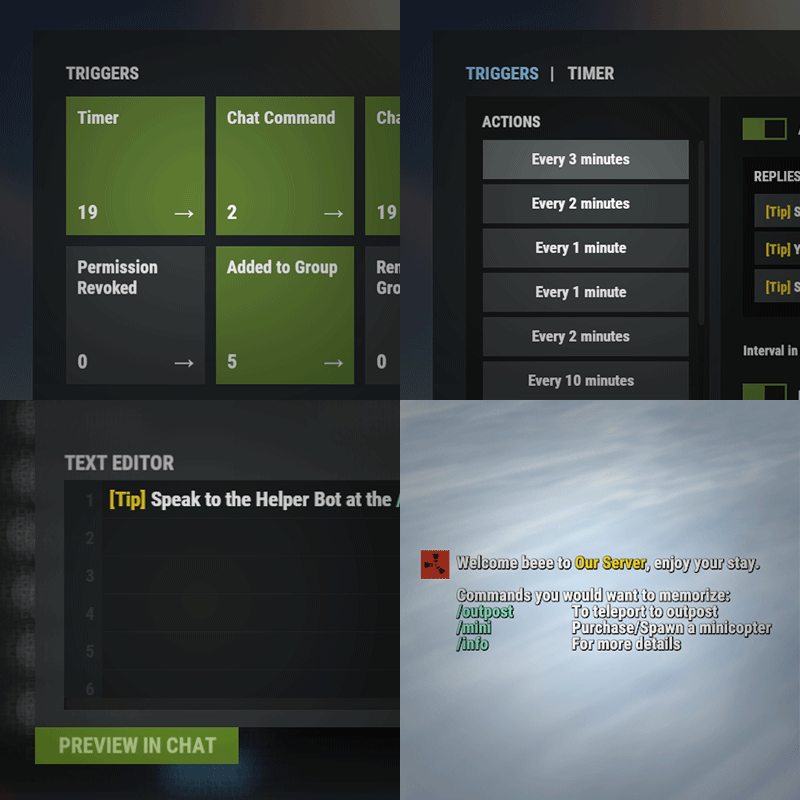
Automated chat messages based on chat keywords, advanced scheduling modes (Interval, Server Time, Game Time, and Countdown), or various other triggers. In addition to sending messages, the plugin can also automatically run server console commands when an action triggers. It comes with an easy to use Admin UI for complete setup, and supports special localization for your messages. You can define messages to be sent only to specific Groups or Permissions, and you can allow players to toggle on/off messages if they do not find them useful. SUPPORTED TRIGGERS If what you need is not here and still falls under the scope of the plugin description, reach out to me Timed | ChatCommand | AutoReply | NewPlayerJoined | PlayerConnected | PlayerDisconnected | PermissionGranted | PermissionRevoked | AddedToGroup | RemovedFromGroup | PlayerDead | CrateHacked | EnteredDeepSea | LeftDeepSea | EnteredZone | LeftZone | EnteredMonument | LeftMonument COMMANDS /am.edit - (Admin UI for complete setup) - requires automatedmessages.admin permission /tips - (Player command for toggling on/off messages) command can be changed in the config file MESSAGES LOCALIZATION You can switch between languages in Admin UI to setup localized replies for every language the game supports. Check config section below for how to add languages. Game Tips You can utilize Rust's native game tip UI to show specific messages instead or along with sending it to chat. VARIABLES Variables can be included in the messages text to show further info based on the trigger or player. The plugin also supports https://umod.org/plugins/placeholder-api with the extensive list of variables it brings. {playername} {playerid} - Player steam id {playercountry} {hacklocation} - Specific to messages with type CrateHacked {wipetimeremaining} - Days/Hours till wipe (based on rust convar settings if a missile silo monument is present). By default, displays like 2d 5h. You can format this by using the following specific placeholders: {wipetimeremaining:d} - Days remaining {wipetimeremaining:h} - Hours remaining (0-23) {wipetimeremaining:th} - Total hours remaining {online} - # of players online {sleeping} - # of players sleeping {joining} - # of players joining {target} - The target string associated with the triggered action. {countdown} - Live time remaining for actions using the Countdown scheduling mode. By default, displays time automatically. You can format this by using the following specific placeholders: {countdown:m} - Minutes remaining (0-59) {countdown:s} - Seconds remaining (0-59) {countdown:tm} - Total minutes remaining {countdown:ts} - Total seconds remaining CONFIG SETTINGS Below are only settings not currently available in Admin UI, highly recommended to edit triggers or actions using /am.edit Chat Icon (Steam Id) - Icon that will be used for all messages sent by the plugin, must be a steam id. Toggle Chat Command - "tips" - Chat command that allows a player to toggle on/off messages. AutoReply Cooldown (in seconds) - Per action cooldown timer when players type a keyword set. ChatCommand Cooldown (in seconds) - Per player cooldown timer when a player types a chat command. ZoneManager Cooldown (in seconds) - Per player cooldown timer on enter or exit zone. MonumentWatcher Cooldown (in seconds) - Per player cooldown timer on enter or exit monument. Replies Server Languages - Languages your server will support. Available options: af, ar, ca, cs, da, de, el, en-PT, en, es-ES, fi, fr, hu, it, ja, ko, nl, no, pl, pt-PT, pt-BR, ro, ru, sr, sv, tr, uk, vi, zh-CN, zh-TW Default Server Language - Fallback language if player client language had no available replies, you must have at least one reply for this language for the action to function. AutoReply `Broadcast to all` option to broadcast to team only if keywords sent from team chat - true/false$14.99 -
Version 1.8.3
6,590 downloads
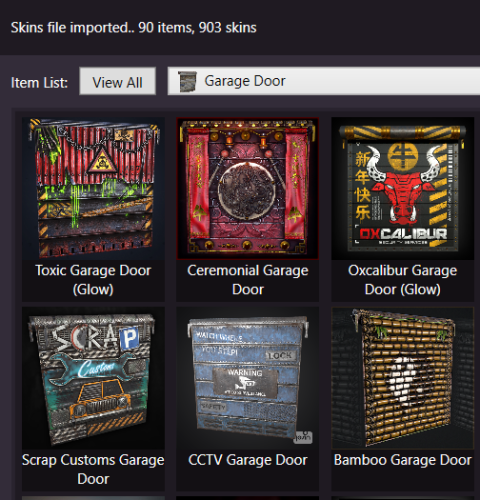
Skins Editor for SkinBox by k1lly0u, Skinner by Whispers88, LSkins by LAGZYA, SkinController by Amino and Skins by misticos. Features Visual editor for skins configured Add workshop skins by url or id (collections supported) Select and bulk delete skins Ability to import from one skin plugin, and export to another How to Download and extract RustSkinsEditorv***.zip Run RustSkinsEditorv***.exe (having trouble running?, make sure you download .NET 9.0) Click Import, pick Plugin you would like to Import (SkinBox, Skinner, Skins), then locate json file you would like to import. Add Skins using workshop link or id, workshop collection supported. When done editing, click Export, pick Plugin you would like to Import (SkinBox, Skinner, Skins). For SkinBox and Skinner, you will get a json code for you to copy and paste in the appropriate config file (This is for avoiding interference with the config properties). Important Disclaimer – Facepunch TOS Update (Effective August 7, 2025) Facepunch has updated its Terms of Service for Servers, effective August 7th, to explicitly prohibit granting any DLC items or paid workshop skins to players who do not own them. As a result: Server owners are fully responsible for ensuring that no market/paid skins are granted to unauthorized players. Violating this policy may result in your server being delisted or banned from the server list. How This Editor Helps This Editor includes features to make compliance easier: Highlights Market Skins so you can easily spot and review them. Delete All Market Skins button to quickly clean up your plugin configuration.Free -
Version 1.8.3
15,037 downloads
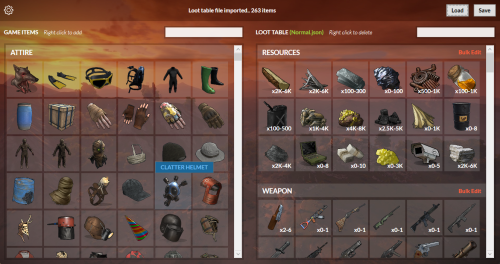
UI Loot Tables Editor for Raidable Bases plugin by Nivex and Raidable Boats plugin by VisEntities. Features Import/Export loot table json file Complete database of game items (Categorized, friendly names and pics) Add/Delete loot table items Edit loot table items spawn details Bulk edit/delete items Bulk multiply items values (min amount, max amount, stack size) How to Download and extract RustRBLootEditor-v***.zip Run RustRBLootEditor.exe (having trouble running?, make sure you download and install .NET 9.0) Click Load, and locate your desired loot table file to be modified in "oxide\data\RaidableBases\.." or "oxide\data\RaidableBoats\LootTables\.." Now you can move game items into your loot table or remove them using mouse right click (you can use search box for filtering) Edit loot table item Amount Min/Max and Skin id using mouse left click, change amounts, then click anywhere outside the modal to collapse Click Save and replace your file, and you're done (or save as draft with a new name) Important Disclaimer – Facepunch TOS Update (Effective August 7, 2025) Facepunch has updated its Terms of Service for Servers, effective August 7th, to explicitly prohibit granting any DLC items or paid workshop skins to players who do not own them. As a result: Server owners are fully responsible for ensuring that no DLC items or market-purchased skins are distributed via loot tables to unauthorized players. Violating this policy may result in your server being delisted or banned from the server list. How This Editor Helps This Editor includes features to make compliance easier: DLC and Paid Workshop Skin Identification: The editor highlights items that are DLC or use paid skins, so you can easily spot them. Quick Cleanup Tools: Delete All Prohibited Items Delete All Prohibited Skins Reset Paid Skins to Default You can use these features to quickly clean up your loot files and stay compliant.Free -
Version 1.1.3
585 downloads
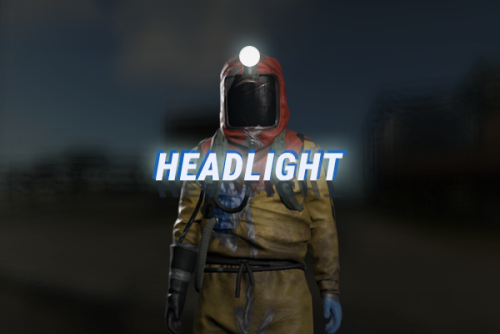
Allows players to activate Headlight (Miner's Hat) without taking up any wearable slots, and does not conflict with any headwear. This is useful for having better vision at night without compromising armor or taking off hazmat suit, especially when farming ore/wood. Auto Equip You can define whether you would the headlight to auto equip at Sunset and unequip at Sunrise by setting default state to NightOnly, and define game times in config. If set to Always instead, it will always equip a headlight to players with permission (light will be turned off, they can turn it on/off like any other worn miner's hat while equipped). Permissions headlight.use Chat Commands /headlight - Shows available commands (can be changed in config) Console Commands giveheadlight %steamid% - Equips a headlight on a target player headlight toggle - For easier key binding (e.g. bind p headlight toggle) Config { "Command": "headlight", "Headlight Skin ID": 0, "Auto Equip Settings": { "Default State (Always|NightOnly|Off)": "NightOnly" }, "Night Time Settings": { "Automatically determine night time (via in-game sky)": true, "Sunset InGame Time (00:00)": "22:00", "Sunrise InGame Time (00:00)": "07:00" }, "Alert Settings": { "Send in Chat": false, "Send as Game Tip": true }, "Version": { "Major": 1, "Minor": 1, "Patch": 3 } }$9.99- 27 comments
- 2 reviews
-
- 7
-

-
-

-
- #headlight
- #rust
- (and 6 more)
-
Version 1.0.3
93 downloads
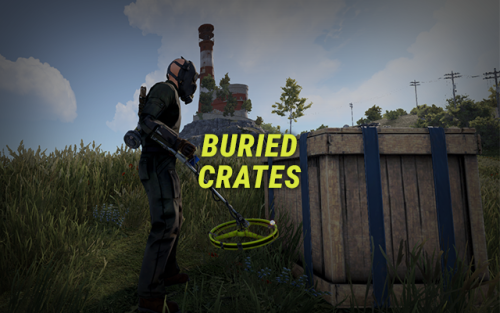
Buried Crates makes it possible to find crates while using a metal detector. This makes metal detectors worth using at any stage of the game. SUPPORTED CRATES/BARRELS PERMISSIONS & SPAWN PROBABILITY In config you can define permissions and chance % of a crate spawning for each permission (if a crate doesn't spawn, vanilla loot items works like normal). Crate types to be spawned uses a weight system, the higher the weight, the higher chance that crate type will be the one to spawn. Default permissions: you can change or add to them in config buriedcrates.default - 25% chance of finding a crate buriedcrates.vip1 - 50% chance of finding a crate buriedcrates.vip2 - 80% chance of finding a crate CONFIG { "General settings": { "Locked crate hack seconds": 60, "Dug up crate despawn in seconds": 900, "Log dug up crates in console": false }, "Permissions": { "default": { "Crate spawn chance (%)": 25, "Crates weights": { "Basic Crate": 5, "Foodbox": 5, "Vehicle Parts Crate": 5, "Tier 2 Components Crate": 5, "Tier 3 Components Crate": 5, "Normal Crate": 15, "Normal Crate - Food": 5, "Normal Crate - Medical": 5, "Tools Crate": 15, "Underwater Labs Normal Crate 1": 5, "Underwater Labs Normal Crate 2": 5, "Military Crate": 3, "Elite Crate": 3, "Elite Crate - Bradley": 2, "Elite Crate - Heli": 2, "Locked Crate": 0, "Supply Drop": 1, "Yellow Loot Barrel": 5, "Blue Loot Barrel": 5, "Oil Barrel": 5, "Giftbox": 5, "Present Drop": 0 } }, "vip1": { "Crate spawn chance (%)": 50, "Crates weights": { "Basic Crate": 0, "Foodbox": 5, "Vehicle Parts Crate": 5, "Tier 2 Components Crate": 5, "Tier 3 Components Crate": 5, "Normal Crate": 15, "Normal Crate - Food": 5, "Normal Crate - Medical": 5, "Tools Crate": 15, "Underwater Labs Normal Crate 1": 5, "Underwater Labs Normal Crate 2": 5, "Military Crate": 3, "Elite Crate": 3, "Elite Crate - Bradley": 2, "Elite Crate - Heli": 2, "Locked Crate": 1, "Supply Drop": 1, "Yellow Loot Barrel": 5, "Blue Loot Barrel": 5, "Oil Barrel": 5, "Giftbox": 5, "Present Drop": 1 } }, "vip2": { "Crate spawn chance (%)": 80, "Crates weights": { "Basic Crate": 0, "Foodbox": 0, "Vehicle Parts Crate": 0, "Tier 2 Components Crate": 0, "Tier 3 Components Crate": 5, "Normal Crate": 10, "Normal Crate - Food": 0, "Normal Crate - Medical": 0, "Tools Crate": 10, "Underwater Labs Normal Crate 1": 5, "Underwater Labs Normal Crate 2": 5, "Military Crate": 5, "Elite Crate": 5, "Elite Crate - Bradley": 3, "Elite Crate - Heli": 3, "Locked Crate": 1, "Supply Drop": 1, "Yellow Loot Barrel": 5, "Blue Loot Barrel": 5, "Oil Barrel": 5, "Giftbox": 5, "Present Drop": 1 } } }, "Version": { "Major": 1, "Minor": 0, "Patch": 1 } }$9.99- 3 comments
-
- 2
-
-
-
- #metal detector
- #detector
- (and 6 more)
-

Version 1.4.2
864 downloads
Filter chat messages by keywords and convert them into notifications. You can configure which messages to exclude from chat and display as notifications instead, all through the config file. Use Cases Reduce chat spam caused by plugins by moving unnecessary messages from chat to the notification area, allowing players to communicate more effectively. Preserve important messages from event plugins, ensuring players can refer back to essential event details that would otherwise be lost in chat. They can review missed messages anytime by typing /n. Highlight your broadcasted messages to players when you use the 'global.say' command. Improve communication on PVE servers by filtering monument callouts (e.g., @bradley, @trainyard, etc.), keeping chat cleaner while still providing key information. Chat Commands /n - (Shows list of recently appeared notifications - can be changed in config) /n disable - (Disables notifications for player) /n enable - (Enables back notifications for player) Video (shows an older version) Configuration { "General settings": { "Can filter player messages?": true, "Recent notifications command": "n", "Show time (gametime, servertime, none)": "gametime" }, "Server messages settings - 'say' command": { "Convert all server messages?": false, "Prefix": "[Server]", "Prefix color": "#FFB84C" }, "Notification area settings": { "Time visible (in seconds)": 10, "Max # of notifications visible": 5, "Alternate color 1": "#212741", "Alternate color 2": "#303856", "Opacity": 70, "Width": 350, "Position (Top, TopLeft, TopRight, Left, Right, Center, Bottom, BottomLeft, BottomRight)": "TopRight", "X axis": 15, "Y axis": 15, "Single notification settings": { "Height": 20, "Font size": 11, "Text alignment (left, right, center)": "center", "Default text color (if not formatted)": "#ffffff" } }, "Recent notifications modal settings": { "Primary color": "#212741", "Secondary color 1": "#18122B", "Secondary color 2": "#303856" }, "Message filtering rules": [ { "Text to match": "Rust Rewards", "Is RegEx (Advanced)": false, "Show as notification": true, "Keep in chat": false, "Formatting": { "Color setting": { "Use custom color": false, "Custom color": null }, "Regex formatting (Advanced)": { "Enabled": false, "Pattern": null, "Replacement": null } } }, { "Text to match": "[DeathNotes]", "Is RegEx (Advanced)": false, "Show as notification": true, "Keep in chat": false, "Formatting": { "Color setting": { "Use custom color": false, "Custom color": null }, "Regex formatting (Advanced)": { "Enabled": false, "Pattern": null, "Replacement": null } } }, { "Text to match": "Raidable Bases", "Is RegEx (Advanced)": false, "Show as notification": true, "Keep in chat": false, "Formatting": { "Color setting": { "Use custom color": false, "Custom color": null }, "Regex formatting (Advanced)": { "Enabled": false, "Pattern": null, "Replacement": null } } } ], "Version": { "Major": 1, "Minor": 3, "Patch": 0 } } Credits @nivex - performance enhancements in version 1.2.14 (thank you)$9.99 -

Version 1.2.3
3,617 downloads
Allows players to show an Ammo HUD. Features Shows active weapon Ammo with colored warning when low. Shows total available Ammo in inventory. Icon color depends on type of Ammo (bronze = regular, blue = hv, red = incen, black = explo) Permissions ammohud.use Chat Commands /ammohud - (Sends available commands and positions) /ammohud toggle - (Toggles on/off HUD) /ammohud {position} - (Allows player to reposition Ammo HUD on their screen) Positions Available Default, Top, Bottom, Right, Left, BottomRight, BottomLeft, TopRight, TopLeft Video Config { "Version": { "Major": 1, "Minor": 2, "Patch": 1 }, "General Settings": { "Show Text Outline": true, "Show Individual Ammo Icons": false, "Show Throwables": false }, "Position Settings": { "Default State (true = on, false = off)": true, "Position (Top, TopLeft, TopRight, Left, Right, Bottom, BottomLeft, BottomRight)": "Right", "Custom Position": { "Enabled": false, "Custom Position": { "ParentPosition": { "Enabled": true, "AnchorMin": "1 0.5", "AnchorMax": "1 0.5", "OffsetMin": "-155 -32", "OffsetMax": "-15 33" }, "WeaponAmmoPosition": { "Enabled": true, "AnchorMin": "0 0", "AnchorMax": "0.79 0.70", "OffsetMin": "0 0", "OffsetMax": "0 0" }, "WeaponAmmoFontSize": 36, "WeaponAmmoTextAlignment": 8, "TotalAmmoPosition": { "Enabled": true, "AnchorMin": "0 0.55", "AnchorMax": "1 1", "OffsetMin": "0 0", "OffsetMax": "0 0" }, "TotalAmmoFontSize": 22, "TotalAmmoTextAlignment": 8, "IconPosition": { "Enabled": true, "AnchorMin": "1 0.13", "AnchorMax": "1 0.13", "OffsetMin": "-30 0", "OffsetMax": "0 30" } } } } }Free -

Version 1.0.7
1,039 downloads
Lightweight plugin that allows you to set custom maximum health for players based on permissions. Server owners can configure permissions in the plugin’s config file to give certain groups or players higher (or lower) max health. Example: Granting the permission playerhealth.tier1 will set a player’s maximum health to 150 based on default config. Config { "Permissions": { "tier1": { "Max Health": 150.0, "Start health %": 60.0, "Healing items to match max health": true }, "tier2": { "Max Health": 200.0, "Start health %": 60.0, "Healing items to match max health": true }, "tier3": { "Max Health": 300.0, "Start health %": 60.0, "Healing items to match max health": true } }, "General Settings": { "Revert to vanilla in RaidableBases": false, "Revert to vanilla in AbandonedBases": false, "Revert to vanilla in SurvivalArena": false }, "Version": { "Major": 1, "Minor": 0, "Patch": 7 } }Free- 8 comments
- 4 reviews
-
- 7
-
-
-
- #maxhealth
- #max
- (and 2 more)