




The ElementsKit Facebook Feed widget connects your WordPress site with Facebook using the official Graph API, allowing you to automatically display page posts inside Elementor.
How to Use ElementsKit Facebook Feed widget #
- Create an App – Go to Meta for Developers and create a Facebook app to enable API access.
- Generate Access Token – Create a valid Graph API token to securely fetch your page data.
- Add Token in Widget – Paste the token inside the Facebook Feed widget settings in Elementor.
- Customize & Publish – Adjust layout and display options, then publish to show posts automatically
Watch our video guide:
Follow the detailed steps:
After log in to your Meta account, click My Apps.

Press the create App button.

Provide App details and click next.

Select Authentic and request data from users with Facebook Login and click next.

Select your ID and click Next.

Review your given details and click the Create App button.

Select Graph API Explorer from Tools

Facebook API Key Generate #
- Access your WordPress dashboard and go to ElementsKit plugin.
- Click ElementsKit and go to Widgets
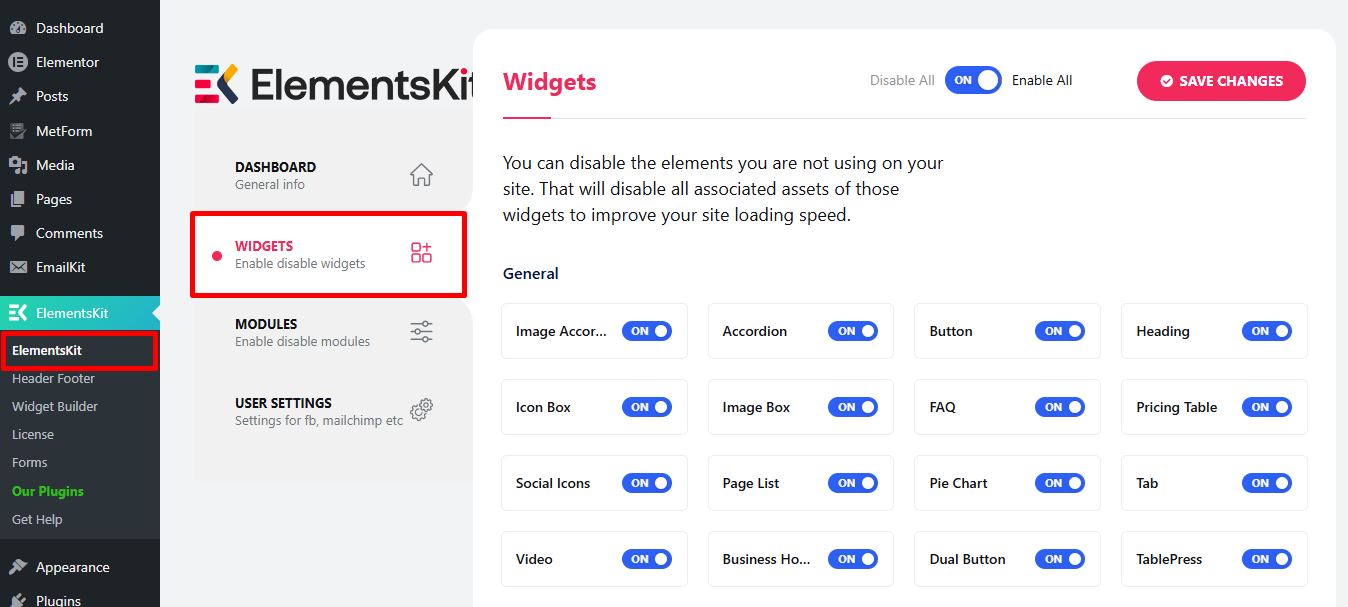
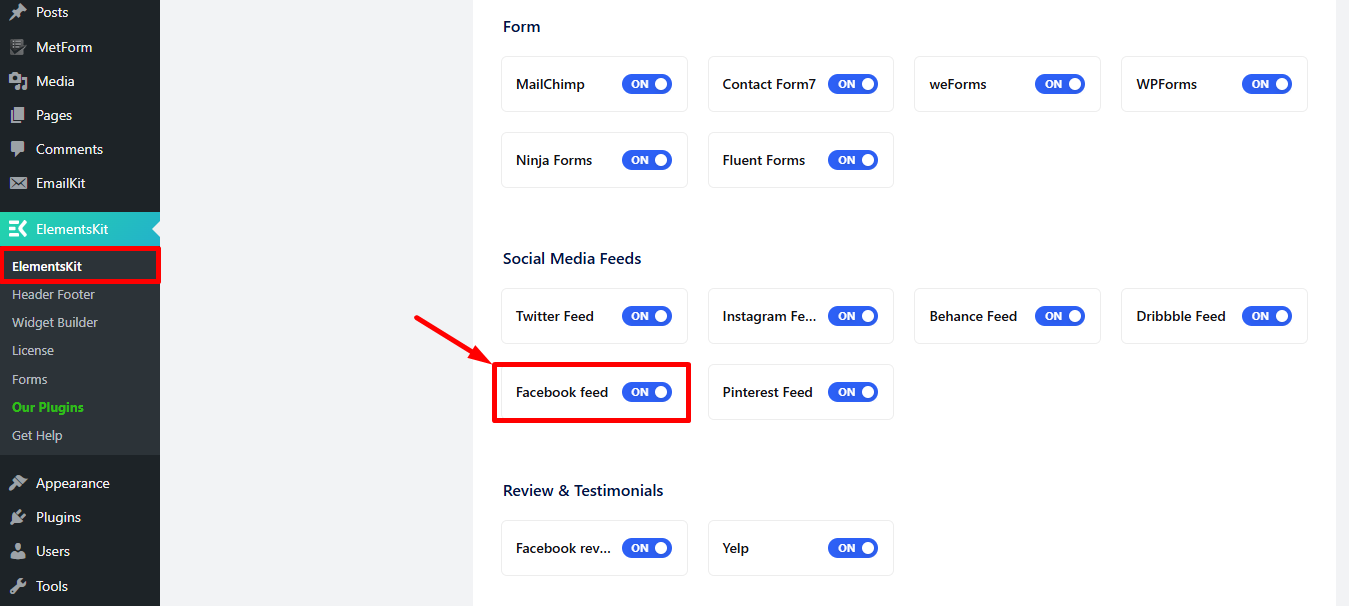
Scroll down and find Facebook Feed > toggle it to turn it ON.
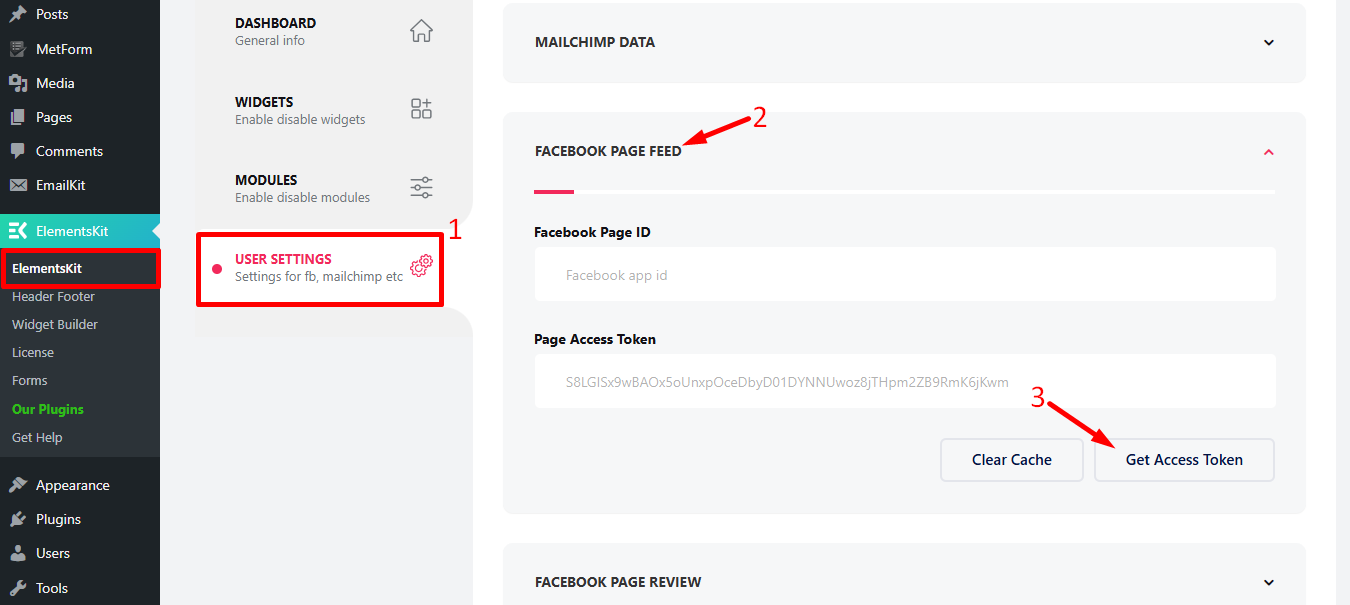
- Go to USER SETTINGS from ElementsKit
- Enpand FACEBOOK PAGE FEED
- Click on Get Access Token to get Access token
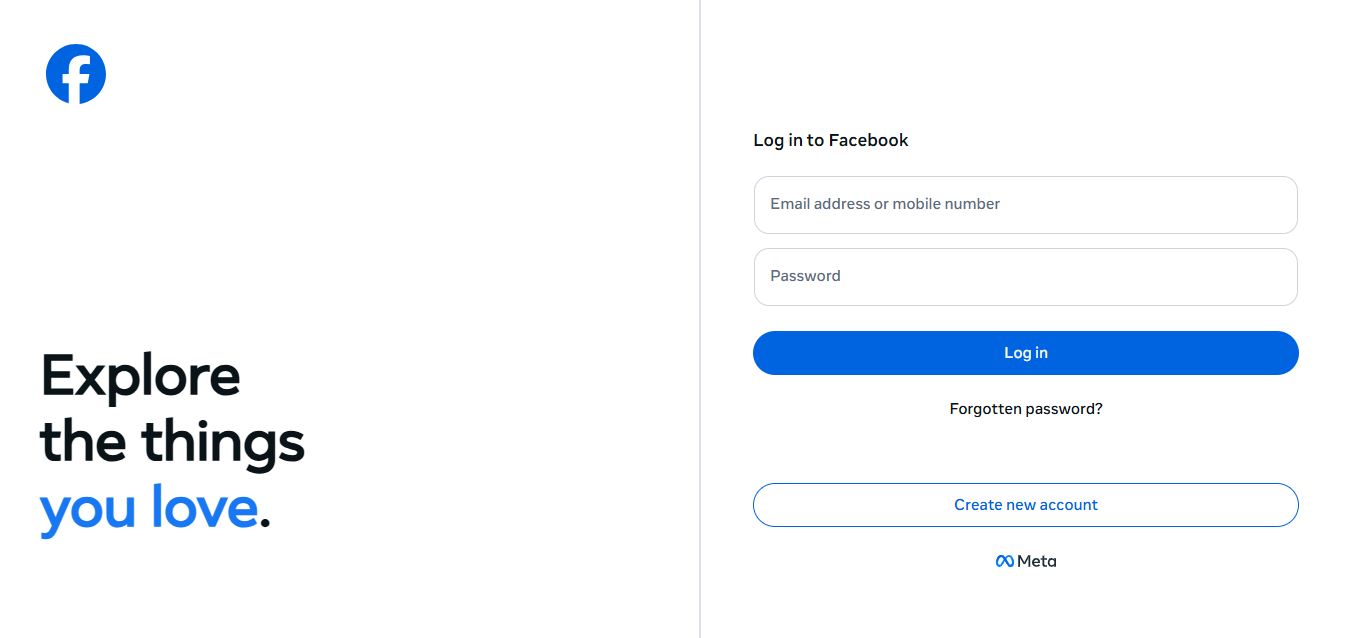
You’ll be redirected to Facebook log in page, log in now.
Step=>4: Select your page => Click on Next
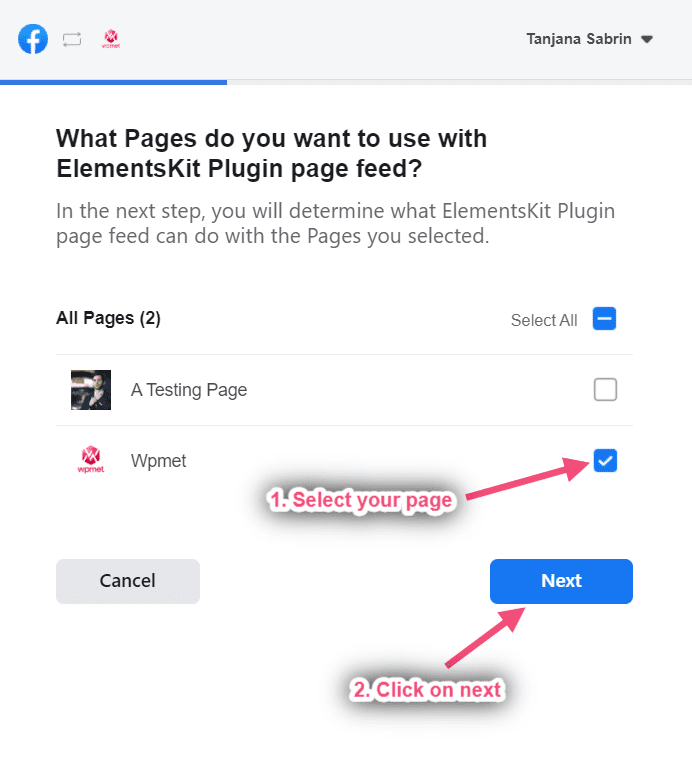
Step=>5: Click on Done
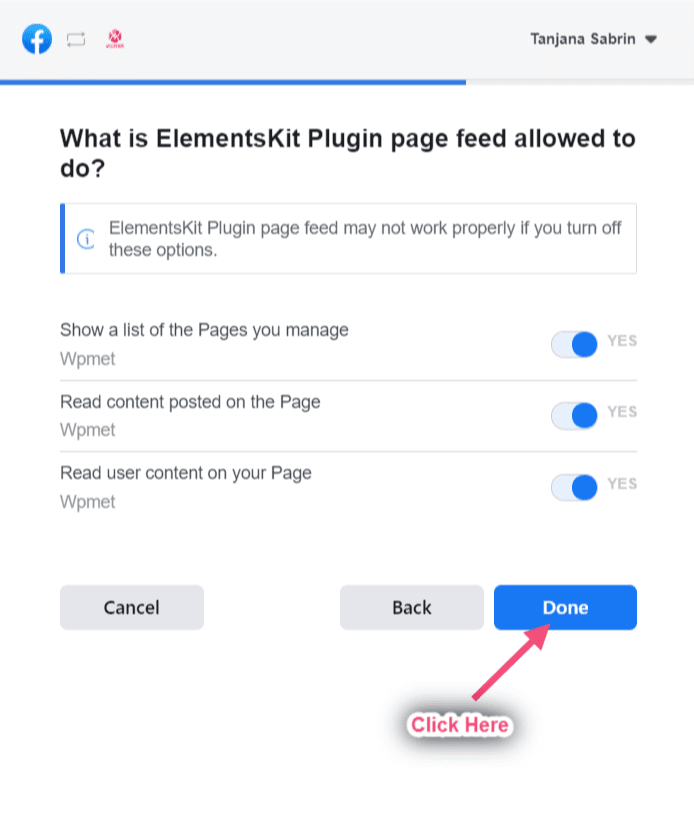
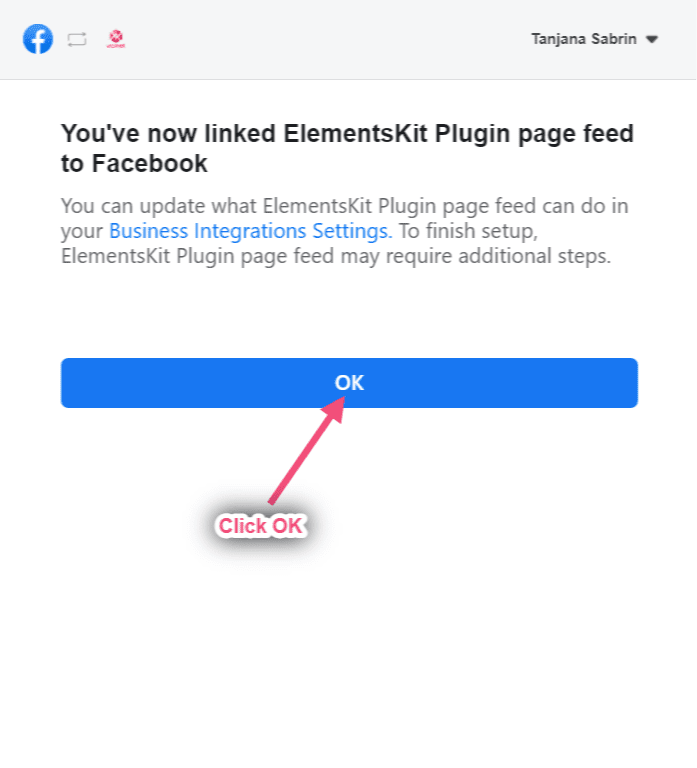
Step=>6: Click on OK
Step=>7: Now you will get your Page ID and Access Token. Just Copy Both
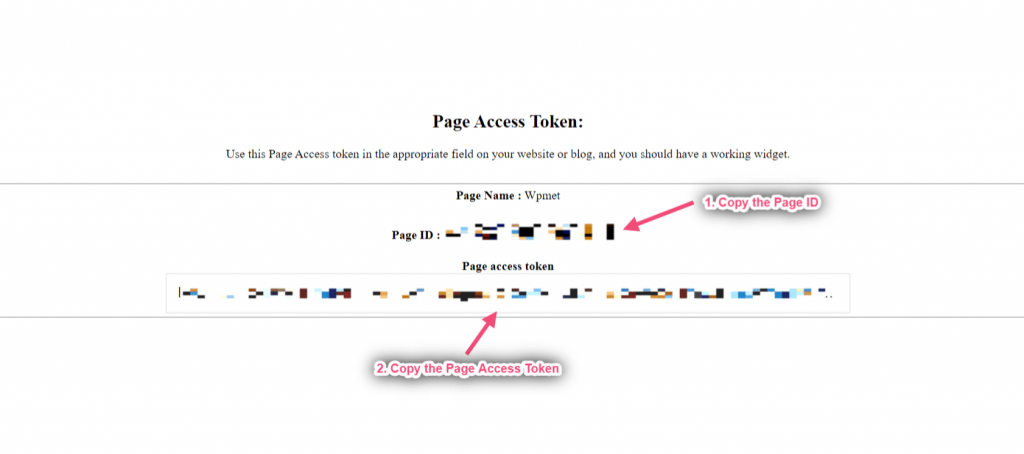
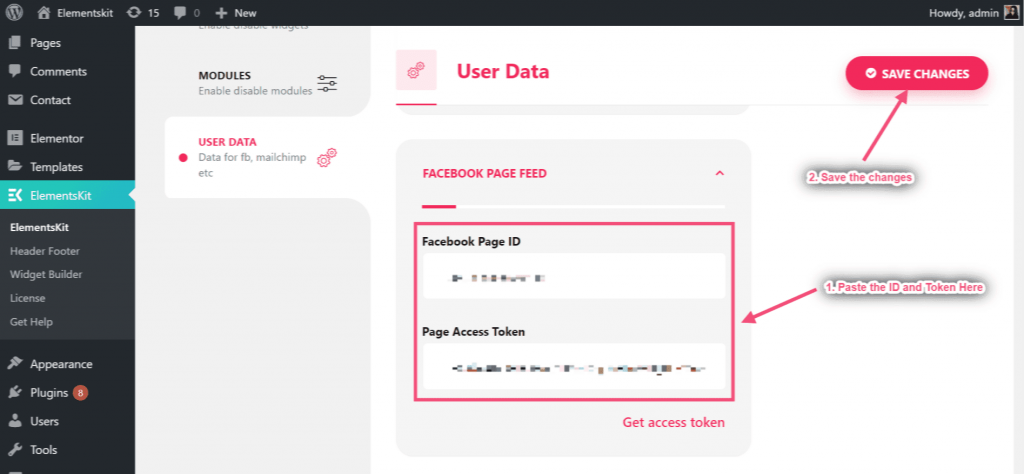
Step=>8: Now go to Facebook Page Feed=> Provide Page ID=> Page Access Token=> Save Changes
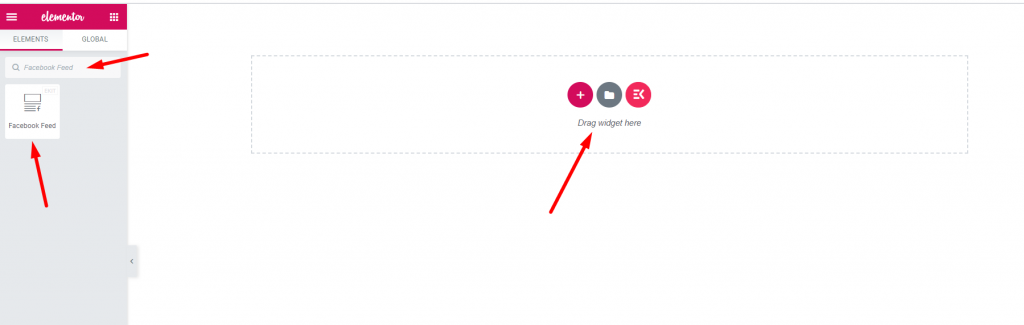
Step=>9: Go to Elementor=> Search Facebook Feed=> Just Drag and drop the field
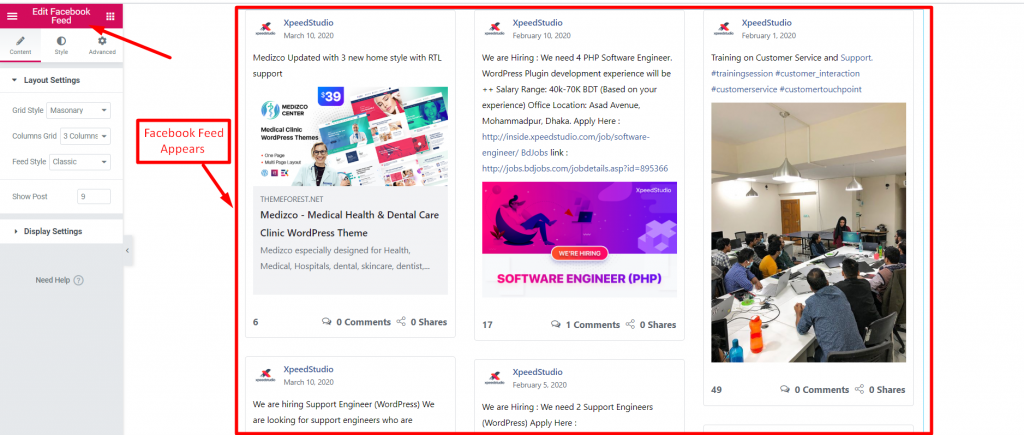
Now you can showcase your Facebook post to your Facebook feed widget
Functionalities #
Contents #
Layout Setting #
Step=>1: Go to Elements=> Search Facebook Feed=> Just Drag and drop the field
Step=>2: Click on Layout Setting=> Select Grid style List, Grid or Masonry
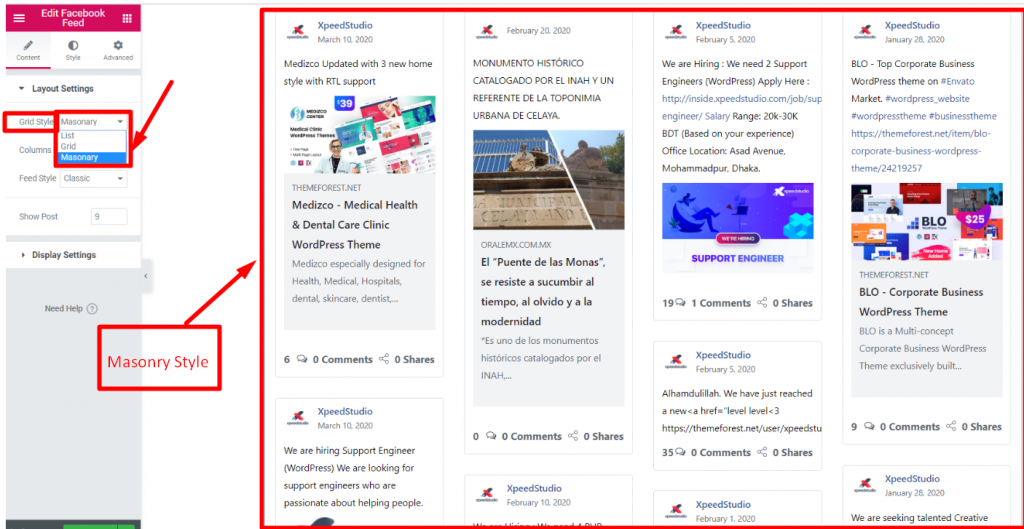
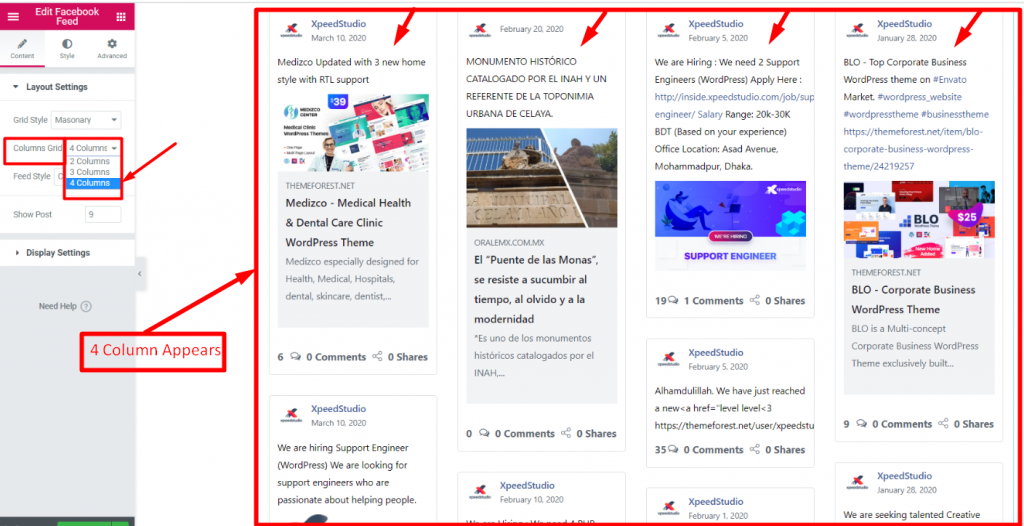
Step=>3: Select your Column Grid 1,2,3 or 4 means how many column you want to choose to display pictures.
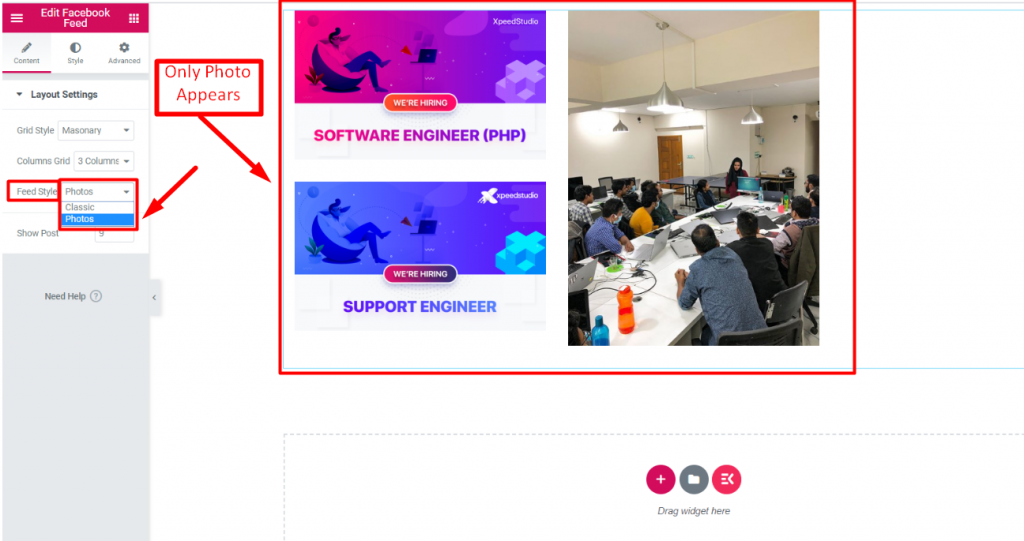
Step=>4: Select Feed Style Classic or Photos
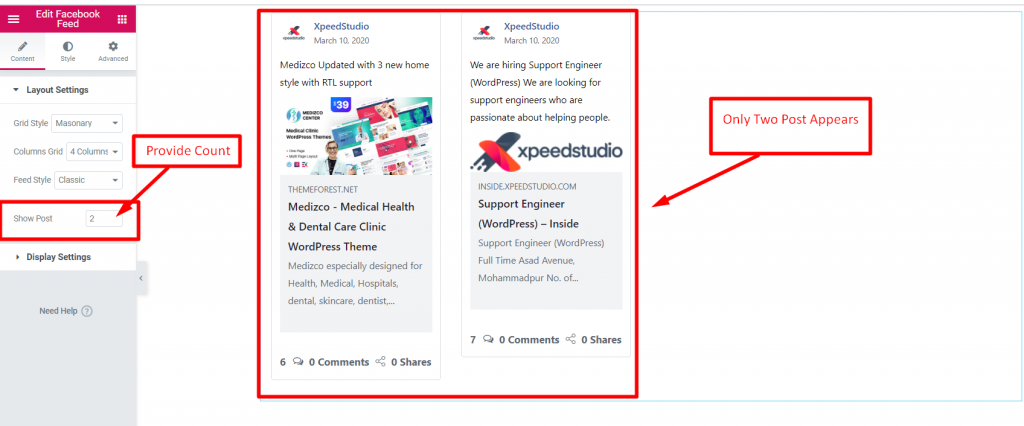
Step=>5: Provide count value of how many post you want to display
Display Settings #
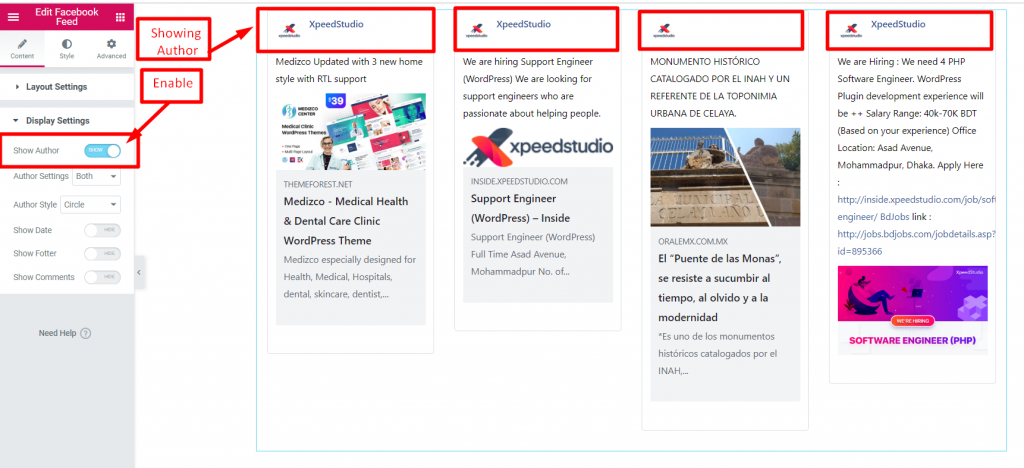
Step=>1: Enable Show Author to show Author Information to your post
Step=>2: Author Setting=> Select Only Profile Image, Only Name or Both
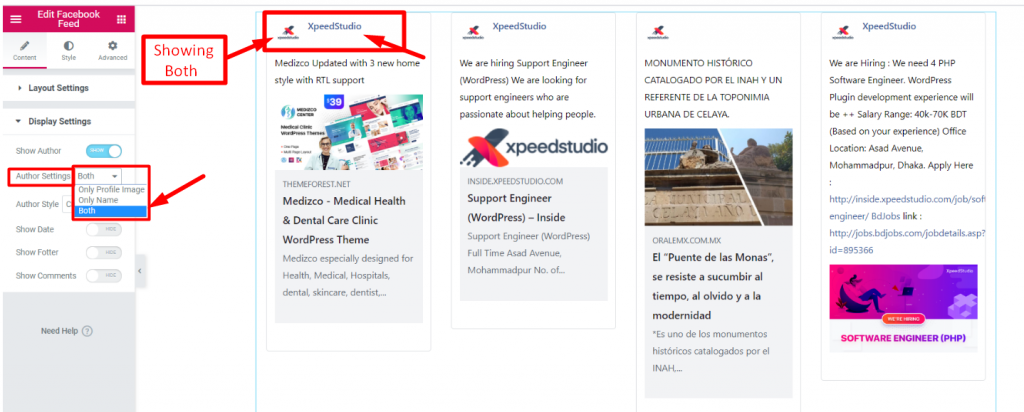
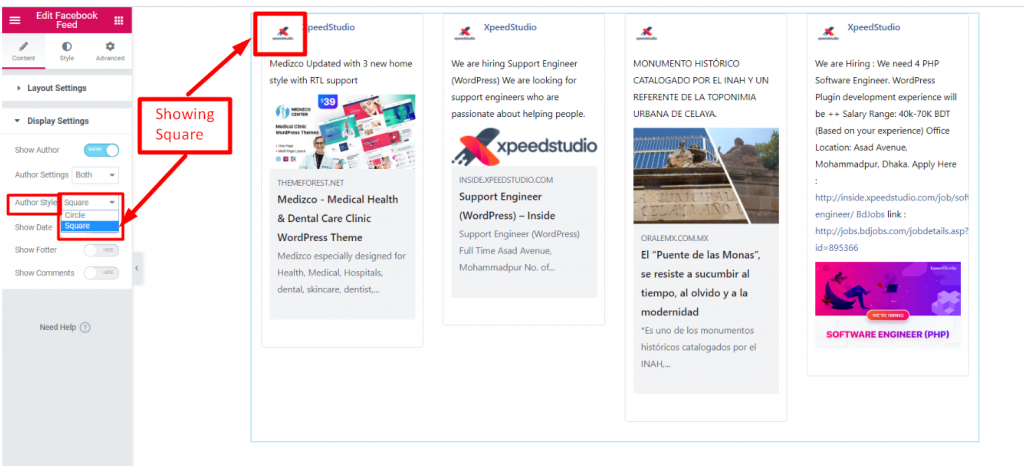
Step=>3: Select your Thumbnail style Circle or Square
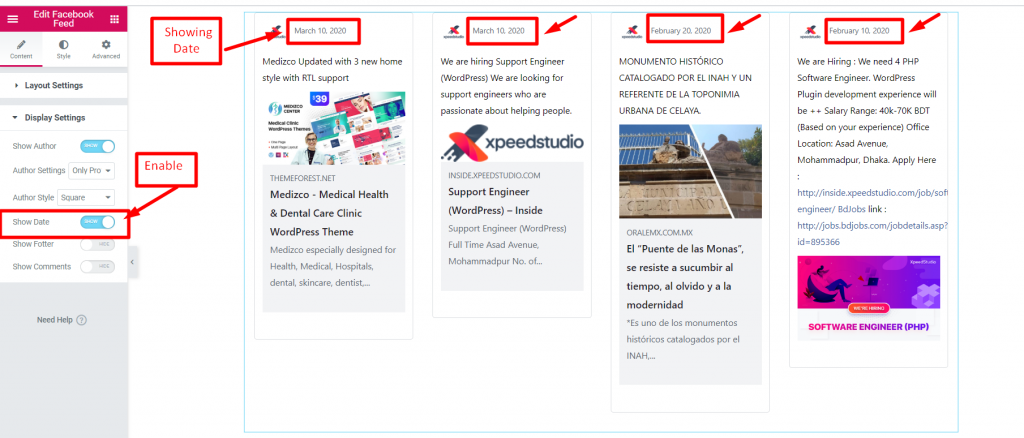
Step=>4: Enable Show Date to provide the post upload date
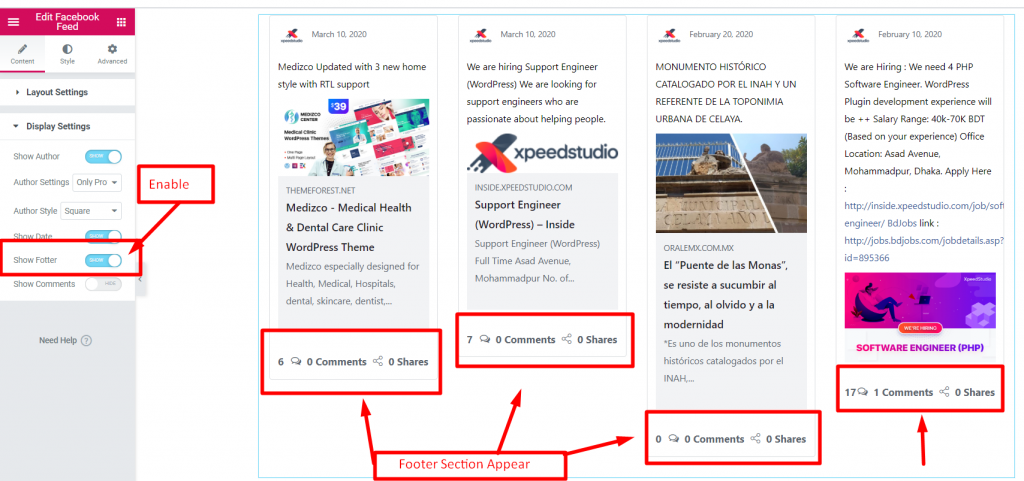
Step=>5: Enable Show Footer to display footer section
Step=>6: Enable Comment Box to showcase the user’s comment and reaction to your Post


