




An effective WordPress plugin table with filter allows you to display and customize user data. The elementor table widget for WordPress is useful to display data in a sorted way with various advanced styling options. You can design a table according to your chosen options and show information. And, there are two options also to upload any existing table of contents.
In this documentation, we will discuss the functions of this WordPress table widget.
WordPress Plugin Table with Filter #
Navigate to ElementsKit > ElementsKit > Widgets > Turn ON Table Widget > Save Changes
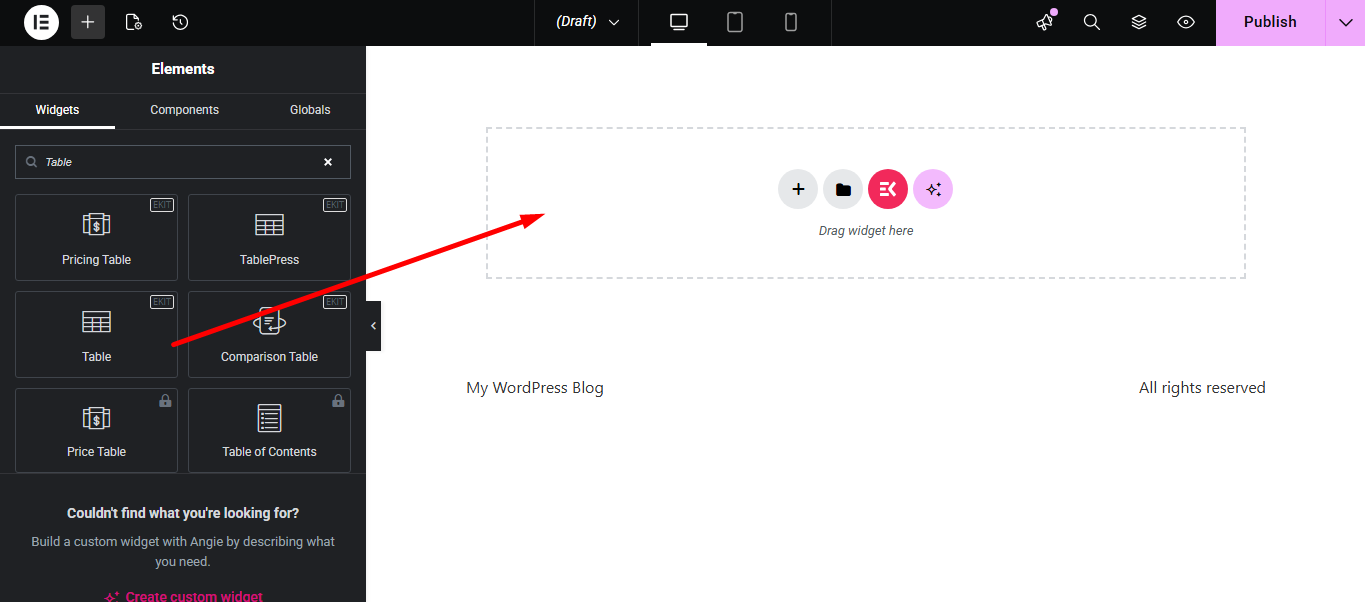
Table #
There are two data type options, Custom and CSV. You can custom your Data or you can also upload a CSV file. Let’s see how they work.
Data Type- Custom #
Select Custom from the option. Let’s see how you can customize a table and insert your data accordingly.

Header Table Area– Here you can add item by clicking the “+” sign and expand each to customize. Also, you can adjust Header Alignment.
- Add or Edit Text
- Set Header Background Color
- Icon Type such as icon or image. It lets you change icon position, spacing, and color

Data Type- CSV #
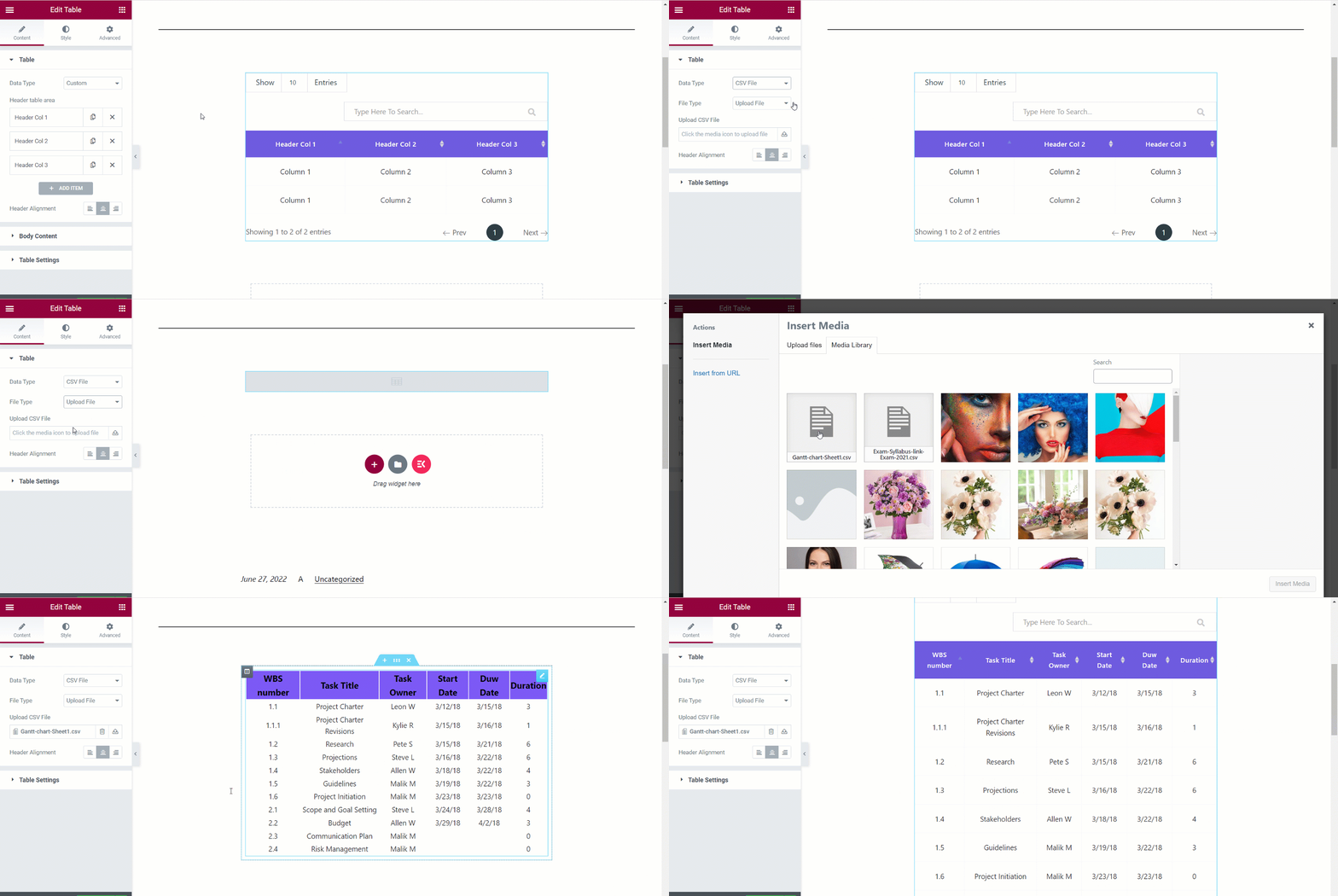
- Select Data Type: CSV File
- File Type: Upload File
- Upload a CSV file. And, if you already have a file uploaded in Insert Media then find the file and click on insert.
- Header Alignment: Set the table’s header alignment Left, Center, or Right.
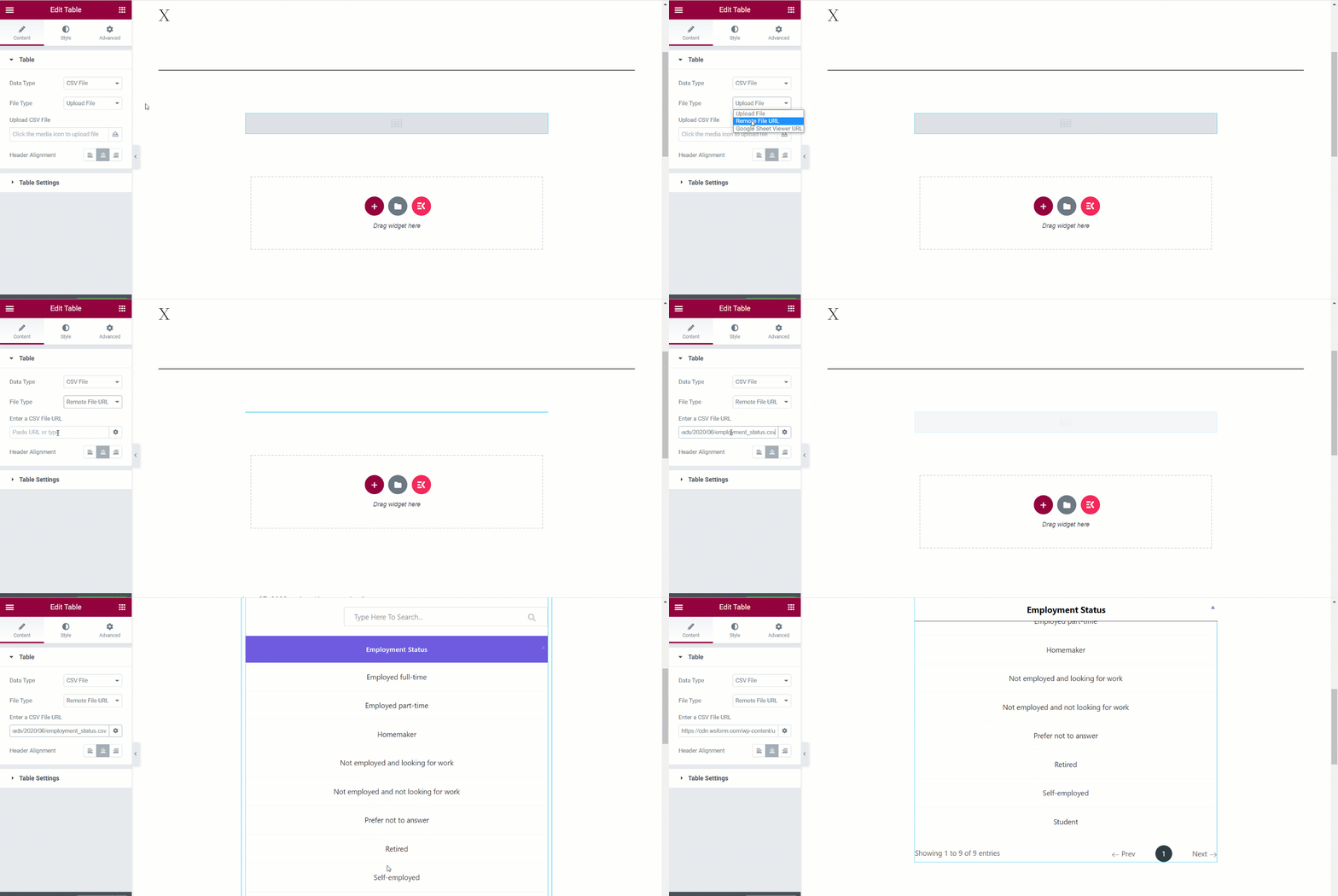
Remote File URL– If you choose this file type you can show data using a CSV file that’s located on a different server. For that, after selecting the Remote File URL just enter the CSV File URL in the field.
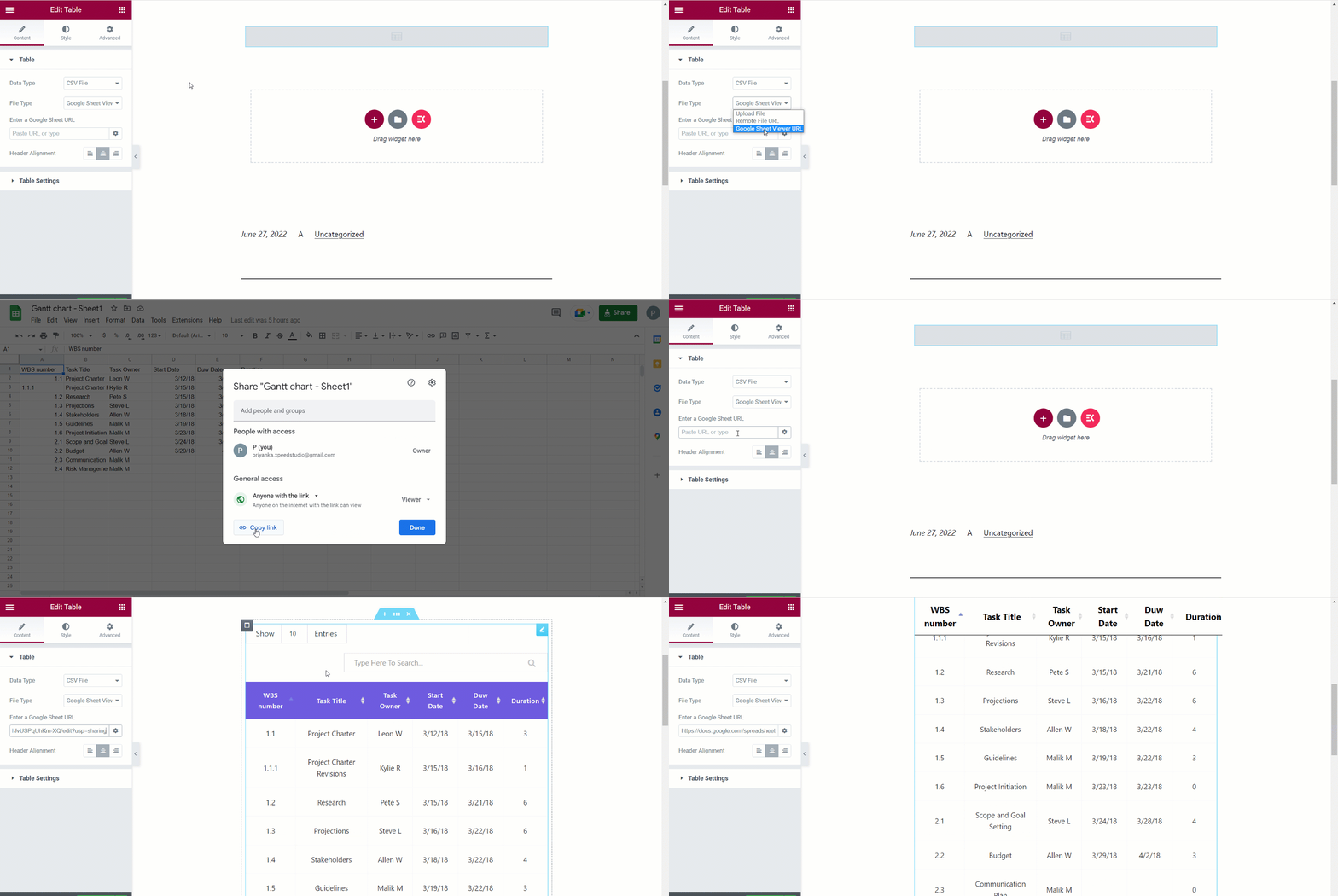
Google Sheet Viewer URL– Again, to use a Google sheet data in your WordPress table, choose this file type and enter the Google Sheet URL in the field. You must remember that, the google sheet URL should have the access of Anyone on the internet with this link can view.
Body Content #
In the table body area, you can arrange rows and column. Also, add “+” sign and expand each to customize. Also, you can adjust Header Alignment.

- Enable new row
- Add or Edit Column Text
- Add url if you want
- Select any Background Color from the palette
- Choose Column Text Color
- As Icon Type, you can select None, Icon, or Image and adjust icon, icon position and icon spacing.

Table Setting #
- Display Serial Number- Enable to Display Serial Number
- Serial Header Text- Add or Edit Serial Header
- Search- Enable to Search any Item from the table
- Search Placeholder- You can type a hint text in the search box, and users will get an idea before they start typing.

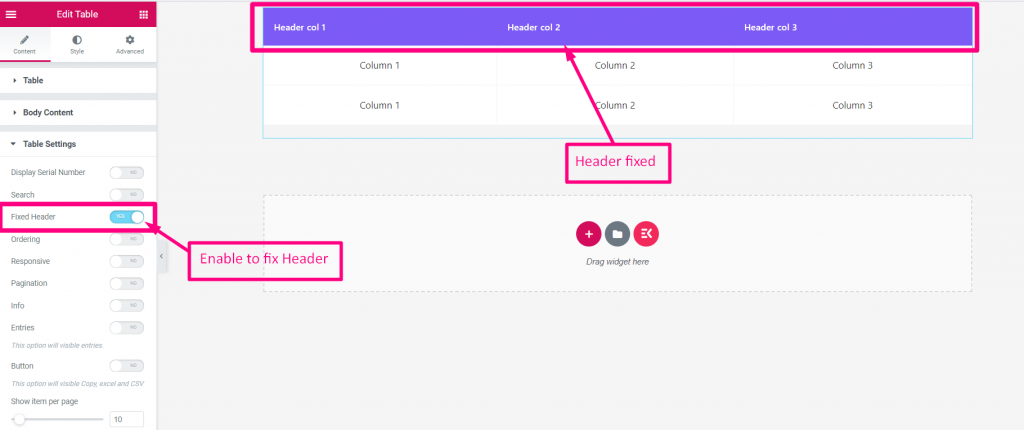
Fixed Header- Enable to make fix your header
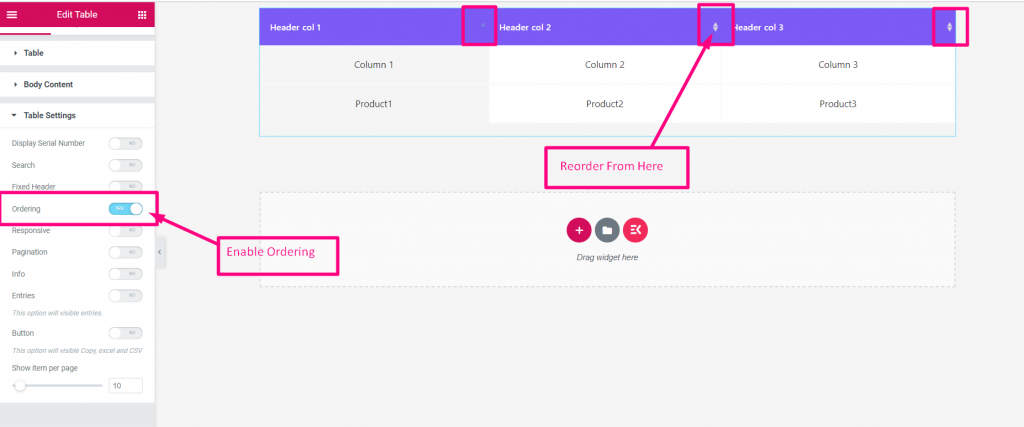
Ordering- Enable Ordering to reorder any item
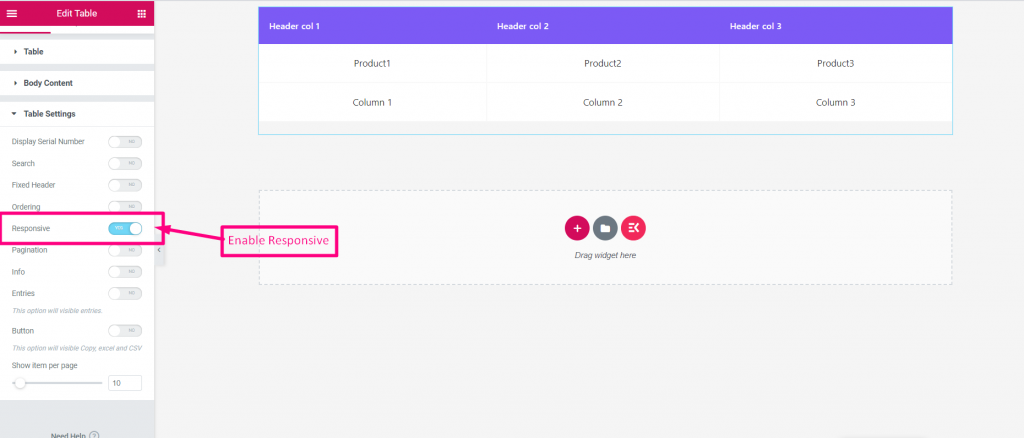
Enable Responsive- Just enable the option if you need
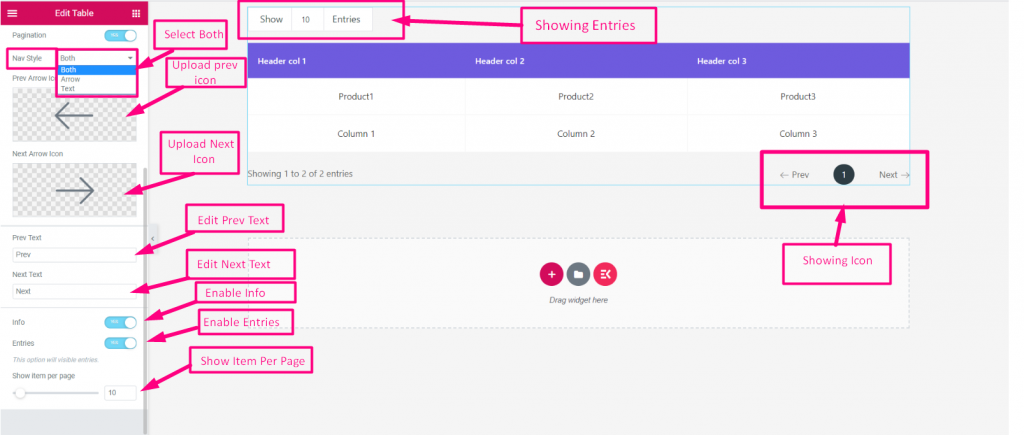
Pagination- There is a few steps here
- Enable Pagination
- You can show Icon only Arrow or only text. You can also select Both
- Upload Previous Arrow and Next arrow
- Add or Edit Previous Text and Next Text
- Enable Info
- Enable Entries
- Show Item Per Page
So, this table widget provides standard table display facilities for applications. Hope, you may find this easy-to-use and a time-saver tool.


