This blog post is about comparing two popular development tools and text editors, Sublime Text and PyCharm to each other. This blog post is written from the perspective of professional software development or if the programming is what you do for living.
1. Preface: meet the contenders
I have been developing Python for a decade now in various environments. Few weeks ago, I decided to make a shift from Sublime Text 3 to PyCharm as my primary tool for typing in code on OSX. I tried PyCharm long time ago and I was dissatisfied – PyCharm is built on Java software stack and UI issues, alongside “Java software bloat”, were major turn off for me by the time. But the times change, hardware gets more powerful and it was time for me to reconsider my decision.
Sublime Text is a commercial programmer’s text editor being in development since 2008. Its major selling points are speed, powerful code text editing features (multicursor), cross platform support, customizations and plugin ecosystem. Currently Sublime Text version 3 is in beta. Though the development slowed down in one point, as Sublime Text has been mostly one man show, new Sublime Text builds roll out now regularly. Sublime Text costs 70 USD. Unless you purchase a license you’ll be notified by a nagging dialog.
PyCharm is a child of JetBrains IntelliJ IDEA family of editors. First PyCharm was released 2010, but the IDE codebase goes all way back to IntelliJ IDEA which was released as far back as 2001 – I remember doing Java development on IntelliJ in 2004. PyCharm is developed by Czech company JetBrains, having over 400 employees. PyCharm shares most of the features with other IDEA family IDEs, which means it has robust HTML, JavaScript and CSS support. PyCharm license costs 199 EUR / year (professional), 99 EUR / year (individual) and there is also free community edition. The community edition is 100% open source.
Though Sublime Text is not an IDE per se, many Python and JavaScript developers I know use it as “development platform”. This is possible because active Sublime Text community provides tools to optimize your development workflow – namely to support autocomplete, syntax highlighting and background linting and various programming languages.
There are also other well know options for Python development, including PyDev (LiClipse), Komodo IDE and WingWare IDE.
2. Feature highlights both in Sublime Text and PyCharm
Sublime Text and PyCharm have integrated plugin manager. Sublime Text Package Control is not built in, making the initial adoption more hassle. On the other hand I found PyCharm’s plugin installer to be more cumbersome to use – more clicks. Reminds me of those Windows EXE installers.
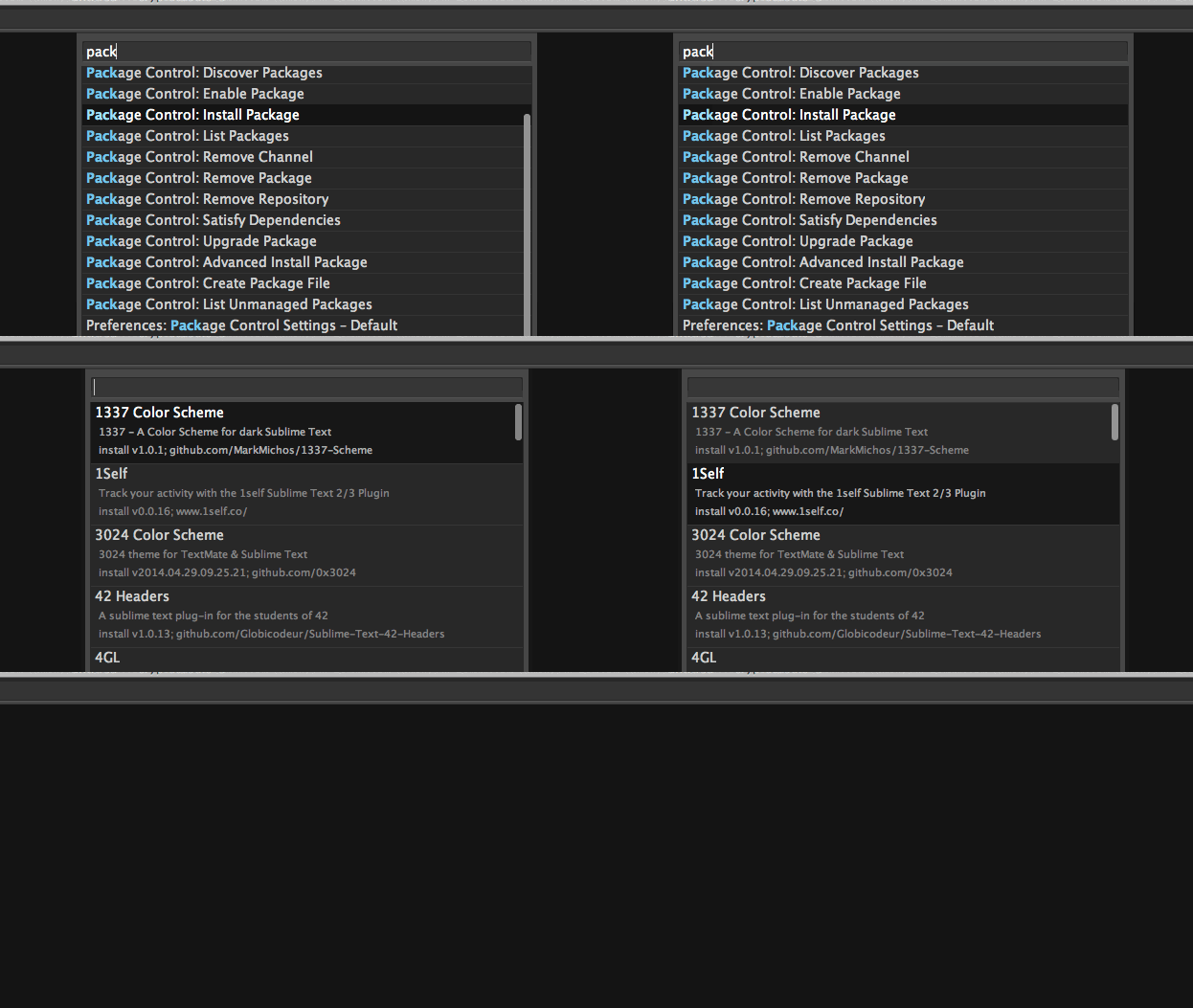
Installing a new plugin in Sublime Text is only few keystrokes
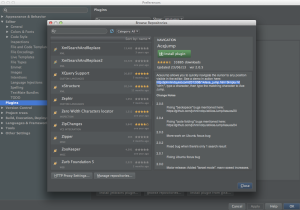
PyCharm Plugins dialog is a lot of buttons
Sublime text has been famous for its multicursor feature. With the release of PyCharm 4.0 it gained the multicursor support. It does not work exactly as in Sublime Text, but close enough.
The editors enjoy plenty of themes available and both support my favorite Twilight theme. Also to further make the text more readable Source Code Pro font renders out nicely on OSX.
The text editors are good for Python editing and have e.g. indention guidelines and fast toggle soft text wrap options.
3. Sublime Text pros
Sublime Text beats PyCharm in few points and I miss these features in PyCharm, though some of them can be replaced using PyCharm alternatives.
Sublime Text’s Go To Anywhere is more powerful. Press CMD+T and type in few letters of package and module name. Go To Anywhere finds the suitable match. PyCharm Navigate -> File or Navigate -> Symbol are not as powerful as their heuristics seem to need more typing to get where you want.

Jumping to cryptoassets.core.backend.base in Sublime Text
Whereas PyCharm has a scrollbar with color hints to highlight next TODO / warning / error place, Sublime Text has a minimap. Scrolling around with the minimap is more powerful as your eyes see the structure of the file unfolding.
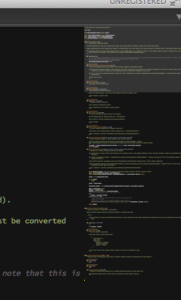
Sublime Text minimap shows outline of the file in visual
Sublime Text user interface is OpenGL accelerated and it runs smoothly 60 FPS all the time, making it pleasant for the eye and for typing. PyCharm is slower, though the difference is not so noticeable anymore after you pour in enough money to your hardware.
The Sublime Text plugin community is more vibrant. There are more plugins available, they get more support. For example if you need to do polyglot programming in rare languages, like R, Erlang or Haskell, there is guaranteed to be good Sublime Text support. Also if you write documentation in Restructured Text or Markdown PyCharm did not have such good plugins as one gets for Sublime Text.
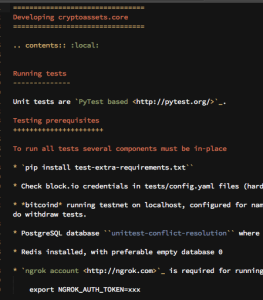
Restructured Text syntax highlighting in Sublime Text
As this blog post is mostly about Python development, one cannot dismiss the fact that Sublime Text plugins are self-contained Python modules – not cumbersome Java projects. It is very easy to write them, though Sublime Text plugin API is somewhat limited. There is even a menu entry New plugin. This might be one of the fact explaining why the Sublime Text plugin ecosystem is so healthy.
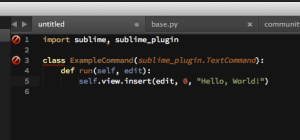
Creating Sublime Text plugin
4. PyCharm pros
PyCharm is big. The editor has history since 2001, it comes tons of features out of the box. It is very polished and it does most of the features very well – after all selling IDEs is the main business for JetBrains – for example compared IBM’s Eclipse whereas IBM’s main business is sell IBM services. With PyCharm you need to spent little time to tune up your programming environment or hunt plugins for your basic development needs (Python, JavaScript, HTML, CSS).
PyCharm comes with an integrated debugger. You can double click to set breakpoints in your editor and then run your application to stop on the line. But you still don’t lose the ability of drop into an interactive IPython shell when hit to the breakpoint:
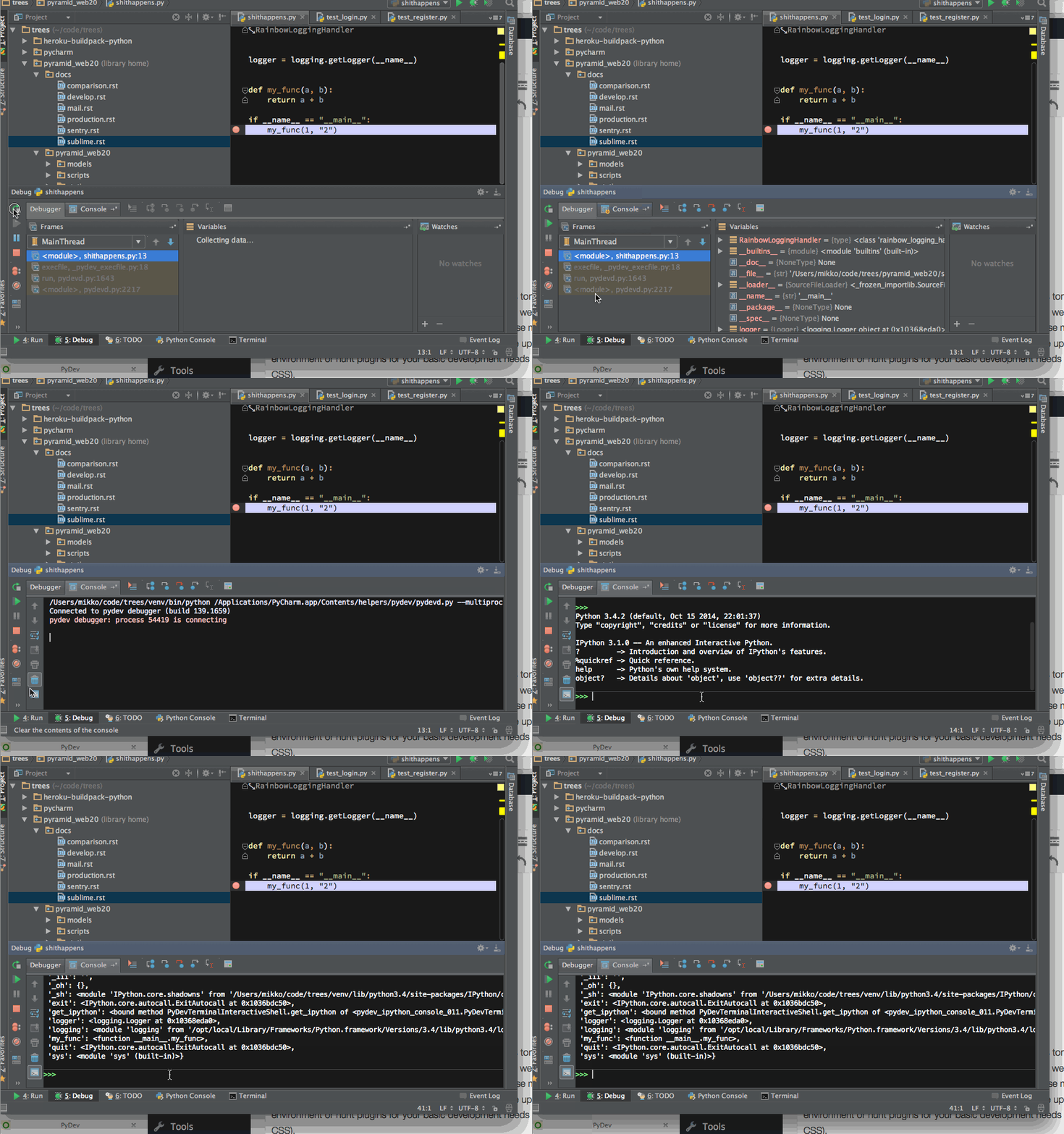
Dropping into IPython session after PyCharm stops in a Python breakpoint
Though I did find the PyCharm debugger slowing down the application too much. For example, when running a Pyramid website application inside the debugger the automatic restart cycle became too slow. You had to wait each restart more than ten seconds. This kills the basic web development flow: edit – save – refresh. Maybe there is a way to speed up the debugger for large projects – please somebody tell me?
Then the major reason why I switched over – due to limitations in Sublime Text plugin API one simply could not get run output where one can click Python traceback and is taken where the error happened.
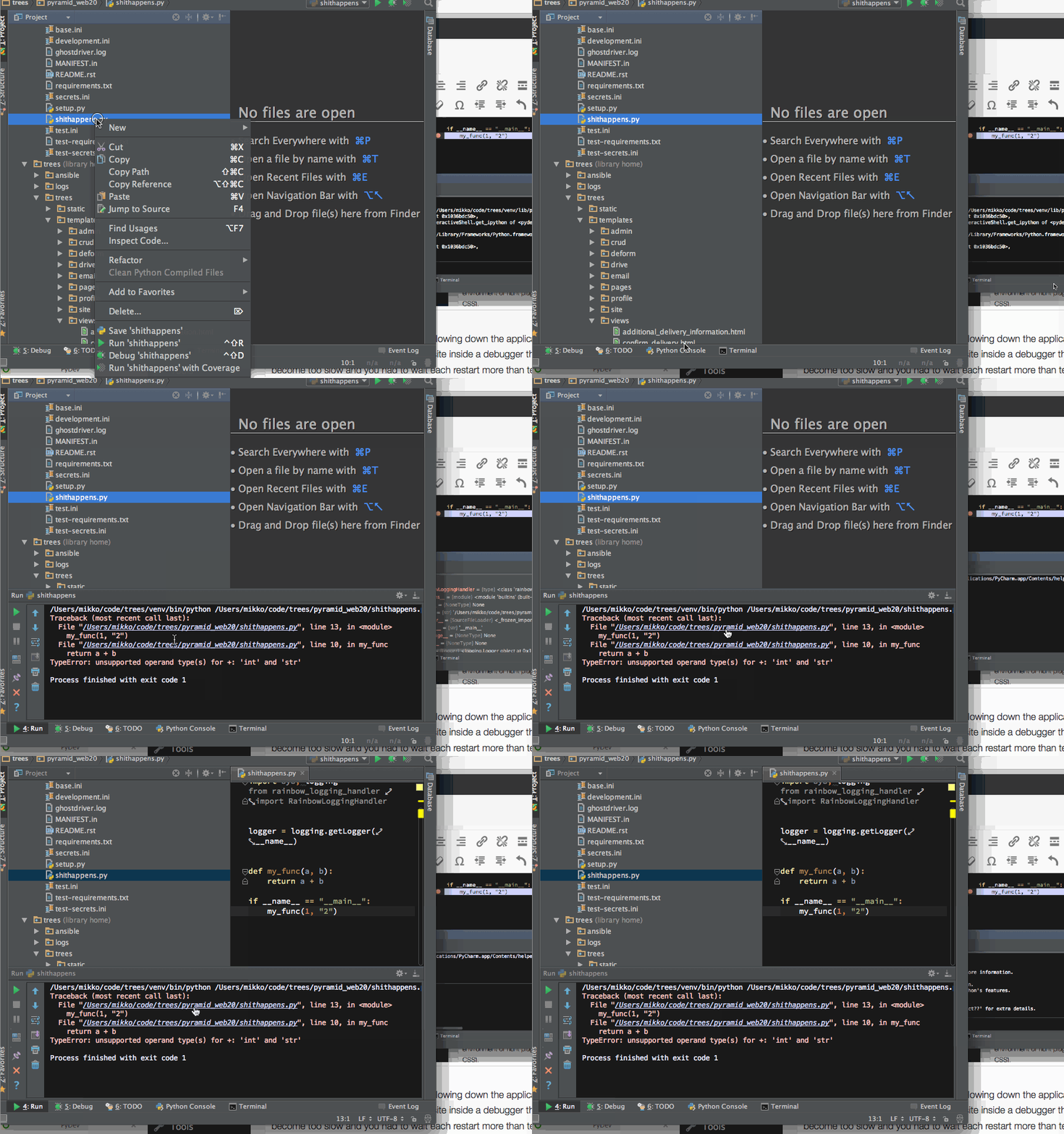
Click Python traceback to navigate around the codebase and find the error root cause
I found this lovely navigation bar a quick fix to navigate around to related modules – partially compensates the lack of powerful Go To Anywhere as in Sublime Text:
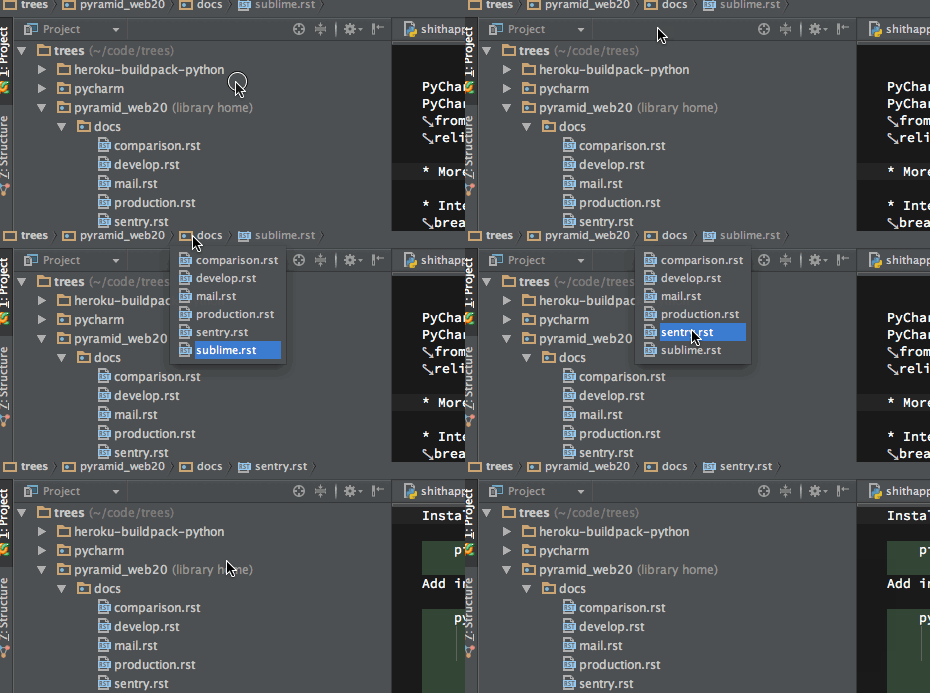
PyCharm shows the path to the current file as interactive navigation bar
Autocomplete, autoimport and other code intel and refactoring tools work better in PyCharm. With Sublime Text you need to play around with a lot of plugins to get decent autocomplete. Sublime Text plugins have their own, incompatible settings and need a lot of manual package installation (pip install flake8, etc). In PyCharm I just hit alt+enter on a missing symbol and it got added as the import at the beginning of the file. Though I could not change it to format the import as I want – one import statement per one line.
PyCharm does background spellchecking of written text and Python docstrings. It’s very handy if you want to write high quality software with meaningful comments and API descriptions.
PyCharm has more robust integrated version control support (Git, SVN). Though Sublime Text has plugins for this, Sublime Text plugin API offers only very limited UI interaction and you cannot, for example, color files in the project explorer based on their edit status.
PyCharm has Power save mode. It disables background tasks like code intel which are CPU drainage for large projects. This makes digital nomading much more fun when you are fighting over the single available power plug in a hostel on a remote island.
PyCharm has integrated terminal and run window, though it has shortcomings and doesn’t seem to behave like a real terminal.
PyCharm has integrated unit test runner. But it did not work for my py.test and splinter browser tests, as it seems to behave differently than virtualenv’ed tests launched from command line.
5. Conclusion and the future
After few weeks I found myself using PyCharm for the most of my programming needs. The key pain points PyCharm solved for me where robust code intel tools, better Python application run and debug support, with traceback clicking. The development efficiency gained from these features is enough to migrate over, even though there are features I miss in Sublime Text. However, these editors sync files perfectly and I can always alt+tab switch to Sublime Text when I need to write some Restructured Text or Markdown.
I am looking forward for the upcoming contender Github’s atom.io editor which has the ease and flexibility of Sublime Text plugin system, but with better features, UI integration and big development-oriented company backing it up. Atom team is still working on getting the basic architecture together, so it might be few years until we see robust Python tools on Atom. I’d guess HTML, CSS and JavaScript support get there sooner, as they are building the Atom itself on CoffeeScript.
 Subscribe to RSS feed
  Follow me on Twitter
 Follow me on Facebook
  Follow me Google+