Whether you’ve been dragging an old MK2 or MK3 kicking and screaming into the present through the available upgrade paths, or recently picked up a CORE One, pretty much any of the 3D printers still being actively supported by Prusa are able to connect to the network for the purposes of remote monitoring and control. Although their printers can work entirely offline, Prusa offers a smartphone application as well as web interface that makes it easy to keep tabs on all the hot plastic action.
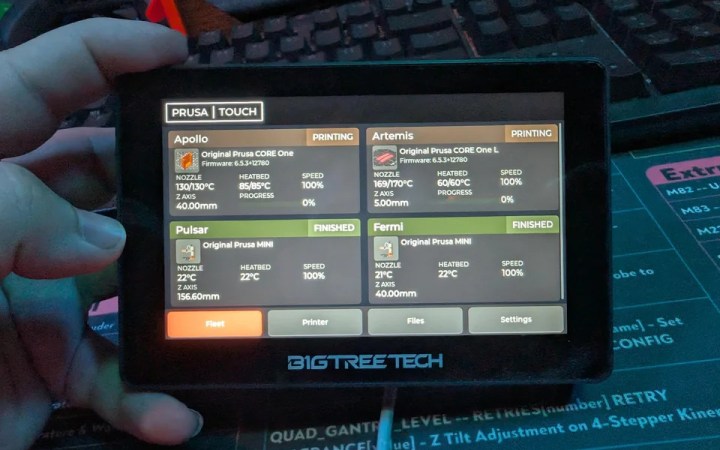
If you’ve got a few Prusa printers on the net and would like a dedicated interface for controlling them, check out this custom firmware for the BigTreeTech K-Touch and Panda Touch devices. These touch screen gadgets were originally intended for controlling printers running Klipper, but thanks to [Nomads Galaxy], they can now talk to Prusa printers either directly over the local network or through the Prusa Connect cloud API with a user interface that mimics the aesthetics of the official offerings.
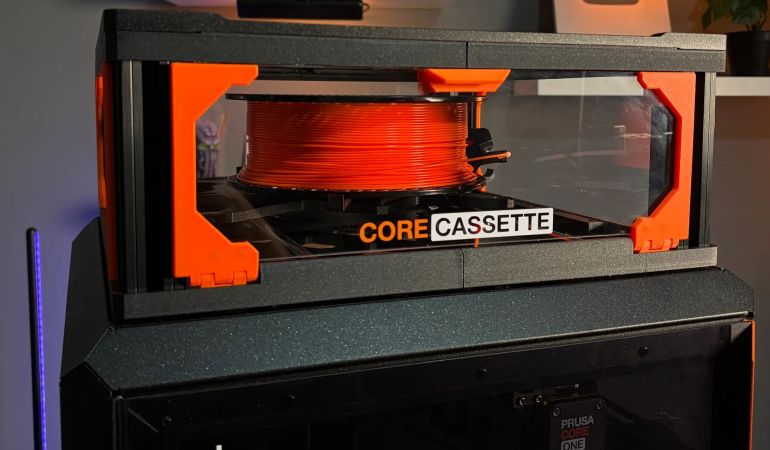
Unlike resin printers where you generally just pour the fresh resin into the easily accessible vat, FDM printers need to squirrel away at least one spool and its requisite holder somewhere. For bed slingers this generally means a top-mounted spool holder, while for CoreXY enclosed printers they can appear on the sides, top or – inexplicably – on the back. While a side-mounted spool is often convenient, access to the side can still be blocked, in which case you do what [3D Maker Noob] did and over-engineer a fancy top-mounted spool holder.
The problem started after converting a Prusa Mk4S to a Core One using the conversion kit, which changes the position of the spool, forcing him to work around not having access to the right side of the machine where the default position is. After a first version using many of the left-over parts of the original Mk4S to create a fancy box-shaped spool holder, he proceeded to upgrade it as detailed in the video. All project files and instructions are available on Printables.
The result is a box you stack on top of the printer somewhat like a multi-spool box, just flatter and with a flippy lid on the front from which a rail slides out with the magnetically attached spool holder. A spool holder which you naturally can further customize to fit different spools. Even if over-engineered, you can’t deny that it would fit in confined spaces and looks pretty good while doing its job.
[Prusa] have a number of announcements, and one of the more unusual ones is that liquid printing is coming to the Prusa XL. Specifically, printing in real, heat-resistant silicone (not a silicone-like plastic) is made possible thanks to special filament and a special toolhead. It’s the result of a partnership with Filament2, and the same process could even be used to print with other liquids, including chocolate.
Look closely and you will see the detail in the nozzle, which mixes the two-part formula.
The process is as unusual as it is clever. The silicone is a two-part formula, but there is no reservoir or pump involved. Instead, there are two filaments, A and B. When mixed, they cure into solid silicone.
What is unusual is that these filaments have a liquid core. Upon entering the extruder, the outer sheath is cut away, and the inner liquid feeds into a mini mixing nozzle. The nozzle deposits the mixed silicone onto the print, where it cures. It isn’t clear from the demo where the stripped outer casing goes, but we assume it must get discarded or is possibly stowed temporarily until it can be removed.
Liquid-core filament is something we certainly didn’t have on our bingo card, but we can see how it makes sense. A filament format means the material can be handled, fed, and deposited precisely, benefiting from all of the usual things a filament-based printer is good at doing.
What’s also interesting is that the liquid toolhead can co-exist with other toolheads on the XL; in fact, they make a point of being able to extrude silicone as well as the usual thermoplastics into the same print. That’s certainly a trick no one else has been able to pull off.
There are a few other announcements as well, including a larger version of their Core One printer and an open-source smart spool standard called OpenPrintTag, a reusable and reprogrammable NFC insert for filament spools that gives you all of the convenience of automating color and material reading without the subtle (or overt) vendor lock-in that comes with it.
Watch a demo of the new silicone extruder in the video, embedded just under the page break. The new toolhead will be 1,009 USD when it launches in early 2026.
It’s hard to overstate the impact desktop 3D printing has had on the making and hacking scene. It drastically lowered the barrier for many to create their own projects, and much of the prototyping and distribution of parts and tools that we see today simply wouldn’t be possible via traditional means.
What might not be obvious to those new to the game is that much of what we take for granted today in the 3D printing world has its origins in open source hardware (OSHW). Unfortunately, [Josef Prusa] has reason to believe that this aspect of desktop 3D printing is dead.
If you’ve been following 3D printing for awhile, you’ll know how quickly the industry and the hobby have evolved. Just a few years ago, the choice was between spending the better part of $1,000 USD on a printer with all the bells and whistles, or taking your chances with a stripped-down clone for half the price. But today, you can get a machine capable of self calibration and multi-color prints for what used to be entry-level prices. According to [Josef] however, there’s a hidden cost to consider.
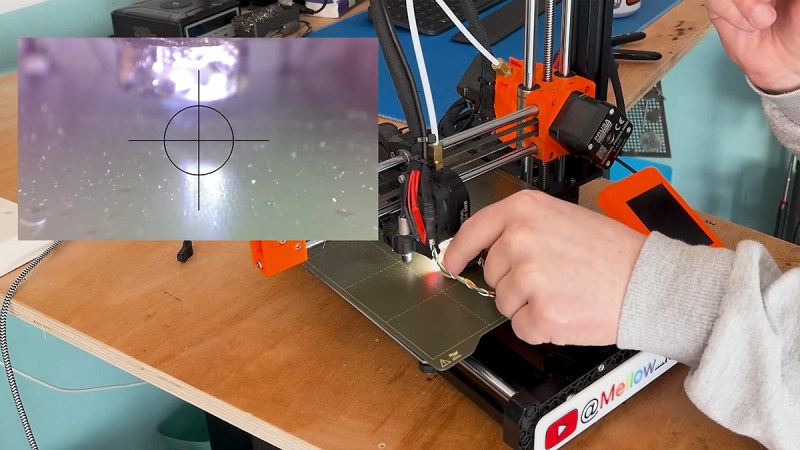
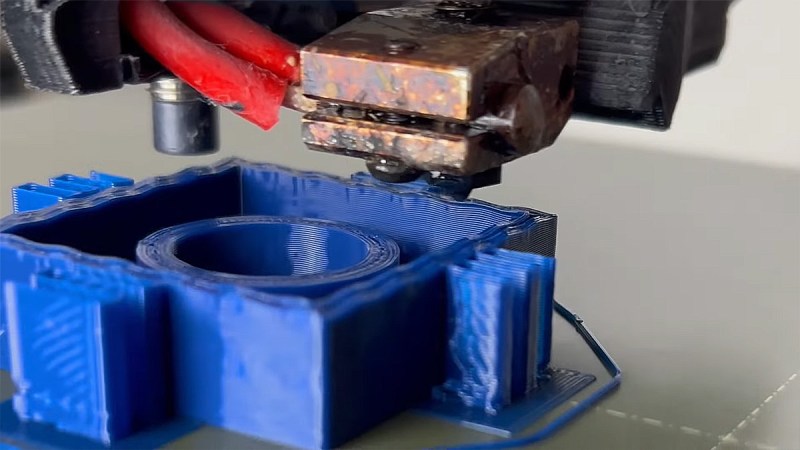
Let me throw in a curveball—watching your 3D print fail in real-time is so much more satisfying when you have a crisp, up-close view of the nozzle drama. That’s exactly what [Mellow Labs] delivers in his latest DIY video: transforming a generic HD endoscope camera into a purpose-built nozzle cam for the Prusa Mini. The hack blends absurd simplicity with delightful nerdy precision, and comes with a full walkthrough, a printable mount, and just enough bad advice to make it interesting. It’s a must-see for any maker who enjoys solder fumes with their spaghetti monsters.
What makes this build uniquely brilliant is the repurposing of a common USB endoscope camera—a tool normally reserved for inspecting pipes or internal combustion engines. Instead, it’s now spying on molten plastic. The camera gets ripped from its aluminium tomb, upgraded with custom-salvaged LEDs (harvested straight from a dismembered bulb), then wrapped in makeshift heat-shrink and mounted on a custom PETG bracket. [Mellow Labs] even micro-solders in a custom connector just so the camera can be detached post-print. The mount is parametric, thanks to a community contribution.
This is exactly the sort of hacking to love—clever, scrappy, informative, and full of personality. For the tinkerers among us who like their camera mounts hot and their resistor math hotter, this build is a weekend well spent.
Strenghtening FDM prints has been discussed in detail over the last years. Solutions and results vary as each one’s desires differ. Now [TenTech] shares his latest improvements on his post-processing script that he first created around January. This script literally bends your G-code to its will – using non-planar, interlocking sine wave deformations in both infill and walls. It’s now open-source, and plugs right into your slicer of choice: PrusaSlicer, OrcaSlicer, or Bambu Studio. If you’re into pushing your print strength past the limits of layer adhesion, but his former solution wasn’t quite the fit for your printer, try this improvement.
Traditional Fused Deposition Modeling (FDM) prints break along layer lines. What makes this script exciting is that it lets you introduce alternating sine wave paths between wall loops, removing clean break points and encouraging interlayer grip. Think of it as organic layer interlocking – without switching to resin or fiber reinforcement. You can tweak amplitude, frequency, and direction per feature. In fact, the deformation even fades between solid layers, allowing smoother transitions. Structural tinkering at its finest, not just a cosmetic gimmick.
This thing comes without needing a custom slicer. No firmware mods. Just Python, a little G-code, and a lot of curious minds. [TenTech] is still looking for real-world strength tests, so if you’ve got a test rig and some engineering curiosity, this is your call to arms.
If you’ve wanted to get in on the “fuzzy skin” action with 3D printing but held off because you didn’t want to fiddle with slicer post-processing, you need to check out the paint-on fuzzy skin generator detailed in the video below.
For those who haven’t had the pleasure, fuzzy skin is a texture that can be applied to the outer layers of a 3D print to add a little visual interest and make layer lines a little less obvious. Most slicers have it as an option, but limit the wiggling action of the print head needed to achieve it to the XY plane. Recently, [TenTech] released post-processing scripts for three popular slicers that enable non-planar fuzzy skin by wiggling the print head in the Z-axis, allowing you to texture upward-facing surfaces.
The first half of the video below goes through [TenTech]’s updates to that work that resulted in a single script that can be used with any of the slicers. That’s a pretty neat trick by itself, but not content to rest on his laurels, he decided to make applying a fuzzy skin texture to any aspect of a print easier through a WYSIWYG tool. All you have to do is open the slicer’s multi-material view and paint the areas of the print you want fuzzed. The demo print in the video is a hand grip with fuzzy skin applied to the surfaces that the fingers and palm will touch, along with a little bit on the top for good measure. The print looks fantastic with the texture, and we can see all sorts of possibilities for something like this.