PyCharm vs. Sublime Text

This blog post is about comparing two popular development tools and text editors, Sublime Text and PyCharm to each other. This blog post is written from the perspective of professional software development or if the programming is what you do for living.

[toc]

Preface: meet the contenders

I have been developing Python for a decade now in various environments. Few weeks ago, I decided to make a shift from Sublime Text 3 to PyCharm as my primary tool for typing in code on OSX. I tried PyCharm long time ago and I was dissatisfied – PyCharm is built on Java software stack and UI issues, alongside “Java software bloat”, were major turn off for me by the time. But the times change, hardware gets more powerful and it was time for me to reconsider my decision.

Sublime Text is a commercial programmer’s text editor being in development since 2008. Its major selling points are speed, powerful code text editing features (multicursor), cross platform support, customizations and plugin ecosystem. Currently Sublime Text version 3 is in beta. Though the development slowed down in one point, as Sublime Text has been mostly one man show, new Sublime Text builds roll out now regularly. Sublime Text costs 70 USD. Unless you purchase a license you’ll be notified by a nagging dialog.

PyCharm is a child of JetBrains IntelliJ IDEA family of editors. First PyCharm was released 2010, but the IDE codebase goes all way back to IntelliJ IDEA which was released as far back as 2001 – I remember doing Java development on IntelliJ in 2004. PyCharm is developed by Czech company JetBrains, having over 400 employees. PyCharm shares most of the features with other IDEA family IDEs, which means it has robust HTML, JavaScript and CSS support. PyCharm license costs 199 EUR / year (professional), 99 EUR / year (individual) and there is also free community edition. The community edition is 100% open source.

Though Sublime Text is not an IDE per se, many Python and JavaScript developers I know use it as “development platform”. This is possible because active Sublime Text community provides tools to optimize your development workflow – namely to support autocomplete, syntax highlighting and background linting and various programming languages.

There are also other well know options for Python development, including PyDev (LiClipse), Komodo IDE and WingWare IDE.

Feature highlights both in Sublime Text and PyCharm

Sublime Text and PyCharm have integrated plugin manager. Sublime Text Package Control is not built in, making the initial adoption more hassle. On the other hand I found PyCharm’s plugin installer to be more cumbersome to use – more clicks. Reminds me of those Windows EXE installers.

packagecontrol

Installing a new plugin in Sublime Text is only few keystrokes

Screen Shot 2015-05-02 at 14.30.05

PyCharm Plugins dialog is a lot of buttons

Sublime text has been famous for its multicursor feature. With the release of PyCharm 4.0 it gained the multicursor support. It does not work exactly as in Sublime Text, but close enough.

The editors enjoy plenty of themes available and both support my favorite Twilight theme. Also to further make the text more readable Source Code Pro font renders out nicely on OSX.

The text editors are good for Python editing and have e.g. indention guidelines and fast toggle soft text wrap options.

Screen Shot 2015-05-02 at 14.35.08

Sublime Text pros

Sublime Text beats PyCharm in few points and I miss these features in PyCharm, though some of them can be replaced using PyCharm alternatives.

Sublime Text’s Go To Anywhere is more powerful. Press CMD+T and type in few letters of  package and module name.  Go To Anywhere finds the suitable match. PyCharm Navigate -> File or Navigate -> Symbol are not as powerful as their heuristics seem to need more typing to get where you want.

gotoanywhere

Jumping to cryptoassets.core.backend.base in Sublime Text

Whereas PyCharm has a scrollbar with color hints to highlight next TODO / warning / error place, Sublime Text has a minimap. Scrolling around with the minimap is more powerful as your eyes see the structure of the file unfolding.

Screen Shot 2015-05-02 at 14.45.03

Sublime Text minimap shows outline of the file in visual

Sublime Text user interface is OpenGL accelerated and it runs smoothly 60 FPS all the time, making it pleasant for the eye and for typing. PyCharm is slower, though the difference is not so noticeable anymore after you pour in enough money to your hardware.

The Sublime Text plugin community is more vibrant. There are more plugins available, they get more support. For example if you need to do polyglot programming in rare languages, like R, Erlang or Haskell, there is guaranteed to be good Sublime Text support. Also if you write documentation in Restructured Text or Markdown PyCharm did not have such good plugins as one gets for Sublime Text.

Restructured Text syntax highlighting in Sublime Text

Restructured Text syntax highlighting in Sublime Text

As this blog post is mostly about Python development, one cannot dismiss the fact that Sublime Text plugins are self-contained Python modules – not cumbersome Java projects. It is very easy to write them, though Sublime Text plugin API is somewhat limited. There is even a menu entry New plugin. This might be one of the fact explaining why the Sublime Text plugin ecosystem is so healthy.

Screen Shot 2015-05-02 at 14.55.48

Creating Sublime Text plugin

PyCharm pros

PyCharm is big. The editor has history since 2001, it comes tons of features out of the box. It is very polished and it does most of the features very well – after all selling IDEs is the main business for JetBrains – for example compared IBM’s Eclipse whereas IBM’s main business is sell IBM services. With PyCharm you need to spent little time to tune up your programming environment or hunt plugins for your basic development needs (Python, JavaScript, HTML, CSS).

PyCharm comes with an integrated debugger. You can double click to set breakpoints in your editor and then run your application to stop on the line. But you still don’t lose the ability of drop into an interactive IPython shell when hit to the breakpoint:

pydev debugger

Dropping into IPython session after PyCharm stops in a Python breakpoint

Though I did find the PyCharm debugger slowing down the application too much. For example, when running a Pyramid website application inside the debugger the automatic restart cycle became too slow. You had to wait each restart more than ten seconds. This kills the basic web development flow: edit – save – refresh. Maybe there is a way to speed up the debugger for large projects – please somebody tell me?

Then the major reason why I switched over – due to limitations in Sublime Text plugin API one simply could not get run output where one can click Python traceback and is taken where the error happened.

pydev traceback

Click Python traceback to navigate around the codebase and find the error root cause

I found this lovely navigation bar a quick fix to navigate around to related modules – partially compensates the lack of powerful Go To Anywhere as in Sublime Text:

navbar

PyCharm shows the path to the current file as interactive navigation bar

Autocomplete, autoimport and other code intel and refactoring tools work better in PyCharm. With Sublime Text you need to play around with a lot of plugins to get decent autocomplete. Sublime Text plugins have their own, incompatible settings and need a lot of manual package installation (pip install flake8, etc). In PyCharm I just hit alt+enter on a missing symbol and it got added as the import at the beginning of the file. Though I could not change it to format the import as I want – one import statement per one line.

PyCharm does background spellchecking of written text and Python docstrings. It’s very handy if you want to write high quality software with meaningful comments and API descriptions.

PyCharm has more robust integrated version control support (Git, SVN). Though Sublime Text has plugins for this, Sublime Text plugin API offers only very limited UI interaction and you cannot, for example, color files in the project explorer based on their edit status.

PyCharm has Power save mode. It disables background tasks like code intel which are  CPU drainage for large projects. This makes digital nomading much more fun when you are fighting over the single available power plug in a hostel on a remote island.

PyCharm has integrated terminal and run window, though it has shortcomings and doesn’t seem to behave like a real terminal.

PyCharm has integrated unit test runner. But it did not work for my py.test and splinter browser tests, as it seems to behave differently than virtualenv’ed tests launched from command line.

Conclusion and the future

After few weeks I found myself using PyCharm for the most of my programming needs. The key pain points PyCharm solved for me where robust code intel tools, better Python application run and debug support, with traceback clicking. The development efficiency gained from these features is enough to migrate over, even though there are features I miss in Sublime Text. However, these editors sync files perfectly and I can always alt+tab switch to Sublime Text when I need to write some Restructured Text or Markdown.

I am looking forward for the upcoming contender Github’s atom.io editor which has the ease and flexibility of Sublime Text plugin system, but with better features, UI integration and big development-oriented company backing it up. Atom team is still working on getting the basic architecture together, so it might be few years until we see robust Python tools on Atom. I’d guess HTML, CSS and JavaScript support get there sooner, as they are building the Atom itself on CoffeeScript.

\"\" Subscribe to RSS feed Image Follow me on Twitter Image Follow me on Facebook Image Follow me Google+

Charming social media icons with Font Awesome and CSS3

In this blog post I’ll show you how to create and style social media icons (Facebook, Twitter, Google Plus, etc.) easily for your site using Font Awesome font icons.

Font Awesome provides an iconset as a TrueType font, meaning that you can render and manipulate icons as you would manipulate text with CSS. Each letter corresponds one icon – think Microsoft Windows Wingdings fonts. Icon set is large and the theme is webby, so you’ll find an icon for all your website needs.

Font Awesome goes down well with popular Twitter Bootstrap CSS & JS library as it has  compatible HTML5 markup and icon naming conventions, though it can be used separately too.

Screen Shot 2013-04-22 at 9.53.26 PM

Update: heard that there is might be an issue with Microsoft Windows and Google Chrome to render these icons. I am seeing if there is a workaround for that and what triggers the condition. Font Awesome has subpixel hinting and should be pixel perfect at 14 px. I’ll post more info when I have time to further take a look on this issue.

Why to use it?

Approach presented here is simply superior to any other approach.

Pros

  • Colors can be adjusted with CSS3, with gradients and all that bling bling
  • Scalable graphics
  • High DPI (“retina”) compatible
  • Simple HTML markup: just <i class=”icon icon-foo”></i>. No CSS sprite preprocessing or other workflow complications needed.
  • Can be animated with CSS3 transitions
  • Easily match the link text color for monotone icons
  • FontAwesome can be served from CDN – no need to drop any files on your hosting as bootstrapcdn.com content delivery network hosts the files for you
  • Works with legacy browsers (IE7+)

Cons

  • These icons might not be exactly in the line with the brand guidelines of the service. But these guidelines are mostly guidelining, feel free to ignore them like the other 100000+ websites out there do.
  • Pixel pushing artists become sad
  • Does not work outside browser context: email, RSS

Example

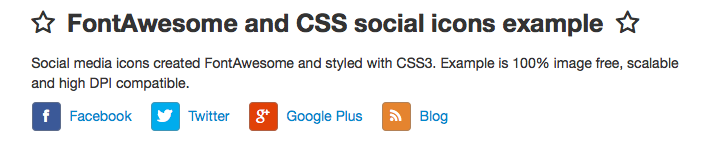
Below you see a live <iframe> example. The example tries to be straightforward: you could further make icons look better by e.g. fine-tuning border style and using gradients instead of plain color backgrounds.

See source code on Github.

Source code: HTML (for the latest version please see Github)

  <!doctype html>
  <html>

    <head>

        <!-- Load Bootstrap and FontAwesome CDN'ed from bootstrapcdn.com -->
        <link href="//netdna.bootstrapcdn.com/twitter-bootstrap/2.3.1/css/bootstrap-combined.no-icons.min.css" rel="stylesheet" />

        <link href="//netdna.bootstrapcdn.com/font-awesome/3.0.2/css/font-awesome.css" rel="stylesheet" />

        <link href="style.css" rel="stylesheet" />

    </head>
    <body>

        <div class= "container">

            <h1><i></i>FontAwesome and CSS social icons example<i></i></h1>

            <p>Social media icons created FontAwesome and styled with CSS3. Example is 100% image free, scalable and high DPI compatible.</p>

            <div id="social-bar">
                <a href="https://www.facebook.com/pages/Open-Source-Hacker/181710458567630">
                    <i></i>
                    <span>Facebook</span>
                </a>
                <a href="https://twitter.com/moo9000">
                    <i></i>
                    <span>Twitter</span>
                </a>
                <a href="https://plus.google.com/103323677227728078543/">
                    <i></i>
                    <span>Google Plus</span>
                </a>
                <a href="http://opensourcehacker.com/">
                    <i></i>
                    <span>Blog</span>
                </a>
            </div>

        </div>

        <script src="//netdna.bootstrapcdn.com/twitter-bootstrap/2.3.1/js/bootstrap.min.js"></script>

    </body>
</html>

Source code: CSS (for the latest version please see Github)

.container {
    width: 620px;
}

h1 {
    font-size: 25px;
}

h1 .icon:first-child {
    margin-right: 0.5em;
}

h1 .icon:last-child {
    margin-left: 0.5em;
}

/* Create square icons, white logo on colored background */

#social-bar .icon {
    color: white;
    border-radius: 4px;
    border: 1px solid rgba(128, 128, 128, 0.5);
    min-width: 27px;
    line-height: 27px;
    text-align: center;
}

#social-bar a {
    margin-right: 5px;
    padding: 5px; /* Increase hit rectangle for touch devices */
}

#social-bar a:first-child {
    padding-left: 0;
}

/* Set icon color related to the service */

#social-bar a span {
    margin-left: 5px;
}

#social-bar .icon-rss {
    background: #e5842f;
}

#social-bar .icon-facebook {
    background: #3B5998;
}

#social-bar .icon-twitter {
    background: #00ACED;
}

#social-bar .icon-google-plus {
    background: #E14107;
}

/* Don't underline icon etc. */
#social-bar a:hover {
    text-decoration: none;
}

#social-bar a:hover span {
    text-decoration: underline;
    color: #333333; /* Match icon highlight color */
}

/* Animate mouse hover */
#social-bar a .icon {
   transition: background 0.5s;
}

#social-bar a:hover .icon {
    background: #333333;
    transition: background 0.5s;
}

\"\" Subscribe to RSS feed Image Follow me on Twitter Image Follow me on Facebook Image Follow me Google+

Opening files from Firebug in Sublime Text 2 or any text editor

I have the following use case in my web application development workflow

Image

Effectively you right click any source code line in Firebug on any web server and you can open the corresponding source code line it in your favorite text editor. This also works for Javascript stack traces.

Image

Firebug has an external editor feature. However the external editor configuration does not support mapping URLs to files. Since I do stuff like WebGL and AJAX I cannot work with file:// protocol, but I use Python’s SimpleHTTPServer as a development server. I had to figure out a way to map URLs (http://localhost:8000) from Firebug to my local files on the hard drive (/Users/mikko/code/xxx) .

Thus, I created the Python script below. It takes four arguments URL (supplied by Firebug), line number (supplier by Firebug), base URL and base directory to map URLs to files on the hard disk. You can create several Firebug external editor configuration entries for different URLs.

On OSX, Firebug is picky and does not allow pass arbitrary UNIX binaries as external editor. Thus, you need to wrap the script using py2app or download the ready firebug-subl app (Mountain Lion) from Github and drop it in /Applications.

I also run for the two following bugs in Firebug 1.10.4 (not reported by me yet)

  • Cannot open the external editor if the URL starts with http://localhost (see the script below how to configure /etc/hosts for a workaround)
  • Cannot open the external editor in some cases if there are spaces in the command line (had to use | as the separator)

… caused some hair pulling.

Firebug’s external editor configuration menu can be hard to find:

Image

And here is a sample config:

Image

Further instructions in the script itself.

Note that the script outputs to /tmp/firebug-subl.log as there didn’t seem to be a way to get console output from the external editor otherwise. If this file doesn’t get created Firebug doesn’t even try to run the script (or the wrapper app) as with the bugs mentioned above.

And then the cake, firebug-subl.py. A possible updated version will appear on ztanesh repo on Github:

"""

    Firebug - Sublime Text 2 connector.

    Allows you to open any Firebug files in Sublime Text 2 text editor.
    Maps URLs to files.

    Usage::

        firebug-subl [url]|[line-no]|[base-url]|[base-directory]

    Note that we use pipe separation because of Firebug 1.10.4 seems
    to have a bug with space separation.

    Example configuration line in Firebug editor settings::

        %url|%line|http://firebugbugs:8000|~/code/mixnap-base/krusovice-src

    ... this will open all files from http://firebugbugs:8000 as they
    were on the directory /Users/mikko/code/mixnap-base/krusovice-src on the disk.

    Note: Firebug seems to have a bug that if the domain name in the URL
    is localhost it doesn't even try to start the editor. Thus you need
    to resolved /etc/hosts tricks to spoof your localhost with some other
    name if you run a local development server::

        127.0.0.1   localhost firebugbugs

    Shell expansion supported.

    Starting Firefox from command-line for debugging::

        /Applications/Firefox.app/Contents/MacOS/firefox

    Because of Firebug's Select application retardness this script must be wrapped with py2app on OSX
    before Firebug allows you to pick this script as a legal choice.
    In clean virtualenv::

        # We need py2app trunk version for OSX Mountain Lion as the writing of this (altgraph > 0.10)
        # First install hg command (mercurial)
        pip install setuptools-hg
        pip install -e hg+https://bitbucket.org/ronaldoussoren/altgraph#egg=altgraph
        pip install -e hg+https://bitbucket.org/ronaldoussoren/macholib#egg=macholib
        pip install -e hg+https://bitbucket.org/ronaldoussoren/modulegraph#egg=modulegraph
        pip install -e hg+https://bitbucket.org/ronaldoussoren/py2app#egg=py2app
        py2applet firebug-subl.py && cp -r firebug-subl.app /Applications

"""

__author__ = "Mikko Ohtamaa <http://opensourchacker.com>"
__license__ = "MIT"

import os
import sys
import subprocess
import logging
import urllib

# Write debug output to a file as we don't otherwise get any feedback
# if this script fails
logger = logging.getLogger("firebug-subl")
hdlr = logging.FileHandler('/tmp/firebug-subl.log')
logger.addHandler(hdlr)
logger.setLevel(logging.INFO)

# Add your installation here if missing
LOCATIONS = [
    "C:\\Program Files\\Sublime Text 2\\sublime_text.exe",
    "/home/ed/apps/sublime_text_2/sublime_tex",
    "/Applications/Sublime Text 2.app/Contents/SharedSupport/bin/subl"
]

def guess_subl():
    """
    Guess the editor location.
    """
    for loc in LOCATIONS:
        if os.path.exists(loc):
            return loc

    return None

def main():
    """
    Main magic.
    """

    logger.info("Got command-line: %s" % sys.argv)

    # Where subl lives?
    editor = guess_subl()
    if not editor:
        logger.error("Could not find Sublime Text 2")
        return

    # Read command-line
    # Here we need to have some hacks as for some reason space
    # space separated command line was broken on Firebug 1.10.4
    mega_arg = sys.argv[1]

    # Seems to be urlfied...
    mega_arg = urllib.unquote(mega_arg)

    url, line, base_url, base_dir = mega_arg.split("|")

    # Map Javascript file location from URL to a file on a disk
    path = url.replace(base_url, base_dir)

    # Replace tilde with the user home dir
    path = os.path.expanduser(path)

    if not os.path.exists(path):
        logger.error("Tried to open non-existing file %s - please check your URL-directory mapping" % path)
        return

    # Create a Sublime Text 2 style direct line in a file pointer
    hint = path + ":" + line

    logger.info("Launcing %s with %s" % (editor, hint))

    # Call Sublime Text to open the file in the current project.
    # Create process with shell variable expansion
    subprocess.call([editor, hint], shell=False)

try:
    main()
except Exception as e:
    logger.exception(e)

–


\"\" Subscribe to RSS feed Image Follow me on Twitter Image Follow me on Facebook Image Follow me Google+

Never use hard tabs

Update: This post has been updated to address some of the claims in the comments. Please note that most of these claims are wrong 🙂

As there seems to be some confusion when hard tab characters (ASCII code 9) are appropriate in source code files here is a rule:

1) Never use hard tabs

1. 1) Unless your source code is hard tab sensitive (only such format I know is Makefile)

Reasons not to use hard tabs

  • Due to legacy, different text editors treat hard tabs different. UNIX text editors prefer hard tab is 8 spaces, Windows text editors and IDEs (Eclipse) prefer that a hard tab is 4 spaces.
  • The hard tab length agreement between different text editors cannot be reached
  • The hard tab length agreement between people cannot be reached
  • Thus, hard tabs may break source code readability and editability if there is more than a single person editing the file. They will open the file in an editor with different tab settings, edit it and next time you open the file it is ruined and all indentations are wrong.
  • This is even worse on white space sensitive languages (Python, CoffeeScript) as this might actually cause syntax errors or programming logic errors

However, you can avoid this problem in the first place if you do indentation using soft tabs (spaces) instead.

Even if you were the single person in the world editing the text file, even you might switch the text editor in some point and accidentally shoot yourself in the leg.

Using soft tabs for indentation and having no hard tabs should not be a problem because

  • All text editors can convert tabs to spaces in fly, when editing the file. Please note me if there are commonly used editors, besides Windows Notepad, which doesn’t do it yet.
  • Text editors usually have different settings to tab key length and indentation settings. The latter is what you really want to adjust.

Pseudo-arguments for using hard tabs

  • It makes the file size smaller: you really care about those twenty bytes on your gigabyte hard disks?
  • This one I made up: spaces count toward the file size in web stuff, because visitors download the files. However if those bytes really matter you that much you should be using a minimizer in the first place.
  • I like them arguments…: rationale not involved
  • The change resistance in human nature

You might have a legacy software project having its legacy style guides. If the project big, e.g. Linux kernel, the switching cost may be very high and not affordable. However, even with this kind of codebase, you can gradually replace hard tabs away.

Style guides (updated)

Hard tabs are required only in Makefile syntax and preferred only in Go style guides. This is because people have learn by experience that hard tabs cause mess when working with other people.

Tab character is not semantically the same as indent level (updated)

There is no style guide or coding conventions saying that the tab character should the indent. This assumption is easy to make because it allows you to stick your head into a sand, ignore the surrounding world and by singing “let the users pick their own tab width” mantra. However, though a cunning idea, this perceived simplicity causes compatibility and co-operation issues which this post tries to highlight.

The user should choose to their own tab width (updated)

To choose your own preference is the rationale many people claim is the reason for indentation by tabs. “Let the users pick their own preference for indentation” However if you indent to work with other people the recommendation is to stick to the programming language recommendation. This way people can be more easily pick up the codebase.

There is nothing gained by having “user chooseable indentation width by adjusting tab character width”. The most used indentation width is 4 spaces anyway, so it is extra effort to maintain the freedom to have a user pickable indent width number instead.

Try to go to tell some old UNIX admin that they must adjust their editor tab width (see below).

Tab width is 8 spaces and don’t mess with it (updated)

People who use tabs as indent assume tab one tab = one indent and they can freely adjust the tab width, so that the indentation looks nice. However

  • By legacy, the tab character width is 8 spaces and most of the software out there makes this assumption. If you use any other value for tab width you are breaking this legacy social contract and you are making it for other peoples more difficult to work with your project.

This really limits the ability of using tabs as indent, because 8 spaces tabs often don’t make sense as indent (exception in system style C programming like with Linux kernel).

It’s ok if you work with the code in only one text editor alone where you have this one setting for tab width and that’s the only setting in the world controlling the tab width in your source code project. But when someone else must read or edit the code

  • Others must adjust tab width to make your code more readable
  • Adjusting tab widths from 8 spaces might be very difficult when working with other toolchains (e.g. you are viewing the code in terminal using cat)

Also in the languages where the recommended indentation level is only two spaces it would make it little funny to use one tab character just to have two spaces.

Tabs cannot be used to format code multi-line functions (updated)

Some people prefer to format long argument lists like this. A Python example which would break because of mixed tabs and spaces if tabs are used as indentation

call_a_function(argument,
                very_long_argument="something",
                even_longer_argument="something_else)

 Or in C

   if (first condition
       second condition)

Text editors

If you are a text editor author, make sure your text editor ships with hard tabs turned off by default, especially for whitespace sensitive languages if you vary tab policy by file type.

Note that this blog post, and the situation, could have been avoided if

  • All text editors would have sticked to soft tabs by default
  • All text editors would have sticked to a hard tab is 8 spaces by default

But in some point (when?) someone (who?) decided to make our life little more complex.

Tools for managing hard tab policy in your software project

\"\" Subscribe to RSS feed Image Follow me on Twitter Image Follow me on Facebook Image Follow me Google+