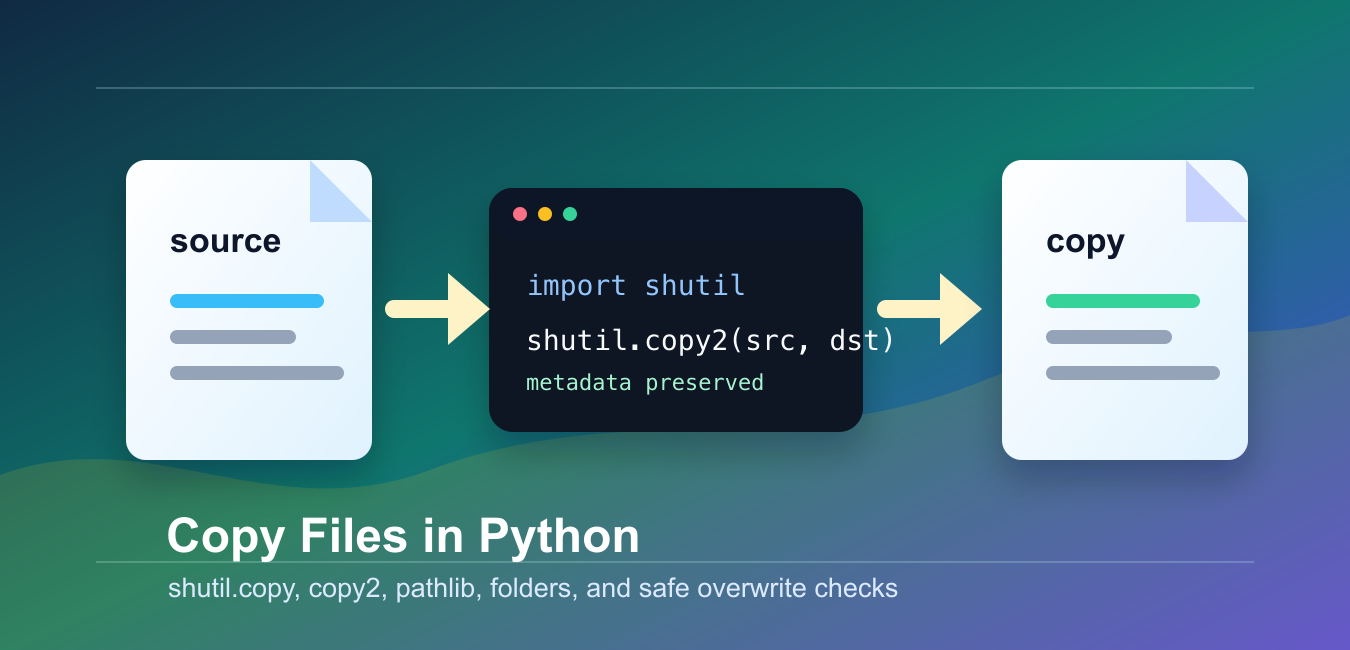
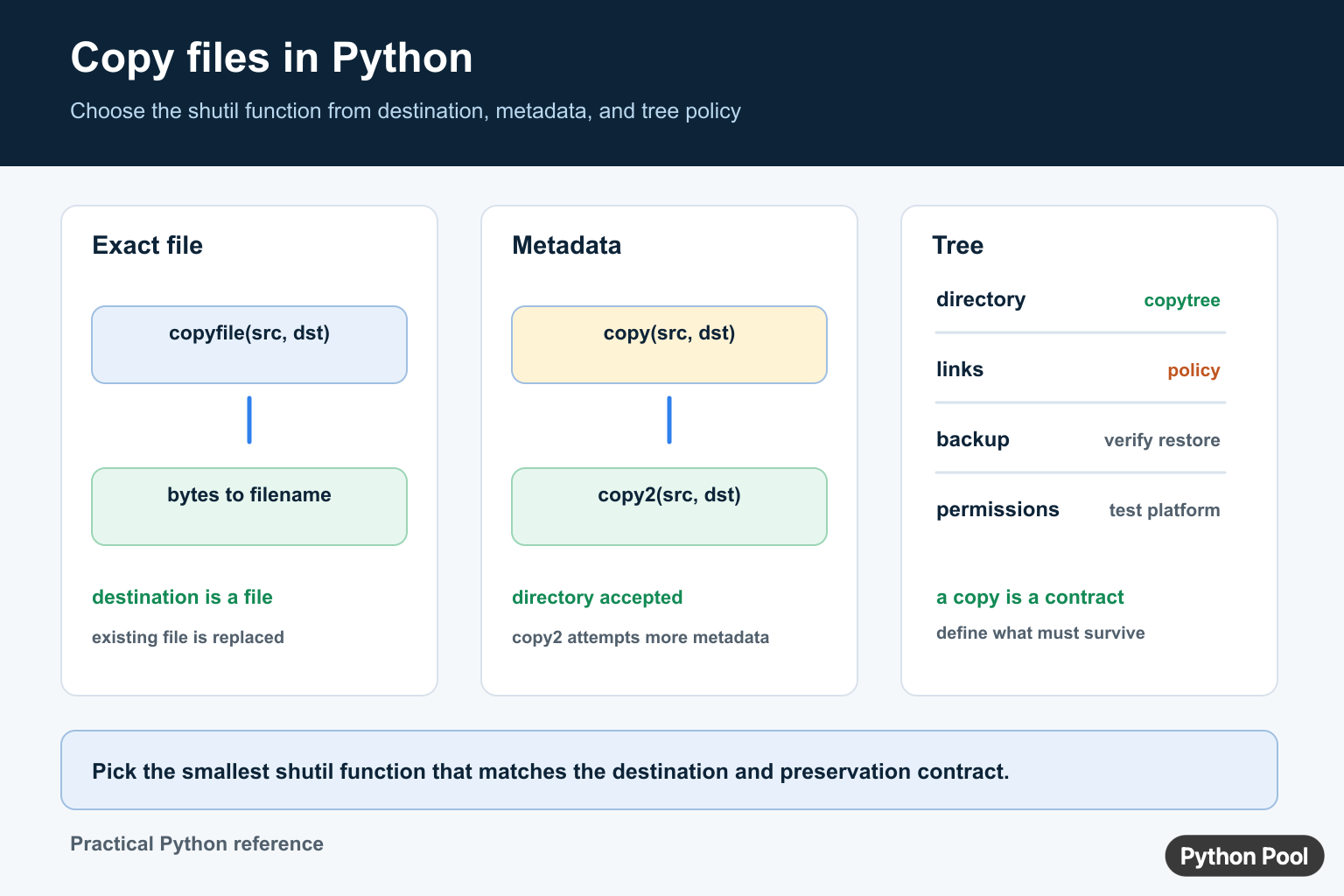
Quick answer: Use shutil.copyfile() when you need file contents at an exact destination, shutil.copy() when the destination may be a directory and permission mode matters, or shutil.copy2() when you want to attempt to preserve metadata.
The safest standard way to copy a file in Python is the shutil module. It handles the byte transfer for you and gives you separate functions for copying file content, permission bits, and metadata.
The main references are the official shutil documentation, pathlib documentation, and os.path documentation.
Use shutil.copy() when you only need file content and permissions. Use shutil.copy2() when the destination should keep metadata such as modification time where the operating system supports it.
Before copying, decide how your program should handle missing source files, destination folders that do not exist, and existing files with the same name. Those choices are more important than the one-line copy call.
Also decide whether you are copying a single file, a group of matching files, or an entire folder tree. A file copy and a directory copy use different functions. Keeping those cases separate makes the script easier to test and safer to run more than once.
Use absolute paths for scheduled jobs and automation, or build paths from a known project root. Scripts launched from cron, system services, or task runners may not start in the folder you expect.
Copy One File
shutil.copy() copies the source file to a destination file or destination folder.
from pathlib import Path
import shutil

source_path = Path("reports/summary.txt")
target_path = Path("backups/summary.txt")

target_path.parent.mkdir(parents=True, exist_ok=True)
shutil.copy(source_path, target_path)

print(target_path.exists())
If the second path is an existing folder, Python keeps the original file name inside that folder. If the second path is a file path, Python writes to that exact path.
This example creates the target folder first. Without that step, the copy fails when the parent folder is missing.
Preserve Metadata With copy2
copy2() is usually the better default for backups because it tries to preserve metadata in addition to content and permissions.
from pathlib import Path
import shutil

source_path = Path("notes/today.txt")
target_path = Path("archive/today.txt")

target_path.parent.mkdir(parents=True, exist_ok=True)
result_path = shutil.copy2(source_path, target_path)

print(result_path)
The returned value is the path to the copied file. You can log it, store it, or use it in a later step.
Metadata support differs by platform. Treat metadata preservation as best effort, not as a portable security or audit guarantee.
Avoid Accidental Overwrites
By default, copy functions replace an existing destination file. Add an explicit guard when overwriting would be dangerous.
from pathlib import Path
import shutil

source_path = Path("input/data.csv")
target_path = Path("output/data.csv")

if target_path.exists():
    raise FileExistsError(f"Refusing to replace {target_path}")

target_path.parent.mkdir(parents=True, exist_ok=True)
shutil.copy2(source_path, target_path)
This guard is simple and readable. It also gives you a single place to change behavior later, such as adding a timestamp or choosing a new file name.
For command-line tools, print a clear message before raising or returning an error code. Silent overwrites are hard to diagnose.
Copy Many Files From A Folder
Use Path.glob() to find files that match a pattern, then copy each file into the destination folder.
from pathlib import Path
import shutil

source_dir = Path("exports")
target_dir = Path("backups/exports")
target_dir.mkdir(parents=True, exist_ok=True)

for source_path in source_dir.glob("*.csv"):
    target_path = target_dir / source_path.name
    shutil.copy2(source_path, target_path)
    print(f"Copied {source_path.name}")
This copies only files ending in .csv. Change the glob pattern for text files, logs, or other extensions.
If the folder tree has nested subfolders, use rglob() and recreate the relative folders in the target location.
Copy Binary Files The Same Way
shutil copies bytes, so it works for text files, archives, database exports, and other binary files.
from pathlib import Path
import shutil

source_path = Path("build/app.zip")
target_path = Path("releases/app.zip")

target_path.parent.mkdir(parents=True, exist_ok=True)
shutil.copyfile(source_path, target_path)

print(target_path.stat().st_size)
copyfile() requires both arguments to be file paths. It does not accept a destination folder by itself.
Use copyfile() when you want a strict file-to-file copy. Use copy() or copy2() when a destination folder should also be accepted.
For symbolic links, read the shutil options carefully. Some functions can copy link targets, while others can work with the link itself when the platform supports it. Pick the behavior deliberately instead of relying on defaults.
Handle Copy Errors
File operations can fail because of missing paths, permissions, locked files, or full disks. Catch only the errors you can handle.
from pathlib import Path
import shutil

source_path = Path("reports/monthly.txt")
target_path = Path("backups/monthly.txt")

try:
    target_path.parent.mkdir(parents=True, exist_ok=True)
    shutil.copy2(source_path, target_path)
except FileNotFoundError as exc:
    print(f"Missing path: {exc.filename}")
except PermissionError as exc:
    print(f"Permission denied: {exc.filename}")
Let unexpected errors surface during development. Broad exception handling can hide real file-system problems and make data loss harder to detect.
The practical default is copy2() with pathlib.Path, a parent-folder creation step, and a clear overwrite policy. That gives you readable code and predictable behavior across common scripts.
When copying user-supplied paths, validate the allowed source and destination roots before running the copy. That prevents a helper script from writing outside the folder it is meant to manage.
For large files, avoid reading the whole file into memory just to write it elsewhere. The shutil functions already stream data in chunks and may use faster platform-specific copy operations internally.
After a copy completes, verify what matters for your use case. A backup script might check file size and timestamp. A data pipeline might check that the destination file exists before moving to the next step. A deployment helper might also compare a checksum. For copying across hosts rather than within one filesystem, Python SCP File Transfer Guide adds SSH authentication and SCP transfer handling.
Choose The Copy Contract
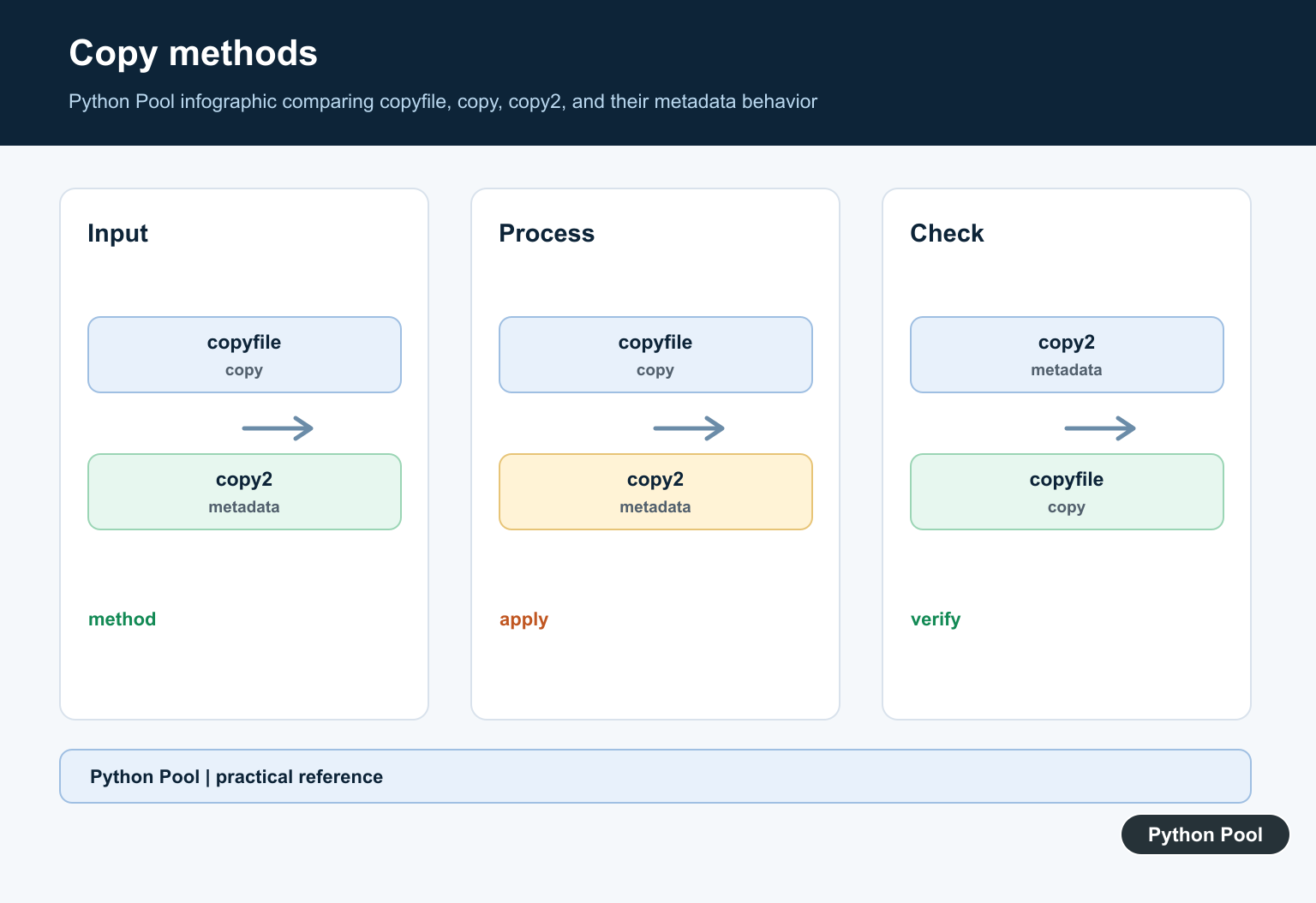
File copying has three separate concerns: bytes, destination naming, and metadata. copyfile() requires the complete destination filename and replaces an existing file. copy() accepts a directory and copies the permission mode. copy2() attempts to preserve more metadata, but no function can preserve every owner, ACL, resource fork, or platform-specific attribute everywhere.
from pathlib import Path
import shutil

source = Path("input/report.csv")
target = Path("archive/report.csv")
target.parent.mkdir(parents=True, exist_ok=True)
shutil.copy2(source, target)
Protect The Destination
Decide whether overwriting is allowed before calling a copy function. For an important artifact, copy to a temporary name, flush or close the writer that created it, then replace the final destination according to the application’s atomicity requirements. Check that the source is a regular file and that source and destination are not the same file.
When copying a directory tree, use copytree() with an explicit destination and ignore policy. Do not assume a copy is a backup until permissions, links, timestamps, and restore behavior have been tested on the target platform.
Frequently Asked Questions
How do I copy a file in Python?
Use shutil.copyfile() for an exact file destination, or shutil.copy() when the destination may be a directory and permission mode should be copied.
What is the difference between copy() and copy2()?
copy() copies file contents and permission mode, while copy2() attempts to preserve additional metadata such as timestamps.
How do I copy a directory in Python?
Use shutil.copytree() with a destination directory and explicit policies for existing destinations, symlinks, and ignored files.
Does copying a file create a backup?
Not automatically. A backup process should define retention, permissions, link handling, integrity checks, and a tested restore procedure.
