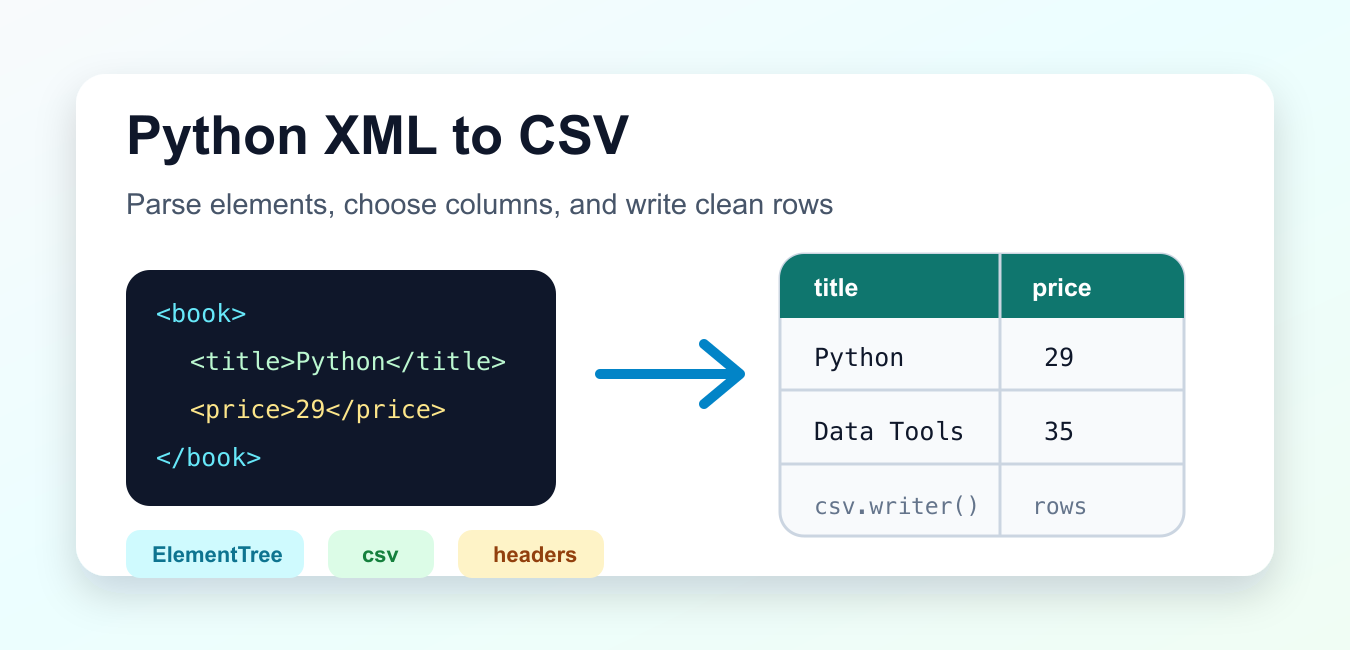
Quick answer: Convert XML to CSV by selecting the repeating record element, mapping nested elements and attributes into flat columns, and writing rows with Python’s csv module. Define namespaces, missing values, encoding, and untrusted-input handling before exporting.
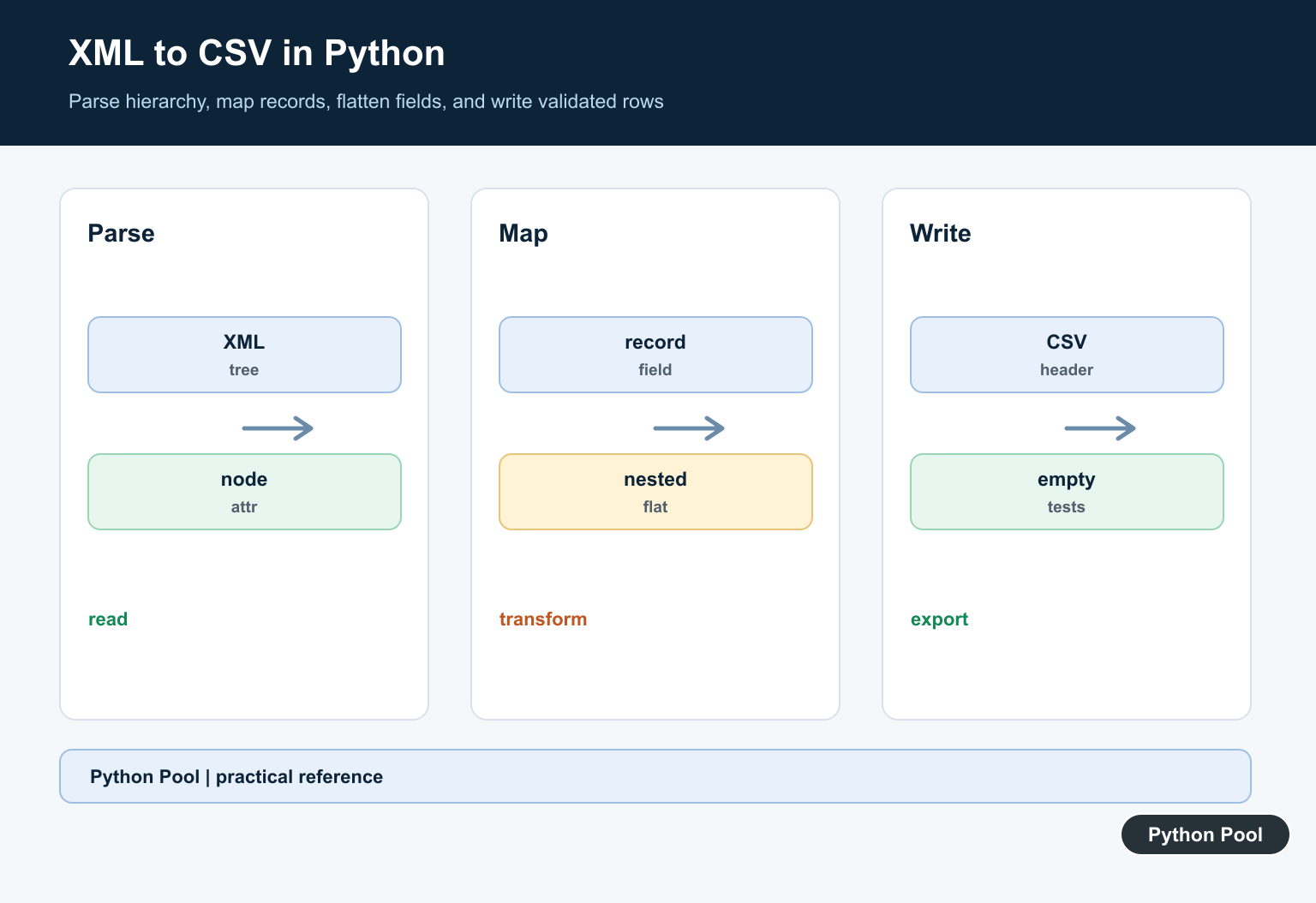
Converting XML to CSV in Python usually means choosing one repeated XML element as a row, choosing which child elements become columns, and writing those values with the standard-library csv module. XML is hierarchical, while CSV is rectangular, so the most important step is deciding how nested or repeated data should be flattened.
The standard-library xml.etree.ElementTree module is a good default for trusted, ordinary XML files. It parses elements, attributes, text, and nested nodes without adding a third-party dependency. The csv module handles quoting, delimiters, newlines, and output rows. Together they cover many export jobs, data cleanup scripts, and small migration tasks.
The official ElementTree documentation explains parsing, searching, and streaming XML. The official csv module documentation explains writers, dictionaries, dialects, and the recommended newline="" file pattern.
Use the examples below as patterns, not as a single universal converter. A feed with one simple record type can be exported directly. A deeply nested document may need business rules for repeated tags, missing fields, attributes, and combined text.
Before writing code, inspect the XML shape. Find the element that repeats for each output row, list the target columns, and decide how to represent empty values. That short design step prevents a script from silently dropping useful data.
Convert Simple XML Text
For a small XML string, parse it with ElementTree.fromstring(), loop over repeated elements, and write rows with csv.writer().
import csv
import xml.etree.ElementTree as ET
from io import StringIO

xml_text = """
<catalog>
  <book><title>Python Basics</title><price>29</price></book>
  <book><title>Data Tools</title><price>35</price></book>
</catalog>
"""

root = ET.fromstring(xml_text)
output = StringIO()
writer = csv.writer(output)

writer.writerow(["title", "price"])
for book in root.findall("book"):
    writer.writerow([
        book.findtext("title", default=""),
        book.findtext("price", default=""),
    ])

print(output.getvalue())
findtext() is convenient because it returns the text for a child tag and can supply a default when the tag is missing. That keeps the row length stable.
StringIO is used here so the result can be printed without creating a file. In a real export, write to a path with open() or Path.open().
Write XML Data To A CSV File
When reading and writing real files, open the CSV output with newline="". This lets the csv module manage row endings correctly across platforms.
import csv
import xml.etree.ElementTree as ET
from pathlib import Path

xml_path = Path("products.xml")
csv_path = Path("products.csv")
xml_path.write_text(
    "<products>"
    "<product><sku>A1</sku><name>Keyboard</name><stock>12</stock></product>"
    "<product><sku>B2</sku><name>Mouse</name><stock>30</stock></product>"
    "</products>",
    encoding="utf-8",
)

root = ET.parse(xml_path).getroot()

with csv_path.open("w", newline="", encoding="utf-8") as file_obj:
    writer = csv.writer(file_obj)
    writer.writerow(["sku", "name", "stock"])

    for product in root.findall("product"):
        writer.writerow([
            product.findtext("sku", default=""),
            product.findtext("name", default=""),
            product.findtext("stock", default=""),
        ])

print(csv_path.read_text(encoding="utf-8"))
This pattern is enough when every row element has the same child tags. It is also easy to test because the selected columns are explicit.
Keep the output column order in one visible list. That makes later changes easier and prevents rows from changing order when the input document changes.
Use Headers From Child Tags
If the XML has mostly consistent records but you do not want to hard-code every column, collect child tag names first and then write dictionaries with csv.DictWriter.
import csv
import xml.etree.ElementTree as ET
from io import StringIO

xml_text = """
<people>
  <person><name>Ana</name><city>Pune</city></person>
  <person><name>Bo</name><role>Admin</role></person>
</people>
"""

root = ET.fromstring(xml_text)
people = root.findall("person")
headers = sorted({child.tag for person in people for child in person})

output = StringIO()
writer = csv.DictWriter(output, fieldnames=headers)
writer.writeheader()

for person in people:
    row = {child.tag: (child.text or "").strip() for child in person}
    writer.writerow(row)

print(output.getvalue())
Dynamic headers are useful for exploratory exports. For production jobs, a fixed schema is usually safer because it catches unexpected source changes instead of silently adding or removing columns.
DictWriter fills missing keys with blank fields, so the output stays rectangular even when one record has a tag that another record does not.
Flatten Nested XML Fields
Nested XML needs a mapping from nested paths to CSV columns. Write that mapping directly when the target file has known fields.
import csv
import xml.etree.ElementTree as ET
from io import StringIO

xml_text = """
<orders>
  <order id="1001">
    <customer><name>Ana</name><email>[email protected]</email></customer>
    <total>45.50</total>
  </order>
</orders>
"""

root = ET.fromstring(xml_text)
output = StringIO()
writer = csv.DictWriter(output, fieldnames=["id", "customer_name", "email", "total"])
writer.writeheader()

for order in root.findall("order"):
    customer = order.find("customer")
    row = {
        "id": order.get("id", ""),
        "customer_name": customer.findtext("name", default="") if customer is not None else "",
        "email": customer.findtext("email", default="") if customer is not None else "",
        "total": order.findtext("total", default=""),
    }
    writer.writerow(row)

print(output.getvalue())
Attributes such as id can become normal CSV columns by using element.get(). Child text can be selected with findtext(). The output file does not need to preserve the XML hierarchy; it only needs clear, stable column names.
When nesting becomes deeper, use small helper functions or a path mapping, but keep the output schema readable. A future maintainer should be able to see exactly where each column comes from.
Handle Repeated Child Tags
A single CSV cell cannot naturally hold multiple child elements. A common approach is to join repeated values with a separator that does not conflict with the data.
import csv
import xml.etree.ElementTree as ET
from io import StringIO

xml_text = """
<library>
  <book>
    <title>Python Basics</title>
    <tag>programming</tag>
    <tag>beginner</tag>
  </book>
</library>
"""

root = ET.fromstring(xml_text)
output = StringIO()
writer = csv.DictWriter(output, fieldnames=["title", "tags"])
writer.writeheader()

for book in root.findall("book"):
    tags = [tag.text.strip() for tag in book.findall("tag") if tag.text]
    writer.writerow({
        "title": book.findtext("title", default=""),
        "tags": "; ".join(tags),
    })

print(output.getvalue())
Joining repeated values is simple and works well for labels, categories, and notes. If each repeated child has its own structure, a second CSV file may be cleaner than packing everything into one cell.
Document the separator if another system will read the output. A semicolon is common, but the right choice depends on the data and the downstream importer.
Stream Larger XML Files
For larger files, ElementTree.iterparse() can process one completed element at a time. This avoids building the whole tree before writing rows.
import csv
import xml.etree.ElementTree as ET
from io import StringIO

xml_text = """
<products>
  <product><sku>A1</sku><name>Keyboard</name></product>
  <product><sku>B2</sku><name>Mouse</name></product>
</products>
"""

source = StringIO(xml_text)
output = StringIO()
writer = csv.writer(output)
writer.writerow(["sku", "name"])

for event, elem in ET.iterparse(source, events=("end",)):
    if elem.tag == "product":
        writer.writerow([
            elem.findtext("sku", default=""),
            elem.findtext("name", default=""),
        ])
        elem.clear()

print(output.getvalue())
Streaming is helpful for large exports, but it still needs a clear row element. In this example, each completed product becomes one CSV row.
Call clear() after writing a row element so parsed children can be released. For very large or namespace-heavy XML, test memory use with a realistic file.
Common XML To CSV Decisions
Missing fields should usually become blank cells, not shorter rows. A CSV parser expects every row to have the same number of columns. Using findtext(..., default="") or DictWriter makes this behavior explicit.
Namespaces may require fully qualified tag names or a namespace mapping. If findall() returns nothing even though the tags are visible in the source, check whether the document uses XML namespaces.
Escaped commas, quotes, and line breaks should be handled by csv.writer instead of manual string building. Building CSV rows with string concatenation is fragile because CSV quoting rules are more detailed than adding commas between values.
For untrusted XML, consider the security properties of the parser and the source. The standard documentation notes XML security concerns, and some applications use hardened parsers for hostile input. For trusted internal exports, ElementTree is usually practical.
The practical rule is to define the row element, define the target columns, choose how to flatten nested or repeated data, and let csv.writer or DictWriter handle the output format.
Choose The Row Element
XML is hierarchical, so first decide which repeated element becomes one CSV row. A vague mapping can duplicate data or silently drop nested records when a document contains multiple levels.
Flatten Fields Deliberately
Map child text, attributes, and nested values into stable column names. If a field can repeat, choose whether to join values, create multiple rows, or preserve the data in a separate output.
Handle Namespaces
Namespaced XML tags include a namespace URI even when the visible prefix differs. Register a namespace map or use expanded names consistently instead of matching only the local spelling.
Write A Stable CSV
Use csv.DictWriter with an explicit field order and newline handling. Decide how missing values, commas, quotes, Unicode, and large fields should be represented before consumers depend on the file.
Treat Input As Untrusted
Do not assume every XML document is safe merely because it parses. Follow the standard-library XML security guidance and choose a hardened parsing approach for unauthenticated input.
Validate Round Trips
Test one row, missing fields, attributes, namespaces, repeated children, malformed XML, escaped text, and non-ASCII values. Compare row counts and required fields before publishing the CSV.
The official ElementTree documentation covers XML parsing, and the csv documentation covers tabular output. Related Python Pool references include dictionaries and tests.
For related conversion workflows, compare row mappings, text encoding, and validation tests before exporting XML data.
Frequently Asked Questions
How do I convert XML to CSV in Python?
Parse the XML, select the repeating record elements, map each field into a flat row, and write the rows with Python’s csv module.
How do I convert nested XML to CSV?
Choose a flattening rule for child elements and attributes, then produce stable column names and values for each record.
What happens when an XML field is missing?
Define whether the CSV cell should be empty, use a default, or cause validation to fail; do not let the policy be accidental.
Is ElementTree safe for untrusted XML?
Review Python’s XML security guidance and use a parser and deployment policy appropriate for unauthenticated input.

This is very neat, but how about an example structured differently, such as where field names are named in a “key’ and values in a “string”, like this? (Yes, this is a .plist export from some management software.)
<dict>
<key>C02GD…1DV13</key>
<dict>
<key>architecture</key>
<string>i386</string>
<key>cn</key>
<string>mb-e2-07</string>
<key>dstudio-bootcamp-windows-computer-name</key>
<string></string>
<key>dstudio-host-ard-field-1</key>
<string></string>
<key>dstudio-host-ard-field-2</key>
<string></string>
<key>dstudio-host-ard-field-3</key>
<string></string>
<key>dstudio-host-ard-field-4</key>
<string></string>
<key>dstudio-host-ard-ignore-empty-fields</key>
<string>NO</string>
<key>dstudio-host-model-identifier</key>
<string>MacBookPro8,1</string>
<key>dstudio-host-primary-key</key>
<string>dstudio-host-serial-number</string>
<key>dstudio-host-serial-number</key>
<string>C02GD…1DV13</string>
<key>dstudio-host-type</key>
<string>Mac</string>
<key>dstudio-hostname</key>
<string>mb-e2-07</string>
<key>dstudio-mac-addr</key>
<string>3c:07:…:76:e0</string>
</dict>
<key>C02GF…SDV13</key>
<dict>
<key>architecture</key>
<string>i386</string>
<key>cn</key>
<string>loan-mac-music-05</string>
<key>dstudio-bootcamp-windows-computer-name</key>
<string></string>
<key>dstudio-host-ard-field-1</key>
<string></string>
<key>dstudio-host-ard-field-2</key>
<string></string>
<key>dstudio-host-ard-field-3</key>
<string></string>
<key>dstudio-host-ard-field-4</key>
<string></string>
<key>dstudio-host-ard-ignore-empty-fields</key>
<string>NO</string>
<key>dstudio-host-model-identifier</key>
<string>MacBookPro8,1</string>
<key>dstudio-host-primary-key</key>
<string>dstudio-host-serial-number</string>
<key>dstudio-host-serial-number</key>
<string>C02GF…SDV13</string>
<key>dstudio-host-type</key>
<string>Mac</string>
<key>dstudio-hostname</key>
<string>loan-mac-music-05</string>
<key>dstudio-last-workflow</key>
<string>394AF8D4-6854-…-9A69-FE8C3244BA59</string>
<key>dstudio-last-workflow-duration</key>
<string>0:00:00</string>
<key>dstudio-last-workflow-execution-date</key>
<string>2017/02/17, 13:13:35</string>
<key>dstudio-last-workflow-status</key>
<string>failed</string>
<key>dstudio-mac-addr</key>
<string>3c:07:…:79:81</string>
</dict>
Hi,
Since you have a different type of data structure, you need to change the code a little bit.
The following code will work best for you to form key and string pairs in CSV.
import xml.etree.ElementTree as ETimport csv
tree = ET.parse("sample.xml")
root = tree.getroot()
data = open('data.csv', 'w',newline='')
csvwriter = csv.writer(data)
for member in root.findall('dict'):
for i, j in zip(member.findall('key'), member.findall('string')):
print(j.text)
if j.text is None:
csvwriter.writerow([i.text, "empty"])
else:
csvwriter.writerow([i.text, j.text])
data.close()
Thank you for the lesson. Very clean.
What if I want the ID to be in a separate column like:
ID Name. PhoneNumber. EmailAddress.
100 John Doe. 1234567891. [email protected]
101 Jane Doe. 1234567891. [email protected]
How do I go about achieving that?
Hi,
You can access the attribute of current member of XML by following code –
ids = member.attrib.get('Id')then you can use
resident.append(ids)to add Id attribute in your csv.Regards,
Pratik
Thanks Pratik.
It worked.
Can I reach out to you privately? You can write me an email.
Thanks again.
Sure!
Example structured differently, such as where field names are named in a DataType Unit Valid No BondType No Value Max Min and values in a “string”, like this?
225:41,248:10,249:5,250:18,251:150,252:590,253:0,3001:
<ParaInfo>
<DataType>Short</DataType>
<Unit>ms</Unit>
<Valid>True</Valid>
</ParaInfo>
<Groups>
<Group>
<No>2</No>
<BondType>Normal Wire</BondType>
<Stages>
<Stage>
<No>Contact</No>
<Value>2</Value>
<Max>2</Max>
<Min>2</Min>
</Stage>
<Stage>
<No>Base</No>
<Value>5</Value>
<Max>5</Max>
<Min>2</Min>
</Stage>
</Stages>
</Group>
</Groups>,3002:
I’ve created a simple xml parser for your XML given above.
import xml.etree.ElementTree as ET

tree = ET.parse("temp.xml")
root = tree.getroot()


for groups in root.findall('Groups'):
    for group in groups:
        print("No:", group.find("No").text)
        print("BondType:", group.find("BondType").text)
        for stages in group.findall("Stages"):
            for stage in stages.findall("Stage"):
                print("Stage begin")
                print("No:", stage.find("No").text)
                print("Value:", stage.find("Value").text)
                print("Max:", stage.find("Max").text)
                print("Min:", stage.find("Min").text)
                print("Stage end")
Integrate this with CSV or any other format you wish to export.
Also, make sure you add a root to your XML. So your XML will look like this –
Regards,
Pratik
I want to extract data from XML save to csv show the results as follows.Because I did it and it didn’t work like this.