

Download LetsView – Free Screen Mirroring, Cross‑Platform Casting, Wi‑Fi Mirror Tool
Overview
LetsView, developed by Wangxu Technology Co. Ltd., is a free, cross‑platform screen‑mirroring utility that bridges the gap between desktop computers and mobile devices. Whether you’re looking to project a mobile app onto a larger Windows or macOS screen, or you want to cast a presentation from your laptop to a tablet, LetsView provides a simple, wireless solution that works over a shared Wi‑Fi network. The tool supports major casting protocols such as AirPlay, Miracast, and Google Cast, allowing seamless connectivity with iOS, Android, Windows, and macOS devices. With a clean interface and a set of practical features—including screenshot capture, video recording, a collaborative whiteboard, and full‑screen mode—LetsView positions itself as a lightweight alternative to more feature‑heavy solutions like ApowerMirror or TeamViewer. While the app is free and easy to install, it does come with a few limitations: a time‑based session cap that requires periodic reconnection and the necessity for both devices to reside on the same local network. Nonetheless, for users who need a reliable, no‑cost mirroring tool for occasional presentations, remote support, or media streaming, LetsView delivers exactly what it promises: a straightforward, secure way to share screens across platforms.
Key Features of LetsView
- Cross‑Platform Compatibility: Works on Windows 10/11, macOS 10.13+, Android 5.0+, and iOS 11+.
- Multiple Casting Protocols: Supports AirPlay, Miracast, Google Cast, and proprietary LetsView protocol.
- Wireless Connection: Uses your local Wi‑Fi network; no cables or external dongles required.
- Screen Capture & Recording: Capture screenshots or record video of the mirrored session directly from the app.
- Interactive Whiteboard: Draw, annotate, and highlight in real time, ideal for teaching or collaborative brainstorming.
- Full‑Screen Mode & Floating Window: Choose a distraction‑free full‑screen view or keep the mirrored content in a movable floating window.
- Hotkey Customization: Assign keyboard shortcuts for quick actions such as start/stop mirroring, take screenshot, or toggle whiteboard.
- Audio Sync Options: Stream device audio together with video, or mute it for a quieter presentation.
- Secure Connection: End‑to‑end encryption ensures that your data stays private while mirroring over Wi‑Fi.
- Free of Charge: No hidden fees, subscription, or watermark on recordings, making it truly free for personal and educational use.
Installation & Usage Instructions
Step‑by‑Step Setup on Windows and macOS
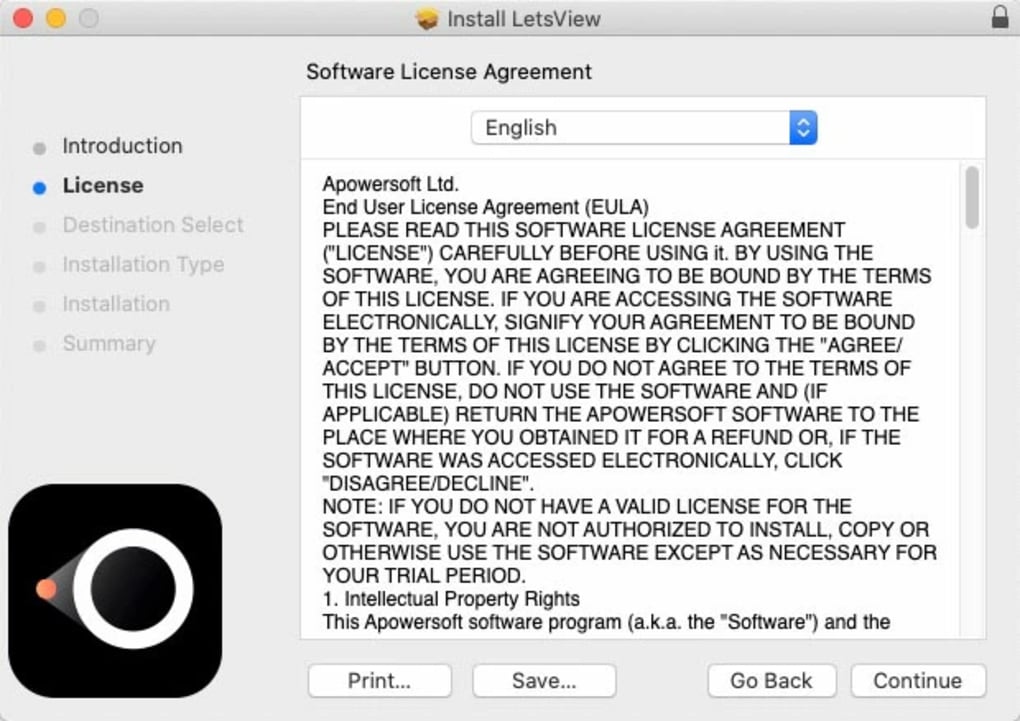
1. Download the Installer: Visit the official LetsView website and click the Download for Windows or Download for macOS button. The installer file (EXE for Windows, DMG for macOS) will be saved to your default download folder.
2. Run the Installer: Double‑click the downloaded file. On Windows, you may need to grant administrator permission; on macOS, drag the LetsView icon to the Applications folder.
3. Launch the Application: Open LetsView from the Start menu or the Applications folder. The first launch will prompt you to allow network access; accept the request to enable Wi‑Fi communication.
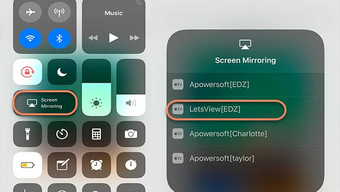
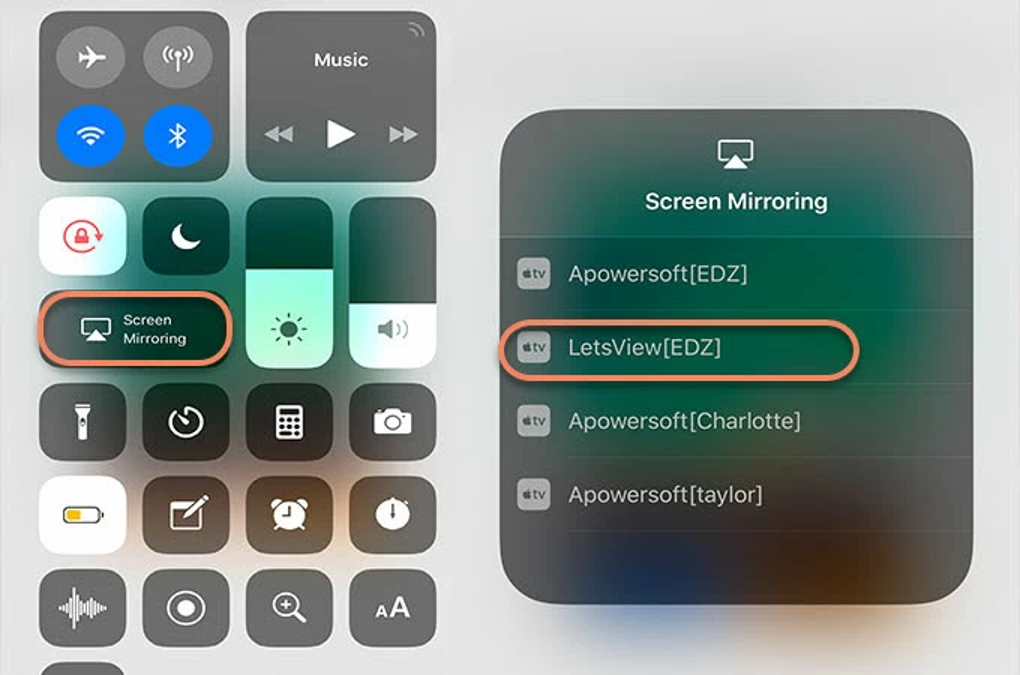
4. Connect Devices: Ensure both your computer and mobile device are connected to the same Wi‑Fi network. Open the LetsView app on your phone (available on Google Play Store and Apple App Store) and tap the “Scan” button to detect your computer’s ID. Alternatively, you can manually enter the computer’s IP address displayed on the desktop app.
5. Start Mirroring: Select your computer from the list on the mobile app and tap “Start Mirroring.” A prompt will appear on the desktop asking for permission; click “Accept.” The phone screen will instantly appear in a floating window on your computer.
6. Reverse Mirroring: To cast from computer to phone, click the “Cast” button in the desktop interface, select your mobile device from the detected list, and confirm the connection on the phone.
Using Advanced Tools
Once the mirroring session is active, a toolbar appears at the bottom of the floating window. From here you can:
- Take Screenshot: Click the camera icon or press the assigned hotkey (default
Ctrl+Shift+S) to capture a still image of the mirrored screen. - Record Video: Press the red circle to start recording; a timer indicates duration, and the file is saved to your default “Videos” folder.
- Whiteboard: Click the pen icon to open the whiteboard overlay. Use different colors, line thickness, and an eraser to annotate in real time.
- Full‑Screen Mode: Double‑click the window border or click the full‑screen icon for a distraction‑free view.
- Audio Settings: Access the audio dropdown to toggle device sound or route audio through the computer speakers.
When you finish, simply click “Stop Mirroring” on either device. Remember that each session is limited to 30 minutes for the free version; you’ll be prompted to reconnect after the limit expires.
Compatibility, Pros and Cons
LetsView supports Windows 10/11, macOS 10.13 and later, Android 5.0+, and iOS 11+. The application can also be run on Linux via the Android emulator, although native support is not officially listed.
Pros
- Completely free with no watermarks or hidden fees.
- Supports major casting protocols (AirPlay, Miracast, Google Cast).
- Wireless operation eliminates the need for cables or adapters.
- Rich feature set includes screenshot, video recording, and collaborative whiteboard.
- Secure, encrypted connections protect privacy.
- Easy to install and configure for both novice and advanced users.
Cons
- Both devices must be on the same Wi‑Fi network, limiting remote usage.
- Free version imposes a 30‑minute session limit before reconnection.
- Performance may degrade on congested networks or older hardware.
- No built‑in file transfer feature; only screen mirroring is supported.
- Limited customization for advanced video encoding settings.
Frequently Asked Questions
Is LetsView completely free, or are there hidden costs?
LetsView is a 100 % free application. There are no subscription fees, in‑app purchases, or watermarks on recordings. The only limitation is a 30‑minute session timeout that requires you to reconnect.
Can I use LetsView to mirror my PC screen to a TV?
Yes. If your TV supports AirPlay, Miracast, or Google Cast, you can cast directly from the LetsView desktop client to the TV. Otherwise, you can connect a secondary Windows or macOS device to the TV via HDMI and mirror the PC to that device using LetsView.
What network conditions are required for smooth mirroring?
A stable 2.4 GHz or 5 GHz Wi‑Fi network with at least 5 Mbps upload speed is recommended. For high‑resolution video or gaming, a 5 GHz band provides lower latency and fewer interruptions.
Is there a way to extend the 30‑minute session limit?
The free version enforces the limit, but you can quickly reconnect by clicking “Reconnect” when prompted. A paid “Pro” tier (currently in beta) is planned to remove this restriction, though it is not yet publicly released.
Does LetsView support audio streaming from the mobile device?
Yes. Audio from the mirrored device can be streamed to the computer or to external speakers, and you can mute or adjust volume via the desktop toolbar.
Conclusion & Call to Action
LetsView stands out as a genuinely free, cross‑platform screen‑mirroring solution that balances simplicity with a surprisingly robust feature set. Its support for major casting protocols, secure Wi‑Fi connections, and interactive tools like a whiteboard make it an attractive choice for educators, remote workers, and casual users alike. While the requirement for both devices to share the same network and the 30‑minute session cap may deter power users, these constraints are reasonable trade‑offs for a no‑cost product. If you need a reliable way to project mobile apps onto a larger screen, record tutorials, or collaborate in real time without spending a dime, LetsView delivers on all fronts. Download the installer today, follow the quick setup guide, and start mirroring your devices instantly.
Click here to download LetsView for free and experience seamless screen casting across Windows, macOS, Android, and iOS.
LetsView provides a solid free alternative for everyday screen mirroring. Its intuitive interface, reliable wireless connection, and useful extras like whiteboard annotation make it a strong contender in a crowded market. The only real drawbacks are the network‑dependency and session timeout, but for most personal and educational scenarios those are minor inconveniences.
Pros
- Free with no watermarks.
- Cross‑platform support.
- Whiteboard and recording features.
- Secure, encrypted connections.
Cons
- Requires same Wi‑Fi network.
- 30‑minute session limit.
- No native file transfer.








