
Screenshots
App details
- Version
- 1.0
- Updated
- March 22, 2024
- Requires
- Windows 10
- Language
- English
- License
- Full
- Developer
- Darwin Software
- Category
- Windows OS
About Mirror
Download Mirror – Free Samsung TV Screen Mirroring Tool for Windows, macOS, Android & iOS
Overview
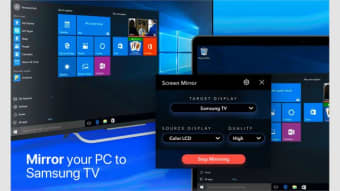
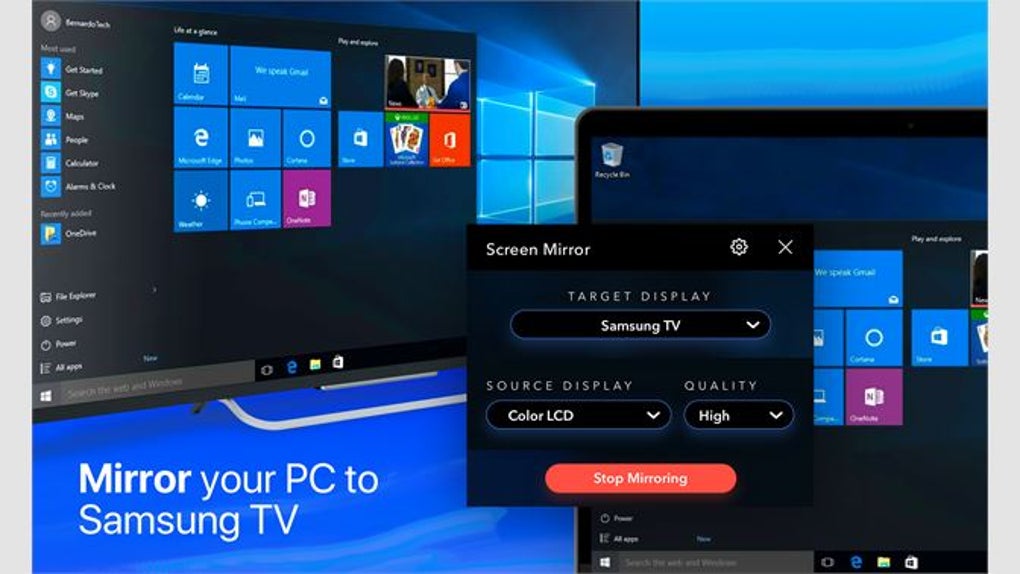
Mirror is a lightweight, free screen‑mirroring application designed specifically for Samsung Smart TVs. Whether you own a sleek QLED series or a classic LED model, Mirror lets you project movies, TV shows, photos, and even live streaming content from your Windows PC, Mac, Android phone, or iOS device straight onto the big screen. The app is available through the Microsoft Store and the Mac App Store, and a companion Android version can be downloaded from Google Play. Mirror eliminates the need for cumbersome HDMI cables or third‑party dongles, turning any compatible Samsung TV into an extension of your personal media library. The interface is intentionally minimalistic: after installing the app, you simply select the TV from a short list of detected devices, choose the media you want to display, and hit “Play.” The connection is secured via Wi‑Fi Direct or your home network, ensuring a smooth, lag‑free experience for most 1080p and 4K content. While its primary purpose is video playback, Mirror also supports basic photo slideshows and can mirror your entire desktop for presentations or gaming sessions. The app’s free model is ad‑supported, but it never forces intrusive pop‑ups during playback, preserving a clean viewing experience. If you’re looking for a hassle‑free way to enjoy your favorite content on a Samsung TV without investing in pricey streaming sticks, Mirror offers a solid, secure solution that works across multiple platforms.
Key Features
- ✅ Cross‑platform support: Native Windows 10/11, macOS 10.13+, Android 5.0+, and iOS 11+ clients.
- ✅ Zero‑cable setup: Uses Wi‑Fi Direct or existing home Wi‑Fi to connect instantly.
- ✅ High‑resolution streaming: Supports up to 4K @ 60 fps for compatible Samsung models.
- ✅ Automatic TV detection: Scans the network and lists all Samsung Smart TVs in seconds.
- ✅ Media library integration: Pulls videos, photos, and music from local folders or cloud services like Google Drive and OneDrive.
- ✅ Secure connection: End‑to‑end encryption prevents unauthorized access during mirroring.
- ✅ Lightweight footprint: Uses less than 80 MB RAM on desktop, ensuring other apps stay responsive.
- ✅ Free with optional premium upgrade: Removes ads and unlocks batch‑mirroring for multiple devices.
- ✅ Screen orientation control: Rotate, crop, or fit the mirrored image to match TV aspect ratio.
- ✅ Simple UI: One‑click “Connect” and “Play” buttons for even non‑technical users.
Installation & Usage Guide
Getting Mirror up and running is intentionally straightforward. Follow these steps to start streaming in under five minutes:
Desktop (Windows 10/11 & macOS)
- Download the installer: Visit the Microsoft Store (Windows) or the Mac App Store (macOS) and search for “Mirror – Samsung TV Mirroring.” Click “Get” to download and install automatically.
- Launch the app: After installation, open Mirror from the Start menu or Applications folder. The first launch may request permission to access your local network; grant this permission to enable device discovery.
- Connect to your TV: Mirror will scan the network for Samsung Smart TVs. Select your TV from the list, then click “Connect.” If the TV prompts for a PIN, a 4‑digit code will appear on the screen; enter it into the desktop app.
- Select media: Use the built‑in file browser to locate a video, photo album, or music folder. Drag‑and‑drop the file onto the playback window, or click “Open” and choose from your library.
- Start streaming: Press the “Play” button. The content will instantly appear on the TV, and playback controls (play, pause, volume) will sync between the PC and TV.
- Advanced options: Click the gear icon to adjust resolution, enable subtitles, or toggle the “Fit to Screen” mode for optimal display.
Mobile (Android & iOS)
- Install the app: Open Google Play Store or Apple App Store, search for “Mirror – Samsung TV Mirroring,” and tap “Install.”
- Open and grant permissions: The app will request access to your local network and media files; accept both to ensure smooth operation.
- Detect your TV: Tap “Search TV,” choose your Samsung model from the displayed list, and confirm any on‑screen PIN if prompted.
- Choose content: From the home screen, select “Video,” “Photo,” or “Screen.” For video, browse your device’s gallery or cloud storage. For full‑screen mirroring, choose “Screen” and follow the on‑screen instructions to enable screen capture.
- Start streaming: Tap “Play” (or “Mirror”) and watch your content appear on the TV. Use the floating control bar to pause, rewind, or adjust volume without leaving the app.
Tips for optimal performance:
- Keep both the TV and the mirroring device on the same Wi‑Fi band (5 GHz is preferred for 4K streams).
- Close bandwidth‑heavy background apps on your PC or phone to reduce latency.
- For large video files, consider moving them to an SSD or using a wired Ethernet connection for the PC.
Compatibility & System Requirements
Mirror supports a wide range of Samsung Smart TV models released from 2015 onward, including the popular QLED, UHD, and Frame series. The app is compatible with the following operating systems:
- Windows: 10 (1809+) and Windows 11 – 64‑bit only.
- macOS: 10.13 (High Sierra) and later – Intel and Apple Silicon (via Rosetta 2 for Intel‑based binaries).
- Android: 5.0 (Lollipop) and above – smartphones, tablets, and Android TV boxes.
- iOS / iPadOS: 11.0 and later – iPhone 6S+, iPad Air 2+, and newer devices.
Hardware prerequisites are modest:
- Desktop: Minimum 2 GHz dual‑core CPU, 2 GB RAM, and a Wi‑Fi 802.11ac adapter.
- Mobile: At least 1 GB RAM and a device capable of screen capture (most modern smartphones meet this).
Network requirements:
- Wi‑Fi router supporting 2.4 GHz/5 GHz dual‑band; 5 GHz recommended for 1080p/4K streaming.
- Stable internet connection is optional unless you stream cloud‑based media; local network bandwidth of 20 Mbps+ is sufficient for 4K playback.
If your TV does not appear during the scan, verify that “Screen Mirroring” or “Smart View” is enabled in the TV’s settings, and that the TV firmware is up to date (minimum version 2022.03). Mirror also works with Samsung’s “One Connect” box as long as the box is on the same subnet.
Pros, Cons & Frequently Asked Questions
Pros
- Free to download and use – no subscription required for basic mirroring.
- Supports multiple platforms (Windows, macOS, Android, iOS) with a unified experience.
- High‑resolution streaming up to 4K, ideal for modern Samsung TVs.
- Secure Wi‑Fi Direct connection eliminates the need for external dongles.
- Lightweight installation, leaving ample system resources for other tasks.
- Simple UI that works for both tech‑savvy users and beginners.
Cons
- Free version includes non‑intrusive ads; premium upgrade required for ad‑free experience.
- No built‑in video editing or streaming to services like YouTube directly from the app.
- Limited to Samsung Smart TVs – cannot mirror to other brands without a separate app.
- Occasional latency on older Wi‑Fi routers, especially when mirroring full desktop.
- Requires both devices to be on the same network; remote mirroring over the internet is not supported.
FAQ
Can I mirror my Windows PC to a Samsung TV without a Wi‑Fi network?
Yes. Mirror can use Wi‑Fi Direct, which creates a direct peer‑to‑peer connection between your PC and TV without involving your home router. Just enable “Wi‑Fi Direct” in the app’s settings and follow the on‑screen pairing steps.
Does Mirror support audio playback, and can I control TV volume from my device?
Audio is streamed alongside video, and the app syncs volume control with the TV. You can adjust volume using the on‑screen slider in the desktop or mobile app, which sends the command to the TV over the same connection.
What should I do if my Samsung TV doesn’t appear in the device list?
First, ensure the TV’s “Screen Mirroring” feature is enabled in Settings > General > Apple AirPlay Settings (or Smart View). Then, verify that both devices share the same Wi‑Fi network or are within Wi‑Fi Direct range. Restarting the TV and the Mirror app often resolves detection issues.
Can I mirror games or high‑frame‑rate content without lag?
For most casual gaming, Mirror delivers acceptable latency on a 5 GHz network. Competitive gamers may notice a 30‑50 ms delay, which can be mitigated by using an Ethernet connection for the PC and ensuring the TV’s firmware is updated.
Is there a way to mirror multiple devices to the same TV simultaneously?
The free version only supports one active source at a time. The premium upgrade introduces “batch mirroring,” allowing you to queue up multiple devices and switch between them without disconnecting.
Conclusion & Call to Action
Mirror stands out as a reliable, free solution for anyone who wants to turn a Samsung Smart TV into a personal cinema or presentation screen without additional hardware. Its cross‑platform nature, secure Wi‑Fi Direct connectivity, and support for up to 4K video make it a practical choice for families, educators, and casual gamers alike. While the free version includes modest ads and is limited to Samsung devices, the optional premium upgrade removes those ads and adds batch‑mirroring capabilities, delivering a near‑seamless experience. If you’re ready to enjoy your favorite movies, photos, or desktop content on the big screen, simply download Mirror from the Windows Store or Mac App Store, follow the quick setup guide, and start streaming within minutes.
Ready to transform your viewing experience? Download Mirror now and begin mirroring your content for free!
Guides & Tutorials
How to install Mirror
- Click the Download button above.
- Once redirected, accept the terms and click Install.
- Wait for the Mirror download to finish on your device.
How to use Mirror
This software is primarily used for its core features described above. Open the app after installation to explore its capabilities.
User Reviews
No reviews yet. Be the first to share your experience.
You may also like
more
Llama 2
Free-to-use large language model As the new addition to Meta’s arsenal of langua...

NotebookLM
Revolutionizing the note-taking and idea-generation process NotebookLM is an exp...

Github co pilot
AI-inspired software development and coding platform GitHub Copilot is a browser...

Google Gemma
Google’s lightweight AI models Introducing Google Gemma , a family of cutting-ed...

AI Image Enlarger
A free app for Windows, by ai-image-larger. AI Image Enlarger is a free software...

DALL E
AI-driven text-to-image transformation engine DALL·E is a free graphic and desig...
