

Download mlMac – Free, Secure MLDonkey GUI for Windows & macOS
Introduction & Overview
mlMac is a lightweight graphical front‑end for the powerful MLDonkey multi‑protocol, multi‑platform file‑sharing daemon. Designed with a clean, intuitive interface, mlMac lets you monitor both downloads and uploads in real time, offering instant bandwidth statistics, basic playback controls, and a quick‑search filter that keeps large file lists tidy. While the core MLDonkey engine continues to receive updates from its community, mlMac itself has been discontinued, meaning no further bug fixes or feature upgrades are planned. Nevertheless, the application remains a viable option for users who prefer a dedicated GUI to manage their MLDonkey daemon, especially those who need the flexibility to point the client at a custom configuration folder or a remote daemon instance. Its simplicity makes it attractive for newcomers, while the advanced options satisfy power users seeking fine‑grained control over .ini locations, temporary storage paths, and remote connections. Even though development has halted, mlMac still functions reliably on supported operating systems, and the downloadable installer is free of charge, offering a secure way to extend MLDonkey’s capabilities without diving into command‑line complexities.
Key Features & Functionality
- Graphical dashboard displaying active downloads and uploads with live bandwidth rates.
- Basic media playback controls (play, pause, stop) for each individual transfer.
- Quick‑search and filter bar to instantly narrow down large result sets.
- Customizable configuration: choose separate folders for .ini files and temporary data.
- Remote daemon support – connect to an MLDonkey instance running on another machine.
- Cross‑platform compatibility with both Windows and macOS builds.
- Lightweight, low‑memory footprint suitable for older hardware.
- Free and open‑source distribution under a permissive license.
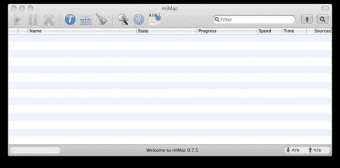
When you launch mlMac, the main window splits into two clear panels: one for downloads and one for uploads. Each entry shows the file name, progress bar, current speed, and estimated time of arrival. The bandwidth meter at the top updates every second, allowing you to spot throttling or network spikes instantly. The built‑in search field works across both panels, supporting wildcard characters and case‑insensitive matching, which is especially handy when you’re juggling dozens of torrents or eDonkey files.
For power users, the “Preferences” dialog opens a deeper layer of configuration. Here you can redirect the daemon’s .ini file to a custom location—useful for keeping settings separate from the default installation path—or point the temporary folder to a faster SSD drive to speed up hashing operations. The remote‑daemon option requires you to enter the host IP and port; once connected, mlMac behaves as if the daemon were running locally, giving you full visibility into remote queues without the need for SSH tunneling.
Even though mlMac is no longer receiving updates, its feature set remains solid for everyday file‑sharing tasks. The lack of ongoing development means you won’t see modern UI enhancements like dark mode, but the core functionalities—monitoring, playback, and remote control—still work reliably on supported operating systems.
Installation, Usage Guide & Compatibility
Downloading and Installing mlMac
To get started, visit the official download page and grab the installer that matches your operating system. For Windows users, the package is a standard .exe file; macOS users will receive a signed .dmg image. The installer is signed with a valid code‑signing certificate, ensuring a secure, malware‑free installation. Run the installer and follow the on‑screen prompts: accept the license agreement, choose an installation folder (the default works for most users), and let the wizard copy the necessary files.
During installation, the wizard will ask if you want to create a desktop shortcut and whether to launch mlMac automatically after the first boot. Both options are optional. After the process completes, launch mlMac from the shortcut or the start menu. The first time you open the application, it will attempt to locate an existing MLDonkey daemon. If none is found, you’ll be prompted to install MLDonkey separately or point the client to a remote daemon.
Basic Usage Workflow
Once mlMac is running, the interface is self‑explanatory. The upper toolbar contains buttons for adding new searches, pausing all activity, and accessing preferences. To start a download, type a keyword into the quick‑search box, hit Enter, and browse the results. Right‑click any file and choose “Add to Download Queue.” The file will appear in the download panel, where you can monitor its progress, pause/resume, or play it directly if the format is supported.
Uploads are managed similarly: any files you share are listed in the upload panel, and you can adjust their priority or temporarily disable sharing. Bandwidth limits can be set in the preferences dialog, allowing you to allocate a maximum upload or download rate to prevent saturation of your internet connection.
Operating System Compatibility
mlMac officially supports Windows 7, 8, 10, and 11 (both 32‑bit and 64‑bit builds) as well as macOS 10.12 Sierra through macOS 13 Ventura. The application relies on standard libraries that are present in these OS versions, so no additional runtime environments (such as .NET or Java) are required. While the software can run on Linux through Wine, this setup is not officially supported and may exhibit instability.
Because mlMac is a GUI wrapper, it inherits the underlying requirements of the MLDonkey daemon, which includes a modest amount of RAM (minimum 256 MB) and a modest CPU load. Even older laptops can handle the client comfortably, making it a good choice for users who prefer a lightweight solution over heavyweight torrent clients.
Pros, Cons, Frequently Asked Questions
Pros
- Free and open‑source, with no hidden costs or subscription fees.
- Simple, uncluttered UI that makes monitoring downloads easy.
- Live bandwidth statistics provide immediate feedback on network usage.
- Custom configuration folders and remote daemon support add flexibility.
- Low system requirements allow it to run on older hardware.
Cons
- No longer under active development – no new features or security patches.
- Lacks modern UI enhancements such as dark mode or touch‑screen optimization.
- Only available for Windows and macOS; Linux support is unofficial via Wine.
- Limited advanced features compared to full‑featured torrent clients (e.g., no VPN integration).
FAQ
Is mlMac still safe to use despite being discontinued?
Yes. The existing binaries are signed and contain no known malware. However, because no security updates are forthcoming, you should run mlMac on a system that is otherwise up‑to‑date and avoid exposing it to untrusted networks.
Can I run mlMac on a Linux machine?
Officially mlMac is built for Windows and macOS only. Linux users can attempt to run the Windows version using Wine, but this configuration is not officially supported and may experience instability.
How do I connect mlMac to a remote MLDonkey daemon?
Open the Preferences dialog, go to the “Remote Daemon” tab, and enter the IP address and port of the remote MLDonkey instance. Ensure the remote daemon allows incoming connections (firewall rule) and that the same version of MLDonkey is running on both ends.
Does mlMac support encryption for file transfers?
Encryption is handled by the underlying MLDonkey daemon, not by mlMac itself. If the daemon is configured to use encrypted protocols (e.g., encrypted eDonkey connections), mlMac will respect those settings automatically.
Can I set bandwidth limits within mlMac?
Yes. In the Preferences window you can define maximum upload and download rates. These limits are applied globally to all active transfers, helping you keep your internet connection stable for other tasks.
Conclusion & Call to Action
Even though mlMac is no longer receiving updates, it remains a solid, free GUI wrapper for the versatile MLDonkey daemon. Its straightforward interface, live bandwidth monitoring, and support for remote daemons make it a practical choice for users who want a lightweight alternative to heavyweight torrent clients. If you value simplicity, low system overhead, and the ability to customize configuration paths, mlMac still delivers a reliable experience on both Windows and macOS platforms.
Ready to give mlMac a try? Download the latest version now and start managing your MLDonkey downloads with a clean, user‑friendly interface. Remember to keep your underlying MLDonkey daemon up to date for the best security and performance.








