
Download OpenPaint – free simple painting tool for Windows, macOS & Linux
Overview
OpenPaint is an open‑source reinterpretation of the classic Microsoft Paint program that shipped with early versions of Windows. In an era where graphic editors have become feature‑heavy and often intimidating, OpenPaint purposefully strips the interface back to the essentials: a blank canvas, a handful of basic drawing tools, and an ultra‑light footprint. The application is currently in beta, which means you may encounter occasional glitches—most notably a rare bug where shapes disappear after being drawn—but the core functionality remains solid. If you remember the joy of creating quick sketches with a brush or filling large areas with a single click, OpenPaint aims to revive that nostalgia while offering a truly free alternative for Windows, macOS, and Linux users. Its simplicity makes it an ideal companion for quick annotations, classroom demonstrations, or anyone who needs a no‑frills graphics editor without the overhead of professional suites. Though it lacks advanced options like layers, filters, or vector paths, OpenPaint’s minimalism is intentional: it encourages a focus on pure drawing rather than endless tweaking. The program is distributed under an open‑source license, allowing users to inspect, modify, or contribute to the codebase, which aligns with the broader movement toward transparent and community‑driven software.
Key Features
- Basic Drawing Tools: Brush, pencil, and eraser with fixed sizes for immediate use.
- Shape Library: Simple rectangle, ellipse, and line tools—perfect for geometric sketches.
- Fill (Bucket) Tool: One‑click color fill for contiguous areas, mirroring the classic Paint experience.
- Spray Tool: Provides a basic airbrush effect for softer shading.
- Color Palette: A limited but functional palette that lets you pick primary and secondary colors.
- Undo/Redo Stack: Up to 10 steps of undo, sufficient for quick corrections.
- File Compatibility: Supports common formats such as BMP, PNG, JPEG, and GIF.
- Open‑Source Code: Hosted on GitHub, enabling community contributions and transparency.
- Cross‑Platform Builds: Native installers for Windows, macOS, and Linux distributions.
- Lightweight Design: Consumes less than 30 MB of disk space and negligible RAM while running.
Installation, First‑Run & Compatibility
Downloading the Installer
The latest stable beta can be downloaded from the official OpenPaint GitHub releases page. Choose the installer that matches your operating system:
- Windows:
OpenPaint-Setup.exe– supports Windows 10 and later. - macOS:
OpenPaint.dmg– works on macOS 10.13 (High Sierra) and newer. - Linux:
OpenPaint.tar.gz– includes a pre‑compiled binary for most mainstream distributions (Ubuntu, Fedora, Arch).
Installation Steps
- Run the downloaded installer and follow the on‑screen prompts.
- Accept the open‑source license agreement.
- Choose an installation folder (default is fine for most users).
- Complete the setup and launch OpenPaint from the start menu, Applications folder, or terminal command
openpaint.
First‑Time Use
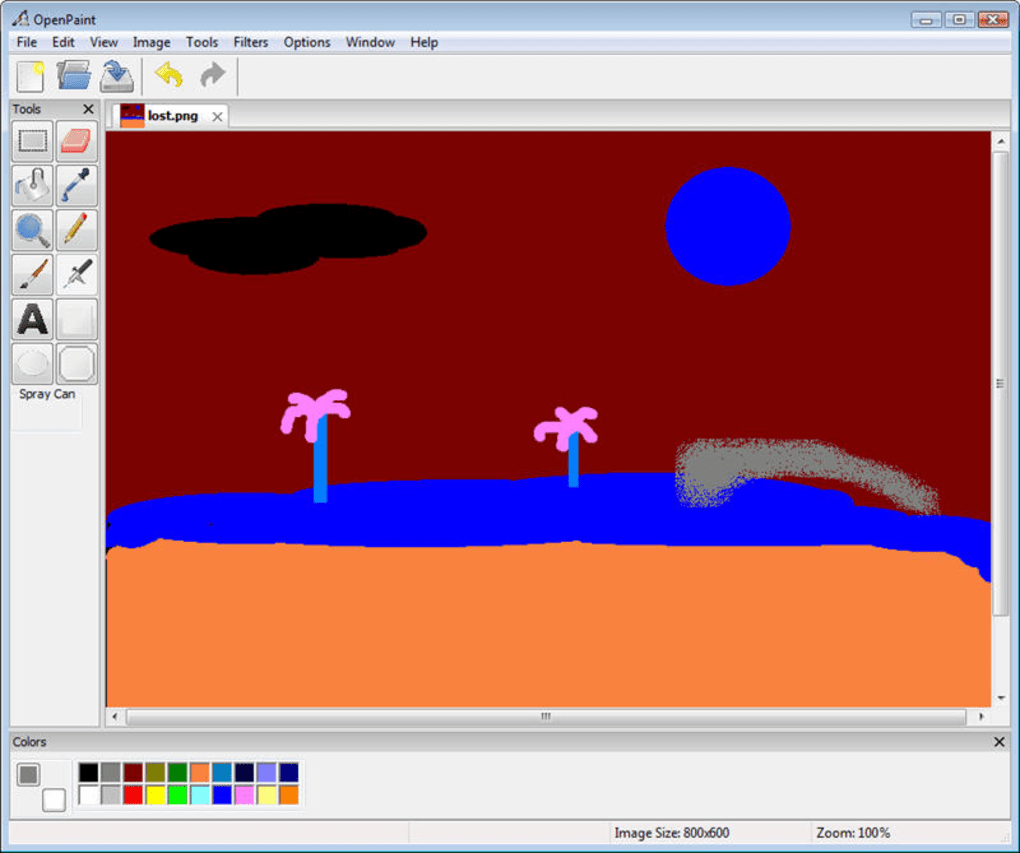
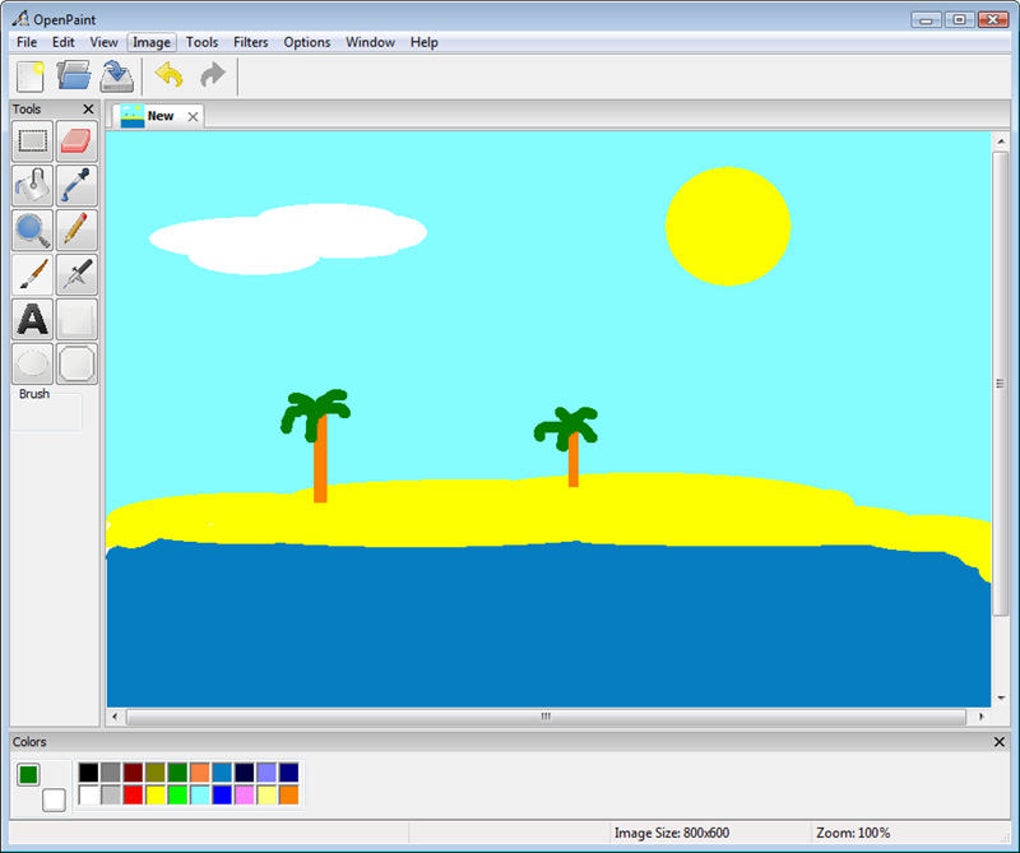
Upon launching, you’ll see a clean canvas with a minimal toolbar on the left. The default tool is the brush; you can switch tools by clicking their icons. Because the program does not offer adjustable brush sizes, the size is predetermined, which encourages a consistent line weight. To change colors, click the foreground or background swatch at the bottom of the toolbar. The “File” menu lets you open existing images or save your work in BMP, PNG, JPEG, or GIF formats. Remember that OpenPaint does not support layers or transparency beyond the built‑in background color, so plan your composition accordingly.
Operating System Compatibility
OpenPaint is built with cross‑platform libraries (Qt5) and has been tested on the following OS versions:
- Windows 10, Windows 11 – 64‑bit
- macOS 10.13 (High Sierra) through macOS 14 (Sonoma) – 64‑bit
- Linux distributions with glibc 2.17+ – Ubuntu 18.04+, Fedora 30+, Arch Linux (latest)
Because the software is lightweight, it runs comfortably on older hardware, even on machines with as little as 2 GB RAM and a modest CPU. However, the occasional instability reported in the beta (e.g., disappearing shapes) may be more noticeable on very low‑end systems. Updating to the latest release often resolves known bugs.
Pros, Cons, FAQ & Final Verdict
Pros
- Completely free and open source – no hidden fees or subscription.
- Extremely lightweight; ideal for quick edits on older computers.
- Familiar interface that mirrors the classic Paint experience.
- Cross‑platform support ensures the same workflow on Windows, macOS, and Linux.
- Transparent development process allows community contributions.
Cons
- Beta status means occasional instability (e.g., shape disappearance).
- Lacks advanced features such as layers, filters, or vector editing.
- No adjustable brush or pen size – limits artistic precision.
- Missing line tool and advanced selection options.
- Because it is intentionally simple, it may not replace more powerful editors for complex tasks.
Frequently Asked Questions
Is OpenPaint safe to download?
Yes. The official binaries are signed and hosted on the project's GitHub releases page. As an open‑source project, the source code is publicly auditable, which adds an extra layer of trust.
Can I use OpenPaint for commercial purposes?
Absolutely. OpenPaint is released under the MIT license, allowing both personal and commercial use without restriction.
Why does the shape tool sometimes disappear?
This is a known bug in the current beta. It occurs when the rendering thread does not refresh correctly after a shape is drawn. Updating to the latest release or restarting the application usually resolves the issue.
Does OpenPaint support layers?
No. The application is designed to be as simple as the original Paint, so layers, blending modes, and similar advanced features are intentionally omitted.
Can I contribute to the project?
Yes. Contributions are welcomed via pull requests on GitHub. The project maintainers encourage bug reports, feature suggestions, and code improvements.
Conclusion & Call to Action
OpenPaint delivers on its promise of a truly minimalistic drawing experience. While it does not aim to compete with feature‑rich editors like GIMP or Photoshop, it fills a niche for users who need a quick, free, and dependable canvas without the clutter of modern UI paradigms. If you frequently find yourself opening Microsoft Paint for simple tasks, OpenPaint offers a cross‑platform, open‑source alternative that respects the same straightforward workflow. Download the latest version today, give the beta a spin, and consider contributing to its development—your feedback could help stabilize the shape tool and maybe even inspire new, still‑simple features.
Overall Rating: 3 out of 5 stars
Pros: Free, lightweight, familiar UI, cross‑platform.
Cons: Beta instability, lack of advanced tools, no adjustable brush size.








