

Download Squirrel – sleek personal finance app for Mac
Overview
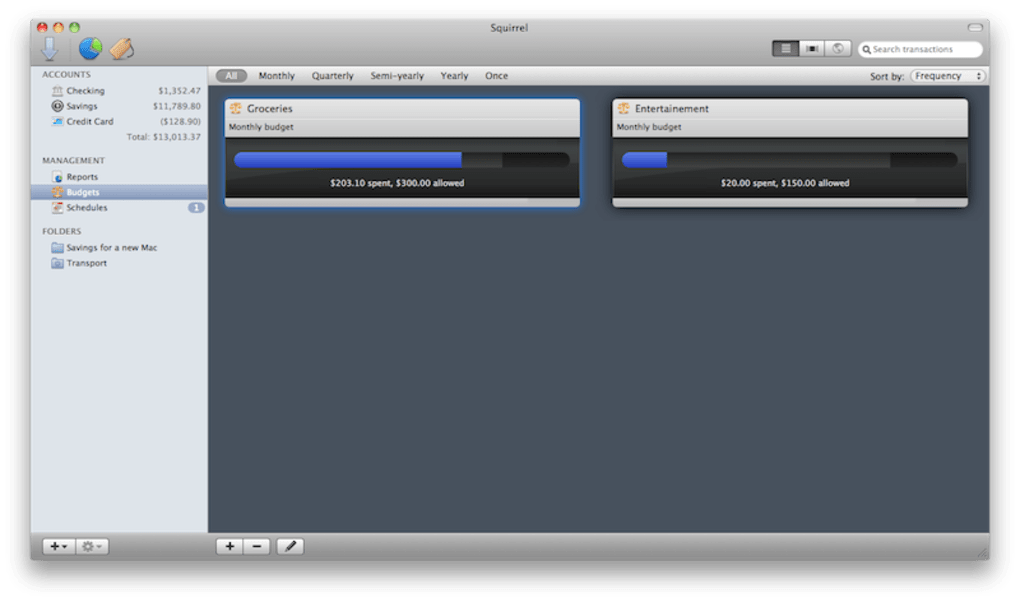
Squirrel positions itself as a “slick and simple” budgeting tool built specifically for the macOS ecosystem, and the claim holds up when you first launch the program. The interface feels native to OS X, with clean typography, subtle gradients, and a layout that mirrors the design language of Apple’s own apps. Unlike many legacy finance programs that overwhelm users with dense tables and cryptic menus, Squirrel adopts a minimalist philosophy: you get only the tools you need to track daily expenses, set up recurring transactions, and visualize cash flow without digging through endless settings.
The app’s core strength lies in its ease‑of‑use. After a brief onboarding wizard, users can import existing Quicken for Mac files, which instantly populates accounts, categories, and historical transactions. For those transitioning from spreadsheets, the import process is similarly straightforward—CSV files are recognized, and Squirrel prompts you to map columns to the appropriate fields. Once the data is inside, the app offers “smart folders” that automatically group expenses by category, date range, or custom tags, saving you the hassle of manual sorting.
While Squirrel is still a young product (the current public version sits at 1.x), the developer has pledged free updates up to version 2.0. This promise is a significant reassurance for budget‑conscious users who fear hidden fees or forced upgrades. However, the roadmap does reveal gaps: advanced investment tracking, online bill payment, and real‑time bank synchronization are still missing. The inclusion of a “Netbanking” feature—essentially an embedded browser that lets you log into your bank’s website from within the app—offers a clever workaround, but it lacks the seamless API‑driven integration found in more mature competitors. Overall, Squirrel is a polished entry‑level budgeting solution that excels at what it promises while leaving room for future growth.
Key Features
- Intuitive Dashboard – A clean, customizable overview that displays total balance, upcoming scheduled payments, and a quick snapshot of recent spending.
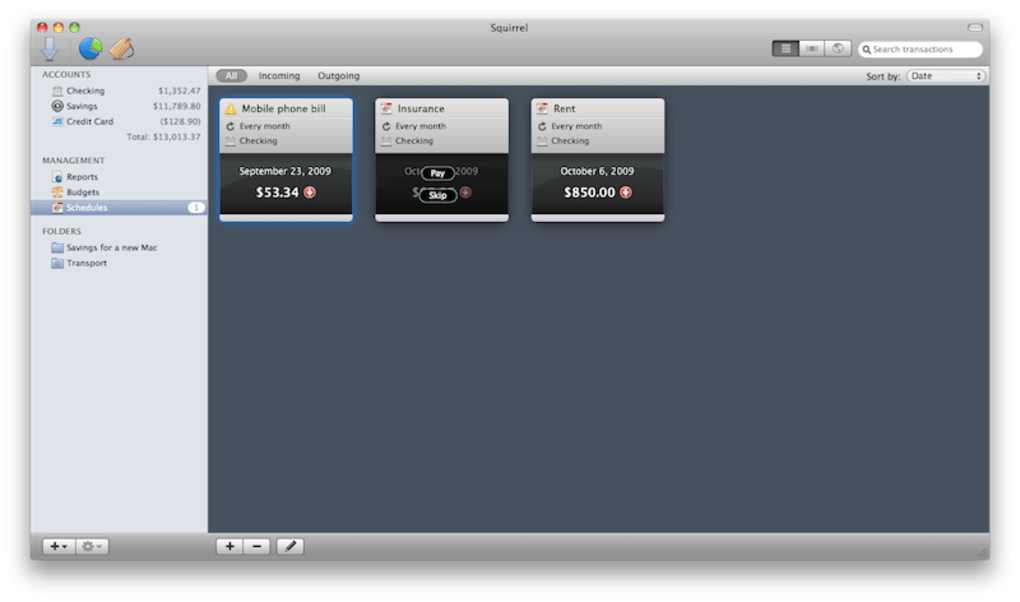
- Scheduled Transactions – Set recurring income or expenses (e.g., rent, utilities, salary) and let Squirrel handle them automatically each month.
- Smart Folders – Dynamic grouping of transactions based on categories, dates, or user‑defined tags, reducing manual categorization effort.
- Graphical Reports – Interactive charts and graphs that illustrate cash flow trends, category breakdowns, and net worth over selectable periods.
- Quicken Import – Direct import of Quicken for Mac files, preserving historical data, account structures, and custom categories.
- iPhone Companion App – A lightweight iOS version that syncs via iCloud, allowing you to log expenses on the go and view reports from your iPhone.
- Netbanking Browser – Embedded web view where you can enter your bank’s URL and browse statements without leaving the Squirrel environment.
- Free Updates to 2.0 – Commitment from the developer to provide all feature‑enhancing updates at no extra cost until the major 2.0 release.
- Data Export – Export transactions to CSV or QIF for backup, analysis in other tools, or migration to a different finance application.
- Secure Local Storage – All financial data is stored locally on your Mac with optional password protection, ensuring privacy without reliance on cloud servers.
Installation & Usage Guide
Getting Squirrel up and running is a straightforward process that mirrors the simplicity of the app itself. Follow these steps to download, install, and start budgeting within minutes:
- Download the Installer – Visit the official Squirrel website or the Mac App Store page and click the “Download for macOS” button. The file is a standard
.dmgpackage, typically under 50 MB, making it quick to download even on slower connections. - Mount the Disk Image – Double‑click the downloaded
.dmgfile. macOS will open a virtual disk showing the Squirrel application icon and a shortcut to the Applications folder. - Copy to Applications – Drag the Squirrel icon onto the Applications shortcut. This copies the app to
/Applications, ensuring it’s available system‑wide and can receive automatic updates via the App Store (if you installed from there). - Launch the App – Open your Launchpad or the Applications folder and double‑click Squirrel. The first launch may trigger a security prompt (“Squirrel was downloaded from the internet…”). Click “Open” to proceed.
- Complete the Onboarding Wizard – Squirrel walks you through a brief setup: choose your primary currency, create your first account (checking, savings, or cash), and optionally import existing Quicken data or CSV files. The wizard also lets you enable iCloud sync for the companion iPhone app.
- Configure Scheduled Transactions – Navigate to the “Scheduled” tab, click “Add New,” and define recurring items such as monthly rent, subscription services, or salary deposits. You can set start/end dates, frequency, and notification preferences.
- Explore Smart Folders – In the “Folders” section, you’ll see pre‑built folders like “Food & Dining,” “Transport,” and “Bills.” Create custom folders by clicking the “+” button, then set rules (e.g., any transaction with the word “Uber” goes to “Transport”).
- Review Reports – Click the “Reports” tab to view visualizations. Use the date picker to adjust the period, and hover over chart segments for detailed breakdowns. Export any report as a PNG or PDF for sharing or printing.
- Sync with iPhone – Install the Squirrel iOS app from the App Store, sign in with your Apple ID, and enable iCloud sync. Expenses entered on the phone will appear on the Mac within seconds.
- Backup Your Data – Although Squirrel stores data locally, it’s wise to back up the
~/Library/Application Support/Squirrelfolder to an external drive or Time Machine. This protects against hardware failure.
Once the initial setup is complete, daily usage becomes a habit of quickly adding new expenses via the “+” button on the dashboard, reviewing the smart folder summaries each week, and adjusting budgets as needed. The interface’s drag‑and‑drop capability also lets you re‑categorize transactions on the fly, making it ideal for users who prefer a hands‑on approach without diving into spreadsheets.
Compatibility, Pros & Cons
Squirrel is built exclusively for macOS (10.9 Mavericks and later) and offers a companion iPhone app for iOS 12+. The desktop version does not run on Windows or Linux, and there is currently no Android counterpart. This focus on the Apple ecosystem enables tight integration with native features like iCloud sync, Dark Mode, and the macOS Notification Center.
Pros
- Beautiful, native macOS design that feels familiar to Apple users.
- Simple onboarding with direct Quicken import saves time for existing Mac finance users.
- Smart folders and scheduled transactions automate routine budgeting tasks.
- Free updates promised through version 2.0 provide confidence in long‑term support.
- iPhone companion app lets you capture expenses on the go and stay synchronized via iCloud.
- Secure local storage with optional password protection ensures data privacy.
- Export options (CSV, QIF) make migration or backup straightforward.
Cons
- Lacks built‑in online banking integration; “Netbanking” is a workaround rather than a true API sync.
- No investment tracking or portfolio management features, limiting use for users with complex finances.
- Developer update cadence has been slow; some users report bugs that remain unfixed for months.
- No Windows or Android version, restricting cross‑platform flexibility.
- Advanced budgeting tools such as goal‑based planning, debt reduction calculators, or bill‑pay automation are absent.
Frequently Asked Questions
Can I import data from other finance apps besides Quicken?
Yes. Squirrel supports CSV and QIF file formats, which are common export options from most budgeting and accounting software. During the import process you can map the columns to match Squirrel’s fields, allowing a smooth transition from tools such as Moneydance, iBank, or even spreadsheet‑based budgets.
Is my financial data stored securely?
All data is stored locally on your Mac in an encrypted file within the Application Support folder. You can optionally protect the app with a password, and if you enable iCloud sync, the data is transmitted using Apple’s end‑to‑end encryption. No third‑party servers are involved unless you manually export your data.
Will Squirrel work on my older Mac running OS X 10.8?
The minimum supported version is macOS 10.9 Mavericks. Users on 10.8 (Mountain Lion) or earlier will not be able to install or run the app. Consider updating your operating system or looking for a legacy budgeting tool that supports older macOS releases.
How does the iPhone app sync with the desktop version?
Synchronization relies on iCloud. When you enable iCloud sync in both the macOS and iOS apps, any transaction you add, edit, or delete is uploaded to your iCloud account and then pushed to the other device within seconds. This method ensures both platforms always display the same data without manual export or import.
Is there a way to automate bill payments directly from Squirrel?
Currently Squirrel does not offer built‑in bill‑pay functionality. The “Netbanking” feature lets you browse your bank’s website inside the app, but you still need to complete payments manually. Future updates (planned for version 2.0) may introduce API‑based bill payment, but as of now you’ll need to use your bank’s portal or a separate payment app.
Conclusion & Call to Action
In the crowded world of personal finance software, Squirrel distinguishes itself with a razor‑sharp macOS aesthetic and a focus on the fundamentals of budgeting. It shines brightest for users who want a quick, visually appealing way to track daily expenses, set up recurring payments, and view clear graphical reports without the overhead of heavy investment‑tracking modules. The free‑update promise up to version 2.0 adds confidence for early adopters, while the iPhone companion app extends budgeting onto the road.
However, power users seeking comprehensive investment analytics, automated bill payment, or multi‑platform support may find the current feature set limiting. The lack of native online banking integration and a slower update cadence are notable drawbacks that could deter users who expect a “set‑and‑forget” financial hub.
If you are a Mac‑centric individual who values simplicity, design, and a straightforward budgeting workflow, Squirrel is a solid choice that delivers on its promises. Download the installer today, import your existing Quicken data, and start visualizing your cash flow with the sleek dashboards that only a native macOS app can provide.
Ready to take control of your finances? Click the download button below, install Squirrel on your Mac, and experience a cleaner way to budget. Remember to pair it with the free iPhone app for on‑the‑go expense tracking. Your journey to smarter money management begins with a single click.








