
Screenshots
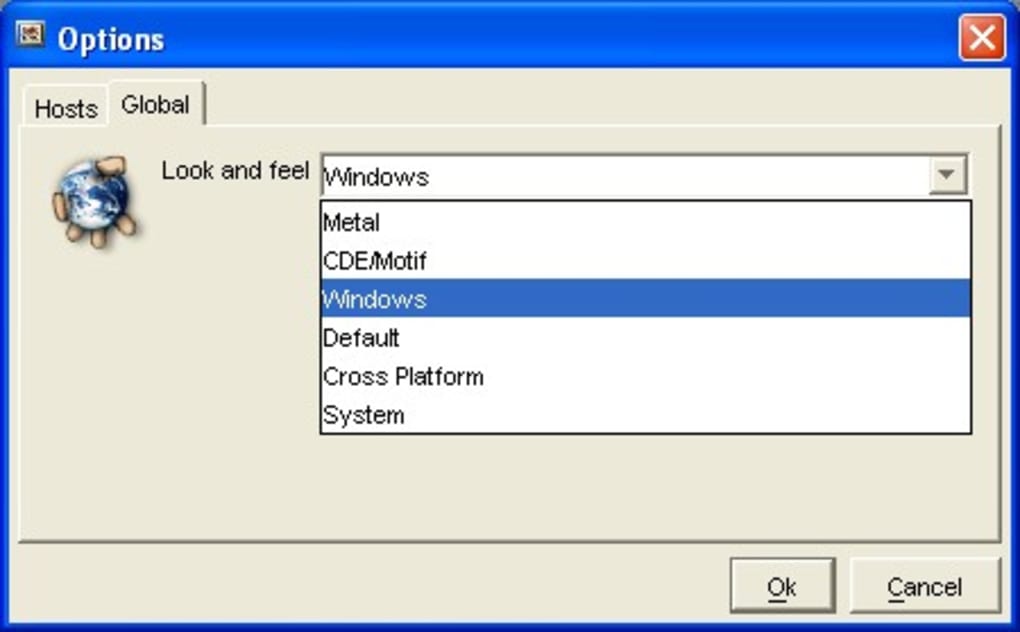
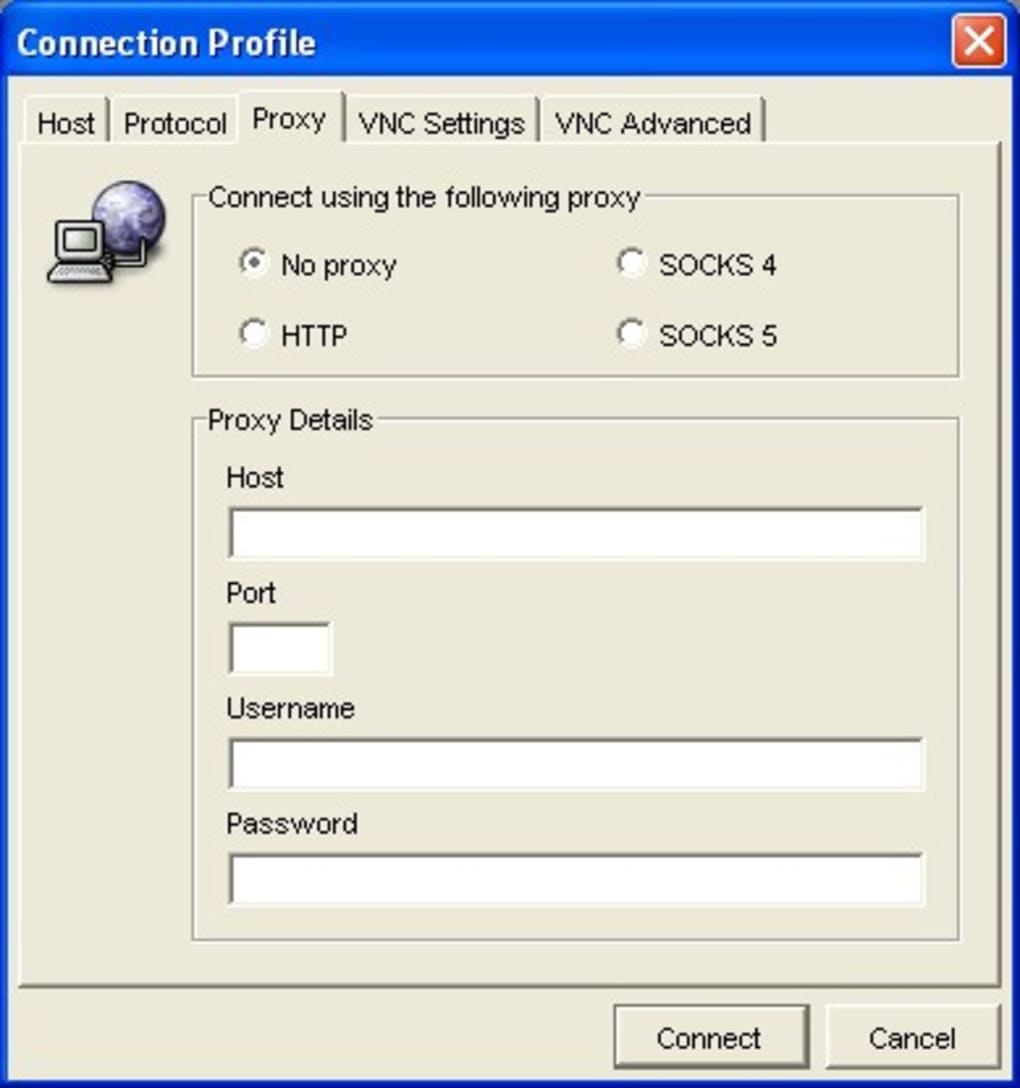
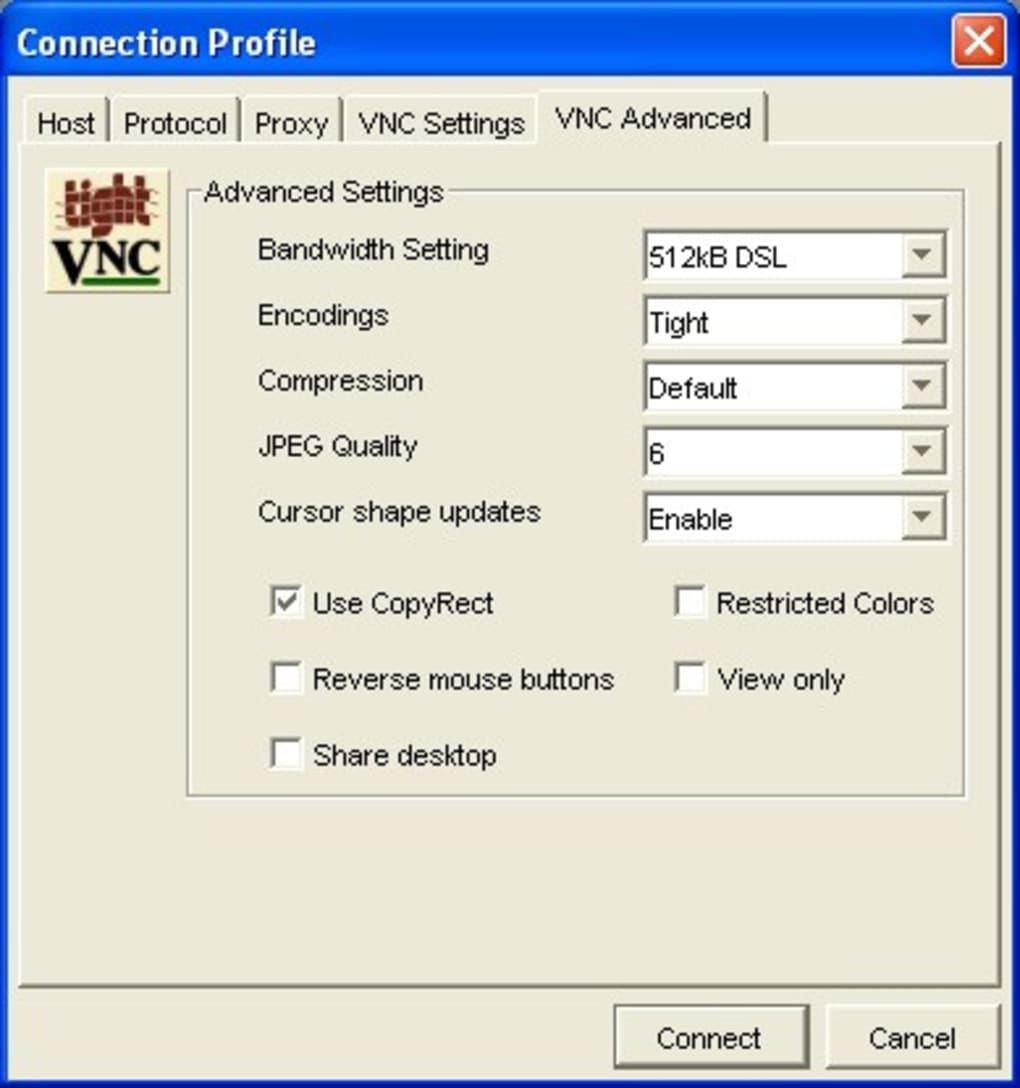
App details
- Version
- 0.1.3
- Size
- 15.28 MB
- Updated
- July 20, 2021
- Requires
- Windows XP
- Language
- English
- License
- Free
- Developer
- Sshtools
- Category
- Windows OS
About SSHVnc
Download SSHVnc – Secure Remote Desktop, Free SSH‑VNC Tunnel Tool
Overview
SSHVnc is a lightweight utility that bridges the gap between the classic VNC remote‑desktop protocol and the robust security of SSH (Secure Shell). By encapsulating VNC traffic inside an encrypted SSH tunnel, SSHVnc guarantees that every pixel, mouse click, and keystroke travels over a channel that cannot be intercepted by eavesdroppers or man‑in‑the‑middle attackers. For IT administrators, developers, or power users who need to control a remote workstation without exposing the VNC port to the public internet, SSHVnc offers a “set‑and‑forget” experience. The program runs as a third‑party client that automatically negotiates the SSH tunnel, applies optional compression, and forwards the VNC session to the target machine. While the underlying concepts of SSH tunneling can be daunting for newcomers, SSHVnc abstracts the complexity into an intuitive graphical interface. Users can select the encryption algorithm, adjust the compression ratio, and fine‑tune additional security flags without writing a single command‑line script. The tool shines in environments where a secure remote connection is mandatory—such as corporate networks, remote support scenarios, or educational labs—while still being light enough to install on modest hardware. Although documentation is sparse and the initial learning curve can feel steep for those unfamiliar with SSH, the payoff is a reliable, encrypted remote‑desktop experience that rivals commercial solutions at zero cost.
Core Features
- Full SSH encryption of VNC traffic – no plain‑text exposure.
- Automatic tunnel creation – no manual SSH commands required.
- Configurable compression levels to optimise bandwidth usage.
- Support for multiple SSH authentication methods (password, key‑based).
- Customisable encryption algorithms (AES‑128, AES‑256, ChaCha20).
- Integrated VNC viewer – launch remote desktop directly from the app.
- Cross‑platform binaries for Windows, macOS, and Linux.
- Lightweight footprint – under 5 MB download size.
- Command‑line fallback for advanced users.
- Detailed logging for troubleshooting SSH tunnel failures.
Installation & Usage Guide
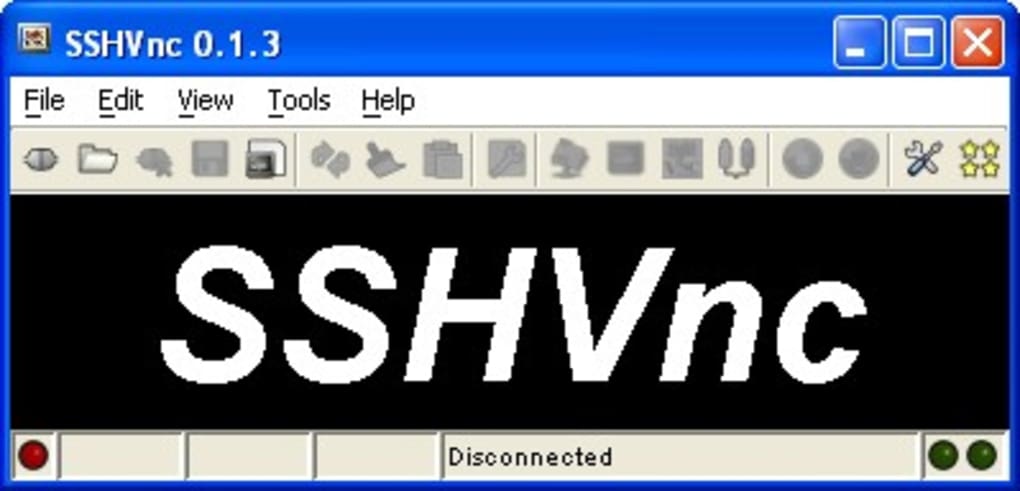
Getting started with SSHVnc is straightforward, even if you are not a seasoned sysadmin. First, download the installer that matches your operating system from the official website. For Windows users, run the .exe file and follow the wizard; macOS users will receive a .dmg package that can be dragged into the Applications folder; Linux users can extract the provided tarball and place the binary in /usr/local/bin. After installation, launch SSHVnc. The main window presents three tabs: Connection Settings, Security Options, and Advanced.
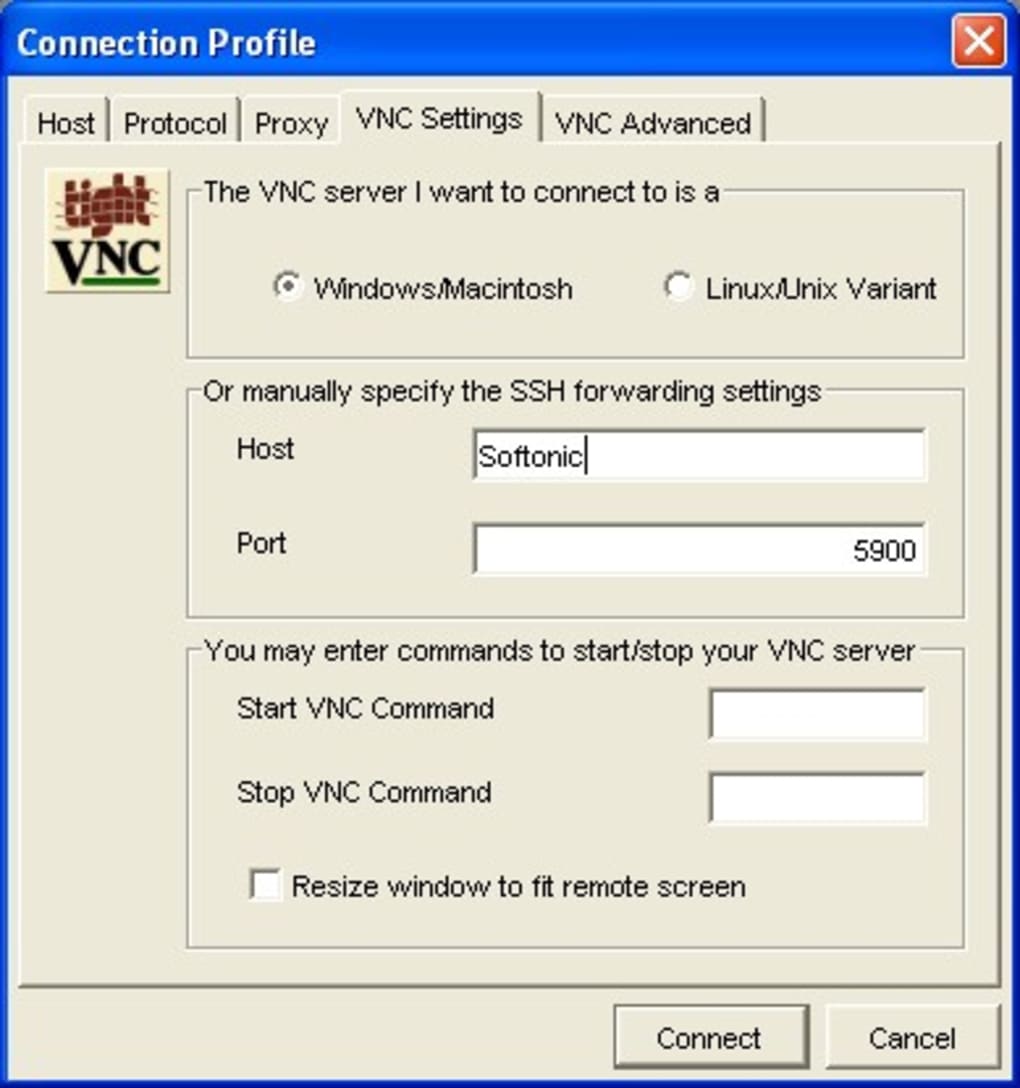
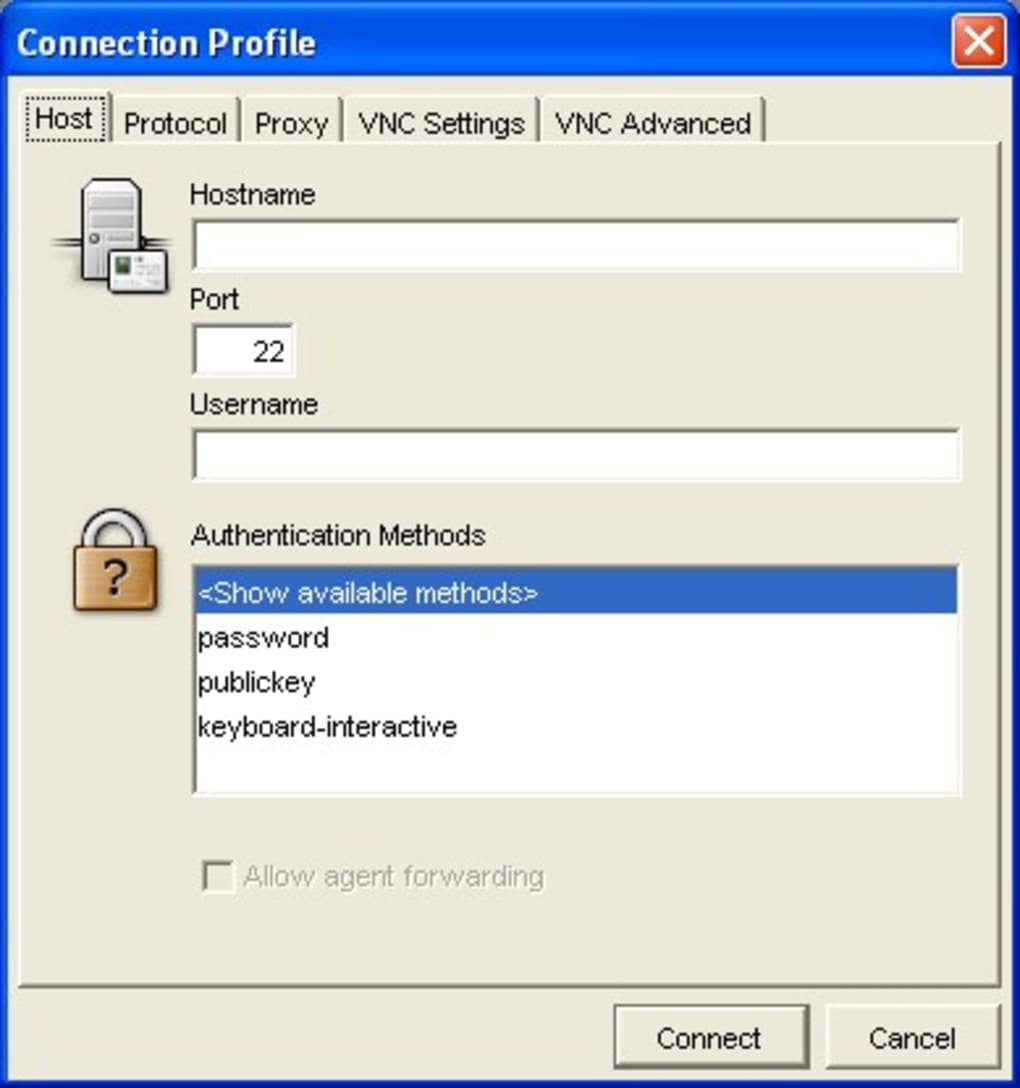
In Connection Settings, enter the IP address or hostname of the remote machine, the VNC port (default 5900), and your SSH credentials. If you prefer key‑based authentication, click “Browse” to locate your private key file and optionally provide a passphrase. Moving to Security Options, you can select the desired cipher suite, enable or disable MAC (Message Authentication Code) verification, and set the compression ratio (ranging from 0 – no compression – to 9 – maximum compression). The Advanced tab offers tunnel keep‑alive intervals, custom SSH flags, and a checkbox to launch the built‑in VNC viewer automatically once the tunnel is established.
To initiate the connection, simply press the “Connect” button. SSHVnc will first negotiate the SSH handshake, then create a local forward (usually 127.0.0.1:5901) that maps to the remote VNC service. If the tunnel succeeds, the embedded VNC viewer opens, displaying the remote desktop as if you were sitting in front of it. Should any step fail, the log panel at the bottom presents detailed error messages—helpful for diagnosing authentication problems, firewall blocks, or mismatched encryption settings. For power users, the command‑line mode can be invoked with sshvnc -ssh user@host -vnc 127.0.0.1:5900 -key /path/to/key, allowing scripting and automation in batch deployments.
Compatibility, Pros & Cons
Operating System Support
SSHVnc is compiled for the three major desktop platforms. Windows 7 and newer (including Windows 10/11) are fully supported, with both 32‑bit and 64‑bit binaries. macOS 10.13 (High Sierra) and later run the application natively, thanks to a signed bundle that satisfies Gatekeeper. Linux users benefit from pre‑built packages for Debian‑based distributions (Ubuntu, Mint) and RPM‑based systems (Fedora, CentOS). The application also works on headless servers when used in command‑line mode, making it a versatile choice for remote administration across heterogeneous environments.
Pros
- Zero‑cost solution that delivers enterprise‑grade SSH encryption for VNC.
- Intuitive GUI eliminates the need for manual SSH tunnel commands.
- Highly configurable encryption and compression options.
- Built‑in VNC viewer speeds up the workflow.
- Lightweight download size and minimal system resource consumption.
- Cross‑platform availability ensures consistent experience on Windows, macOS, and Linux.
- Detailed logging helps troubleshoot connectivity issues quickly.
Cons
- Documentation is limited; new users may need to search external resources.
- Advanced features (e.g., custom SSH flags) are hidden in the “Advanced” tab, which can be confusing.
- No native mobile (Android/iOS) client; only desktop platforms are supported.
- Occasional compatibility quirks with legacy VNC servers that do not support certain authentication methods.
- Automatic updates are not built‑in; users must manually download newer releases.
FAQ & Conclusion
Is SSHVnc completely free to use?
Yes, SSHVnc is released as a free tool with no hidden licensing fees. Users can download, install, and use it without purchasing a license.
Can I use SSHVnc to connect to a Linux VNC server from a Windows PC?
Absolutely. SSHVnc’s cross‑platform design lets a Windows client create an encrypted SSH tunnel to any VNC server, whether it runs on Linux, macOS, or another Windows machine.
Do I need to generate SSH keys, or can I use password authentication?
Both methods are supported. For higher security, key‑based authentication is recommended, but the GUI also lets you enter a password directly if you prefer.
What happens if the SSH tunnel drops during a VNC session?
SSHVnc’s log window will display a disconnect message. You can manually reconnect by clicking “Connect” again, or enable the “keep‑alive” option in the Advanced tab to automatically re‑establish the tunnel.
Is there a way to automate SSHVnc connections for batch deployments?
Yes, the command‑line interface allows you to script connections. Example: sshvnc -ssh user@host -vnc 127.0.0.1:5900 -key /path/to/key -compress 6 can be placed in batch files or shell scripts.
In summary, SSHVnc delivers a powerful, secure way to remote‑control desktops without exposing VNC ports to the open internet. Its combination of an easy‑to‑use GUI, robust encryption choices, and cross‑platform support makes it an excellent fit for both casual users who need occasional remote assistance and IT professionals managing multiple remote machines. While the lack of extensive documentation may pose a short‑term hurdle, the built‑in logs and active community forums provide enough guidance to get you up and running quickly. If you’re looking for a free, secure, and lightweight solution to protect your VNC sessions, download SSHVnc today and enjoy peace of mind with every remote connection.
Guides & Tutorials
How to install SSHVnc
- Click the Download button above.
- Once redirected, accept the terms and click Install.
- Wait for the SSHVnc download to finish on your device.
How to use SSHVnc
This software is primarily used for its core features described above. Open the app after installation to explore its capabilities.
User Reviews
No reviews yet. Be the first to share your experience.
You may also like
more
Llama 2
Free-to-use large language model As the new addition to Meta’s arsenal of langua...

NotebookLM
Revolutionizing the note-taking and idea-generation process NotebookLM is an exp...

Github co pilot
AI-inspired software development and coding platform GitHub Copilot is a browser...

Google Gemma
Google’s lightweight AI models Introducing Google Gemma , a family of cutting-ed...

AI Image Enlarger
A free app for Windows, by ai-image-larger. AI Image Enlarger is a free software...

DALL E
AI-driven text-to-image transformation engine DALL·E is a free graphic and desig...
