
Download WinMTR – Free Network Diagnostic Tool for Windows
Overview of WinMTR – What It Is and Why It Matters
WinMTR is an open‑source network diagnostic utility built especially for Windows users who need a clear, real‑time view of how data travels across the internet. Combining the classic traceroute command with continuous ping statistics, WinMTR creates a dynamic table that shows each hop, the round‑trip time, packet loss, and other vital metrics. The interface is deliberately simple: you type a hostname or destination IP address, click “Start,” and the program begins probing the route instantly. Within seconds you receive a detailed, scrollable report that highlights problem points such as high latency or dropped packets, making it easier to pinpoint bottlenecks in home, office, or data‑center environments.
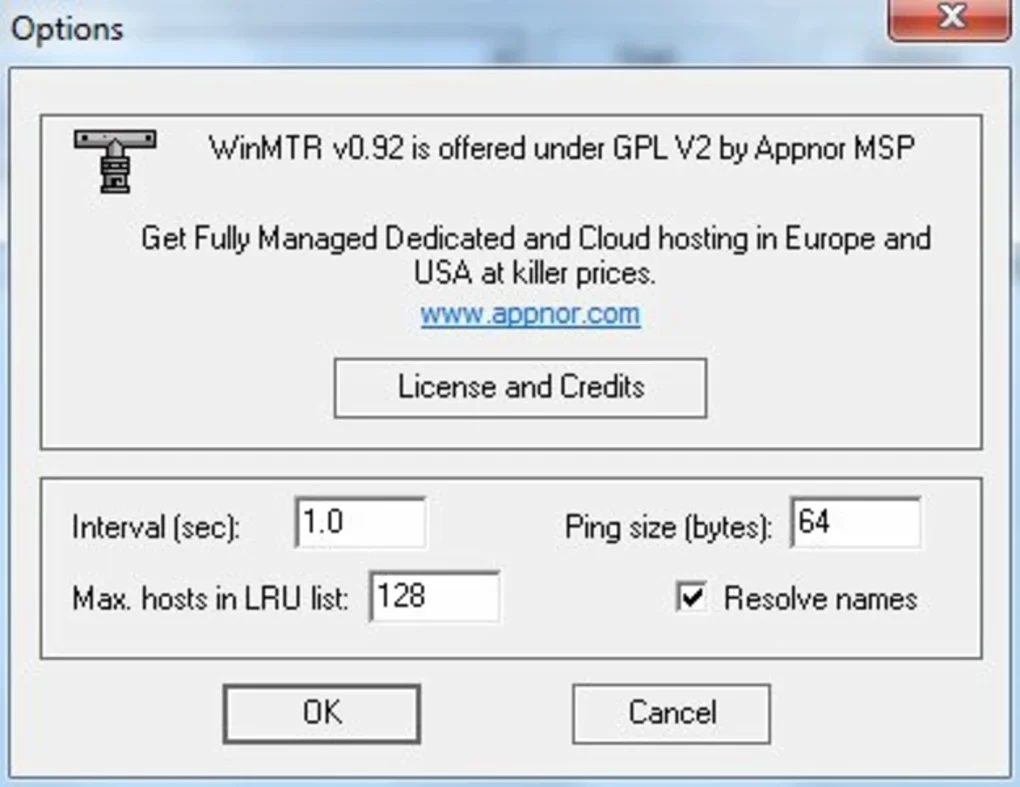
Although network tracing can be intimidating for non‑technical users, WinMTR abstracts the complexity by presenting the data in an easy‑to‑read grid. You can pause, resume, or clear the session at any time, and the results can be exported as an HTML page or a plain‑text (.txt) file for further analysis or for sharing with ISP support teams. The tool also lets you customize the ping packet size from the menu, giving you flexibility when testing different types of traffic. Because it is lightweight, free, and regularly updated by the community, WinMTR has become a go‑to solution for gamers, IT professionals, and anyone who needs to troubleshoot connectivity issues without diving into command‑line jargon.
Key Features, Installation Steps, and How to Use WinMTR Effectively
- Real‑time combination of traceroute and ping in a single table.
- Live statistics for each hop: latency, packet loss, and jitter.
- Exportable results in HTML or plain‑text formats for documentation.
- Customizable ping size and timeout settings via the menu.
- Lightweight executable – no installation required, runs as a portable app.
- Open‑source codebase with frequent community‑driven updates.
- Supports IPv4 and IPv6 address tracing.
Installing WinMTR is remarkably straightforward because the program is distributed as a single executable file. After downloading the zip archive from the official project page, extract the contents to a folder of your choice. There is no traditional installer; simply double‑click WinMTR.exe to launch the interface. For first‑time users, the following step‑by‑step guide helps you get up and running in under a minute:
- Download the latest WinMTR zip from the official site or a trusted mirror.
- Extract the archive to a convenient location (e.g., Desktop or Program Files).
- Run
WinMTR.exeas an administrator to ensure full network access. - In the “Host” field, type the domain name or IP address you want to test (e.g.,
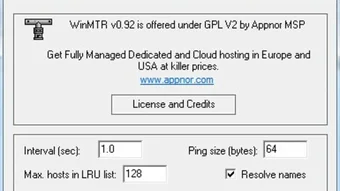
google.com). - Optionally open the “Options” menu to adjust the packet size (default is 56 bytes) or change the number of probes per hop.
- Click the green “Start” button. The table will populate as each hop is discovered.
- Watch the live statistics; high loss or latency at a specific hop usually points to a problematic router or ISP segment.
- When finished, use the “Export” button to save the report as HTML or .txt for later reference.
The real power of WinMTR lies in its ability to run continuously, allowing you to monitor a connection over minutes or hours. This is especially useful for diagnosing intermittent issues such as occasional lag spikes in online gaming or sporadic video‑call dropouts. By pausing the test, you can also compare results before and after a network change (e.g., after rebooting a router or switching Wi‑Fi bands).
System Compatibility, Pros & Cons, and Frequently Asked Questions
WinMTR is a Windows‑only utility. It runs on all modern versions of the operating system, including Windows 10, Windows 11, Windows 8/8.1, and Windows 7 (both 32‑bit and 64‑bit builds). Because it is a portable executable, it does not require .NET Framework or additional runtime libraries, making it ideal for older machines that lack the latest updates. Users on macOS, Linux, Android, or iOS can achieve similar functionality with alternative tools such as mtr (the original Unix version) or third‑party apps, but WinMTR remains the most user‑friendly option for pure Windows environments.
Pros
- Completely free and open‑source – no hidden fees or trial periods.
- Instant, live feedback on every hop with clear visual indicators.
- Portable – no installation, easy to carry on a USB stick.
- Export options make sharing results with support teams painless.
- Lightweight footprint; runs smoothly even on low‑end PCs.
- Regular community updates keep the tool compatible with modern networks.
Cons
- Only available for Windows; no native macOS or Linux builds.
- User interface is functional but dated – lacks modern dark‑mode styling.
- Advanced network features (e.g., DNS lookups, traceroute graphs) are absent.
- Requires administrator privileges on some corporate networks to function fully.
Frequently Asked Questions
Is WinMTR safe to download and use?
Yes. WinMTR is an open‑source project hosted on reputable repositories such as GitHub. The executable is digitally signed and does not contain ads or telemetry, making it safe for both personal and professional use.
Can I run WinMTR on a corporate network that blocks ICMP?
If ICMP (ping) is blocked, WinMTR will still attempt to send traceroute probes, but you may see “* * *” for lost packets. In such environments you can switch to TCP‑based tracing tools or request the network admin to allow temporary ICMP traffic for diagnostics.
How do I interpret high packet loss on a specific hop?
High loss at a hop usually indicates congestion or a misconfigured router. If loss persists across multiple hops, the issue is likely with the ISP or backbone. Isolated loss on a single hop can often be ignored, as some routers deprioritize ICMP traffic.
Can I schedule WinMTR tests to run automatically?
WinMTR itself does not include a scheduler, but you can launch it via a Windows Task Scheduler script that runs the executable with command‑line arguments and saves the output automatically.
What is the best packet size for testing gaming latency?
For most online games, the default 56‑byte ping size mirrors typical game packets and provides accurate latency readings. If you suspect MTU‑related issues, increase the size incrementally (e.g., 120 bytes) and observe any change in loss or delay.
Review Summary: WinMTR delivers a reliable, no‑frills experience for Windows users who need instant visibility into network paths. Its free, portable nature and clear output outweigh the lack of advanced visualizations, making it a solid 4‑star recommendation for both casual and professional diagnostics.
Final Verdict – Why You Should Download WinMTR Today
If you’re looking for a quick, secure, and completely free way to diagnose latency, packet loss, or routing problems on a Windows machine, WinMTR is the answer. Its blend of traceroute and ping data in a single, continuously updating table eliminates the guesswork that often accompanies network troubleshooting. The ability to export results means you can easily share findings with ISP support or document issues for future reference. While the interface is modest and the tool is limited to Windows, these drawbacks are far outweighed by its speed, portability, and zero‑cost nature.
Ready to take control of your network health? Download WinMTR now from the official site, unzip the package, and start testing in seconds. Remember to run the program as an administrator for full packet access, and consider saving a copy of each report for ongoing monitoring. With WinMTR in your toolkit, you’ll spend less time guessing and more time fixing real connectivity problems.








