Master Addons
  • Widgets
    • Changelogs
      Source Code NEW PRO
      Caldera Forms
      Logo Slider
      Table of Contents
      Gravity Forms
      Transforms PRO
      Restrict Content PRO
      Pricing Table
      Ninja Form
      Mailchimp
      Tooltip
      Popup Trigger NEW PRO
      Which Element NEW
      Creative Button
      Creative Links NEW
      Domain Search HOT PRO
      Dual Heading HOT
      Flipbox
      Animated Gradient BG HOT PRO
      Image Hotspot PRO
      Infobox
      News Ticker PRO
      Particles
      Progress Bar
      Off-Canvas Content NEW PRO
      Reading Progress Bar HOT
      Custom JS
      Blockquote
      Counter Up
      Image Hover Effects
      Reveal NEW PRO
      Rellax PRO
      Positioning
      Image Comparison
      Tabs
      Toggle Content HOT PRO
      Post/Page Duplicator FREE
      Floating Effects PRO
      Mega Menu HOT
      Custom CSS HOT
      Gradient Headline
      Advanced Image
      Nav Menu
      Tooltips
      Comparison Table PRO
      Glassmorphism
      Featured Product PRO
      Image Carousel
      Gallery Slider NEW PRO
      Dynamic Tags NEW
      Countdown Timer
      Current Time
      Patterns
      Wrapper Link
      Timeline
      Team Member
      Contact Form 7
      Advanced Accordion
      Animated Headlines
      Blog
      Business Hours
      Call To Action
      Progress Bars
      Background Slider
      Team Slider
      Dynamic Table
      Grid Line PRO
      WP Forms
      Search
      We Form
      Entrance Animation NEW PRO
      Display Conditions PRO
      Filterable Image Gallery
      WP Forms
      Custom Breakpoints NEW
  • Features
    • Theme Builder

      Design site-wide templates for a consistent look across every page of your website.

      Popup Builder

      Create engaging popups, modals, and announcement bars - to capture leads.

      Widget Builder

      Expand Elementor with advanced custom widgets to build more dynamic layouts.

      Mega Menu Builder

      Create multi-column menus with icons and images for superior navigation.

      Custom Css

      Apply your own CSS for pixel-perfect styling beyond default design options.

      Dynamic Tags

      Insert dynamic content like post titles and custom fields directly into designs.

      Display Conditions

      Control element visibility based on user role, device, time, and other rules.

      Icons Library

      Choose from thousands of built-in icons to enhance visuals and consistency.

      Animation

      Add scroll, hover, entrance, and much more animations to bring designs to life.
  • Template Kits
    • Template Kits

      Professionally designed full-page template Kit. Import and customize in seconds.

      Ready Sections

      Pre-built content sections and rows. Drag, drop, and customize instantly.

      Ready Popups

      Different types of High-converting popup designs. Import and launch quickly.

      Elementor Page Templates

      Complete page layouts for any purpose. Start editing immediately.

      Ready Header

      Multiple modern header designs. Import and adapt to your brand.

      Ready Footer

      Fully designed footers for different websites. Add functionality and style in clicks.
  • Brands
    • WP Adminify

      WP Adminify

      Take control of your WordPress dashboard. Customize the admin experience.
      Admin Bar Editor

      Admin Bar Editor

      Customize the WordPress admin bar for a cleaner, more personalized workspace.
      Loginfy

      Loginfy

      Customize your WordPress login page with branding, styles, and security enhancements.

      Rolemaster Suite

      Manage user roles and permissions with precision for better security and workflow.
      Master Blocks

      Master Blocks

      Expand the Gutenberg editor with advanced custom blocks for more creative layouts.
      WP Spotlight

      WP Spotlight

      Instantly search and access admin features, posts, and settings from anywhere.
  • Themes
  • Help
    • Get Support
    • Documentation
    • Facebook Community
    • Changelogs
  • Blog
Pricing
🇺🇸EN
  • 🇺🇸EN
  • 🇸🇦AR
  • 🇧🇩BN
  • 🇩🇰DA
  • 🇩🇪DE
  • 🇪🇸ES
  • 🇫🇷FR
  • 🇮🇳HI
  • 🇰🇷KO
  • 🇵🇹PT
  • 🇷🇺RU
  • 🇨🇳ZH

Getting Started

  • Can’t see the Master Addon Element inside Elementor Page editor?
  • How To Apply For an Affiliate Account?
  • Active Pro version
  • Installing Plugin

Addons

  • Popup Trigger Widget Settings
  • Off-Canvas Content Widget Settings
  • Logo Slider Widget Settings
  • Progress Bars Widget Settings
  • Image Carousel Settings
  • Featured Product Widget Settings
  • Comparison Table Widget Settings
  • Source Code Widget Settings
  • Advanced Image Widget Settings
  • Gradient Headline Widget Settings
  • Gallery Slider Settings
  • Toggle Content Widget Settings
  • Info Box Widget Settings
  • Timeline Widget Settings
  • Dynamic Table Widget Settings
  • Mailchimp Widget Settings
  • Blockquote Widget Settings
  • Changelog Widget Settings
  • Countdown Timer Widget Settings
  • Current Time Widget Settings
  • Search Widget Settings
  • Filterable Image Gallery
  • Team Slider Widget Settings
  • Counter Up Widget Settings
  • Restrict Content Settings
  • Table of Contents Widget Settings
  • Image Hotspot Widget Settings
  • Image Comparison Widget Settings
  • News Ticker Widget Settings
  • Image Hover Effects
  • Tabs Settings
  • Pricing Table Widget Settings
  • Nav Menu Widget Settings
  • Domain Search Widget Settings
  • Flipbox Widget Settings
  • Tooltip Settings
  • Creative Links Widget Settings
  • Business Hours Widget Settings
  • Contact Form 7 Widget Settings
  • Creative Button Widget Settings
  • Animated Headlines Settings
  • Advanced Accordion Widget Settings
  • Call to Action Widget Settings
  • Progress Bar Widget Settings
  • Blog Posts Widget Settings
  • Team Member Widget Settings
  • Dual Heading Settings

Extensions

  • Mega Menu Settings
  • Which Element Extension Settings
  • Post/Page Duplicator Extension Settings
  • Grid Line Extension Settings
  • Glassmorphism Extension Settings
  • Tooltip Extension Settings
  • Wrapper Link Settings
  • Floating Effects Extension Settings
  • Dynamic Tags Settings
  • Display Conditions Extension Settings
  • Entrance Animation Settings
  • Custom Breakpoints Settings
  • Animated Gradient BG Extension Settings
  • Reveal Extension Settings
  • Particles Extension Settings
  • Background Slider Extension Settings
  • Transforms Extension Settings
  • Rellax Extension Settings
  • Positioning Extension Settings
  • Custom CSS Settings

Widget Builder

  • Conditions
  • Twig Syntax
  • Settings Panel Introduction
  • Divider
  • Text Shadow
  • Select2
  • Border
  • Heading
  • Tabs
  • Repeater
  • Visual Choice
  • Background
  • Dimensions
  • Box Shadow
  • Slider
  • Icons
  • Gallery
  • Media
  • Popover Toggle
  • URL Field
  • Date Time
  • Typography
  • Font
  • Color Field
  • Choose
  • Select
  • Switcher
  • Hidden
  • Code
  • WYSIWYG
  • Textarea Field
  • Number
  • Text Field

Theme Builder

  • Comment Form
  • 404
  • Search
  • Archive
  • Single
  • Footer
  • Header

Popup Builder

  • How to Open a Popup After Inactivity in Elementor
  • How to Show an Exit Intent Popup in Elementor
  • How to Open a Popup on Scroll to a Specific Element in Elementor
  • How to Open a Popup on Scroll in Elementor
  • How to Open a Popup on Click in Elementor
  • How to open a popup on page load?
  • Popup Settings & Options

Template Kit

  • How to Import Template Kits in Master Addons
  • How to Disable Elementor Default Fonts and Colors
  • Import Elementor Template Kits
View Categories
  • Home
  • Docs
  • Widget Builder
  • Code

Code

Image
Roy Jemee
Updated on September 18, 2026

5 min read

The Code field puts a small code editor into a custom widget you build with the Master Addons Widget Builder. Editors paste a snippet, such as the badge HTML a payment provider hands out, and the field keeps it readable with line numbers and syntax highlighting. It’s the field for markup that has to be pasted rather than typed as prose.

Code is a Pro field. The free plugin includes a limited Widget Builder, and the full set of fields comes with Master Addons Pro.
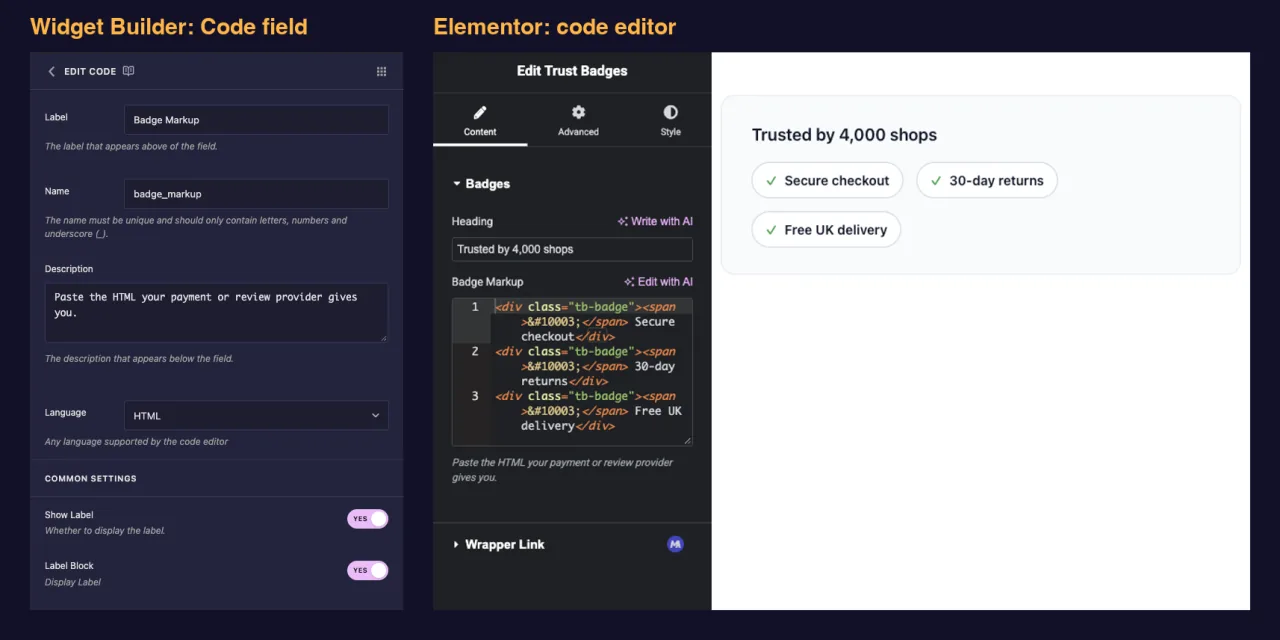
Code field settings in the Master Addons Widget Builder next to the code editor in Elementor for a trust badge widget

What the Code field does #

  • Adds a code editor to your widget’s panel in Elementor, with line numbers and highlighting.
  • Highlights in the language you choose, from HTML and CSS to JSON, SVG and PHP.
  • Saves whatever was pasted as text.
  • Prints it through a token such as {{ badge_markup }}, cleaned with WordPress’s own post content filter so allowed HTML renders and script tags are dropped.
  • Has a raw filter for the rare case where a snippet has to go out untouched.

New to the builder? Read the Widget Builder overview first, then come back with a widget open.

Before you start #

  • WordPress with Elementor installed and active.
  • Master Addons for Elementor and Master Addons Pro, both active. The installation guide covers setup.
  • A widget open in the Widget Builder. The example in this guide is a “Trust Badges” widget: a Text field for the heading and a Code field named badge_markup that takes the provider’s badge HTML.

How to add a Code field #

  1. Go to Master Addons > Widget Builder and open your widget.
  2. Add a section on the Content tab, for example “Badges”.
  3. Type code in the field search box on the left.
  4. Drag Code into the section. Click the pencil on the field to open its settings.
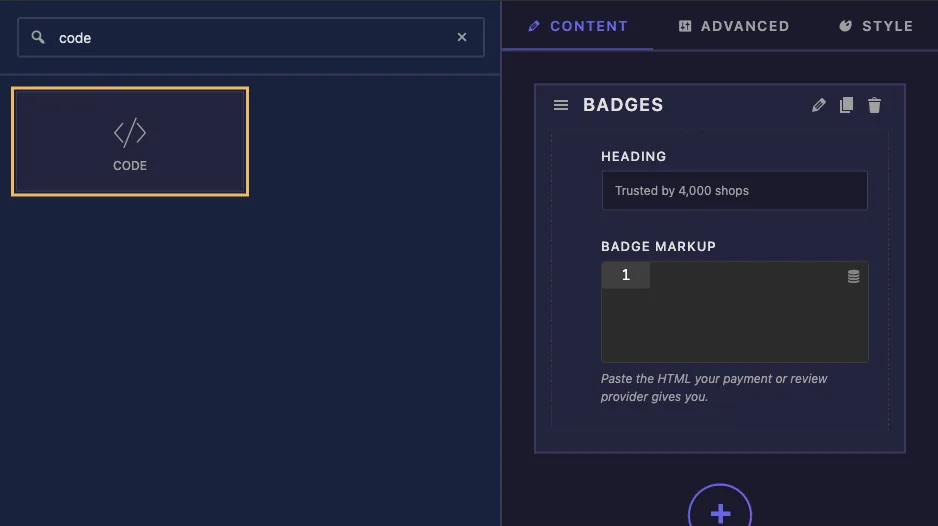
Code field found by searching code in the Widget Builder with a Badge Markup field in the Badges section

Code field options explained #

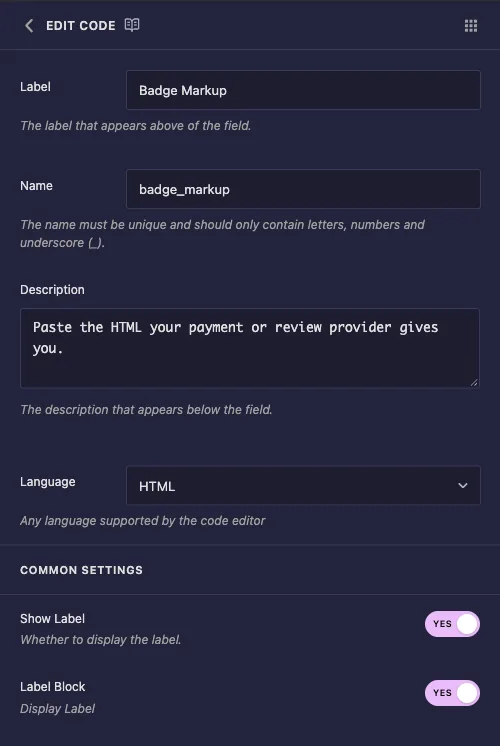
Code field options with Label, Name, Description and a Language dropdown set to HTML
  • Label: the text above the editor in Elementor, for example “Badge Markup”.
  • Name: the field’s unique ID and the name of its token. Use letters, numbers and underscores only, for example badge_markup.
  • Description: a hint shown under the editor in Elementor. Use it to say what the field expects, such as “Paste the HTML your payment or review provider gives you.”
  • Language: the highlighting mode. The list has HTML, CSS, SASS, SCSS, JavaScript, JSON, LESS, Markdown, PHP, Python, MySQL, SQL, SVG, Text, Twig and Typescript. HTML is the default.

Language changes highlighting only. It doesn’t limit what an editor can paste, and it doesn’t change how the value is printed.

The panel has no Default Value and no height setting for this field, so the editor always opens empty at its standard height. Turn on Label Block so the label sits above the editor instead of squeezing beside it.

Under Common Settings you’ll also find Show Label, Separator and Conditions, which work the same as on other fields. Leave Selector empty: a pasted snippet isn’t a CSS value.

Print the code in your template #

Put the token where the snippet should land, and guard it so an empty field leaves no wrapper behind:

<div class="tb">
  <p class="tb-heading">{{ tb_heading }}</p>
  {% if badge_markup %}
  <div class="tb-badges">{{ badge_markup }}</div>
  {% endif %}
</div>
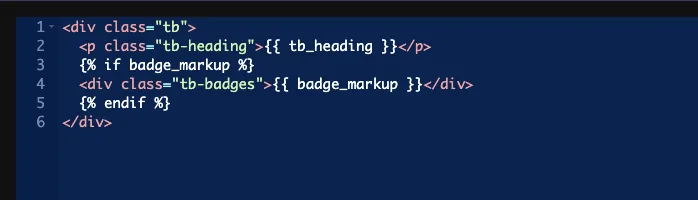
Widget HTML printing the badge_markup token inside an if block

Style the wrapper in the CSS panel as usual. The snippet itself brings whatever classes the provider gave it, so it’s worth adding your own wrapper class to control spacing and alignment.

What the token strips #

The value goes through the same filter WordPress uses for post content. Tags allowed in posts come out as pasted: div, span, a, img and the rest. Script tags and iframes are removed.

One detail is worth knowing before you hand the widget to a client. In our tests, a pasted script tag was removed but the JavaScript inside it stayed on the page as plain text, so the visitor saw a line of code in the middle of the widget. Nothing warns you about it. Test a provider’s snippet on a draft page once, and tell editors to paste markup only.
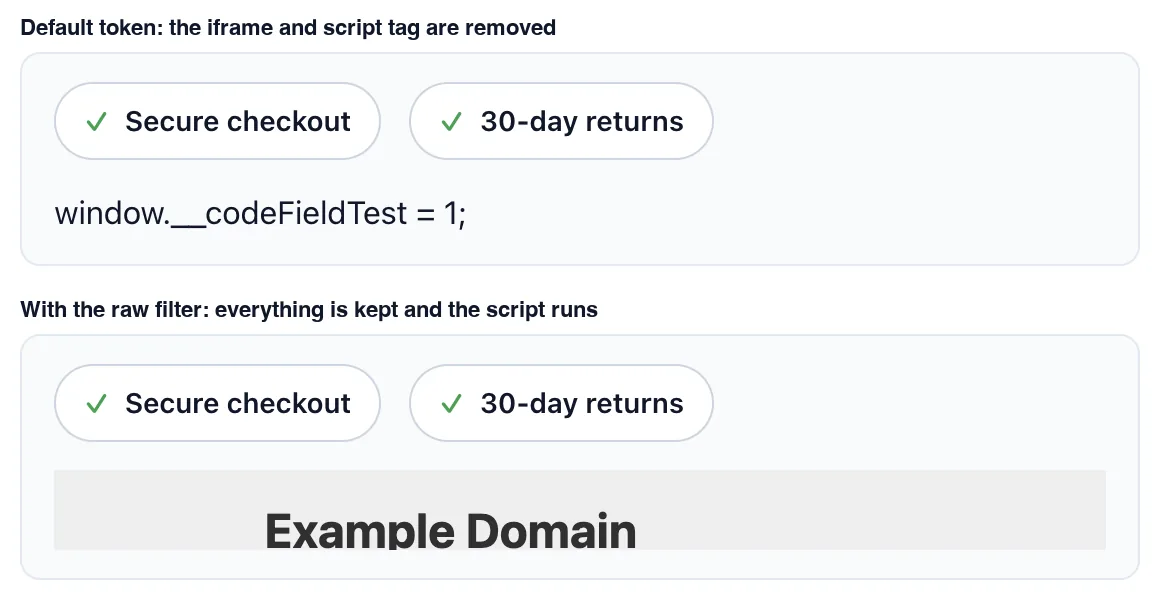
Comparison of the default token, which removes the iframe and script tag, and the raw filter, which keeps them

The raw filter #

Adding raw to the token prints exactly what was pasted, scripts and iframes included:

{{ badge_markup|raw }}

In our tests that version kept the iframe and ran the script. That’s useful for an embed you control, and risky everywhere else, because anyone who can edit the widget can then run JavaScript on the page. Use it only when every editor of that page is already trusted with unfiltered HTML, and keep the plain token for widgets clients touch.

The template engine also accepts trim, upper and lower on a token, which are occasionally handy for a short snippet of plain text.

Use the Code control in Elementor #

Add the widget to a page, or reload the editor if the page was already open. The field shows as a dark editor block under your label, with line numbers down the side. Paste the snippet and the preview updates as soon as you click away.
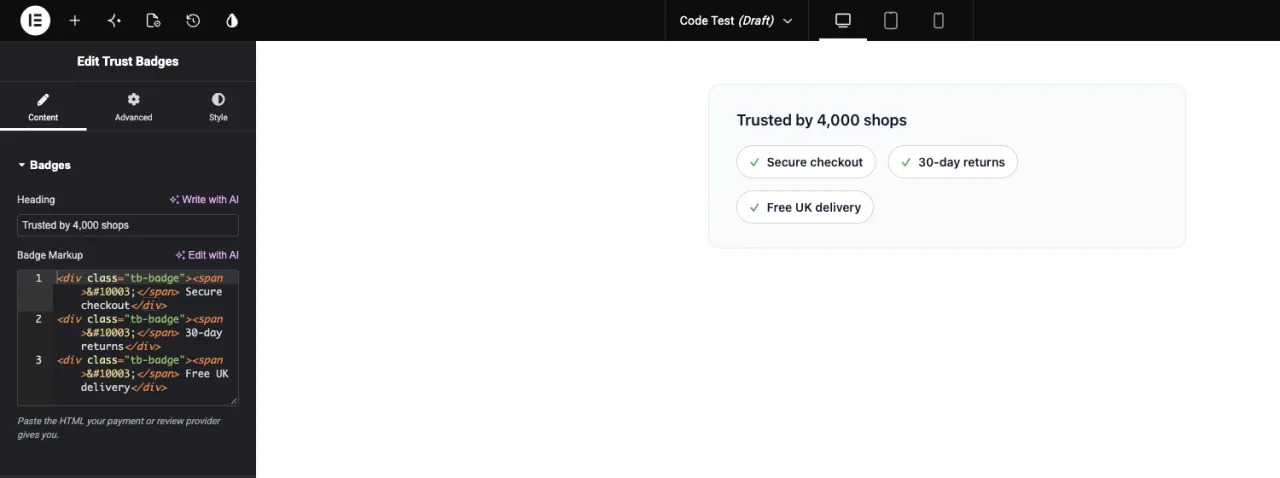
Elementor panel with the Ace code editor showing pasted badge HTML and the rendered badges in the preview

The editor is a small window, so a long snippet scrolls inside it. That’s fine for pasting, less so for reading; write the snippet somewhere roomier if you plan to edit it by hand.

Here is the finished widget on the front end, built from three pasted badge blocks:
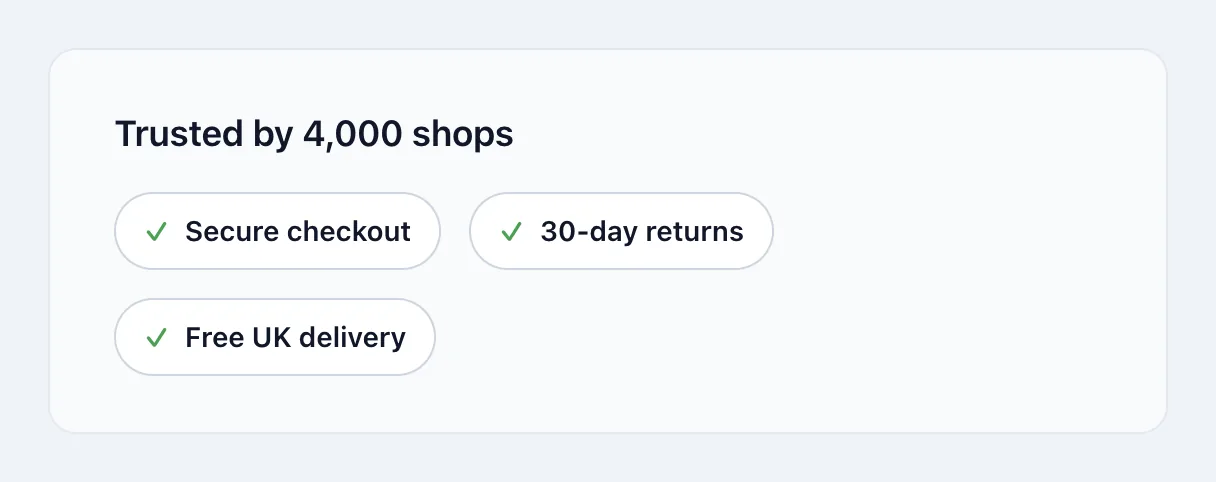
Trust badge widget on the front end showing three badges built from the pasted HTML

Common use cases #

  • Payment, review and trust badges that providers hand out as HTML.
  • Schema or structured data blocks an editor needs to paste per page.
  • Small SVG icons or logos pasted as markup.
  • A short CSS or JSON snippet your widget’s script reads.

Tips for working with the Code field #

  • Say what to paste in the Description. Editors can’t tell from an empty editor what the field expects.
  • Guard the token with {% if %}. An unused field would otherwise leave an empty wrapper on the page.
  • Test a real provider snippet once. That’s how you find out which parts survive the filter.
  • Keep raw for trusted editors only. The plain token is the safe default for client sites.
  • Formatted text rather than markup? Use the WYSIWYG field so editors get a visual editor instead of code.

Frequently Asked Questions #

Is the Code field free?

No. Code is one of the Pro fields in the Widget Builder, so Master Addons Pro has to be active before you can add it to a widget.

Can I set a default snippet or make the editor taller?

Not from the field settings. The panel has a Label, Name, Description and Language, so the editor always opens empty at its standard height.

Why did part of my pasted snippet disappear?

The token runs the value through WordPress’s post content filter, which removes script tags and iframes. Use markup the filter allows, or the raw filter if every editor of that page is trusted with unfiltered HTML.

Why is JavaScript showing up as text in my widget?

A pasted script tag was removed but its contents stayed behind as text. Take the script out of the snippet, or print the field with the raw filter if the script is meant to run.

Does the Language setting restrict what editors can paste?

No. It only changes the syntax highlighting in the editor.

Wrapping up #

Drop a Code field into a Content section, pick the language, write a Description that says what to paste, and print the token inside an {% if %} guard. Keep the plain token for client sites and reach for raw only with trusted editors. For rich text instead of markup, see the WYSIWYG field, and check pricing for what each plan includes.

What are your Feelings

Share This Article :

  • Facebook
  • X
  • LinkedIn
  • Pinterest
Still stuck? How can we help?

How can we help?

Updated on September 18, 2026
HiddenWYSIWYG
Table of Contents
  • What the Code field does
  • Before you start
  • How to add a Code field
  • Code field options explained
  • Print the code in your template
    • What the token strips
    • The raw filter
  • Use the Code control in Elementor
  • Common use cases
  • Tips for working with the Code field
  • Frequently Asked Questions
    • Is the Code field free?
    • Can I set a default snippet or make the editor taller?
    • Why did part of my pasted snippet disappear?
    • Why is JavaScript showing up as text in my widget?
    • Does the Language setting restrict what editors can paste?
  • Wrapping up

Join 30,000+ Web Creators Who Trust Master Addons

Get all the premium widgets and templates you desire, built with clean code that keeps your site fast. Ditch the bloat, not the features.

Try Live Demo
Join The Community
Master Addons for Elementor
Master Addons Logo

80+ Premium Widgets & Lifetime Updates – Build Beyond Limits. An Exclusive Creation by Pixar Labs

Facebook-f Twitter Youtube Wordpress
Features
  • Template kits
  • Template Library
  • Widget Builder
  • Theme Builder
  • Mega Menu Builder
Support
  • Support Forum
  • Contact US
  • Join Community
  • Blog
  • Video Reviews
Resources
  • My Account
  • Changlogs
  • Documentation
  • Video Tutorials
  • Toolz.dev
Navigate
  • Apply for Affiliate
  • Terms of Use
  • Refund Policy
  • Privacy Policy
  • About Us
Advertisement
Advertisement