
Quick answer: PythonWin is a Windows-oriented Python development environment and editor associated with pywin32. Reliable execution still depends on the interpreter, working directory, environment variables, and package set selected by the project rather than by the editor name alone.
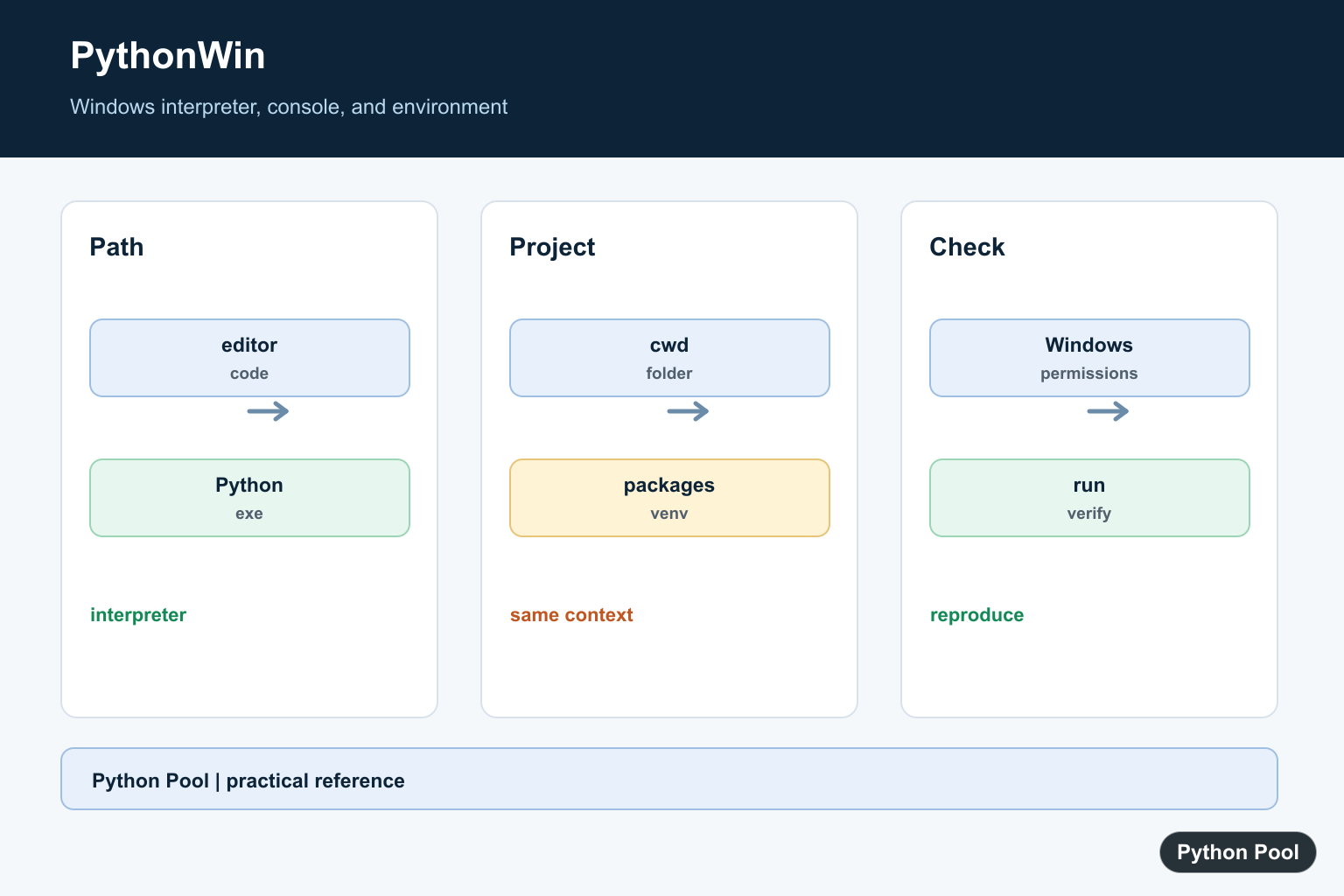
PythonWin is a Windows-only Python editor and interactive shell that comes from the pywin32 project. It is useful when you work with Windows-specific Python features such as COM automation, Win32 APIs, or legacy pywin32 workflows.
PythonWin is not installed by the normal Python installer from python.org. It is installed with pywin32, also known as Python for Windows Extensions. PythonWin can expose errors hidden by the windowed launcher; Fix pythonw.exe Has Stopped Working shows how to debug pythonw.exe crashes.
What is PythonWin?
PythonWin provides a graphical shell, script editor, and debugger for Python on Windows. It is older and more specialized than VS Code or PyCharm, but it can still be useful if your project depends on pywin32. For editor-specific word wrapping in another beginner-focused IDE, compare PythonWin with Thonny Wrap Text Feature Guide.
The official pywin32 project describes pywin32 as Python for Windows extensions that provide access to Windows APIs, including COM support. PythonWin is part of that ecosystem.
Should you use PythonWin today?
Use PythonWin when you specifically need a pywin32-oriented Windows tool or you are following an existing workflow that expects PythonWin. For general Python development, VS Code, PyCharm, or another modern editor is usually a better default.
| Task | Recommended tool |
|---|---|
| General Python scripts | VS Code, PyCharm, IDLE, or terminal |
| Windows COM or Win32 API work | PythonWin can still be useful |
| Notebook workflows | Jupyter Notebook or JupyterLab |
| Teaching basic Python | IDLE or a simple editor |
Install PythonWin with pywin32
Install pywin32 with pip from the Python environment you want to use:
py -m pip install --upgrade pywin32
Or, if python points to the correct interpreter:
python -m pip install --upgrade pywin32
PyPI lists pywin32 as “Python for Windows Extensions,” and current builds are distributed as wheels rather than the old standalone installers. The pywin32 PyPI page is the right place to check supported Python versions and release files.
If you are not sure which Python version is active, check it first:
py -0p
python --version
python -c "import sys; print(sys.executable)"
For help, see how to check Python version and how to set the default Python path on Windows.
Run the pywin32 post-install step only when needed
The pywin32 README documents a post-install command for global installs:
python -m pywin32_postinstall -install
Do not run that inside a virtual environment. The pywin32 project notes that the post-install step is for global installs, especially when registering COM objects, services, or shared DLL behavior. For a normal project virtual environment, install pywin32 in the environment and avoid global registration unless your use case requires it.
Open PythonWin
After installing pywin32, try one of these options:
- Search the Windows Start menu for PythonWin.
- Run
where pythonwinin Command Prompt or PowerShell. - Look in the Scripts folder for the Python installation where pywin32 was installed.
where pythonwin
python -m pip show pywin32
If Windows cannot find Python or Scripts commands, fix PATH first. This related guide covers Python not recognized on Windows.
Use the PythonWin interactive window
PythonWin includes an interactive prompt where you can run small expressions:
print("Programming in PythonWin")
That prompt is useful for quick tests, but larger work should go into a .py file so it can be saved, versioned, and run again.
Create and run a script
In PythonWin, create a new Python script, write code, save it with a .py extension, and run it from the menu or toolbar. This simple script asks for two numbers and prints their sum:
first = int(input("Enter the first number: "))
second = int(input("Enter the second number: "))
print(first + second)
If you are new to input handling, this guide to Python user input covers the basics.
Debug code in PythonWin
PythonWin includes debugger features such as breakpoints and step-by-step execution. A typical workflow is:
- Open the script in PythonWin.
- Set a breakpoint on the line you want to inspect.
- Run the script in debug mode.
- Step through the code and inspect variable values.
For new Python projects, modern editors usually provide a smoother debugger experience. PythonWin is most valuable when the Windows-specific pywin32 context matters.
Common PythonWin setup problems
- PythonWin is not in the Start menu: Confirm pywin32 installed into the Python you are using with
python -m pip show pywin32. - Wrong Python version: Use
py -0pand install pywin32 with the matching interpreter. - DLL or COM errors after upgrade: For global installs, rerun
python -m pywin32_postinstall -installas documented by pywin32. - Using a virtual environment: Avoid post-install registration unless you understand why the project needs it.
- SourceForge installer advice: Prefer pip wheels from PyPI for current pywin32 versions.
PythonWin vs IDLE vs VS Code
IDLE ships with Python and is simple for beginners. VS Code and PyCharm are stronger for modern projects, Git, linting, formatting, testing, and debugging. PythonWin is narrower: choose it when you need its Windows/pywin32 integration or are maintaining older Windows automation code.
If your work is notebook-based, our guide to running multiple cells in Jupyter is more relevant than PythonWin.
Conclusion
PythonWin is still available through pywin32, but it should be treated as a Windows-specific pywin32 tool rather than a general-purpose Python IDE. Install it with python -m pip install --upgrade pywin32, verify the active interpreter, and use the post-install command only for global pywin32 scenarios that need registration.
Identify The Interpreter
An editor shortcut can launch a different Python from the one used by a terminal or virtual environment. Print the executable path from the running program and install packages through that same interpreter.
Check The Working Directory
Relative file paths depend on the process working directory, which may differ between an editor, a terminal, and a scheduled task. Use explicit project paths or inspect the current directory before reading files.
Keep Packages In One Environment
A package installed globally may not be visible to PythonWin, and a package installed for another Python version may have incompatible binaries. Record the environment and reproduce it for collaborators.
Understand Windows Integration
pywin32-dependent workflows can require Windows-specific permissions, COM registration, or architecture compatibility. Separate an editor problem from a package, operating-system, or application problem in the traceback.
Evaluate Maintenance Before Adoption
For a new project, compare PythonWin’s current maintenance and Windows-specific strengths with maintained editors and IDEs. An existing project can remain stable while a new project may benefit from a different default.
The pywin32 project is the primary reference for Windows extensions. Related references include interpreter paths, package environments, and import diagnosis.
For related Windows environment fixes, compare interpreter paths, package environments, and import diagnosis when PythonWin launches the wrong project context.
Frequently Asked Questions
What is PythonWin?
PythonWin is a Windows-oriented Python development environment and editor associated with the pywin32 ecosystem.
Why does PythonWin use the wrong Python?
The editor or shortcut may point to a different interpreter from the one where packages were installed.
How do I install packages for PythonWin?
Run package installation through the exact interpreter that PythonWin launches, or configure the project environment explicitly.
Is PythonWin still the best choice for new projects?
Evaluate its maintenance and Windows-specific fit against current editors and IDEs before choosing it for a new workflow.
