Quick answer: On Windows, PATH helps the shell find commands such as python, while PYTHONPATH changes Python’s import search path. First inspect python, py, sys.executable, and where. Then use the current Python install manager or installer settings, reopen the terminal, and prefer a project virtual environment plus python -m pip so package commands use the intended interpreter.
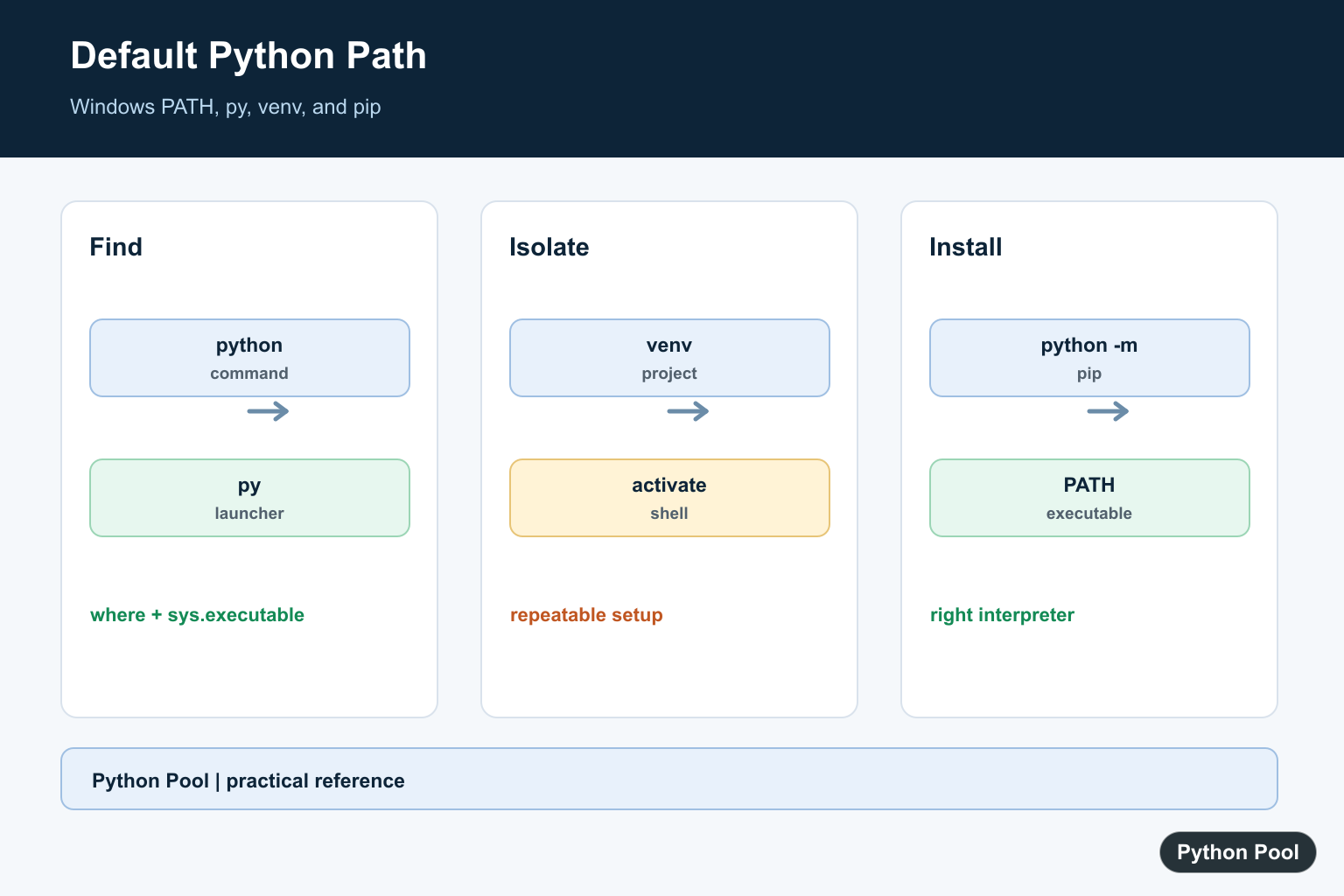
On Windows, “setting the Python path” usually means adding the folder that contains python.exe to the PATH environment variable. Once that folder is on PATH, Command Prompt and PowerShell can find Python when you type python. Interpreter lookup and filesystem path length are separate Windows settings; Disable Python Path Length Limit on Windows covers the long-path installer option and OS policy.
There is one important distinction: PATH helps Windows find the Python executable. PYTHONPATH changes where Python looks for importable modules. Most beginners need PATH, not PYTHONPATH.
Quick check: is Python already available?
Open Command Prompt or PowerShell and run:
python --version
py --version
If either command prints a Python version, Python is installed and at least one launcher path is working. To see the exact executable Python is using, run:
python -c "import sys; print(sys.executable)"
You can also ask Windows where it found the command:
where python
where py
If python is not recognized, use the more detailed fix here: ‘python’ is not recognized as an internal or external command.
Best option: add Python to PATH during installation
The cleanest option is to add Python to PATH when installing Python from python.org’s Windows downloads. On the installer screen, enable the option that adds python.exe to PATH, then continue with installation.
After installation, close and reopen Command Prompt or PowerShell. Environment variable changes are not always visible in terminals that were already open.
python --version
python -m pip --version
Use python -m pip instead of plain pip when possible. It makes sure pip runs under the Python interpreter you just selected.
Set Python PATH manually
If Python is already installed, you can add it to PATH manually.
- Find your Python install folder.
- Open Windows search and type
environment variables. - Choose Edit the system environment variables.
- Click Environment Variables.
- Under your user variables, select
Pathand click Edit. - Add the Python install folder and the Scripts folder.
- Save, then open a new terminal.
Common user install paths look like this:
C:\Users\YourName\AppData\Local\Programs\Python\Python313\
C:\Users\YourName\AppData\Local\Programs\Python\Python313\Scripts\
System-wide installs may use a path like this:
C:\Program Files\Python313\
C:\Program Files\Python313\Scripts\
Do not add random project folders to Windows PATH. Add only the folder that contains python.exe and, if needed, the matching Scripts folder for command-line tools installed by pip.
Use the py launcher for multiple Python versions
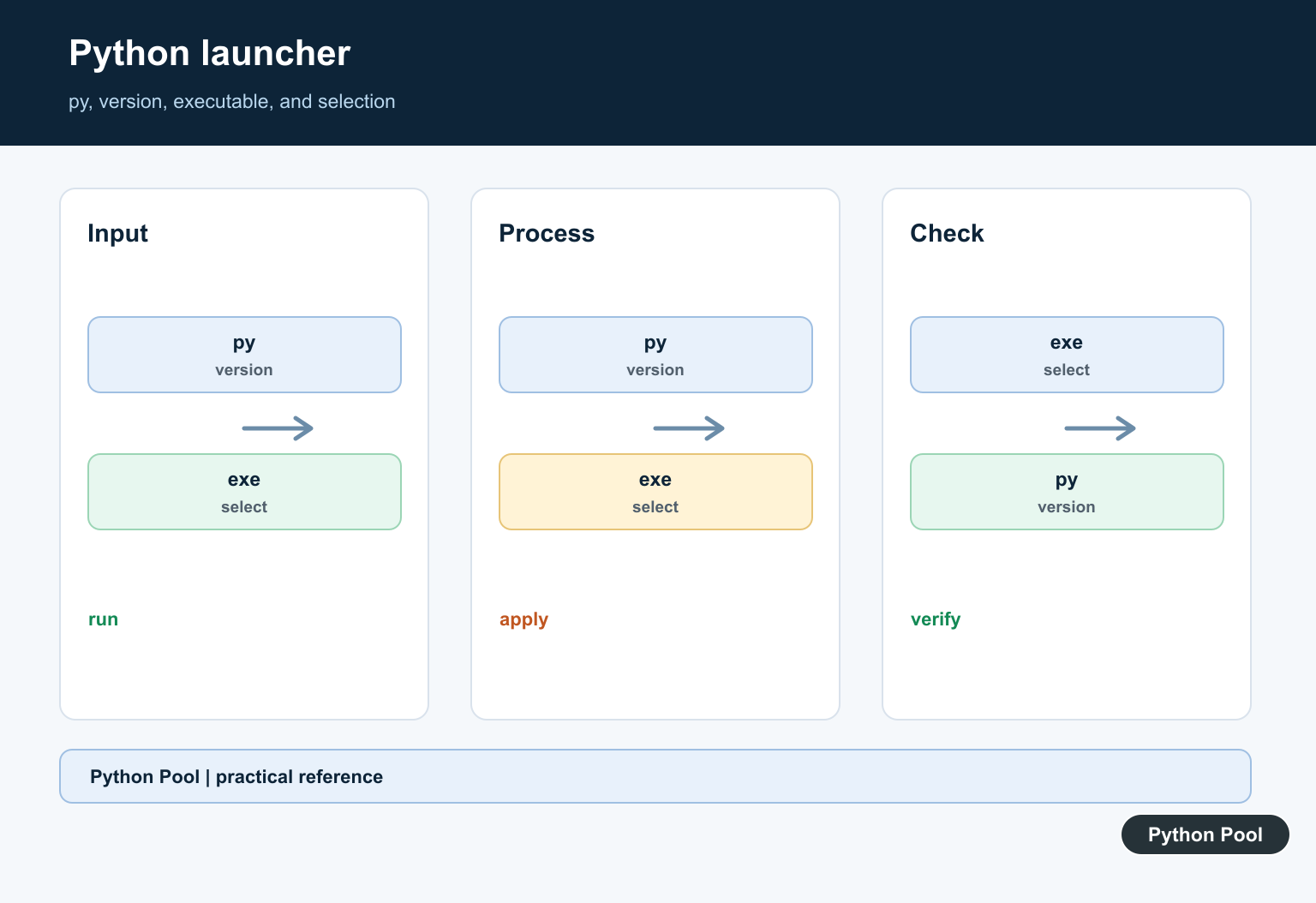
Windows can have more than one Python version installed. The py launcher helps you choose a version explicitly:
py -0p
py -3.13 --version
py -3.13 script.py
py -3.13 -m pip install requests
py -0p lists installed Python versions and their paths. This is better than making shortcuts named after old Python versions, because the launcher is designed for version selection. The official Python launcher for Windows documentation covers the launcher behavior.
Use virtual environments per project
The default Windows PATH controls which Python command starts by default. It should not be used to manage every project dependency. For project work, create a virtual environment:
py -m venv .venv
.\.venv\Scripts\activate
python -m pip install requests
Once activated, python and pip point to that project’s environment. The official venv documentation explains the standard-library virtual environment module. If you need cleanup guidance, see remove a Python venv.
PATH vs PYTHONPATH vs sys.path
| Name | What it controls | When to edit it |
|---|---|---|
PATH |
Where Windows looks for commands like python.exe. |
When python is not found. |
PYTHONPATH |
Extra directories Python adds to module import search paths. | Rarely. Prefer packages, editable installs, or virtual environments. |
sys.path |
The runtime import search list inside Python. | Inspect it for debugging imports; avoid permanent hacks. |
Check Python’s import paths with:
python -c "import sys; print('\n'.join(sys.path))"
Do not set PYTHONPATH just to make the python command work. That is a PATH problem.
Change the default Python command safely
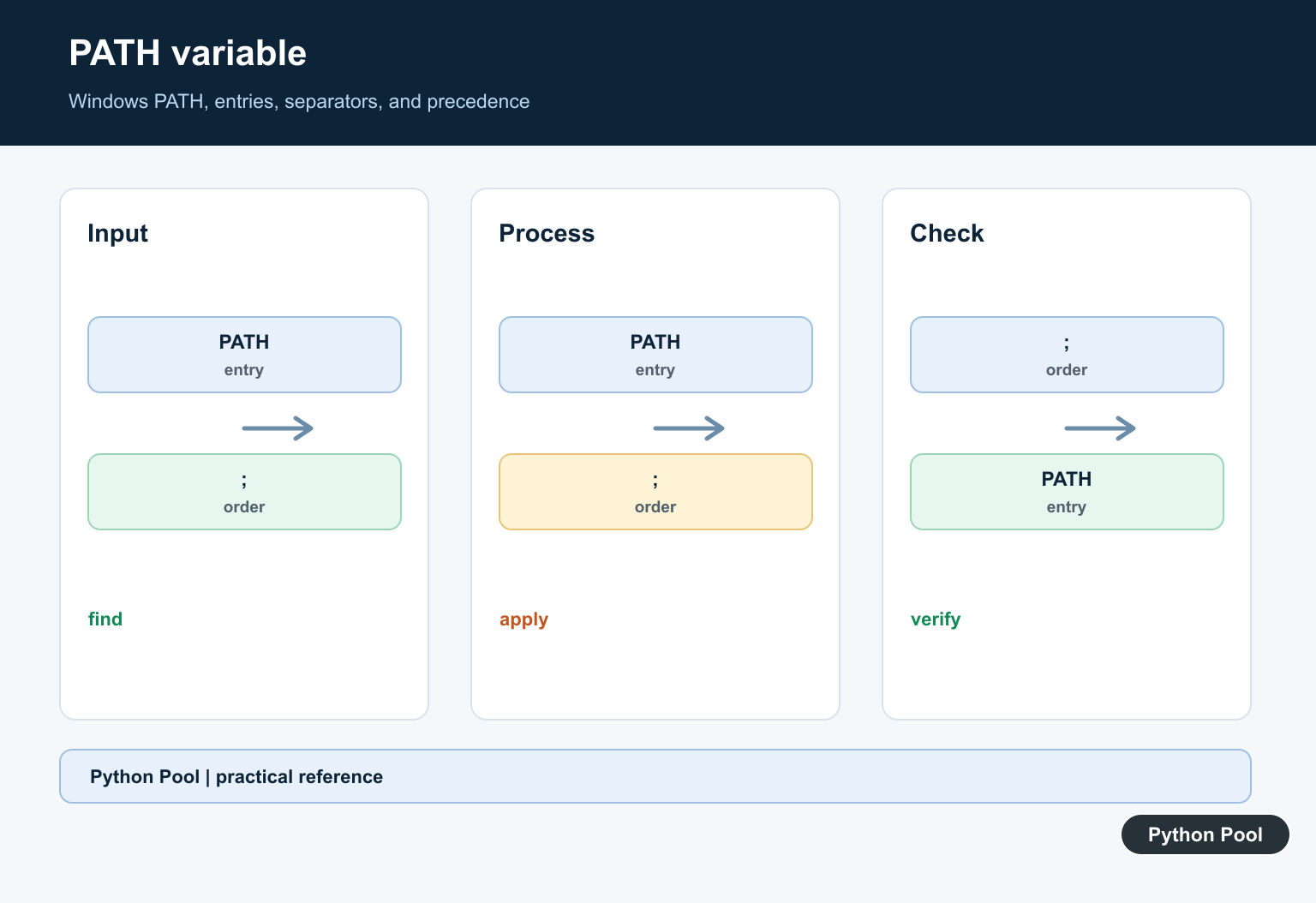
If multiple Python folders are listed in PATH, Windows uses the first matching python.exe. Move the preferred Python folder above older entries in the Path editor.
After changing order, open a new terminal and verify:
where python
python --version
python -c "import sys; print(sys.executable)"
If Microsoft Store app execution aliases interfere, open Windows Settings and search for App execution aliases, then turn off aliases for Python if they point to the Store instead of your installed Python.
Check Python version and path
These commands are useful when debugging path issues:
python --version
py -0p
where python
python -m site
python -c "import sys; print(sys.executable)"
For more details, see how to check Python version. If you are working with file paths inside Python code, this guide to getting a filename from a path in Python is a separate topic.
Common mistakes
- Editing
PYTHONPATHwhen the problem is that Windows cannot findpython.exe. - Adding only the Scripts folder but not the folder that contains
python.exe. - Forgetting to reopen the terminal after changing environment variables.
- Leaving an old Python folder above the new version in PATH.
- Using plain
pipand installing packages into a different Python than expected.
Conclusion
To set the default Python path on Windows, add the folder containing python.exe to the Windows PATH variable and verify it with where python and sys.executable. Use the py launcher for multiple versions and virtual environments for project dependencies. Avoid PYTHONPATH unless you specifically need to adjust module imports.
Inspect Command And Interpreter Resolution
A successful python command is not enough when multiple runtimes are installed. Check the executable path and launcher output before changing environment variables or installing packages.
import shutil
import sys

print(sys.executable)
print(shutil.which("python"))
print(shutil.which("py"))
Use A Virtual Environment Per Project
A virtual environment makes the selected interpreter and its packages explicit. Create it with the Python you intend to use, activate it in a new terminal, and verify both Python and pip afterward.
from pathlib import Path
import subprocess
import sys

env = Path(".venv")
subprocess.run([sys.executable, "-m", "venv", str(env)], check=True)
print(env.resolve())
Keep pip Attached To Python
Plain pip can belong to a different installation than the python command in the current shell. python -m pip asks the chosen interpreter to run its own pip module, which avoids a common cross-install mismatch.
import subprocess
import sys

subprocess.run([sys.executable, "-m", "pip", "--version"], check=True)
Know PATH And PYTHONPATH Separately
Adding the directory containing python.exe to PATH helps Windows locate the executable. PYTHONPATH is for import search locations and can create confusing shadowing, so use a virtual environment or an installed package rather than setting it globally without a reason.
import os

path_entries = os.environ.get("PATH", "").split(os.pathsep)
pythonpath = os.environ.get("PYTHONPATH", "")
print("PATH entries", len(path_entries))
print("PYTHONPATH configured", bool(pythonpath))
The current official Python on Windows documentation covers the Python install manager, global commands, PATH options, the py command, and virtual environments. Related references include Windows path length, checking Python versions, and path handling.
For related Windows interpreter setup, compare path-length settings, version checks, and path handling before changing global environment variables.
Frequently Asked Questions
How do I check which Python Windows is using?
Run python -c “import sys; print(sys.executable)” and use where python or py list to inspect command and runtime resolution.
Should I add Python to PATH?
The current Python install manager can expose global commands and offers a PATH option; using py or an activated virtual environment can also avoid relying on one global installation.
What is the difference between PATH and PYTHONPATH?
PATH helps Windows locate executables such as python, while PYTHONPATH changes where Python searches for importable modules and is not the normal fix for a missing command.
How do I make pip use the selected Python?
Use python -m pip or py -m pip so pip runs under the interpreter you intended.

It is a bit ironic that you used *py* to check versions present but left out using it to call versions, which is by far the easiest way. Specifically, *py* to run 3.9 (or whatever is the default version, and *py -2* to run 2.7. Using *py* is easier that fiddling with PATH, which is why the default is to not use PATH.
Agreed. But still fixing the path will be better for some users who are habituated to use ‘python file.py’. Moreover, many IDEs like VS Code will find ‘python’ in the terminal if you run the program in ‘Integrated Terminal’.
Regards,
Pratik