Search the Community
Showing results for tags 'editor'.
Found 15 results
-
Version 1.5.69
8,418 downloads
Introducing UltimateLeaderboard, the most advanced and comprehensive leaderboard system designed for Rust servers! Elevate your server competitive spirit by tracking an extensive range of player statistics—everything from kills and deaths to resources gathered, items crafted, structures built, and more. Featuring a sleek, customizable user interface and seamless integration with popular plugins, UltimateLeaderboard is the perfect addition to engage your players and showcase their achievements. Features of Ultimate Leaderboard Track a wide variety of player statistics, including kills, deaths, resources gathered, items crafted, structures built, and more. Fully customizable leaderboard—choose which stats to display and tailor it to your server unique style. Intuitive and visually appealing user interface for players to view their stats and compare rankings. Seamless integration with plugins like ServerPanel for enhanced displays, and Notify/UINotify for in-game alerts. Flexible data storage options: choose between JSON, SQLite, or MySQL to suit your server needs. Two reward systems: post-wipe awards that give actual items, kits, and money to top players when they connect, plus an optional companion plugin UltimateLeaderboardTop for real-time privilege management based on current rankings. Players can pick up their awards on demand with a claim command instead of receiving them on connect. Scheduled top announcements, posted to chat and to a Discord webhook. Custom Titles system that automatically displays achievement-based chat titles for top performers (requires BetterChat plugin). Optimized for high performance, ensuring smooth operation even with large player bases and extensive data. Configurable templates. Optional real-time database updates for integrations (e.g., Discord Bot). Showcase Fullscreen Template ServerPanel V1 (V1.1) ServerPanel V2 Video Overview Commands /leaderboard or /stats - Opens the leaderboard interface for players to view stats and rankings. /leaderboard <steamid> - Opens another player's profile (requires ultimateleaderboard.profile permission). /leaderboard.hide - Allows players to hide themselves from the leaderboard (requires ultimateleaderboard.hide.self permission). /claimreward or /claim - Lets players collect awards that are waiting for them. Disabled by default; turn it on under Awards → Claim Reward in the config, where you can also rename the commands. leaderboard.manage hide <steamid> - Console command to hide a player from the leaderboard (server console only). leaderboard.wipe - Console command to reset all leaderboard data (server console only). leaderboard.migrate <migration_id> - Console command to perform database migrations (server console only). Available: — leaderboard.migrate 1 adds HiddenFromLeaderboard column to PlayerStats table (upgrade from v1.1.7 to v1.1.8) — leaderboard.migrate 2 migrates BodyHits data to the new format (upgrade to v1.5.10) leaderboard.find.short.prefab <search_term> - Console command to search for prefabs containing the specified search term (server console only). Useful for finding correct prefab names for configuration. leaderboard.manage - Console command to manage player statistics (server console only). Use leaderboard.manage help for detailed usage information. Permissions ultimateleaderboard.use - grants players access to leaderboard commands and interface. This one is optional: it is whatever name you put in Permission to use plugin in the config, and an empty value leaves the leaderboard open to everyone. ultimateleaderboard.profile - allows players to view other players' profiles using the leaderboard command. ultimateleaderboard.hide.self - allows players to hide themselves from the leaderboard using the /leaderboard.hide command. ultimateleaderboard.ignore.titles - stops the plugin from giving this player a custom chat title. Tabs, categories, and award categories each take their own permission field in the config, so you can lock individual parts of the interface to a group without touching the permissions above. Web Config Editor Easily manage your UltimateLeaderboard settings with our web-based configuration editor. This tool allows you to adjust plugin configurations through a user-friendly interface, eliminating the need to manually edit files on your server. P.S. To access the web config editor, you must be part of the "UltimateLeaderboard" group in our Discord server. Join us at https://discord.gg/mevent and request the group to get started. FAQ Q: How do I install UltimateLeaderboard? A: Download the UltimateLeaderboard.cs file, place it in your oxide/plugins directory, and restart your server or reload the plugin using the Oxide command oxide.reload UltimateLeaderboard. Q: Can I choose which statistics to track and display? A: Yes! The plugin allows you to customize tracked statistics and leaderboard displays via the configuration file. You can enable or disable specific stats like kills, resources, or events to suit your server. Q: What data storage options are available? A: UltimateLeaderboard supports JSON, SQLite, and MySQL. You can select your preferred storage method in the config file, offering flexibility for small or large servers. Q: How do I set up the awards system? A: In the configuration file, define award categories (e.g., most kills, top gatherer) and their criteria. The plugin will automatically track and assign awards to top players based on your settings. Q: Where can I configure the UI? A: UI is now template-driven. Use configurable templates stored at oxide/data/UltimateLeaderboard/Templates. Q: What languages does the plugin come in? A: The archive ships English and Russian files in the lang folder. Copy them to oxide/lang (or carbon/lang for Carbon) and the plugin picks up each player's client language. Any text you edit in those files is kept on reload, and new keys from an update are added around it. Q: What happens to the data on a server wipe? A: By default, data wipes with a new save file, but you can disable this in the config (Wipe data on new save) to persist stats across wipes if desired. Q: How do I add UltimateLeaderboard to the ServerPanel menu? A: Follow these simple steps: 1. Open ServerPanel menu in-game and click "+ADD CATEGORY" button 2. Set these exact parameters: Type: Plugin Plugin Name: UltimateLeaderboard Plugin Hook: API_OpenPlugin 3. Click "SAVE" button to create the category Q: I see black images with Rust logo or get error 429 when loading images. What should I do? A: These issues occur when there are problems downloading images from the internet. The UltimateLeaderboard plugin sends images to ImageLibrary but is not responsible for the downloading process itself. Error 429 typically occurs due to rate limits imposed by image hosting services like Imgur (see HTTP 429 documentation for more details). To fix this, enable Offline Image Mode which will use local images instead: Enable the mode in config: Open "oxide/config/UltimateLeaderboard.json" (or "carbon/config/UltimateLeaderboard.json" for Carbon) Set "Enable Offline Image Mode": true Set up the images: Create folder "TheMevent" in "oxide/data" (or "carbon/data" for Carbon) Download PluginsStorage (click "CODE" → "Download ZIP") Extract the ZIP and copy all contents to the "TheMevent" folder Reload the plugin: Type o.reload UltimateLeaderboard (Oxide) or c.reload UltimateLeaderboard (Carbon) Note: If you want to add your own custom images, place them in the "TheMevent" folder and reference them with the "TheMevent/" prefix. For example: "TheMevent/Icon1.png", "TheMevent/MyCustomIcon.jpg", etc. Q: What's the difference between UltimateLeaderboard awards and UltimateLeaderboardTop? A: UltimateLeaderboardTop is a companion plugin that automatically manages player privileges based on leaderboard positions. Main Plugin Awards: Gives actual rewards (kits, money, commands) to top players after wipe - rewards are given once when player connects. UltimateLeaderboardTop: Continuously manages privileges (VIP groups, permissions) as players enter/exit top positions in real-time. To display awards in UI while using UltimateLeaderboardTop: Configure awards in UltimateLeaderboard config Configure awards in UltimateLeaderboardTop config Set "Automatically give rewards after the wipe": false Q: Can UltimateLeaderboardTop give items/kits to players? A: No, UltimateLeaderboardTop is designed only for reversible actions (permissions, groups, etc.). Since items can't be taken back from players when they leave top positions, item rewards are not supported. Use the main plugin's awards system for item rewards instead. Q: How do I configure rewards for top players? A: There are two reward systems available: UltimateLeaderboard Awards (Post-Wipe Rewards): Configure in the main plugin's config file under "Awards Settings": Set award categories (e.g., "Most Kills", "Top Gatherer") Define criteria: loot type, prefab, and minimum amount required Set rewards: commands to execute (give items, kits, money, etc.) Awards are given once when top players connect after a wipe UltimateLeaderboardTop (Real-time Privileges): Configure in UltimateLeaderboardTop.json: Set leaderboard types to monitor (kills, points, playtime, etc.) Define top positions (1st, 2nd, 3rd, etc.) Configure "Enter place commands" (given when player reaches position) Configure "Exit place commands" (executed when player loses position) Use for permissions, groups, temporary privileges Example UltimateLeaderboardTop configuration: { "Loot type": "Kill", "Prefab": "kills", "Places settings": { "1": { "Enter place commands": ["o.usergroup add %steamid% vip"], "Exit place commands": ["o.usergroup remove %steamid% vip"] } } } Q: What are Custom Titles and how do they work? A: Custom Titles automatically display achievement-based titles in chat for top players. For example, top killers get "[Killer]" title, top builders get "[Builder]" title, etc. Requires BetterChat plugin to work. Titles are updated automatically based on leaderboard positions and can be configured with priority system and limits. Q: Why don't I see my statistics updated immediately on the leaderboard? A: The leaderboard is cached and refreshes periodically (configurable interval) to minimize server load and ensure optimal performance. This means statistics may take a few minutes to appear on the leaderboard after the action is performed. The caching system helps maintain smooth server operation even with large player bases and extensive statistics tracking. Q: How can I track multiple similar items or entities with one statistic? A: You can combine multiple prefabs using the pipe symbol | in the prefab field. For example, to track all types of scientists as one "NPC Kills" statistic, use: npc_tunneldweller|npc_underwaterdweller|scientistnpc_arena|scientistnpc_bradley. This is useful for grouping similar items, resources, or entities into a single tracked category. Q: How do I find the correct prefab names for items, entities, or events? A: There are several ways to find prefab names: In-game console command: Use leaderboard.find.short.prefab <search_term> in the server console to search for prefabs containing your search term. For example: leaderboard.find.short.prefab scientist will show all prefabs containing "scientist". F1 console spawn command: In-game, open F1 console and use the spawn command to see available entity prefabs. Type spawn followed by part of the name to see matching options. Item shortnames: For items, use their shortname (e.g., "stones", "metal.ore", "wood"). You can find these by examining items in your inventory or using item-related commands. Plugin documentation: Check the "Custom Prefabs" and "Available Loot Types" sections in this plugin's description for comprehensive lists of supported prefabs and loot types. Q: How can I output the sum of all values by type of statistics (for example, all kills, all loot collected)? A: Use the prefab total_sum for the desired LootType. For example, to show the total number of all player kills, specify the LootType Kill and the prefab total_sum in the column or block settings. It works for any type: Kill, Gather, Craft, Event, and others. Q: How does the leaderboard scoring system work? A: The leaderboard uses a points-based scoring system. Points are earned from in-game actions, and each action has: Loot Type - The category of action (e.g., Kill, Gather, Construction, Craft, Event) Prefab/Short Name - The specific item or entity (e.g., "kills", "stones", "helicopter", "supply_drop") Score Value - The points awarded for this action (configured in Loot Settings) When a player performs an action: The plugin looks up the score for that action type + prefab combination Multiplies the score by the action value (usually 1 per action) Adds it to the player's total Points Example scores (from config): Player kills: +1.0 point per kill Deaths: -1.0 point per death Gathering stone: +0.1 point per stone Supply drop looted: +3.0 points Bradley crate: +5.0 points Helicopter kill: +15.0 points Bradley kill: +10.0 points How to become top player: Perform actions that have scores configured in Loot Settings Accumulate the most total Points The leaderboard ranks players by their Points value (or other tracked stats) Q: What award types are available and how do I configure them? A: UltimateLeaderboard supports 7 award types: Command - Execute console commands. Supports %steamid% placeholder. Use | to separate multiple commands. Example: "Command (%steamid%)": "inventory.giveto %steamid% rifle.ak 1|oxide.usergroup add %steamid% vip" Kit - Give kits from Kits plugin. Requires Kits plugin to be loaded. Example: "Type": "Kit", "Kit Name": "vip_starter" ServerRewards - Add reward points. Requires ServerRewards plugin. Example: "Type": "ServerRewards", "Amount": 1000 Economics - Deposit money via Economics plugin. Example: "Type": "Economics", "Amount": 5000 BankSystem - Deposit money to player's bank account. Example: "Type": "BankSystem", "Amount": 2500 GameStores - Add balance via GameStoresRUST plugin. Example: "Type": "GameStores", "Amount": 100 MoscowOVH - Add balance via RustStore plugin (Moscow OVH integration). Example: "Type": "MoscowOVH", "Amount": 50 Custom Prefabs UltimateLeaderboard supports advanced custom prefabs for granular statistics tracking and display: total_play_time - Total playtime (in seconds) current_playtime - Current session duration kdr - Kill/Death ratio points - Internal points system longest_kill_distance - Longest kill distance record total_hits - Total player hits total_resources - Total resources gathered total_items_crafted - Items crafted events_won - Event victories structures_built - Structures built upgrades_performed - Building upgrades name/nickname - Player display name clan_tag - Player clan tag formatted_total_playtime - Human-readable playtime (Xd Xh Xm) kd - K/D formatted as "Kills/Deaths" favorite_resource - Most gathered resource favorite_crafted_item - Most crafted item favorite_event - Most won event favorite_building_material - Preferred building material favorite_weapon - Most used weapon total_quests_completed - Total completed quests total_sum - Sum of all values for the selected LootType. For example, using total_sum with LootType Kill will show the total number of all kills for the player (across all kill categories). Works for any LootType: Kill, Gather, Craft, Event, etc. Available Loot Types None Construction Medical Event Available prefabs: Convoy Sputnik Caravan GasStationEvent AirEvent SatDishEvent Triangulation WaterEvent HarborEvent FerryTerminalEvent ArcticBaseEvent JunkyardEvent SupermarketEvent PowerPlantEvent ArmoredTrainEvent SurvivalArena KillBoss PaintballTeam PaintballFFA GunGame ZombieInfection TugboatPirates SpaceEvent AbandonedBase DungeonEvent FlyingCargoEvent AirfieldEvent FishingContest CargoPlaneCrash GuardedCrate OperationFortress F15CrashEvent Shipwreck Gather Kill Available custom prefabs: helisignals_{skin} - Tracks helicopter kills from HeliSignals (e.g., "helisignals_2920175997") bradleydrops_{skin} - Tracks bradley kills from BradleyDrops (e.g., "bradleydrops_2905355269") roadbradley_{profile} - Tracks bradley kills from RoadBradley (e.g., "roadbradley_easy") helicopter - Tracks helicopter kills Custom NPC support: horde_npc - For NPCs from ZombieHorde plugin raidbase_npc - For NPCs from Raidable Bases plugin For NPCs from NpcSpawn use NPC name as key (BossMonster, BetterNpc, NPCs from events, etc.) Other entity prefabs can be found in-game by using the "spawn" command in the F1 console Consume Raid Death Available custom prefabs: Custom NPC support: horde_npc - For NPCs from ZombieHorde plugin raidbase_npc - For NPCs from Raidable Bases plugin For NPCs from NpcSpawn use NPC name as key (BossMonster, BetterNpc, NPCs from events, etc.) Craft Crate LootItems Fishing Puzzle Available prefabs: keycard_1 keycard_2 keycard_3 Custom Upgrade ShotFired ExplosiveUsed RecycleItem BodyHits WeaponUsed RaidableBases Available prefabs: easy medium hard expert nightmare RaidableBoats Available prefabs: easy medium hard nightmare Economy Available prefabs: ShoppyStock Economics IQEconomic Quest EconomyBalance Available prefabs: Economics ServerRewards BankSystem IQEconomic Gambling Available prefabs: BlackjackDeposit BlackjackWon SlotDeposit SlotWon PockerDeposit PockerWon WheelDeposit WheelWon SkillTree Available prefabs: xp - Experience points earned level - Skill tree level reached Trivia MixingTable API for Developers UltimateLeaderboard provides a comprehensive API for developers to integrate with other plugins and extend functionality: Methods JArray API_GetUltimateLeaderboardUsers(int offset, int limit, int? columnIndex = null) - Get leaderboard users with pagination float API_GetPlayerStat(ulong playerId, string lootType, string shortname) - Get specific player statistic bool API_IsHiddenFromLeaderboard(ulong playerId) - Check if player is hidden from leaderboard void API_OnItemGather(ulong player, string shortname, int amount) - Add gather statistics for a player void API_OnEventWin(ulong userID, string eventName, int amount = 1) - Record event wins for a player void API_GetTopPlayers(int lootType, string prefab, int limit, Action<JObject> callback) - Get the top players for a loot type and prefab; the result arrives in the callback bool API_HasPendingRewards(ulong playerId) - Check whether a player has awards waiting to be collected bool API_ClaimRewards(BasePlayer player) - Give a player the awards waiting for them Hooks void OnUltimateLeaderboardContent(BasePlayer player, string categoryType, CuiElementContainer container) - Called when displaying custom category content void OnUltimateLeaderboardCached() - Called when leaderboard data is cached and ready object CanUltimateLeaderboardAddPoints(ulong userId, string lootType, string prefab, float points) - Called before points are added to a player. Return a non-null value to block the points; the statistic itself is still recorded. lootType is the LootType name, for example "Kill", "Gather" or "Crate".$45.00- 72 comments
- 20 reviews
-
- 9
-

-

-
- #ultimateleaderboard
- #leaderboard
- (and 22 more)
-
Version 1.14.0
228 downloads
Contracts is a time-rotating quest system plugin that allows you to create versatile quests/missions that rotate periodically. Each contract can have one or more objectives, with multiple objective types to choose from. It doesn't stop there: each objective can be augmented with objective conditions, which add additional requirements in order to progress it. This allows you to define versatile and unique quests: You could have quests as simple as "Kill 5 scientists"... or a little bit more challenging quests like "Kill 5 scientists with an assault rifle" or have crazy requirements like "Kill 5 scientists, with an assault rifle OR an MP5, between 25-50m away, while being below 20 HP, while wearing a bandana and riding a horse". The possibilities are endless! Not just another quest plugin Most quest plugins hand out static, repeatable, single-objective quests with no cap on how many you can have active at once and no deadline on finishing them. Players end up completing them passively in the background without ever engaging with the system, like achievements. Contracts turns these side-quests into main quests by putting them on a timer. A limited set of contracts is live at a time, each with a real deadline you define, so players have to decide what to prioritize rather than mindlessly clear a checklist. That's what keeps players logging back in throughout the wipe, when they'd otherwise burn out once progression stalls. Contracts also supports multi-objective quests with layered conditions (requirements), so a single contract can demand more than "kill 10 scientists." Simple objectives stack into real challenges. Features Highly customizable quests/missions to help you build your unique set of goals and control difficulty beyond just progression amounts required. Control the flow and order of how contract objectives can be completed. 21 objective types to vary gameplay across your server 23 objective condition types to add as many layers of challenge that you want to your objectives Customizable categories and their rotation period, with the possibility to disable rotations altogether and manually control when contracts rotate. Clean and customizable UI for browsing and tracking contracts. HUD to track contracts while playing. Leaderboard to rank your whole server by Contract Score. Permission based features for your VIP members: Max active contracts globally, Max active contracts per category and Max HUD pins. Event logging with JSONL format support Powerful Web editor to make editing your configs a breeze and viewing insightful charts on your JSONL logs Quick Links Discord Server Full Documentation Web Editor Roadmap Lite Edition - Try Contracts for FREE Included While you can discard and customize the contracts, categories and presets yourself, the plugin comes with: 4 categories: Hourly (14 contracts), Daily (26 contracts), Weekly (19 contracts) and Wipe (6) 65 contracts designed to touch just about every objective types and objective conditions available. These contracts' difficulty was designed for the category they were assigned to. You can preview these without purchasing the plugin in the web editor by loading the default data. Full Plugin Documentation Contracts is a very large plugin with a growing number of features. Documenting everything on the Codefling plugin page (here) can be very intimidating, inconvenient to read/search and drive new users away when they see a wall of text. For these reasons, I've created a structured, digestable and detailed documentation website with guides for new Contracts users! Check it out: https://www.rustcontracts.com Web Editor Nobody wants to be writing complex JSON structures by hand! Head to the Web Editor at https://editor.rustcontracts.com , drop your data configs and start editing your configs in a convenient UI. The quality of the editor and its extensive features are on par with the quality of the plugin! This isn't just simple forms and inputs. Editor Features Convenient UI: Edit all your contracts, categories and presets in a Web-based UI. No manual JSON editing required. Rich Editing Experience: Validation, undo/redo from anywhere, ID refactoring, autocomplete fields, optional raw JSON editing and more QoL features. Data Persistence: Save snapshots of your configs and restore or download them at a later time (data saved in your browser). Advanced Data Importing: You can import entire data files or choose parts of them to merge into your working config. This makes importing new default contracts or shared contracts into your existing config a breeze. AI Generated Contracts: Use the prompt given by the editor in ChatGPT/Claude and paste its response into the editor to generate a contract. Command Palette: Easily navigate through contracts, categories, presets from anywhere in the editor through the command palette. Stats: View your JSONL logs in pre-made charts to gain insights into your contracts, such as pacing and reward balance. Discord Join the official Discord server for support, announcements and more! https://discord.rustcontracts.com$29.99- 13 comments
- 2 reviews
-
- 3
-
-
- #contracts
- #quests
- (and 19 more)
-
Version 1.0.0
32 downloads
An object editor for customizing the map directly on the server. Easy to use: simply equip a mallet and aim at the object you wish to edit. Commands: /me - enable the editor /me sp - go to spawn Commands can be changed via the config. Config: { "Default language": "en", "Permission required to use the plugin": "inservermapeditor.use", "Default allowed groups": [ "admin" ], "All admins are allowed by default": true, "Tell the player when they have no permission": false, "Command to enable the plugin": "me", "Argument that opens the spawn page": "sp", "Default chat color": "#60d080" }Free -
Version 1.14.0
264 downloads
Contracts is a time-rotating quest system plugin that allows you to create versatile quests/missions that rotate periodically. Each contract can have one or more objectives, with multiple objective types to choose from. It doesn't stop there: each objective can be augmented with objective conditions, which add additional requirements in order to progress it. This allows you to define versatile and unique quests: You could have quests as simple as "Kill 5 scientists"... or a little bit more challenging quests like "Kill 5 scientists with an assault rifle" or have crazy requirements like "Kill 5 scientists, with an assault rifle OR an MP5, between 25-50m away, while being below 20 HP, while wearing a bandana and riding a horse". The possibilities are endless! Not just another quest plugin Most quest plugins hand out static, repeatable, single-objective quests with no cap on how many you can have active at once and no deadline on finishing them. Players end up completing them passively in the background without ever engaging with the system, like achievements. Contracts turns these side-quests into main quests by putting them on a timer. A limited set of contracts is live at a time, each with a real deadline you define, so players have to decide what to prioritize rather than mindlessly clear a checklist. That's what keeps players logging back in throughout the wipe, when they'd otherwise burn out once progression stalls. Contracts also supports multi-objective quests with layered conditions (requirements), so a single contract can demand more than "kill 10 scientists." Simple objectives stack into real challenges. Features (Lite) The following are the limited features of the Lite version. See the Full version's page for the full feature set. Read more about the Lite edition on the website. Highly customizable quests/missions to help you build your unique set of goals and control difficulty beyond just progression amounts required. Control the flow and order of how contract objectives can be completed. 5 objective types to vary gameplay across your server 5 objective condition types to add as many layers of challenge that you want to your objectives Customizable categories and their rotation period, with the possibility to disable rotations altogether and manually control when contracts rotate. Clean and customizable UI for browsing and tracking contracts. Leaderboard to rank your whole server by Contract Score. (limited) Event logging with JSONL format support Powerful Web editor to make editing your configs a breeze and viewing insightful charts on your JSONL logs Quick Links Full Edition Discord Server Full Documentation Web Editor Roadmap Full Plugin Documentation Contracts is a very large plugin with a growing number of features. Documenting everything on the Codefling plugin page (here) can be very intimidating, inconvenient to read/search and drive new users away when they see a wall of text. For these reasons, I've created a structured, digestable and detailed documentation website with guides for new Contracts users! Check it out: https://www.rustcontracts.com Web Editor Nobody wants to be writing complex JSON structures by hand! Head to the Web Editor at https://editor.rustcontracts.com , drop your data configs and start editing your configs in a convenient UI. The quality of the editor and its extensive features are on par with the quality of the plugin! This isn't just simple forms and inputs. Editor Features Convenient UI: Edit all your contracts, categories and presets in a Web-based UI. No manual JSON editing required. Rich Editing Experience: Validation, undo/redo from anywhere, ID refactoring, autocomplete fields, optional raw JSON editing and more QoL features. Data Persistence: Save snapshots of your configs and restore or download them at a later time (data saved in your browser). Advanced Data Importing: You can import entire data files or choose parts of them to merge into your working config. This makes importing new default contracts or shared contracts into your existing config a breeze. AI Generated Contracts: Use the prompt given by the editor in ChatGPT/Claude and paste its response into the editor to generate a contract. Command Palette: Easily navigate through contracts, categories, presets from anywhere in the editor through the command palette. Stats: View your JSONL logs in pre-made charts to gain insights into your contracts, such as pacing and reward balance. Discord Join the official Discord server for support, announcements and more! https://discord.rustcontracts.comFree -
Version 1.8.3
6,664 downloads
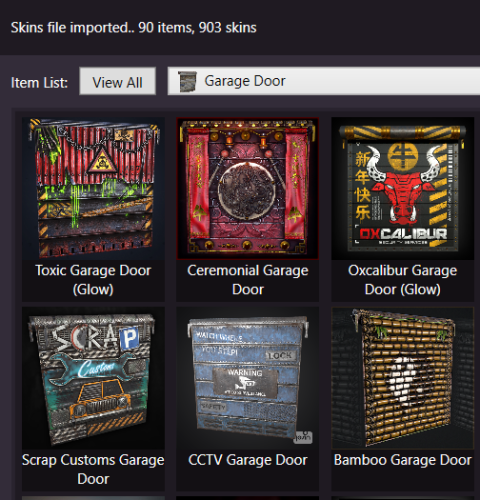
Skins Editor for SkinBox by k1lly0u, Skinner by Whispers88, LSkins by LAGZYA, SkinController by Amino and Skins by misticos. Features Visual editor for skins configured Add workshop skins by url or id (collections supported) Select and bulk delete skins Ability to import from one skin plugin, and export to another How to Download and extract RustSkinsEditorv***.zip Run RustSkinsEditorv***.exe (having trouble running?, make sure you download .NET 9.0) Click Import, pick Plugin you would like to Import (SkinBox, Skinner, Skins), then locate json file you would like to import. Add Skins using workshop link or id, workshop collection supported. When done editing, click Export, pick Plugin you would like to Import (SkinBox, Skinner, Skins). For SkinBox and Skinner, you will get a json code for you to copy and paste in the appropriate config file (This is for avoiding interference with the config properties). Important Disclaimer – Facepunch TOS Update (Effective August 7, 2025) Facepunch has updated its Terms of Service for Servers, effective August 7th, to explicitly prohibit granting any DLC items or paid workshop skins to players who do not own them. As a result: Server owners are fully responsible for ensuring that no market/paid skins are granted to unauthorized players. Violating this policy may result in your server being delisted or banned from the server list. How This Editor Helps This Editor includes features to make compliance easier: Highlights Market Skins so you can easily spot and review them. Delete All Market Skins button to quickly clean up your plugin configuration.Free -
Version 1.8.3
15,166 downloads
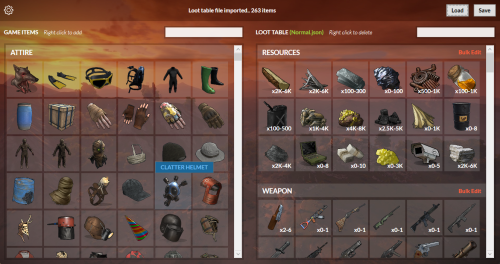
UI Loot Tables Editor for Raidable Bases plugin by Nivex and Raidable Boats plugin by VisEntities. Features Import/Export loot table json file Complete database of game items (Categorized, friendly names and pics) Add/Delete loot table items Edit loot table items spawn details Bulk edit/delete items Bulk multiply items values (min amount, max amount, stack size) How to Download and extract RustRBLootEditor-v***.zip Run RustRBLootEditor.exe (having trouble running?, make sure you download and install .NET 9.0) Click Load, and locate your desired loot table file to be modified in "oxide\data\RaidableBases\.." or "oxide\data\RaidableBoats\LootTables\.." Now you can move game items into your loot table or remove them using mouse right click (you can use search box for filtering) Edit loot table item Amount Min/Max and Skin id using mouse left click, change amounts, then click anywhere outside the modal to collapse Click Save and replace your file, and you're done (or save as draft with a new name) Important Disclaimer – Facepunch TOS Update (Effective August 7, 2025) Facepunch has updated its Terms of Service for Servers, effective August 7th, to explicitly prohibit granting any DLC items or paid workshop skins to players who do not own them. As a result: Server owners are fully responsible for ensuring that no DLC items or market-purchased skins are distributed via loot tables to unauthorized players. Violating this policy may result in your server being delisted or banned from the server list. How This Editor Helps This Editor includes features to make compliance easier: DLC and Paid Workshop Skin Identification: The editor highlights items that are DLC or use paid skins, so you can easily spot them. Quick Cleanup Tools: Delete All Prohibited Items Delete All Prohibited Skins Reset Paid Skins to Default You can use these features to quickly clean up your loot files and stay compliant.Free -
Version 1.1.0
155 downloads
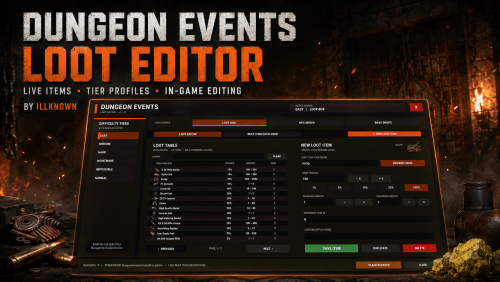
Dungeon Events Loot Editor is a polished in-game administration tool for managing existing DungeonEvents loot profiles without manually editing JSON files. Browse the loot currently assigned to each difficulty tier, preview item icons, search Rust’s live item catalogue and safely add, edit, duplicate or delete rewards through one clean interface. The plugin is designed for server owners who want a faster and more visual way to balance DungeonEvents rewards while reducing the risk of JSON formatting mistakes. AI DEVELOPMENT DISCLOSURE ━━━━━━━━━━━━━━━━━━━━━━━━━ This plugin was developed with AI assistance, but it is actively tested, maintained and supported. Reported bugs and compatibility issues will be investigated, and updates will be provided where required. OPENING THE EDITOR ━━━━━━━━━━━━━━━━━━ Chat command: /dloot Permission: dungeoneventslooteditor.admin Server administrators can also access the editor without being manually granted the permission. MAIN FEATURES ━━━━━━━━━━━━━ ✔ Complete in-game graphical loot editor ✔ Polished Rust-themed interface ✔ Edit DungeonEvents loot without manually opening JSON files ✔ Add, edit, duplicate and delete loot entries ✔ View item icons and Rust display names directly inside each loot table ✔ Larger preview for the currently selected item ✔ Search existing loot by item shortname, skin ID or custom name ✔ Adjust drop chance, minimum amount, maximum amount, skin ID and custom display name ✔ Quick controls for commonly used drop chances ✔ Paginated loot tables for larger profiles ✔ Automatic backup before an existing loot file is changed ✔ Backup limits and confirmation-protected backup clearing ✔ Optional DungeonEvents reload button ✔ Optional automatic DungeonEvents reload after saving ✔ Movement blocking while the editor is open to prevent accidental character movement ✔ Supports Carbon and Oxide servers SUPPORTED LOOT PROFILES ━━━━━━━━━━━━━━━━━━━━━━━ The editor supports the standard DungeonEvents loot files: • lootbox.json • npc_loot.json • boss_loot.json Switch between Loot Box, NPC Drops and Boss Drops directly from the top of the editor. LIVE RUST ITEM CATALOGUE ━━━━━━━━━━━━━━━━━━━━━━━━ The built-in catalogue reads directly from Rust’s live server item definitions. It includes: • Rust item icons • Display names • Item shortnames • Native Rust categories • Search controls • Category filters • Paginated item lists • One-click item selection Newly released Facepunch items will automatically become available in the catalogue after the Rust server has been updated and restarted or the required item definitions have otherwise been reloaded. The item list is not hardcoded, so routine Rust item additions should not require an update to this plugin. New items are made available in the catalogue—they are not automatically added to your existing loot profiles. EXISTING TIERS ONLY ━━━━━━━━━━━━━━━━━━━ Dungeon Events Loot Editor scans the DungeonEvents data directory and displays only tier folders that already exist. It does not create, clone or generate difficulty-tier folders. This prevents the editor from producing unwanted folders that are not being used by DungeonEvents. Supported folders can include: • Easy • Medium • Hard • Expert • Nightmare • Impossible • Custom difficulty tiers • Event-specific tiers Any additional tier folder already managed by DungeonEvents can be detected and displayed by the editor. OPTIONAL DEFAULT LOOT SETUP ━━━━━━━━━━━━━━━━━━━━━━━━━━━ The plugin includes the following configuration option: "Fill empty tier profiles with Default_Loot.json on first load": true When enabled for the initial setup, the editor uses: DungeonEvents/Default_Loot.json Missing or empty lootbox.json, npc_loot.json and boss_loot.json profiles inside existing tier folders can be populated with the default loot profile. Important safety rules: ✔ Only existing tier folders are scanned ✔ Missing or empty profiles can be filled ✔ Populated custom profiles are never overwritten ✔ Invalid non-empty profiles are skipped rather than replaced ✔ The operation is recorded as completed so it does not continuously refill profiles Set the option to false if automatic first-load filling is not wanted. SAFE EDITING AND BACKUPS ━━━━━━━━━━━━━━━━━━━━━━━━ Before an existing loot file is changed, the editor creates a timestamped backup. The maximum number of retained backups can be controlled through the configuration. The editor also validates Rust item shortnames before saving, helping prevent invalid items from being added accidentally. If a selected tier folder is removed while the editor is open, the save is cancelled rather than recreating the folder. REQUIREMENTS ━━━━━━━━━━━━ • DungeonEvents installed and configured • At least one existing DungeonEvents tier folder • Carbon or Oxide • Administrator access or the dungeoneventslooteditor.admin permission QUICK WORKFLOW ━━━━━━━━━━━━━━ Enter /dloot in chat. Select an existing difficulty tier. Choose Loot Box, NPC Drops or Boss Drops. Select an existing reward or create a new loot item. Browse or search the live Rust Item Catalogue. Adjust the chance, amounts, skin ID or custom name. Save the item. The editor handles the JSON structure and backup process for you. LICENCE AND ATTRIBUTION ━━━━━━━━━━━━━━━━━━━━━━━ Dungeon Events Loot Editor is listed as free to use on servers you own or manage. Private modifications for use on those servers are permitted, provided the copyright and licence notice remains complete and unchanged. Redistribution, resale, re-uploading, sublicensing or publishing original or modified copies is not permitted without written permission from illknown. Official distribution is through the Dungeon Events Loot Editor listing on Codefling.Free -
Hello, everyone! For several months now, my team and I have been developing our own visual editor that will allow users to create plugins and user interfaces. We originally created this tool for our own project (a server), but we gradually decided to expand and enhance it, with the goal of making it available to anyone interested in the future. I’d like to introduce CatalystEditor—it’s not just another clunky CUI Builder cobbled together with AI, but a full-fledged tool that lets you create interfaces and small plugins using a visual editor similar to Blueprint in Unreal Engine. It’s still in the early stages of development, but we already have something to show. The visual editor for creating interfaces is similar to Figma, making it simple and easy to design interfaces—so that anyone who has ever used Figma can easily understand how to use it. We’d appreciate your support if this piques your interest.
-
Version 2.1.9
2,679 downloads
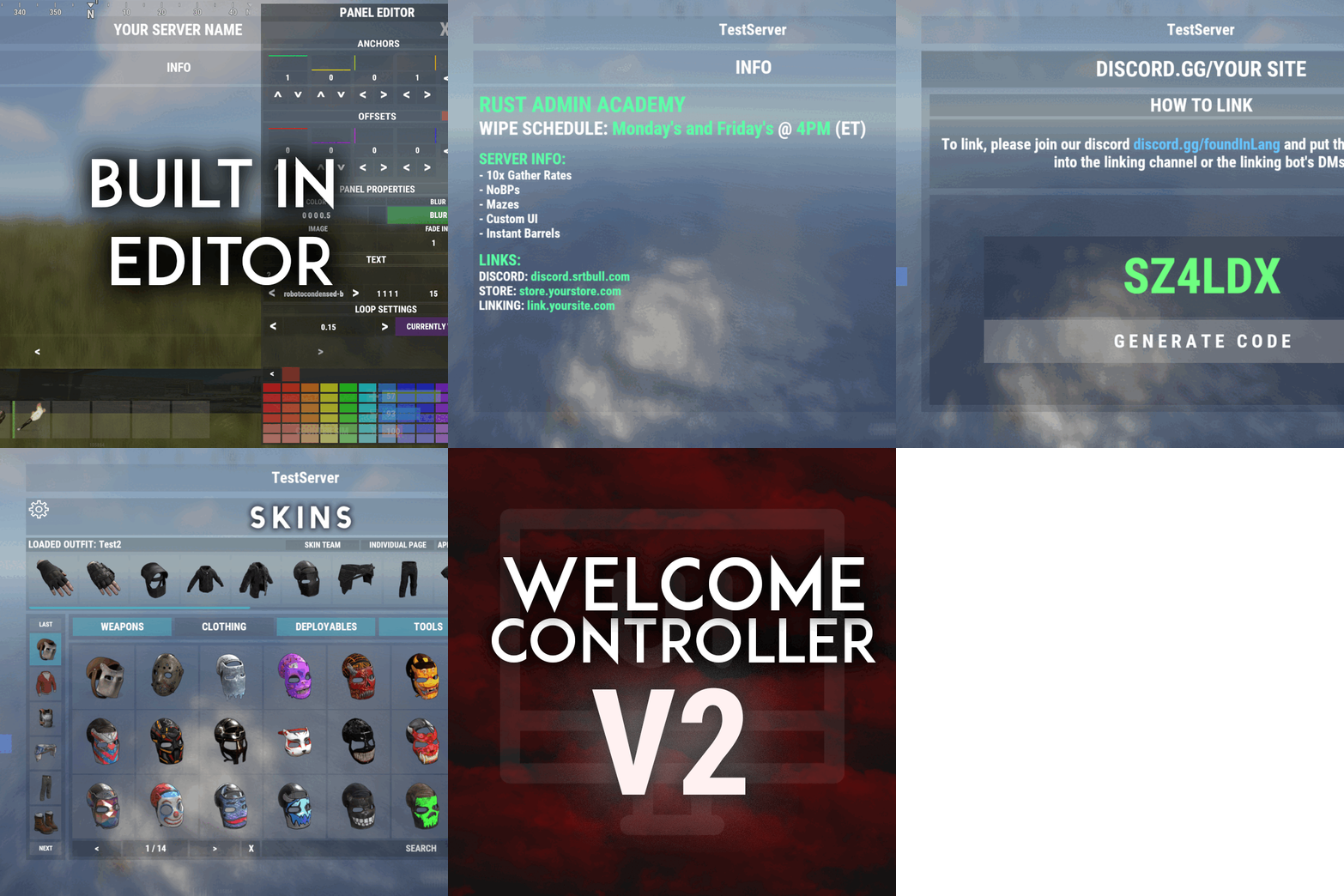
Welcome "UI" controller is a multi-function info panel! - Supports multiple plugins to be directly integrated. Linked in the optional dependencies! - Add permissions to access different pages - Optionally, you can set a page that has a permission to not show on the button list at all or you can set it to show a no permission page (You can make it say whatever you want) - Change the layout of the buttons - Add images to each button - Add multiple commands to access each page - Edit, add, and delete your info panels and or integrated plugins directly from the editor UI. - Apply a color theme INSTANTLY to ALL your integrated plugins with one simple click! - Running a command auto loads you into the correct page on the info panel, even if it's an addon. - Create infinite tabs for different pages. - You can do really anything you can think of! - In game editor for all your UI needs. - Add new panels - Clone panels - Change load orders of panels - Change the look in every way of a panel - Add an image and or text to ANY panel you want to - Easily move the UI with buttons or input numbers within the UI - When you're reading this, there might be even more themes available! - Images are pictures of the "Original" theme and show some of the optional addons and built in editor. ADMIN PERMISSION: welcomecontroller.admin Editor page: /welcomeedit Theme Selector: /welcomethemes Support? Questions? Comments? Concerns? Message me in my Discord! https://discord.gg/ZsRgCUNv2x DEVELOPER API's AND HOOKS API -> bool IsUsingPlugin(string pluginName) HOOKS -> void OnWCRequestedUIPanel(BasePlayer player, string panelName, string neededPlugin) - This is called when an addon is trying to be accessed for WelcomeController. - Make sure you do a simple check that the needed plugin is the plugin you're working in. - I recommend making the plugin name that you check for, the name of the CS file. - If neededPlugin == yourPlugin, open your UI, attach it to "panelName".$29.99 -
Version 1.0.3
118 downloads
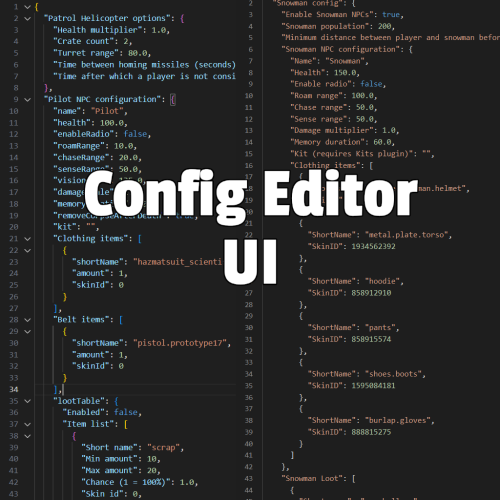
Are you tired of editing config files in a text editor? This plugin allows you to edit configurations and data files directly in-game. Features: Edit config files and data files via in-game UI Prevents syntax errors like missing commas Option to reload plugin when saving a config file Intuitive UI Works with any JSON file Command: /config Permission: configeditorui.use$25.00 -
Version 1.2.9
1,146 downloads
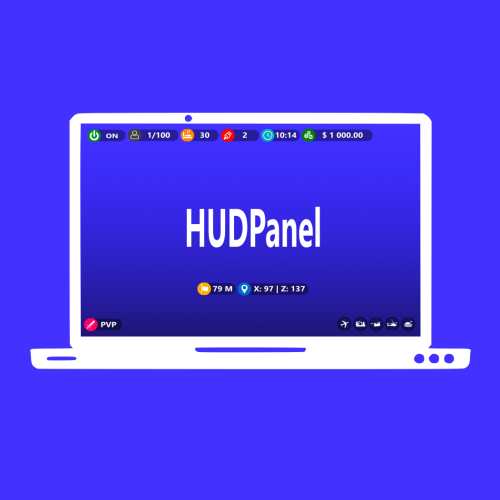
Description : This plugin allows you to have a graphical interface on your servers which will then give you information on the number of players, my not only that, all that in real time Editor : https://hud-panel.the-bandit.ovh/ Requires : ImageLibrary Compatible : TimedPermissions Economics TruePVE ServerRewards ZoneManager BuildCost UI Panel function : An ON/OFF button on the panel. A store button/Kits/Info/... An online player counter. An sleeping player counter. An player counter. A clock that gives the time of the match. A dial that gives the player balance. A dial that gives PVP/PVE information. A dial that indicates the time of a leave. A dial that displays your messages. A counter that gives the distance between you and your point. A dial that shows the player’s position on the map in real time. A dial that gives the server’s fps. An icon for the cargo plane event. An icon for freight events. An icon for ch47 events. An icon for attack helicopter events. An icon for tank events. An icon for your custom events via ( hook). Time format : file : /oxide/lang/en/HUDPanel.json for 12h format "Time_Format": "hh:mm tt", for 24h format "Time_Format": "HH:mm", https://www.c-sharpcorner.com/blogs/date-and-time-format-in-c-sharp-programming1 Themes : HUD BASIC CUBE TRIANGLE Icon ID : Contents : - HUDPanel.cs Install : rust\oxide\plugins\HUDPanel.cs Config : rust\oxide\config\HUDPanel.json { "Scan current map events on reload": true, "Chat command to show/disappear the HUDPanel": "h", "Anti Freeze Server Fps Limit": 15, "Change the overall size of the HUD Panel (30 - 100) Default 48": 48, "Width between icon": 18, "Change the sound of the On/Off button": "assets/prefabs/locks/keypad/effects/lock.code.lock.prefab", "Type the coordinate ( X: 1000 | Z: 1000 : 0 ), ( map : A1 : 1 ), ( Auto : 2 )": 2, "List Messages": { "Messages": { "On/Off (true/false)": true, "How long until the next message": 10, "Messages": [ "Messages 1", "Messages 2", "Messages 3" ], "The order the icon should place": 0, "Change text alignment": 4, "Text size": 11, "Text fonts ( 0 - 3 )": 0, "Color Text ( HEX )": "#ffffff", "The position on the screen that the icon should be ( LeftTop, CenterTop, RightTop, LeftBottom, CenterBottom, RightBottom)": "CenterTop", "Swich On": { "Themes ( HUD - BASIC - CUBE - TRIANGLE )": "HUD", "Color 1": "#000000", "Color 2": "#3f51b5", "Color 3": null, "Color Icon": "#ffffff", "Opacity 1": 0.3, "Opacity 2": 1.0, "Opacity 3": 0.0, "Opacity icon": 1.0, "Enlarge icon": 2.1, "Icon ID": "Messages", "URL Custom": null }, "Swich OFF": null, "Position of text in the logo": "20 0 -1 0", "Width BAR SIZE : 1 - 15": 8 } }, "Timed Permissions: Edit 'vip_*' ( Permissions / Groups )": { "vip_1": { "On/Off (true/false)": true, "Reload delay": 5, "Commands (leave blank to disable)": null, "The order the icon should place": 0, "Change text alignment": 4, "Text size": 11, "Text fonts ( 0 - 3 )": 0, "Color Text ( HEX )": "#ffffff", "The position on the screen that the icon should be ( LeftTop, CenterTop, RightTop, LeftBottom, CenterBottom, RightBottom)": "CenterTop", "Swich On": { "Themes ( HUD - BASIC - CUBE - TRIANGLE )": "HUD", "Color 1": "#000000", "Color 2": "#ff9800", "Color 3": null, "Color Icon": "#ffffff", "Opacity 1": 0.3, "Opacity 2": 1.0, "Opacity 3": 0.0, "Opacity icon": 1.0, "Enlarge icon": 1.5, "Icon ID": "Vip_3", "URL Custom": null }, "Swich OFF": null, "Position of text in the logo": "20 0 -1 0", "Width BAR SIZE : 1 - 15": 7 }, "demo": { "On/Off (true/false)": true, "Reload delay": 5, "Commands (leave blank to disable)": null, "The order the icon should place": 0, "Change text alignment": 4, "Text size": 11, "Text fonts ( 0 - 3 )": 0, "Color Text ( HEX )": "#ffffff", "The position on the screen that the icon should be ( LeftTop, CenterTop, RightTop, LeftBottom, CenterBottom, RightBottom)": "CenterBottom", "Swich On": { "Themes ( HUD - BASIC - CUBE - TRIANGLE )": "HUD", "Color 1": "#000000", "Color 2": "#ff9800", "Color 3": null, "Color Icon": "#ffffff", "Opacity 1": 0.3, "Opacity 2": 1.0, "Opacity 3": 0.0, "Opacity icon": 1.0, "Enlarge icon": 1.5, "Icon ID": "Vip_1", "URL Custom": null }, "Swich OFF": null, "Position of text in the logo": "20 0 -2 0", "Width BAR SIZE : 1 - 15": 7 } }, "Custom events": { "Sputnik": { "On/Off (true/false)": true, "The order the icon should place": 5, "The position on the screen that the icon should be ( LeftTop, CenterTop, RightTop, LeftBottom, CenterBottom, RightBottom)": "RightTop", "On Event start ( Hook )": "OnSputnikEventStart", "On Event End ( Hook )": "OnSputnikEventStop", "Swich On": { "Themes ( HUD - BASIC - CUBE - TRIANGLE )": "HUD", "Color 1": "#000000", "Color 2": "#ff8100", "Color 3": "#ffffff", "Color Icon": "#ffffff", "Opacity 1": 0.4, "Opacity 2": 1.0, "Opacity 3": 0.0, "Opacity icon": 1.0, "Enlarge icon": 1.6, "Icon ID": "Sputnik", "URL Custom": null }, "Swich OFF": { "Themes ( HUD - BASIC - CUBE - TRIANGLE )": "HUD", "Color 1": "#000000", "Color 2": "#000000", "Color 3": "#ffffff", "Color Icon": "#ffffff", "Opacity 1": 0.3, "Opacity 2": 0.0, "Opacity 3": 0.1, "Opacity icon": 1.0, "Enlarge icon": 1.6, "Icon ID": "Sputnik", "URL Custom": null }, "Width BAR SIZE : 1 - 15": 1 }, "Convoy": { "On/Off (true/false)": true, "The order the icon should place": 6, "The position on the screen that the icon should be ( LeftTop, CenterTop, RightTop, LeftBottom, CenterBottom, RightBottom)": "RightTop", "On Event start ( Hook )": "OnConvoyStart", "On Event End ( Hook )": "OnConvoyEnd", "Swich On": { "Themes ( HUD - BASIC - CUBE - TRIANGLE )": "HUD", "Color 1": "#000000", "Color 2": "#ff8100", "Color 3": "#ffffff", "Color Icon": "#ffffff", "Opacity 1": 0.4, "Opacity 2": 1.0, "Opacity 3": 0.0, "Opacity icon": 1.0, "Enlarge icon": 1.6, "Icon ID": "Convoy", "URL Custom": null }, "Swich OFF": { "Themes ( HUD - BASIC - CUBE - TRIANGLE )": "HUD", "Color 1": "#000000", "Color 2": "#000000", "Color 3": "#ffffff", "Color Icon": "#ffffff", "Opacity 1": 0.3, "Opacity 2": 0.0, "Opacity 3": 0.1, "Opacity icon": 1.0, "Enlarge icon": 1.6, "Icon ID": "Convoy", "URL Custom": null }, "Width BAR SIZE : 1 - 15": 1 }, "ArmoredTrain": { "On/Off (true/false)": true, "The order the icon should place": 7, "The position on the screen that the icon should be ( LeftTop, CenterTop, RightTop, LeftBottom, CenterBottom, RightBottom)": "RightTop", "On Event start ( Hook )": "OnArmoredTrainEventStart", "On Event End ( Hook )": "OnArmoredTrainEventStop", "Swich On": { "Themes ( HUD - BASIC - CUBE - TRIANGLE )": "HUD", "Color 1": "#000000", "Color 2": "#ff8100", "Color 3": "#ffffff", "Color Icon": "#ffffff", "Opacity 1": 0.4, "Opacity 2": 1.0, "Opacity 3": 0.0, "Opacity icon": 1.0, "Enlarge icon": 1.6, "Icon ID": "Train", "URL Custom": null }, "Swich OFF": { "Themes ( HUD - BASIC - CUBE - TRIANGLE )": "HUD", "Color 1": "#000000", "Color 2": "#000000", "Color 3": "#ffffff", "Color Icon": "#ffffff", "Opacity 1": 0.3, "Opacity 2": 0.0, "Opacity 3": 0.1, "Opacity icon": 1.0, "Enlarge icon": 1.6, "Icon ID": "Train", "URL Custom": null }, "Width BAR SIZE : 1 - 15": 1 }, "Harbor": { "On/Off (true/false)": true, "The order the icon should place": 8, "The position on the screen that the icon should be ( LeftTop, CenterTop, RightTop, LeftBottom, CenterBottom, RightBottom)": "RightTop", "On Event start ( Hook )": "OnHarborEventStart", "On Event End ( Hook )": "OnHarborEventEnd", "Swich On": { "Themes ( HUD - BASIC - CUBE - TRIANGLE )": "HUD", "Color 1": "#000000", "Color 2": "#ff8100", "Color 3": "#ffffff", "Color Icon": "#ffffff", "Opacity 1": 0.4, "Opacity 2": 1.0, "Opacity 3": 0.0, "Opacity icon": 1.0, "Enlarge icon": 2.0, "Icon ID": "Harbor", "URL Custom": null }, "Swich OFF": { "Themes ( HUD - BASIC - CUBE - TRIANGLE )": "HUD", "Color 1": "#000000", "Color 2": "#000000", "Color 3": "#ffffff", "Color Icon": "#ffffff", "Opacity 1": 0.3, "Opacity 2": 0.0, "Opacity 3": 0.1, "Opacity icon": 1.0, "Enlarge icon": 2.0, "Icon ID": "Harbor", "URL Custom": null }, "Width BAR SIZE : 1 - 15": 1 } }, "Default events": { "Patrol": { "On/Off (true/false)": true, "Change text alignment": 4, "Text size": 11, "Text fonts ( 0 - 3 )": 0, "Color Text ( HEX )": "#ffffff", "Position of text in the logo": "20 0 -1 0", "The order the icon should place": 2, "The position on the screen that the icon should be ( LeftTop, CenterTop, RightTop, LeftBottom, CenterBottom, RightBottom)": "RightTop", "On Event start ( Hook )": null, "On Event End ( Hook )": null, "Swich On": { "Themes ( HUD - BASIC - CUBE - TRIANGLE )": "HUD", "Color 1": "#000000", "Color 2": "#ff0000", "Color 3": "#ffffff", "Color Icon": "#ffffff", "Opacity 1": 0.3, "Opacity 2": 1.0, "Opacity 3": 0.0, "Opacity icon": 1.0, "Enlarge icon": 1.6, "Icon ID": "Patrol", "URL Custom": null }, "Swich OFF": { "Themes ( HUD - BASIC - CUBE - TRIANGLE )": "HUD", "Color 1": "#000000", "Color 2": "#ff0000", "Color 3": "#ffffff", "Color Icon": "#ffffff", "Opacity 1": 0.3, "Opacity 2": 0.0, "Opacity 3": 0.1, "Opacity icon": 1.0, "Enlarge icon": 1.6, "Icon ID": "Patrol", "URL Custom": null }, "Width BAR SIZE : 1 - 15": 1 }, "Ch47": { "On/Off (true/false)": true, "Change text alignment": 4, "Text size": 11, "Text fonts ( 0 - 3 )": 0, "Color Text ( HEX )": "#ffffff", "Position of text in the logo": "20 0 -1 0", "The order the icon should place": 3, "The position on the screen that the icon should be ( LeftTop, CenterTop, RightTop, LeftBottom, CenterBottom, RightBottom)": "RightTop", "On Event start ( Hook )": null, "On Event End ( Hook )": null, "Swich On": { "Themes ( HUD - BASIC - CUBE - TRIANGLE )": "HUD", "Color 1": "#000000", "Color 2": "#ff0000", "Color 3": "#ffffff", "Color Icon": "#ffffff", "Opacity 1": 0.3, "Opacity 2": 1.0, "Opacity 3": 0.0, "Opacity icon": 1.0, "Enlarge icon": 1.8, "Icon ID": "Ch-47", "URL Custom": null }, "Swich OFF": { "Themes ( HUD - BASIC - CUBE - TRIANGLE )": "HUD", "Color 1": "#000000", "Color 2": "#ff0000", "Color 3": "#ffffff", "Color Icon": "#ffffff", "Opacity 1": 0.3, "Opacity 2": 0.0, "Opacity 3": 0.1, "Opacity icon": 1.0, "Enlarge icon": 1.8, "Icon ID": "Ch-47", "URL Custom": null }, "Width BAR SIZE : 1 - 15": 1 }, "Plane": { "On/Off (true/false)": true, "Change text alignment": 4, "Text size": 11, "Text fonts ( 0 - 3 )": 0, "Color Text ( HEX )": "#ffffff", "Position of text in the logo": "20 0 -1 0", "The order the icon should place": 10, "The position on the screen that the icon should be ( LeftTop, CenterTop, RightTop, LeftBottom, CenterBottom, RightBottom)": "RightTop", "On Event start ( Hook )": null, "On Event End ( Hook )": null, "Swich On": { "Themes ( HUD - BASIC - CUBE - TRIANGLE )": "HUD", "Color 1": "#000000", "Color 2": "#007f00", "Color 3": "#ffffff", "Color Icon": "#ffffff", "Opacity 1": 0.3, "Opacity 2": 1.0, "Opacity 3": 0.0, "Opacity icon": 1.0, "Enlarge icon": 1.8, "Icon ID": "Plane", "URL Custom": null }, "Swich OFF": { "Themes ( HUD - BASIC - CUBE - TRIANGLE )": "HUD", "Color 1": "#000000", "Color 2": "#ff0000", "Color 3": "#ffffff", "Color Icon": "#ffffff", "Opacity 1": 0.3, "Opacity 2": 0.0, "Opacity 3": 0.1, "Opacity icon": 1.0, "Enlarge icon": 1.8, "Icon ID": "Plane", "URL Custom": null }, "Width BAR SIZE : 1 - 15": 2 }, "Cargo": { "On/Off (true/false)": true, "Change text alignment": 4, "Text size": 11, "Text fonts ( 0 - 3 )": 0, "Color Text ( HEX )": "#ffffff", "Position of text in the logo": "20 0 -1 0", "The order the icon should place": 4, "The position on the screen that the icon should be ( LeftTop, CenterTop, RightTop, LeftBottom, CenterBottom, RightBottom)": "RightTop", "On Event start ( Hook )": null, "On Event End ( Hook )": null, "Swich On": { "Themes ( HUD - BASIC - CUBE - TRIANGLE )": "HUD", "Color 1": "#000000", "Color 2": "#007f00", "Color 3": "#ffffff", "Color Icon": "#ffffff", "Opacity 1": 0.3, "Opacity 2": 1.0, "Opacity 3": 0.0, "Opacity icon": 1.0, "Enlarge icon": 1.5, "Icon ID": "Cargo", "URL Custom": null }, "Swich OFF": { "Themes ( HUD - BASIC - CUBE - TRIANGLE )": "HUD", "Color 1": "#000000", "Color 2": "#ff0000", "Color 3": "#ffffff", "Color Icon": "#ffffff", "Opacity 1": 0.3, "Opacity 2": 0.0, "Opacity 3": 0.1, "Opacity icon": 1.0, "Enlarge icon": 1.5, "Icon ID": "Cargo", "URL Custom": null }, "Width BAR SIZE : 1 - 15": 1 }, "BradleyAPC": { "On/Off (true/false)": true, "Change text alignment": 4, "Text size": 11, "Text fonts ( 0 - 3 )": 0, "Color Text ( HEX )": "#ffffff", "Position of text in the logo": "20 0 -1 0", "The order the icon should place": 1, "The position on the screen that the icon should be ( LeftTop, CenterTop, RightTop, LeftBottom, CenterBottom, RightBottom)": "RightTop", "On Event start ( Hook )": null, "On Event End ( Hook )": null, "Swich On": { "Themes ( HUD - BASIC - CUBE - TRIANGLE )": "HUD", "Color 1": "#000000", "Color 2": "#ff0000", "Color 3": "#ffffff", "Color Icon": "#ffffff", "Opacity 1": 0.4, "Opacity 2": 1.0, "Opacity 3": 0.0, "Opacity icon": 1.0, "Enlarge icon": 1.4, "Icon ID": "BradleyAPC", "URL Custom": null }, "Swich OFF": { "Themes ( HUD - BASIC - CUBE - TRIANGLE )": "HUD", "Color 1": "#000000", "Color 2": "#ff0000", "Color 3": "#ffffff", "Color Icon": "#ffffff", "Opacity 1": 0.3, "Opacity 2": 0.0, "Opacity 3": 0.1, "Opacity icon": 1.0, "Enlarge icon": 1.4, "Icon ID": "BradleyAPC", "URL Custom": null }, "Width BAR SIZE : 1 - 15": 1 } }, "Information frame": { "Power": { "On/Off (true/false)": true, "Reload delay": 0, "Commands (leave blank to disable)": null, "The order the icon should place": 1, "Change text alignment": 4, "Text size": 11, "Text fonts ( 0 - 3 )": 0, "Color Text ( HEX )": "#ffffff", "The position on the screen that the icon should be ( LeftTop, CenterTop, RightTop, LeftBottom, CenterBottom, RightBottom)": "LeftTop", "Position of text in the logo": "0 0 0 0", "Swich On": { "Themes ( HUD - BASIC - CUBE - TRIANGLE )": "HUD", "Color 1": "#000000", "Color 2": "#007f00", "Color 3": null, "Color Icon": "#ffffff", "Opacity 1": 0.3, "Opacity 2": 1.0, "Opacity 3": 0.0, "Opacity icon": 1.0, "Enlarge icon": 1.8, "Icon ID": "Power", "URL Custom": null }, "Swich OFF": { "Themes ( HUD - BASIC - CUBE - TRIANGLE )": "HUD", "Color 1": "#000000", "Color 2": "#ff0000", "Color 3": null, "Color Icon": "#ffffff", "Opacity 1": 0.3, "Opacity 2": 1.0, "Opacity 3": 0.0, "Opacity icon": 1.0, "Enlarge icon": 1.8, "Icon ID": "Power", "URL Custom": null }, "Width BAR SIZE : 1 - 15": 1 }, "Players": { "On/Off (true/false)": true, "Reload delay": 1, "Commands (leave blank to disable)": null, "The order the icon should place": 2, "Change text alignment": 4, "Text size": 11, "Text fonts ( 0 - 3 )": 0, "Color Text ( HEX )": "#ffffff", "The position on the screen that the icon should be ( LeftTop, CenterTop, RightTop, LeftBottom, CenterBottom, RightBottom)": "LeftTop", "Position of text in the logo": "20 0 -1 0", "Swich On": { "Themes ( HUD - BASIC - CUBE - TRIANGLE )": "HUD", "Color 1": "#000000", "Color 2": "#3d3d44", "Color 3": null, "Color Icon": "#ffffff", "Opacity 1": 0.3, "Opacity 2": 1.0, "Opacity 3": 0.0, "Opacity icon": 1.0, "Enlarge icon": 1.8, "Icon ID": "Players", "URL Custom": null }, "Swich OFF": null, "Width BAR SIZE : 1 - 15": 3 }, "Sleep": { "On/Off (true/false)": true, "Reload delay": 2, "Commands (leave blank to disable)": null, "The order the icon should place": 3, "Change text alignment": 4, "Text size": 11, "Text fonts ( 0 - 3 )": 0, "Color Text ( HEX )": "#ffffff", "The position on the screen that the icon should be ( LeftTop, CenterTop, RightTop, LeftBottom, CenterBottom, RightBottom)": "LeftTop", "Position of text in the logo": "20 0 -1 0", "Swich On": { "Themes ( HUD - BASIC - CUBE - TRIANGLE )": "HUD", "Color 1": "#000000", "Color 2": "#ff8100", "Color 3": null, "Color Icon": "#ffffff", "Opacity 1": 0.3, "Opacity 2": 1.0, "Opacity 3": 0.0, "Opacity icon": 1.0, "Enlarge icon": 1.8, "Icon ID": "Sleep", "URL Custom": null }, "Swich OFF": null, "Width BAR SIZE : 1 - 15": 2 }, "Joining": { "On/Off (true/false)": true, "Reload delay": 1, "Commands (leave blank to disable)": null, "The order the icon should place": 4, "Change text alignment": 4, "Text size": 11, "Text fonts ( 0 - 3 )": 0, "Color Text ( HEX )": "#ffffff", "The position on the screen that the icon should be ( LeftTop, CenterTop, RightTop, LeftBottom, CenterBottom, RightBottom)": "LeftTop", "Position of text in the logo": "20 0 -1 0", "Swich On": { "Themes ( HUD - BASIC - CUBE - TRIANGLE )": "HUD", "Color 1": "#000000", "Color 2": "#ff0000", "Color 3": null, "Color Icon": "#ffffff", "Opacity 1": 0.3, "Opacity 2": 1.0, "Opacity 3": 0.0, "Opacity icon": 1.0, "Enlarge icon": 1.8, "Icon ID": "Joining", "URL Custom": null }, "Swich OFF": null, "Width BAR SIZE : 1 - 15": 2 }, "Times": { "On/Off (true/false)": true, "Reload delay": 5, "Commands (leave blank to disable)": null, "The order the icon should place": 5, "Change text alignment": 4, "Text size": 11, "Text fonts ( 0 - 3 )": 0, "Color Text ( HEX )": "#ffffff", "The position on the screen that the icon should be ( LeftTop, CenterTop, RightTop, LeftBottom, CenterBottom, RightBottom)": "LeftTop", "Position of text in the logo": "20 0 -1 0", "Swich On": { "Themes ( HUD - BASIC - CUBE - TRIANGLE )": "HUD", "Color 1": "#000000", "Color 2": "#00a7c2", "Color 3": null, "Color Icon": "#ffffff", "Opacity 1": 0.3, "Opacity 2": 1.0, "Opacity 3": 0.0, "Opacity icon": 1.0, "Enlarge icon": 1.8, "Icon ID": "Times", "URL Custom": null }, "Swich OFF": null, "Width BAR SIZE : 1 - 15": 2 }, "ServerRewards": { "On/Off (true/false)": true, "Reload delay": 3, "Commands (leave blank to disable)": null, "The order the icon should place": 1, "Change text alignment": 4, "Text size": 11, "Text fonts ( 0 - 3 )": 0, "Color Text ( HEX )": "#ffffff", "The position on the screen that the icon should be ( LeftTop, CenterTop, RightTop, LeftBottom, CenterBottom, RightBottom)": "RightBottom", "Position of text in the logo": "20 0 -1 0", "Swich On": { "Themes ( HUD - BASIC - CUBE - TRIANGLE )": "HUD", "Color 1": "#000000", "Color 2": "#ff5722", "Color 3": null, "Color Icon": "#ffffff", "Opacity 1": 0.3, "Opacity 2": 1.0, "Opacity 3": 0.0, "Opacity icon": 1.0, "Enlarge icon": 1.8, "Icon ID": "ServerRewards", "URL Custom": null }, "Swich OFF": null, "Width BAR SIZE : 1 - 15": 5 }, "Economics": { "On/Off (true/false)": true, "Reload delay": 0, "Commands (leave blank to disable)": null, "The order the icon should place": 6, "Change text alignment": 4, "Text size": 11, "Text fonts ( 0 - 3 )": 0, "Color Text ( HEX )": "#ffffff", "The position on the screen that the icon should be ( LeftTop, CenterTop, RightTop, LeftBottom, CenterBottom, RightBottom)": "LeftTop", "Position of text in the logo": "20 0 -1 0", "Swich On": { "Themes ( HUD - BASIC - CUBE - TRIANGLE )": "HUD", "Color 1": "#000000", "Color 2": "#007f00", "Color 3": null, "Color Icon": "#ffffff", "Opacity 1": 0.3, "Opacity 2": 1.0, "Opacity 3": 0.0, "Opacity icon": 1.0, "Enlarge icon": 1.8, "Icon ID": "Economics", "URL Custom": null }, "Swich OFF": null, "Width BAR SIZE : 1 - 15": 5 }, "FPS": { "On/Off (true/false)": true, "Reload delay": 1, "Commands (leave blank to disable)": null, "The order the icon should place": 2, "Change text alignment": 4, "Text size": 11, "Text fonts ( 0 - 3 )": 0, "Color Text ( HEX )": "#ffffff", "The position on the screen that the icon should be ( LeftTop, CenterTop, RightTop, LeftBottom, CenterBottom, RightBottom)": "LeftBottom", "Position of text in the logo": "20 0 -1 0", "Swich On": { "Themes ( HUD - BASIC - CUBE - TRIANGLE )": "HUD", "Color 1": "#000000", "Color 2": "#ff0066", "Color 3": null, "Color Icon": "#ffffff", "Opacity 1": 0.3, "Opacity 2": 1.0, "Opacity 3": 0.0, "Opacity icon": 1.0, "Enlarge icon": 1.8, "Icon ID": "FPS", "URL Custom": null }, "Swich OFF": null, "Width BAR SIZE : 1 - 15": 2 }, "PvpPve": { "On/Off (true/false)": true, "Reload delay": 10, "Commands (leave blank to disable)": null, "The order the icon should place": 1, "Change text alignment": 4, "Text size": 11, "Text fonts ( 0 - 3 )": 0, "Color Text ( HEX )": "#ffffff", "The position on the screen that the icon should be ( LeftTop, CenterTop, RightTop, LeftBottom, CenterBottom, RightBottom)": "LeftBottom", "Position of text in the logo": "20 0 -1 0", "Swich On": { "Themes ( HUD - BASIC - CUBE - TRIANGLE )": "HUD", "Color 1": "#000000", "Color 2": "#ff0066", "Color 3": null, "Color Icon": "#ffffff", "Opacity 1": 0.3, "Opacity 2": 1.0, "Opacity 3": 0.0, "Opacity icon": 1.0, "Enlarge icon": 1.8, "Icon ID": "PvpPve", "URL Custom": null }, "Swich OFF": null, "Width BAR SIZE : 1 - 15": 3 }, "Coordinate": { "On/Off (true/false)": false, "Reload delay": 3, "Commands (leave blank to disable)": null, "The order the icon should place": 5, "Change text alignment": 4, "Text size": 11, "Text fonts ( 0 - 3 )": 0, "Color Text ( HEX )": "#ffffff", "The position on the screen that the icon should be ( LeftTop, CenterTop, RightTop, LeftBottom, CenterBottom, RightBottom)": "RightTop", "Position of text in the logo": "20 0 -1 0", "Swich On": { "Themes ( HUD - BASIC - CUBE - TRIANGLE )": "HUD", "Color 1": "#000000", "Color 2": "#006bc3", "Color 3": null, "Color Icon": "#ffffff", "Opacity 1": 0.3, "Opacity 2": 1.0, "Opacity 3": 0.0, "Opacity icon": 1.0, "Enlarge icon": 1.8, "Icon ID": "Coordinate", "URL Custom": null }, "Swich OFF": null, "Width BAR SIZE : 1 - 15": 6 }, "MarkerPos": { "On/Off (true/false)": true, "Reload delay": 1, "Commands (leave blank to disable)": null, "The order the icon should place": 2, "Change text alignment": 4, "Text size": 11, "Text fonts ( 0 - 3 )": 0, "Color Text ( HEX )": "#ffffff", "The position on the screen that the icon should be ( LeftTop, CenterTop, RightTop, LeftBottom, CenterBottom, RightBottom)": "RightBottom", "Position of text in the logo": "20 0 -1 0", "Swich On": { "Themes ( HUD - BASIC - CUBE - TRIANGLE )": "HUD", "Color 1": "#000000", "Color 2": "#feab00", "Color 3": null, "Color Icon": "#ffffff", "Opacity 1": 0.3, "Opacity 2": 1.0, "Opacity 3": 0.0, "Opacity icon": 1.0, "Enlarge icon": 1.8, "Icon ID": "MarkerPos", "URL Custom": null }, "Swich OFF": null, "Width BAR SIZE : 1 - 15": 2 } }, "Button Custom": { "Shop": { "On/Off (true/false)": true, "Commands (leave blank to disable)": "shop", "The order the icon should place": 6, "Text size": 11, "Text fonts ( 0 - 3 )": 0, "Color Text ( HEX )": "#ffffff", "Position of text in the logo": "20 0 -1 0", "Change text alignment": 4, "The position on the screen that the icon should be ( LeftTop, CenterTop, RightTop, LeftBottom, CenterBottom, RightBottom)": "CenterBottom", "Swich On": { "Themes ( HUD - BASIC - CUBE - TRIANGLE )": "HUD", "Color 1": "#000000", "Color 2": "#000000", "Color 3": "#ffffff", "Color Icon": "#ffffff", "Opacity 1": 0.4, "Opacity 2": 0.4, "Opacity 3": 1.0, "Opacity icon": 0.9, "Enlarge icon": 1.7, "Icon ID": "Shop", "URL Custom": null }, "Swich OFF": null, "Width BAR SIZE : 1 - 15": 2 }, "Kits": { "On/Off (true/false)": true, "Commands (leave blank to disable)": "chat.say /kit", "The order the icon should place": 6, "Text size": 11, "Text fonts ( 0 - 3 )": 0, "Color Text ( HEX )": "#ffffff", "Position of text in the logo": "20 0 -1 0", "Change text alignment": 4, "The position on the screen that the icon should be ( LeftTop, CenterTop, RightTop, LeftBottom, CenterBottom, RightBottom)": "CenterBottom", "Swich On": { "Themes ( HUD - BASIC - CUBE - TRIANGLE )": "HUD", "Color 1": "#000000", "Color 2": "#000000", "Color 3": "#ffffff", "Color Icon": "#ffffff", "Opacity 1": 0.4, "Opacity 2": 0.4, "Opacity 3": 1.0, "Opacity icon": 0.9, "Enlarge icon": 1.7, "Icon ID": "Kits", "URL Custom": null }, "Swich OFF": null, "Width BAR SIZE : 1 - 15": 2 }, "Info": { "On/Off (true/false)": true, "Commands (leave blank to disable)": "chat.say /info", "The order the icon should place": 6, "Text size": 11, "Text fonts ( 0 - 3 )": 0, "Color Text ( HEX )": "#ffffff", "Position of text in the logo": "20 0 -1 0", "Change text alignment": 4, "The position on the screen that the icon should be ( LeftTop, CenterTop, RightTop, LeftBottom, CenterBottom, RightBottom)": "CenterBottom", "Swich On": { "Themes ( HUD - BASIC - CUBE - TRIANGLE )": "HUD", "Color 1": "#000000", "Color 2": "#000000", "Color 3": "#ffffff", "Color Icon": "#ffffff", "Opacity 1": 0.4, "Opacity 2": 0.4, "Opacity 3": 1.0, "Opacity icon": 0.9, "Enlarge icon": 1.9, "Icon ID": "Info", "URL Custom": null }, "Swich OFF": null, "Width BAR SIZE : 1 - 15": 1 } } }$12.99 -
Version 1.0.5
126 downloads
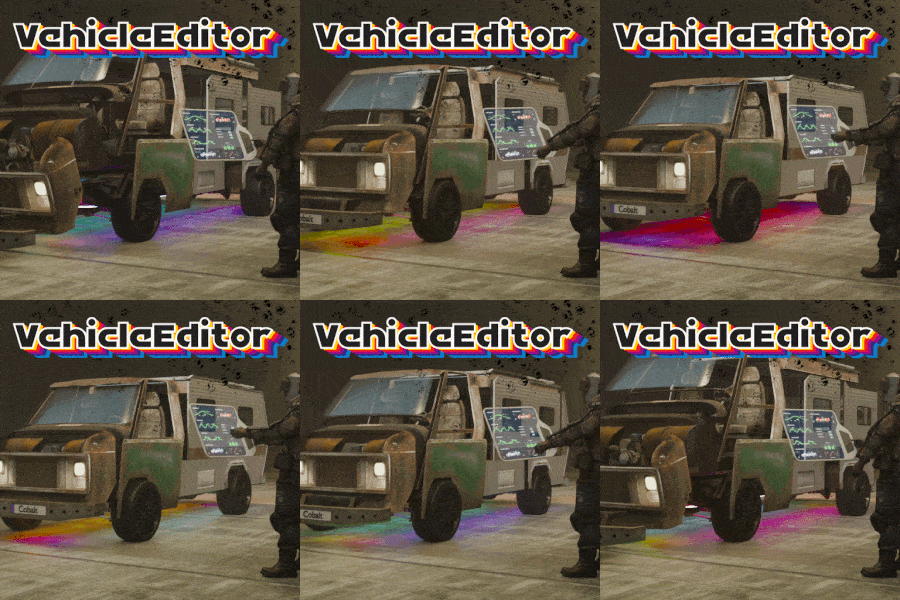
VehicleEditor allows players to modify their vehicles as they wish. Whether it's chairs, sofas, furnaces, recyclers, turrets, or lights – everything can be customized. This plugin provides players with the freedom to design their vehicles to their liking and make functional adjustments. Features: Vehicle Modification: Players can modify their vehicles by entering the command `/place` while standing next to a vehicle. Power Supply: Turrets and lights receive power automatically once the engine is running. Configurable Settings: Various parameters can be set in the configuration file, such as: Maximum number of vehicles that can be modified Number of items that can be placed Allowed items Allowed vehicles for modification Available Vehicles for Modification: Car Rowboat Minicopter Motorbike PedalBike Train Horse HotAirBalloon ScrapTransportHelicopter RHIB (Rigid Hull Inflatable Boat) TugBoat SnowMobile Locomotive Chat Commands: /place: Allows the modification of a vehicle when the player is standing next to it. /place true: When this is used, every vehicle created with the global setting will be added for everyone – when buying, spawning, everywhere. /edit to re-edit the vehicles Permissions: `vehicleeditor.modify1`: Allows players to modify their vehicles. `vehicleeditor.modify2`: Allows players to modify their vehicles. Video: Configuration Options: "VehicleEditor.car": { "EditVehicles": 1, "Car": true, "Rowboat": false, "Minicopter": false, "Motorbike": false, "PedalBike": false, "Train": false, "Horse": false, "HotAirBalloon": false, "ScrapTransportHelicopter": false, "RHIB": false, "TugBoat": false, "SnowMobile": false, "Locomotive": false, "NumberOfItems": 3, "ItemList": { "box.wooden": true, "box.wooden.large": true, "stash.small": true, "chair": true, "sofa": true, "autoturret": true, "recycler": true, "vendingmachine": true, "coffin.storage": true, "furnace": false, "industrial.wall.light.green": true, "industrial.wall.light.red": true, "industrial.wall.light": true, "storage_barrel_b": true, "storage_barrel_c": true, "xmas.lightstring": true, "electric.simplelight": true, "searchlight": true, "arcade.machine.chippy": true, "workbench1": true, "workbench2": true, "workbench3": true, "locker": true, "pookie.bear": true }, "AutoStromOnMotorStart": true, "VehicleMoveDistances": { "autoturret": { "BF": 10.0, "BCK": 15.0 } }, "GlobalSettings": true }, This plugin offers extensive customization of vehicles, greatly enhancing and personalizing the gameplay experience.$9.99 -
Version 1.0.5
207 downloads
Hud Controller is a very simple Hud system. It can do a ton of things, all listed below! Why should you choose Hud Controller? Having a unique server is very important when you choose to have a hud on your server, players see that 24/7. So, you want a good-looking, unique hud menu that stands out to players. With Hud Controller, you can do that, and much more, with ease. FEATURES - Built in UI editor - Add panels, change colors, change fonts, delete panels, change images, EVERYTHING IS EDITABLE! - Dynamic custom events - Normal rust events - Quick command buttons - Display RP or Economics - Display server time - Display player grid - Display players - ETC* Text fields can accept the following placeholders {serverName} {configServerName} {maxPlayers} {onlinePlayers} {joiningPlayers} {queuedPlayers} {totalPlayers} {playerGrid} {serverTime} {playerCurrency} Support? Questions? Comments? Concerns? Message me in my Discord! https://discord.gg/RVePam7pd7$19.99 -
Version 3.2
62 downloads
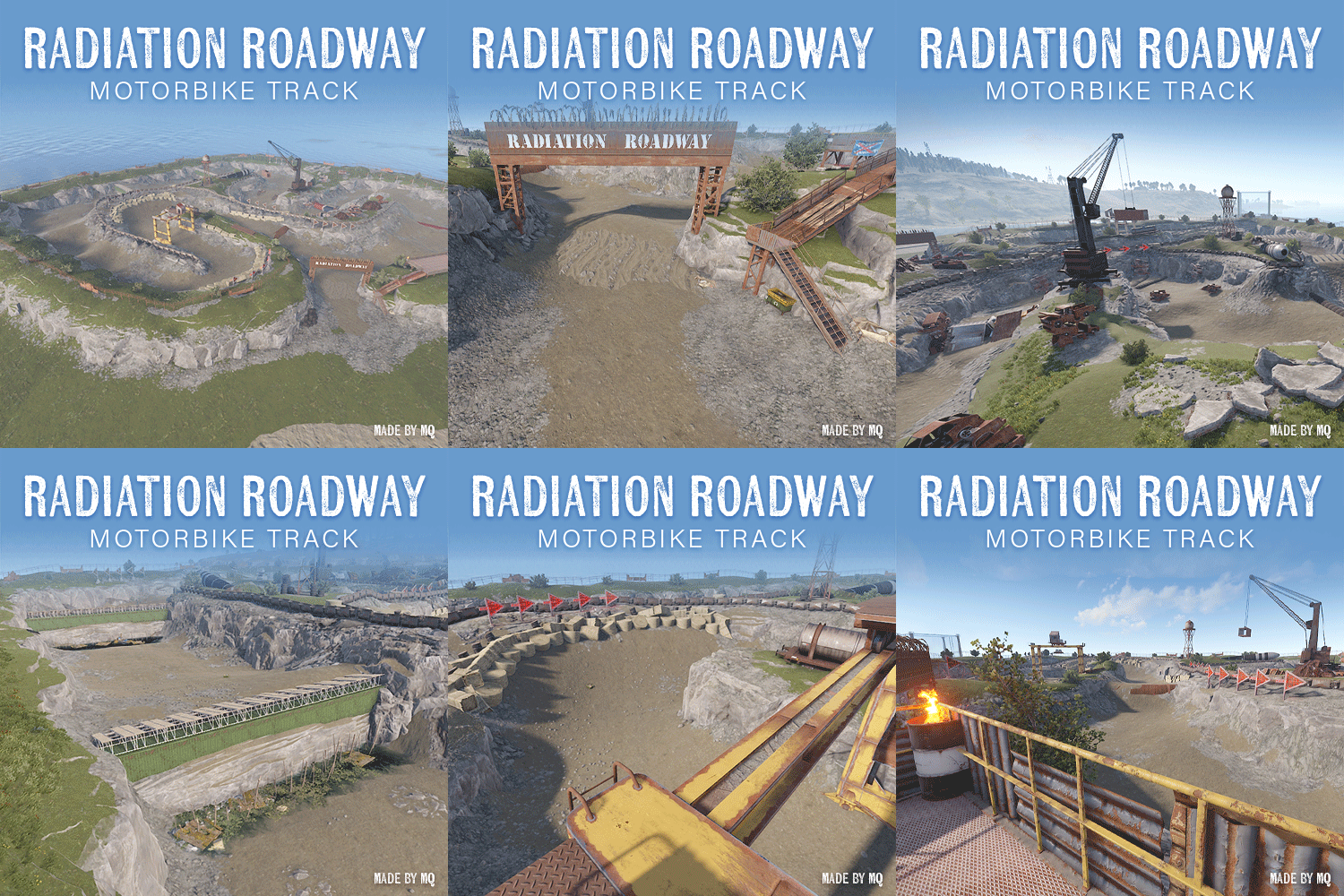
ABOUT Radiation Roadway Motorbike Track Monument is a thoughtfully created course for the relatively new Motorbikes that Rust released. Inspired by actual dirt bike tracks and player tested for maximum fun. INCLUDED • 1 Monument: Radiation Roadway Motorbike Track Monument FEATURES • Drivable track with turns and jumps • Platform for viewers near entrance to track • Recycler near entrance to track • Various small details found on actual dirt bike tracks. INSTALLATION NOTE: Basic Rust Edit skills required if you want to seamlessly blend this monument into your map. Drag and drop the monument where desired and apply all Prefab Modifiers: Biome Mask, Height Mask, Splat Mask, Topology Mask. INSTALLATION VIDEO DEMO: https://medal.tv/games/rust/clips/inKY1BOjQVaDyjC1Z/d1337btmuynN?invite=cr-MSxrQWYsMTUwNzIzNTcwLA Check out this monument in-game on The Monster Den (connect us.themonsterden.net)! Feel free to reach out to me on Discord (MonsterQueen) for any questions or help needed.$20.00- 8 comments
- 1 review
-
- 6
-
-
-
- #motorbike
- #monument
- (and 5 more)
-
Version 0.1.0
464 downloads
This utility is designed to help you edit and create a loot table for events from Adem and KpucTaJl For the program to work, you will need .net 6 installed and some basic skills in editing plug-in configs. To get started, you will need: 1. Make sure that .net 6 is installed 2. Download and unzip the data archive to a convenient location for you 3. open the file MMEventsLootEditor.exe The process of creating a loot table 1. Right-click on the desired items from the left side of the screen 2. Edit the spawn metrics of the items 3. Click SAVE and select the configuration language 4. After saving, open the file and select all the contents, starting and ending with square brackets 5. Open the desired config, select the desired profile position and replace the contents in square brackets 6. Save the configuration and restart the plugin The process of loading the loot table 1. Create a text file in a place convenient for you 2. open the configuration of the desired plugin 3. Highlight the contents with square brackets of the desired profile 4. Open the previously created text file and paste the previously copied content 5. Save this file 6. Open the utility MMEventsLootEditor.exe 7. Click LOAD and select the previously saved text file After that, the table you copied will load and you will be able to edit it, then return to the save point described earlier [ { "ShortName": "ammo.shotgun", "Минимальное кол-во": 1, "Максимальное кол-во": 100, "Шанс выпадения предмета [0.0-100.0]": 100.0, "Это чертеж? [true/false]": false, "SkinID (0 - default)": 0, "Название (empty - default)": "" }, { "ShortName": "ammo.shotgun.fire", "Минимальное кол-во": 1, "Максимальное кол-во": 1, "Шанс выпадения предмета [0.0-100.0]": 100.0, "Это чертеж? [true/false]": false, "SkinID (0 - default)": 0, "Название (empty - default)": "" }, { "ShortName": "ammo.shotgun.slug", "Минимальное кол-во": 1, "Максимальное кол-во": 1, "Шанс выпадения предмета [0.0-100.0]": 100.0, "Это чертеж? [true/false]": false, "SkinID (0 - default)": 0, "Название (empty - default)": "" }, ] P.S. The utility is based on a project from beee. I want to express my gratitude to him for the opportunity to create this utility to facilitate the creation of a loot collection and for his help in the moments of creation. The archive contains a readme file to familiarize yourself with the instructions and illustrations for a better understanding. If you still have questions about creating/editing the config, you can write to me in Discord: xacku.mappingFree- 4 comments
- 1 review
-
- 1
-
-
- #tools
- #madmappers
- (and 4 more)