
Sublime Text 3 for Python, JavaScript and web developers

[toc]

Screen Shot 2014-03-10 at 21.41.07

Sublime Text is a very powerful programmer’s text editor and popular among web and dynamic language developers (Python, Ruby, JavaScript). The editor is commercial (59 USD), though this is enforced through a nagging dialog only. Plenty of Sublime Text’s power comes from the fact that Sublime has vibrant community-maintained plugin ecosystem.

This blog post is revised from an old Sublime Text 2 blog post how to tune your Sublime Text to be a powerful platform. As the writing of this (March 2014) Sublime Text 3 is in public beta and the plugin development for the older Sublime Text 2 is slowly stalling. The most popular plugins have been ported to Sublime Text 3, so if you are a ST2 user should start considering migration to the new version. Sublime Text 3 final release should be out on the first half of 2014.

The position of Sublime Text on the programmer’s editor markets

Sublime Text does not try to be full-fledged IDE. It’s strengths include speed (native code + OpenGL acceleration), plugin ecosystem, cross-platform and better usability over hardcore editor choice like Vim and Emacs. You can find support for any programming language in Sublime Text. However, some deep language specific integration features like static analysis and refactoring, though available through plugins, are not that polished.

If you need more heavy tools and you are not well-versed on the command-prompt, you can find PyCharm (Python) and WebStorm (JavaScript) IDEs – both are Java-based. From the more recent alternatives there are Brackets (open source HTML-based) and GitHub’s recent Atom (also built based on HTML technologies). If the two latter alternatives prove that V8 Javascript engine can crank out enough speed to run the editor for large projects, I can see a lot of potential to switch there from Sublime Text. The feature set is in-par, but using open web technologies in the core makes the editor even more extendable.

Docs and manuals

There exist a community maintained manual for Sublime Text. You can contribute to it on Github. Check especially customization and settings section.
Also sparse official documentation exists.
Pop in to ##sublime IRC channel on irc.freenode.net to chat with the community.

Packages, ecosystem and installation

In Sublime Text, extensions and plugins are called packages. The package is simply a folder on your hard disk and may contain everything from .tmLanguage TextMate syntax highlight files to functional Python code. In ST3 also zip packed extensions are supported with .sublime-package file extension.

Install Sublime Package Control. Sublime Package Control is a third party plug-in to install and maintain your packages. It enables Install packages command in the command palette.

Image

After Package Control has been installed you can add new packages with CMD + SHIFT + P, search for Package Install in the command palette autocomplete.

Recommended packages

Here is my shortlist for packages which I highly recommend for anybody doing Python, JavaScript, web and related development.

Installing native dependencies

Some of the packages listed below require native binaries and libraries. Here is how to install native dependencies for SublimeLinter and SublimePythonIDE using OSX Homebrew package management.

# XXX: Not sure if the following is needed on
# clean OSX Maverick + XCode install - try
# first without these
brew tap homebrew/dupes
brew install apple-gcc42

# Install Python 3, NPM and Cabal (Haskell pkg manager)
brew install python3 npm cabal-install
/usr/local/bin/pip3 install pep257 flake8
/usr/local/bin/pip-2.7 install flake8 pep257
/usr/local/bin/npm install -g jshint csslint
cabal update && cabal install shellcheck

SublimePythonIDE

SublimePythonIDE gives you Python source code linting, refactoring and static analysis capabilities. It is based on Rope – Python refactoring library. It offers e.g.

  • Go to definition
  • Show documentation (shows the function doctstring in Sublime Text console)

Install from Package Control: SublimePythonIDE

Screen Shot 2014-01-28 at 15.27.20

To get the Pytrhon autocompletion and refactoring working for your project

  • Autocompletion settings are per project
  • Open your working folder as a project (Project > Add Folder to Project, Project > Save Project As)
  • Add Python interpreter used to the project settings (Project > Edit Project). In my example I use a virtualenv’ed Python interpreter. Example project settings:
{
    "folders":
    [
        {
            "follow_symlinks": true,
            "path": "."
        }
    ],

    // SublimeLinter-flake8
    "SublimeLinter":
    {
        "@python": 2.7
    },

    // SublimePythonIDE
    "settings": {
        "python_interpreter": "/Users/moo/code/foobar/venv/bin/python"
    }
}

SublimeLinter

SublimeLinter 3 is a rewrite of original SublimeLinter package. SublimeLinter highlights errors in the source code as you type them. Unlike with the original SublimeLinter, for SublimeLinter 3 you need to install each programming language as a separate package. Recommended packages to be installed from Package Control:

Screen Shot 2014-01-25 at 00.45.19

For Python developers, you can switch the Python linting version on the project level. See the project settings example in above SublimePythonIDE section.

Below is a sample configuration for SublimeLinter where linting binaries have been installed using HomeBrew. To edit the right config file dive into the menu entry Sublime Text > Preferences > Package Settings > SublimeLinter > Settings – User.

{
    "user": {
        "debug": true,
        "delay": 0.25,
        "error_color": "D02000",
        "gutter_theme": "Packages/SublimeLinter/gutter-themes/Default/Default.gutter-theme",
        "gutter_theme_excludes": [],
        "lint_mode": "background",
        "linters": {
            "csslint": {
                "@disable": false,
                "args": [],
                "errors": "",
                "excludes": [],
                "ignore": "",
                "warnings": ""
            },
            "flake8": {
                "@disable": false,
                "args": [],
                "excludes": [],
                "max-line-length": 512,
                "max-complexity": 10,
                // 501: line length < 80 chars
                // E128: visual indent of continuation line
                "ignore": "E501, E128",
                "select": ""
            },
            "jshint": {
                "@disable": false,
                "args": [],
                "excludes": []
            },
            // pep257 is too nazi by default
            // and you cannot tune it down,
            // thus disabled
            "pep257": {
                "@disable": true,
                "args": [],
                "excludes": []
            },
            "shellcheck": {
                "@disable": false,
                "args": [],
                "exclude": "",
                "excludes": []
            }
        },
        "mark_style": "outline",
        "no_column_highlights_line": false,
        // Include linter paths
        "paths": {
            "linux": [],
            "osx": [
                // HomeBrew installed packages
                "/usr/local/bin",
                // Haskel cabal package manager
                "~/.cabal/bin"
            ],
            "windows": []
        },

        // Use HomeBrew Python runtime
        // instead of system default
        "python_paths": {
            "osx": [
               "/usr/local/bin"
            ]
        },

        "rc_search_limit": 3,
        "shell_timeout": 10,
        "show_errors_on_save": false,
        "show_marks_in_minimap": true,
        "syntax_map": {
            "html (django)": "html",
            "html (rails)": "html",
            "html 5": "html",
            "php": "html"
        },
        "warning_color": "DDB700",
        "wrap_find": true
    }
}

Theme – Soda

Soda is an improved theme for Sublime Text. It features e.g. more compact tabs.  I also recommend using Adobe’s free Source Code Pro font, designed specially for source code editing, on OSX.

Package Control: Soda – Theme

Screen Shot 2014-01-24 at 23.08.37

Emmet

Emmet is a swiss army knife for HTML editing. Sublime Text is one of the editors with emmet integration. Some of super useful HTML commands it provides are Go to matching pair and Remove tag.

Install from package control: Emmet.

Screen Shot 2014-01-24 at 23.59.37

DocBlockr

DocBlockr makes writing C-style /* */ and // comments easier by automatically keeping comment block closed when pressing enter. Type /** and press enter to start comment block in JavaScript or CSS.

Install from package control: DocBlockr

Screen Shot 2014-01-25 at 00.09.15

Sidebar Enhancements

Sidebar Enhancements adds file explorer style actions to Sublime Text project navigator: Copy, Cut, Paste, Remove, Rename files.

Install from package control: SideBarEnhancements

Screen Shot 2014-01-25 at 00.06.22

Djaneiro

Django is one of the more popular Python web frameworks. Djaneiro package adds syntax highlighting to Django templates, plus many useful snippets like template basic commands block, load and static and internationalization trans and blocktrans.

To activate Django template syntax highlighting on a HTML file choose View > Syntax > Djaneiro > Django (HTML) on an open HTML file. After this try macros. Type block[tab key] and Djaneiro should create Django template {% block %}… {% endblock %} for you.

Install from package control: Djaneiro

Screen Shot 2014-01-25 at 01.04.38

TernJS – JavaScript autocompletion

TernJS is a cross-editor JavaScript language service which provides JavaScript autocompletion.

Note that TernJS needs Sublime Text project-specific configuration for full potential to provide context-sensitive autocompletion and inline help for browser and jQuery functions. Note Some more info about TernJS on Sublime Text. Also your Sublime Text may crash if you have a lot of JavaScript source code without project specific exclude lists (NPM installed packages), as TernJS wants to scan everything by default.

TODO: I could not get sublime-tern to work with ST3 and my project. Either JavaScript scan freezes the editor or the plugin crashes on startup, probably due to high amount of .js files in the project.

Other interesting packages

Configuring tabs, indentation, other

Never save your files with hard tabs characters in them. The same goes for trailing whitespaces which are against policy of many programming language style guides. (If you don’t believe you should indent with spaces, please check the general opinion regarding this matter).

Drop my recommended ST configuration In the menu Sublime Text > Preferences > File Settings – User:

{
    "auto_complete_delay": 500,
    "color_scheme": "Packages/User/Espresso Libre (SL).tmTheme",
    "detect_indentation": false,
    "detect_slow_plugins": false,
    "file_exclude_patterns":
    [
        ".*",
        "*.pyc",
        "*.pyo",
        "*.exe",
        "*.dll",
        "*.obj",
        "*.o",
        "*.a",
        "*.lib",
        "*.so",
        "*.dylib",
        "*.ncb",
        "*.sdf",
        "*.suo",
        "*.pdb",
        "*.idb",
        ".DS_Store",
        "*.class",
        "*.psd",
        "*.db"
    ],
    "font_face": "Source Code Pro",
    "ignored_packages":
    [
        "Vintage",
    ],
    "tab_size": 4,
    "theme": "Soda Dark.sublime-theme",
    "translate_tabs_to_spaces": true,
    "trim_automatic_white_space": true,
    "trim_trailing_white_space_on_save": true
}

Custom keyboard shortcuts

Let’s bind Show/Hide Console to an easy-to-access key (§) as the default console key binding is cumbersome and does not work on international keyboards. Drop the following to Preferences > Key Bindings – User.

[
    { "keys": ["§"], "command": "show_panel", "args": {"panel": "console", "toggle": true} }
]

 Sublime Text power and shell usage

Open files from command-line

The official documentation contains instructions how to make Sublime Text to be available on the command prompt, so that you can open files directly in it.

The recommended way to bind Sublime Text to a command prompt is using alias in your shell configuration file (.bashrc), as this is the least intrusive for your core OS.

Here are instructions how to use Sublime Text as the editor for git (commit messages, interactive merge, rebase, etc.)

Open folders as projects from command-line

You can also open folders in Sublime Text.

Just type e.g.

subl src

… and the whole src/ folder is opened in the Sublime Text project explorer (right hand).

Image

Note: One folder = one project = one window? I am not sure if there are ways to have multiple projects in the same window.

Searching multiple files

First open a folder as a project in Sublime Text 2. You can do this from the command line, as instructed above, or from File > Open menu.

Then right click the folder in the sidebar to search it:

Image

You can also specify a file extension mask as a comma separated in the Where: field.

Image

Converting existing files to use spaces instead of tabs

Do View > Indentation > Convert Indentation to Spaces and make sure Indent using spaces is turned on in the same menu. The new versions of Sublime should remember this setting on file type basis.

Map file formats to syntax highlighting

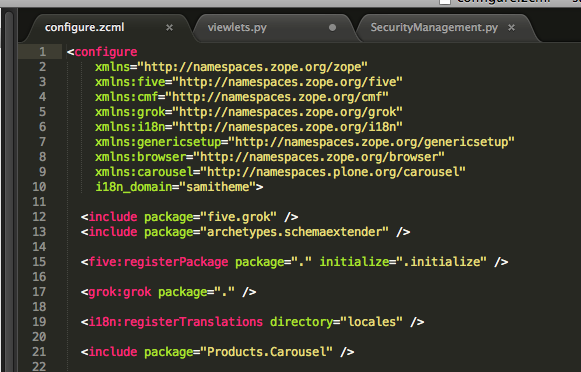
If you a have a file format you want to recognize under a certain highlighter e.g. map ZCML files to XML highlighter.

Open any file of the format.

Then: View > Syntax > Open all with current extension as… ->[your syntax choice].
Image
Example of XML-based ZCML configuration language, colorized correctly with XML syntax.

More info.

Go to anywhere shortcut

CMD + P. Type in a part of a filename and a part of a function / rule name. You are there. Very powerful, yet so simple feature.

Image

Go to line number shortcut

Use Go To Line functionality CTRL+G for more traditional jumps.

Context sensitive in-file search shortcut

Handy for Javascript, CSS, Python, etc. CMD + R. Type your method or rule name and Sublime automatically jumps into its declaration.

Image

… or in Python …

Image

Edit multiple words or lines simultaneously using multi cursor

This trick is handy if you need to wrap / unwrap stuff in quotes, add commas, add parenthesis etc. on multiple lines or items simulatenously.

First select lines or items. You can select multiple individual words by holding down CMD and double clicking words. For lines you can do just the normal SHIFT selection.

Press SHIFT + CMD + L to activate the multi cursor mode.

Image

Then edit all the entries simultaneously. Use CMD + left and CMD + right etc. to move al the cursors to the beginning or the end of the linen and so on.

Open OS file browser for the currently opened file or any of its parent directories

CTRL + mouse click filename in the title bar of the edit window to show the full path to the file and open any of its parent folder. Note: This is OSX’s Finder file browser standard behavior and might not work on other platforms.

Image

Syncing and back-uping Sublime Text settings and plug-ins with Dropbox

Here are instructions for syncing and saving Sublime Text settings with Dropbox. The instructions were written for ST2, but should apply to ST3 as well if you correct the folder names.

Troubleshooting (especially when installing new packages)

Many packages require separate binaries installed on your system. Sublime Text has a console (View > Console menu) where diagnostics output is procuded on Sublime Text startup and when you open a file for the first time.

Example of failed SublimeLinter-pep257 plugin load crash in Console (had to install script on the system first):

Screen Shot 2014-01-24 at 23.25.48

That’s all this time. Please leave your favorite Sublime Text tips in the comments 🙂

\"\" Subscribe to RSS feed Image Follow me on Twitter Image Follow me on Facebook Image Follow me Google+

bitcoinprices.js – human-friendly presentation of Bitcoin prices on any web page

I’d like to introduce you to my weekend project, bitcoinprices.js.

example

bitcoinprices.js is a JavaScript library for human-friendly Bitcoin price presentation and conversion. bitcoinprices.js can be dropped on your web page. It presents the Bitcoin prices in the fiat currency chosen by the user,  making prices friendly to read. bitcoinprices.js works on any HTML page. No server side components needed!

See the demo.

The project was born out from the frustration, because many small Bitcoin eCommerce sites have prices only in raw BTC.  This makes it very hard for an average eCommerce site user to value the sold items.

The exchange rates data is sourced from bitcoinaverage.com, but this can be easily changed.

Kudos for bitcoinaverage.com guys for the great service.

See the source code on Github.

\"\" Subscribe to RSS feed Image Follow me on Twitter Image Follow me on Facebook Image Follow me Google+

Javascript autocompletions and having one for Sublime Text 2

Autocompletion is major software development productivity booster in modern programming text editors. This article discuss about Javascript autocompletion and how to make Sublime Text 2 editor to support them. If you are not familiar with Sublime Text 2 please see my earlier post what Sublime Text 2 is all about and how to tune it to be a superior programmer’s tool. Please note that information here applies to Sublime Text 2, Sublime Text 3 is underway (most ST2 plugins are open source and can be easily upgraded for ST3 compatibility).

Update: 3 days after this blog post I cam across Tern.js which is a kickstarted project to build sensible editor agnostic Javascript autocompletion engine.

Image

[toc]

Why autocompletion for Javascript is so hard

Javascript does not have Java-like static typing system, meaning that it’s not possible to know what’s the type variables of like this, $, jQuery, etc. until the code is actually executed in the web browser. In statically typed systems like Java you declare the type of the variables when you introduce them, like int i or MyClass foo. In Javascript you have only var or let. This makes Javascript lighter to write, but it also effectively means that during writing the code the information about the variable contents is not really available. Thus, your text editor cannot know how to autocomplete your typing because it cannot know what autocompletions there are available.

What makes things even more worse and sets Javascript apart from Ruby and Python is the lack of native support of classes and modules. Prototypial inheritance gives great freedoms – leading to the sad state of the things that each Javascript framework has invented their own way to declare classes, modules and namespaces. There isn’t one right way, but many incompatible ways. Thus, there is no single solution to extract the classy type information, even run-time.

Introducing type information into Javascript

There exist several ways to annotate Javascript source code or overlay type information over it. By using these type hints your text editor can know that $ is actually jQuery and can guess what kind of functions it could provide.

First of all, most text editors have their own type information format and files which are generated from the source code or entered as manually maintained files. Examples include Sublime Text 2 .sublime-completions files and Aptana Studio Javascript autocompletions. To make the editor support autocompletion one needs to integrate a source code scanner plug-in which extracts the type information and turns it to the native symbol database format supported by the editor.

Please note that autocompletion is not the only reason to have static typing support or type hinting. When project size and number of developers grow, static typing becomes more and more preferable as it decreases the cognitive load needed to work with the codebase, reducing human errors.

JsDoc directive scanning

JsDoc is a loosely followed convention to annotate Javascript with source code comments to contain references about packages, namespaces, singlentons, etc. Basically you write something like @class foo.bar.Baz in /** */ comment blocks and it is picked up. JsDoc was originally created to generate Javadoc like API documentation for Javascript projects. If you have any self respect you document your source code with comments.  Do this by following the JsDoc best practices and you’ll be lucky and the same type information can be utilized for generating autocompletions too.

JsDoc class and namespace hints are especially needed when you are using something like RequireJS for defining your modules. This is because naive source code scanners have very hard time to determine module exports and classes from this kind of source code and as far as I know, no IDE supports RequreJS natively yet.

Note that personally I prefer superior JsDuck over JsDoc for actual HTML documentation generation.

TypeScript definitions and language

With some bad rap due to its owner, Microsoft, TypeScript is an open source project to provide type information for Javascript. TypeScript comes with two “modes” of operating.

The less invasive approach is to  provide type information in externally typed interface files (example .ts for jQuery).

Move invasive, but easier to maintain approach is to write your source code in TypeScript language itself which compiles down to Javascript and .ts type information files. TypeScript language is a Javascript superset, so all Javascript is valid TypeScript. TypeScript adds optional support for classes, modules and static typing of variables. The TypeScript compiler will detect if you are trying to mix wrong types or using missing functions and gives a compiler error at the compile phase, when generating JS from TS.

Sublime Text 2 has a plugin to support TypeScript based autocompletions.

SublimeCodeIntel plug-in and OpenKomodo CodeIntel

OpenKomodo is a software repository for the open source parts of ActiveState’s Komodo Edit editor. It has a subsystem called CodeIntel for autocompletion and source code symbol scanning.

What makes CodeIntel interesting from the perspective of Sublime Text 2 is that CodeIntel is 1) open source 2) written in Python, making it easy to integrate with the Python based plug-in system of Sublime Text 2. Thus, there exist SublimeCodeIntel plug-in.

CodeIntel has a Javascript scanner. Based on its source code, it should provide JsDoc @class decorator support. However, I have never managed to get it working and there is an open stackoverflow.com question how to make SublimeCodeIntel to work with JsDoc directives. All help welcome.

Sublime Text 2 and CTags

Exuberant CTags is a generic “tag” type information extractor backend for various programming languages. As the name implies, it was originally created to autocomplete C source code. Sublime Text 2 has support for CTags with a plug-in which is called CTags.

I have not used this plug-in myself, so I hope someone can comment how well it works with Javascript autocompletion.

Manually generating autocompletions for your favorite Javascript project

Though not so advanced approach, this gave me a wow effect and motivation to write this blog post (instead of sitting under a palm tree sipping caipirinhas). I came across this little Python script in Three.js, a 3D engine for WebGL and Javascript.

Three.js has invented yet another Javascript class system of their own. But instead of using JsDoc @class, @module or @package like annotations they have a custom Python script which scans the Javascript codebase using regular expressions. Regexes match Three.js custom class declarations and then the script generates Sublime Text 2 autocompletion file based on the results. Crude, but apparently seems to work.

I recommend check the source code and see how you could apply this for your own little project if you are a major Sublime Text 2 user. The approach is not limited to Javascript, but should work for any dynamically typed language where you have control over how you define your namespaces.

\"\" Subscribe to RSS feed Image Follow me on Twitter Image Follow me on Facebook Image Follow me Google+

Script for generating Google documents from Google spreadsheet data source

[toc]

Microsoft Office supports “data sources” to generate e.g. letters, invoices, address stickers and other repeating documents based on Microsoft Word template and Microsoft Excel data. This is a very common small business problem and Office has had a solution for it from mid-90s. Google Apps, the cloud based alternative to Microsoft Office, do not offer similar functionality natively (or at least if they do they hide it really well). However, you can quite easily create your own document generator using Google Apps scripting as long as your are proficient in programming. In this blog post I’ll show an example how to create such a script and learn the basics of Google Apps Scripts.

Ingredients of the document generator

We have following the following inputs for our business problem

  • A Google Apps spreadsheet which contains customer data.
  • A Google Apps docs template document. Based on it, we want to generate a document for each customer by filling this template document with the data from the spreadsheet.
  • A Google Drive folder where the resulting documents are stored.
  • A Google Apps script which automatizes the task for us (Javascript based)

In my case the use case was generating contract texts for the customers based on their price and quality of service data. Then I just exported and emailed the resulting Google Docs as PDF.

All of these are stored on your Google Apps account in Google Drive. All editing happens through Google Apps user interface, no external tools needed.

Example of source data (obfuscated with obfuscate.js)

Image

Example of the template document (obfuscated with obfuscate.js). You can see the source labels, unfilled.

Image

Example of the resulting document – labels filled in and no longer in bold (obfuscated with obfuscate.js)

Image

Short introduction to Google Apps Script

Google Apps Scripts can be invoked in two ways

Because we are not working on the spreadsheet we need to use the former approach.

Image

Google Apps Script is a JavaScript (ECMAScript version unspecified? Does it run V8?) cloud scripting language that provides easy ways to automate tasks across Google products and third party services. The Google Apps Script has extensive API documentation with examples and tutorials, but they are still much subject to change as almost everything is marked as experimental and already there exist a lot of deprecated methods. The Google Apps Scripts can also access Google Maps, contacts, email, sites, Google Apps domain setting and basically have automation solution almost everything you can do in Google cloud.

The script is executed on the server-side and you have a non-fancy localized browser based UI to edit and debug your script.

Image

The philosophy and UI design patters feel like a step back to 90s, to the Visual Basic scripting environment. Maybe Google Apps developers wanted this… so that Visual Basic developers feel back home. However, coming from a web development, Javascript and general programming background you will find the lack of Firebug / Web Inspector like console disturbing. It does not feel like any other Javascript development, though certainly the syntax is the same.

So my minor complains include, but are not limited to

  • Logging from the applications is possible, but the log trace is very unreadable in UI
  • The program does not have a specific entry point, you need to choose a function using a selection widget. This makes the script feel like a toy.
  • Debugger (and lack of console) does not seem to allow you to modify and dynamically poke objects in run-time (call functions, etc.)
  • Debugger is a bit slow (round-trip to Google servers, a bit), though still pretty much useable
  • Lack of low end user interaction tools in standalone scripting (please see below)
  • API documents and reality did not always match (as everything is still experimental)

Debugger in action

Image

Things could be better, but in the end I managed to get done what I was looking for and I am still not paying a penny for Google Apps, so I am happy. Also, I do not wish to go back to Microsoft Office unless I need to write well-formatted print documents… Google Docs is a toy what comes to heavy and graphically sensitive document authoring like offers…. Or presentations… where Keynote is the king.

The generator script

In the beginning of the script you have constants which define on which data to operate. You could build an user interface making the script to full web application, but this is too cumbersome approach for such a small task. The UI builder seemed nice, but definitely an overkill. Though there exist Google Apps Script API methods for performing simple prompt() question in the browser,  for some reason they were not supported in standalone scripting… so the fastest approach to enter data into the script was simply edit the script itself before each run. I sooo started to miss command line… first time in my life.

So, in the beginning of the script you define the source data

  • Spreadsheet id (you can pick it up from URL when you edit the document)
  • Template document id (you can pick it up from URL when you edit the document)
  • Customer id which is the spreadsheet row number, for the current script run
  • The Google Driver folder id where the resulting document will be placed for sharing. Again you can pick the id from URL when opening the folder.

Then the script simply replaces words with data. The keyword to be replaced in the template document are identified as the column labels (1st row) in the spreadsheet data. I am pretty sure there would be more efficient methods to do this, but I did not wish to spend time to go to knee deep to GS to figure out its nuances.

And then the script… please feel free to modify to your own needs (generator.gs):

/**
 * Generate Google Docs based on a template document and data incoming from a Google Spreadsheet
 *
 * License: MIT
 *
 * Copyright 2013 Mikko Ohtamaa, http://opensourcehacker.com
 */

// Row number from where to fill in the data (starts as 1 = first row)
var CUSTOMER_ID = 1;

// Google Doc id from the document template
// (Get ids from the URL)
var SOURCE_TEMPLATE = "xxx";

// In which spreadsheet we have all the customer data
var CUSTOMER_SPREADSHEET = "yyy";

// In which Google Drive we toss the target documents
var TARGET_FOLDER = "zzz";

/**
 * Return spreadsheet row content as JS array.
 *
 * Note: We assume the row ends when we encounter
 * the first empty cell. This might not be 
 * sometimes the desired behavior.
 *
 * Rows start at 1, not zero based!!! :(
 *
 */
function getRowAsArray(sheet, row) {
  var dataRange = sheet.getRange(row, 1, 1, 99);
  var data = dataRange.getValues();
  var columns = [];

  for (i in data) {
    var row = data[i];

    Logger.log("Got row", row);

    for(var l=0; l<99; l++) {
        var col = row[l];
        // First empty column interrupts
        if(!col) {
            break;
        }

        columns.push(col);
    }
  }

  return columns;
}

/**
 * Duplicates a Google Apps doc
 *
 * @return a new document with a given name from the orignal
 */
function createDuplicateDocument(sourceId, name) {
    var source = DocsList.getFileById(sourceId);
    var newFile = source.makeCopy(name);

    var targetFolder = DocsList.getFolderById(TARGET_FOLDER);
    newFile.addToFolder(targetFolder);

    return DocumentApp.openById(newFile.getId());
}

/**
 * Search a paragraph in the document and replaces it with the generated text 
 */
function replaceParagraph(doc, keyword, newText) {
  var ps = doc.getParagraphs();
  for(var i=0; i<ps.length; i++) {
    var p = ps[i];
    var text = p.getText();

    if(text.indexOf(keyword) >= 0) {
      p.setText(newText);
      p.setBold(false);
    }
  } 
}

/**
 * Script entry point
 */
function generateCustomerContract() {

  var data = SpreadsheetApp.openById(CUSTOMER_SPREADSHEET);

  // XXX: Cannot be accessed when run in the script editor?
  // WHYYYYYYYYY? Asking one number, too complex?
  //var CUSTOMER_ID = Browser.inputBox("Enter customer number in the spreadsheet", Browser.Buttons.OK_CANCEL);
  if(!CUSTOMER_ID) {
      return; 
  }

  // Fetch variable names
  // they are column names in the spreadsheet
  var sheet = data.getSheets()[0];
  var columns = getRowAsArray(sheet, 1);

  Logger.log("Processing columns:" + columns);

  var customerData = getRowAsArray(sheet, CUSTOMER_ID);  
  Logger.log("Processing data:" + customerData);

  // Assume first column holds the name of the customer
  var customerName = customerData[0];

  var target = createDuplicateDocument(SOURCE_TEMPLATE, customerName + " agreement");

  Logger.log("Created new document:" + target.getId());

  for(var i=0; i<columns.length; i++) {
      var key = columns[i] + ":"; 
      // We don't replace the whole text, but leave the template text as a label
      var text = customerData[i] || ""; // No Javascript undefined
      var value = key + " " + text;
      replaceParagraph(target, key, value);
  }

}


Translations

Please see Czech translation by Alex Bojik from Bizow.com.

Please see Polish by Valeria Aleksandrova.

\"\" Subscribe to RSS feed Image Follow me on Twitter Image Follow me on Facebook Image Follow me Google+