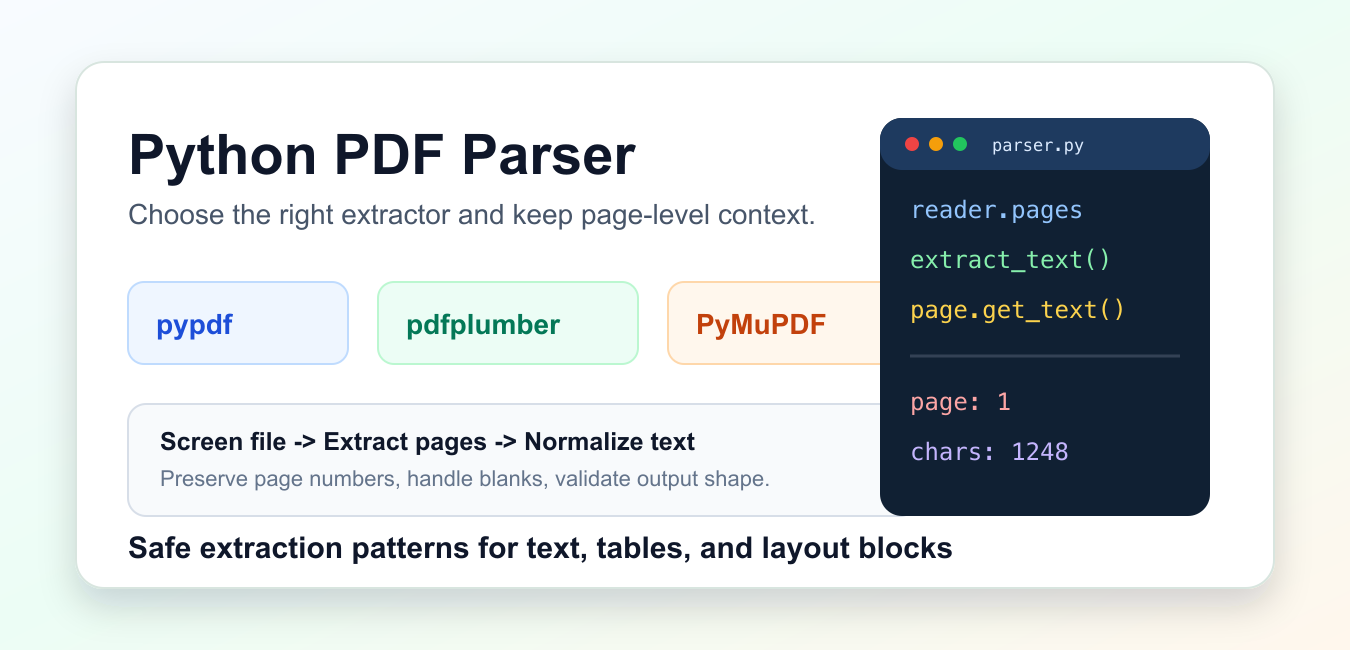
Quick answer: Choose a Python PDF parser by the document and output you need: pypdf is a strong starting point for standard text and metadata, pdfplumber helps with layout-oriented extraction, and PyMuPDF is useful when rendering and fast page access matter. Scanned pages usually require OCR.
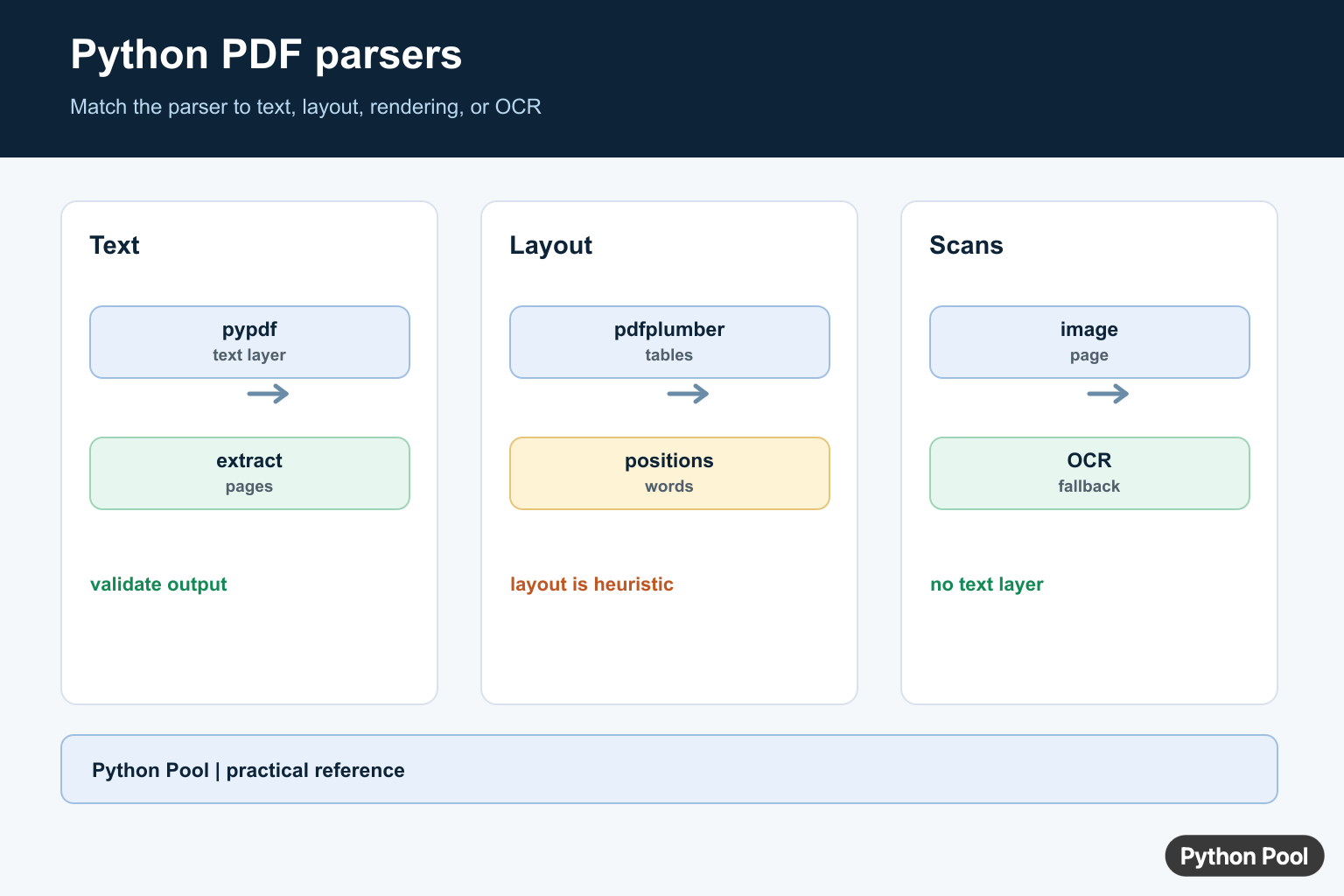
A Python PDF parser is most useful when it is chosen for the kind of content inside the file. Some files contain plain digital text that can be read page by page. Others have tables, columns, headers, footers, annotations, scanned pages, or mixed layout. Treating every file as simple text often creates noisy output, missing values, and hard-to-debug downstream errors.
The three common options are pypdf, pdfplumber, and PyMuPDF. Use pypdf for general page text, metadata, page counts, splitting, and merging. Use pdfplumber when table extraction and layout clues matter. Use PyMuPDF when you need fast page access, text blocks, coordinates, or rendering support. The official references are the pypdf documentation, the pypdf text extraction guide, the pdfplumber project documentation, and the PyMuPDF documentation.
Good extraction code also includes safety checks before a parser opens the file. Check the path, size, extension, and basic file signature. Put limits around batch jobs, keep failed pages separate from successful pages, and store page numbers with every extracted record. That makes it possible to review output later instead of guessing where a bad line came from.
Choose A Parser
Start by checking which parser packages are present in the active environment. The import names are not all the same as the project names: PyMuPDF is imported as fitz. A setup check like this is safe to run in any environment because it does not open a document.
import importlib.util

choices = {
    "pypdf": "general page text and metadata",
    "pdfplumber": "tables and layout-aware text",
    "fitz": "PyMuPDF text blocks and page geometry",
}

for module_name, use_case in choices.items():
    status = "available" if importlib.util.find_spec(module_name) else "not installed"
    print(f"{module_name}: {status} - {use_case}")
This check is useful in scripts that run across developer laptops, servers, and scheduled workers. It lets the script report a clear setup issue before attempting extraction. In production, prefer explicit project dependencies instead of switching behavior silently, but guarded examples are helpful for tutorials and diagnostics.
Package availability is only the first decision. The file shape matters more. A clean text PDF can work with pypdf. A bank statement with ruled tables may be better suited to pdfplumber. A manual with multiple columns or a need for coordinates can be easier with PyMuPDF text blocks.
Screen Files Before Parsing
Never pass every path directly into a parser. Check the extension, maximum size, and magic bytes first. These checks do not prove that the file is valid, but they catch obvious mistakes and reduce wasted parser work.
from pathlib import Path

MAX_BYTES = 25 * 1024 * 1024

def looks_like_pdf(data: bytes) -> bool:
    return data.startswith(b"%PDF-") and b"%%EOF" in data[-2048:]

def should_parse(path: Path, data: bytes) -> bool:
    if path.suffix.lower() != ".pdf":
        return False
    return len(data) <= MAX_BYTES and looks_like_pdf(data)

sample_path = Path("report.pdf")
sample_data = b"%PDF-1.7\n1 0 obj\n<<>>\nendobj\n%%EOF\n"

print(should_parse(sample_path, sample_data))
print(should_parse(Path("report.txt"), sample_data))
A real intake job can read only the first few bytes and the final chunk instead of loading a large file into memory. The point is to reject files that clearly do not belong in the parser path. Size limits are especially important in web apps, background queues, and notebooks where a large file can slow the whole process.
Screening is not a security boundary by itself. It is a practical guardrail before deeper checks, parser exceptions, malware scanning where required, and business-specific validation. Keep the parsing step isolated from user-facing request handling when files may be large or untrusted.
Extract Text With pypdf
pypdf is a good first choice for simple page text and metadata. It can read pages, count them, inspect document information, and extract text without needing a rendering engine. The extraction result still depends on how the file stores text internally, so keep blanks and page-level failures visible.
from pathlib import Path
import importlib.util

pdf_path = Path("invoice.pdf")
pages = []

if importlib.util.find_spec("pypdf") and pdf_path.exists():
    from pypdf import PdfReader

    reader = PdfReader(str(pdf_path), strict=False)
    for index, page in enumerate(reader.pages, start=1):
        text = page.extract_text() or ""
        pages.append({"page": index, "text": text.strip()})
else:
    pages = [{"page": 1, "text": "Invoice 1001\nTotal 45.50"}]

for item in pages:
    first_line = item["text"].splitlines()[0]
    print(item["page"], first_line)
The fallback data keeps the example runnable without a sample document. In an application, replace the fallback with a clear error, a setup check, or a test fixture. Do not treat an empty extraction as success. A scanned page, a protected file, or unusual text encoding may all produce little or no text.
Store output as page records, not one large string. Page numbers help reviewers trace a field back to the source and make it easier to retry failed pages. This is also useful when you later split text into search chunks or compare extraction quality across parser tools.
Extract Tables With pdfplumber
pdfplumber is often better when the task is table-like. It exposes page objects, layout details, words, characters, and table extraction helpers. This makes it useful for statements, invoices, reports, and forms where row and column shape matters.
from pathlib import Path
import importlib.util

pdf_path = Path("statement.pdf")
rows = []

if importlib.util.find_spec("pdfplumber") and pdf_path.exists():
    import pdfplumber

    with pdfplumber.open(str(pdf_path)) as pdf:
        for page in pdf.pages:
            for table in page.extract_tables() or []:
                rows.extend(table)
else:
    rows = [["Date", "Amount"], ["2026-07-01", "19.95"]]

if rows:
    header, *body = rows
    print(header)
    print(body[0] if body else [])
else:
    print("no table rows found")
Table extraction is rarely perfect on every source. Headers may repeat, merged cells may appear as blanks, and a page footer can be mistaken for a row. Keep the raw table rows close to the normalized result while tuning extraction rules. For downstream CSV work, convert rows deliberately and validate the expected headers before writing output.
When files come from one known template, spend time tuning the table settings and assertions. When files come from many issuers, build a review path for uncertain rows rather than forcing every page into the same schema.
Use PyMuPDF For Blocks
PyMuPDF can extract text with positional information. That helps when reading multi-column pages, clipping a page region, sorting blocks by coordinates, or deciding whether text came from a header, body section, or footer. The PyMuPDF text recipes show several extraction forms.
from pathlib import Path
import importlib.util

pdf_path = Path("manual.pdf")
blocks = []

if importlib.util.find_spec("fitz") and pdf_path.exists():
    import fitz

    with fitz.open(str(pdf_path)) as doc:
        for page_number, page in enumerate(doc, start=1):
            for block in page.get_text("blocks"):
                x0, y0, x1, y1, text, *_ = block
                if text.strip():
                    blocks.append((page_number, round(y0), text.strip()))
else:
    blocks = [(1, 72, "Python parser guide"), (1, 140, "Safe extraction")]

for page_number, top, text in blocks:
    print(page_number, top, text[:40])
Coordinates are useful, but they add another layer of decisions. You may need to ignore headers, remove footers, sort columns, or clip a region around a table. Keep those rules explicit and test them with several pages from the same source.
PyMuPDF is also helpful when a workflow needs both text and page images for review. For a text-only extraction job, avoid rendering unless the image output is actually needed because rendering adds cost and storage.
Normalize Extracted Text
Parser output usually needs cleanup before search, CSV export, or analysis. Normalize whitespace, repair common line-break hyphenation, skip blank pages, and preserve the page number. Keep this cleanup small and testable so it does not hide extraction errors.
import re

def clean_text(text: str) -> str:
    text = re.sub(r"-\n(?=[a-z])", "", text)
    text = re.sub(r"[ \t]+", " ", text)
    text = re.sub(r"\n{3,}", "\n\n", text)
    return text.strip()

def page_records(raw_pages):
    records = []
    for number, text in raw_pages:
        cleaned = clean_text(text)
        if cleaned:
            records.append({"page": number, "chars": len(cleaned), "text": cleaned})
    return records

raw_pages = [
    (1, "Python PDF par-\nser guide\n\n\nSafe text"),
    (2, "   "),
]

print(page_records(raw_pages))
Cleanup rules should be conservative. Removing all line breaks may damage addresses, poetry, code samples, or table-like text. Removing every repeated space can also damage fixed-width layouts. Apply broad cleanup only after deciding what the output will be used for.
For search indexing, page-level or section-level records are usually better than a full-document blob. For structured export, keep a schema and validate required fields. For review workflows, keep enough source context so a human can compare the extracted text with the page that produced it.
Practical Parser Guidance
Use pypdf when the task is general PDF inspection or simple text extraction. Use pdfplumber when rows, columns, and table boundaries matter. Use PyMuPDF when coordinates, clipping, speed, or rendering support matter. It is normal to test more than one parser on a sample set before choosing a production path.
Build extraction in stages: screen the file, open it with the chosen parser, collect page-level results, normalize carefully, validate the expected shape, and record failures. This structure makes parsing jobs easier to debug and safer to run in batches.
Finally, remember that scanned pages need OCR before normal text extraction will work. A parser library cannot recover text that exists only as pixels. Detect those cases early and route them to an OCR workflow or a manual review queue instead of returning an empty result as though parsing succeeded.
Extract Text With pypdf
pypdf reads a PDF’s text layer through PdfReader and page.extract_text(). The result is not guaranteed to preserve visual paragraphs, tables, or reading order because PDF is primarily a positioned drawing format. Validate representative documents before treating extracted text as structured data.
from pypdf import PdfReader

reader = PdfReader("report.pdf")
for page_number, page in enumerate(reader.pages, start=1):
    text = page.extract_text() or ""
    print(page_number, text[:200])
Recognize Scanned PDFs
If a PDF page is only an image, a text parser cannot invent the characters. Check for empty or unexpectedly short extraction, then route the file to OCR. Keep OCR as a separate, testable step because recognition errors and layout decisions need review.
from pypdf import PdfReader

reader = PdfReader("scan.pdf")
text = "\n".join(page.extract_text() or "" for page in reader.pages)
if len(text.strip()) < 20:
    print("likely image-only PDF: use OCR")
else:
    print(text[:500])
Choose pdfplumber Or PyMuPDF
Use pdfplumber when extracting positioned words, lines, or tables is central to the workflow. Use PyMuPDF when fast page access, rendering, annotations, or broader document operations are the priority. Keep the parser behind a small adapter so a document family can change tools without changing business logic.
def extract_with_parser(path, parser):
    if parser == "pypdf":
        from pypdf import PdfReader
        return [page.extract_text() or "" for page in PdfReader(path).pages]
    raise ValueError(f"unsupported parser: {parser}")

print(extract_with_parser("report.pdf", "pypdf"))
Limit Memory And Validate Output
A large or uncompressed content stream can consume substantial memory during extraction. Process pages incrementally, set application-level size limits, and keep the original page number with each extracted record. Compare a sample of extracted text against the rendered PDF before indexing or summarizing it.
from pypdf import PdfReader

reader = PdfReader("report.pdf")
for number, page in enumerate(reader.pages, start=1):
    contents = page.get_contents()
    if contents is not None and len(contents.get_data()) > 50_000_000:
        raise ValueError(f"page {number} content stream is too large")
    print(number, (page.extract_text() or "").strip()[:80])
pypdf’s official text-extraction guide explains text layers, OCR limits, layout, and content-stream memory. Use the tool whose output contract matches the PDF family rather than assuming every PDF has semantic structure.
For nearby PDF workflows, compare creating PDF files from text, exporting plots as PDF, and rendering and converting images with ImageMagick when the input or output format changes.
For the authoritative API and current behavior, consult the pypdf documentation.
Frequently Asked Questions
What is the best Python PDF parser?
pypdf is a practical pure-Python choice for standard PDF structure and text, while pdfplumber and PyMuPDF can be better for layout, tables, or rendering needs.
Can pypdf extract text from scanned PDFs?
No. A scanned page is usually an image, so use OCR when a usable text layer is absent.
How do I extract text with pypdf?
Create a PdfReader, select a page, and call page.extract_text(), then validate the output because PDF layout has no guaranteed semantic structure.
How should I parse tables in PDFs?
Use a layout-aware workflow and validate rows and columns against representative files; PDF tables are often positioned text rather than structured data.
