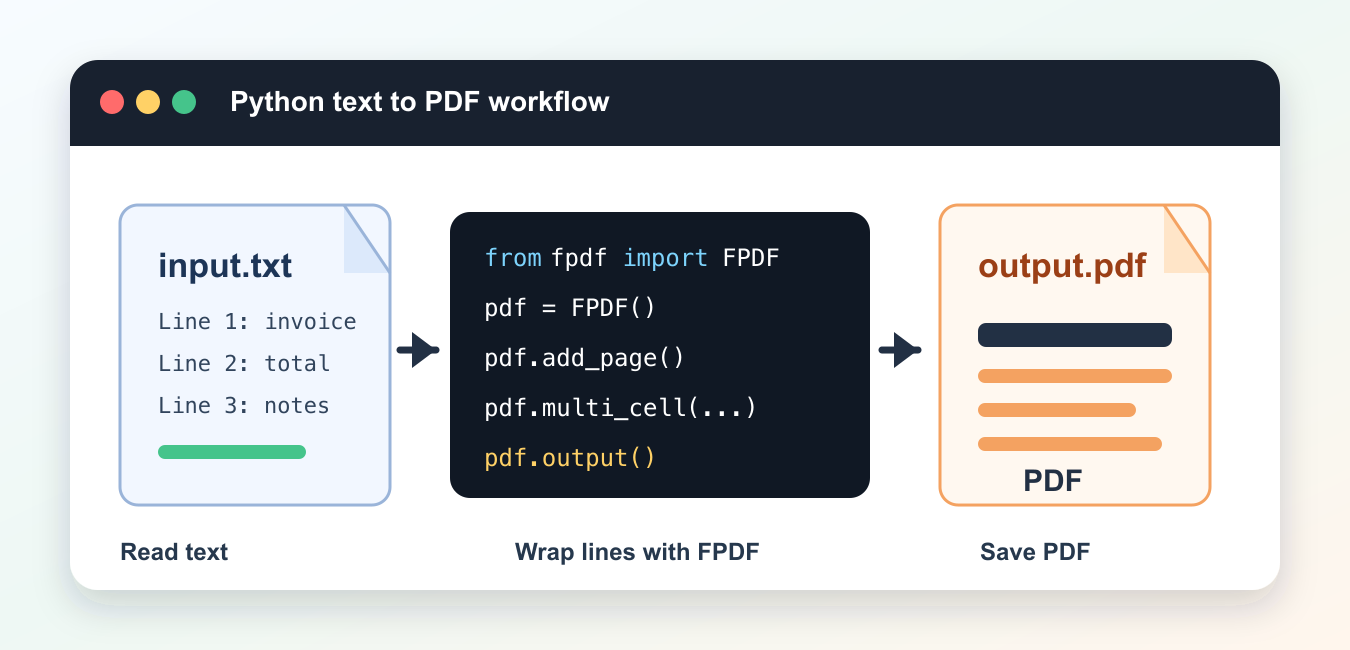
Quick answer: Convert text to PDF by choosing a maintained library, defining page margins and fonts, wrapping lines to the available width, creating new pages when vertical space runs out, and validating the saved document with parsing or rendering tests.
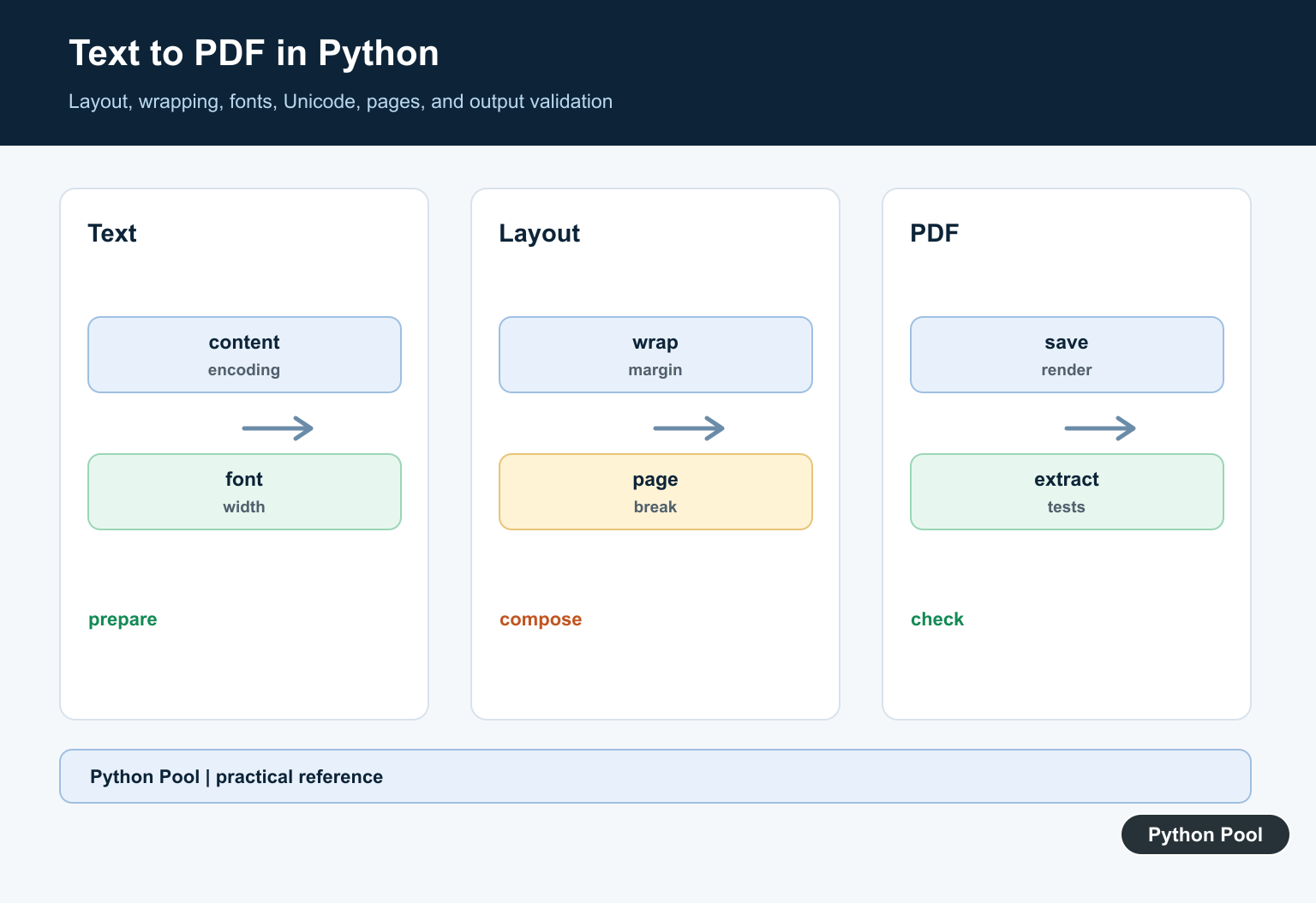
Converting text to PDF in Python is a common task for reports, invoices, logs, summaries, and generated documentation. The practical approach is to read plain text with Python, create a PDF page, choose a font, wrap long lines, and save the output. The examples below use fpdf2, the maintained successor to PyFPDF, whose docs are available on the fpdf2 project site and package page on PyPI.
The package is installed as fpdf2, but the import name is still fpdf. That difference is the first thing to remember when a new environment cannot find the library. If you manage multiple project environments, keep the install command tied to the same interpreter that runs your script.
For text-only output, FPDF is usually lighter than creating HTML first and rendering that HTML to PDF. It gives direct control over page size, margins, fonts, line height, and page breaks without needing a browser engine. That makes it a good fit for clean plain-text reports, exported notes, support logs, and simple generated files where layout needs to be predictable.
Check The FPDF Import
Before writing PDF code, check whether the active Python interpreter can see the fpdf module. This is a fast setup check and it avoids debugging PDF layout when the real issue is a missing package.
import importlib.util

spec = importlib.util.find_spec("fpdf")
print(spec is not None)
print(spec.origin if spec else "install fpdf2 in this environment")
If this prints False, install with the active interpreter, for example python -m pip install fpdf2. For isolated projects, a virtual environment keeps PDF tooling separate from other applications; this guide on how to remove a Python venv is useful when an old environment needs cleanup.
Convert A String To PDF
The shortest working example creates a PDF, adds a page, chooses a built-in font, writes each line, and saves the result. Built-in fonts are fine for simple ASCII text and small documents.
from fpdf import FPDF

text = "Python Pool\nConvert plain text to a PDF file."

pdf = FPDF()
pdf.add_page()
pdf.set_font("Helvetica", size=12)

for line in text.splitlines():
    pdf.cell(0, 10, text=line, new_x="LMARGIN", new_y="NEXT")

pdf.output("output.pdf")
The first argument to cell is the width. A width of 0 means the cell extends to the right margin. The new_x and new_y arguments move the cursor back to the left margin and down to the next line after each write.
Use cell when each line is already short enough for the page. Use multi_cell when the text may be long, copied from users, generated by another program, or read from a file. That choice matters because PDF pages do not automatically behave like a text editor unless your code tells the library how to wrap and move down the page.
Read A Text File And Wrap Lines
Most real tasks start from a .txt file. Use pathlib to read it with an explicit encoding, then use multi_cell so long lines wrap inside the page width.
from pathlib import Path
from fpdf import FPDF

source = Path("input.txt")
text = source.read_text(encoding="utf-8")

pdf = FPDF()
pdf.set_auto_page_break(auto=True, margin=15)
pdf.add_page()
pdf.set_font("Helvetica", size=11)
pdf.multi_cell(0, 6, text)
pdf.output("from_text_file.pdf")
set_auto_page_break keeps the output readable when the text is longer than one page. If your folder contains many text files, pair this pattern with a directory loop like the one in our Python loop through files guide.
Add A Heading And Better Spacing
Plain text often needs a heading, margins, and paragraph spacing. You can write a heading with a bold font, then switch back to regular text for the body.
from fpdf import FPDF

pdf = FPDF()
pdf.set_margins(left=18, top=18, right=18)
pdf.add_page()

pdf.set_font("Helvetica", "B", 16)
pdf.cell(0, 12, text="Report", new_x="LMARGIN", new_y="NEXT")

pdf.set_font("Helvetica", size=11)
pdf.multi_cell(0, 7, "First paragraph\nSecond paragraph")
pdf.output("styled.pdf")
This is enough for many text reports. For larger documentation pipelines, our Python documentation tools guide can help you decide when a full documentation generator is a better fit than direct PDF creation.
Handle Unicode Text
When your text contains characters outside the built-in font range, add a TrueType font and use that font before writing. Keep the font file with your project or point to a known installed font path.
from pathlib import Path
from fpdf import FPDF

font_path = Path("DejaVuSans.ttf")
text = "Unicode text: cafe, \u03c0, and \u0928\u092e\u0938\u094d\u0924\u0947"

pdf = FPDF()
pdf.add_page()
pdf.add_font("DejaVu", "", str(font_path))
pdf.set_font("DejaVu", size=12)
pdf.multi_cell(0, 8, text)
pdf.output("unicode_text.pdf")
If the output shows blank boxes, the selected font does not contain the characters you are writing. Use a font that supports the script in your source text and keep the file path stable in production.
Fonts are also important for repeatable deployment. A script that works on your laptop can fail or render differently on a server if it depends on a font that is only installed locally. Keeping the font inside the project folder makes the converter easier to run in CI, containers, scheduled jobs, and hosting environments.
Make A Reusable Converter
Once the basic conversion works, wrap it in a function. This keeps file reading, page setup, and output writing in one place, which makes it easier to call from a command line script, a web app, or a scheduled job.
from pathlib import Path
from fpdf import FPDF


def text_file_to_pdf(input_path, output_path):
    text = Path(input_path).read_text(encoding="utf-8")
    pdf = FPDF()
    pdf.set_auto_page_break(auto=True, margin=15)
    pdf.add_page()
    pdf.set_font("Helvetica", size=11)
    pdf.multi_cell(0, 7, text)
    pdf.output(str(output_path))


text_file_to_pdf("notes.txt", "notes.pdf")
Use this pattern when you need to generate a new PDF from text. If you need to inspect or extract text from an existing PDF instead, start with our Python PDF parser guide or the pypdf documentation. Creating and parsing PDFs are related workflows, but they use different tools and checks.
Choose A PDF Library
Select a library whose licensing, font support, page model, and output requirements match the project. Keep the conversion layer small so a library migration does not spread through business logic.
Measure Text For Layout
A line that fits in a string is not necessarily the width that fits on a page. Measure with the selected font, wrap at the content width, and preserve intentional whitespace and paragraph breaks.
Handle Fonts And Unicode
Embed a font with the required glyph coverage and verify shaping for the languages you support. The source encoding and PDF font encoding are separate contracts that both need tests.
Paginate Predictably
Track the current y position and create a new page before drawing beyond the bottom margin. Decide how headings, blank lines, long words, and tables behave at a page boundary.
Protect Input And Output
Treat source text as data, choose an output path policy, and avoid overwriting a user document unintentionally. For web responses, set content type and disposition explicitly and limit resource use.
Validate The Artifact
Open the result with a parser, extract text, count pages, inspect fonts, and render representative pages. Test empty input, long lines, Unicode, page breaks, and malformed source handling.
Use a maintained PDF library’s official documentation for its layout and font APIs. Related Python Pool references include text handling and tests.
For related document generation, compare text handling, PDF validation tests, and layout configuration before exporting files.
Frequently Asked Questions
How do I convert text to PDF in Python?
Choose a maintained PDF library, create a document and page layout, wrap the text, draw it with a font, and save the output.
Why do Unicode characters disappear from my PDF?
The selected font may not contain the glyphs or the text may be decoded incorrectly; embed a font with the required coverage and test representative text.
How do I handle long text?
Measure or wrap lines, track vertical space, and create a new page before the next line would exceed the page margins.
How can I test a generated PDF?
Open it with a PDF parser or render it in a controlled test, then verify page count, extracted text, fonts, and key layout properties.
