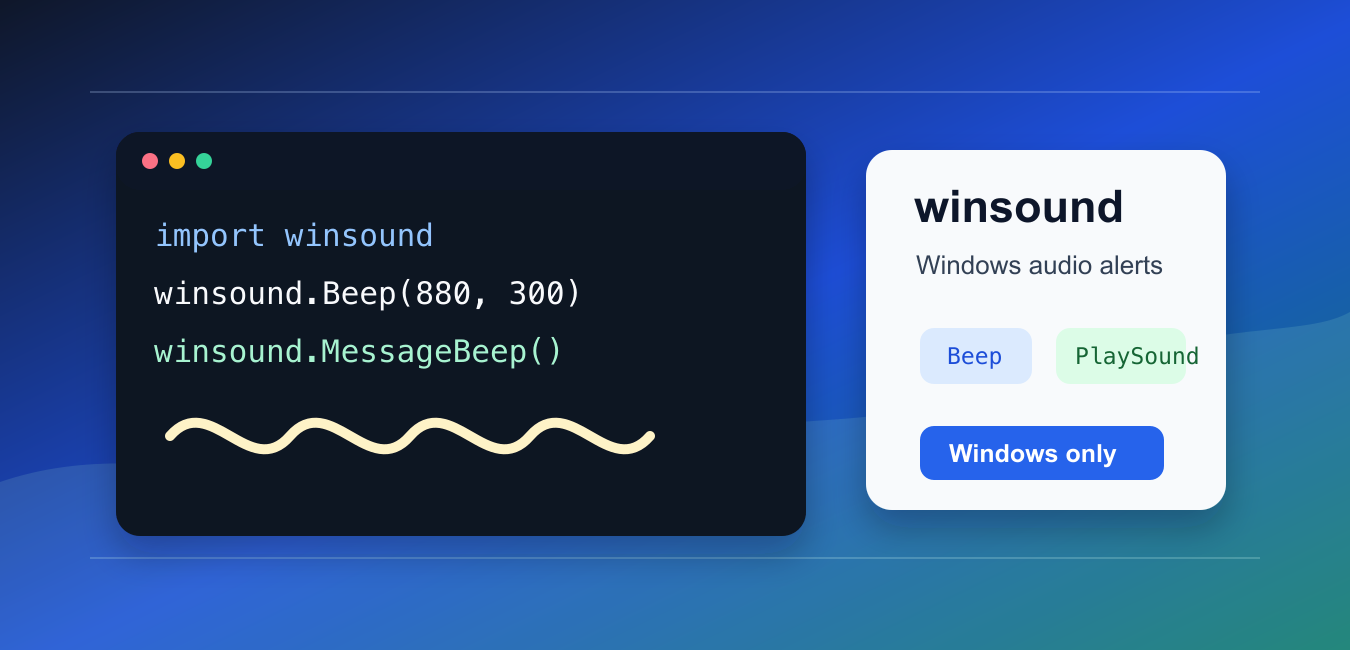
Quick answer: Use Python’s Windows-only winsound module for simple beeps and WAV playback. Beep() takes frequency and duration, while PlaySound() accepts a filename or system sound alias with flags such as SND_FILENAME or SND_ALIAS.
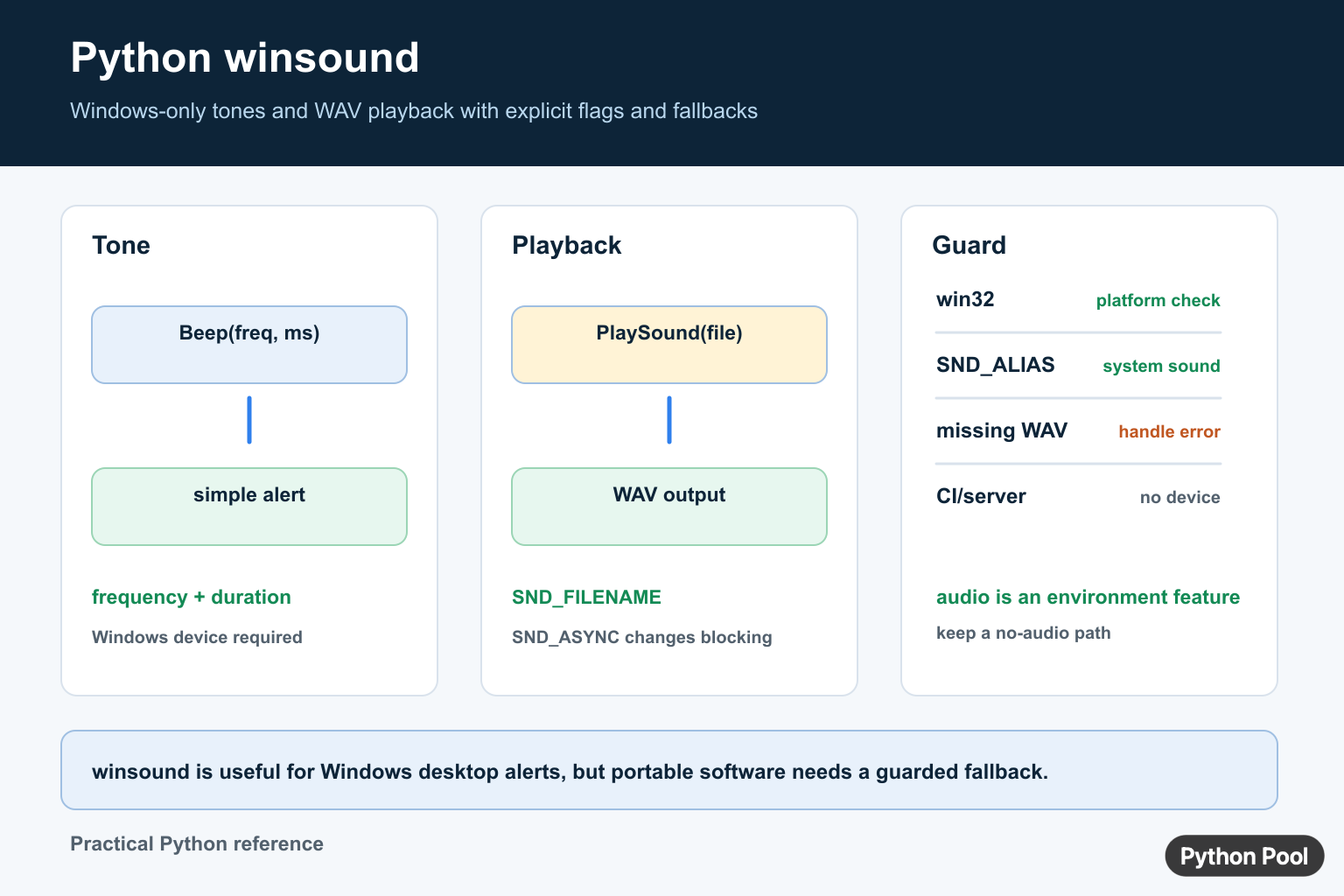
winsound is a Windows-only Python standard-library module for simple sound alerts. It can play a beep, trigger a system sound, or play a WAV file.
The main references are Python’s winsound documentation, the platform module documentation, and the pathlib documentation.
Use winsound for small Windows desktop scripts, local notifications, and quick audio feedback. It is not a cross-platform audio library.
If your program must run on macOS, Linux, and Windows, add a platform check or use another audio package designed for multiple operating systems.
The module is intentionally small. It is good for alerts and simple WAV playback, not for mixing audio, streaming media, or building a full sound engine.
Keep sound output optional when the script may run on a server, in a scheduled job, or inside a remote session where no desktop audio device is available.
Play A Simple Beep
Beep() takes a frequency in hertz and a duration in milliseconds.
import platform

frequency = 880
duration_ms = 300

if platform.system() == "Windows":
    import winsound

    winsound.Beep(frequency, duration_ms)
    print("beep played")
else:
    print("winsound is available only on Windows")
The frequency must be in the supported Windows range. The duration controls how long the tone plays.
This is useful for a quick local alert after a long-running script finishes.
Avoid very long or very loud alert patterns. A short beep is usually enough to confirm that a task completed.
Play A System Alert
MessageBeep() plays a system sound selected by Windows.
import platform

if platform.system() == "Windows":
    import winsound

    winsound.MessageBeep()
    winsound.MessageBeep(winsound.MB_ICONASTERISK)
    winsound.MessageBeep(winsound.MB_ICONHAND)
    print("system alerts played")
else:
    print("winsound is available only on Windows")
The exact sound depends on the user’s Windows sound settings.
Use system alerts when you want the script to follow the user’s configured notification sounds.
System alerts are also safer than assuming a custom sound file exists on every machine.
Play A WAV File
PlaySound() can play a WAV file by path.
from pathlib import Path
import platform

sound_path = Path("alert.wav")

if platform.system() == "Windows" and sound_path.exists():
    import winsound

    winsound.PlaySound(str(sound_path), winsound.SND_FILENAME)
    print("wav played")
else:
    print("WAV playback skipped")
Use a real WAV file path. Other formats such as MP3 are not handled by winsound.
Convert or choose a WAV file when you need custom audio.
Use pathlib to build reliable paths when the sound file lives next to your script or inside a project folder.
Play Sound Without Blocking
Add SND_ASYNC when the script should continue while the sound plays.
from pathlib import Path
import platform

sound_path = Path("alert.wav")

if platform.system() == "Windows" and sound_path.exists():
    import winsound

    winsound.PlaySound(
        str(sound_path),
        winsound.SND_FILENAME | winsound.SND_ASYNC,
    )
    print("sound started")
else:
    print("async playback skipped")
Asynchronous playback is helpful for short notifications, but it can surprise users if the program exits immediately.
If the process ends too soon, the sound may stop before it finishes.
For command-line tools, asynchronous playback should not replace clear console output. Treat audio as an extra signal, not the only result. winsound handles playback, while Python Spectrogram With librosa analyzes how an audio signal’s frequencies change over time.
Stop A Playing Sound
Pass None with SND_PURGE to stop currently playing waveform sounds.
from pathlib import Path
from threading import Event
import platform

sound_path = Path("alert.wav")

if platform.system() == "Windows" and sound_path.exists():
    import winsound

    winsound.PlaySound(str(sound_path), winsound.SND_FILENAME | winsound.SND_ASYNC)
    Event().wait(1)
    winsound.PlaySound(None, winsound.SND_PURGE)
    print("sound stopped")
else:
    print("stop skipped")
This is useful when a longer alert should stop after a condition changes.
Keep stop behavior simple so the sound state is easy to reason about.
If multiple parts of a program can start sounds, centralize playback in one helper. That prevents overlapping alerts from becoming difficult to stop.
Add A Windows Platform Check
Importing winsound on non-Windows systems fails. Check the platform before using it in shared code.
import platform

if platform.system() == "Windows":
    import winsound

    winsound.MessageBeep()
else:
    print("winsound is available only on Windows")
This keeps scripts from failing on unsupported systems.
The practical rule is to use winsound for small Windows-only alerts. For cross-platform playback, choose a different library and keep winsound behind a Windows-specific branch.
Also keep sound alerts optional in automation. Logs, exit codes, and visible status messages are still the primary signals for scripts that may run unattended.
When sharing code with other users, document that the feature depends on Windows. That makes the limitation clear before someone runs the script on another operating system.
For tests, place the platform check in a small function. Then your test can confirm that unsupported systems skip audio without trying to import winsound.
Choose the simplest sound type that fits the job. Use MessageBeep() for a generic notification, Beep() when you need a quick tone, and PlaySound() when a specific WAV file is part of the user experience.
Keep filenames, durations, and platform checks close to the sound helper so future changes are easy to review.
That keeps the audio behavior predictable for every caller and tester.
For most Windows scripts, a short MessageBeep() call at the end of a task is the simplest reliable use case.
Keep the fallback path quiet and predictable so non-Windows users still get useful console output.
Beep And Play A WAV File
winsound.Beep() generates a tone from a frequency and duration on Windows. For a recorded sound, winsound.PlaySound() can play a WAV filename with SND_FILENAME. The module is platform-specific, so import and runtime behavior should be guarded when code also runs on macOS, Linux, CI, or a server.
import sys

if sys.platform == "win32":
    import winsound

    winsound.Beep(880, 250)
    winsound.PlaySound(
        "alert.wav",
        winsound.SND_FILENAME | winsound.SND_ASYNC,
    )
else:
    print("winsound is available on Windows only")
Choose Flags And Blocking Behavior
Without asynchronous playback, a sound call may block until playback finishes. SND_ASYNC returns while the sound plays, but the application must remain alive and should decide how overlapping playback is handled. SND_ALIAS selects a registered system sound name rather than a file path.
Test The Environment
A missing WAV file, unsupported flag combination, invalid frequency, or non-Windows runtime can fail before the sound is audible. Keep a no-audio fallback for web services and automated tests, and do not assume a desktop sound device exists on a remote machine.
Frequently Asked Questions
What is the winsound module in Python?
winsound is a Windows-only standard-library interface for simple beeps and sound playback.
How do I make a beep in Python?
Call winsound.Beep(frequency, duration) on Windows with a frequency in hertz and a duration in milliseconds.
How do I play a WAV file with winsound?
Call winsound.PlaySound(filename, winsound.SND_FILENAME) and add flags such as SND_ASYNC only when non-blocking behavior is intended.
Can winsound run on macOS or Linux?
No. Guard the import and provide another notification or no-audio fallback when the runtime is not Windows.
