Quick Answer
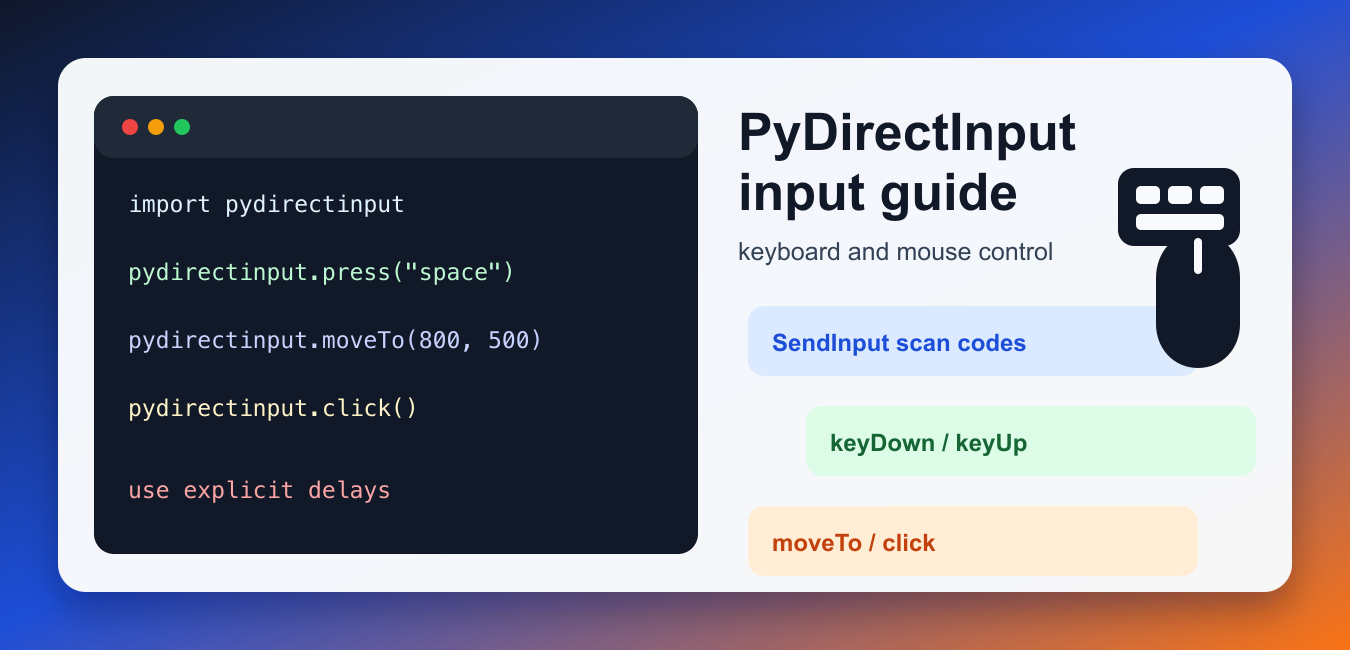
Install PyDirectInput, import it as pydirectinput, and use functions such as moveTo(), click(), press(), and write(). Test against a safe target first: these calls control the real pointer and keyboard, so add pauses, verify focus, and avoid hard-coded destructive actions.
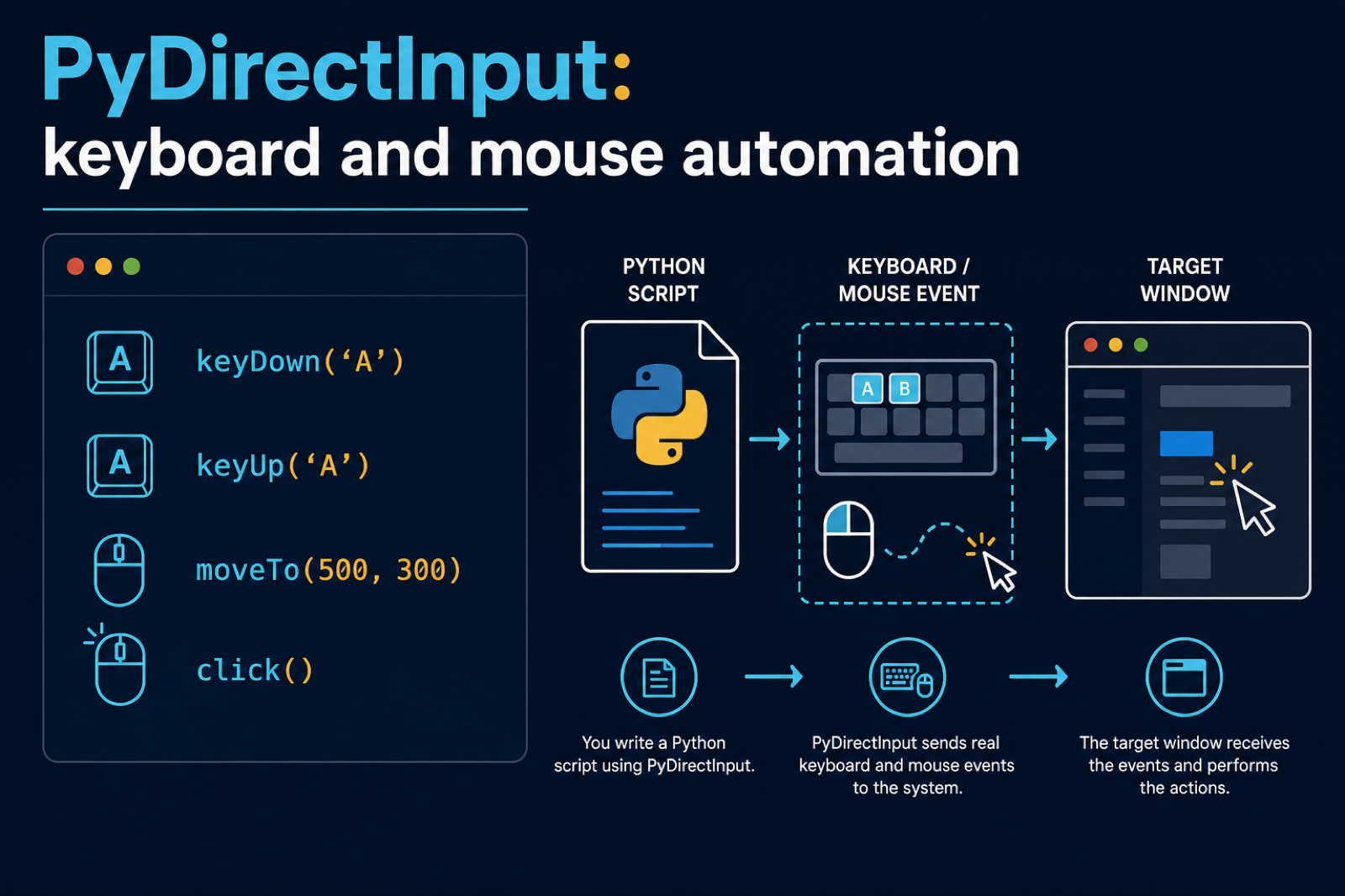
PyDirectInput is a Python package for keyboard and mouse automation. It follows much of the PyAutoGUI-style API, but it sends input through DirectInput, which can work better in some games, full-screen apps, and Windows programs that ignore normal virtual key events. The PyDirectInput package page is the best place to confirm the install command and package name.
Use PyDirectInput when you need to automate local desktop input rather than browser DOM actions. For browser testing and page inspection, a browser driver is usually a better fit; see the Selenium Python guide for that workflow. PyDirectInput is most useful when the target app only responds to real keyboard and mouse events.
Start with a harmless window, keep delays between actions while testing, and avoid scripts that click important controls without a clear guard. Coordinates depend on screen size, scaling, and window position. PyDirectInput also does not implement every PyAutoGUI feature, so do not assume that scroll helpers, screenshot helpers, shortcut-key helpers, or animated mouse movement behave the same way.
Install And Import PyDirectInput
After installing the package, import pydirectinput and set a short pause before building longer workflows. The pause gives you time to observe each action and reduces the chance that a later click fires before the target app is ready.
Keep desktop automation dependencies in a virtual environment. If a script behaves differently on another computer, compare Python version, package version, display scaling, keyboard layout, and whether the target app is running with elevated privileges.
Check Screen Size And Position
Before clicking coordinates, inspect the screen size and the current pointer position. This helps you adjust examples for your own display.
try:
    import pydirectinput
except ModuleNotFoundError:
    pydirectinput = None

if pydirectinput is None:
    print("install pydirectinput")
else:
    pydirectinput.PAUSE = 0.1

    screen_width, screen_height = pydirectinput.size()
    x, y = pydirectinput.position()

    print(f"Screen: {screen_width}x{screen_height}")
    print(f"Pointer: {x}, {y}")
If display scaling changes, the coordinates used by the automation can change too.
Move The Mouse And Click
The most direct use case is moving to a coordinate and clicking. Coordinates start at the top-left corner of the primary screen.
dry_run = True

actions = [
    ("moveTo", 500, 300),
    ("click",),
    ("moveRel", 100, 0),
    ("doubleClick",),
]

for action in actions:
    if dry_run:
        print("planned", action)
    else:
        import pydirectinput

        name, *args = action
        getattr(pydirectinput, name)(*args)
Use small test movements first. If the target window moves, maximize it before clicking.
Press Keys And Type Text
PyDirectInput can press individual keys and type short strings. This is useful for menu shortcuts, search boxes, and controlled form input.
dry_run = True

actions = [
    ("press", "enter"),
    ("write", "python automation"),
    ("press", "enter"),
]

for action in actions:
    if dry_run:
        print("planned", action)
    else:
        import pydirectinput

        name, value = action
        if name == "write":
            pydirectinput.write(value, interval=0.03)
        else:
            pydirectinput.press(value)
If text appears in the wrong place, click the target field first and add a short wait before typing.
Press Shortcut Keys Carefully
PyDirectInput does not provide the same shortcut-key helper that many PyAutoGUI examples use. Keep shortcut sequences simple and press the needed keys one at a time unless you have tested the target app carefully.
For text that requires shifted symbols, test carefully because PyDirectInput has known limits around some special-character input.
Create Reusable Click Helpers
Small helper functions make coordinate automation easier to read. Name each target after the screen element it represents.
def click_button(x, y, label, dry_run=True):
    print(f"Clicking {label}")
    if not dry_run:
        import pydirectinput

        pydirectinput.moveTo(x, y)
        pydirectinput.click()

click_button(640, 420, "start")
click_button(740, 420, "confirm")
When a UI changes often, keep coordinates in one dictionary or configuration file.
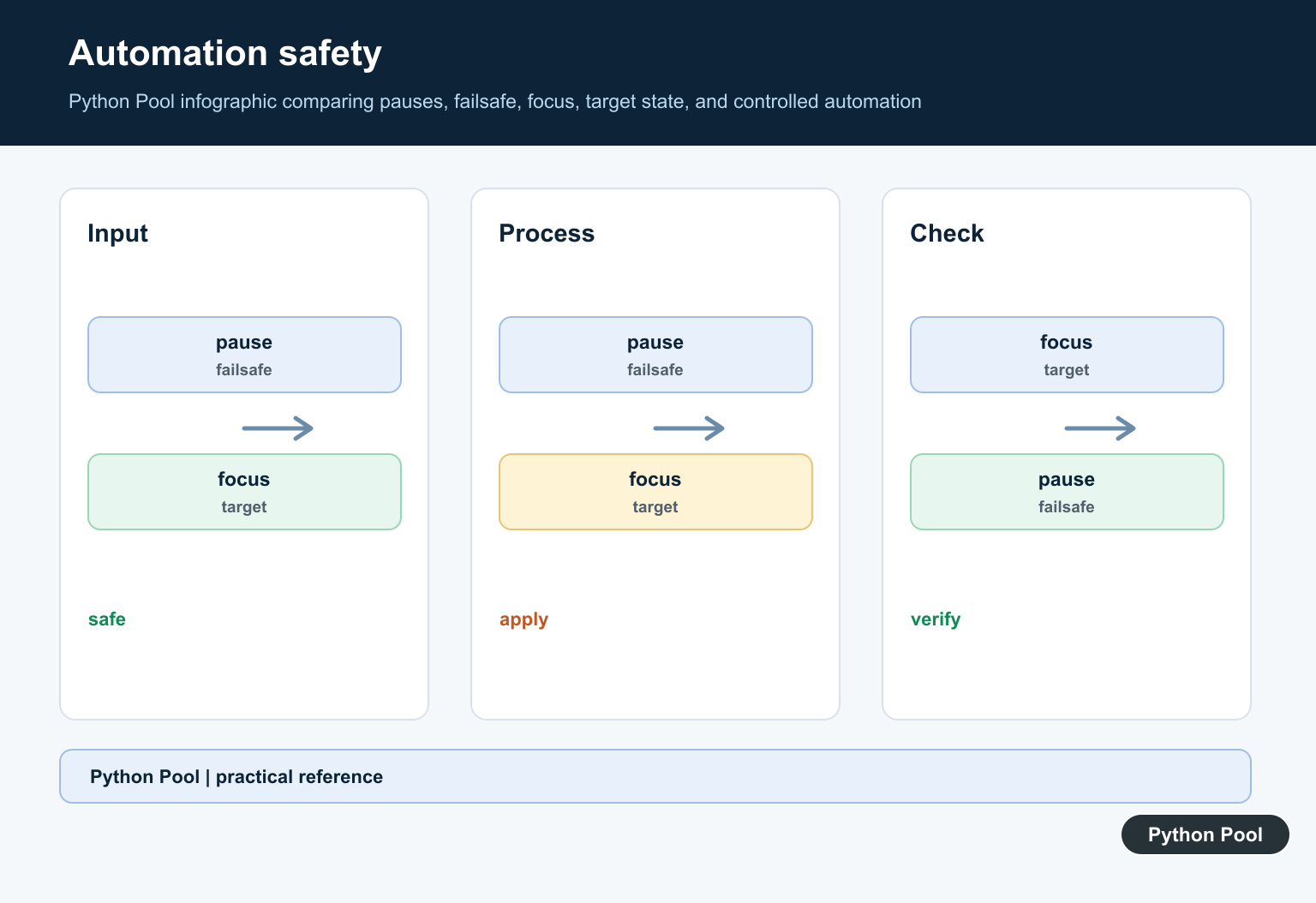
Add Timing Between Actions
Some PyAutoGUI examples use animated mouse movement or scrolling helpers, but those are not the right assumptions for PyDirectInput. Use explicit waits between important actions instead.
from threading import Event

steps = [
    ("moveTo", 600, 500),
    ("click",),
    ("press", "tab"),
    ("press", "enter"),
]

for step in steps:
    print("planned", step)
    Event().wait(0.1)
When a workflow needs controls outside the current view, prefer keyboard navigation, menu commands, or moving the window to a known state first.
Wait Before Acting
Desktop automation is more reliable when each action waits for the previous screen change.
from threading import Event

def delayed_click(x, y, delay=1.0, dry_run=True):
    Event().wait(delay)
    if dry_run:
        print("planned click", x, y)
    else:
        import pydirectinput

        pydirectinput.moveTo(x, y)
        pydirectinput.click()

for point in [(500, 300), (520, 340), (540, 380)]:
    delayed_click(*point, delay=0.1)
Use PyDirectInput for controlled local input, not for scraping or testing web pages. Keep scripts short, reversible, and easy to stop. A reliable flow starts from a known screen state, uses visible delays during development, and verifies that the target app is focused before sending input.
For important workflows, log each major action before it runs and keep a preview mode that prints planned steps without clicking. If the automation opens files or changes settings, test on sample data first.
The safest pattern is to make every step obvious: name the target, wait for the screen to settle, send one input group, and then check the result before moving on. That style is slower than a dense script, but it is much easier to debug when a window opens late, focus changes, or a coordinate points at the wrong control.
Coordinate-Based Automation Needs a Stable Target
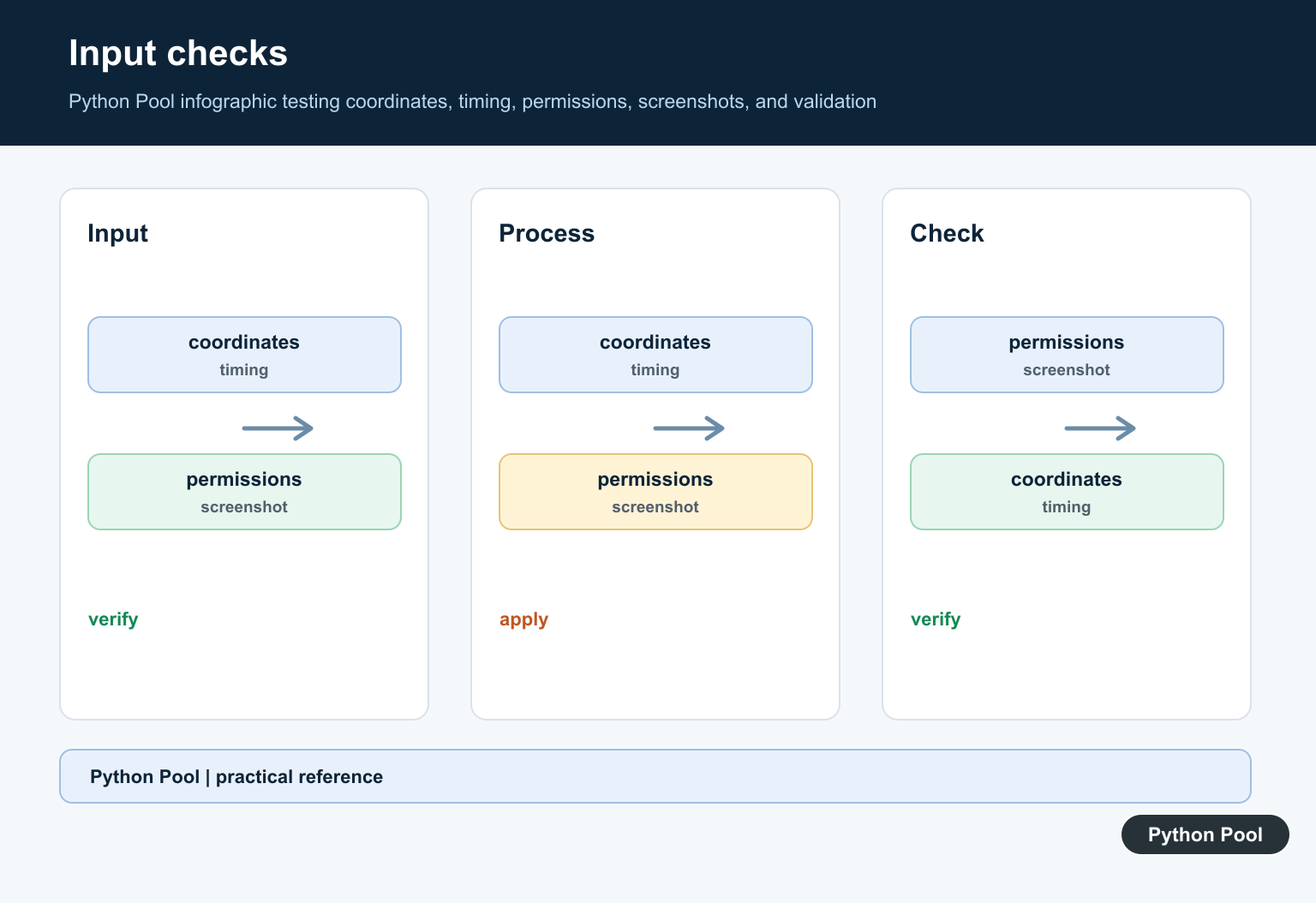
PyDirectInput works with screen coordinates and the active window. A script that clicks (500, 300) is only reliable when the display scale, window position, resolution, and application state are known.
import pydirectinput

pydirectinput.PAUSE = 0.2
pydirectinput.moveTo(500, 300, duration=0.2)
pydirectinput.click()
Prefer a visible checkpoint before each important action. If the screen layout can change, use image recognition or an application-level API instead of assuming a fixed coordinate.
Use Failsafes and Test Without Destructive Actions
Real input automation can submit forms, move files, or trigger purchases. Start with a harmless action, keep a manual stop path, and use a test account or sandbox. PyDirectInput exposes a FAILSAFE setting inherited from its PyAutoGUI-compatible interface; confirm the behavior on your platform before relying on it.
import time
import pydirectinput

pydirectinput.PAUSE = 0.25
pydirectinput.FAILSAFE = True
time.sleep(2)
pydirectinput.press("esc")
For browser or desktop applications that provide an automation API, prefer that interface because selectors and semantic actions are less fragile than coordinates. Use PyDirectInput when the task genuinely requires system-level input.
Frequently Asked Questions
What is PyDirectInput used for?
PyDirectInput sends keyboard and mouse input from Python for desktop tasks that need real system-level events.
How do I install and import PyDirectInput?
Install the PyDirectInput distribution with pip, then import it with import pydirectinput in Python.
Why does a PyDirectInput click happen in the wrong place?
The target window, screen scaling, resolution, or pointer coordinates may have changed. Verify the active window and measure coordinates in the same environment.
Is PyDirectInput safe for destructive automation?
Treat it as real input. Use a sandbox, pauses, checkpoints, a manual stop path, and non-destructive tests before automating actions that delete, submit, or purchase.
