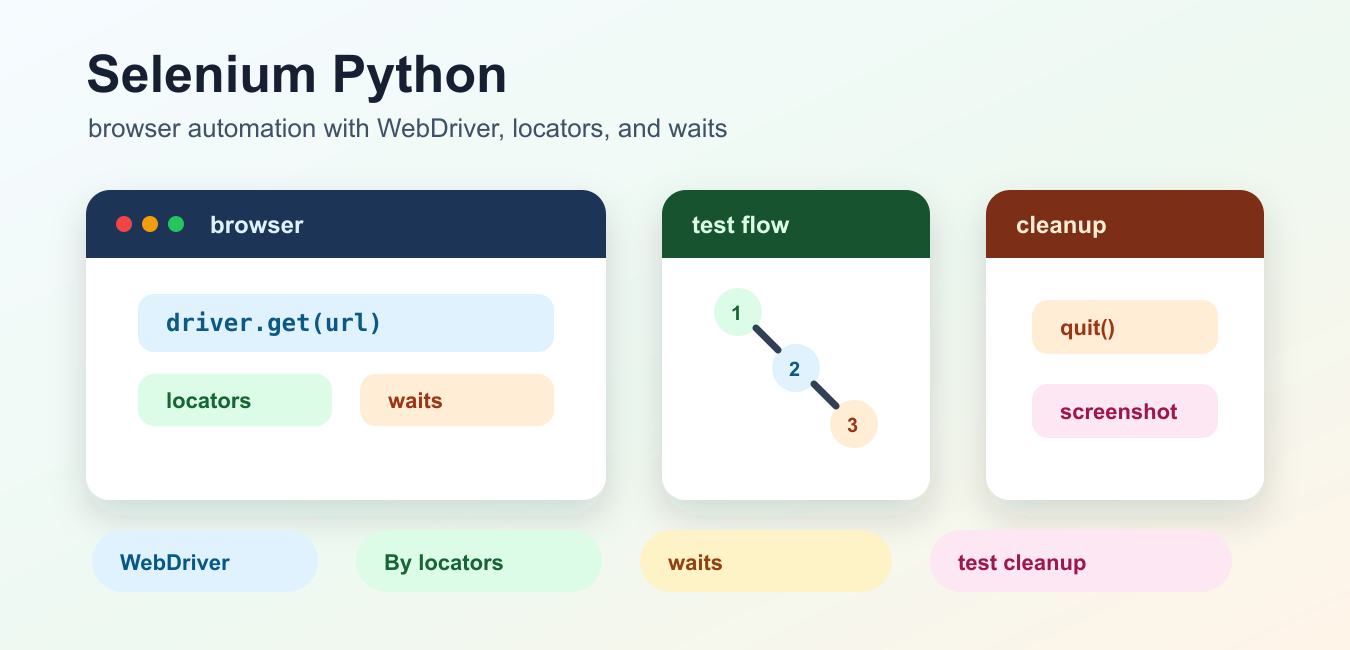
Quick answer: Reliable Selenium Python automation uses stable locators, explicit waits, isolated test data, clear assertions, screenshots and logs for failures, and guaranteed driver cleanup. Synchronize with browser state instead of relying on arbitrary sleep calls.
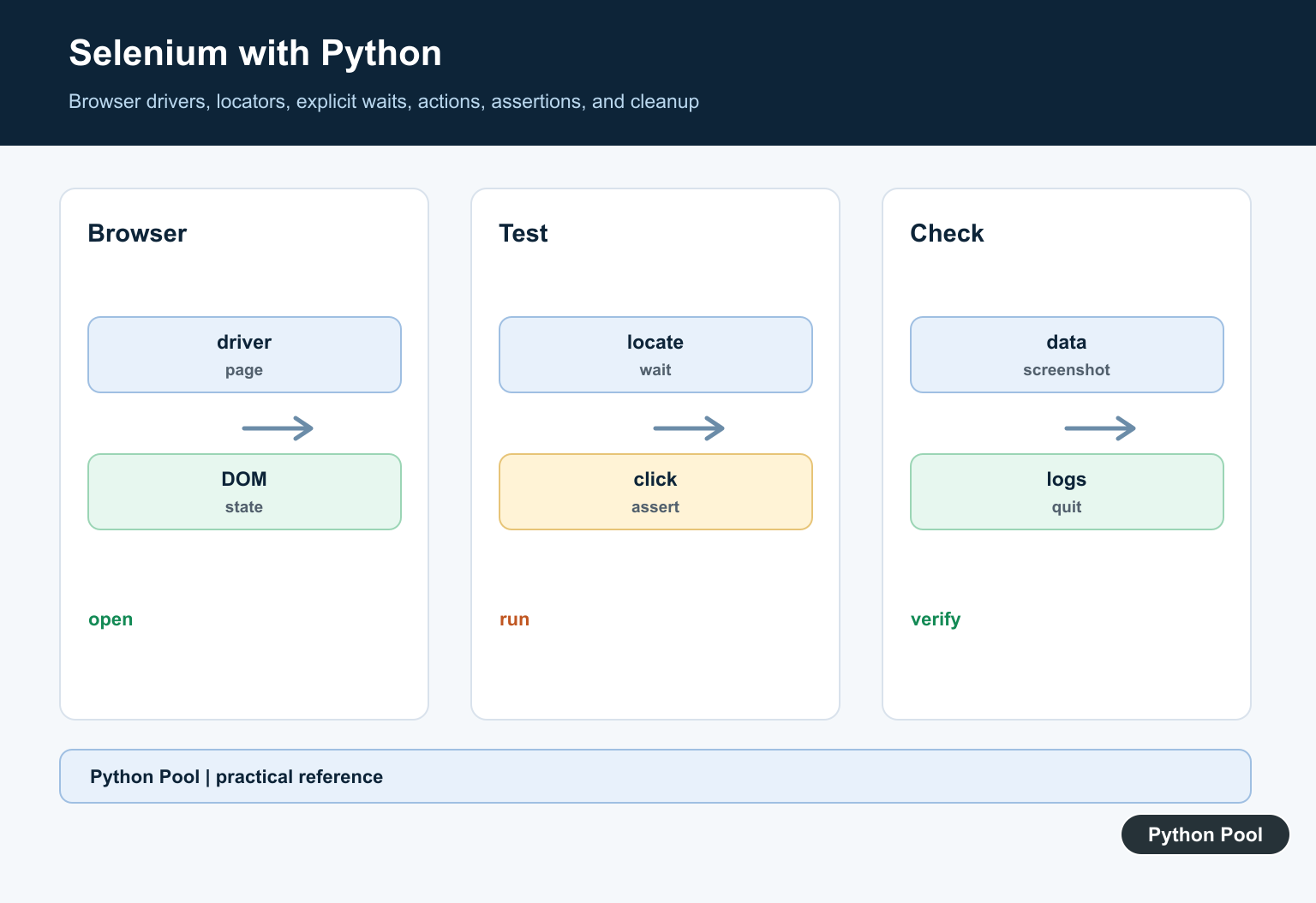
Selenium with Python lets code control a real browser through WebDriver. The official Selenium WebDriver getting-started guide explains that WebDriver is an API and protocol for controlling browser behavior through browser-specific drivers. That makes Selenium useful for end-to-end tests, browser workflows, and pages that need JavaScript execution.
Use Selenium when you need browser behavior: clicking, typing, navigation, cookies, dialogs, frames, or rendered DOM state. If you only need static HTML, a simple HTTP request is faster and easier. For crawling static pages first, see the web crawling in Python guide.
The key habits are simple: create the browser, navigate to a page, locate elements with stable locators, wait for state changes, make assertions, and always close the browser. Avoid sleeps when an explicit wait can describe the condition you actually need.
Modern Selenium can use Selenium Manager to help locate browser drivers, but your environment still needs a supported browser and the Python Selenium package installed.
Install Selenium And Open A Browser
Install Selenium with pip, then start a browser driver. This example opens Chrome and quits cleanly.
from selenium import webdriver

driver = webdriver.Chrome()

try:
    driver.get("https://www.example.com/")
    print(driver.title)
finally:
    driver.quit()
The finally block matters. It closes the browser even if the page load or assertion fails.
For repeatable tests, keep setup and teardown in fixtures or helper functions instead of copying browser startup into every test.
Find Elements With Locators
Selenium’s locator documentation lists strategies such as ID, name, CSS selector, link text, tag name, and XPath. Prefer stable IDs or targeted CSS selectors when available.
from selenium import webdriver
from selenium.webdriver.common.by import By

driver = webdriver.Chrome()

try:
    driver.get("https://www.example.com/")
    heading = driver.find_element(By.TAG_NAME, "h1")
    print(heading.text)
finally:
    driver.quit()
Keep locators separate from test logic when a page is tested in many places. That makes UI changes easier to update.
Avoid brittle XPath expressions that depend on exact page nesting unless no better locator exists.
Use Explicit Waits
The official Selenium waits documentation recommends waiting for a condition instead of guessing with fixed delays. Explicit waits make tests less flaky.
from selenium import webdriver
from selenium.webdriver.common.by import By
from selenium.webdriver.support.ui import WebDriverWait
from selenium.webdriver.support import expected_conditions as EC

driver = webdriver.Chrome()

try:
    driver.get("https://www.example.com/")
    heading = WebDriverWait(driver, 10).until(
        EC.presence_of_element_located((By.TAG_NAME, "h1"))
    )
    print(heading.text)
finally:
    driver.quit()
Wait for the exact state your test needs: presence, visibility, clickability, text, URL, or another condition. That is better than sleeping for a guessed number of seconds.
Fill A Form Field
Selenium can type into form fields and submit forms. This pattern is useful for testing login, search, and checkout workflows.
from selenium import webdriver
from selenium.webdriver.common.by import By
from selenium.webdriver.common.keys import Keys

driver = webdriver.Chrome()

try:
    driver.get("https://www.python.org/")
    search = driver.find_element(By.NAME, "q")
    search.send_keys("selenium")
    search.send_keys(Keys.ENTER)
    print(driver.title)
finally:
    driver.quit()
Use test accounts and safe test environments for workflows that change data. Do not point automation at production forms unless the action is intended and controlled.
Capture A Screenshot On Failure
Screenshots help debug layout, timing, and locator failures. Save one when a test catches an exception.
from selenium import webdriver
from selenium.common.exceptions import WebDriverException

driver = webdriver.Chrome()

try:
    driver.get("https://www.example.com/")
    assert "Example Domain" in driver.title
except (AssertionError, WebDriverException):
    driver.save_screenshot("selenium-failure.png")
    raise
finally:
    driver.quit()
Store screenshots with logs and test names so failures can be matched to the right run.
For continuous integration, also record the browser version, Selenium version, operating system, and whether the browser ran headless.
Run Chrome Headless
Headless mode is useful for servers and CI jobs that do not need a visible browser window. Add browser options before creating the driver.
from selenium import webdriver
from selenium.webdriver.chrome.options import Options

options = Options()
options.add_argument("--headless=new")

driver = webdriver.Chrome(options=options)

try:
    driver.get("https://www.example.com/")
    print(driver.title)
finally:
    driver.quit()
Headless and headed browsers can differ in screen size, fonts, and graphics support. Set an explicit window size when visual layout matters.
Troubleshoot Common Selenium Problems
Most Selenium failures come from timing, driver setup, or locators that no longer match the page. If Chrome or Firefox does not start, confirm that the browser is installed, the Selenium package is current, and the process has permission to open a browser. In containers or CI, missing system libraries can also stop the browser before your Python code reaches the test.
If an element cannot be found, inspect the rendered page instead of only reading the source HTML. JavaScript may create the element after the initial load, or a cookie banner, iframe, modal, or redirect may change the page your test sees. Use explicit waits for dynamic state, and switch into frames before searching inside embedded content.
For stable suites, avoid using one long test that clicks through every possible page. Smaller tests with clear setup, isolated data, and direct assertions are easier to debug. Keep selectors close to the UI they describe, log the current URL when a failure happens, and capture screenshots for failures that depend on layout or browser state.
A reliable Selenium workflow uses stable locators, explicit waits, isolated test data, screenshots for failures, and clean browser shutdown. That keeps browser automation useful instead of turning it into a slow source of flaky tests.
Create A Driver Deliberately
Choose a supported browser and driver setup, configure headless mode only when it matches the test goal, and keep browser options in one fixture or factory so the environment is reproducible.
Prefer Stable Locators
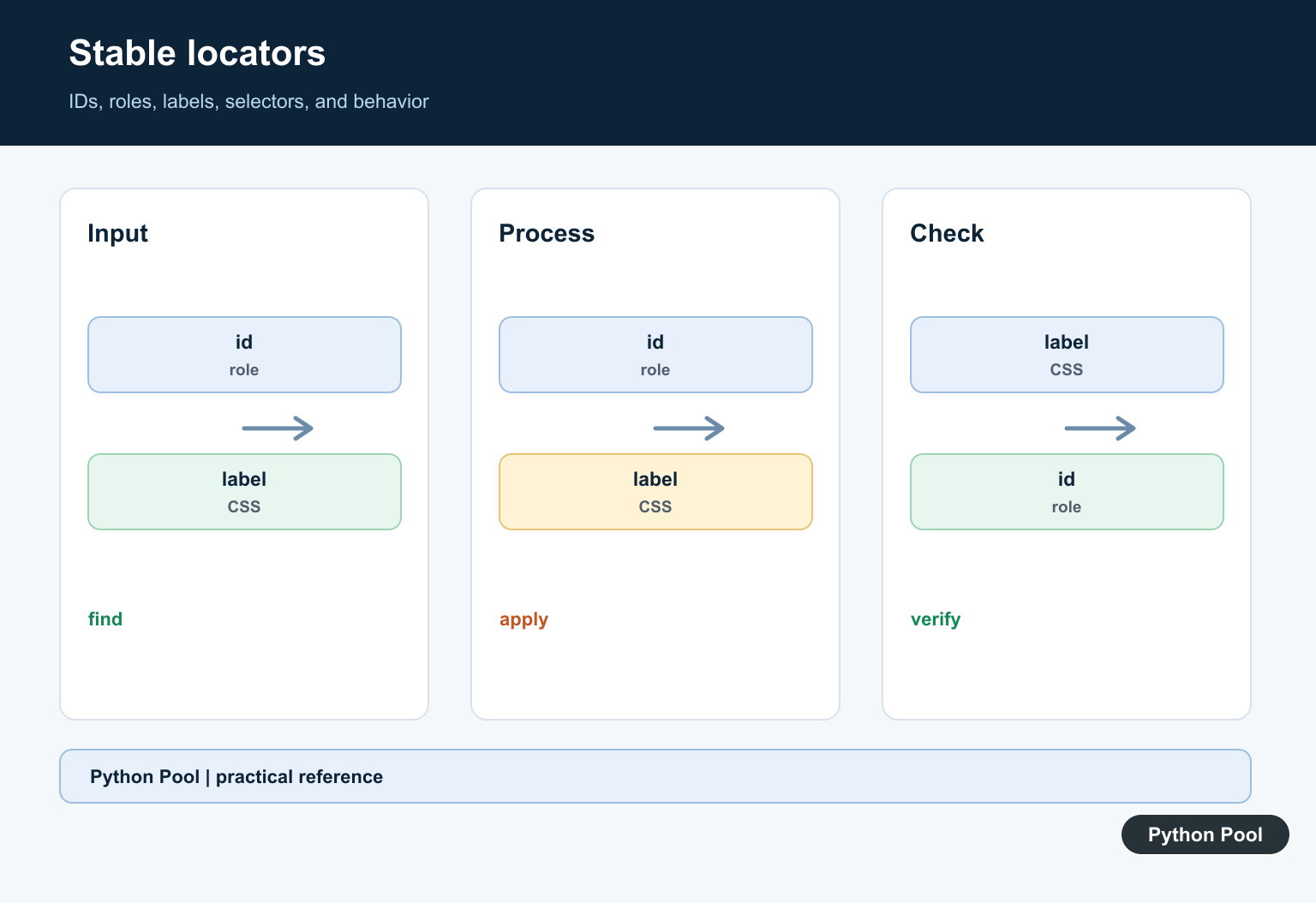
Use IDs, accessible roles or labels, and small CSS selectors tied to behavior rather than brittle DOM depth or presentation-only class names. A locator is part of the page contract.
Wait For Conditions
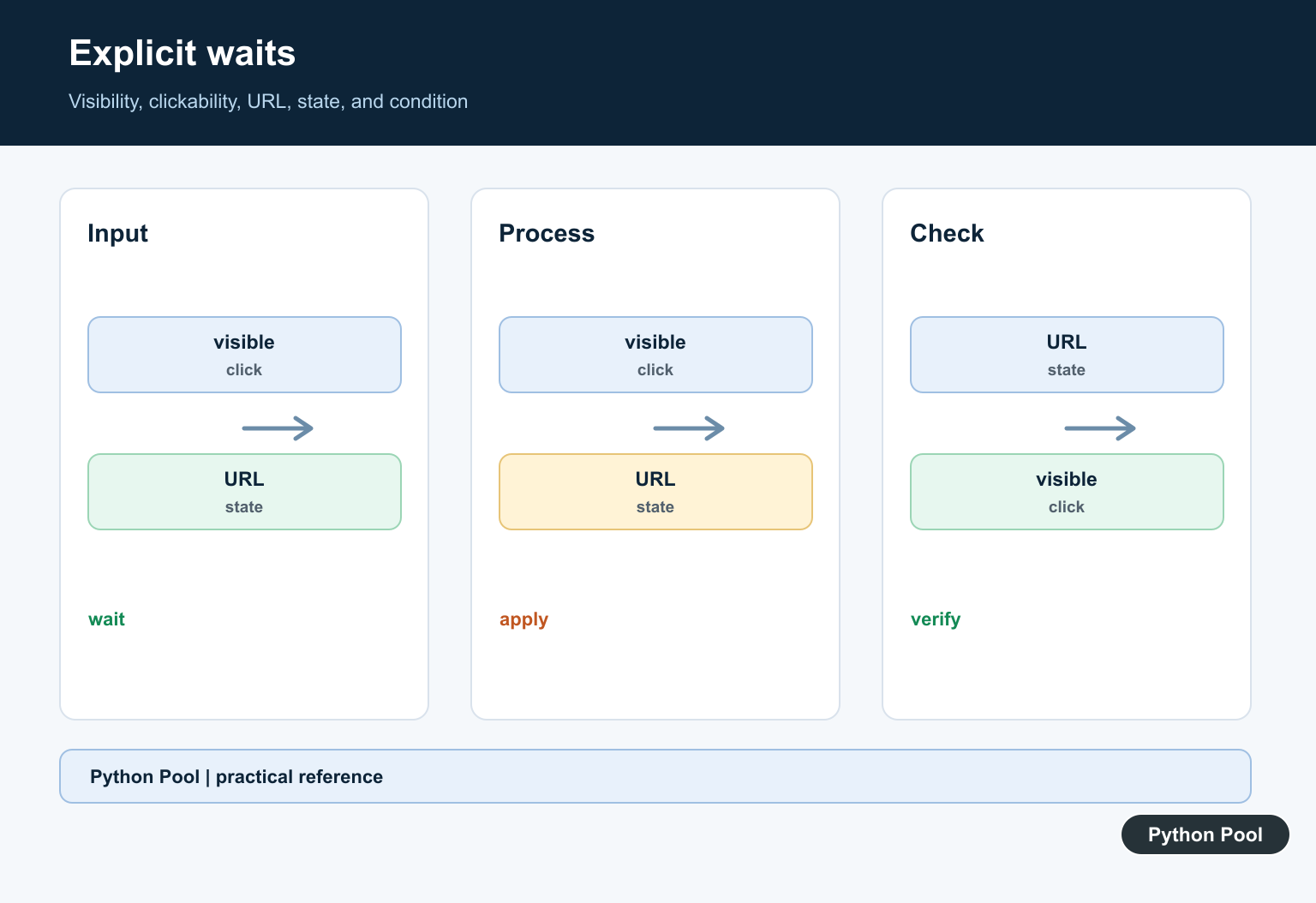
Explicit waits can wait for visibility, clickability, a URL, a title, or a custom application condition. Wait for the state the next action needs, not merely for a fixed number of seconds.
Structure Page Workflows
Page objects or focused helper functions can keep selectors and browser actions close together. Keep assertions in the test layer so failures explain the user-visible contract.
Control Data And Sessions
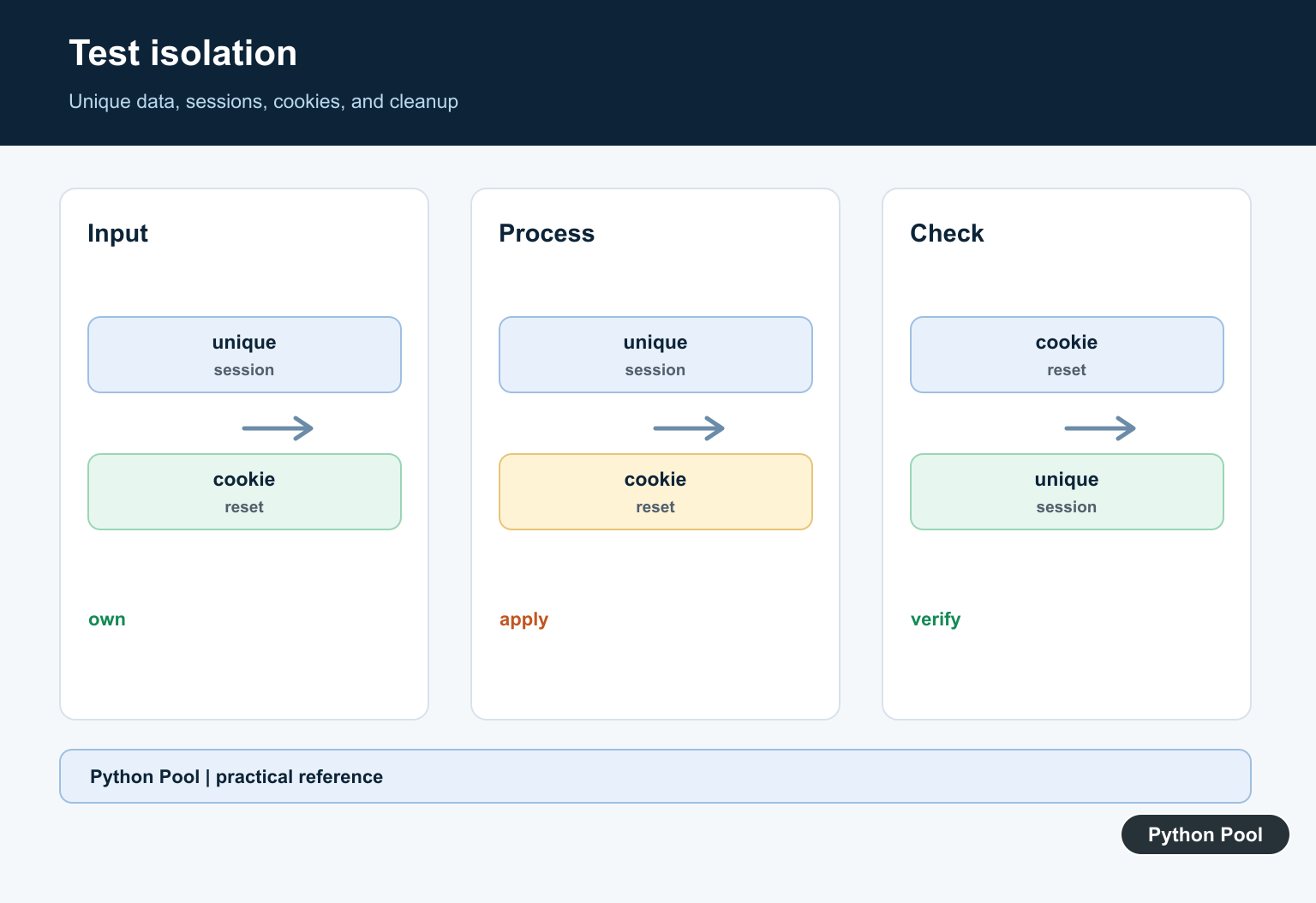
Create unique test records, isolate users and browser profiles, clear state deliberately, and avoid tests that depend on the order left by another test.
Capture And Clean Up
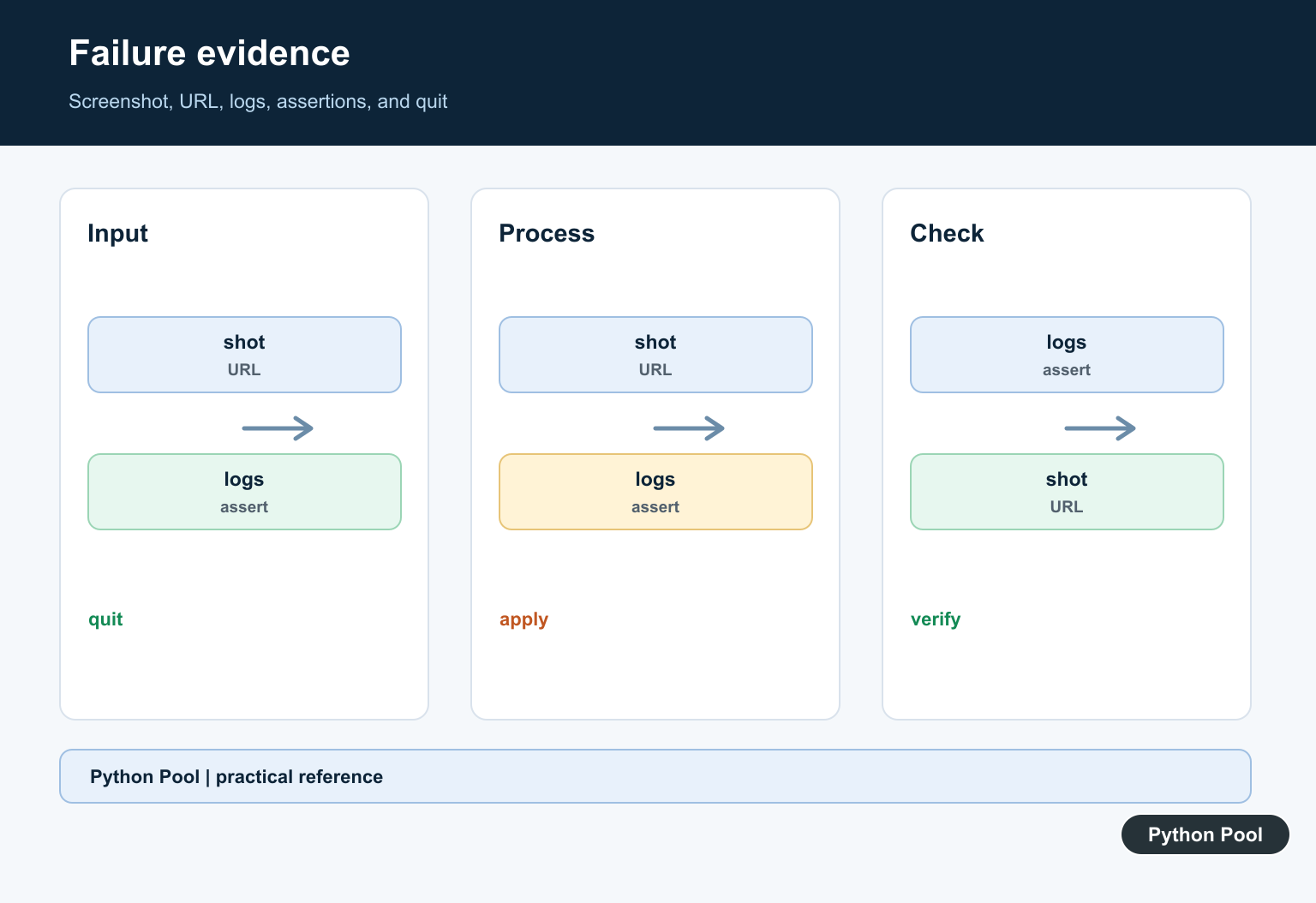
On failure, capture a screenshot, URL, console or driver log, and useful page state. Call quit in a fixture finalizer or finally block so browser processes do not leak.
Use the official Selenium documentation, including its waits and locator guidance. Related Python Pool references include testing frameworks and logging.
For related browser workflows, compare test design, failure logs, and responsible fetching before automating a site.
For the authoritative API and current behavior, consult the Selenium WebDriver documentation.
Frequently Asked Questions
What is Selenium used for in Python?
Selenium drives real browsers from Python for end-to-end tests, browser workflows, and controlled automation.
Why should I use explicit waits?
Explicit waits synchronize with a specific condition and are usually more predictable than fixed sleeps for dynamic pages.
How do I choose a Selenium locator?
Prefer stable IDs or accessible attributes, use a small CSS selector when appropriate, and avoid brittle selectors tied to layout classes.
How do I clean up a Selenium driver?
Create the driver in a controlled fixture or try/finally block and call quit so the browser and driver processes are released.
