
Screenshots
App details
- Updated
- June 12, 2025
- Requires
- Chrome
- License
- Full
- Developer
- deckassistant
- Category
- Web Apps
About DeckAssistant
Download DeckAssistant – AI Stream Deck Plugin for Faster Workflow
Introduction
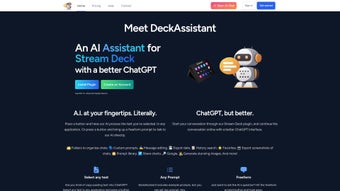
DeckAssistant is a versatile AI assistant plugin for Elgato’s Stream Deck that brings the power of ChatGPT directly to your keyboard shortcuts. Designed for professionals, creators, and anyone who spends time moving text between applications, DeckAssistant lets you select any snippet of text, hit a dedicated button, and receive an instant AI‑driven response. Whether you need a quick summary, a rewrite, a translation, or a more complex data extraction, the plugin handles the heavy lifting in seconds. Beyond automatic text processing, DeckAssistant offers a freeform prompt mode, allowing you to type custom queries and receive personalized answers without leaving your workflow. The plugin also supports folder organization, custom prompt libraries, message editing, searchable history, and data export, turning your Stream Deck into a compact AI command center. To get started, users create a DeckAssistant account, generate an OpenAI API token, and paste it into the plugin’s settings. The tool works on macOS 11 and later, supporting both Intel and Apple Silicon architectures, ensuring a smooth, native experience regardless of your hardware. With a focus on security, all API communications are encrypted, and no personal data is stored on external servers beyond what is required for the OpenAI service. DeckAssistant is free to download, with optional premium features available through a subscription model. By integrating AI directly into a physical button layout, DeckAssistant eliminates context‑switching, reduces manual copy‑paste cycles, and ultimately speeds up repetitive tasks, letting you focus on creativity and decision‑making. Moreover, the plugin’s lightweight design means it adds virtually no overhead to your system, and its seamless integration with macOS accessibility services guarantees reliable operation even on heavily customized desktops. For teams, the shared prompt library feature enables consistent terminology and brand voice across multiple users, while the exportable conversation logs help maintain compliance with internal documentation standards. In short, DeckAssistant transforms a simple macro device into a powerful, AI‑enhanced productivity hub that adapts to a wide range of professional scenarios.
Key Features & How They Work
- Instant Text Processing: Highlight any text in any macOS application, press a DeckAssistant button, and receive AI‑generated output such as summaries, rewrites, or translations.
- Freeform Prompt Mode: Use a dedicated button to type custom queries, enabling personalized assistance for brainstorming, coding help, or research.
- Folder & Prompt Organization: Create nested folders on your Stream Deck for different workflows (e.g., writing, coding, design) and store reusable custom prompts for one‑click access.
- Message Editing & History Search: Review previous AI interactions, edit prompts, and quickly re‑run queries from the built‑in history panel.
- Data Export: Export conversation logs as plain text or JSON, useful for documentation, audit trails, or training datasets.
- Cross‑App Compatibility: Works with any macOS application that allows text selection, from browsers to IDEs, word processors, and design tools.
- Secure API Integration: All communication with OpenAI’s servers is encrypted via HTTPS; your API token never leaves your local machine.
- Native macOS Performance: Built with Swift, the plugin runs efficiently on both Intel and Apple Silicon, with minimal CPU overhead.
Each feature is mapped to a physical button or a button combination on the Stream Deck, allowing you to trigger complex AI actions without ever opening a separate window. For example, the “Summarize Article” button automatically copies the selected paragraph, sends it to ChatGPT, and displays the concise summary in a pop‑up notification. The “Custom Prompt” button opens a small text field on the Stream Deck screen where you can type anything from “Generate a tagline for my product” to “Explain quantum entanglement in simple terms.” Once you press Enter, the AI processes the request and returns the answer directly to your screen or copies it to the clipboard for immediate pasting. The folder system mirrors Stream Deck’s native UI, so you can switch between “Writing,” “Coding,” and “Design” modes with a single press, keeping your workspace tidy and context‑aware. The history panel tracks every interaction, timestamped and searchable, so you never lose a useful suggestion. Exporting this history is a single click, providing a portable record that can be archived or shared with teammates. By consolidating these capabilities into a single plugin, DeckAssistant eliminates the need for multiple browser tabs, separate AI apps, or manual copy‑paste steps, dramatically reducing friction in everyday tasks. In addition, the plugin supports bulk operations through its command‑line interface, enabling power users to script repetitive AI calls across large document sets, further extending its utility beyond the physical Stream Deck.
Installation, Setup & Compatibility
Getting DeckAssistant up and running is straightforward, even for users who are new to Stream Deck plugins. Follow these steps to ensure a smooth installation:
Step‑by‑Step Installation
- Download the Plugin: Visit the official DeckAssistant website or the Stream Deck Plugin Store, and click the “Download for macOS” button. The file is a signed .streamDeckPlugin package, ensuring it meets Apple’s security standards.
- Install via Stream Deck: Open the Stream Deck application, drag the downloaded file onto the app window, or use the “More Actions → Open Plugins Folder” menu and place the file there. Stream Deck will automatically detect and install the plugin.
- Create a DeckAssistant Account: Launch the plugin from the Stream Deck UI. You’ll be prompted to sign up with an email address. This account stores your custom prompt library and history (locally encrypted).
- Obtain an OpenAI API Token: Log into your OpenAI account, navigate to the API section, and generate a new secret key. Copy this token.
- Configure the Token: In the DeckAssistant settings panel (accessible via the Stream Deck app), paste the API token into the “OpenAI API Key” field. Test the connection with the “Validate” button.
- Assign Buttons: Drag the “Process Text,” “Custom Prompt,” and any other actions onto your Stream Deck layout. Use the plugin’s built‑in editor to name each button and choose an icon.
- Save & Restart: After configuring, click “Apply,” then restart the Stream Deck software to ensure all changes load correctly.
Operating System Compatibility
DeckAssistant is fully compatible with macOS 11 (Big Sur) and later versions, supporting both Intel‑based Macs and Apple Silicon (M1, M2, and newer) chips. The plugin leverages native Swift APIs, guaranteeing optimal performance and low memory usage across all supported hardware. Users on macOS Ventura, Monterey, and the latest releases can expect seamless integration with the system clipboard, notification center, and accessibility services required for text selection.
Because DeckAssistant runs locally and only communicates with OpenAI’s secure endpoints, there is no additional runtime dependency such as Java or Python. The only external requirement is an active internet connection for the AI calls. If you encounter any compatibility warnings, ensure that your Stream Deck software is updated to the latest version (≥ 6.0) and that you have granted the plugin “Full Disk Access” and “Accessibility” permissions in macOS System Settings → Privacy & Security. These permissions allow the plugin to read selected text from any application and to display notifications without interruption.
For power users, DeckAssistant also offers a command‑line interface (CLI) that can be invoked via Terminal for batch processing or automation scripts. This CLI respects the same API token and operates under the same security model, making it a flexible addition for developers who want to integrate AI actions into larger workflows beyond the Stream Deck hardware. Detailed documentation for the CLI is included in the plugin’s Help menu, and example scripts are provided on the official GitHub repository to help you get started quickly.
Pros, Cons & Frequently Asked Questions
Before you decide whether DeckAssistant fits your workflow, it helps to weigh its strengths against its limitations and to address common concerns that users often raise. Below you’ll find a balanced list of pros and cons, followed by a set of frequently asked questions that cover installation, pricing, data privacy, and advanced usage scenarios.
Pros
- Instant AI‑driven text processing directly from Stream Deck.
- Custom prompt library and folder organization keep workflows tidy.
- Secure API integration with encrypted communications.
- Native performance on both Intel and Apple Silicon Macs.
- History search and export features aid documentation and repeatability.
- Free to download with optional premium upgrades for higher request limits.
- Command‑line interface enables advanced automation beyond the hardware.
- Lightweight design adds minimal CPU and memory overhead.
Cons
- Requires an OpenAI API key, which may involve usage costs for heavy users.
- Currently macOS‑only; no Windows or Linux support yet.
- Initial setup (account + token) can be intimidating for non‑technical users.
- Limited offline functionality; internet connection is mandatory for AI calls.
- Premium features (higher token limits, priority support) are behind a subscription.
- Dependence on OpenAI’s service means occasional latency during peak times.
Frequently Asked Questions
Do I need an OpenAI subscription to use DeckAssistant?
You need an OpenAI API key, which can be obtained with a free tier that includes a limited number of requests. For heavier usage, a paid OpenAI plan may be required, but DeckAssistant itself does not charge any additional fees.
Can DeckAssistant run on Windows or Linux machines?
As of now, DeckAssistant is built exclusively for macOS (11+). The development team has expressed interest in expanding to other platforms, but no official Windows or Linux version exists yet.
Is my data safe when I send text to ChatGPT through DeckAssistant?
All communication between DeckAssistant and OpenAI uses HTTPS encryption. The plugin does not store your text on external servers; only the API key is sent to OpenAI, and responses are returned directly to your machine.
How do I create and use custom prompts?
Open the DeckAssistant settings, navigate to “Custom Prompts,” and click “Add New.” Enter a descriptive name, the prompt text, and optionally assign it to a folder. Drag the newly created prompt onto a Stream Deck button, and you can trigger it with a single press.
Can I export my AI conversation history?
Yes. In the History panel, click the “Export” button. You can choose between plain‑text (.txt) or JSON (.json) formats. This feature is handy for creating documentation, audit logs, or feeding data into other tools.
What troubleshooting steps should I take if the plugin fails to connect to OpenAI?
First, verify that your API key is correctly pasted and has no extra whitespace. Next, ensure your internet connection is stable and that no firewall or VPN is blocking outbound HTTPS traffic to api.openai.com. Finally, check that you are running the latest version of both the Stream Deck software and the DeckAssistant plugin; updates often include fixes for connectivity issues.
Conclusion – Get DeckAssistant Today
DeckAssistant transforms the Stream Deck from a simple macro controller into a powerful AI assistant that sits at the heart of your daily workflow. By bridging the gap between manual text handling and intelligent automation, it saves you valuable time, reduces repetitive copy‑paste actions, and empowers you to focus on higher‑level thinking. The plugin’s native macOS performance, secure API integration, and extensive feature set—including custom prompts, folder organization, and exportable history—make it a compelling addition for writers, developers, designers, and anyone who regularly interacts with large blocks of text. While it currently supports only macOS, the free tier of OpenAI’s API provides enough credit for casual users, and the optional premium upgrade unlocks higher request limits for power users. If you already own a Stream Deck and are looking for a way to supercharge it with AI, DeckAssistant is the logical next step. Download the plugin, configure your API token, and start turning a single button press into an intelligent response that can summarize articles, rewrite copy, translate languages, or answer complex questions on the fly. Don’t let manual text processing slow you down—let DeckAssistant handle the heavy lifting and watch your productivity soar.
Download DeckAssistant now and experience the future of streamlined, AI‑enhanced workflow on your Stream Deck.
Guides & Tutorials
How to install DeckAssistant
- Click the Download button above.
- Once redirected, accept the terms and click Install.
- Wait for the DeckAssistant download to finish on your device.
How to use DeckAssistant
This software is primarily used for its core features described above. Open the app after installation to explore its capabilities.
User Reviews
No reviews yet. Be the first to share your experience.
You may also like
more
3D AI Studio
3D AI Studio Overview 3D AI Studio is a web-based AI-powered tool developed by S...

3D textures by Polycam
Generate Realistic 3D Textures Effortlessly 3D Textures by Polycam is an innovat...

3DAiLY
Customizable 3D Modeling Tool: 3DAiLY 3DAiLY is an online platform that harnesse...

3DFY
Revolutionizing 3D Model Creation: 3DFY Review 3DFY is an AI-powered service, de...

AI Dungeon
AI Dungeon: Deep Learning Text Adventure AI Dungeon is an artificial intelligenc...

Alpha3D
A subscription-based program for Web apps, by alpha3d. Alpha3D is a subscription...
