
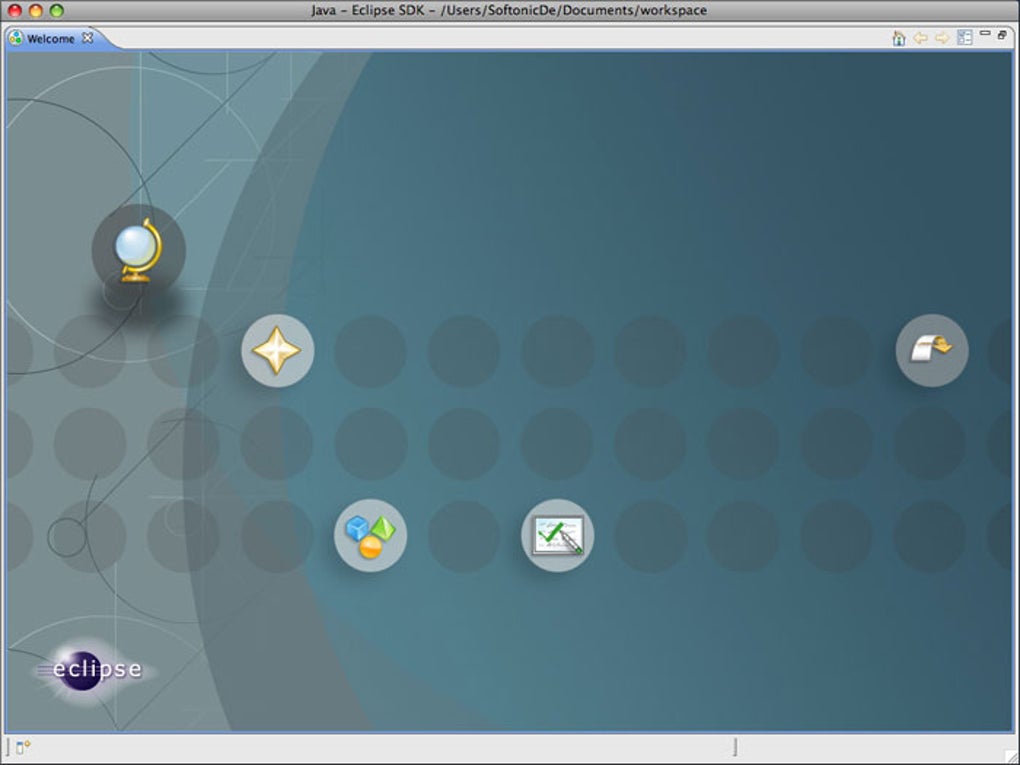

Download Eclipse IDE – Free, Open‑Source Java Development Tool for Windows, macOS & Linux
Overview
Eclipse IDE is a powerful, free, and open‑source integrated development environment (IDE) that started as a Java‑focused platform but has grown into a universal toolset for developers of many languages. Built entirely in Java, Eclipse runs on any operating system that supports a Java Runtime Environment (JRE), making it a truly cross‑platform solution for Windows, macOS, and Linux users. The “Eclipse IDE for Java EE Developers” package bundles a rich set of plugins specifically tuned for enterprise Java development, including support for JavaServer Faces (JSF), Java Persistence API (JPA), Maven, Git, and the Mylyn task‑focused interface. Beyond Java, the Eclipse Marketplace offers extensions for C/C++, Python, PHP, Perl, and more, allowing teams to collaborate without switching tools. New programmers appreciate the built‑in tutorials, comprehensive documentation, and a vibrant community that contributes plugins, bug fixes, and educational resources. Whether you are building a simple console application, a complex multi‑tier web service, or an Android app (via the Android Development Tools plugin), Eclipse provides a secure, extensible, and regularly updated environment that scales with your project's needs.
Key Features & Capabilities
- Rich Java Development Tools (JDT): Advanced code completion, refactoring, syntax checking, and real‑time error detection.
- Java EE & Web Support: Integrated servers (Tomcat, JBoss, GlassFish), JSP/Servlet editors, and tools for JSF, JPA, and CDI.
- Plugin Ecosystem: Thousands of plugins via the Eclipse Marketplace, covering languages such as C/C++, Python, PHP, and Kotlin.
- Version Control Integration: Native Git, SVN, and CVS support with visual diff/merge tools.
- Task‑Focused UI (Mylyn): Context‑aware task management that hides irrelevant code while you work on a specific issue.
- Build Automation: Seamless Maven, Gradle, and Ant integration for automated builds and dependency management.
- Debugging & Profiling: Powerful debugger with breakpoints, watches, and remote debugging capabilities, plus memory and CPU profiling plugins.
- Cross‑Platform Runtime: Runs on any OS with a compatible JRE, ensuring consistent experience across Windows, macOS, and Linux.
- Free & Open Source: Licensed under the Eclipse Public License (EPL), guaranteeing transparency, security, and community‑driven updates.
Installation & Usage Guide
Step‑by‑Step Installation
- Prerequisite – Java Runtime Environment (JRE): Download and install the latest JRE or JDK from Adoptium. Eclipse requires at least Java 11 for the newest releases.
- Download Eclipse Installer: Visit the official Eclipse website and click the “Download Eclipse IDE for Java EE Developers” button. The installer is a small
.exe(Windows),.dmg(macOS), or.tar.gz(Linux) file. - Run the Installer: Launch the installer and select the “Eclipse IDE for Java EE Developers” package. Choose your desired installation folder and click “Install”. The installer automatically extracts the necessary files and configures shortcuts.
- First Launch: Open Eclipse. On first run, you’ll be prompted to select a workspace directory – this is where all your projects, settings, and metadata are stored. Choose a location and tick “Use this as the default and do not ask again” if you prefer.
- Update Site Configuration: Navigate to
Help → Check for Updatesto ensure you have the latest patches. You can also add additional update sites viaHelp → Install New Software…to expand functionality.
Basic Usage Tips
Once Eclipse is running, you’ll interact with the Package Explorer to manage projects. To create a new Java project, select File → New → Java Project, give it a name, and configure the JRE System Library. The editor provides intelligent code completion (Ctrl+Space), quick fixes (Ctrl+1), and refactoring tools (Alt+Shift+R). Use the built‑in Debug Perspective (accessible via the bug icon) to set breakpoints and step through code line by line. For web applications, you can add a Dynamic Web Project and deploy directly to an integrated server runtime. The Marketplace (Help → Eclipse Marketplace) is your gateway to adding language packs, UI themes, and productivity extensions.
Compatibility, Pros & Cons
Eclipse IDE is compatible with the major desktop operating systems that support a Java Runtime Environment:
- Windows 10, 11 (64‑bit)
- macOS 10.15 (Catalina) and later (Intel & Apple Silicon – via Rosetta 2 or native builds)
- Linux distributions (Ubuntu, Fedora, Debian, etc.) with GTK+ support
Pros
- Extensible Architecture: Thousands of plugins let you tailor the IDE to any workflow.
- Cross‑Platform Consistency: Same experience on Windows, macOS, and Linux.
- Robust Java EE Support: Out‑of‑the‑box tools for servlets, JSP, JSF, and enterprise APIs.
- Free and Open Source: No licensing fees; community‑driven security updates.
- Powerful Debugger: Remote debugging and real‑time variable inspection.
Cons
- Steep Learning Curve: New users may feel overwhelmed by the plethora of menus and settings.
- Performance Overhead: Being Java‑based, Eclipse can consume more RAM than lightweight editors.
- Fragmented Plugin Quality: Not all third‑party plugins are equally maintained.
- UI Modernity: The default theme feels dated compared to newer IDEs, though it’s customizable.
FAQ – Frequently Asked Questions
Is Eclipse IDE completely free for commercial use?
Yes. Eclipse is released under the Eclipse Public License (EPL), which allows free use, modification, and distribution for both personal and commercial projects.
Do I need to install Java separately before installing Eclipse?
A compatible Java Runtime Environment (JRE) or Java Development Kit (JDK) is required. Eclipse will not run without it, so install the latest JDK (preferably OpenJDK 11 or newer) before launching the installer.
Can I develop Android apps with Eclipse?
Yes, by installing the Android Development Tools (ADT) plugin from the Eclipse Marketplace. However, Google now recommends Android Studio as the primary IDE for Android development.
How do I keep Eclipse up to date?
Use the built‑in updater: go to Help → Check for Updates. You can also enable automatic update checks in Preferences → Install/Update → Automatic Updates.
Is there a portable version of Eclipse that runs from a USB stick?
Because Eclipse is self‑contained, you can extract the zip/tar.gz distribution onto a USB drive and launch it directly, as long as the host machine has a compatible JRE installed.
Conclusion & Call to Action
Eclipse IDE remains one of the most versatile and enduring development platforms in the software industry. Its open‑source nature, extensive plugin ecosystem, and robust Java EE tooling make it an ideal choice for both beginners and seasoned enterprise developers. While the initial learning curve and memory footprint can be challenging, the long‑term benefits of a highly customizable, cross‑platform environment often outweigh these drawbacks. If you’re looking for a free, secure, and continuously updated IDE that scales from simple Java scripts to large‑scale web services, Eclipse is a solid investment of your time.
Ready to boost your productivity? Download Eclipse IDE for Java EE Developers now and start building modern Java applications across Windows, macOS, and Linux. Join the global community, explore the Marketplace, and keep your development environment up to date with the latest releases.








